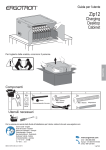
1
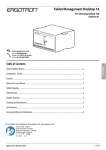
Tablet Management Desktop 16
for Samsung Galaxy Tab
Active 8.0”
Table of Contents
ENGLISH
Hazard Symbols Review ........................................................................................................................ 2
Components & Tools ............................................................................................................................. 2
Features ................................................................................................................................................ 2
Optional Security Mount ....................................................................................................................... 3
Tablet Charging ..................................................................................................................................... 4
LED Indicators ....................................................................................................................................... 5
Trouble Shooting .................................................................................................................................. 5
Cleaning and Maintenance.................................................................................................................... 6
Specifications ........................................................................................................................................ 7
Service and Warranty Information ........................................................................................................ 8
For the latest User Installation Guide please visit: www.ergotron.com
User's Guide - English
Guía del usuario - Español
Manuel de l’utilisateur - Français
Gebruikersgids - Deutsch
ユーザーガイド : 日本語
用户指南 : 汉语
888-33-377-G-00 revB • 04/15
1 of 8
Safety Hazard Review
These symbols alert users of a safety condition that demands attention. All Tablet Management Desktop 16 users should be able to recognize
and understand the significance of the following Safety Hazards if encountered on the Desktop 16 or within Desktop 16 documentation. Children who are not able to recognize and respond appropriately to Safety Alerts should not use the Desktop 16 without adult supervision!
Symbol
Signal Word
Level of Hazard
NOTE
A NOTE indicates important information that helps you make better use of
your Desktop 16.
CAUTION
A CAUTION indicates either potential damage to hardware or loss of data
and tells you how to avoid the problem.
WARNING
A WARNING indicates either potential for property damage, personal
injury, or death.
ENGLISH
ELECTRICAL
An Electrical indicates an impending electrical hazard which, if not
avoided, may result in personal injury, fire and/or death.
Components
Tools
One Tablet Management Desktop Unit includes 2 Keys,
Power Cord, Security Mounting Kit: M6 security screw
(Quantity 2), washer (Quantity 2), and security wrench.
Electric Drill and 1/4” or 17/64” (6.5 mm) Drill Bit
Measuring Tool, Pencil
Features
LED Power Indicator
Individual Status Indicators (ISI)
Tablet Access Door
Keyed Lock
USB Port
Kensington Lock
Fan
Power Cord Inlet
2 of 8
888-33-377-G-00 revB • 04/15
Security Mounting Kit Option
For mounting the Desktop 16 to a work surface (desktop, countertop, table, etc.)
1
Place Desktop 16 on
surface in desired
location.
CAUTION: mounting
surface cannot
exceed 1” (25.4 mm
thick).
Wall
Mounting
Hole
≤ 1” (25.4mm)
Mounting
Hole
2
Remove the Desktop 16.
Use a pencil to mark the
mounting hole locations.
11.5”
292 mm
Wall
Mounting
Hole
440 mm
3
Drill two mounting holes
using a 0.266” OD drill bit.
4
ENGLISH
17.32”
Mounting
Hole
Use the security wrench to insert
provided M6 screws and washers.
1/4” or 17/64”
(6.5 mm)
888-33-377-G-00 revB • 04/15
3 of 8
Tablet Charging
5
Insert Samsug Galaxy Tab Active into Desktop 16. Screen should be facing to left and pen side
should be inserted first for a correct connection.
ENGLISH
NOTE: Product is designed for use with
case that ships with Samsung Galaxy Tab
Active 8.0”. Please verify case is installed.
6
To begin charging the tablets, plug in the Desktop 16 power cord from
the Desktop 16 into the wall outlet.
The power cord is used to turn the Desktop 16 power on and off.
Charging occurs whenever the power cord is connected.
NOTE: The Desktop 16 power cord acts as the connect/disconnect device switching power on and off.
7
8
9
4 of 8
Verify blue power LED is not flashing
Verify ISI is on and solid.
Close door and lock when done.
888-33-377-G-00 revB • 04/15
LED - Indicators
Power Indicator – communicates sync and charge status with the following signals:
Off
=
No power to the Desktop 16.
On - solid
=
Galaxy Tab Active devices are charging.
=
Fault Status. Please make sure the Samsung Galaxy Tab Active 8.0”
is seated correctly within unit and cart is operating within specified
operating temperature. Contact Ergotron Customer Support
if problem continues.
On - fast blink
Individual Status Indicators (ISI) – sequentially numbered LEDs corresponding to each tablet in the Desktop 16:
ENGLISH
Green = Fully charged.
Amber = Charging in progress.
Trouble Shooting
Blue Power On LED Flashing: Samsung Galaxy Tab Active 8.0” possibly inserted incorrectly. Try
reinserting, verifying the screen is facing to the left.
888-33-377-G-00 revB • 04/15
5 of 8
Cleaning and Maintenance
Desktop 16 and Equipment Electric Safety
There are specific risks associated with the use of equipment having power cables.
You must be aware of, and avoid these risks when the Desktop 16 is located in
close proximity to children.
WARNING: Failure to observe the following Electrical Safety notices can
result in fire or death by electric shock.
ENGLISH
Electrical cables can be hazardous. Misuse can result in fire or death by
electrical shock.
• Double Pole / Neutral Fusing
• Inspect power cables thoroughly before each use.
• Do not use cables that are damaged.
• Insert the plug completely into the outlet.
• Grasp the plug to remove from the outlet.
• Do not unplug by pulling on the cable.
• Do not use excessive force to make connections.
• Do not plug the cable into an extension cable.
• Do not remove, bend or modify any metal prongs or pins of cable.
• Do not drive, drag or place objects over the cable.
• Do not walk on the cable.
• Avoid overheating. Uncoil the cable and do not cover it with any material.
• Do not run cable through doorways, holes in ceilings, walls or floors.
Keep the Desktop 16 away from water.
• Do not use it when wet.
• Do not place the Desktop 16 in close proximity to flammable liquids or
gases.
The Desktop 16 power cord acts as the connect/disconnect device switching power on and off.
6 of 8
Desktop 16 Use Safety
There are specific risks associated with the use of Desktop 16 when moving or
stationary (for charging or storage). You must be aware of, and avoid these risks
when the Desktop 16 is located in close proximity to children.
WARNING: Failure to observe the following Desktop 16 Use Safety notices
may result in serious personal injury or equipment damage.
Do not allow children to move the Desktop 16.
• Do not allow anyone to sit, stand, or climb on the Desktop 16.
• Do not block the fans and vent openings. To prevent overheating, leave at
least 102 mm (4-inch) clearance around fans and vents.
The Desktop 16 is designed to be used indoors only.
• Do not use the Desktop 16 to transport or store equipment other than
what has been noted in this guide.
• Do not use the Desktop 16 to store liquids or cleaning supplies.
• Do not place heavy objects on the Desktop 16 surface.
– The maximum weight capacity of the top surface is 25 lb (11.3 kg).
Moving the Desktop 16
Before moving the Desktop 16:
1. Disconnect the power cable from the wall.
2. Close and lock the doors.
3. Remove notebook and other items from the top work surface.
Two people are required to lift the Desktop 16; use caution when lifting
the Desktop 16 to prevent muscle strain.
Desktop 16 Placement
Observe these safety alerts for times when the Desktop 16 is stationary:
• Do not place Desktop 16 on an object or surface that cannot support its
weight: 28.5 lbs (13 kg).
• Do not run cables through doorways, holes in ceilings, walls, or floors.
• Do not run cables across hallways, classrooms, or other areas where they
will be walked on.
• Do not leave Desktop 16 unattended in areas where children have access.
• Keep Desktop 16 doors closed and locked whenever it is unattended or
parked for charging or storage.
888-33-377-G-00 revB • 04/15
Specifications
This device complies with Part 15 of the FCC Rules. Operation is subject to the following two conditions:
1) This device may not cause harmful interference.
2) This device must accept any interference received, including interference that may cause undesired operation.
CAN ICES3(A)/NMB-3(A).
Changes or modifications not expressly approved by the Ergotron could void the user's authority to operate the equipment.
Intended for institutional use.
Desktop 16 dimensions
18.3 W x 16.2 D x 10.4 in H
(46.5 x 41 x 26.4 cm)
Desktop 16 weight (w/o equipment)
28.5 lb (13 kg)
Desktop 16 Rated weight capacity
Top Work Surface
25 lb (11.3 kg)
Cooling/ventilation
One 5-volt DC continuous operation fan
Environmental
Temperature range:
Operating 0° to 40°C (32° to 104°F)
Storage -40° to 60°C (-40° to 140°F)
Relative humidity (maximum):
Operating 10%–90% (non condensing)
Storage 5%–95% (non condensing)
Altitude (maximum): 2000 m (6,562 ft)
ENGLISH
LED status indicators (ISI)
Lights indicate charge status
Desktop 16
16 LED lights
Power System
100-240 V~, 3.0A, 50/60 Hz
Compatibility:
Samsung Galaxy Tab Active 8.0” only.
Shipping dimensions
21.2 W x 18.6 D x 12.8 in H (53.8 x 47.3 x 32.5 cm)
Shipping weight
33.5 lb (15.0 kg)
888-33-377-G-00 revB • 04/15
7 of 8
Service and Warranty
For local customer care phone numbers visit: http://contact.ergotron.com
NOTE: When contacting customer
service, reference the serial number.
www.ergotron.com
MADE IN CN
12-345-678
ENGLISH
1234567-1234
© 2015 Ergotron, Inc. All rights reserved.
8 of 8
888-33-377-G-00 revB • 04/15