1
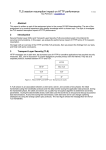
Installation Manual Version: 3.1.3 August 2013 www.oncaring.com Welcome We hope that the onAll platform will be a useful tool that will allow you to offer better care to your customers. If you find anything that you would like to see improved in the product or if you have any suggestions or comments, please report them to the onCaring team. This document version applies to the Release 3.1.2 of the onAll product. August 2013 www.oncaring.com Page 2 of 21 Table of Contents: Introduction ........................................................................................................................ 4 Wireless network .............................................................................................................. 4 onAll Server ......................................................................................................................... 5 Requirements .............................................................................................................................. 6 Installation Steps ........................................................................................................................ 7 Step 1 – Prepare Installation .............................................................................................................. 7 Step 2 – Install the components: Database, Front-‐End & Back-‐End .................................. 7 Step 3 – Back-‐end configuration .................................................................................................... 13 configuration.xml ......................................................................................................................... 13 ekahauConfig.xml ......................................................................................................................... 14 constants.rb .................................................................................................................................... 15 wiseware.xml ................................................................................................................................. 15 Step 4 – Location server .................................................................................................................... 16 onAll Devices .................................................................................................................... 17 Ekahau devices ......................................................................................................................... 17 Wiseware device ...................................................................................................................... 17 Android device ......................................................................................................................... 19 Troubleshooting ............................................................................................................. 21 log4j.properties ..................................................................................................................................... 21 August 2013 www.oncaring.com Page 3 of 21 Introduction This document describes the necessary information to install and configure the onAll system. It has two major parts: 1. onAll server – describe the installation steps of the software part of the system. 2. onAll devices - describes the preparation steps for each type of device that is integrated with the onAll core system. Wireless network The onAll system works based on a wireless infrastructure. All the considerations for its setup and configuration are not covered in this document. For further detail on this subject, please check the document named Wi-Fi Network Best Practices. August 2013 www.oncaring.com Page 4 of 21 onAll Server This section describes the necessary steps to install the software part of the onAll system in a Microsoft Windows environment. The onAll system has 4 major components: 1. Database 2. Front-end 3. Back-end 4. Location server Location Server Database Front-‐ end Back-‐end The 3 first components: Database, Front-End and Back-End are automatically installed in only one step. The Location Server module is installed separately. The installation procedures for both steps are described below. August 2013 www.oncaring.com Page 5 of 21 Requirements The onAll platform needs the following infrastructure to work: For the onAll core (Front-end, Back-end and Database), it is necessary to fulfil the following requirements: Minimum system: • Single core processor (Intel® Pentium® 4 or equivalent), 2.4 GHz • 1 GB RAM • Windows® 7 Professional Recommended System: • Dual core processor (Intel® Core® 2 Duo), 2.10 Ghz • 2 GB RAM • Windows® 7 Professional For the Ekahau location server, the configuration should be evaluated for installations aimed to control a high number of customers. For the Location server the requirements are: Minimum system: • Intel® Pentium® processor, 2GHz • 1 GB RAM • Minimum free space on hard disk: 500 MB • Windows ® XP Professional 64 bits, Windows ® 2000 or Windows ® 2003 Server 64 bits Recommended System for a monitoring are up to 5.000 m2 or up to 100 devices: • Intel® Pentium® 4 • 1 GB RAM • Windows® 7 Professional 64 bits Recommended System for a monitoring are up to 50.000 m2 or up to 500 devices: • Intel® Pentium® 4 or Intel® Xeon® • 1 GB RAM • Windows® 7 Professional 64 bits or Windows Server® 2008 64 bits Recommended System for a monitoring bigger then 50.000 m2 or with more than 500 devices: • Intel® Xeon® • 2 GB RAM August 2013 www.oncaring.com Page 6 of 21 • Windows® 2008 Server 64 bits It is also possible to have all components running in one server only. Installation Steps Step 1 – Prepare Installation Get the CD with the complete installation package from onCaring team. Firewall Ports The following ports should be open on the firewall in order for onAll to work properly: Port 80 443 8182 9090 8552 8553 8550 5432 5003 Protocol tcp tcp tcp tcp udp udp tcp tcp udp Description onAll web access onAll web access Android application Android application Ekahau Ekahau Ekahau PostgreSQL Wiseware Step 2 – Install the components: Database, Front-End & Back-End The database is PostgreSQL; the front-end runs on Ruby and the back-end framework is the knopflerfish, an open-source OSGI service platform. All of the installation files that are necessary are available in the installation CD. And the installation procedure for these components is very easy to follow in a Next-Next approach with very few input options. 1. Run the executable file named install.exe that is located in the root of the CD. You should get a welcome message marking the beginning of the installation. Click Next. August 2013 www.oncaring.com Page 7 of 21 2. On the License Agreement dialog box, make sure that the option for the acceptance of the terms is selected and click Next. August 2013 www.oncaring.com Page 8 of 21 3. Select one or more components to install, according to the options: • For the onAll Back-End Runtime environment: • For the onAll Front-End Runtime environment: • For the onAll Database: • For the onAll Back-End Runtime: August 2013 www.oncaring.com Page 9 of 21 • For the onAll Front-End Runtime: • For the onAll Front-End Runtime: You can see the amount of needed disk space required the components being installed. Once the intended components are selected click Next August 2013 www.oncaring.com Page 10 of 21 4. Select a folder for the installation location (e.g., C:\onCaring) and click Next. Important Note: In case he product is installed in a folder containing brackets, for example C:\Program Files (x86), then the following steps must be done: ü Go to command line and run command “dir/x” in order to retrieve the short name for that directory (ex. progra~2); ü Go to onAll installation directory and go to runtime\apache\conf\extras; ü Edit the file httpd-ssl.conf; ü Search for the line, normally line 62, with: SSLSessionCache "shmcb:C:\Program Files(x86)/onCaring/runtime/apache/ logs/ssl_scache(512000)" And change the folder with the brackets for the short name, so that it looks like this: SSLSessionCache "shmcb:C:\progra\~2/onCaring/runtime/apache/ logs/ssl_scache(512000)" Do not forget to escape the symbol ~ with \ like shown above. August 2013 www.oncaring.com Page 11 of 21 5. The installation process runs and gives a success message when concluded. Click Finish to leave the installation wizard. August 2013 www.oncaring.com Page 12 of 21 Step 3 – Back-end configuration There are 4 configuration files: 1. configuration.xml (located in folder c:\etc\vitalsen\) 2. ekahauconfig.xml (located in folder c:\etc\vitalsen\) 3. constants.rb (located in folder \onAll\web\config\initializers\) 4. wiseware.xml (located in folder c:\etc\vitalsen\) The detail about the possible configurations that can be done in each one is detailed below. configuration.xml • • • • • • • Heart Rate: The interval between consecutive heart rate readings Temperature: The period where the system will ask the devices for a new temperature measurement Weight: The period where the system will ask the devices for a new weight measurement BP: The period where the system will ask the devices for a new blood pressure measurement Promote-Event: The time it takes for an event to be escalated Escort-Time: The time after witch the users will be warned that an escort is taking too long This represents the database configuration for the installation performed earlier and should not need to be change, unless you are using your own database installation username password apiID • Allows the system to send SMS, (example: the SMS that is sent to the Administrator as the last step of escalation of an alarm). You must fill the credentials from the Clickatell service account from the organization. If you do not have one you can create it on https://www.clickatell.com/. August 2013 www.oncaring.com Page 13 of 21 ekahauConfig.xml Configuration of the access to the Location server and the interpretation of some parameters of the Ekahau devices. • • • port – Ekahau’s RTLS port (8550 by default) host - Location server ip username and password – credentials to access Location server • low-battery-level and depleted-battery-level – battery level in % that are interpreted by the onAll as low level and depleted level. Configuration of the caregiver device: o unreachable – the interval, in seconds, since the last communication, after which the device is considered out of range. o yank-propagation – area considered for sending the request for help from one caregiver to the other caregiver devices (all the caregivers in the same floor, the entire facility or none that means that no alarm is sent). • Configuration of the wrist device (for customers): o unreachable – how long after will the onAll platform wait after missing contact with the device to interpret the device as being out of range. • August 2013 www.oncaring.com Page 14 of 21 constants.rb To configure the path to the Location Server (by default it is located in localhost:8550). wiseware.xml To configure the belt clip device. Explanation of each parameter can be found inside of the file as shown in the next example. August 2013 www.oncaring.com Page 15 of 21 Step 4 – Location server This step can be optional if the institution already has Ekahau services and the onAll application will use that same instance. In this situation only the previous Back-end configurations must be setup. To install the Ekahau component, just run the executable named Ekahau RTLS-6.0.2-Setup.exe located in the root of the installation CD, accepting all default options. After the server is installed, you are able to run the survey to map the areas that are going to be monitored according to what was defined initially. For details about how to run the survey check the Wi-Fi Network Best Practices. Once the survey it is concluded, it will be necessary to associate the identification of the areas given by Ekahau to the ones already inserted in the table with the Locations that must be done by editing directly the table in the database. August 2013 www.oncaring.com Page 16 of 21 onAll Devices In this section you can find some specific configuration that need to be done on a device level for each type of device that is used with the onAll platform. Ekahau devices The Ekahau devices already come preconfigured by onCaring and they are automatically added to the onAll platform for usage as soon as they start communicating with the system. Further information about these devices, please contact the onCaring support team. Wiseware device Follows the description of the configuration steps needed in order to setup the communication of the Wiseware devices with the onAll platform. Connect your computer from the USB port to the serial port of the device and establish the connection using Putty or another remote communication tool with the following options: o Connection type: Serial o Serial Line: Com1, COM2, … o Speed (transmission rate): 230400 bps Click OPEN to create the connection. August 2013 www.oncaring.com Page 17 of 21 If the device is turned on, the command window will appear automatically. If the device is off (which usually is), then you must click continuously on the help button until the red leds turn on and then change to blue, the command window appears then. August 2013 www.oncaring.com Page 18 of 21 The window shows the list of commands that can be executed: the number to issue the command followed by the description of the action. You just have to enter the number correspondent (without clicking Enter) to trigger the action you want to perform. Regarding option “2: Change security”, the supported encryptions are WEP-40 (or WEP-64), WEP-104 (or WEP-128) and WPA/WPA2. Note1: If there is a mistake writing the data needed for a specific option you will not be able to correct it (the backspace will not work) and you need to reenter the command. Note2: the command window will not stay open for a long period of time if there is a period of inactivity (it assumes option “9: Exit without saving” and the window is closed. Android device The Android mobile phone that will be used as the caregiver device needs to be prepared before handed to a caregiver so that there is a smoother adoption. Install the application in the mobile phone. You will find the application on Google Play (https://play.google.com/store/apps/details?id=com.oncaring.onall.caregiver). After installed the application is not launched automatically, you will need to start it manually and reboot the device. After this first launch, the app will start automatically each time the device is turned off. The Caregiver user will not be able to stop the app without knowing the settings access code (pin). By default this pin code is 0000. There are some Settings options accessible through the app menu that allows the Administrator user to configure some parameters: 1. onAll generic configuration • Hostname • Port • Connection Timeout • Retry • Alive • Wi-Fi Scan – for location purposes • Wi-Fi Update - time to send Wi-Fi scans for location updates • Rest Settings o Port o Timeout • Movement Settings o Use Motion – if enabled allows the device motion to trigger actions o Location Threshold - The lower the value the more frequent locations updates due to location will happen August 2013 www.oncaring.com Page 19 of 21 2. Ekahau configuration: • Hostname • Ekahau Location Port • RTLS o Username and Password o RTLS Port o Connection Timeout In the Setting menu you will also be able to find the Close Application action. August 2013 www.oncaring.com Page 20 of 21 Troubleshooting For advanced troubleshooting, selective logging with different severity levels can be configured in the file log4j.properties, located in the folder \onAll\srv\osgi\conf\. log4j.properties Configuration for logging. More details about this file http://logging.apache.org/log4j/1.2/manual.html August 2013 www.oncaring.com can be found at: Page 21 of 21