1
300Mbps Wireless USB Adapter User Guide
300Mbps Wireless USB Adapter User Guide
Copyright Statement
is
the
registered
trademark
of
Shenzhen Tenda Technology Co., Ltd. All the products
and
product
trademarks
names
or
mentioned
registered
herein
trademarks
are
of
the
their
respective holders. Copyright of the whole product as
integration, including its accessories and software,
belongs to Shenzhen Tenda Technology Co., Ltd.
Without the permission of Shenzhen Tenda Technology
Co., Ltd, any individual or party is not allowed to copy,
plagiarize, imitate or translate it into other languages.
All the photos and product specifications mentioned in
this guide are for references only. As the upgrade of
software and hardware, there will be changes. And if
there are changes, Tenda is not responsible for
informing in advance. If you want to know more about
our product information, please visit our website at
www.tenda.cn.
300Mbps Wireless USB Adapter User Guide
Table of Content
Chapter 1 Introduction.................................................. 1
1.1
1.2
1.3
1.4
Product Feature ....................................2
Product Deployment ..............................3
Indicator Description .............................4
Package Contents .................................4
Chapter 2 Installation Guide....................................... 5
Chapter 3 Client Utility Interface............................ 10
3.1 Station Mode............................................ 10
3.1.1 Station Mode Topology ...................... 11
3.1.2 Status ............................................ 12
3.1.3 Site Survey ..................................... 13
3.1.4 Profile Management.......................... 15
3.1.5 Statistics ........................................ 17
3.1.6 WPS Setting.................................... 17
3.2 AP Mode .................................................. 19
3.2.1 AP Mode Topology ............................ 19
3.2.2 Basic Setting ................................... 20
3.2.3 Security Setting ............................... 21
3.2.4 Access Control................................. 22
3.2.5 About............................................. 24
Appendix One: Acronyms and Terms.................... 25
Appendix Two: Product Specification ................... 28
Appendix Three: How to connect with PSP........ 29
Appendix Four: How to Set WPS........................... 34
300Mbps Wireless USB Adapter User Guide
Chapter 1 Introduction
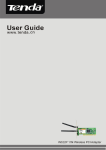
W322U is a Wireless USB Adapter with up to 300Mbps
transmitting rate. It adopts the very latest wireless
standard—IEEE802.11n,
which
perfectly
complies
downward with IEEE802.11g/b standards, efficiently
reduces the “dead spots” in wireless area and widely
multiplies the wireless coverage area.
W322U
is suitable both for desktop and notebook
computers. Its transmitting rate can reach up to
300Mbps and its transmitting time in LAN will be greatly
shortened when connected to Tenda W306R 11N
Wireless Router. It responds immediately and keeps
smooth
when
you
are
searching
web
pages,
downloading, gaming and watching video on line.
All in all, W322U is a cost-effective 300Mbps Wireless
USB Adapter with robust signal, farther transmitting
distance and stable performance.
1
300Mbps Wireless USB Adapter User Guide
1.1
Product Feature
•
Supports 300Mbps wireless receiving and
transmitting rate
•
Complies with the latest 802.11n and
802.11b/g standards
•
Provides USB2.0 port
•
Supports 20MHz/40MHz frequency width
•
Detects wireless network and changes
transmitting rate automatically
•
Provides two working modes: Infrastructure
and Ad-Hoc
•
Supports 64/128-bit WEP and
WPA/WPA2/802.1x encryption methods
•
Supports WPS (Wi-Fi Protected Setup)
encryption to secure wireless network strongly
•
Complies with Windows 2000/XP/Vista, Linux,
MAC OS, etc.
•
Supports WMM to smooth your audio and video
2
300Mbps Wireless USB Adapter User Guide
1.2
Product Deployment
W322U Wireless USB Adapter offers fast,
reliable and cost- effective solution for wireless
access. Deployment as follows;
•
For staff who requires higher mobility in the
office, they want to have access to traditional
wired or wireless network in any place of the
company;
•
Enterprise or individual who requires often
changes in lay out of network cables;
•
Companies or places which are not suitable for
LAN cable laying out because of budget or
objective building, including places of great
interests, rent places or places for short-term
usage;
•
Company or individual who avoids using
expensive cables, renting cables or renting
rights for access.
3
300Mbps Wireless USB Adapter User Guide
1.3
Indicator Description
In the front panel of W322U , there is a LED indicator
blinking when data communication is going on.
1.4
Package Contents
Unpack the packets, and please find the following
items:
Ø
One W322U 300Mbps Wireless USB Adapter
Ø
One CD-ROM
4
300Mbps Wireless USB Adapter User Guide
Chapter 2 Installation Guide
This chapter is to assist you how to use the included
CD-ROM which comprises the Setup Wizard and the
Client Utility Interface.
The following steps on Setup Wizard are taken the
Windows XP as example.
1.
Please insert the Wireless USB Adapter into the
USB port of your computer.
2. “Found New Hardware” system dialogue appears,
and selects “Cancel” to use the included Setup
Wizard for fast installation; of course, you also can
select “Next” to install by manual.
5
300Mbps Wireless USB Adapter User Guide
3. Inert the included CD-ROM into the CD-ROM drive
of your computer, and the Welcome screen
appears.
(If
not
appear,
“W322U .exe” icon.)
6
double
click
the
300Mbps Wireless USB Adapter User Guide
4. Click “Enter”.
5. Click “Next” to start installing.
7
300Mbps Wireless USB Adapter User Guide
6. Click “Change…” to select the directory path, or
click “Next”.
7. Select “OK” and “Next” in the following window.
8. During the installation, the following dialogue maybe
8
300Mbps Wireless USB Adapter User Guide
appears. Click the “Continue Anyway” to continue.
There is no security threat to your computer.
9. Click “Finish” to complete the installation.
9
300Mbps Wireless USB Adapter User Guide
Chapter 3 Client Utility Interface
This software is for the W322U Wireless USB Adapter
management. If it does not appear, select “Start”—“All
Programs” —“Tenda”—“W322U ”, or click the shortcut
on your PC’s desktop.
Note:
In the Windows XP, you can select the included
W322U Client Utility Interface or the Windows XP
internal wireless application to configure the device.
There are two client utility applications in W322U :
Station mode and AP mode.
Note:
In this utility interface, Station Mode (Client Mode)
is the default access way.
3.1
Station Mode
10
300Mbps Wireless USB Adapter User Guide
3.1.1
Station Mode Topology
In this mode, W322U serves as a client to receive
the wireless signals to access the Internet.
11
300Mbps Wireless USB Adapter User Guide
3.1.2
Status
In the Network Status window, it displays something on
wireless adapter and wireless network status, including
SSID, Authentication type, Encryption Type, IP address,
subnet mask and gateway and so on.
12
300Mbps Wireless USB Adapter User Guide
3.1.3
Site Survey
The Site Survey is used to scan the available wireless
network around, showing the wireless network’s signal
strength and other information which provides basis for
you to access which wireless network.
Connect: select one entry in the wireless network
list and click the button to connect the device with
the selected network.
Refresh: rescan the wireless network around.
13
300Mbps Wireless USB Adapter User Guide
14
300Mbps Wireless USB Adapter User Guide
3.1.4
Profile Management
This window saves the general wireless parameters for
different profiles, which is used to fast connect the
wireless network you need.
UP/DOWN: To change the profile’s sequence in the
list.
Connect: To activate one profile.
New: To create a new profile and configure the site
status and security setting.
Modify: To modify one existing profile.
Delete: To delete one existing profile.
15
300Mbps Wireless USB Adapter User Guide
(Site Status)
(Security Setting)
16
300Mbps Wireless USB Adapter User Guide
3.1.5
Statistics
Statistics is used to summarize Rx and Tx data packets,
including the success and error packet amount.
Clear: click this button to renew the statistics.
3.1.6
WPS Setting
WPS setting is enabled only on WPS-compliant devices.
17
300Mbps Wireless USB Adapter User Guide
PIN
Enter the Pin code and click the “PIN” to
automatically connect the wireless adapter with
wireless devices around.
PBC
Click the “PBC” to complete auto-check and
connections between wireless adapter and other
wireless device.
Refresh: to update the Pin code.
Rescan: to rescan the WPS-compliant wireless
network around.
Disconnect: to disconnect the connected wireless
network.
18
300Mbps Wireless USB Adapter User Guide
3.2
3.2.1
AP Mode
AP Mode Topology
The device also can serve as an access point to transmit
wireless signals and create wireless network, allowing
other wireless clients to access the network.
Click the AP Mode icon to enter the AP Mode interface.
19
300Mbps Wireless USB Adapter User Guide
3.2.2
Basic Setting
This window is used to configure the AP’s basic parameters, including SSID, Wireless Mode and Channel.
SSID: Wireless network’s ID name scanned by
wireless adapter.
Wireless Mode: 802.11b/802.11g/802.11b/g
mixed.
Channel: 1~11 channels provided.
Restore Default: to restore the set parameters to
default factory default settings.
Apply: to make the changes made take effect.
20
300Mbps Wireless USB Adapter User Guide
3.2.3
Security Setting
This window is used to configure the wireless network’s
security authentication, providing WEP, WPA-PSK,
WPA2-PSK,
and
WPA-PSK/WPA2-PSK
encryption
methods.
WEP 10/26 bits Hex or 5/13 ASCII support.
WPA-PSK 8~32 bits ASCII support.
WPA2-PSK 8~32 bits ASCII support.
WPA-PSK/WPA2-PSK 8~32 bits ASCII support.
21
300Mbps Wireless USB Adapter User Guide
Note:
1. The Hex characters include 0~9 numbers and
a~f letters.
2. ASCII characters include any numbers/letters
and characters.
3.2.4
Access Control
Access Control is based on the MAC address to decide
that the specified client connects to the wireless
network, or disables it to access the wireless network.
22
300Mbps Wireless USB Adapter User Guide
Filter Policy:
Disabled: to disable the filter function.
All Permitted: to permit all clients in the list to
access the wireless network.
All Blocked: to refuse all clients in the list to
access the wireless network.
MAC Address to input the client’s MAC address to
implement the corresponding filter policy. For
example: b0000a8cd702.
Add: to add the entered MAC address into the list.
Delete: to delete one existing MAC address in the
list.
Remove All: to delete all clients’ MAC address in
the list.
Apply: to make the changes made take effect.
23
300Mbps Wireless USB Adapter User Guide
3.2.5 About
This window displays something about software
version and wireless adapter.
24
300Mbps Wireless USB Adapter User Guide
Appendix One: Acronyms and Terms
WLAN
802.11
Wireless Local Area Network
A family of specifications developed by
the IEEE for WLAN technology.
802.11a
An extension to 802.11 WLAN standard
that provides up to 54 Mbps transmis- sion
in the 5 GHz UNI radio band.
802.11b
An extension to 802.11 WLAN standard
that provides up to 11 Mbps transmission in
the 2.4 GHz ISM radio band. 802.11b uses
DSSS modulation.
802.11g An extension to 802.11 WLAN standard that
provides up to 54 Mbps transmission in the
2.4 GHz ISM radio band. 802.11b uses
OFDM modulation and is backwards
compatible with 802.11b.
Ad-Hoc
A group of computers each with wireless
adapters, connected as an independent
WLAN.
AES
Advanced Encryption Standard
BSSID
Basic Service Set ID
25
300Mbps Wireless USB Adapter User Guide
DHCP
Dynamic Host Configuration Protocol
DSSS
Direct Sequence Spread Spectrum. DSSS is
one of two types of spread spectrum radio.
The other is frequency-hopping spread
spectrum (FHSS).
QoS
Quality of Service
OFDM
Orthogonal Frequency Division Multiplexing
RADIUS Remote Authentication Dial In User Service
RTS
Request to Send
SSID
Service Set Identifier. A 32-character unique
identifier attached to the header of packets
sent over a WLAN that acts as a password
when a mobile device tries to connect to the
BSS.
TCP/IP
Transmission
Control
Protocol/Internet
Protocol
TKIP
Temporal Key Integrity Protocol
WDS
Wireless Distribution System
WEP
Wired Equivalent Privacy. A security protocol
for
WLANs defined in the IEEE 802.11 standard.
WPA
Wi-Fi Protected Access
26
300Mbps Wireless USB Adapter User Guide
WPA2
Wi-Fi
Protected
Access
2.
The
next
generation of
Wi-Fi
security,
based
on
the
802.11i
standard.
WPA2-PSK Wi-Fi Protected Access 2-Pre-shared
Keys
WPA-PSK
Wi-Fi Protected Access-Pre-shared Keys
27
300Mbps Wireless USB Adapter User Guide
Appendix Two: Product Specification
Standard
IEEE802.11g, IEEE802.11b,
IEEE802.11n
Port
USB2.0
Frequency Range
2.4 2.4835GHz
Transmission Rate
Transmission
Power
Provides 300Mbps receiving rate
and 300Mbps sending rate
Max. 18dbm
Modulation Method
OFDM, CCK
Working Temper.
0
Storage Temper.
-40
Working Humidity
10 90 RH non-condensing
40
70
28
300Mbps Wireless USB Adapter User Guide
Appendix Three: How to connect with
PSP
1.
Topology of PSP connecting with W322U
2.
To configure PSP with Ad-Hoc mode
2.1 Select Network Settings
29
300Mbps Wireless USB Adapter User Guide
2.2 Select Ad-Hoc mode
2.3 Select Channel
30
300Mbps Wireless USB Adapter User Guide
3.
Scan PSP in W322U Utility Interface and double-click
to connect the wireless network.
4.
In Site Survey check “enable PSP connection mode”
box.
31
300Mbps Wireless USB Adapter User Guide
5.
To configure Xlink Kai
Select “Start”→ “All programmers” → “Xlink Kai
Evolution VII” → “Start Kai Config” to configure the
user name, password and other parameters as
follows.
32
300Mbps Wireless USB Adapter User Guide
6.
Login Xlink Kai
Select “Start”→ “All programmers” → “Xlink Kai
Evolution VII” → “Start Kai”. PSP will connect with Xlink
Kai automatically. The following window will indicate
the connection is established well now.
33
300Mbps Wireless USB Adapter User Guide
Appendix Four: How to Set WPS
The adapter supports PBC and PIN code modes for WPS
settings. The setting steps of the two modes will be
introduced in detail. (The following connections take
Tenda W306R Wireless Router for example.)
1. Wireless Connection in PBC Mode
1.1 Keep pressing the WPS button on the Router’s
panel for one second or login to the Router’s
Web interface and select “PBC” on the WPS
Setting page, then click “Apply” button. (The
WPS indicator will keep blinking for 2 minutes.
34
300Mbps Wireless USB Adapter User Guide
It indicates that the function is enabled.
During the interval, wireless adapter can
negotiate with the Router in WPS/PBC mode.
After two minutes, WPS indicator will be off.)
1.2 Click the “Rescan” button on the UI of the adapter
to scan the wireless signal of the Router which needs to
be connected.
35
300Mbps Wireless USB Adapter User Guide
1.3 First please select and click the needed wireless
signal. Then click “PBC” button on the UI. (If you use
the WPS button on the adapter, you just need to keep
pressing it for one second.) Now the adapter will
negotiate and connect with the wireless Router
automatically.
36
300Mbps Wireless USB Adapter User Guide
1.4 When the connection is established, the “Status” on
the connection information page will show “Connected”
and other information such as IP address will appear.
37
300Mbps Wireless USB Adapter User Guide
38
300Mbps Wireless USB Adapter User Guide
2. Wireless Connection in PIN Mode
2.1 Copy the Pin Code (It shows 97882459 on the UI
and you can also click “Renew” button to renew PIN
Code.) on the UI of the adapter to the WPS Setting page
of W306R, and then click “Apply” button. (Now the WPS
indicator of the Router will keep blinking for about 2
minutes. It indicates that WPS function is enabled.)
39
300Mbps Wireless USB Adapter User Guide
2.2 Click the “Rescan” button on the UI of the adapter
to scan the wireless signal of the Router which needs to
be connected.
2.3 First select and click the wireless signal which
40
300Mbps Wireless USB Adapter User Guide
needs to be connected. Then click the “PIN”
button on the UI. Now the adapter will
negotiate and connect with the wireless Router
automatically.
2.4 When the connection is established, the “Status” on
the connection information page will show “Connected”
and other information such as IP address will appear.
41
300Mbps Wireless USB Adapter User Guide
42