1
4 - Trusted Zone Security
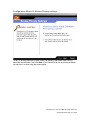
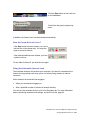
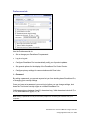
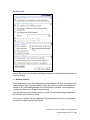
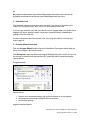
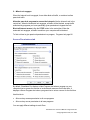
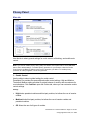
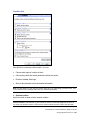
Use the slider to set the security level for the Trusted Zone.
Click the Custom button to open the Trusted Zone tab, where you can block or unblock
specific ports. See also Trusted Zone tab, page 86.
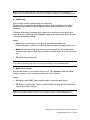
About Trusted Zone security levels
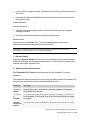
•
High security puts your computer in stealth mode. Windows (NetBIOS) services and
file and printer shares are blocked. Ports are opened only when a program you have
given access permission or server permission needs them. Programs must have
your permission in order to access the Internet or local network.
•
Medium security takes your computer out of stealth mode, making it visible to other
computers on the Internet. File and printer sharing, as well as Windows services
(NetBIOS), are enabled. Programs must still have permission to access the Internet
or local network.
•
Low security enables Windows services. Your computer is visible to others, and file
sharing is allowed. A program control is still enforced.
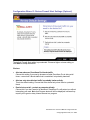
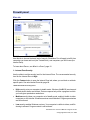
Zones tab
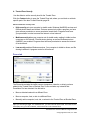
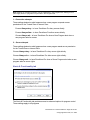
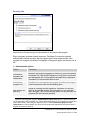
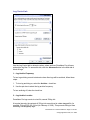
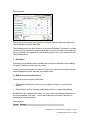
The Zones tab contains the traffic sources (computers, networks, or sites) you have
added to the Trusted Zone or Blocked Zone. It also contains any networks that
ZoneAlarm Pro has detected. Use this tab to:
•
Move a detected network to a different Zone.
•
Move a computer, host, or site to a different Zone.
•
Manually add a computer, host, site, or subnet to the Trusted Zone or Blocked Zone.
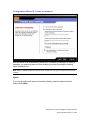
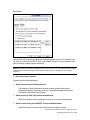
Tip If you are using a single, non-networked PC, you don't need to use this tab. The traffic source
list displays only your ISP's network, which should be in the Internet Zone.
ZoneAlarm Pro 3.0 User’s Manual—Page 82 of 138
© Copyright Zone Labs, Inc. 2002