1
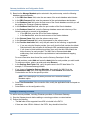
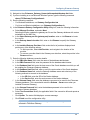
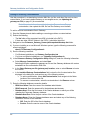
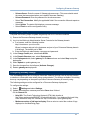
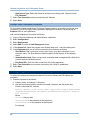
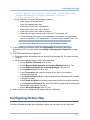
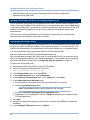
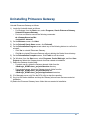
Gateway Installation and Configuration Guide 8) (Optional) If you choose to install Gateway on a managed server, enter the following information on the Managed Server Details screen: Managed Server Deployment: Select this option to deploy Primavera Gateway in a Managed server. Also specify a database service name in the Database Connection Details screen. Managed Server Port: Enter a unique port number for the managed server. Node Manager Port: Enter a unique port number for the node manager. The port number 5556 displays by default. 9) If you chose to install Primavera Gateway on a managed server, enter the MDS database connection information that was specified on running the RCU on the MDS Database Details screen: Database Host Address: Enter the host name or the server IP address for the MDS database. Database Host Port: Enter a unique port number for the MDS database schema. Database Service Name: Enter the service name to connect to the MDS database. MDS Schema Prefix: Enter the prefix that was used for the MDS schema in the RCU. MDS Schema Password: Enter the password for the MDS schema. 10) In the Gateway Administrator Details screen, create a user profile for a Primavera Gateway administrator as follows: Gateway Administrator User Name: Enter a name for the Primavera Gateway administrator. The admin user, GatewayAdmin, displays by default. Gateway Administrator Password: Enter an alphanumeric password of at least 8 characters for the Primavera Gateway administrator. Confirm Password: Re-enter the case-sensitive password. 11) On the Install Primavera Providers screen, the following Primavera providers will be installed by default: EnterpriseTrack P6 Prime Unifier Select Restore Providers to restore all primavera providers in the displayed list. Select Remove Provider to remove a selected provider from the displayed list. 12) On the Select Third Party Providers screen, select the providers you wish to install. Primavera's Sample Provider: Select this option to install the Primavera sample provider packaged with Gateway. This option is selected by default. Third-Party Providers: Select this option to add or delete alternative third-party providers. Select Add Provider to navigate and locate the home directory for each third-party provider. Ensure that the lib sub-folder includes the provider's jar file, the data sub-folder includes the metadata xml files. The optional supplement sub-folder can contain any additional files. Folder names are case-sensitive. Select Delete Provider to delete a selected third-party provider from the displayed list. 16