1
User’s Manual
CH LEARNING SYSTEM
TOU
®
Disney elements © Disney
Visit DisneyJunior.com
Dear Parent,
At VTech®, we know how much you enjoy staying on top of the hottest trends
and having the most high-tech gadgets around. We also know that your kids
feel the same way. With that in mind, we developed MobiGo®, a revolutionary
way to make learning fun with touch!
MobiGo® is the next generation of learning. Kids can control how they play,
and develop the skills of using touch applications. As kids tap, flick, spin, and
drag their way through exciting learning games, they’ll experience the same
technology and fun as parents do with their touch-screen devices.
When playing with MobiGo®, kids can look at, listen to and touch the screen
wherever they go to discover a world of fun, while developing knowledge of
numbers, letters, spelling, and music which we know is important to you.
Learning on the go is now easier than ever with MobiGo®.
At VTech®, we are dedicated to helping your children uncover their talents.
We thank you for your trust in our products that encourage active minds
through imaginative play.
Sincerely,
Your friends at VTech®
To learn more about MobiGo® and other VTech® toys, visit www.vtechkids.com
INTRODUCTION / GETTING STARTED
NOTE: This cartridge is compatible with any of the MobiGo® systems. However, some of the
games are designed to use the motion sensor and microphone controls that are only available
in the MobiGo® 2 system. If this cartridge is played on the original MobiGo®, the motion and
microphone controls will be replaced by alternate control methods.
INTRODUCTION
Welcome to Minnie’s Bow-tique! Minnie and her best friend Daisy are very busy painting
bows, preparing for a party, and decorating the Bow-tique. There’s no business like bow
business!
GETTING STARTED
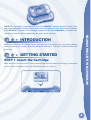
STEP 1: Insert the Cartridge
Make sure the unit is turned off. Insert the cartridge with the label side facing up, and push
it until it clicks into place. Press the ON button to turn the unit on.
2
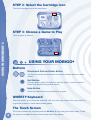
STEP 2: Select the Cartridge Icon
Touch the cartridge icon in the main menu.
STEP 3: Choose a Game to Play
USING YOUR MOBIGO®2
Touch a game to select it.
USING YOUR MOBIGO®
Buttons
Directional Pad and Enter Button
Use these to control the characters or to perform certain actions in some
games.
Exit Button
During a game, press this button to exit the game, or press it within a
menu to go back to the previous screen.
Help Button
Press this button when you need help in a game.
QWERTY Keyboard
Slide the screen up to reveal the keyboard. Use it to enter your name in the user profile or
to give the answers in some letter-related games.
The Touch Screen
3
The most common way of playing with the MobiGo® 2 is by using the touch screen. Touch
the screen to navigate the menu and to play most of the games.
Motion Controls (MobiGo® 2 only)
Move the MobiGo® as directed to perform specific actions in some games.
Microphone (MobiGo® 2 only)
Blow into the microphone to perform specific actions in some games.
SETTINGS
Options
SETTINGS / ACTIVITIES
Select Options from the main menu to turn the background
music on or off.
Level
Choose Easy or Difficult level before each game.
Reset Function
To reset the game scores and erase any progress information that is currently stored for
your cartridge, go to the main menu and type the code “RESET”. Then, press the ENTER
key. If the reset is successful, you will see the message “Score reset” appear on screen.
ACTIVITIES
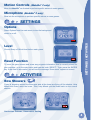
Bow Showers
Figaro is pouncing around the Bow-tique and all the bows are flying off the shelves. Help
Minnie and Daisy catch the bows. Then, help Minnie put the bows back on the correct
shelves.
Curriculum: Patterns, Observation, Sorting
4
Special Motion Operations:
Action
MobiGo® 2 (motion controls)
MobiGo® (touch controls)
Move Minnie and Daisy
left or right
Tilt the console left or right
Press left or right on the
directional pad
Bows Aglow
It’s party time! Minnie and Daisy are painting Glow Bows to decorate the Bow-tique.
Listen to the colors that Daisy wants, and then help Minnie paint them. Then, help
Minnie hang the Glow Bows in the correct spots.
ACTIVITIES
Curriculum: Colors and Color Mixing, Memory, Basic Math
Bow-Dazzling
Minnie is preparing for a fashion show. Help complete the bows before the show starts! After
you’ve finished the bow, you can see it in the Switch-a-Bow Mirror. The percentage bar tells
you how closely you matched Minnie’s design.
Curriculum: Symmetry, Shapes and Colors
© 2012 VTech
Printed in China
5
91-002461- 212
US CA
Box Up the Bows
Web Connectivity / CARE & MAINTENANCE
Daisy packs up a box of ribbit-ribbit bows, but—oh no! They all jump out! Help Minnie collect
the correct number of ribbit-ribbit bows. Then, help Minnie pack the bows in the correct
spots in the box.
Curriculum: Counting, Size Matching
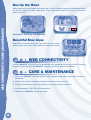
Beautiful Bow-tique
Help Minnie decorate the Bow-tique with fun new items.
Use the gems you earn in other games to unlock new items.
WEB CONNECTIVITY
Connect MobiGo® to the internet to download new games and follow your child’s learning
progress online. Refer to the MobiGo® console manual for connection details.
CARE & MAINTENANCE
1. Keep your MobiGo® clean by wiping it with a slightly damp cloth. Never use solvents or
abrasives.
2. Keep it out of direct sunlight and away from direct sources of heat.
3. Remove the batteries when not using it for an extended period of time.
4. Avoid dropping it. NEVER try to dismantle it.
5. Always keep MobiGo® away from water.
6
WARNING
WARNING:
TROUBLESHOTTING / TECHNICAL SUPPORT...
A very small percentage of the public, due to an existing condition, may experience
epileptic seizures or momentary loss of consciousness when viewing certain types
of flashing colors or patterns. While the MobiGo® Touch Learning System does not
contribute to any additional risks, we do recommend that parents supervise their
children while they play video games. If your child experiences dizziness, altered
vision, disorientation, or convulsions, discontinue use immediately and consult your
physician. Please note that focusing on an LCD screen at close range and handling
video game controls for a prolonged period of time may cause fatigue or discomfort.
We recommend that children take a 15 minute break for every hour of play.
All packing materials, such as tape, plastic sheets, packaging locks and tags
are not part of this toy, and should be discarded for your child’s safety.
ATTENTION Pour la sécurité de votre enfant, débarrassez-vous de tous les produits
d’emballage tels que rubans adhésifs, feuilles de plastique, attaches et
étiquettes. Ils ne font pas partie du jouet.
Note:
Please keep the user’s manual as it contains important information.
TROUBLESHOOTING
Please note that if you try to insert or remove a MobiGo® cartridge without first turning the
unit OFF, you may experience a malfunction. If this happens, and the unit does not respond
to pressing the ON/OFF buttons, disconnect the AC adaptor from the main unit or remove
the batteries. Then, reconnect the adaptor, or reinstall the batteries.
TECHNICAL SUPPORT
If you have a problem that cannot be solved by using this manual, we encourage you to
visit us online or contact our Consumer Services Department with any problems and/or
suggestions that you might have. A support representative will be happy to assist you.
Before requesting support, please be ready to provide or include the information below:
• The name of your product or model number (the model number is typically located on the
back or bottom of your product).
• The actual problem you are experiencing.
• The actions you took right before the problem started.
Internet: www.vtechkids.com
Phone: 1-800-521-2010 in the U.S. or 1-877-352-8697 in Canada
7
COPYRIGHT NOTICES
Copyright 2012 VTech® Electronics North America, L.L.C. All Rights Reserved. VTech® and
the VTech® logo are registered trademarks of VTech®. MobiGo® is a registered trademark
of VTech® Electronics North America, L.L.C. All other trademarks are property of their
respective owners.
IMPORTANT NOTE:
COPYRIGHT NOTICES / OTHER INFO
Creating and developing MobiGo® Touch Learning System products is accompanied by
a responsibility that we at VTech® take very seriously. We make every effort to ensure the
accuracy of the information that forms the value of our products. However, errors sometimes
can occur. It is important for you to know that we stand behind our products and encourage
you to call our Consumer Services Department at 1-800-521-2010 in the U.S. or 1-877352-8697 in Canada, with any problems and/or suggestions that you might have. A service
representative will be happy to help you.
OTHER INFO
DISCLAIMER AND LIMITATION OF LIABILITY
VTech® Electronics North America, L.L.C. and its suppliers assume no responsibility for any
damage or loss resulting from the use of this handbook. VTech® Electronics North America,
L.L.C. and its suppliers assume no responsibility for any loss or claims by third parties that
may arise through the use of this software. VTech® Electronics North America, L.L.C. and
its suppliers assume no responsibility for any damage or loss caused by deletion of data as
a result of malfunction, dead battery, or repairs. Be sure to make backup copies of important
data on other media to protect against data loss.
COMPANY: VTech® Electronics North America, L.L.C.
ADDRESS: 1155 West Dundee Rd, Suite 130, Arlington Heights, IL 60004 USA
TEL NO: 1-800-521-2010 in the U.S. or 1-877-352-8697 in Canada
8
NOTE:
This device complies with Part 15 of the FCC Rules. Operation is subject to the following
two conditions: (1) this device may not cause harmful interference, and (2) this device
must accept any interference received, including interference that may cause undesired
operation.
This Class B digital apparatus complies with Canadian ices-003.
Cet appareil numérique de la classe b est conforme à la norme nmb-003 du Canada.
This equipment has been tested and found to comply with the limits for a Class B digital
device, pursuant to Part 15 of the FCC Rules. These limits are designed to provide reasonable
protection against harmful interference in a residential installation. This equipment
generates, uses and can radiate radio frequency energy and, if not installed and used in
accordance with the instructions, may cause harmful interference to radio communications.
However, there is no guarantee that interference will not occur in a particular installation. If
this equipment does cause harmful interference to radio or television reception, which can
be determined by turning the equipment off and on, the user is encouraged to try to correct
the interference by one or more of the following measures:
• Reorient or relocate the receiving antenna.
• Increase the separation between the equipment and receiver.
OTHER INFO
• Connect the equipment into an outlet on a circuit different from that to which the receiver
is connected.
• Consult the dealer or an experienced radio/TV technician for help.
Caution:
Changes or modifications not expressly approved by the party responsible for
compliance could void the user’s authority to operate the equipment.
9