1
4.3
Change network settings
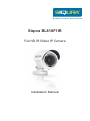
With Siqura Device Manager, you can directly change the network settings of
the BL810F1IR.
To assign a static IP address
1. Go to the list of detected devices, and then right-click the entry for the
BL810F1IR.
2. Click Change Network Settings.
3. In Change Network Settings, click Static IP.
4. Provide the camera with an appropriate IP address, netmask, and
gateway address for the desired network configuration, and then click OK.
5. In the pop-up window indicating that you have successfully changed the
settings, click OK.
6. Wait one minute, and then rescan the network.
7. To access the webpages of the camera, double-click its entry in the list of
found devices.
To assign a DHCP server
1. Go to the list of detected devices, and then right-click the entry for the
BL810F1IR.
2. Click Change Network Settings.
3. In Change Network Settings, click Enable DHCP, and then click OK.
4. In the pop-up window indicating that you have successfully changed the
settings, click OK.
5. Wait one minute, and then rescan the network.
6. To access the webpages of the camera, double-click its entry in the list of
found devices.
Note: A DHCP server must be installed on the network in order to provide
DHCP network support.
[12]