1
Booking Parties
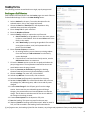
Party booking has been streamlined into a single, step by step process!
Booking as a Staff Member
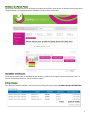
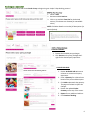
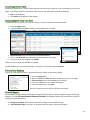
Staff members will book parties from the Parties page. Use search filters to
find available bookings or click on the New Booking button.
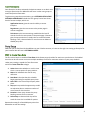
1. Select a Station for the party. To see the description for the
selected station, click on the orange help button.
2. Choose the Date and Time Slot from the dropdowns. Only
available dates and times will populate.
3. Enter a Party Title for quick reference.
4. Enter the Number of Guests.
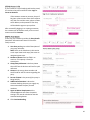
5. Attach a Family. A family is required to track financials.
a. Search Families by the guardian’s first or last name, phone
number or email address. Click the word Select next to the
family in the results.
b. Add a New Family, by entering the guardian’s first and last
name, phone number, email, and a password for the
portal. Then click Save.
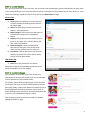
6. Enter a Person of Honor or Honoree.
a. On existing families, you can choose an existing student
from that family to +Add as Honoree from the family
section displayed.
b. If the Honoree is not listed in the Family section, use the
Add Honoree button to create one.
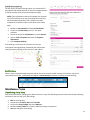
7. Fill out the Contact section to note who to speak with about the
party arrangements. The confirmation email will be sent to this
email address once the party is saved.
8. Enter any Customer or Staff Notes regarding the booking.
Customer notes will print on the form and display in emails.
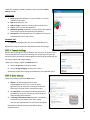
9. Choose a Package. For more info, click on Details.
10. Include any Add-ons. For more info, click on Details.
11. Select the Hosts (staff members) responsible for this party.
12. Review the Party Totals! This section breaks down the price into
the package fee, additional guests, add-on items and any taxes
charged.
13. Create a New Charge for the full party price from the Ledger
section. Parties uses the pre-selected Program and Charge
Category, the pretax amount and a tax dropdown to create the
charge. The tax does not calculate until the line item is added to
the charge or the charge is saved.
14. Create a New Payment for the deposit or full price.
15. Save the booking! This opens a prompt for the next step.
16. (Optional) Send the booking confirmation email. When an email is
sent, it will be recorded in the Booking Confirmation details.
If you forget to save, the booking info will be lost. However, any charges and payments will stay on the family’s ledger.
8