1
Microsoft® Office 97 User Manual - CH 4 - PowerPoint
Page 28 of 59
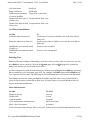
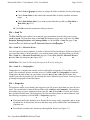
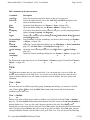
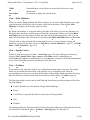
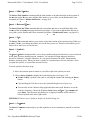
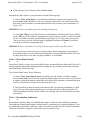
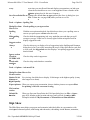
If you have Microsoft Graph installed, choose this button to create a graph (see
Insert -> Chart..., page 498).
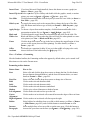
Insert Clip Art Click to open the Clip Art Gallery and double-click the graphic, sound, or motion
picture you want (see Insert -> Picture -> Clip Art..., page 496).
New Slide
Click this button and double-click the layout you want for a new slide (see Insert ->
New Slide..., page 493).
Slide Layout To reapply the master style to the current slide or change the layout of the slide,
click this button and choose a type of slide (see Format -> Slide Layout..., page
503).
Apply Design To choose a layout from another template, click this button and double-click a
presentation template file (see Format -> Apply Design..., page 505).
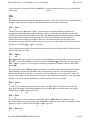
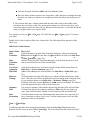
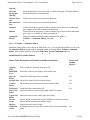
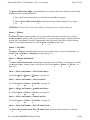
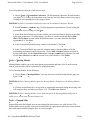
Click this button to toggle between color and black and white for the slide. The
Black and
Black and White view shows what the slides will look like when printed on a nonWhite view
color printer (see View -> Black and White, page 483).
Click the drop-down arrow or type in the box to change the magnification of what
Zoom
you see on the screen (does not affect printing). For more details, see View ->
Zoom..., page 492.
Click and type a question for help. If you are in the middle of trying to do a task,
Office
Assistant
choose from one of the bullet items (see Help, page 535).
Insert Chart
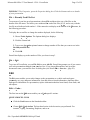
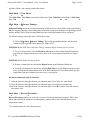
View -> Toolbars -> Formatting
Like the Standard toolbar, the Formatting toolbar also appears by default unless you've turned it off.
Most items are also on the Format menu.
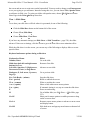
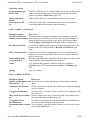
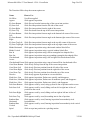
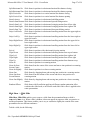
Formatting toolbar buttons
Button Name
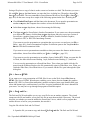
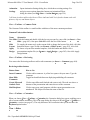
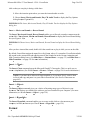
Font
How to Use
Select cells and click the drop-down arrow to change the font. For this button,
the next buttons (through Shadow), and the font size buttons below, see more
details at Format -> Font..., page 499.
Select cells and click the drop-down arrow to change size of the text.
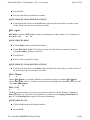
Click to make selected characters bold.
Click to make selected characters italic.
Click to make selected characters underlined.
Click to give selected characters a shadow format.
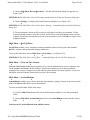
Click to make selected text line up on the left.
Click to make text in selected cells centered between the edges of the text frame.
Font Size
Bold
Italic
Underline
Shadow
Left Alignment
Center
Alignment
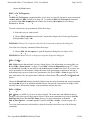
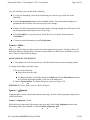
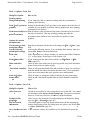
Right Alignment Click to make text in selected cells line up on the right.
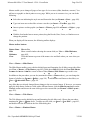
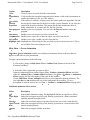
Bullets
Select bulleted or unbulleted text on a slide or slide master (see View -> Master
-> Slide Master, page 482), and click this button to turn bullets on or off.
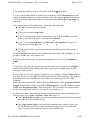
Select multiple lines of text on a slide or on the notes page. Click this button to
Increase
Paragraph
increase the space between the lines (see Format -> Line Spacing..., page 502).
file://J:\prodinfo\MEMBERS\MA\iq947.html
3/23/01