1
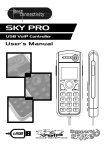
KT-100 For Skype
User Manual
KT-100 User Manual 1.0
Table of Contents
Usage of the KT-100 .................................................................... 3
LED signal .........................................................................................3
Switch LINE and USB mode..............................................................3
Answer regular Line or VoIP call........................................................3
End regular Line or VoIP call .............................................................3
Make a PSTN call..............................................................................3
Make a Skype Call.............................................................................3
Make a SkypeOut Call.......................................................................3
Make a Multi-Call...............................................................................4
Hang up a current Skype Call............................................................4
End all Skype Calls............................................................................4
Set up a conference Call ...................................................................4
End all Conference Call .....................................................................5
KT-100 Specification ................................................................... 5
Hardware features ..................................................................................5
Configuration Menu .................................................................... 5
General setting page ..............................................................................5
KT-100 Volume Control......................................................................6
Auto start up ......................................................................................6
Initial ring ...........................................................................................6
Skype window pop-out.......................................................................6
Multi-Call and Conference page ............................................................7
Multi-Call setting ................................................................................7
Conference setting ............................................................................7
Forward page ..........................................................................................8
Forward Service setting .....................................................................8
Button Setting page................................................................................8
Button setting.....................................................................................9
2
KT-100 User Manual 1.0
Usage of the KT-100
LED signal
LINE LED on: Indicates the mode of KT-100 is connected to PSTN telephone
line.
USB LED on: Indicates the mode of KT-100 is connected to PC for VoIP call
Switch LINE and USB mode
Enter (* # *) will toggle the phone connection between PSTN / VoIP call
Answer regular Line or VoIP call
When KT-100 has PSTN incoming call, KT-100 will switch to PSTN mode
automatically, if user is in communication with Skype client, from phone set can
hear the call waiting tone.
When you have Skype incoming call, pick up the phone can answer the Skype
call.
End regular Line or VoIP call
You can hang up the phone or click Skype cancel button to end a Skype Call.
You can hang up the phone to end a PSTN Call.
Make a PSTN call
Pick up the phone and press “*#*” first to switch to PSTN mode, and then enter
PSTN number to call out.
Make a Skype Call
First assign a number of 1 ~ 2 digits as speed dial key for each Skype contact
user in Skype program, and then pick up the phone and dial the Skype contact
user's Speed Dial number to make a Skype call.
Make a SkypeOut Call
Pick up the phone and dial the number to make a SkypeOut call.
Notice: To make a SkypeOut call, you must enter the number in the following
way (even for local calls): "00" + "country code" + "number".
3
KT-100 User Manual 1.0
Examples (using the country code "886" to call Taiwan):
•
•
00 886 2 88889999
00 886 912123123
Make a Multi-Call
Please ensure that you have enabled the Multi-call function.
When a Skype call is in progress, you can press “#” to hold the current call and
start multi-call. You can make Multi-calls in following way:
Usage:
1. 2 Skype call: In communication with Skype client→ Press # to hold original
call and enter Skype Speed Dial number to dial out second call →After both
call are established, press # can switch between 2 Skype calls
2. One Skype call and one PSTN call: In communication with Skype client→
Press *#* switch to PSTN line, user can hear dial tone → Enter PSTN
number to dial out PSTN call →After both call are established, *#* can
switch between Skype and PSTN call.
3. Incoming call waiting:
(1) When user has one established Skype call and has new PSTN
incoming call, press *#* can hold original Skype call and switch to
PSTN line.
(2) When user has one established Skype call and has another new
Skype incoming call, user has to pick the second Skype call manually
from computer program.
Hang up a current Skype Call
When call is in progress, press “**” to end the current call
End all Skype Calls
User can hang up the phone to end all Calls.
Set up a conference Call
Please ensure that you have enabled the Conference function.
When user is making or receiving a Skype call, you can press “*” to hold the
current call.
4
KT-100 User Manual 1.0
Usage:
1. Skype call conference: In communication with Skype client→ Press * to
hold original call and enter Skype Speed Dial number to dial out second call
→After second call is answered, and then all members will join in
conference automatically.
2. Skype call and one PSTN call: In communication with Skype client→ Press
* to hold original call and *##* switch to PSTN line, user can hear dial tone
→ Enter PSTN number to dial out PSTN call →After second call is
answered, and then all members will join in conference automatically.
End all Conference Call
No
1
2
3
Item
Interface
Device Class
Transmission
4
Operation System
5
6
7
8
Cabling
Cable length
Operating Voltage
Content
USB1.1: 12Mbps
USB complex Device (Audio Class & HID Class)
Supports control, Interrupt, Bulk, Isochroous data
Support Windows 98 Second Edition, Windows 2000, Windows
Me, Windows XP
USB A-type connector
1.5 M(Tolerance ±10%)
DC 4.5 ~ 5.0 V
Operating Temperature
0 ~ 50 ℃
9
Operating Humidity
20% ~ 80% RH
10
11
Certification
Dimension
CE, FCC
99mm*99mm*99mm
User can hang up the phone to end a conference.
KT-100 Specification
Hardware features
Configuration Menu
General setting page
This option provides the basic operation settings, including KT-100 Volume
Control, Auto start up, Initial ring and Skype window pop-out.
5
KT-100 User Manual 1.0
KT-100 Volume Control
User can adjust the speaker volume and the microphone volume of KT-100.
To adjust the audio wave output volume, please drag the speaker volume
scroll bar.
To adjust the audio wave input volume, please drag the microphone volume
scroll bar.
Auto start up
If this setting is checked, the KT-100 program will be automatically loaded and
executed when the computer starts up.
Initial ring
If this setting is checked, once the device initialized successfully, an initial ring
from the connected phone will be activated to indicate the KT-100 is well
connected.
Skype window pop-out
If this option is checked, Skype window will automatically pop-up when phone
set connected to KT-100 is off-hook. Skype window will minimize to an icon
when phone set is on-hook.
6
KT-100 User Manual 1.0
Multi-Call and Conference page
This page provides the functions of Multi-Call setting and Conference setting.
Multi-Call setting
Only when Multi-Call function is enabled, user can use switch key (#) to make
or switch between multi-calls. This can only be done when the Skype call is in
progress.
Usage:
1. 2 Skype call: In communication with Skype client→ Press # to hold original
call and enter Skype Speed Dial number to dial out second call →After both
call are established, press # can switch between 2 Skype calls.
2. One Skype call and one PSTN call: In communication with Skype client→
Press *#* switch to PSTN line, user can hear dial tone → Enter PSTN
number to dial out PSTN call →After both call are established, *#* can
switch between Skype and PSTN call.
3. Incoming call waiting:
(1) When user has one established Skype call and has new PSTN
incoming call, press *#* can hold original Skype call and switch to
PSTN line.
(2) When user has one established Skype call and has another new
Skype incoming call, user has to pick the second Skype call manually
from computer program.
Conference setting
If this setting is enabled, user can use specific switch key (*) to proceed
conference call with one PSTN user and multiple Skype user during the same
period of time. This can only be done when the Skype call is in progress.
Usage:
1. Skype call conference: In communication with Skype client→ Press * to
hold original call and enter Skype Speed Dial number to dial out second call
→After second call is answered, and then all members will join in
conference automatically.
2. Skype call and one PSTN call: In communication with Skype client→ Press
* to hold original call and ## switch to PSTN line, user can hear dial tone →
Enter PSTN number to dial out PSTN call →After second call is answered,
and then all members will join in conference automatically.
7
KT-100 User Manual 1.0
Forward page
This page provides the function of Forward service setting.
Forward Service setting
User can enable the Forward Service function to forward Skype incoming call
to specific PSTN number. After incoming call hasn’t been answered after
setting time, the call will be forward to the PSTN phone number automatically.
Button Setting page
This page provides the function of Button setting.
8
KT-100 User Manual 1.0
Button setting
User can set up to 3 PSTN numbers for each Skype contact in Button Setting
page. When calling out one Skype contact and no one answers the call, user
can press *1, *2 or *3 to dial out the Phone number automatically (during
ringing state).
Press “*” and then 1 can call the Phone number1.
Press “*” and then 2 can call the Phone number2.
Press “*” and then 3 can call the Phone number3.
9