1
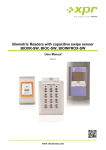
a Visual Plus Corporation Company Biometric Readers User Manual Ver 3.0 www.visual-plus.com Biometric Readers User Manual v3.0 Biometric Readers Manual Ver3.0 Contents 1 Product concept ............................................................................................................................................. 4 2 Product Description ....................................................................................................................................... 5 2.1 2.2 2.3 2.4 BIOXR ...................................................................................................................................................... 5 BIOC2 ...................................................................................................................................................... 6 BIOIN PROX ............................................................................................................................................. 7 BIOE......................................................................................................................................................... 8 3 Enrollment...................................................................................................................................................... 8 4 Authentication ............................................................................................................................................... 8 4.1 4.2 4.3 4.4 5 Mounting........................................................................................................................................................ 9 5.1 5.2 5.3 6 Biometric readers in network with EWS controllers ............................................................................ 11 RS 485 termination resistors ................................................................................................................ 11 Configuring the Biometric readers in PROS Software .................................................................................. 12 7.1 7.2 7.3 7.4 7.5 7.6 7.7 7.8 7.9 7.10 7.11 7.12 7.13 7.14 7.15 7.16 8 BIOC2 ...................................................................................................................................................... 9 BIOXR ...................................................................................................................................................... 9 BIOIN PROX ............................................................................................................................................. 9 Connecting Biometric readers to EWS Controller ........................................................................................ 10 6.1 6.2 7 Authentication of a user by a fingerprint ............................................................................................... 8 Authentication of a user by PIN code (only BIOXR) ................................................................................ 8 Authentication of a user by Fingerprint AND PIN code (only BIOXR) ..................................................... 8 Authentication of a user by Fingerprint AND Card (only BIOIN PROX)................................................... 8 Adding Biometric reader ....................................................................................................................... 12 Check Firmware version........................................................................................................................ 13 Firmware Update .................................................................................................................................. 13 Read reader settings ............................................................................................................................. 13 Upload configuration to a reader ......................................................................................................... 13 Sensor calibration ................................................................................................................................. 13 Selecting a finger for fingerprint enrollment ........................................................................................ 13 Caution while registering a fingerprint ................................................................................................. 14 Enrolling Fingerprints from a reader .................................................................................................... 14 Enrolling Fingerprints from a Desktop Reader ..................................................................................... 14 Uploading the fingerprints to the Biometric readers ........................................................................... 15 Deleting Fingerprints ............................................................................................................................ 15 Deleting one user from the biometric reader ...................................................................................... 15 Deleting all users from the biometric reader ....................................................................................... 15 Deleting user finger templates from the Software............................................................................... 16 Complex upload .................................................................................................................................... 16 Connecting Biometric Readers to Third Party Controller ............................................................................ 17 8.1 Converters PIN description ................................................................................................................... 18 2 Biometric Readers User Manual v3.0 9 Configuring the Biometric Readers in BioManager ..................................................................................... 19 9.1 9.2 9.3 9.4 9.5 9.6 9.7 9.8 9.9 9.10 9.11 9.12 9.13 9.14 10 Add Reader ........................................................................................................................................... 19 Edit Reader............................................................................................................................................ 21 Delete Reader ....................................................................................................................................... 21 Calibrate sensor .................................................................................................................................... 22 Add user ................................................................................................................................................ 22 Edit user ................................................................................................................................................ 22 Delete users .......................................................................................................................................... 22 Enroll fingers ......................................................................................................................................... 23 Upload fingerprint to readers ............................................................................................................... 23 Delete fingerprints ................................................................................................................................ 24 Deleting one user from the biometric reader ...................................................................................... 24 Deleting all users from the biometric reader ....................................................................................... 24 Complex user upload ............................................................................................................................ 25 Custom Wiegand................................................................................................................................... 25 Wiegand protocol description ..................................................................................................................... 27 Description for the 26 bits Wiegand format .................................................................................................... 27 11 Connecting the Biometric Readers with EX8 controller............................................................................... 28 12 Safety precautions ....................................................................................................................................... 29 13 Troubleshooting ........................................................................................................................................... 29 3 Biometric Readers User Manual v3.0 1 Product concept BIOXR, BIOC2 and BIOIN PROX are Biometric readers with adjustable Wiegand Output and can be connected to most Access Controllers with Wiegand interface. BIOE is a desktop USB biometric reader used for fingerprint enrollment. BIOXR and BIOC2 are surface mount products and BIOIN PROX is a flush mount. BIOXR can operate with Finger or Pin Code, BIOC2 with finger only and BIOIN PROX with finger or proximity card. They can all be mixed in the same network. Connection between the biometric readers is RS485 and it is used for fingerprint transfer and configuration. When used with third party controllers, the connection between the Biometric readers and the PC is done through a converter (CNV100-RS485 to RS232 or CNV200-RS485 to USB or CNV300-RS485 to TCP/IP). Only one converter is needed per system (one converter for 1, 2, 3...30, 31 Biometric readers) Configuration of the readers and fingerprint enrollment is done through PC Software. The Biometric Readers can be used with EX8 as standalone access control system, or as readers with access control panels BIOC2 BIOXR BIOIN PROX BIOE 4 Biometric Readers User Manual v3.0 2 Product Description 2.1 BIOXR Features Surface Mount Fingerprint/Keypad Reader for outdoor and indoor use Authentication: Fingerprint, Fingerprint or PIN code, Fingerprint and PIN code Storage capacity: 9500 Users with fingerprint and 999 with PIN Code (1 to 8 digits) All Metal Identification time < 1 sec 1 free tension LED Adjustable Wiegand protocol (8 to 128 bit) is utilized in the biometry reader which makes it compatible with controllers with Wiegand interface Configuring the system and fingerprint enrollment are done through PC, locally or remotely Enrollment can be also done from Desktop Reader BIOE Buzzer sound level adjustment through PC Separate BioManager Software available free when used with third party controllers Fingerprints and PIN Codes stored in the reader and backup copy kept in the software Technical Specifications Authentication Template capacity PIN code capacity Finger enrollment time Recognition and matching time Number of templates for each user Free tension LED Output Communication Power Supply Consumption Weight Operating Temperature Finger or PIN code or Finger and PIN Code 9500 999 < 1 second for each finger < 1 second for each finger 1-10 Templates (Fingers) yes Wiegand (8-128bit), default: Wiegand 26bit RS485 12Vdc 150mA max. 750g 0 0 -50 C A. Fingerprint Capacitive Sensor B. Tricolour LED (orange, red and green for sensor operation status) C. Green LED (Free Tension LED) D. Yellow LED for Data Transfer and key confirmation E. Red LED for (Alarm, 15 times wrong finger or PIN Code) F. Special Function Key G. Special Function Key 5 Biometric Readers User Manual v3.0 2.2 BIOC2 Features Surface mount biometric reader with capacitive sensor Adjustable Wiegand protocol (8 to 128-bit) is utilized in the biometry reader which makes it compatible with other controllers with a Wiegand interface Only Fingerprint operation Storage capacity: 9500 Fingerprints Configuring the system and Fingerprint enrollment is done through PC, locally or remotely Enrollment can be also done from a Desktop Reader BIOE Buzzer sound level adjustment through PC Wiegand Protocol adjustment is done through PC Separate BioManager Software available free when used with third party controllers The Fingerprints are stored in the reader and a backup copy is kept in the software New elegant aluminium housing in different colors Technical Specifications Authentication Template capacity Finger enrollment time Recognition and matching time Number of templates for each user Output Communication Power Supply Consumption Weight Operating Temperature Finger 9500 < 1 second for each finger < 1 second for each finger 1-10 Templates (Fingers) Wiegand (8-128bit), default: Wiegand 26bit RS485 12Vdc 70mA max. 200g 0 0 -50 C BIOC2 A. Tricolour LED (orange, red and green) B. Fingerprint Capacitive Sensor 6 Biometric Readers User Manual v3.0 2.3 BIOIN PROX Features Flush Mount biometric reader with integrated proximity Adjustable Wiegand protocol (8 to 128-bit) is utilized in the biometry reader which makes it compatible with other controllers with a Wiegand interface Authentication: Fingerprint or Proximity Cards, Tags and Fobs Storage capacity: 9500 Fingerprints 1 Free tension LED (Central Alarm) Configuring the system and Fingerprint enrollment are done through PC, locally or remotely Enrollment can be also done from a Desktop Reader BIOE Buzzer sound level adjustment through PC Wiegand Protocol adjustment is done through PC Separate BioManager Software available free when used with third party controllers The Fingerprints are stored in the reader and a backup copy is kept in the software Housing frames in different colours Blue front illumination can be permanent or switched off Technical Specifications Authentication Template capacity Finger enrollment time Recognition and matching time Number of templates for each user Free tension LED Output Communication Power Supply Consumption Weight Operating Temperature Finger or Proximity Card 9500 < 1 second for each finger < 1 second for each finger 1-10 Templates (Fingers) yes Wiegand (8-128bit), default: Wiegand 26bit RS485 12Vdc 200mA max. 500g 0 0 -50 C A. Tricolour LED B. Fingerprint Capacitive Sensor C. Proximity Antenna 7 Biometric Readers User Manual v3.0 2.4 BIOE Features Desktop Biometric reader USB powered Used only for fingerprint enrollment BIOE is used when the enrollment needs to be done from somebody’s desk. It is not necessary to have BIOE in the system. The enrollment can be done from any installed biometric reader. BIOE 3 Enrollment 4 Authentication There are five user authentication modes that can be assigned by the software: Only “Finger” (BIOXR, BIOC2, BIOIN PROX), “Finger OR Code”, “Finger AND Code” (BIOXR), “Finger OR Card”, “Finger AND Card” (BIOIN PROX). The tricolour LED has three colour statuses; Orange, Green & Red. It operates only on fingerprint enrollment and stays in an orange state before authentication. Important Note: During user authentication the finger must be present in the same way as it was during the enrollment process. This increases the chance of a successful authentication. 4.1 Authentication of a user by a fingerprint When presenting a finger, the tricolour LED turns green for one second and beeps twice if the user is valid. For an invalid user or a misread authentication for a valid user, the tricolour LED turns red for three seconds together with multiple beeps. 4.2 Authentication of a user by PIN code (only BIOXR) Enter the user's PIN code (1 to 8 digits). If the PIN code entered is valid, the orange LED is lit, together with 2 audio beeps and access is granted. If the PIN code is invalid, the red LED blinks for 3 seconds together with multiple beeps. After 15 successive invalid PIN codes, or 15 successive invalid fingers, the system blocks for 30 seconds and the red LED blinks with continuous audible beeps. The Red LED will stop blinking with the first accepted finger or PIN Code. 4.3 Authentication of a user by Fingerprint AND PIN code (only BIOXR) Enter the user's PIN code wait for 2 beeps, the tricolour LED will blink in orange and then present the finger within 8 seconds. Note: For using this authentication go to Readers/Properties and select Finger and Keycode entry mode. 4.4 Authentication of a user by Fingerprint AND Card (only BIOIN PROX) Present the card and wait for 2 beeps, the tricolour LED will blink in orange and then present the finger within 8 seconds. Note: For using this authentication go to Readers/Properties and select Card AND Finger entry mode. 8 Biometric Readers User Manual v3.0 5 Mounting 5.1 BIOC2 5.2 BIOXR 5.3 BIOIN PROX Mounting Position 9 Biometric Readers User Manual v3.0 6 Connecting Biometric readers to EWS Controller The biometric readers are not able to work alone. They have to be connected to an access controller with Wiegand input. The Biometric readers can be connected to virtually any controller that conforms to Wiegand format standards (standard Wiegand 26bit or self-defined Wiegand). The lines D0 and D1 are the Wiegand lines and the Wiegand Number is sent through them. The RS485 line (A, B) is used for fingerprint transfer and reader settings. The Biometric readers must be powered from the controller. If you use different power supply for the biometric reader, connect the GND from the both devices to ensure correct transfer of the wiegand signal. 4 2 2 4 Connect the lines D0, D1, Gnd, +12V, A and B to the EWS controller. When you have connected the reader and powered on, the LED should flash in orange light + 2 beeps. This lets you know it's on and ready for use. Fingerprint enrollment is done from the PC Software. Connection between the Biometric readers and the PC must be established. Note: The Biometric reader must be powered from the controller or make common ground for the controller and the Biometric reader. 10 Biometric Readers User Manual v3.0 6.1 Biometric readers in network with EWS controllers The Biometric readers are connected through RS485 bus. The same RS485 bus that the EWS controllers are connected to. Maximum units in one network (EWS + Biometric readers) is 32. If there are more than 32 units in one network, please utilize RS 485 HUB to connect. The RS485 Line should be configured in the form of a daisy chain, NOT in a form of a star. If star must be used in some points, keep the stubs from the RS485 backbone as short as possible. Maximum length of the stub is dependant of the installation (total number of devices in RS486 line (total cable length, termination, cable type...) so recommendation is to keep stubs shorter than 10 meters and keeping mind that this can be possible reason if there is errors in communication with PC software The cable must be twisted and shielded with a min. 0.5 mm2 cross section. Connect the ground (0V) of each unit in the RS 485 Line using a third wire in the same cable. The shield of the communication cable between two devices must be connected to the EARTH from ONE side of the RS 485 Line. Use the side that has earth connection to building grounding network. 6.2 RS 485 termination resistors For proper communication over a RS485 network, the end points must be terminated with a 120 Ohm resistor. There are on board 120 Ohm termination resistors on the EWS controller. Those termination resistors are selected by jumper. Note: The RS485 Communication Line must be made in a daisy chain, NOT in a star type. 11 Biometric Readers User Manual v3.0 7 Configuring the Biometric readers in PROS Software 7.1 Adding Biometric reader Expand the Door item to view the readers Right-click on the reader to be configured and select the Properties item from the reader drop-down menu Set the reader type to one of the fingerprint models in the Basic tab Select the Biometric tab and set the values - Serial: Biometric reader Serial Number - Sound level: Sound level of the device - Finger Acceptance Flexibility: Accepted tolerance. The recommended value is “Automatic Secure”. - Sensitivity: Bio-sensor sensitivity, the recommended value is 7, most sensitive. If the devices have a keypad (BIOXR, BIOXRC), further settings will be available: 1. Entry mode: “Finger” (the keypad is inactive) “Finger OR keypad” (The Biometric reader will be configured to accept either PIN Codes or fingers) “Finger AND Keypad” (The Biometric reader will be configured for double security, requiring a PIN Code and a corresponding finger. Only the right combination will send the user Wiegand to EWS) 2. Send This ID for: Unknown Finger sends the desired Wiegand when an unknown finger is applied. Unknown PIN sends the desired Wiegand when an unknown Pin Code is applied. Button “A” Pressed sends the desired Wiegand when button “A” is pressed. Button “B” Pressed sends the desired Wiegand when button “B” is pressed. Click on the Save & Exit button If the Automatic update for biometry option is set, PROS will configure the reader immediately, if it is not set, update the reader manually using the reader menu option "Send configuration" 12 Biometric Readers User Manual v3.0 7.2 Check Firmware version Right-click on the reader and select the Check version item 7.3 Firmware Update Right-click on the reader and select Firmware update menu On the Firmware update window, click on the Browse button. The default location of the firmware files installed with PROS is in the PROS folder under "Firmware" folder. If you have a newer version, use browse to locate it. Select the firmware file with a "xhc" extension Check the firmware version. If the version is not greater than the existing version of the reader then do not upgrade with this file unless specified by the Installer or manufacturer of the device. Click on the Upload button Wait for the update end message Close the Firmware update window 7.4 Read reader settings Right-click on the reader and select the Get settings menu 7.5 Upload configuration to a reader Right-click on the reader and select the Send configuration menu See the events panel to check the configuration flow 7.6 Sensor calibration Right-click on the reader and select the Calibrate menu See the events panel to check the Calibration flow It is recommended to perform a sensor calibration once the reader has been mounted. Clean the fingerprint sensor before calibration. 7.7 Selecting a finger for fingerprint enrollment 13 Biometric Readers User Manual v3.0 At least two fingerprints should be enrolled for each user in case of any abnormal situation like having an injured finger or carrying an object by hand. In case of low recognition, the user can register the same fingerprint twice to increase the recognition rate. It is recommended to use the index or middle finger. If you choose another finger, the recognition rate may be decreased because it tends to be more difficult to place the finger in the center of the sensor area. 7.8 Caution while registering a fingerprint The initial fingerprint registration is important. Because the recognition process compares the scanned fingerprint with the registered one, an abnormally registered fingerprint can cause a failure. 1. Put the center of your fingerprint on the middle of the sensor 2. If you have a cut on your finger or your fingerprint is not clear enough, retry with another finger 3. When the fingerprint recognition is in progress, do not move your finger 7.9 Enrolling Fingerprints from a reader Select the User in the User Column, NOT the Check Box (the Check Box is used for sending the fingerprints) and the User Name cell will turn blue. Select the Biometric reader from where the enrollment will be done. Right click on the fingertip and select “Enroll”. In the next 15 sec. present the finger on the selected reader and the finger tip will turn blue, with the percentage of successful enrollment shown next to the fingertip. Repeat the procedure for the other fingers (as required) Click on “Save templates”. All the enrolled fingers will change their color to red. Note: If more fingerprints are added for one user, all fingers will send the same Wiegand Code to the controller. 7.10 Enrolling Fingerprints from a Desktop Reader Install the Desktop Reader (BIOE) using the drivers located on the CD provided with the Biometric reader. It is installed in the same way as a USB Device. When the desktop reader has been installed it will automatically appear in the Software. Select the User in the User Column, NOT the Check Box (the Check Box is used for sending the fingerprints) and the User Name cell will turn blue. Select the desktop reader from where the enrollment will be done. 14 Biometric Readers User Manual v3.0 Right click on the fingertip and select “Enroll”. In the next 15 sec. present the finger on the selected reader and the finger tip will turn blue, with the percentage of successful enrollment shown next to the fingertip. Repeat the procedure for the other fingers (if needed) Click on “Save templates”. All the enrolled fingers will change color to red. Note: If more fingerprints are added for one user, all fingerprints will send the same Wiegand Code to the controller. 7.11 Uploading the fingerprints to the Biometric readers Select the Users whose fingers templates will be sent to the reader, by clicking on the checkbox of the user Select the Biometric reader to where the Users data should be sent and click on “Upload selected users to reader” As each user is being sent, the checkbox will uncheck indicating that the user has been successfully sent. At the same time the orange LED of the Biometric reader will blink. Note: The average time for transferring one finger template is 0.6 sec. Note: If there were any PIN Codes available, they also would have been sent. 7.12 Deleting Fingerprints In General, after transferring, the fingerprints are stored in the Biometric reader and in the Software. Deleting can be done only in the software, only in the readers or from both places. 7.13 Deleting one user from the biometric reader Select the user’s checkbox Select the Reader from where the users should be deleted and click on “Delete selected users from selected readers”. The user is then deleted from the reader, but the fingerprints remain in the software’s database. They can be sent once again without the need of re-enrollment. 7.14 Deleting all users from the biometric reader Select the Reader from where the users should be deleted and click “Erase Reader Database”. 15 Biometric Readers User Manual v3.0 7.15 Deleting user finger templates from the Software Select the User. Go to the fingertip that needs to be deleted, right click and select ”Delete” for one finger or “Delete All” for all fingers of the User. With this procedure the User’s fingerprints are deleted from the software, but they remain present in the reader. 7.16 Complex upload Complex user upload is used to send multiple user selections to many readers. Click on Upload table in the main menu Use the mouse click to select the combination you need or use right-click to check or clear an entire row or column Select Upload Users to readers or Delete Users from readers in the right-click menu As the upload progresses, the check boxes are cleared showing that the appropriate combination was successfully done When the upload is completed, if there are still some checked items, repeat the upload command For more information please refer to PROS Software User Manual. 16 Biometric Readers User Manual v3.0 8 Connecting Biometric Readers to Third Party Controller Connect the lines D0, D1, Gnd and +12V to the third party controller. Connect the RS485 Line (A, B) to the converter. Connect the converter in the PC. Note: The Biometric reader must be powered from the controller or make common ground for the controller and the Biometric reader. Fingerprint enrollment is done from the PC Software. Connection between the Biometric readers and the PC must be established. The Biometric readers communicate with each other with a RS485 and with the PC Software through a Converter. The RS485 Line should be configured in the form of a daisy chain, NOT in a form of a star. Keep the stubs from the RS485 backbone as short as possible (not more than 3 meters) Converter Types: CNV100 - Rs485 to Rs232 CNV200 - Rs485 to USB CNV300 - Rs485 to TCP/IP Wiring Configuration (applies to all converters) BIOXR, BIOC2 and BIOIN PROX Converter RS 485 A PIN 1 (RS 485 +) RS 485 B PIN 2 (RS 485 -) 17 Biometric Readers User Manual v3.0 8.1 Converters PIN description CNV100 Converter RS485 to RS232 Does not require installation CNV200 Converter RS485 to USB Requires installation as USB serial device (refer to CNV200 Manual) The Drivers are located on the CD CNV300 Converter RS485 to TCP/IP No installation. IP address set through Internet Browser (refer to CNV300 Manual) 18 Biometric Readers User Manual v3.0 9 Configuring the Biometric Readers in BioManager BioManager is software for fingerprint management of XPR Biometric readers, when used with third party access controllers. Main functions: - Fingerprint Enrollment It can be done by ANY Biometric reader in the network or by Desktop (USB) Biometric reader. Note: The Desktop Biometric reader BIOE is only compatible to Biometric readers with capacitive sensor, not with the ones with thermal sensor. - Fingerprint Transfer Finger templates can be sent to any Reader in the Network. Different Users can be sent to different Biometric readers. - PIN Codes management and transfer PIN Code length configuration (1 to 8 digits) and PIN Code transfer. - Wiegand Output Configuration The Wiegand output of the Biometric reader can be customized bitwise. 9.1 Add Reader Right-click on the portal connected to the reader and select Add reader Fill the Reader form 19 Biometric Readers User Manual v3.0 Click on Save and the reader icon appears under the selected portal Right-click on reader and select Version info If reader is online, new line is added on top of the event table If reader is not online, following line is added on top of the event table If reader is online, right click on reader and select Upload configuration Check at event table if configuration was successful 20 Biometric Readers User Manual v3.0 9.2 Edit Reader Right-click on the reader and select Properties Edit reader properties and click Save button Right click on the reader and select Upload configuration Check at event table if the configuration was successful 9.3 Delete Reader Right-click on the reader and select Delete reader 21 Biometric Readers User Manual v3.0 9.4 Calibrate sensor Right-click on the reader and select Calibrate See events panel to check Calibration flow It is recommended to do sensor calibration once after reader is mounted. Clean the fingerprint sensor before calibration. 9.5 Add user At user table, click on the last empty user field and enter user name Click on ID (User code) field and enter ID number. This number will be sent by the reader to the access controller when user finger is recognized by the reader Click on PIN code field and enter the PIN. PIN code is used at readers with keypad. When PIN code is typed at reader, User ID will be sent to the access controller 9.6 Edit user Find user at user table to edit Click on the user field for edit (Name, ID or PIN) Type new value Press Enter on the keyboard Important: When ID is changed, warning message is displayed reminding that if ID exist in some reader, should be deleted from reader prior to change. 9.7 Delete users Check the users to be deleted Right-click on the users table Click on Delete checked users menu Confirm warning message 22 Biometric Readers User Manual v3.0 9.8 Enroll fingers Select the User in the User Column, not the check box (the check box is for sending the fingerprints) and the User name cell will turn blue Select the Biometric reader or Desktop reader BIOE from where the enrollment will be done Right click on the fingertip and select Enroll Swipe the finger on the Reader and the finger tip will become blue, with percentage of successful enrollment given right beside the fingertip Note: If more fingerprints are added for one user, all fingerprints will send the same Wiegand Code to the controller. 9.9 Upload fingerprint to readers Check the users which fingerprints will be sent to the Reader Right-click on the Biometric reader those users should be sent and select Upload users 23 Biometric Readers User Manual v3.0 As each user is being sent, the checkbox will become unchecked indicating that the user is successfully sent. In the same time the orange LED of the Biometric reader blinks Note: Average time for transferring one finger template is 0,6 sec. Note: The PIN Codes are also being sent, if there are any. 9.10 Delete fingerprints After transferring, the fingerprint are stored in the Biometric reader and in the PC. Deleting can be done only in the software, only in the readers or from the both places. 9.11 Deleting one user from the biometric reader Select the users checkbox. Right click on the Reader and select Delete Users The user is deleted from the reader, but his fingerprints are still in the software’s database. They can be sent ones again without the need of re enrollment. 9.12 Deleting all users from the biometric reader Right click on the Reader and select Delete all 24 Biometric Readers User Manual v3.0 9.13 Complex user upload Complex user upload is used to sent multiply user selection to more readers. Click on Upload table at main menu Use mouse click to select the combination you need or use right-click to check or clear entire row or column Select Upload Users to readers or Delete Users from readers at right-click menu As upload is progressing, check boxes are cleared mining appropriate combination was successfully done When upload is over, if there are still checked items, repeat the upload command 9.14 Custom Wiegand BioManager has defined Wiegand 26 and 34 bit as standard options and other 3 Wiegand settings as user definable. To setup custom Wiegand format Select Wiegand menu from Settings At Wiegand setup window select one from customs Wiegand Set Wiegand parameters 25 Biometric Readers User Manual v3.0 Click on Save button Note: Wiegand settings are out of scope for common end user. Please ask your installer to set the parameters and do not change it later. For more information please refer to BioManager User Manual. 26 Biometric Readers User Manual v3.0 10 Wiegand protocol description The data is sent over the lines DATA 0 for the logic “0” and DATA 1 for the logic “1”. Both lines use inverted logic, meaning that a pulse low on DATA 0 indicates a “0” and a pulse low on DATA 1 indicates a “1”.When the lines are high, no data is being sent. Only 1 of the 2 lines ( DATA 0 / DATA 1 ) can pulse at the same time. Example: data 0010.... Data bit 0 = approximately 75 us (microseconds) Data bit 1 = approximately 75 us (microseconds) Time between two data bits: approximately 1 ms (millisecond). Both data lines (D0 and D1) are high. Description for the 26 bits Wiegand format Each data block consists of a first parity bit P1, a fixed 8 bits header, 16 bits of user code and a 2nd parity bit P2. Such a data block is shown bellow: Parity bit (bit 1) + 8 bits header + P1 XXXXXXXX Example: 170 1 10101010 16 bits user code = 2 bytes + Parity bit (bit 26) XXXXYYYY YYYYYYYY P2 31527 01111011 00100111 0 Note: Parity bits are calculated as follows: P1 = even parity calculated over the bits 2 to 13 (X) P2 = odd parity calculated over the bits 14 to 25 (Y) 27 Biometric Readers User Manual v3.0 11 Connecting the Biometric Readers with EX8 controller When connected with EX8 controller, the Biometric Readers are becoming Standalone Biometric readers. The Biometric Reader becomes known to the EX8 controller as soon as they are linked. No further configuration is required. Maximum cable length For programming please refer to EX8 User Manual. 28 Biometric Readers User Manual v3.0 12 Safety precautions Do not install the device in a place subject to direct sun light without protective cover. Do not install the device and cabling close to a source of strong electro-magnetic fields like radio-transmitting antenna. Do not place the device near or above heating equipments. If cleaning, do not spray or splash water or other cleaning liquids but wipe it out with smooth cloth or towel. Do not let children touch the device without supervision. Note that if the sensor is cleaned by detergent, benzene or thinner, the surface will be damaged and the fingerprint can’t be entered. 13 Troubleshooting Observation The Red Led on the Biometric Reader is blinking all the time The keypad of the Biometric Reader is not working The finger scan in BIOIN PROX works, but the proximity does not work Enrollment from desktop reader can be done, but the Fingerprints are not sent to all Biometric Readers in the network The Biometric Reader is not powered ON. The tricolour LED is OFF. Fingerprint (or PIN Code) is recognized (the tricolor LED is green), but the controller reports other ID number and the access is denied Electro static discharge influences the Fingerprint Scan. PIN Codes are working correctly, finger scan does not work. The triocolour LED is OFF. Reader reading performance is decreased Fingerprint is not recognized normally Action There were 15 unsuccessful attempts of authentication (Finger or PIN). The Red LED will turn off after the first accepted finger or PIN. The operation Mode of the Biometric Reader is set as “Finger”. Please select “Keycode OR Finger” mode The operation Mode of the Biometric Reader is set as “Finger”. Please select “Card OR Finger” mode Check the Ser.No of the Readers. Check if proper termination is done as described In 6.2. Check if the Communication wires (A & B) are properly connected to the reader Check the power Supply (red & black wire) If the user is not deleted from the reader and the same user is enrolled again with new ID, the reader will recognize the finger with the first ID. To resolve this, delete all users from the reader and upload all users to the reader Check the Wiegand Bus (yellow & white wire) Check if the ground of the controller and the Biometric Reader is the same Check if the length between Biometric Reader and the controller is less than 50 m Connect the housing of the Biometric Reader to the earth wire Fingerprint Sensor malfunction Check the Sensor position and its physical condition Reset the system. Contact your installer Check if fingerprint reading area is dirty. Do not clean the device with any form of liquid. Use soft and dry cloth only Reading area is damaged. If the damage is minor, try to calibrate the sensor Retry after drying the wetness of your finger When your finger is too dry, touch your forehead and try again When you have a cut on your registered finger, register another fingerprint 29