1
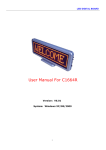
LED DIGITAL BOARD
User Manual For C1664R
Version: V6.01R
System: Windows XP/98/2000
1
LED DIGITAL BOARD
1. General Information
1.1 Composing parts
1) USB cord with two functions that is upload message from PC and re-charge
the battery
2) 220V charge adapter (options)
3) CD-ROM (multi-language)
1.2 The Features:
1) Multi Language: English/Western/Korean/Chinese/Traditional Chinese/
Japanese/ Russia...
2) 6 Text Message with 250 chars, 2 image message with 12X384 pixels, store
Max 1500 ASCII chars or 500 eastern chars.
3) 11 Special Animation Icons.
4) 5 Special Action: Rotate, Snow, Flash, hold, Twinkle
5) 5 Speeds.
6) 4 Classess Brightness, 25%, 50%, 75%, 100%, Adjust by Key.
7) Large capability Poly-Lion battery. Working time more than 16 Hours.
8) Single mini USB interface for charge and communication.
2
LED DIGITAL BOARD
1.3 The keys function of LED Digital Board
1) Switch On/Off your badge
Firstly, make sure the battery with energy before usage. Turn on the switch,
and the pre-stored message will run automatically. The switch turned off or the
battery used out, the badge will turn off automatically.
2) Two bottons
There are two buttons on the LED Digital Board. One is use to choose message,
the other is adjust to brightness.
3) USB Port
Upload message from PC and re-charge.
2. Guide in installing software
2.1 There is a CD-ROM accompanied by the LED Digital Board. As the following
images.
Please double click Install.exe to install. The left side of screen will show the
3
LED DIGITAL BOARD
following image. There are two steps to install LED Digital Board. One is to
install USB driver; the other is to install Software of LED Digital Board. Please
carry out the install program as follows.
After finishing it, the desktop will appear the following Texts.
1) There will be a program of LED Digital Board in the star-up menu, which has
LED Digital Board.
2) On the desktop, there is a icon of LED Digital Board.
2.2 Guide in the software operation
1)Input test message like this: input content directly to the current window in
which can insert the content of animation. The message property has career,
action, font number and whether it is sent and so on.
4
LED DIGITAL BOARD
2)Image: There are 11 animations, such as heart form, telephone form and so
on. Please refer to the former interface.
3)Speed: There is 5 classes which is the fastest as well as common use.
4)Action: There are Scroll, Twinkle, Snow and Stop actions.
5)Font Number: As far as the text message, it is font number, but Chinese
characters only take up two fonts.
6)Sending chosen: It decides whether the current message sends or not.
2.3 How to input image?
The LED Digital Board can be input 2 LOGO messages. Please press the
“Logo”buttons at the end of image message edit boxes.
2.4 How to edit a image text?
There is a program of Image Editor in the software package. Click the button of
the Image Editor on the interface to launch the program. When you finish an
image file, please save it to disk. Then use the “Logo” buttons to load the image
you had edited.
2.5 About the running sequence:
5
LED DIGITAL BOARD
The message will be run on the order of Running Sequence. It’s a good method
to redefine the order of message by editing the Running Sequence. You can
input new order like “87654321” or “6327” to the Running Sequence to run the
message based on your demand.
2.6 USB communication:
Insert the USB of LED Digital Board to PC directly, and the software will run.
After editing, then press Send button, the message will upload to LED Digital
Board.
3. About charging
You can use USB cord to charge the LED Digital Board in your PC as you turn on
the switch button. At the same time the screen will show a twinkling icon which
shows the capacity of electric. After finishes charging, you should move charger
immediately or turn off switch of the LED Digital Board.
About AC/DC USB charging: the LED Digital Board use it to charge.
6