1
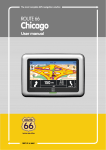
CoPilot and CoPilot Premium personal navigation device user manual p-series CoPilot and CoPilot Premium Kits CoPilot and CoPilot Premium Kits CoPilot and CoPilot Premium Satellite Navigation Kit for Acer p610, p630, p660 or p680 personal navigation device Your CoPilot or CoPilot Premium kit contains the following: SD storage card pre-loaded with maps 1 x installation CD 2 x data CDs Car charger and connector cable Car mount FM9 cable* *Optional accessory i CoPilot and CoPilot Premium Acer p-series Getting started 1 GPS 3 CoPilot screen controls 4 CoPilot Home screen 5 CoPilot Menus 6 Navigating to a destination 8 Entering an Address 10 Entering a Home Address 12 Entering a Work Address 12 Entering a Favourite Destination 13 Entering a Recent Destination 14 Entering a Contact 15 Navigating to a Point Of Interest 16 Navigating to a Postcode 18 Pick on Map 19 Navigating to an Intersection 20 Latitude/longitude 21 Saved Trip 22 Trip editing and waypoints 23 Optimising and re-arranging Stops 24 Detour feature 25 Selective routing 26 Acer p-series Contents Contents CoPilot and CoPilot Premium ii Contents iii Safety camera alerts 27 TMC traffic service 28 Driving views 30 Driver safety 30 Where am I? 31 Itinerary 31 Next Turn 31 Destination 31 3D 31 Day/night map display 32 Customise your map displays 32 Navigation modes 33 Routing settings 34 Guidance settings 36 Map settings 38 POI alert settings 40 Regional Settings 41 Favourite settings 42 Recent stop settings 43 My Place Settings 44 CoPilot desktop software 45 Data Download Wizard 46 Acer Support Services 50 CoPilot and CoPilot Premium Acer p-series Please refer to the separate Acer p-series personal navigation device (PND) user manual for instructions on setting up your hardware Switch on your Acer personal navigation device (PND) Insert the CoPilot navigation SD card into the SD card slot found on the right side of the PND Press the 'Navigator' button to start CoPilot navigation. The launch screen will be displayed. NB: It may take several seconds for CoPilot to load. Acer p-series CoPilot and CoPilot Premium Getting Started Getting Started 1 Getting Started Tips and tricks Each time you start CoPilot, a useful hint or tip will be displayed. Press ‘Next Tip’ to read additional tips and tricks or press ‘X’ to close this feature. Deselect the ‘Show tips and tricks’ box in the bottom left corner of the screen to switch off this feature. Setup is now complete. You are now ready to enter a destination for the first time. 2 CoPilot and CoPilot Premium Acer p-series GPS GPS GPS Performance Your Acer p-series PND has an integrated GPS receiver to locate your position on a map. The first time you use the GPS receiver it may take several minutes to determine your position. Please note there is no GPS signal inside buildings, tunnels, garages, multi-storey and basement car parks. Connecting the optional TMC cable (certain models only) If you have the optional GNS FM9 TMC cable you can receive real-time traffic information via TMC.* Connect one end of the FM9 TMC cable to the mini USB car charger, and plug the other end into the charging slot in the base of your Acer navigation system. Secure the wired antenna in the car using the rubber stickers provided. If a TMC Traffic signal is available CoPilot will display traffic incidents on your route automatically and can recommend an alternate route if required. *TMC cable only available with certain models. The availability of TMC traffic service varies by country Acer p-series CoPilot and CoPilot Premium 3 CoPilot Screen Controls CoPilot Screen Controls 8 10 9 2 12 1 6 3 1 2 3 4 5 6 7 8 9 10 11 12 4 7 5 4 11 CoPilot Menu button Distance to next turn Estimated time of arrival (ETA) Distance to destination Travel Time Customisable field 1 Customisable field 2 Next turn instruction Route highlighting Turn arrow GPS display status Your position on map CoPilot and CoPilot Premium Acer p-series Take a look at the CoPilot Home Screen The CoPilot Home screen is displayed when you first launch CoPilot, or it can be accessed by selecting Menu > Home Screen. CoPilot Navigation screen CoPilot Home Screen CoPilot Home Screen CoPilot Premium Home screen Home screen menu options are: New Trip to enter a new destination Edit Trip* to add, edit or delete a destination(s) Favourites provides you with quick and easy access to your top 50 destinations Return Trip provides guidance from your current location back to the initial destination where your journey commenced My Place pre-programme one preferred or frequently visited destination as ‘My Place’ Settings to customise your Routing options or change Guidance or Map options. Plus, additional settings to modify your Favourites, Recent Stops and My Place, as well as settings to enable/disable Points of Interest (POIs) GPS provides information on your GPS status Tutorial to help you get started. Learn how to enter a destination to start navigating. *Exclusive to CoPilot Premium 1 Home and Navigation screens are the same Acer p-series CoPilot and CoPilot Premium 5 CoPilot Menus S CoPilot Menus CoPilot Menu Button+ Press the ‘Menu’ button to access the following sub-menus: New Trip to enter a new destination Add Stop* to enter additional destinations Return Trip provides guidance from your current location back to the initial destination where your journey commenced Detour* feature to calculate and preview an alternative route. View allows you to change between a choice of 6 driving views and day/night mode maps Traffic* incidents along your planned route are reported into CoPilot using a TMC data feed (optional) Home to return to the CoPilot Home screen More to view sub-menu page 2 New Trip Add Stop* Return Trip Detour* View Traffic* Home More CoPilot Premium Menu - Page 1 *Exclusive to CoPilot Premium + Menu and sub-menus vary between CoPilot and CoPilot Premium 1 Home and Navigation screens are the same 6 CoPilot and CoPilot Premium Acer p-series Edit Trip* to add, edit or delete a destination(s) Nearby Places to search for a Point of Interest (POI) near your current location Save This Location to store your current GPS position as a destination Save Trip* allows you to store a complete itinerary and later retrieve the destination(s) entered Settings to customise your Routing options or change Guidance or Map options. Plus, additional settings to modify your Favourites, Recent Stops and My Place, as well as settings to enable/disable Points of Interest (POIs) Send Location1 to a mobile phone via Bluetooth GPS provides information on your GPS status More* to view further sub-menus CoPilot Premium Menu - Page 2 CoPilot Menus Sub-menu page 2+ CoPilot Premium Menu - Page 3 Sub-menu page 3+ Mode CoPilot has Guidance mode. CoPilot Premium also offers Walking* and Planning* modes. Tips provides useful hints on using your CoPilot Tutorial to help you get started. Learn how to enter a destination to start navigating. About to read about the version of your CoPilot license. Quit to close and exit the CoPilot program. *Exclusive to CoPilot Premium + Menu and sub-menus vary between CoPilot and CoPilot Premium 1 Exclusive to p630, p660, and p680 PNDs Acer p-series CoPilot and CoPilot Premium 7 Navigating to a Destination Navigating to a Destination Select ‘New Trip’ from the ‘Navigation’ screen. CoPilot Home screen CoPilot Select Stop screen The ‘Select Stop’ screen will be displayed and provides you with several different ways to enter a destination. Enter an Address Your Home or Work address Favourites Recent places A Contact from your address book A Point of Interest (POI) A UK or Netherlands Postcode* Pick On Map Intersection/cross roads A Latitude/Longitude Enter a previously Saved Trip* In CoPilot you can enter a single destination using one of the options in the ‘Select Stop’ screen. *Exclusive to CoPilot Premium Postcode* Saved trip* 1 Home and Navigation screens are the same 8 CoPilot and CoPilot Premium Acer p-series CoPilot Premium Select Stop screen CoPilot Premium Route screen Navigating to a Destination The CoPilot Premium product allows you to enter multiple destinations and optimise your journey. Simply enter a destination using one of the options in the ‘Select Stop’ screen. In the ‘Route’ screen, press ‘Edit Trip’*. An ‘Edit Trip’* screen will be displayed, press ‘Add Stop’* to enter additional destinations. To optimise your journey, select a destination in the ‘Edit Trip’* screen and press ‘Optimise Stops’* from the pop-up menu. Edit Trip* screen Optimising Stops The destination(s) entered for your journey will be displayed in the ‘Edit Trip’* screen. Once you have finished entering your destinations, select ‘Preview Route’ followed by ‘Drive’ from the ‘Route’ screen. *Exclusive to CoPilot Premium Acer p-series CoPilot and CoPilot Premium 9 Navigating to a Destination Entering an Address 1) 2) 3) 4) From the ‘Select Stop’ screen, press the ‘Address’ button. On the following screen enter the Country and press ‘Next’. On the next screen, enter the City/Postcode and press ‘Next’. In the street address screen, first enter a House Number in the top left box. Then enter the required Street Name in the right hand box. Press ‘Next’. Country screen Street address screen CoPilot may display a list of address matches. If an exact match is not found, a cross street, nearby address or a street in a nearby city will be displayed. Please select one of these and press ‘Next’ to continue. Address match screen Name this location screen You will be offered the opportunity to create a name for your destination, either type in a name or press ‘Finish’. The ‘Route’ screen will be displayed. You can check the destination and intended route on a map to ensure that it is the correct location by pressing ‘Preview’. 10 CoPilot and CoPilot Premium Acer p-series Route preview screen You can preview the location and route using one of the below options: Route Demo - view CoPilot navigate to the destination entered to give you an indication of your journey ahead Turn Maps - displays maps of all the turns you will need to make for your journey Itinerary - view detailed turn by turn instructions for your journey Route Profile* - allows you to define settings that affect CoPilot routing options Navigating to a Destination Route screen Alternatively, from the ‘Route’ screen you can press ‘Edit Trip’*. In the ‘Edit Trip’* screen, press ‘Add Stop’ to enter additional destinations or select a destination to ‘Delete’ or ‘Delete All’ destinations entered. Press ‘Preview Route’* followed by ‘Drive’ from the ‘Route’ screen to begin receiving navigation guidance. *Exclusive to CoPilot Premium Acer p-series CoPilot and CoPilot Premium 11 Navigating to a Destination Entering a Home Address In the ‘Select Stop’ screen, press the ‘Home’ button. The first time you use this button, you will be prompted to enter your home address to pre-programme this button. Enter your home address the same way you enter a new address (described on pg. 10). The next time you use the ‘Home’ button to obtain guidance to/from home to a destination, simply press the ‘Home’ button from the ‘Select Stop’ to enter it as a destination. This will display your home address in the ‘Route’ screen, then press ‘Drive’. Entering a Work Address In the ‘Select Stop’ screen, press the ‘Work’ button. The first time you use this button, you will be prompted to enter your work address. Enter your work address the same way you enter a new address (described on pg. 10). The next time you press Work, your work address will be entered as a destination in the ‘Route’ screen, then press ‘Drive’. 12 CoPilot and CoPilot Premium Acer p-series In the ‘Select Stop’ screen, press the ‘Favourite’ button. A scrollable list will appear, providing you with quick and easy access to your top 50 destinations. Select a Favourite from the list to enter it as a destination and press ‘Drive’ in the ‘Route’ screen. Favourites list Navigating to a Destination Entering a Favourite Destination Name this location screen How to create a Favourite To add a destination to your Favourites list enter an address, in the same way you enter a new address (described on pg. 10). In the ‘Name This Location’ screen, select the ‘Add this location to Favourites’ tick box to add the destination to your Favourites list. Alternatively, when the destination is displayed in the ‘Edit Trip’* screen, please select the destination and select ‘Add to Favourites’ from the pop-up menu. Managing Your Favourites list To delete a Favourite destination select Menu > More*+ > Settings > Favourites then select the destination and press ‘Delete’. To edit a Favourite, press ‘Edit’ and re-enter the Country, City/Postcode, Street Name and Number of the destination. *Exclusive to CoPilot Premium + Menu and sub-menus vary between CoPilot and CoPilot Premium Acer p-series CoPilot and CoPilot Premium 13 Navigating to a Destination Entering a Recent Destination In the ‘Select Stop’ screen, press the ‘Recent’ button. A scrollable list will appear, providing you with quick and easy access to the last 50 destinations that you entered. Note: When your Recent list is filled (50), each new address will replace an address that has been inactive for the longest period of time. Select a Recent destination from the list to enter it as a destination and press ‘Drive’ in the ‘Route’ screen. Managing your Recent destinations list To delete a Recent destination select Menu > More*+ > Settings > Recent Stops then select the destination and press ‘Delete’. Alternatively, press ‘Delete All’ to erase all recent stops. To add one of your recent destinations to your Favourites list select Menu > More*+ > Settings > Recent Stops then select the destination and press ‘Add to Favourites’. Recent destinations *Exclusive to CoPilot Premium + Menu and sub-menus vary between CoPilot and CoPilot Premium 14 CoPilot and CoPilot Premium Acer p-series Navigate to a ‘Contact’ listed in your Acer PND's Contacts address book. Press the ‘Contact’ button in the ‘Select Stop‘ screen. Type the first letter of your contact’s name. A list of Contacts starting with that letter will appear. Select the Contact’s name and press ‘Next’. If necessary, CoPilot will prompt you to correct any part of the address it does not recognise. Navigating to a Destination Entering a Contact You will be offered the opportunity to create a name for your destination, either type in a name or press ‘Finish’. In the ‘Name This Location’ screen, select the ‘Add this location to Favourites’ tick box to add the destination to your Favourites list. The Contact address will be displayed as a destination in the ‘Route’ screen. Select ‘Drive’. Contact as a destination Acer p-series CoPilot and CoPilot Premium 15 Navigating to a Destination Navigating to a Point of Interest In the ‘Select Stop’ screen, press the ‘POI’ button. Points of Interest (POIs) are important, useful and popular locations. You can use CoPilot to locate and navigate to any one of thousands of Points of Interest. POIs are listed by category and type to assist your search. To search for a POI, select a ‘Category’ and ‘Type’ and enter a name (optional). Press ‘Next’. You can search for a POI ‘along current route’ or ‘near current location’ if you have a GPS signal. Alternatively, you can type in a city and search for a POI near that city. Press ‘Next’. Enter a Country and a City/Postcode. Press ‘Next’. CoPilot will search for POIs based on your search criteria. A list of POI matches will be displayed. Select the desired POI from the list. Find a POI screen 16 CoPilot and CoPilot Premium POI - searching near city Acer p-series POI map preview In the POI matches screen you have several choices, you can press: ‘Map’ to preview the location of the selected POI on a map. In the map screen, press the +/- buttons to zoom in and out of the view. Press ‘X’ to return to the POI matches screen. ‘Expand’ to run another search within a larger search area. ‘Finish’ to enter it as a destination, then select ‘Drive’ from the ‘Route’ screen. Navigating to a Destination POI matches POI Alerts To report and view POIs (by desired category) for any journey on a map while driving, select Menu > More*+ > Settings > POI Alerts. Select the ‘Enable’ tick box then define the POIs to be reported by selecting each desired POI tick box. In the Menu > More*+ > Settings > Map screen, select set ‘Show POIs’ as either ‘Always' or ‘When Stopped’. *Exclusive to CoPilot Premium + Menu and sub-menus vary between CoPilot and CoPilot Premium Acer p-series CoPilot and CoPilot Premium 17 Navigating to a Destination Navigating to a full UK or Netherlands Postcode* In the ‘Select Stop’ screen, press the ‘Postcode’ button. Use the keyboard to enter a full UK or Netherlands postcode. Press ‘Next’. Enter the House Number and Street Name or simply select ‘Postcode Center’. Press ‘Next’. You will be offered the opportunity to create a name for your destination, either type in a name or leave this field blank. Select the ‘Add this location to Favourites’ tick box if you would like to add the destination to your Favourites list. Press ‘Finish’. The address will be added as a destination in the ‘Route’ screen. Select ‘Drive’. *Exclusive to CoPilot Premium 18 CoPilot and CoPilot Premium Acer p-series In the ‘Select Stop’ screen, press the ‘Pick on Map’ button. Select a starting area by entering an Address, Favourite, Contact or POI, then select a location on the map. To help you find your desired location you can pan around the map by tapping the map screen and moving it with your finger. Additionally, press the +/- buttons to zoom in and out of the preview. Navigating to a Destination Pick on Map You can enter a destination by selecting a point on a map and pressing ‘Add as Stop’. Enter a name for the location if required, or leave this field blank. Select the ‘Add this location to Favourites’ tick box if you would like to add the destination to your Favourites list. Press ‘Add Stop’. The location will be entered as a destination in the ‘Route’ screen. Select ‘Drive’. Pick on map screen Acer p-series CoPilot and CoPilot Premium 19 Navigating to a Destination Navigating to an Intersection In the ‘Select Stop’ screen, press ‘More’ then the ‘Intersection’ button to enter the intersection of two roads. Use the keyboard, to enter the Country. In the following screen type in the City/Postcode. Enter the name of the ‘First Street’. Press ‘Next’. Enter or select from the list the name of the ‘Second Street’ which intersects the ‘First Street’. Press ‘Next’. You will be offered the opportunity to create a name for your destination, either type in a name or leave this field blank. Select the ‘Add this location to Favourites’ tick box if you would like to add the destination to your Favourites list. Press ‘Finish’. The address will be added as a destination in the ‘Route’ screen. Select ‘Drive’. First street 20 CoPilot and CoPilot Premium Second street Acer p-series In the ‘Select Stop’ screen, first press the ‘More’ button then select the ‘Lat/Long’ button. Select a metric from the drop-down pick list and then use the keyboard to enter the latitude/longitude points. Press ‘Next’. You will be offered the opportunity to create a name for your destination, either type in a name or leave this field blank. Select the ‘Add this location to Favourites’ tick box if you would like to add the destination to your Favourites list. Navigating to a Destination Latitude/Longitude Press ‘Finish’. The latitude/longitude points will be entered as a destination in the ‘Route’ screen. Select ‘Drive’. Latitude/longitude screen Acer p-series CoPilot and CoPilot Premium 21 Navigating to a Destination Saved Trip* How to create and save a trip You can save a trip by entering a destination or multiple destinations* in the same way you enter a new address (described on pg. 10). Once you have finished entering your complete itinerary, select the ‘Edit Trip’* button in the ‘Route’ screen. In the ‘Edit Trip’* screen, select Menu > More* > Save Trip*. Enter a name for this itinerary and press ‘✓’ . All destinations included in the original journey will be entered, preserving the stop order of the original saved trip. The trip itinerary will also be included. To enter a saved trip as a destination To retrieve a saved trip, from the ‘Home’ screen select ‘New Trip’. In the ‘Select Stop’ screen, press More > Saved Trip. Select the desired saved trip and press ‘Next’. The trip will be loaded in the ‘Route’ screen. Select ‘Drive’. *Exclusive to CoPilot Premium 1 Home and Navigation screen are the same 22 CoPilot and CoPilot Premium Acer p-series Editing* your planned journeys in CoPilot Premium The ‘Edit Trip’* screen displays the destination(s) entered for your journey. Press Menu > More > Edit Trip* to display this screen from the guidance screens at any time. From the ‘Edit Trip’* screen you can edit* the current trip, add additional stops, or preview route. Trip Editing and Waypoints* Trip Editing and Waypoints* Select any destination on your itinerary to open a pop-up menu that lets you delete the destination or all destinations, display the destination on a map, or move it up or down to change the order of the destinations. How to use Waypoints* You can also designate a destination entered as a ‘waypoint’ by selecting ‘Set as Waypoint’ from the pop-up menu. Waypoints are not considered as destinations in the Itinerary, their purpose is to guide you along a road you specify, CoPilot Premium will calculate a route which guides you through the waypoint towards your destination. Waypoints appear with “>>” instead of a destination number on the list of destinations. To change a Waypoint back to a destination, choose ‘Set as Stop’ from the pop-up menu. CoPilot Premium ignores Waypoints when calculating the Estimated Time of Arrival (ETA) and distance to a destination. *Exclusive to CoPilot Premium Acer p-series CoPilot and CoPilot Premium 23 Optimising and Re-arranging Stops* Optimising and Re-arranging Stops* Optimising your journey CoPilot Premium can work out the best way around multiple destinations for journeys that require you to stop/pass through various locations. Note: You must have at least three destinations entered in the ‘Edit Trip’* screen to optimise your journey. Simply enter multiple destinations in the ‘Edit Trip’* screen. To optimise your stops select any destination on your itinerary and press ‘Optimise Stops’ from the pop-up menu. The destinations entered for your journey will be displayed in an optimised order in the ‘Edit Trip’* screen. Select ‘Preview Route’ followed by ‘Drive’ from the ‘Route’ screen. Optimise Stops Re-arranging Stops To re-arrange the order in which destinations are listed in your trip, select one of the destinations in the ‘Edit Trip’* screen and select ‘move up’ or ‘move down’ from the pop-up menu to change the stop order. *Exclusive to CoPilot Premium 24 CoPilot and CoPilot Premium Acer p-series Once you have entered your destination(s) in the ‘Edit Trip’* screen and selected Preview Route > Drive, CoPilot Premium will calculate the best route and provide you with turn-byturn guidance to the destination(s). Detour Feature* Detour Feature* While driving along your route, if you face unexpected traffic congestion, road works/closures or any other unforeseen circumstances that causes delay along your route, you can use CoPilot Premium’s detour feature to calculate and preview an alternative route. You can make an informed decision about whether you would prefer to travel along the original route or alternative route. How to use the detour feature 1. You must first enter in your destination(s) and press ‘Drive’. 2. Select Menu > View > Itinerary to show the turn by turn directions of your journey, based on the original route set by CoPilot. 3. Press Menu > Detour to calculate an alternative route. 4. Review the new itinerary, based on the alternative route calculated by CoPilot. 5. Review the road name, plus the ETA and distance to destination fields of both routes to help you compare and determine your preferred route. 6. If you decide to use the new alternative route, just keep driving. To return to the original route defined by CoPilot select Menu > Cancel Detour. *Exclusive to CoPilot Premium Acer p-series CoPilot and CoPilot Premium 25 Selective Routing Selective Routing You can choose to avoid specific roads in the automatically calculated itinerary or adjust the route using waypoints*. 1) Customise your Trip Itinerary+ Set CoPilot to Guidance Mode by selecting Menu > More* > More* > Mode* > Guidance*. Enter your destination(s) in the ‘Edit Trip’* screen and select Preview Route* > Drive Press Menu > View > Itinerary to display the itinerary map which shows all road names, turn instructions and the distance between each turn. Select and hold a road that you want to avoid and select the ‘Avoid’ button. CoPilot will calculate a new route that avoids the selected road. This step can be repeated. Note: If there is no other possible road or the alternative route is too impractical, a new route will NOT be generated. To return to the original route, press the ‘Cancel Avoid’ button. 2) Set Waypoints* You can define CoPilot Premium’s route by setting destinations as ‘Waypoints’ as described on p. 23). CoPilot Premium will guide you through the waypoint towards your destination. *Exclusive to CoPilot Premium + Menus and screens vary between CoPilot and CoPilot Premium 26 CoPilot and CoPilot Premium Acer p-series CoPilot can warn you as you approach one of the preloaded safety camera locations while driving. How to switch-on safety camera alerts: Press Menu > More > Settings > More > Safety Alerts Select the 'Enable' tick box Use the arrow buttons to choose how far or close to a speed camera location that you wish to receive a warning. Press ‘✓’. Safety Camera Alerts* Safety Camera Alerts* How to download updated safety camera locations: You can download a list of updated safety camera locations from the Internet from time to time. Please visit www.alk.com/acer where you will find the latest available file to download with detailed instructions about how to load the locations into your navigation system. Driving with Safety Camera Alerts As you approach one of the loaded safety camera locations, your current speed, the road's speed limit and the distance to the safety camera will be displayed on-screen and with a spoken warning. Local speed limit Distance to safety camera Your current speed *Exclusive to CoPilot Premium Acer p-series CoPilot and CoPilot Premium 27 TMC Traffic Service* TMC Traffic Service* What is the Traffic Message Channel? The Traffic Message Channel (TMC) is a specific application of the FM Radio Data System (RDS) used for broadcasting real-time traffic information. If a TMC traffic signal is available CoPilot will display traffic incidents on your route automatically and can recommend an alternate route if required. Using TMC Traffic in CoPilot Premium Set up the TMC receiver (see the instructions on page 3) Select Menu > Traffic > Settings to adjust the alert settings within CoPilot and define how you would prefer CoPilot to handle TMC traffic messages. Get Incidents 'Always' is recommended - CoPilot will automatically check your route for traffic incidents 'Never' lets you can check for traffic incidents manually Default Incident Action 'Ignore' - CoPilot will NOT avoid a reported incident automatically 'Avoid' - CoPilot will avoid reported incidents automatically Get Incidents - Always Default Incident Action Ignore Traffic settings screen 28 CoPilot and CoPilot Premium Acer p-series 1) Check route In CoPilot, press 'Menu' > 'Traffic' > 'Check Route' to search for traffic incidents along your current route. 2) Find traffic Press 'Menu' > 'Traffic' > 'Find Traffic' to search for all traffic incidents. TMC Traffic Service* You can also search for traffic incidents manually: Highlight and select a traffic incident to open a pop-up menu which offers you 4 options: 1. 'Details' to view information regarding the location and type of traffic incident 2. 'Map' to display the reported traffic incident on a map 3. 'Avoid' the traffic incident by allowing CoPilot to automatically re-route you around it. 4. 'Ignore' the alert and continue to drive along your planned route through the traffic congestion. *TMC is an optional service. You need a compatible TMC receiver to use the TMC traffic service. TMC traffic service is not available in all countries in Europe. Please refer to the additional TMC Traffic Description and Coverage document for full details. TMC traffic service is available on the p660 and p680 PNDs and available as an optional upgrade for the p630. Acer p-series CoPilot and CoPilot Premium 29 Driving Views Driving Views CoPilot has six different driving views which can be accessed by pressing Menu > View. In each view, turn instructions are displayed on-screen and spoken, while in map views, the next turn is highlighted by a yellow arrow. Choose the view you prefer or the one which suits your driving conditions: Where am I Driver safety 3D Itinerary Next turn Destination Day Mode Night Mode Driver Safety Driver Safety is the default view, which displays a simple turn instruction arrow with concise next turn instructions. An auto-zoom map will appear as you approach a turn or if you are driving below your preset speed. This is the recommended view for safe driving as it's designed to display the information you need at a glance with minimum driver distraction. 30 CoPilot and CoPilot Premium Acer p-series Allows you to see your current position on a 2D map. Itinerary Driving Views Where am I? Provides detailed turn by turn instructions for your trip. Next Turn Displays your current location and the next turn on a 2D map. Destination Displays your current position and the next stop on a 2D map. 3D Displays a birds eye view of your current position on a map and the way ahead. Distance markers show the distance to the next turn, and a clear yellow arrow highlights the way at each turn. Acer p-series CoPilot and CoPilot Premium 31 Driving Views Day/night map display Trust your CoPilot to guide you to the door at night - safely and in comfort. CoPilot’s night mode uses the time set on your Acer PND to automatically display night time 2D or 3D maps to reduce glare and eye strain while driving using CoPilot at night. To set-up night mode select, Menu > More* > Settings > Map Style > Automatic. To manually select or to switch between day and night mode maps, press Menu > View and select the day mode/night mode button. Day mode view Night mode view Customise your map display At the base of the map screens are three fixed indicators to show your estimated time of arrival (ETA), Travel Time and Distance to Destination, plus two customisable fields. To customise the data fields, displayed above the ETA, Travel Time and Distance to Destination indicators, please select Menu > More* > Settings > Guidance and select one of the following custom display options for the left and right custom displays then press ‘✓’: Destination Current road Nearest crossroad Nearest major road Nearest town 32 CoPilot and CoPilot Premium Current Time ETA Speed Elevation Heading Acer p-series CoPilot satellite navigation software CoPilot has 1 navigation mode: Guidance Mode provides spoken and on-screen driving Navigation Modes Navigation Modes directions plus other information relevant to your journey such as Estimated Time of Arrival (ETA), road name of the next turn and the distance to turn. CoPilot Premium satellite navigation software In addition to Guidance mode, the CoPilot Premium product has two extra navigation modes accessed by selecting Menu > More* > More* > Mode*. 2) Planning Mode* lets you plan your journey in advance. Simply key in a destination and view the itinerary and detailed street maps of any location - wherever you are. 3) Walking Mode* lets you find the way on foot using your PDA. CoPilot displays a straight line 'as the crow flies' to your destination at all times and indicates the straight line distance to that location. Guidance mode Planning mode Walking mode *Exclusive to CoPilot Premium Acer p-series CoPilot and CoPilot Premium 33 Routing Settings Routing Settings From the Navigation screen, select Settings > Routing (or Menu > More*+ > Settings > Routing) to change settings that affect CoPilot routing options. 1. Basic Routing Options (CoPilot and CoPilot Premium) Vehicle type In the Routing screen, the vehicle type options are ‘Automobile’ or ‘RV’. RV routes favour major roads and avoid sharp turns and U-turns wherever possible. Routing type Define whether you would prefer CoPilot to calculate ‘Quickest’ or ‘Shortest’ routes by selecting Navigation > Settings > Routing > Routing Type (or Menu > More*+ Settings > Routing > Routing Type). Additionally, you can set CoPilot to ‘Avoid Major Roads’. Toll road avoidance You can set CoPilot to calculate routes which avoid/use toll roads by selecting, Navigation > Settings > Routing > Toll Roads (or Menu > More*+ > Settings > Routing > Toll Roads) and then define how CoPilot handles toll roads by choosing one the following 3 options: Always Avoid Use If Necessary No Restriction *Exclusive to CoPilot Premium + Menu and sub-menus vary between CoPilot and CoPilot Premium 1 Home and Navigation screen are the same 34 CoPilot and CoPilot Premium Acer p-series If you are driving in London, you can set up CoPilot to alert you when your destination approaches/passes through the London Congestion Zone. You will have the option to either drive through the charging zone or re-route around it. To set-up London Congestion Zone alerts, select: Navigation > Settings > Routing (or Menu > More*+ > Settings > Routing) and then select the ‘London Congestion Zone Warning’ tick box. Press ‘✓’. Routing Settings London congestion charge warnings Take breaks Set CoPilot to alert you to take a break at regular intervals for a specified duration of time. Select the ‘Take Breaks’ tick box and set the time periods you require. 2. Advanced Routing Options for CoPilot Premium* To set, customise and save your routing preferences: 1. In the ‘Routing Options’ field, press the ‘Advanced’ button. 2. Press ‘New’ to create a routing profile. Enter a name and press ‘✓’. 3. Populate the Vehicle Type, Routing Type, Toll Road, London Congestion Zone Warning and Take Breaks options as described above. 4. Define your road preferences for each of the 5 road types Motorways, dual carriageways, primary, secondary and local roads. CoPilot Premium can bias in favour or against individual road types. Note CoPilot may not necessarily avoid a road type completely if there is no suitable alternative. 5. You can set the average speed for each of the road types. 6. Press ‘✓’ to save your settings. *Exclusive to CoPilot Premium + Menu and sub-menus vary between CoPilot and CoPilot Premium 1 Home and Navigation screen are the same Acer p-series CoPilot and CoPilot Premium 35 Guidance Settings Guidance Settings From the Navigation screen, select Settings > Guidance (or Menu > More*+ > Settings > Guidance) to change settings that affect CoPilot guidance options. Speak Turn Warning Set CoPilot to provide voice guided instructions when you approach a turn. Select one or all of the distance tick boxes to receive voice guided turn instructions. Guidance setting screen speak turn warning at Guidance setting screen - just ahead plus left and right custom displays Just Ahead CoPilot will alert you with a voice instruction before you reach every turn. By default, you will be alerted 5 seconds before you approach a turn. To change and define this setting, select the ‘Just Ahead’ tick box and set the desired time frame using the pick list. Custom Display To customise the two data fields, displayed at the base of the guidance maps, press Navigation > Settings > Guidance (or Menu > More*+ > Settings > Guidance) and select one of the custom display options for the left and right custom displays then press ‘✓’. See pg. 32 for more information. *Exclusive to CoPilot Premium + Menu and sub-menus vary between CoPilot and CoPilot Premium 1 Home and Navigation screen are the same 36 CoPilot and CoPilot Premium Acer p-series A yellow turn arrow will be displayed in CoPilot’s guidance maps to indicate the direction of your next turn. By default, this option is turned on. Select and untick the ‘display route arrow’ for this yellow instruction arrow NOT to appear in CoPilot’s guidance maps. Guidance setting screen display route arrow Guidance Settings Display route arrow Guidance setting screen - display GPS arrow trail and safety view display Amplify Speech Volume If you would prefer the CoPilot voice instructions to be amplified, select the ‘amplify speech volume’ tick box. Display GPS Arrow Trail Select this tick box to display a trail of arrows that tracks your position as you drive and move along the map. Safety View Display Use the up/down arrow buttons to define the speed at which you would prefer the driver safety view to be displayed. Guidance screen - safety view displays at speeds above *Exclusive to CoPilot Premium + Menu and sub-menus vary between CoPilot and CoPilot Premium 1 Home and Navigation screen are the same Acer p-series CoPilot and CoPilot Premium 37 Map Settings Map Settings From the Navigation screen, select Settings > Map (or Menu > More*+ > Settings > Map) to change your map settings. Map screen - units, map rotation and stylus control Units Set the unit for measuring distance as either ‘miles’ or ‘kilometres’. Map Rotation CoPilot will display the driver’s position on a map in one of the following orientations: 1. Heading up - the driver’s position will always be reported moving up the map towards the destination 2. North up - the map will always maintain North at the top as you drive. Stylus Control Use the stylus supplied with the Acer p-series PND, to either: 1. Box Zoom - select a location on the map and draw a box around it to zoom into the map area. 2. Drag map - select a location on the map and use the stylus to drag the map in any direction to show map data surrounding the location. *Exclusive to CoPilot Premium + Menu and sub-menus vary between CoPilot and CoPilot Premium 1 Home and Navigation screen are the same 38 CoPilot and CoPilot Premium Acer p-series Define whether or not you would like CoPilot to display POIs on a map by selecting one of the below 3 options: Never When stopped (when vehicle is stationary) Always (while driving and when the vehicle is stationary) Map Settings Show POIs Display POIs Determine the source type of POIs displayed by selecting one of the following 3 options: Default POIs - the Points of Interest preloaded as standard Imported POIs - Points of Interest that you have copied to the storage card ‘Save’ folder. All POIs - both the default and imported POIs Note: The CoPilot software compared to the CoPilot Premium software has limited POIs and offers the following categories only: Airport, Bus Station, City Hall, Commuter Rail Station, Ferry Terminal, Hospital, Police Station, Rental Car Agency, Rest Area and Train Station. Map Style Define whether you would prefer to view CoPilot’s 2D and 3D maps in day or night mode. Alternatively, select automatic for CoPilot to use the time set on your Acer PND. Display Turn Restrictions CoPilot can display roads which have vehicle restrictions e.g. one way streets. Route Over Route Over highlighting outlines your route in black on the map for more visibility. This option is turned on by default. Acer p-series CoPilot and CoPilot Premium 39 POI Alert Settings POI Alert Settings POI Alerts To report and view Points Of Interest on a map, select Navigation > Settings > POI Alerts (or Menu > More*+ > Settings > Map) then select the ‘Enable’ tick box. POI Alerts Report POI this far ahead Message timeout Reporting POIs Define the distance ahead that POIs are reported along your route, using the distance pick list. Set CoPilot to report POIs which are actually ‘on route’ or ‘near route’. Define the POIs to be reported along your route, by selecting each desired POI tick box. Message Timeout CoPilot will display a simple POI message on your PDA's screen to alert you as you approach POIs. Use the pick list to define the duration that you would prefer the message to be displayed on your screen. *Exclusive to CoPilot Premium + Menu and sub-menus vary between CoPilot and CoPilot Premium 1 Home and Navigation screen are the same 40 CoPilot and CoPilot Premium Acer p-series CoPilot Keyboard CoPilot has an inbuilt wide finger keyboard to make typing information into CoPilot easier. Regional Settings Regional Settings You can switch between CoPilot’s ABC and QWERTY keyboard. To use an AZERTY keyboard, select Navigation > Settings > Regional Settings (or Menu > More*+ > Settings > Regional Settings) then select the AZERTY keyboard layout tick box. *Exclusive to CoPilot Premium + Menu and sub-menus vary between CoPilot and CoPilot Premium 1 Home and Navigation screen are the same Acer p-series CoPilot and CoPilot Premium 41 Favourite Settings Favourite Settings To change your ‘Favourite’ destinations created and saved in CoPilot, select Navigation > Settings > Favourites (or Menu > More*+ > Settings > Favourites). Favourite Home Edit Work Delete Delete All Add to favourites In the ‘Favourites’ settings screen a list of all your favourite destinations will be displayed. To delete a ‘Favourites’ destination, select a destination and press ‘Delete’. To delete all ‘Favourites’ press ‘Delete All’ and select ‘Yes’ when prompted to confirm the deletion. To edit* a ‘Favourite’, press ‘Edit’* and re-enter the Country, City/Postcode, Street Name and Number of the destination. To change your 'Home' or 'Work' address, select a preferred address from the 'Favourites' list and press either the 'Home' or 'Work' button. *Exclusive to CoPilot Premium + Menu and sub-menus vary between CoPilot and CoPilot Premium 1 Home and Navigation screen are the same 42 CoPilot and CoPilot Premium Acer p-series To change your ‘Recent stops’ visited select Navigation > Settings > Recent Stops (or Menu > More*+ > Settings > Recent Stops). Delete Delete All Add to Favourites Recent Stops Settings Recent Stops Settings To delete a ‘Recent’ destination, select the destination and press ‘Delete’. To delete all ‘Recent’ destinations press ‘Delete All’ and select ‘Yes’ when prompted to confirm the deletion. To add one of your ‘Recent’ destinations to your ‘Favourites’ list, select the destination and press ‘Add to Favourites’. *Exclusive to CoPilot Premium + Menu and sub-menus vary between CoPilot and CoPilot Premium 1 Home and Navigation screen are the same Acer p-series CoPilot and CoPilot Premium 43 My Place Settings My Place Settings To change the destination pre-programmed as ‘My Place’, select Navigation > Settings > My Place (or Menu > More*+ > Settings > My Place). To re-programme ‘My Place’, select one of the four options for re-entering the destination: A. Address B. Home C. Work D. Point of Interest (POI) *Exclusive to CoPilot Premium + Menu and sub-menus vary between CoPilot and CoPilot Premium 1 Home and Navigation screen are the same 44 CoPilot and CoPilot Premium Acer p-series You can use the supplied desktop PC software CDs if you need to re-load your storage card with CoPilot, via a desktop computer or an SD storage card reader. If you have purchased an optional European maps upgrade license you can also use this software to download European maps to your SD card. CoPilot Desktop Software CoPilot Desktop Software CoPilot desktop software is supplied on 3 CDs: Install Disc - Europe EU Maps Disc 1 (data disc 1 - maps of Europe) EU Maps Disc 2 (data disc 2 - maps of Europe) Installing CoPilot desktop software 1. Insert ‘Install Disc - Europe’ into your PC or laptop’s CD or DVD drive. Setup will begin. 2. Select your preferred language and press ‘OK’. 3. The InstallShield Wizard will begin. Press ‘Next’. 4. The ‘installation key code’ will be displayed. Do not change this information, press ‘Next’. 5. The license agreement screen will be displayed. Read the information and press ‘Yes’. 6. CoPilot will install to C:\Program Files\CoPilot. In the ‘choose destination location’ dialogue screen, press ‘Next’. 7. When prompted, insert the discs labelled: EU Maps Disc 1 (data disc 1 - maps of Europe) and EU Maps Disc 2 (data disc 2 - maps of Europe) 8. Press ‘Finish’. Installation is complete. Note: If you experience difficulty installing CoPilot desktop software, it may be necessary to disable any fire-wall or virus protection software on your desktop computer/laptop. Acer p-series CoPilot and CoPilot Premium 45 Data Download Wizard Data Download Wizard The Data Download Wizard enables you to select the map data that you wish to download to your SD card. How to perform a Data Download Wizard (DDW) 1) Make sure your Acer p-series PND is NOT connected to your computer. 2) Start the CoPilot desktop software on your Desktop PC: Start > Programs > CoPilot. The Data Download Wizard will start automatically. 3) You will be asked to select a drive letter to download the map data to. Use the drop down arrow to select 'C:' and press 'Next' 4) The following screen will display 3 ways to choose a map data area that you want to download. a) City radius - download a circular map area around a specific town or city. Click on 'City Radius' Key-in the name of the required city or town and press 'Enter'. A list of matching locations will be displayed. Select the correct location Choose the "Distance around the City" you wish to download, for example 100 miles and click 'Next' The map area to be downloaded will be highlighted by a yellow circle. Press 'Next' 46 CoPilot and CoPilot Premium Acer p-series b) Map area - select and download an area of the map Click on 'Map Area' Key-in the name of the required city or town at the center of the required map area and press 'Enter'. A list of matching locations will be displayed. Select the correct location and click 'Next' As described on-screen, select the data area by drawing a box with the mouse. You can zoom in and out using the on-screen buttons. The map area to be downloaded will be highlighted in yellow. Press 'Next' You will now be prompted to assign a name to the map area. Either accept the name displayed or create your own name and press 'Next' Continue to step 5 below to download the map data to your SD card Data Download Wizard You will now be prompted to assign a name to the map area. Either accept the name displayed or create your own name and press 'Next' Continue to step 5 below to download the map data to your SD card c) Region - download map data for an entire country or region Click on 'Region' Select the map region that you activated when you set-up your Acer p-series navigation system (note: if you have purchased an European upgrade license you can select other or multiple regions). Click 'Next'. You will be reminded that you can only download 1 region if you do NOT have a Pan European maps license. Click 'OK' Click 'Next' on the following screen Acer p-series CoPilot and CoPilot Premium 47 Data Download Wizard You will now be prompted to assign a name to the map area. Either accept the name displayed or create your own name and press 'Next' Continue to step 5 below to download the map data to your SD card 5) Download the map area(s) to your desktop computer's C: drive Press the 'download' icon. Wait a few seconds while CoPilot loads the map areas In the next screen, ensure the map area you wish to download appears in the 'area name' section on the right hand side of the screen. Please ensure that 'Create QuickStart' is NOT ticked. Press 'Download' Once the download is complete a warning will be displayed asking you to wait a few seconds. Press 'OK' You can now close the CoPilot desktop software 6) Copy the map area from your computer to your SD storage card There are two ways to do this: a) Using an SD Storage card reader (recommended) If you have a SD storage card reader you can copy the map area directly to your SD storage card rather than using the synchronisation cable Open 'My Computer' on your desktop computer and locate the C: drive. You will see a folder called 'CoPilot' Copy the 'CoPilot' folder to the SD card using the card reader, replacing the existing CoPilot folder 48 CoPilot and CoPilot Premium Acer p-series Acer p-series CoPilot and CoPilot Premium Data Download Wizard b) Using the p-series navigation system synchronisation cable Connect your Acer p-series navigation system to your desktop computer using the supplied synchronisation cable. (see the p-peries manual for more information about connecting to your PC) Open 'My Computer' on your desktop computer and locate the C: drive. You will see a folder called 'CoPilot' Copy the 'CoPilot' folder to the ‘SDMMC’ folder on the p-series navigation system (the system will be displayed on your computer as 'Mobile Device' You will receive a warning about replacing the existing 'CoPilot' folder. Click 'Yes to All' The new map area will be copied to your Acer p-series navigation system 49 Acer Support Services Acer Support Services For CoPilot issues only. Contact Acer separately for hardware issues Country Telephone UK 08708505764 Website www.acer.co.uk B 027131548 F 0141919545 www.acer.fr D 06951709050 www.acer.de E 0914069158 www.acer.es I 0269633497 www.acer.it P 0214154124 www.acer.es NL 0203469132 www.acer.nl DK 038487087 S 0858770494 N 023162213 FIN 0972519066 www.acer.dk www.acercomputer.se www.acer.no www.acercomputer.fi For more information about CoPilot Navigation and map upgrades visit www.alk.com/acer 50 CoPilot and CoPilot Premium Acer p-series Notes Notes Acer p-series CoPilot and CoPilot Premium 51 www.alk.eu.com