1
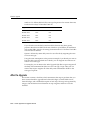
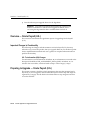
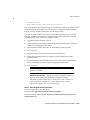
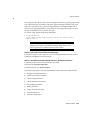
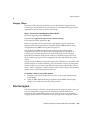
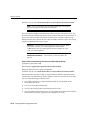
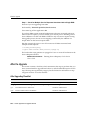
After the Upgrade
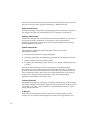
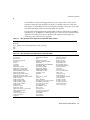
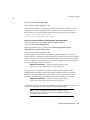
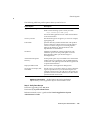
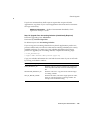
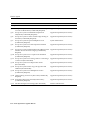
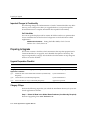
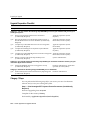
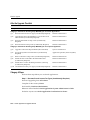
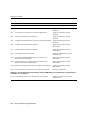
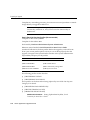
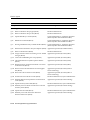
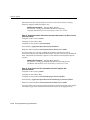
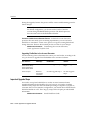
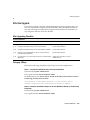
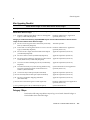
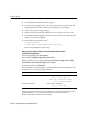
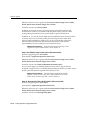
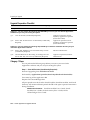
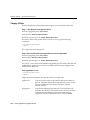
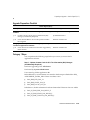
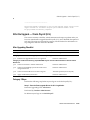
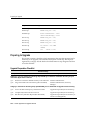
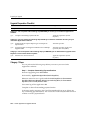
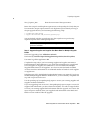
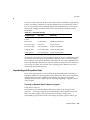
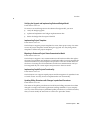
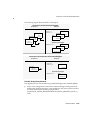
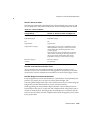
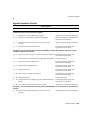
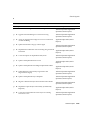
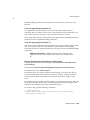
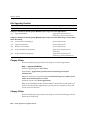
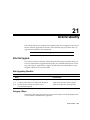
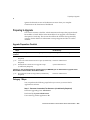
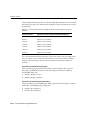
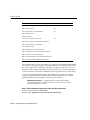
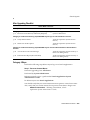
After Upgrading Checklist
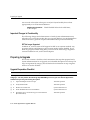
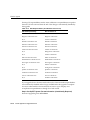
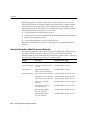
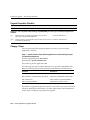
Oracle Inventory
Steps
Performed by
Category 4: Perform the following steps BEFORE anyone logs on to Oracle Applications.
❏ 1.
Rebuild your Workday Calendar
Application Specialist (Oracle Inventory)
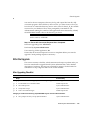
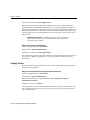
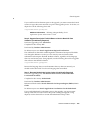
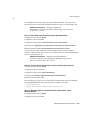
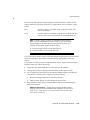
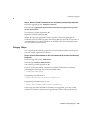
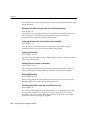
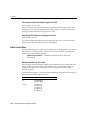
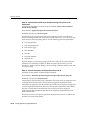
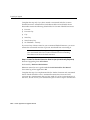
Category 5: Perform the following steps BEFORE anyone logs on to Oracle Inventory.
❏ 2.
Review and Correct Your Organization Default Accounts
Application Specialist (Oracle Inventory)
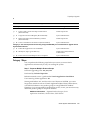
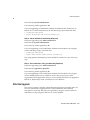
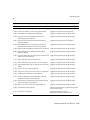
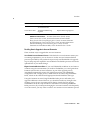
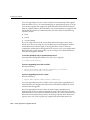
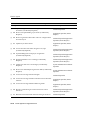
❏ 3.
Define New Cost Profile Options (Conditionally
Required)
Application Specialist (Oracle Cost
Management)
❏ 4.
Verify Inventory Valuation (Recommended)
Application Specialist (Oracle Cost
Management or Oracle Inventory)
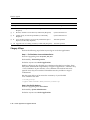
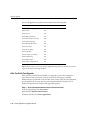
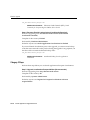
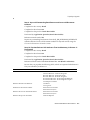
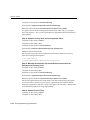
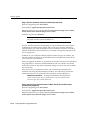
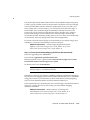
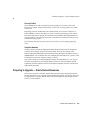
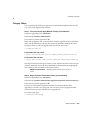
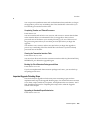
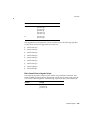
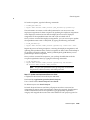
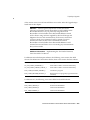
Category 6: Perform the following steps BEFORE anyone uses the affected feature.
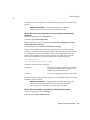
❏ 5.
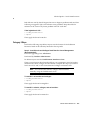
Create Indices on Flexfield Segment Columns
Database Administrator
❏ 6.
Summarize Demand History
Application Specialist (Oracle Inventory)
❏ 7.
Define Item Catalog Description Profile Option
Application Specialist (Oracle Inventory)
❏ 8.
Update Item Descriptions (Recommended)
Application Specialist (Oracle Inventory)
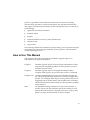
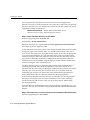
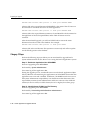
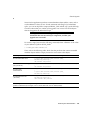
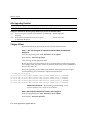
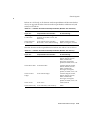
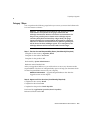
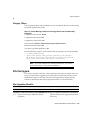
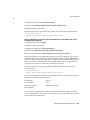
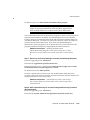
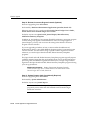
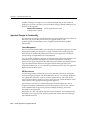
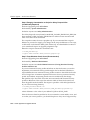
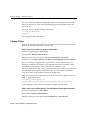
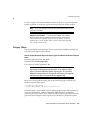
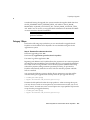
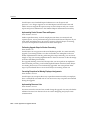
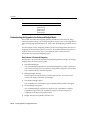
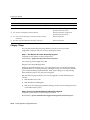
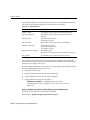
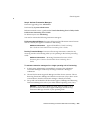
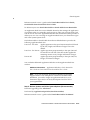
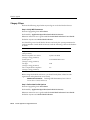
Category 4 Steps
Perform the following steps before anyone logs on to Oracle Applications.
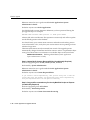
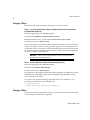
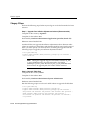
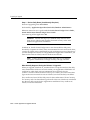
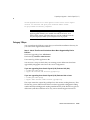
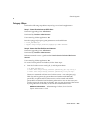
Step 1: Rebuild Your Workday Calendar
Perform if upgrading from: All releases
Performed by: Application Specialist (Oracle Inventory)
Reference manual needed: Oracle Bills of Material User’s Guide
Do before anyone uses: Oracle Applications
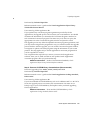
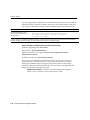
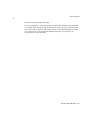
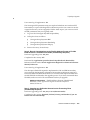
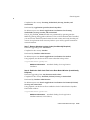
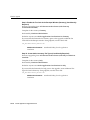
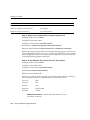
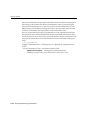
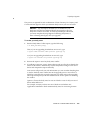
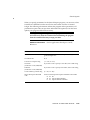
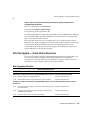
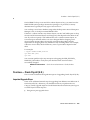
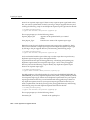
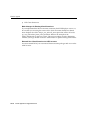
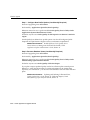
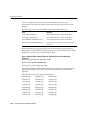
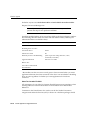
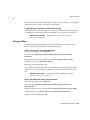
For Release 10.6 and later, there are several new Oracle Inventory tables that need to
be populated with workday calendar data. After checking to see that your
concurrent manager is running, perform the following steps:
16-6
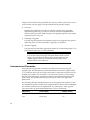
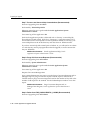
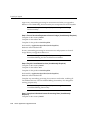
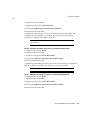
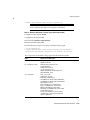
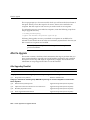
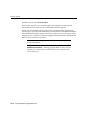
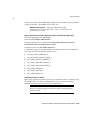
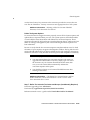
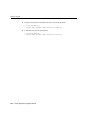
1.
Navigate to the Workday Calendar window.
2.
Query your calendar.
3.
Choose Build from the Special menu.
Oracle Applications Upgrade Manual