1
Topo USA 7.0 (SP 1) User Guide
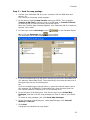
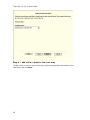
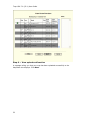
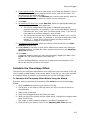
8. Select the route file on the device that you want to receive.
9. Select New from the Route drop-down list and type the new route name in
the text box.
10. Click Receive From Device.
11. Repeats the steps for each route file you want to receive.
12. Click Finish.
The route information displays.
Tip You can also open the Exchange dialog by clicking the Exchange button
on the GPS tab or the Handheld Export tab.
Receiving Waypoints From Your Pocket PC Device
Use the Exchange Wizard to receive waypoints created on your Pocket PC. Once
imported, you can use the file in your mapping program.
To Receive Waypoints From Your Pocket PC Device
Use the following steps to receive waypoints from your Pocket PC device.
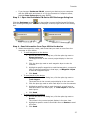
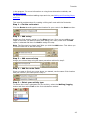
1. Click the Exchange button
on the toolbar.
2. Click Use Other Device to open the Exchange Wizard.
3. Under Device Type, select Pocket PC.
4. Select Receive from Device.
5. Select Waypoints from the Object Type drop-down list.
6. From the Save As drop-down list, select to save the waypoints as User Map
Data - Waypoints.
7. Click Next.
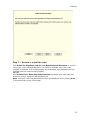
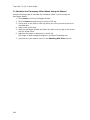
8. Select the waypoint file you want to add the waypoint information to from the
Waypoint File drop-down list. If you want to create a new waypoint file,
select New from the Waypoint File drop-down list and type the new
waypoint file name in the text box.
9. If you want all of the waypoints to display with the current symbol (such as
the default red flag), select the Use Current Waypoint (active waypoint)
option. If you want the waypoint symbols to match those on your third-party
GPS device, select the Use Custom Waypoint Symbol Set option and then
select the appropriate set from the drop-down list. For more information on
creating a custom symbol set, see Assigning a Waypoint ID to a Custom
Symbol.
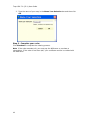
10. Click Receive From Device.
11. Repeats the steps for each waypoint file you want to receive.
12. Click Finish.
The waypoint information displays.
Tip You can also open the Exchange dialog by clicking the Exchange button
on the GPS tab or the Handheld Export tab.
256