1
Topic: ACE Initial Account Access
Welcome to the Automated Commercial Environment (ACE)!
At this point, you have read, signed, and sent your ACE Application to U.S. Customs
and Border Protection (CBP). Your ACE Secure Data Portal account has been
created or will be activated shortly. The following is a step-by-step guide that explains
the actions necessary to login to ACE.
Account Creation Automatic e-mail:
Shortly after submitting an ACE Application, the Trade Account Owner (TAO) will
receive an automatic e-mail from [email protected] with the new
account information necessary for ACE access.
Password Retrieval Steps:
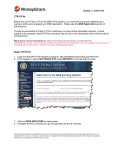
1. The e-mail contains a URL link to retrieve the temporary password needed
to log into ACE. The user must copy the URL provided in the e-mail, paste
it into an Internet Explorer window, and hit Enter.
To retrieve the temporary password, the user must enter his/her ‘Shared
Secret.’ The ‘Shared Secret’ is a combination of random alphanumeric
characters and is one of the identification safeguards necessary for
entrance into the ACE Secure Data Portal. The TAO receives his/her
‘Shared Secret’ from his/her Account Manager within two weeks of
account establishment.
•
Please note: The TAO’s ‘Shared Secret’ is unique, and can only be
supplied by the Account Manager.
•
The ‘Shared Secret’ is case sensitive, so be sure to type in the
‘Shared Secret’ exactly as it was supplied by the Account Manager.
2. After the information requested has been entered and the user has clicked
on the Submit button, the user will be directed to the Web page where
he/she can retrieve his/her temporary ACE login password.
•
The user’s password is provided on the Password Retrieval Web
page.
•
Please note: This web page will only be displayed once, so make
certain to record this temporary ACE login password exactly as it
appears. This password is also case sensitive.
3. After clicking Finish viewing Password, the user will be taken to the ACE
login screen (https://ace.cbp.dhs.gov).
1
October 2005
Providing the Right Information to the Right People at the Right Time and Place
Topic: ACE Initial Account Access
Questions? If you have any questions while logging into the ACE Secure Data
Portal, please remember you can always click the ‘?’ icon in the upper right-hand
corner to access the user manual for further assistance.
Initial Login Steps:
1. A User enters his/her User ID, which is the Account ID from the automatic
e-mail, as well as his/her temporary password provided in the previous
screen.
•
Keep in mind that both the User ID and the Password are case
sensitive.
2. After clicking Log in, the user will be directed to reset his/her password.
Creating New Password Steps:
Setting Challenge Questions:
1. The user must choose and answer 5 out of 14 questions presented that will
be used to validate identity should he/she forget his/her password. The
answers to the challenge questions are case sensitive; therefore, it is
recommended that the answers be entered in all lower case or all upper
case to be easily remembered.
2. After answering all five questions, click Submit Questions to be taken to
the New Password screen.
Setting a New Password:
1. Immediately after challenge response questions are successfully submitted,
the user’s temporary password expires and he/she must enter a new
password to be used each time he/she signs in to the portal. Please
remember, when selecting a new password, it is case sensitive.
2. A user then enters his/her new password, which is effective immediately.
All ACE passwords must:
• Begin with a number
• Contain at least four letters
• Contain exactly eight alphanumeric characters
• Contain at least one upper and lower case letter
• Not repeat a character consecutively more than once
2
October 2005
Providing the Right Information to the Right People at the Right Time and Place
Topic: ACE Initial Account Access
3. After successfully changing the password, close the current browser
session, open a new browser, and enter the ACE URL:
https://ace.cbp.dhs.gov to enter the portal Login Failure Steps.
If the user enters an invalid username or password, a red error message will appear.
1. If the user forgets his/her username or password and enters the wrong one
twice in one sitting, the user must click on the Forgot Your Password? link.
Before clicking on the link, the user must enter his/her User ID.
•
Please remember: the User ID is case sensitive.
•
Please note: Entering an invalid username or password a third time
disables further attempts at portal entrance! If a user does disable
his/her access, please contact the Help Desk and open a trouble
ticket. Another temporary password will then be distributed via
e-mail.
2. After clicking on the Forgot Your Password? link, the user will be asked
three out of the five randomly chosen challenge response questions that
were initially answered. Please remember, the answers to the three
questions are case sensitive.
3. After successfully answering the three challenge questions, a new
temporary password is assigned. An automatic e-mail from
[email protected] will be sent to the user’s e-mail
account.
4. The ACE Account user will go through the same procedure to retrieve their
temporary password as they did when they established initial portal access.
After receiving the temporary password, the user will be prompted to enter a
new password for regular portal access.
•
Please note, it is imperative that e-mail addresses are current and
always updated to ensure timely communication.
Additional Assistance? If you need additional assistance or need further user
information, please contact the ACE Portal Support Center at (703) 921-6000.
Please follow prompts. Hours of operation: 8:00 a.m. – 4:30 p.m. EDT Monday –
•
Friday.
For problems encountered after hours, please leave a message and you
will be contacted the next business day.
3
October 2005
Providing the Right Information to the Right People at the Right Time and Place