1
REC
7
SET
8
MENU
9
SRCH IN/S
O DIST
4
5
MANU
POWER
6
REP
1
2
0
.
3
—
ESC
C
ENT
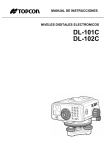
INSTRUCTION MANUAL
ELECTRONIC DIGITAL LEVEL
DL-101C
DL-102C
FOREWORD
FOREWORD
Thank you for purchasing the TOPCON Electronic Digital Level
DL-101C/DL-102C. For the best performance of the instruments,
please carefully read these instructions and keep them in a convenient location for future reference.
i
FOREWORD
General Handling Precautions
Before starting work or operation, be sure to check that the instrument is functioning correctly with
normal performance.
• Precautions are needed to avoid to be dirt or hurt of Pattern Staff surface or
connected part of each staff.
The pattern surface or the connected part is possible to be touched and injured on the
occasion of storage or transportation.
If the patterns dirtied or injured, accurate read out or measurement can not be expected
because the instrument reads out the white and black patterns of the staff as electrical
signals. Otherwise the quality of accuracy of the instrument reduces or sometimes
measurement can not be done.
• Tripod
Use a wooden tripod with the level when possible. A metallic tripod can cause vibrations
which can affect measuring precision. The screws on each leg of the tripod must be tightened
firmly.
• On tribrach
If tribrach is not installed correctly, measuring precision may be effected. Occasionally check
adjusting screws of the tribrach. Tighten the Base Fixing Screw.
• Guarding the instrument against shocks
When transporting the instrument, provide some protection to minimize risk of shocks. Heavy
shocks may cause the measurement to be faulty.
• Carrying the instrument
When carrying the instrument at the site, always grip its hand grip.
• Do not expose the instrument directly to the sunlight
Never leave the instrument in extreme heat (+122 degrees F) longer than necessary. Heat
can adversely affect its performance. Never expose the instrument's objective lens to direct
sunlight. Sunlight may damage the components inside the instrument.
• Sudden changes of temperature
Any sudden change of temperature to the instrument may result in a reduction of the
measuring range. When taking the instrument out from a heated vehicle let instrument
acclimate itself to the ambient temperature.
• Battery level check
Confirm battery level remaining before operating.
• Memory back up
The instrument has a built in battery for memory back up. If the battery power is too low to
back up the memory, error code “E98” will display. Contact your dealer, to replace the back up
battery.
• Pattern staff
Put gloves on if use pattern staff.
ii
FOREWORD
Display for Safe Use
In order to encourage the safe use of products and prevent any danger to the operator and others
or damage to properties, important warnings are put on the products and inserted in the
instruction manuals.
We suggest that everyone understand the meaning of the following displays and icons before
reading the “Safety Cautions” and text.
Meaning
Display
WARNING
Ignoring or disregard of this display may lead to the danger of death or serious
injury.
CAUTION
Ignoring or disregard of this display may lead to personal injury or physical
damage.
•Injury refers to hurt, burn, electric shock, etc.
•Physical damage refers to extensive damage to buildings or equipments and furniture.
Safety Cautions
WARNING
• Aiming the instrument directly into the sun can result in serious damage to
your eye.
Do not aim the instrument directly into the sun.
It is suggested to pay care specially at the time the position of the sun is low such in the
morning or evening, or at the time the sunlight is coming directly to the objective lens of the
instrument, cut off the sunlight by your hand or use an umbrella in such case.
• May ignite explosively.
Never use an instrument near flammable gas, liquid matter, and do not use in a coal mine.
• Keep the pattern staff away from electric facilities such as a high voltage wire
or substation.
As this is an electric conductor, there is danger of electric shock.
• Do not use the pattern staff in conditions of thunder and lightening.
As this is an electric conductor, thunderbolt can cause serious injury or death.
• There is a risk of fire, electric shock or physical harm if you attempt to disassemble or repair the instrument yourself.
This is only to be carried out by TOPCON or an authorized dealer, only!
• High temperature may cause fire.
Do not cover the charger while it is charging.
• Risk of fire or electric shock.
Do not use damaged power cable, plug and socket.
• Risk of fire or electric shock.
Do not use a wet battery or charger.
• Battery can cause explosion or injury.
Do not dispose in fire or heat.
• Risk of fire or electric shock.
Do not use any power voltage except the one given on manufacturers instructions.
• Battery can cause outbreak of fire.
Do not use any other type of charger other than the one specified.
• The short circuit of a battery can cause a fire.
Do not short circuit battery when storing it.
iii
FOREWORD
CAUTION
Do not connect or disconnect equipment with wet hands, you are at risk of electric shocks if
you do!
Risk of injury by overturn the carrying case.
Do not stand or sit on the carrying cases.
Please note that the tips of tripod can be hazardous, be aware of this when setting up or
carrying the tripod.
Risk of injury by falling down the instrument or case.
Do not use a carrying case with a damaged which belts, grips or latches .
Ensure that you mount the Tribrach correctly, failing to do so may result in injury if the tribrach
were to fall over.
It could be dangerous if the instrument falls over, please check that you fix the instrument to
the tripod correctly.
Risk of injury by falling down a tripod and an instrument.
Always check that the screws of tripod are tightened.
User
1)This product is for professional use only!
The user is required to be a qualified surveyor or have a good knowledge of surveying, in order
to understand the user and safety instructions, befoer operating, inspecting or adjusting.
2)Wear the required protectors (safety shoes, helmet, etc.) when operating.
Exceptions from Responsibility
1)The user of this product is expected to follow all operating instructions and make periodic
checks of the product’s performance.
2)The manufacturer, or its representatives, assumes no responsibility for results of a faulty or
intentional usage or misuse including any direct, indirect, consequential damage, and loss of
profits.
3)The manufacturer, or its representatives, assumes no responsibility for consequential
damage,and loss of profits by any disaster, (an earthquake, storms, floods etc.).
A fire, accident, or an act of a third party and/or a usage any other usual conditions.
4)The manufacturer, or its representatives, assumes no responsibility for any damage,and loss of
profits due to a change of data, loss of data, an interruption of business etc., caused by using
the product or an unusable product.
5)The manufacturer, or its representatives, assumes no responsibility for any damage, and loss of
profits caused by usage except for explained in the user manual.
6)The manufacturer, or its representatives, assumes no responsibility for damage caused by
wrong movement, or action due to connecting with other products.
iv
FOREWORD
Standard set composition
•Instrument DL-101C/102C (with lens cap) ....................... 1pc.
•Carrying case ................................................................... 1pc.
•Plastic rain cover .............................................................. 1pc.
•Silicon cloth ...................................................................... 1pc.
•Plumb bob set .................................................................. 1set
•Adjusting pin..................................................................... 1pc.
•Instruction manual ............................................................ 1vol.
•Battery Unit* ..................................................................... 1pc.
• Make sure that all of the above items are with the instrument when purchased.
* The following are battery configurations. Included battery configurations very by package.
Rechargeable battery type:
Dry battery type:
Rechargeable battery (BT-31Q) ........ 1pc.
Battery charger BC-23B or BC-23C .. 1pc.
Dry battery holder (DB-31) ............. 1pc.
AA- cell ..........................................6pcs.
Remark :The battery charger BC-23B is for AC120V and the BC-23C is for AC230V use.
v
FOREWORD
Contents
FOREWORD ..............................................................................................................i
General Handling Precautions ............................................................................... ii
Display for Safe Use .......................................................................................... iii
Safety Cautions .................................................................................................... iii
User ...................................................................................................................... iv
Exceptions from Responsibility ............................................................................. iv
Standard set composition ......................................................................................v
Contents ............................................................................................................... vi
Contents ............................................................................................................... vi
1 NOMENCLATURE AND FUNCTIONS .............................................................1-1
Nomenclature .................................................................................................... 1-1
Operating Keys and Functions .......................................................................... 1-2
Display ............................................................................................................... 1-3
2 PREPARATION FOR MEASUREMENT ...........................................................2-1
Setting Up the Instrument for Measurement ...................................................... 2-1
POWER Switch Key ON .................................................................................... 2-3
Battery Power Remaining Display ..................................................................... 2-3
Setting of Record Mode (Out Module) ............................................................... 2-4
Data Card .......................................................................................................... 2-6
Main Menu Contains .......................................................................................... 2-7
Entering Characters While in Alpha Mode ......................................................... 2-8
Focusing and Collimation of Staff ...................................................................... 2-9
Data Digits Displays Over Flow ....................................................................... 2-10
Measuring Precaution ...................................................................................... 2-10
3 STANDARD MEASUREMENT [MENU MEASURE] .......................................3-1
4 LINE LEVELING ...............................................................................................4-1
Start of Line Leveling [Start Leveling] ............................................................. 4-2
Line Leveling - Foresight, Backsight Collection [Level1/2/3] ............................. 4-4
About the Point Number (PN) in Line Leveling ................................................ 4-12
Repeat Measurement
[REP] key .............................................................. 4-14
Measuring of Intermediate Point
[IN/SO] key ............................................ 4-16
Setout Measurement
[IN/SO] key ............................................................. 4-18
End of Change Point [End Mode] .................................................................. 4-22
End of Line Leveling (End of Benchmark) [End Mode] ................................... 4-23
Continuing Leveling [Cont Leveling] ................................................................ 4-25
5 THE OTHER FUNCTIONS ................................................................................5-1
Manual Input of Data [MANU] key .................................................................. 5-1
Distance Display [DIST] key ........................................................................... 5-2
Inverse staff mode ............................................................................................. 5-2
Search of Recorded Data [SRCH] key .......................................................... 5-3
Measuring a Horizontal Angle ............................................................................ 5-6
Stadia Surveying ................................................................................................ 5-7
6 FORMATTING DATA CARD / INTERNAL MEMORY (RAM) [MENU FORMAT] 6-1
Formatting Data Card ........................................................................................ 6-1
Formatting Internal Memory (RAM) .................................................................. 6-2
7 MEMORY MANAGER [Menu Utility] .............................................................7-1
Making group into Data Card [Make Group] .................................................. 7-2
Finding a job
[Find Job] ................................................................................ 7-2
Copying job
[Copy Job] .............................................................................. 7-3
Deleting job [Delete Job] ................................................................................. 7-4
Checking capacity of RAM or Data card [Check Capacity] ............................ 7-5
8 SET MODE ........................................................................................................8-1
Set Mode Menu ................................................................................................. 8-1
Changing Set Modes ......................................................................................... 8-5
9 USING AND CHARGING BATTERY ................................................................9-1
On-board Rechargeable battery BT-31Q ........................................................... 9-1
On-board dry battery holder DB-31 ................................................................... 9-2
10 ADJUSTMENT ..............................................................................................10-1
Adjustment of Circular Level ............................................................................ 10-1
Collimation of the Instrument ........................................................................... 10-2
11 SPECIAL ACCESSORIES ............................................................................11-1
12 STORAGE PRECAUTIONS ..........................................................................12-1
13 MESSAGE & ERROR DISPLAY ..................................................................13-1
vi
FOREWORD
14 SPECIFICATIONS ........................................................................................14-1
vii
1
NOMENCLATURE AND FUNCTIONS
1 NOMENCLATURE AND FUNCTIONS
Nomenclature
Battery
Horizontal tangent screw
Objective lens
Leveling screw
Base
Hand grip
Circular level window
Telescope
focusing knob
Display
REC
7
SET
MENU
8
9
SRCH IN/SO
DIST
4
5
MANU
POWER
1
2
0
.
6
REP
3
—
ESC
C
POWER key
ENT
Circular level
adjusting screws
Measuring key
Telescope eyepiece
Serial signal connector
Operating keys
1-1
1
NOMENCLATURE AND FUNCTIONS
Operating Keys and Functions
MEAS Key
Keys
Name of key
Functions
REC
Record key
Records the measured data or enters the displayed data
to the instrument. The displayed data are recorded by
pressing this key.
SET
Set key
This key initiates the set mode. The set mode is used to
set measuring mode, record mode and other parameters.
MENU
Menu key
SRCH
Search key
IN / SO
Intermediate point /
Set out mode key
This key is used to initiate intermediate point or set-out
mode collection during line leveling.
DIST
Distance measuring key
Distance data is measured and displayed when this key
is pressed.
MANU
Manual entry key
When measurement with the [MEAS] key is not possible,
the manual key can be used to input the data from the
keyboard.
Select key
This key is used to page through menu screens or data
display screens.
Digit shift key
If the displayed value overflows the screen this key can be
used to shift the display to the right or left in the screen.
REP
Repeat measurement
key
This key is used to remeasure the previous backsight or
foresight point during line leveling.
ESC/C
Escape/clear key
This key can be used to escape from the menu mode or
any of the setting modes. This key can be used as a backspace key when inputting data.
0~9
Numerical key
.(
)
[
]
-
This key initiates the menu mode. The menu mode has
the following options; Standard measuring, Formatting
Ram/Card, Adjusting and Utility modes, Adjust mode.
This key allows for the searching and display of recorded
data.
These keys are used to input numeric values.
Numeric, symbol alpha
key
When in alpha mode this key will change between numeric, alpha, or symbol input mode.
Inverse staff mode key
This key can be used to measure with a inverse staff.
Inverse staff mode is necessary to set “USE” within the
set mode beforehand.
Enter key
Use this key to confirm mode parameters and to enter
displayed data values.
ENT
MEAS
Start measuring key
POWER
Power key
This key is used to initiate a measurement.
This key is used to cut the instrument ON or OFF.
1-2
1
NOMENCLATURE AND FUNCTIONS
Display
Display
The Display is a 2 line dot matrix LCD having eight digits per line.
Turn display back light ON/OFF
The display back light option can be available. Refer to chapter “SET MODE” to see how to turn
the back light ON/OFF.
Luminance adjusting
The brightness of the display can be adjusted to one of nine settings. Refer to chapter “SET
MODE” to see how to set the brightness.
Example:
Menu
Measure
Standard measurement
Back Pn
10
Back Pn
>>>
Line Leveling
Measuring
Display marks
Display
Contents
Display
Contents
Indicates that record mode is
on
There are other pages or menu that
can be viewed by pressing the [ ]
[ ]key.
Battery power indicator
Pressing [ ] [
next menu.
So
Set out mode
BM
Benchmark
CP
Changing point
Bk
Backsight
GH
Ground height
Foresight
Int
Intermediate point measurement,
sideshot.
Fr
Inst Ht
]key to display the
Inverse staff mode
*The following display marks are omitted in this manual.
1-3
Instrument height
2
PREPARATION FOR MEASUREMENT
2 PREPARATION FOR MEASUREMENT
Setting Up the Instrument for Measurement
Setting up the Tripod
Use a tripod with a tripod screw of 5/8" diameter and 11 threads per inch, such as the TOPCON
Type E aluminum tripod or wide-frame tripod or the dome head aluminum tripod.
1
2
3
Extend the legs to a suitable length and tighten the wing nuts at the legs mid-sections.
Tighten the hexagonal nut located on the side of the tripod head such that the tripod legs are
not too loose. Place the tripod over the required point, with the legs spread about a meter
apart or at such an angle to insure the stability of the tripod. Place one tripod leg in position
and then used the other two legs to approximately level the tripod head. If necessary adjust
the tripod leg extension.
Press the shoes of the tripod legs firmly into the ground to anchor the tripod securely.
Attaching the Instrument to the Tripod Head
Take the instrument carefully out of the carrying case and place it on the tripod head.
1
2
3
Align the tripod screw with the socket on the base of the instrument, and screw in the tripod
screw until the instrument is securely fixed to the tripod head.
If the horizontal circle is being used for measuring an angle or establishing a line, the
instrument must be set up exactly over the point with the plum bob.
Use the three leveling screws to center the circular bubble level in other to level the
instrument. If a dome head tripod is being used, loosen the tripod screw slightly and move the
instrument around on top of the tripod head to center the circular level bubble vial. When the
bubble is within the red circle, tighten the tripod socket.
Setting the Instrument Up Over the Point
When the instrument is used to measure angles or to establish a line, the instrument must be set
up exactly over a particular point with the plumb bob.
1
2
3
4
5
Hang the plumb bob hook on the plumb bob hanger of the tripod screw.
Next suspend the plumb bob string from the plumb hook and adjust the string length with the
slipping device so that the plumb bob is at a suitable height.
If the instrument is not set up over the required point, move the instrument over the point
without disturbing the relation between the tripod legs and the tripod head. Place the tripod in
position so that the plumb bob is within one centimeter or so of the point. Grasp two of the
tripod legs and adjust with respect to the third leg so that the tripod head is level at a
convenient height with sufficient spread of the legs when the two legs are allowed to touch
ground.
Finally press each leg firmly into the ground while watching the plumb bob and tripod head.
Loosen the tripod screw slightly and slide the instrument on the tripod head in order to position
the plumb bob directly over the point and tighten the tripod screw.
2-1
2
PREPARATION FOR MEASUREMENT
Leveling the Instrument
1 Use the two leveling screws furthermost from the circular level to move the bubble of the
2
circular level vial. Rotate the screws in the direction which will shift the bubble of the circular
level vial so that the bubble is located on a line perpendicular to a line running through the
center of the two leveling screws being adjusted, as illustrated.
Next, revolve the remaining leveling screw to shift the bubble towards the center of the circular
level vial.
Leveling screw C
Leveling screw B
Leveling screw A
If the bubble is still not centered properly, repeat the operation from the beginning.
NOTE: Do not touch the telescope during this procedure.
Adjusting the Eyepieces
The telescope eyepiece should be adjusted to the user′s eyesight before conducting surveying
operations.
1
2
First, rotate the eyepiece adjustment ring by revolving it in a counterclockwise direction. The
reticle cross-hairs may be blurred and indistinct at this time.
Next, slowly rotate the eyepiece ring in a clockwise direction until the cross-hairs are seen
clearly and distinctly.
Sighting and Focusing
1 Point the telescope in the direction of the target. Sight through the telescope and align the
target to the apex of the triangular mark as illustrated.
Target
Aiming sight
2
3
Next, revolve the focusing knob in either direction until the target is in focus.
Finally, use the horizontal tangent screw for precise alignment of the target.
For further information, see section “Focusing and Collimation of Staff” on page 9 .
NOTE:
Once the level has been focused and aligned on the target, shift the eye to the left and right
while looking through the telescope eyepiece. There should be no deviation between the reticle
cross-hairs and the target. If there is deviation, parallax, then either focus the instrument or
adjust the eyepiece. The focusing error can be eliminated by careful adjustment of the eyepiece
and focusing.
2-2
2
PREPARATION FOR MEASUREMENT
POWER Switch Key ON
TOPCON
DL-102C
When the power switch is pressed, the level will first display the
title. The screen will then display the menu that was displayed
prior to shutting the level off.
Menu
Measure
Battery Power Remaining Display
Battery Icon
The battery icon displays the battery capacity.
Battery Icon
Menu
Measure
No light:The battery level is sufficient for measuring.
Light:Measuring is possible but the battery is partly
discharged.
Flash:A flashing indicates the battery will soon be
discharged. Charge to a new battery as soon as possible.
Battery Voltage Check
Battery voltage can be displayed using one of the “Set Menu” options
Operating procedure
Operating
Display
Fore Pn
40
1
Press the [SET] key while the screen displays MENU
or before measurement.
After a few seconds the “Check Battery” screen will
be displayed
[SET]
Set
Mode
Check
Battery
2
Press the [ENT] key.
The screen displays the voltage level for N-seconds.
The screen returns to “Check Battery” screen.
[ENT]
Refer to Chapter six to see how to set the N-display
time.
3
Press the [ESC] key. The level returns to the screen
that was displayed prior to pressing the [SET] key.
Battery
7.20 V
Check
Battery
[ESC]
Fore Pn
40
Note :
1)The battery operating time varies depending on environmental conditions such as ambient
temperature, charging time, and the number of charges and discharges.
The batteries should be charged before use and spare batteries should be available.
2)See Chapter " Power Source and Charging " for an explanation of battery use.
2-3
2
PREPARATION FOR MEASUREMENT
Setting of Record Mode (Out Module)
To store the measured data to the internal memory (RAM) of the instrument or Data card, “Out
Module” in the Set Menu should be set to “RAM” or “Card”. Before the Line Level option can be
run, “Out Module” has to be set to “RAM” or “Card”.
1) Module RAM :
The measured data (Job) is stored in the instrument (RAM).
•To output the stored data to external device, carry out “SET MODE (File Out)” or DL-101C/
102C interface manual. (See Chapter “SET MODE”)
• Maximum 8,000 points data can be stored in RAM.
• The job number within the RAM can be maximum 256 jobs.
•“Group” can not be made within RAM.
2) Module Card :
The measured data (Job) can be stored in Memory card directly.
•To output the stored data to external device, carry out “SET MODE (File Out)” or DL-101C/
102C interface manual. (See Chapter “SET MODE”)
•The group number within Card can be maximum 256 groups. (To make groups into card, see
Chapter “MEMORY MANAGER”)
•The job number in one group within a card can be maximum 256 jobs each. (See Chapter
“MEMORY MANAGER”)
3) Module RS-232C :
Connect DL-101C/102C to external device and out put the data every time measured.
•The measurement in this mode can be Standard Measurement (Menu Measure) only.
4) Module off :
The measured data is displayed only but not stored or out put.
Operating procedure
Operating
Display
Menu
Measure
1 While menu is displaying, press [SET] key to be set
[SET]
Set
Mode
mode.
Refer to "Set mode" for further information of set
mode.
Check
Battery
2 Press [
] or [
] key several time to be Out Module
menu.
2-4
[
] or [
]
Out
Module
2
3
Press [ENT] key.
4
Select Module mode by [
[ENT] key.
PREPARATION FOR MEASUREMENT
[ENT]
] or [
] key and press
Module
Ram
Select Mode
[
] or [
]
Module
Card
Module
RS-232C
5
Press [ESC] key.
[ENT]
[ESC]
2-5
Module
Off
2
PREPARATION FOR MEASUREMENT
Data Card
You can use Data Card to store data copy job or refer the coordinate data.
To use Data Card, “Out Module” in the Set Menu should be set to “Card”.
In Data card, maximum 256 groups can be made and each group is able to have maximum 256
jobs. (See Chapter “MEMORY MANAGER”)
Data Card
Use the PC card based on PCMCIA.
The capacity of a card must be less than 2 Mbytes.
How to set Data Card
1)Lift up the on-board battery while pulling the lock lever.
2)Pull off the cover as shown bellow.
3)Insert a Data Card into the instrument.
On-board battery
Lock lever
Cover
How to eject Data Card
Ejecting button
Data card
Push the ejecting button and pull off the data card.
To format Data Card, refer to Chapter 6 “Formatting Data Card / Internal Memory”.
To manage Data Card, refer to Chapter 7 “MEMORY MANAGER”.
Note:
Data stored will be destroyed.
Do not take off the battery while data is being written into data card.
2-6
2
PREPARATION FOR MEASUREMENT
Main Menu Contains
The menu mode contains the following items. Not all the menu option available at the same time.
For example: If “REC” mode is set to “RS-232C” then none of the Line Leveling options are
available. If you are in the line level routine then Start Loop and Continue Loop are not available at
the same time.
Menu
Measure
[
]
or
[
Menu
Leveling
Standard Measuring Mode
No elevations are calculated in this mode.
See Chapter three "Standard Measurement".
Start
Leveling
]
Close
Leveling
Cont
Leveling
Menu
Adjust
Menu
Utility
Line leveling modes
Refer to Chapter 4, "Line
Leveling".
Adjustment mode
This option is used to check the adjustment of the level.
This routine steps the user through a peg test.
See Chapter 10, "ADJUSTMENT".
Utility modes
This option is used to manage Data Card or
Internal Memory (RAM).
See Chapter 7 "MEMORY MANAGER".
Make
Group
Find
Job
Copy
Job
Delete
Job
Check
Capacity
Menu
Format
Set !
Password
Format
Ram
Format
Card
2-7
Format modes
Internal recorded data or
memory card data can be
cleared or initialized
using this menu option.
See Chapter 6,
"FORMATTING".
2
PREPARATION FOR MEASUREMENT
Entering Characters While in Alpha Mode
When record mode is on, alphanumeric characters can be entered when entering fields such as
remarks.
Small letters and symbol marks can be input only in input of Remarks. In other input, only
capital letters and numeric characters can be input as follows
The word ‘RAM’ can not be used for the group name.
Item
Maximum
length
Characters
Group name
(only for card)
Capital letters, numeric characters and "-" can be input. 8 characters
Job name
Capital letters, numeric characters and "-" can be input. 8 characters
Info
Capital and small letters, numeric characters and all
symbol marks can be input.
16 characters
[Example] Enter "Tp#7" at the " Info1" prompt.
Operating procedure
Operating
Display
Info1 ?
1
Press the [
mode.
2
Press the [ ] or [ ] key until the letter "T" is
located at the flashing cursor.
3
Press the [ENT] key. The "T" is entered and displayed
on the bottom line.
4
Press the [
mode.
] key to enter the small letter
[
5
Press the [ ] or [ ] key several times until "p" is
located at the flashing cursor. Press [ENT].
[
Press the [
[
6
[
] key to enter the capital alphabet letter
] or [
] or [
] key to enter the symbol mode.
[
]
] or [
ABCD
]
[ENT]
QRSTUVW
QRSTUVW
T
] or [
]
abcd
T
] or [
]
mnopqrs
Tp
[ENT]
] or [
]
!"#$
Tp
7
8
Press the [ ] or [ ] key several times until "#"
character is located at the flashing cursor. Press
[ENT] .
[
Press the [
mode.
[
] or [
] key to enter the numeric
] or [
]
[ENT]
] or [
!"#$%&
Tp#
]
0123
Tp#
2-8
2
9
PREPARATION FOR MEASUREMENT
Press the [ ] or [ ] key several times until the "7"
character is located at the flashing cursor. Press
[ENT].
[
] or [
10
Press the [ESC] key.
[ESC]
11
Press the [ENT] key after confirming the contents of
the displayed string.
[ENT]
Press [
] or [
]
[ENT]
456789
Tp#7
Info1 ?
Tp#7
] to change between the different modes.
Capital letter
ABCD
Numeric
Symbol mark
!"#$
0123
The symbols can be input are as follows:
! " # $ % & ′ ( ) * +- . / : ; <
Small letter
abcd
= > ? @ [ ¥ ] ^
\
{ | }
Focusing and Collimation of Staff
Focusing
The scale pattern of staff does not have to be in perfect focus in order for the instrument to take a
measurement, but accurate focusing shortens the measurement time.
Obstructions
As long as the staff is not hidden by obstructions, such as tree branches by more than 30percent,
measurement can be taken. Even if the point of intersection of the cross-hair is obscured,
measurements can be taken if the obstruction covers less than 30 percent of the view.
Measuring is possible
Measuring is possible
Measuring is impossible
Measurement is impossible even
through the point of intersection
of cross-hair is not hidden.
2-9
2
PREPARATION FOR MEASUREMENT
Shadow
It may not be possible to rarely measure when the staff is covered with a shadow as shown below.
In that case, cover the whole of the staff with a shadow.
Shadow
Cover the whole of the
staff with a shadow.
Data Digits Displays Over Flow
If the displayed data overflows the screen press the [
Key [
] key to shift the display to the left.
] to shift the display back to the right.
Example: The calculated elevation is 135.3079m.
[
] key
GH
35.3079m
GH
135.307→
[
] key
Measuring Precaution
The followings are offered to take over full functions from the unit.
1)Set up the staff in the sufficient daylight. Even the illumination is used whole the staff should be
illuminated.
2)The minimum distance possible measurement between instrument and staff is 2m.
3)No matter in measuring functions if the staff is in the shade, but if the scale pattern is covered
by the shadow of tree branch or leaf, error may displays and measuring will be disturbed.
4)When error displays because of darker at staff side than eyepiece side, cover the eyepiece by
hand.
2 - 10
3
STANDARD MEASUREMENT [MENU MEASURE]
3 STANDARD MEASUREMENT
[MENU MEASURE]
(Measuring samples in this Instruction Manual are indicated by DL-102C.)
Standard measurement mode is used to take measurements to the staff without having an
elevation calculated.
If “Out Module” is set to ‘Ram’ or ‘Card’, you will be prompted to enter remarks and job number,
and all measurements will be recorded to Ram or Card. See section “Setting of Record Mode
(Out Module)” for an explanation of the record mode.
For an explanation of the single/continuous measuring mode refer to Chapter eight, SET MODE.
[Measuring example]: Out Module:Module Ram, 3-measurement per collection.
Operating procedure
Operating
Display
Menu
Measure
1
Press the [ENT] key.
2
Enter the job No. and press [ENT]. *1),3)
3
4
[ENT]
Job No?
J01
Job. No.
[ENT]
MeasNo?
1
Enter the measuring No. and press the [ENT] key.
*2),3)
Meas No.Input
[ENT]
Info1 ?
Enter remarks 1-3 and press the [ENT] key. *1),3)
Remark 1
[ENT]
Info2 ?
Remark 2
[ENT]
Info3 ?
To bypass the remark prompts and go directly to step
five press [ENT] at the “Info 1” or “Info 2” prompt.
Remark 3
[ENT]
Meas Mn
1
5
6
Collimate on the staff.
Press the [MEAS] key.
Collimate
[MEAS]
Rod 3
1.6983m
Continuous
measuring
[ESC]
Rod Avg
1.69837m
[REC]
Meas Mn
Three measurements will be taken and the average
will be displayed for N-seconds. * 4),5)
If the level is set for continuous measuring, press the
[ESC] key. The screen then displays the last
measured data for N-seconds.
7
Press the [REC] key.
The displayed data will be stored. * 6)
1
3-1
3
STANDARD MEASUREMENT [MENU MEASURE]
*1)The job no.field is limited to eight alphanumeric characters. The remarks field is limited to
16 alphanumeric characters.
*2)The measuring no. field is limited to eight numeric characters.
*3)The job no., measuring no., and remarks are not entered when the record mode is off.
*4)The duration of display is set in the set mode. Refer to Chapter 8 "SET MODE".
The relation between Meas Mn (Measurement No.) and Meas Pn( Point No.) is as follows.
Mn 11
Pn 1
Mn 12
Pn 1
Mn 13
Pn 1
Pn 2
Pn 2
Pn 2
Pn 3
Pn 3
Pn 3
*5)The following data is displayed when measurements are completed. Press the [
] and
[ ] keys to view the alternate screens.
*6)Meas No. increments whenever "MEASURE MODE" changes to another mode.
Display When [
] or [
] key is pressed after measuring completed.
Rod Avg
1.69837m
*Displayed only if in at N-times
measure mode.
DistAvg
23.427m
Distance display
N-times measuring:Average value
Continuous measuring:The last data
n 3
σ 0.2 mm
Number of measurements
Standard deviation
Meas Pn
4
Point No. display
3-2
4
LINE LEVELING
4 LINE LEVELING
(Measuring samples in this Instruction Manual are indicated by DL-102C.)
Record mode (Out Module) must be set to “Ram”, ”Card” or “OFF” to run line leveling. The
example in this chapter assumes that record mode is set to “RAM”.
If you want to save the line leveling data into Data card directly, record mode (Out Module) must
be set to “Card”.
Foresight
Backsight
Known elevation
height
T.P
BM
I.P
L1
L2
BM
I.P
Base surface
BM
BM
T.P
B.S
B.S
F.S
L2
F.S
L1
Line Level Menu Screens
Menu
Leveling
Main menu loop
Start
Leveling
Start of line leveling
•Input Job No. •Input Benchmark •Input remarks
Cont
Leveling
Continue a loop. Collect foresights and backsights in line leveling.
There are three patterns of line leveling as follows.
To continue a Line Leveling, first select one of jobs in RAM.
Level1: Backsight 1→ Foresight 1→ Foresight 2 → Backsight 2
Level2: Backsight 1→ Backsight 2 → Foresight 1→ Foresight 2
Level3: Backsight → Foresight
• [REP] key
• [MANU] key
• [DIST] key
• [INT/SO] key
Close
Leveling
:Remeasure the foresight or backsight.
:Manual entry of rod height and rod distance
:Measure a distance
:Intermediate point collection (Intermediate)
Set out measuring (Set out)
This option is used to end a job or create a change point.
CHANGE POINT end mode
• Input of change point no. • Input of remarks
Benchmark end mode
• Input of remarks • Input of ending benchmark number.
4-1
4
Start of Line Leveling
LINE LEVELING
[Start Leveling]
Start of line leveling is used to enter the job no.,benchmark no., and benchmark elevation. After
this data has been entered the measurement to the backsight is taken.
Level1: Backsight 1→ Foresight 1→ Foresight 2 → Backsight 2
Level2: Backsight 1→ Backsight 2 → Foresight 1 → Foresight 2
Level3: Backsight → Foresight
Start benchmark
B
Known elevation
height
L
Operating procedure
Operating
Display
Menu
Leveling
1
Press the [ENT] key.
[ENT]
2
Press the [ENT] key. The previously used job number
will be displayed as the default.
[ENT]
3
Enter job no., and press [ENT]. *1),2)
4
Select a measuring pattern of line leveling by
pressing the [
] or [
Start
Leveling
Job No?
J01
Job. No.
[ENT]
] key and press [ENT] key.
[
]or [
[ENT]
Level1
B1F1F2B2
]
EVlimit
0.0
mm
5
Enter the limit of discrepancy (EV limit), and press
[ENT] key. *3)
EV limit
[ENT]
BM No?
B01
6
Enter benchmark No. and press [ENT] key. *1),2)
BM. No.
[ENT]
GH ?
7
Enter benchmark elevation and press the [ENT] key.
(Input range: -999.9999~9999.9999m)
BM. elevation
[ENT]
Info1 ?
Info2 ?
Info3 ?
4-2
4
8
Enter remarks 1-3 and press the [ENT] key. *2),4)
• To bypass the remark prompts and go directly to step
seven press [ENT] at the “Info 1” or “Info 2 ” prompt.
Screen displays measurement of backsight point
(benchmark).
Remark 1
[ENT]
Remark 2
[ENT]
Remark 3
[ENT]
LINE LEVELING
Back Pn
B01
*1)Input is limited to eight alphanumeric characters.
*2)When record mode is off ( Out Module is OFF), the input of job no., Benchmark no.and remarks is bypassed.
*3)When “Level 3 ” is selected, the input of limit of discrepancy is bypassed.
Discrepancy (EV) :First (Backsight-Foresight)-Second (Backsight-Foresight)
*4)Input is limited to 16 alphanumeric characters.
4-3
4
LINE LEVELING
Line Leveling - Foresight, Backsight Collection [Level1/2/3]
The “Level1,2,3”, continue loop, mode is used to collect the backsight and foresight measurement
during line leveling.
Backsight
Foresight
L2
Level1:Backsight 1 → Foresight 1 → Foresight 2 → Backsight 2
Operating procedure
Operating
1
Proceed “Start of Line Leveling [Start L]”.
The screen then displays the “Back Pn” prompt. If the
previous step had been Start of Line Leveling then
the benchmark number would be displayed.
2
Collimate to the staff on backsight point.
[Backsight 1]
Press the [MEAS] key.
[Example] Number of measurements : 3
When the measurement is completed, the average
value will be displayed for N-second. *1)
3
Back1Pn
10
Collimate Bk1
[MEAS]
Continuous
measuring
[ESC]
•When the setting mode is continuous measuring,
press the [ESC] key. The final measured data will
be displayed for N-seconds.
The display then changes to the “Fore 1 Pn” prompt
and the foresight point number is automatically
increased or decreased.
4
Collimate the instrument to the staff located on the
foresight. [Foresight 1]
5
Press the [MEAS] key.
RodB1 3
1.6983m
Rod B1
1.69837m
Fore1Pn
11
Collimate Fr1
[MEAS]
After the measurement has been completed, the
average value will be displayed.
Display
Continuous
measuring
[ESC]
RodF1 3
1.5235m
Rod F1
1.52387m
6
Collimate the instrument to the staff located on the
foresight and press the [MEAS] key. [Foresight 2]
[Collimate Fr2
[MEAS]
4-4
Fore2Pn
11
4
7
Collimate to the staff on backsight point and press
the [MEAS] key. [Backsight 2]
Collimate Bk2
[MEAS]
8
Continue to step two as long as there are more
backsights and foresights to collect.
LINE LEVELING
Back2Pn
10
Back1Pn
11
*1) Setting the display duration is done from within the set mode. Refer to Chapter 8 “SET
MODE”.
•The following data can be displayed after the measurement has been completed. The [ ]
and [ ] key will alternately display the different screens.
The following screens are displayed when the [
surement to the Backsight 1 is completed.
] or [
] key is pressed after the mea-
Rod B1
1.69837m
Dist B1
21.433m
Distance to the backsight.
N- measurements : Average value
Continuous measurement: Final data
*Displayed only if multiple
measurement mode is set.
n 3
σ 0.2mm
n:Total measurements taken
σ:Standard deviation
*Displays setting by set mode
only.
(Refer to Chapter 8 Set mode)
PointNo
10
Backsight point number
The following screens are displayed when the [
surement to the Foresight 1 is completed.
] or [
] key is pressed after the mea-
Rod F1
1.49837m
*Displayed only if multiple
measurement mode is set.
Dist F1
21.433m
Distance to the foresight.
N- measurements : Average value
Continuous measurement: Final data
n 3
σ 0.2 mm
n:Total measurements taken
σ:Standard deviation
HDif1
0.20000m
Difference in elevation from the backsight 1 to the foresight 1.
GH1
35.8272→
Ground elevation
PointNo
11
Foresight point number
4-5
4
The following screens are displayed when the [
surement to the Foresight 2 is completed.
] or [
LINE LEVELING
] key is pressed after the mea-
Rod F2
1.49837m
Dist F2
21.433m
Distance to the foresight.
N- measurements : Average value
Continuous measurement: Final data
*Displayed only if multiple measurement mode is set.
n 3
σ 0.1 mm
n:Total measurements taken
σ:Standard deviation
*Displays setting by set mode only.
(Refer to Chapter 8 Set mode)
d 25.2
∑ 102.8m
d=Total backsight distances Total foresight distances
∑=Total backsight distances +
Total foresight distances
PointNo
11
Foresight point number
The following screens are displayed when the [
surement to the Backsight 2 is completed.
] or [
] key is pressed after the mea-
Rod B2
1.69832m
EV
0.01mm
Discrepancy of elevation
=(Backsight 1 - Foresight 1) (Backsight 2 - Foresight 2)
*Displayed only if multiple
measurement mode is set.
Dist B2
21.430m
Distance to the foresight.
N- measurements : Average value
Continuous measurement: Final data
*Displays setting by set mode
only.
(Refer to Chapter 8 Set mode)
n 3
σ 0.1 mm
n:Total measurements taken
σ:Standard deviation
d 25.2
∑ 102.8m
d=Total backsight distances Total foresight distances
∑=Total backsight distances +
Total foresight distances
HDif2
0.19999m
Difference in elevation from the
backsight 2 to the foresight 2.
GH2
35.8272→
Ground elevation
PointNo
10
Backsight point number
4-6
4
LINE LEVELING
Level2: Backsight 1 → Backsight 2 → Foresight 1 → Foresight 2
Operating procedure
Operating
1
Proceed “Start of Line Leveling [Start L] ”.
The screen then displays the “Back Pn ” prompt. If
the previous step had been Start of Line Leveling
then the benchmark number would be displayed.
2
Collimate to the staff on backsight point.
[Backsight 1]
3
Press the [MEAS] key.
4
Collimate the instrument to the staff located on the
foresight. [Backsight 2]
5
Press the [MEAS] key.
6
Collimate the instrument to the staff located on the
foresight and press the [MEAS] key. [Foresight 1]
7
Collimate the instrument to the staff located on the
foresight and press the [MEAS] key. [Foresight 2]
8
Continue to step two as long as there are more
backsights and foresights to collect.
Display
Back1Pn
10
Collimate Bk1
[MEAS]
Collimate Bk2
Back2Pn
10
[MEAS]
The following screens are displayed when the [
surement to the Backsight 1 is completed.
Collimate Fr1
[MEAS]
Fore1Pn
11
Collimate Fr2
[MEAS]
Fore2Pn
11
Back1Pn
11
] or [
] key is pressed after the mea-
Rod B1
1.69837m
Dist B1
21.433m
*Displayed only if multiple
measurement mode is set.
Distance to the backsight 1.
N- measurements : Average value
Continuous measurement: Final data
n 3
σ 0.2mm
n:Total measurements taken
σ:Standard deviation
PointNo
10
Backsight point number
4-7
4
The following screens are displayed when the [
surement to the Foresight 2 is completed.
] or [
LINE LEVELING
] key is pressed after the mea-
Rod B2
1.69832m
Dist B2
21.433m
Distance to the foresight.
N- measurements : Average value
Continuous measurement: Final data
*Displayed only if multiple measurement mode is set.
n 3
σ 0.1 mm
n:Total measurements taken
σ:Standard deviation
*Displays setting by set mode only.
(Refer to Chapter 8 Set mode)
d 25.2
∑ 102.8m
d=Total backsight distances Total foresight distances
∑=Total backsight distances +
Total foresight distances
PointNo
10
Backsight point number
The following screens are displayed when the [
surement to the Foresight 1 is completed.
] or [
] key is pressed after the mea-
Rod F1
1.49837m
*Displayed only if multiple
measurement mode is set.
Dist F1
21.433m
Distance to the foresight.
N- measurements : Average value
Continuous measurement: Final data
n 3
σ 0.2 mm
n:Total measurements taken
σ:Standard deviation
HDif1
0.20000m
Difference in elevation from the backsight 2 to the foresight 2.
GH1
35.8272→
Ground elevation
PointNo
11
Foresight point number
4-8
4
The following screens are displayed when the [
surement to the Backsight 2 is completed.
] or [
LINE LEVELING
] key is pressed after the mea-
Rod F2
1.52387m
EV
0.01mm
Discrepancy of elevation
=(Backsight 1 - Foresight 1) (Backsight 2 - Foresight 2)
*Displayed only if multiple
measurement mode is set.
Dist F2
21.434m
Distance to the foresight 2.
N- measurements : Average value
Continuous measurement: Final data
*Displays setting by set mode
only.
(Refer to Chapter 8 Set mode)
n 3
σ 0.1 mm
n:Total measurements taken
σ:Standard deviation
d 25.2
∑ 102.8m
d=Total backsight distances Total foresight distances
∑=Total backsight distances +
Total foresight distances
HDif2
0.19999m
Difference in elevation from the
backsight 2 to the foresight 2.
GH2
35.8272→
Ground elevation
PointNo
11
Foresight point number
4-9
4
LINE LEVELING
Level3: Backsight → Foresight
Operating procedure
Operating
1
Proceed “Start of Line Leveling [Start L] ”.
The screen then displays the “Back Pn ” prompt. If
the previous step had been Start of Line Leveling
then the benchmark number would be displayed.
2
Collimate to the staff on backsight point.
[Backsight]
3
Press the [MEAS] key.
4
Collimate the instrument to the staff located on the
foresight. [Foresight]
5
Press the [MEAS] key.
6
Continue to step two as long as there are more
backsights and foresights to collect.
Display
Back Pn
10
Collimate Bk1
[MEAS]
Collimate Fr
Fore Pn
11
[MEAS]
The following screens are displayed when the [
surement to the Backsight is completed.
Back1Pn
11
] or [
] key is pressed after the mea-
Rod Bk
1.69837m
Dist Bk
21.433m
Distance to the backsight.
N- measurements : Average value
Continuous measurement: Final data
*Displayed only if multiple measurement mode is set.
n 3
σ 0.2 mm
n:Total measurements taken
σ:Standard deviation
*Displays setting by set mode
only.
(Refer to Chapter 8 Set mode)
d 25.2
∑ 102.8m
d=Total backsight distances Total foresight distances
∑=Total backsight distances +
Total foresight distances
Inst Ht
35.8272→
Instrument height display
PointNo
10
Backsight point number
4 - 10
4
The following screens are displayed when the [
surement to the Foresight is completed.
] or [
LINE LEVELING
] key is pressed after the mea-
Rod Fr
1.52387m
*Displayed only if multiple
measurement mode is set.
*Displays setting by set mode
only.
(Refer to Chapter 8 Set mode)
Dist Fr
22.123m
Distance to the foresight .
N- measurements : Average value
Continuous measurement: Final data
n 3
σ 0.1 mm
n:Total measurements taken
σ:Standard deviation
d
0.1
∑ 127.9m
d=Total backsight distances Total foresight distances
∑=Total backsight distances +
Total foresight distances
HDif Fr
0.19999m
Difference in elevation from the
backsight to the foresight .
GH Fr
34.3074→
Ground elevation
PointNo
11
Foresight point number
4 - 11
4
LINE LEVELING
About the Point Number (PN) in Line Leveling
Point number modifying
Point number can be changed before foresight measurement.
Refer to next page to modify the point number.
About characters usable in the point number
In point number, numeric characters and the capital letter alphabets and “ - ” are usable to 8
characters.
The point number used once can be used again.
About auto increment, auto decrement
It is possible to set up auto increment, auto decrement. Refer to Chapter 8 “SET MODE” .
Auto increment
If there is numeric character at the end of the point number which it was input into in the last time,
point number of this time is indicated with last value+1.
Figure shift in auto increment
1)When overall length of point number is less than 8 characters.
Digit sequence will shift right, and increase by 1 figure.
Example;
Last time
ABCD-99
This time
ABCD-100
2)When overall length of point number is 8 characters.
Figure shift is ignored.
Example;
Last time
ABCDE-99
This time
ABCDE-00
Auto decrement
If there is numeric character at the end of the point number which it was input into in the last time,
point number of this time is indicated with last value - 1.
1)Numeric character is decreased by 1 in case of more than 1.
Example;
Last time
ABC-02
This time
ABC-01
Next time
ABC-00
2)When numeric character section is 0 entirely
“ 9 ” are indicated till overall length is 8figures.
Example;
Last time
ABC-00
This time
ABC-9999
Next time
ABC-9998
Note;
When point number is only numeric character, the numeric character will be just decreased.
Only when point number of this time is just “ 1 ” , next point number will be “ 99999999 ”.
4 - 12
4
LINE LEVELING
How to modify the point number
You can modify the point number before foresight measurement.
Operating procedure
Operating
Display
Fore Pn
11
1
Press the [ESC] key before foresight
measurement.The point number moves to the left
side.
[ESC]
2
Press the [ESC](C) key to clear the number.
[ESC]
Fore Pn
11
Fore Pn
Twice
3
4
5
Enter new point number. *1),2)
[Example: 1001]
Press the [ENT] key.
Enter remarks 1 and press the [ENT] key. *3)
(Example: CKPOINT)
1001
Fore Pn
1001
[ENT]
Info1 ?
Remark 1
Info1 ?
CKPOINT
[ENT]
*1)Input is limited to eight alphanumeric characters.
*2)In the same line leveling, the point number used already can be input.
*3)Input is limited to 16 alphanumeric characters.
4 - 13
Fore Pn
1001
4
Repeat Measurement
LINE LEVELING
[REP] key
The [REP] key is used to recollect either the previous backsight or foresight point in the event that
the point was collected in error.
The data which stored before remeasuring, will not affected on the result of each data
calculations.
[Level1]
Backsight 1
[REP]
Foresight 1
Foresight 2
Backsight 2
Next Bk 1
[REP]
[REP]
[REP]
•After finishing backsight 1 or foresight 1 measurement : It is possible to remeasure from
backsight 1.
•After finishing foresight 2 or backsight 2 measurement : It is possible to remeasure from foresight
2 or backsight 1.
[Level2]
Backsight 1
[REP]
Backsight 2
Foresight 1
Foresight 2
Next Bk 1
[REP]
[REP]
[REP]
•After finishing backsight 1 or backsight 2 measurement : It is possible to remeasure from
backsight 1.
•After finishing foresight 1 or foresight 2 measurement : It is possible to remeasure from foresight
1 or backsight 1.
[Level3]
Backsight
[REP]
Foresight
Next Bk
[REP]
•After finishing backsight measurement : It is possible to remeasure from backsight .
•After finishing foresight measurement : It is possible to remeasure from foresight or backsight.
4 - 14
4
LINE LEVELING
Example :[Level1]
The process in case to remeasure for backsight 1 after foresight 2 measurement is completed.
Operating procedure
Operating
Display
Back2Pn
29
1
Press the [REP] key at the “Back2Pn” prompt. *1)
[REP]
2
Press the [ENT] key to confirm that you wish to
recollect the measurement.
[ENT]
3
Press the [ ] or [
press [ENT]. *2)
4
Press the [REP] key again.
The display returns to the “Back1Pn” prompt.
5
Collimate to the backsight and press [MEAS] to
recollect the measurement.
When the measurement is completed the measured
data is displayed for N-seconds.
] key to select a reason and
6
Collimate to the foresight and press [MEAS] to
recollect the measurement.
7
Collimate to the foresight and press [MEAS] to
recollect the measurement.
[
] or [
[ENT]
[REP]
Rep Fr?
30
Rea REP
EV err
]
Fore2Pn
30
Back1Pn
29
Collimate Bk
[MEAS]
Fore1Pn
30
Collimate Fr
[MEAS]
Collimate Fr
[MEAS]
Fore2Pn
30
The display returns to “Back 2 Pn” prompt. *3)
Back2Pn
29
*1)Press the [ ] or [ ] key to view the measured data.
*2)You can select one of the following 3 reasons.
OP err : Operation error, EV err: Discrepancy of elevation error, RD err: Reading error
*3)Press the [ ] or [ ] key to display the measured and calculated data of the previous
point.
Display of reason measured again is added, and contents except it are same as “
Measuring Start ”. (Refer to “Measuring Start” for the contents of display)
4 - 15
4
Measuring of Intermediate Point
LINE LEVELING
[IN/SO] key
The [IN/SO] key is used to collect intermediate points, sideshots, during line leveling.
Foresight
Backsight
I.P
L1
I.P
[Example] Number of measurements is three
Operating procedure
Operating
Display
Fore Pn
40
1
After completing the measurement to the backsight
and before measuring to the next foresight press the
[IN/SO] key.
[IN/SO]
2
Press the [ENT] key. The instrument is now ready to
collect the measurement to the intermediate point.
[ENT]
Collimate the instrument on the staff which should be
set on the intermediate point and press the [MEAS]
key.
Collimate Int
[MEAS]
3
Intermediate
Int Pn
1
When the measurement is completed, the average
rod height will be displayed for N-seconds. *1)
RodIn 3
1.6983m
Rod Int
1.69837m
End=ENT
Cont=ESC
4
5
Press the [ESC] key to return to step 1.
The instrument is ready to collect the next
intermediate point. The intermediate point number is
automatically increased or decreased.
Repeat step three and four for each intermediate
shot that needs to be collected from the present
setup.
[ESC]
Int Pn
2
Collimate Int
[MEAS]
End=ENT
Cont=ESC
4 - 16
4
6
Press the [ENT] key to collect the next foresight
point.
*1)The following screens displayed when the [
[ENT]
] or [
LINE LEVELING
Fore Pn
3
] key is pressed after the
measurement.
*Displayed only if
multiple
measurement mode
is set.
Rod Int
1.69835m
Measured value of the staff.
DistInt
21.430m
The horizontal distance between the intermediate point and the instrument point.
n 3
σ 0.1mm
n
GH
52.876→
Elevation of the intermediate point
PointNo
10
Point number of the intermediate point
σ
4 - 17
:Total measurements taken
:Standard deviation
4
Setout Measurement
LINE LEVELING
[IN/SO] key
The Setout mode can be used to set points at a specified elevation.
Coordinate file used will be within Ram or Group (Card) which is selected in “Out module.
Adjust the point until it matches the specified elevation
Diff Ht
Height set out
[Example 1] The number of measurement is three
Operating procedure
Operating
Display
Fore Pn
40
1
After completing the backsight measurement and
before measuring to the next foresight, press the [IN/
SO] key.
2
Select the Setout menu by pressing the [
[
] or
[IN/SO]
[
] or [
Intermediate
]
Set Out
] key.
3
Press [ENT].
Referring Coordinate data is within Ram or Group
which is selected in “Out module”.
[ENT]
Read
Coordi ?
4
Press [ENT].
[ENT]
Read
Now
So
5
Select a point number in selected group by pressing
the [
] or [
] key and press [ENT].
[
] or [
[ENT]
You can see “Set Ht ” , “PointNo” and “Info”
alternately by pressing the [ ] or [ ] key at this
step.
4 - 18
]
Pn
PN1
Set Ht
49.88087
So
Pn
PN1
4
6
Collimate the staff on the setout point, and press
[MEAS].
After the measurement has been taken, the
measured data will be displayed including the three
measurements and the final average of the three
measurements. *1),2)
Collimate
[MEAS]
LINE LEVELING
RodSo 3
1.6983m
Diff Ht
0.48453m
Rec=ENT
Cont=ESC
7
Press [ENT] key to record the measurement.
[ENT]
End=ENT
Next=ESC
[ENT]
Fore Pn
PN2
•Press [ESC] key if you want to remeasure the same
stakeout point .
8
Press [ENT] key to return to the “Fore Pn” prompt.
•Press [ESC] key if you want to set another stakeout
point.
*1)Pressing [
] or [
] at this step displays the following measured data.
Diff Ht
0.48453m
Measured value of the staff.
Rod So
1.69837m
Displayed only if multiple
measurement is set.
Dist So
38.470m
The horizontal distance between the setout
point and the instrument
n 3
σ 0.2mm
Number of measurements
Standard deviation
GH So
50.367→
Elevation of the setout point
PointNo
10
Point number of the setout point
*2)Referred coordinate data will not be memorized in RAM or Card.
4 - 19
4
LINE LEVELING
[Example 2]
Manual Inputting of set out height, Point number and Information
The number of measurement is three
Operating procedure
Operating
Display
Fore Pn
40
1
After completing the backsight measurement and
before measuring to the next foresight, press the [IN/
SO] key.
2
Select the Setout menu by pressing the [
[
] or
[IN/SO]
[
] or [
Intermediate
]
Set Out
] key.
3
Press [ENT].
[ENT]
Read
Coordi ?
4
Press [ESC] to cancel referring coordinate data.
[ESC]
Set Ht?
5
Enter the elevation of the point to be stakeout, and
press [ENT].
Height
So
Pn?
[ENT]
6
Enter the point number to be stakeout, and press
[ENT].
Point number
Info1?
[ENT]
7
Enter the Information to be stakeout, and press
[ENT].
•After pressing [ENT] key, you can confirm the data by
pressing the [ ] or [ ] key.
8
Collimate the staff on the setout point, and press
[MEAS].
After the measurement has been taken, the different
height calculated from the average of three
measurements data will be displayed. *1)
Info
[ENT]
Collimate
[MEAS]
So
Pn
PN1
RodSo 3
1.6983m
Diff Ht
0.48453m
Rec=ENT
Cont=ESC
9 Press [ENT] key to record the measurement.
• Press [ESC] key if you want to remeasure the same
stakeout point .
4 - 20
[ENT]
End=ENT
Next=ESC
4
10 Press [ENT] key to return to the “Fore Pn” prompt.
• Press [ESC] key if you want to set another stakeout
point.
*1)Pressing [
] or [
[ENT]
LINE LEVELING
Fore Pn
PN2
] at this step displays the following measured data.
Diff Ht
0.48453m
Measured value of the staff.
Rod So
1.69837m
Displayed only if multiple
measurement is set.
Dist So
38.470m
The horizontal distance between the setout
point and the instrument
n 3
σ 0.2mm
Number of measurements
Standard deviation
GH So
50.367→
Elevation of the setout point
PointNo
10
Point number of the setout point
4 - 21
4
LINE LEVELING
End of Change Point [End Mode]
You can close line leveling loop job at a change point.
The closed job can be continued to measure. To continue a C.P closed job, refer to section
“Continuing Leveling”.
Operating procedure
Operating
Display
Back Pn
20
1
Press the [MENU] key at the “Back Pn” prompt after
having collected a foresight point and before
measuring a backsight point.
2
Press the [
3
Press the [ENT] key.
[ENT]
End of
CP
4
Press the [ENT] key.
[ENT]
CP No?
1
5
Enter change point number.
] key to display the end mode menu.
Enter to remarks one and two. *1),2)
• Press [ENT] at the “Info 1” prompt to bypass remark
entry.
Input is limited to 16 alphanumeric characters.
If record mode is “OFF”, this step is skipped.
Press the [ENT] key.
Display when the [
] or [
*1)If there is no previous
change point the
height difference between benchmark
will be displayed.
*2) The following data
can be displayed by
pressing the [ ] or
[ ] key.
[
]
C P No.
[ENT]
6
7
[ MENU]
Remark 1
[ENT]
Remark 2
[ENT]
Cont
Leveling
Close
Leveling
Info1 ?
Info2 ?
∆h CP
0.584m
[ENT]
Cont
Leveling
] key is pressed.
∆h CP
0.584m
∆h ∑CP
1.922m
Total differences of each change points height
(height difference between benchmark and end
change point)
∑D CP
45.77m
Horizontal distance from the last change point
( Horizontal distance from the benchmark in
case the first change point)
∑D ∑CP
124.55m
Total horizontal distance of each change
points (Distance from the benchmark to the final change point)
GH CP
34.307m
Elevation of the end change point
4 - 22
4
LINE LEVELING
End of Line Leveling (End of Benchmark) [End Mode]
Operating procedure
Operating
Display
Back Pn
20
1
Press the [MENU] key at the “Back Pn” prompt after
having collected a foresight point and before
measuring a backsight point.
2
Press the [
3
Press the [ENT] key.
4
Press the [
screen.
5
Press the [ENT] key.
6
Enter the ending benchmark number and press
[ENT].
BM No.
[ENT]
Enter to remarks one and two. *1),2)
• Press [ENT] at the “Info 1” prompt to bypass remark
entry.
Input is limited to 16 alphanumeric characters.
If record mode is “OFF”, this step is skipped.
Remark 1
[ENT]
Remark 2
[ENT]
] key to display the end mode menu.
[
]
[ENT]
] key to display the end of benchmark
[
]
[ENT]
7
8
[ MENU]
Press the [ENT] key.
The display shows menu of start line leveling.
Cont
Leveling
Close
Leveling
End of
CP
End of
BM
BM No?
B01
Info1 ?
Info2 ?
∆h CP
0.584m
[ENT]
Start
Leveling
*1)If there is no previous change point the height difference between benchmarks ( ∆h BM) will
be displayed.
*2)The following data can be displayed in this state. Each time pressing[ ] or [ ] key, display
changes.
4 - 23
4
Display when the [
] or [
LINE LEVELING
] key is pressed.
∆h CP
0.584m
If there is no previous change point, then this
screen is not displayed.
∆h BM
1.923m
The height difference between the benchmarks
∑D CP
45.77m
Horizontal distance from the last change point.
If there is no previous change point, then this
screen is not displayed.
∑D BM
124.55m
Horizontal distance between benchmarks.
GH BM
34.307m
Elevation of the benchmark.
4 - 24
4
LINE LEVELING
Continuing Leveling [Cont Leveling]
This mode is used to continue line-leveling job.
• “Out Module” in the Set Mode should be set to “RAM” or “Card”.
•The job loop must have been closed by [End of Change Point] mode.
•The job data must be selected in “Out Module”.
Operating procedure
Operating
Display
Menu
Leveling
1
Press the [ENT] key from the [Menu Leveling] screen.
2
Press the [
3
Press the [ENT] key.
4
Select a job by pressing the [
5
Press the [ENT] key.
[ENT]
[
] key to display the end mode menu.
]
Cont
Leveling
[ENT]
] or the [
] key.
[
]or[
[ENT]
Job data will be set. *1)
6
Start
Leveling
Start measuring.
For further operations, refer to section “Line Leveling
-Foresight, Backsight Collection”.
*1)You can exit the job only when the first backsight prompt is shown.
4 - 25
Job
JO11
]
Job
JO7733
Setting
Now
Back Pn
20
5
THE OTHER FUNCTIONS
5 THE OTHER FUNCTIONS
Manual Input of Data
[MANU] key
The manual input of rod height and the horizontal distance can be done using the [MEAS] key if
measurement using the [MEAS] key is impossible for some reason.
[Example] From within line leveling
Operating procedure
Operating
Display
Fore Pn
20
1
Press the [MANU] key instead of the [MEAS] key at
the backsight or foresight point or the intermediate
point prompt.
2
Enter the rod height and press the [ENT] key.
Input Rod Ht.
[ENT]
D Fr?
3
Enter the horizontal distance and press the [ENT]
key.
Input Distance
Back Pn
20
[ MANU]
[ENT]
Rod Fr?
The program then proceeds to the next step
depending on whether the previous point was a
backsight or foresight.
[Example] From within normal measurement
Operating procedure
Operating
Display
Meas Mn
30
1
Press the [MANU] key instead of the [MEAS] key at
the measure number prompt.
2
Enter the rod height and press the [ENT] key.
Input Rod Ht.
[ENT]
Dist ?
3
Enter the horizontal distance and press the [ENT]
key.
Input Distance
[ENT]
Rec ?
ENTorESC
4
Press [ENT] key to record the data.
[ENT]
Meas Mn
30
5-1
[ MANU]
Rod ?
5
Distance Display
THE OTHER FUNCTIONS
[DIST] key
The distance to the foresight can be checked before collecting the actual point using the [DIST]
key. This function can be used to ensure that distances to the backsight and foresight are equal.
[Example] From within line levelling
Operating procedure
Operating
Display
Fore Pn
11
1
At the “Fore Pn” prompt press [DIST] to check the
horizontal distance to the staff.
[DIST]
Dist
23.57m
After measuring and displaying the distance to the
staff the display returns to the “Fore Pn” prompt.
Fore Pn
11
Inverse staff mode
This mode enables you to measure for the ceiling points with the inverted staff.
Beforehand, it is necessary to set the Inverse Mode to “Use” in the SET MODE. Refer to Chapter
6 “SET MODE”
Operating procedure
Operating
Display
Fore Pn
11
1
Press the [ - ] key to set the inverse mode ON.
The inverse mode prompt “
2
[-]
” is displayed.
Collimate the inverted staff and press [MEAS] key.
Collimate Bk
[MEAS]
3
Press the [ - ] key again, the mode returns to the
normal measurement mode.
[-]
Fore Pn
11
Back Pn
11
Back Pn
11
In case wrong setting a staff up and down or in poor measuring condition, sometimes message
displays as below.
Fore Pn
Rod OK?
Confirm the setting of the staff or measuring condition.
If the staff is set properly, press the [ENT] key, but if you like stop the measurement, press the
[CLR] key.
The error message may be displayed in such procedure did not performed correctly.
5-2
5
Search of Recorded Data
THE OTHER FUNCTIONS
[SRCH] key
The [SRCH] key is used to search and display the recorded data.
Search will be done in Ram or a Group (Card) which is selected in “Out module”.
[In case “Out Module” : Ram]
In the state of before measuring
[SRCH]
Each time pressing [
] or [
] , the search mode changes as follows.
Srch
Job No
Srch
Meas No
Srch
BM No
Srch
CP No
Srch
Job Date
Job No.
Search mode
Measure No.
Search mode
Benchmark
No.
Search mode
Changing
point No.
Search mode
Job date
Search mode
[Example] Search for Benchmark No.
Operating procedure
Operating
Display
Fore Pn
11
1
To search and display recorded data, press the
[SRCH] key when the display is at a menu option or
when the display is prompting you for a
measurement.
2
Press [ ] or [ ] several times until the “ BM No”
prompt is displayed.
3
Press the [ENT] key .
[SRCH]
[
] or [
[ENT]
In case searching the last measured Benchmark No.
4
Press the [ENT] key as it is.
Srch
Job No
]
Srch
BM No
BM No?
BM No?
[ENT]
The last measured Benchmark No. is searched and
displays.
Srch B
Last
*BM No
BM-5
5-3
5
THE OTHER FUNCTIONS
In case searching Benchmark No. one before the
Benchmark No. displayed.
5
Press the [SRCH] key after procedure 4 , and press
[
[SRCH]
].
• To display the Benchmark No. one before or after the
displayed Benchmark No., press the [SRCH] key and
press [ ] or [ ].
[
]
Srch B
Next
*BM No
BM-TOP1
BM-TOP1
[SRCH]
[ ] or [
BM-4
]
BM-TOP1
BM-5
BM No?
In case searching the Benchmark No. specified.
4′
Enter the Benchmark No., and press the [ENT] key.
In case searching the same Bench MarkNo.displayed.
BM No.
[ENT]
5′
[SRCH]
Press the [SRCH] key after procedure 4′
press [
, and
].
[
• To display the same Benchmark No. one before or
after the displayed, press the [SRCH] key and press
[ ] or [ ].
]
Srch B
BM-TOP1
*BM No
BM-TOP1
Srch B
Next
BM-2
BM-TOP1
*BM No
BM-TOP1
BM-4
[SRCH]
[ ] or [
]
BM-TOP1
BM-5
BM-TOP1
BM-12
•If the[ ] or [ ]key is pressed after searching the Benchmark No., before or after data is
shown.
•If you reach the top of the file “Top of file” will be displayed. If you reach the bottom of the file
“Bottom of file” will be displayed.
•If no matching data is found, “No data” is displayed.
•Press [ESC] once or twice to return to the previous mode.
5-4
5
THE OTHER FUNCTIONS
[In case “Out Module” : Card]
You can search only for Job No. in a group of card data.
In the state of before measuring
[SRCH]
Srch
Job No
Each time pressing [
JobType
Measure
Measurement
Job Search
] or [
JobType
Level
JobType
Adjust
Leveling job
Search
Adjustment
job Search
] , the search mode changes as follows.
[Example] Search for Benchmark No.
Operating procedure
Operating
Display
Fore Pn
11
1
To search Job number, press the [SRCH] key when
the display is at a menu option or when the display is
prompting you for a measurement.
2
Press [
3
Press the [ENT] key .
4
Enter Job number you want to search for.
] or [
] several times to select Job Type.
[SRCH]
[
]
[ENT]
To display the Job No. one before or after the
displayed Job No., press the [
J01
] or [
].key.
*Job No
J01
[ENT]
[
] or [
JobType
Measure
Job
Job No.
The last measured Benchmark No. is searched and
displays.
5
] or [
Srch
Job No
]
*Job No
J02
Top Job
J02
[
] or [
]
J03
J04
Last Job
•If the[ ] or [ ] key is pressed after searching job No., before or after data is shown.
•If you reach the top of the file “Top of file” will be displayed. If you reach the bottom of the file
“Bottom of file” will be displayed.
•If no matching Job is found, “Job Not Found” is displayed.
•Press [ESC] once or twice to return to the previous mode.
5-5
5
THE OTHER FUNCTIONS
Measuring a Horizontal Angle
This instrument has a horizontal circle which can be used to measure horizontal angles.
The horizontal circle is graduated in 1° (1g) divisions and is numbered every 10° (10g), with the
scale calibrated from 0 to 350° (0 to 390g). The angular value increases as the instrument is
revolved clockwise.
Horizontal circle
1
2
First, set up and level the instrument over the starting point, point C.
Then sight through the telescope on the backsight, point A. Align the rod on point A precisely
to the vertical cross-hair using the horizontal tangent screw.
Rotate the horizontal circle ring until zero is set on the scale.
Next, sight through the telescope on the rod held on point B and precisely align with the
horizontal tangent screw. The angular reading will be the horizontal angle between points A
and B from point C, the angle ACB.
Point A
Point B
10
0
350
40
30
20
Point B
Point A
Degree type
Point C
10
Horizontal angle: 30°or 33g
0
Point A
390
40
30
Point B
Grade type
5-6
20
5
THE OTHER FUNCTIONS
Stadia Surveying
This instrument can be used for stadia surveying, Measurement by stadia is a convenient method
for measuring distances with the stadia hairs of the instrument, in combination with a graduated
rod, such as a leveling rod or stadia rod, which is preferable for long distances. The distance from
the center of the instrument to the rod is found by sighting through the instrument on the rod and
multiplying the stadia interval by 100. The stadia interval is the distance between the top stadia
hair reading and the bottom stadia fair reading.
l
l
Stadia hairs
L=100 × l
1
2
3
Set the rod on the point to be surveyed.
Sight through the telescope of the leveled instrument and determine the distance or interval,
“ l ”, between the top stadia hair reading and bottom stadia hair reading of the rod.
The horizontal distance “ L ” from the center of the instrument to the rod is equal to 100 times
the stadia interval, “ l ”.
L =100 × l
5-7
6
FORMATTING DATA CARD / INTERNAL MEMORY (RAM) [MENU FORMAT]
6 FORMATTING DATA CARD / INTERNAL MEMORY (RAM) [MENU FORMAT]
This option will erase ALL FILES in either the internal memory (RAM) or Data Card memory and
the files cannot be retrieved.
The password is input to avoid the accidental clearing of data due to operator error. The password
is set by the manufacturer and cannot be changed by the user. This manual is the only place
where there is a written record of the password.
Password : 753
Formatting Data Card
Operating procedure
1
Operating
Press [MENU] and then press [ ] or [ ] while in
the menu mode to display the Format screen. Press
[ENT].
[
] or [
Display
]
Menu
Format
[ENT]
Set!
Password
2
Enter the password ,753, and press the [ENT] key.
3
Select “Card” by pressing the [
Press [ENT].
] or [
] key.
Password
(753)
[ENT]
[
] or [
Format
Ram
]
Format
Card
[ENT]
Format
Card ?
4
Confirm the display and press the [ENT] key.
The volume label will be shown. *1)
[ENT]
V Label
TOPCON
5
Press the [ENT] key.
[ENT]
Changed
Battery?
6
Press the [ENT] key. *2)
The card memory expire will be set to three years
later and the expire date will be shown.
[ENT]
Date ?
01/01/07
7
Confirm the date *3) ,4) and press the [ENT] key.
Formatting will start.
[ENT]
Format
>>
Menu
Format
*1)To reset the Volume Label, press the [ESC] key and enter new data.
*2),3)To reset the expire, press the [ESC] key and enter new date.
*4)To cancel the formatting, press the [ESC] key twice.
6-1
6
FORMATTING DATA CARD / INTERNAL MEMORY (RAM) [MENU FORMAT]
Formatting Internal Memory (RAM)
Operating procedure
1
Operating
Press [MENU] and then press [ ] or [ ] while in
the menu mode to display the Format screen. Press
[ENT].
[
] or [
Display
]
Menu
Format
[ENT]
Set!
Password
2
Enter the password ,753, and press the [ENT] key.
3
Select “RAM” by pressing the [
Press [ENT].
] or [
] key.
Password
(753)
[ENT]
[
] or [
Format
Card
]
Format
RAM
[ENT]
Format
RAM ?
4
Confirm the display and press the [ENT] key.
Formatting will start. *1)
[ENT]
Format
>>
Menu
Format
*1)Press [ESC] to abort the memory clear process.
6-2
7
MEMORY MANAGER [Menu Utility]
7 MEMORY MANAGER [Menu Utility]
This chapter describes how you can use Menu Utility to perform managing Ram and Data Card .
The following tasks can be available.
• Making group within Data card • Finding job
• Copying job (Ram to Card, Card to Ram or Card to card)
• Deleting job within RAM or Data Card • Checking capacity of RAM or Data Card
Menu Contains
Menu
Utility
Make
Group
Find
Job
Delete
Job
Copy
Job
Check
Capacity
Files in Ram and Data Card
Job and coordinate data can be stored within Ram or Data card as follows.
In Ram
JOB01.M
JOB02.L
JOB21.A
JOB22.L
In Data Card
Group01
JOB01.M
JOB02.L
JOB03.A
JOB04.L
Group02
JOB21.A
JOB22.L
JOB23.M
COORDI.X
7-1
7
•
•
•
•
•
MEMORY MANAGER [Menu Utility]
Group can not be existed within Ram.
In a Data card, it is not possible to make a job file of same name within one group.
You can not use the word ‘RAM’ for the group name.
Coordinate data file name is fixed as COORDI.
Extended code can be added automatically according to file type as follows.
L : Line leveling data file
M : Measuring data file
A : Adjustment data file
X : Coordinate data file
Making group into Data Card
[Make Group]
You can make one or more groups as directories.
Operating procedure
1
Press [MENU] and then press [
the “Menu Utility ” screen.
2
Press [ ] or [
screen.
Press [ENT].
] or [
Operating
] to display
] to display the “Make Group ”
Display
[
] or [
]
Menu
Utility
[
] or [
]
Make
Group
[ENT]
Group
3
Enter a group name to make and press [ENT]. *1)
Enter name
Menu
Utility
[ENT]
The display will return to Menu display
*1)To enter characters, see section “Entering Characters while in Alpha Mode ”.
Finding a job
[Find Job]
This item enables you to easily find a job file in a group or Ram selected in “Out Module” except
coordinate files.
Operating procedure
1
Press [MENU] and then press [
the “Menu Utility ” screen.
2
Press [
] or [
Operating
] to display
[
] or [
]
Menu
Utility
] to display the “Find Job ” screen.
[
] or [
]
Find
Job
] or [
Press [ENT].
3
Press [
] or [
Display
[ENT]
] to select a type of job data.
Press [ENT].
[
] or [
[ENT]
7-2
JobType
Level
]
JobType
Measure
Job
ABN01
7
4
Find job by pressing the [
] or [
] key.
MEMORY MANAGER [Menu Utility]
[
] or [
]
Job
TOK31
•Pressing the [ESC] key, the display returns to menu .
Copying job
[Copy Job]
The job data within Data Card can be copied into RAM or vise versa.
Card to Card copy can be available but Ram to Ram copy can not be accomplished.
[Example] : Card to Card copy
Operating procedure
Operating
Display
1
Press [MENU] and then press [
the “Menu Utility ” screen.
2
Press [
] or [
] to display
[
] or [
]
] to display the “Copy Job” screen.
[
] or [
]
] or [
Press [
Copy
Job
[ENT]
Press [ENT].
3
Menu
Utility
S Group
TOPCON01
] or [
[
] to select a group.
] or [
]
Group
HILTOP07
Press [ENT].
[ENT]
JobType
Level
4
Press [
] or [
] to select a type of job data.
[
Select job by pressing the [
] or [
] key.
[
] or [
] or [
]
Job
TOK31
[ENT]
D Group
TOPCON01
Select a group in which the job stored by pressing the
[
JobType
Measure
Job
ABN01
Press [ENT].
6
]
[ENT]
Press [ENT].
5
] or [
[
] or [
] key.
]
D Group
HILTOP03
[ENT]
Press [ENT].
Copying starts. *1),2)
Copy
Now
7-3
7
MEMORY MANAGER [Menu Utility]
Copy
OK!
*1) If all Job Types or all jobs are selected to load, the number of files completed loading will
appear on the right side down of the display.*1)If all Job Types or all jobs are selected to
load, the number of files completed loading will appear on the right side down of the display.
*2) In case copy of Card to Ram, a job can not be overwritten to Ram.
Deleting job
[Delete Job]
The job data within a group or Ram selected in “Out Module” can be deleted.
[Example] Deleting a job data within Data card.
Operating procedure
1
Press [MENU] and then press [
the “Menu Utility ” screen.
2
Press [
screen.
] or [
] or [
] to display
] to display the “Delete Job ”
Operating
[
] or [
]
[
] or [
]
Press [ENT].
3
Press [
] or [
Display
[ENT]
] to select a type of job data.
[
] or [
Menu
Utility
Delete
Job
JobType
Level
]
JobType
Measure
Press [ENT].
[ENT]
Job
ABN01
4
Select job by pressing the [
] or [
] key.
[
] or [
]
Job
TOK31
[ENT]
Press [ENT]. *1)
Delete?
TOK31
5
Confirm the display and press [ENT].
[ENT]
The job will be deleted and the display will return to
menu.
*1)Press [ESC] to abort the deleting process.
The data is not cleared.
7-4
Menu
Utility
7
MEMORY MANAGER [Menu Utility]
Checking capacity of RAM or Data card [Check Capacity]
You can check the capacity of RAM or Data card as following.
Operating procedure
Operating
1
Press [MENU] and then press [
the “Menu Utility ” screen.
2
Press [
screen.
] or [
Display
] to display
[
] or [
]
] to display the “Check Capacity”
[
] or [
]
] or [
Press [ENT].
The capacity of Ram will display for N-seconds. *1),2)
[ENT]
Menu
Utility
Check
Capacity
Ram
60% use
The capacity of Data card will display for N-seconds.
Card
40% use
The display returns to menu.
Check
Capacity
*1)To set the displaying time, refer to Chapter , SET MODE.
*2)When the [ESC] key is pressed during display, the next display will be indicated.
7-5
8
SET MODE
8 SET MODE
The set mode menu allows the user to select a variety of different options that affect the way the
level operates. The set menu allows the user to select measuring units, communication
parameters, etc. The settings remain unchanged even when the power is off.
Set Mode Menu
Pressing [SET] key
Set
Mode
Press the [ ]or[ ]
key to change the
displayed option.
Press [ENT] key to
select the displayed
option.
Screen Display
Explanation
Check
Battery
1)Check battery voltage
Set
Measure
2)Measurement method
Continuous, Single, or N-time measurements
Set
Fix
3)Set the minimum reading units
Set
Item
4)Set standard or extended data display
Display
Time
5)Set the data display time
Display
Unit
6)Distance units; feet or meters
Out
Module
7)Data output; RAM, Card, RS-232C, or off
Point
number
8)Point number; Increment or Decrement
File
Out
9)Data download routine
Set
Comm
10)Communication parameters
Auto
Cutoff
11)Automatic cutoff; either off or 5 minutes
Set
Bright
12)Set the screen brightness
Set
Light
13)Set the screen backlight
Check
Time
14)View and edit data and time
Inverse
Mode
15)Inverse staff mode; use or not use
Swing
Correct
16)Set the swing correction mode
8-1
8
SET MODE
1)Check Battery:
Displays the battery voltage.
See section “Battery Power Remaining Display”.
2)Set Measure:
Used to set the method of measurement.
Select one of the following measurement methods; N-times measurements, single
measurement, or continuous measurement.
Option
Explanation
Measure N Time
Measurements taken N times
N is between 2 and 99
Measure Single
Single measurement mode
Measure Cont
Continuous measurement mode
3)Set Fix:
Set the minimum units read by the level.
Explanation
Option
DL-101C
DL-102C
Fix Standard
0.1mm
1mm
Fix Precise
0.01mm
0.1mm
4)Set Item:
Set extension data display in line leveling
You may select whether to have extended data displayed or not displayed while in line
leveling.
Extended data :d : Total backsight distance -Total foresight distance,
Σ : Total backsight distance + Total foresight distance
Option
Explanation
Item Standard
Do not display extended data
Item Extended
Display extended data
5)Display Time:
Setting display duration
This option is used to set how long certain screens will be displayed before the next screen
is displayed.
Display
Select N Sec.
Explanation
Set the duration in seconds, 1-9 secs., that the data screens
will be displayed.
6)Display Unit:
Distance units
Option
Explanation
Unit m
Measuring unit : m (meter)
Unit ft
Measuring unit : US. ft (feet) 1m= 3.280833333333333ft
8-2
8
SET MODE
7)Out Module:
Option that determines if and where the data will be stored.
Refer to section Setting Record Mode (Out Module)
Option
Explanation
Ram
Measured data is stored to internal memory
Card
PCMCIA SRam Card
RS-232C
Communication with an external data collector is enabled
Off
Measured data is not stored
8)Point Number:
Selection of point number increase or decrease.
9)File out:
Sending a data file
Out put a Job file in a group or Ram selected in “Out Module” to external device. For more
information, refer to “Changing Set Mode”.
10)Set Comm:
This option is used to set the different communication parameters.
For more information refer to the DL-101C/102C interface manual.
1st layer
menu
2nd layer
menu
3rd layer
menu
-------
-------
Comm Std
Set Baud
Comm Manu
Set Parity
Contents
Standard setting
(1200baud,7word length, 1stop bit ,
even parity)
Select nnnn
Baud rate 300/600/1200/2400/4800/
9600
Parity Even
Set Parity
Even / Odd / None
Parity Odd
Parity None
Set Term
CR/LF Off
CR/LF On
If term is set to ON all data strings sent
to the computer will be terminated with
the carriage return/line feeds characters. If term is OFF then CR/LF characters will not be appended to the data
string.
11)Auto Cutoff:
Toggle that determines whether auto cutoff is on or off
If auto cutoff is ON the instrument will automatically power down after five minutes without
having a key pressed.
Option
Explanation
Cutoff 5min
Auto cutoff mode ON
Cutoff off
Auto cutoff mode OFF
8-3
8
SET MODE
12)Set Bright:
This option is used to change the brightness of the display. The brightness of the screen
can be set to one of nine different settings.
Display
Choose Bright N
Explanation
Set the brightness to one of nine steps
13)Set Light:
This option is used to turn the back light ON or OFF.
14)Check Time:
This option is used to display and edit the date and time for N-seconds each. While the
date and time is displayed, the [ESC] key can be pressed to edit the displayed value.
15)Inverse Mode:
This option is used to measure with the inverted staff.
Refer to section “Inverse Staff Mode” how to measure.
Option
Explanation
Inverse Not Use
Not use the Inverse Mode
Inverse Use
Use the Inverse Mode
*The measuring time will be shortened in “Inverse Not Use” mode.
16)Swing Correct:
Toggle that determines whether Swing Correct is on or off.
If Swing Correct is ON the instrument will automatically correct measured data by swing.
8-4
8
SET MODE
Changing Set Modes
[Example 1] Set Measure: 3-times measurement
Operating procedure
Operating
Display
Menu
Measure
1
[SET]
Press the [SET] key while either in menu mode or
before measuring. The “Set Mode” screen will be
displayed for a few seconds and then “Check Battery”
will be displayed.
Set
Mode
Check
Battery
2
Press [ ] or [
Measure” screen.
3
Press [ENT] key.
The previous set mode is displayed.
4
Select the measurement mode by pressing [
[
5
] several times until displays “Set
[
] or [
]
[ENT]
] or
[
] or [
].
Press [ENT] key and set the measurement times by
inputting numerical character and press the [ENT]
key.
The display returns to “Set Measure” screen.
[ENT]
Enter “ N ”
Set
Measure
Measure
Single
]
Measure
N Time
N
03
[ENT]
Set
Measure
[Example 2] File Out
Job file in a group or Ram selected in “Out Module” can be output to external device.
Operating procedure
Operating
Display
Menu
Measure
1
Press [SET] key in the state of menu display or
before measuring.
Battery check tile will be displayed.
[SET]
Set
Mode
Check
Battery
8-5
8
2
3
4
5
Press [ ] or [
Out” screen.
Press [ENT].
] several times until displays “File
Press [ ] or [
type.
Press [ENT].
] several times to select a job
Press [
] several times to select a job .
] or [
[
] or [
]
File
Out
]
JobType
Level
]
Job
J01
[ENT]
[
] or [
[ENT]
[
] or [
Press the [ENT] key.
[ENT]
Press the [REC] key.
When output is completed, returns to “File Out”
screen.
[REC]
SET MODE
Out
RECorESC
File
Out
[Example 3] Changing date and time
Operating procedure
Operating
Display
Menu
Measure
1
[SET]
Press the [SET] key while either in menu mode or
before measuring. The “Set Mode” screen will be
displayed for a few seconds and then “Check
Battery” will be displayed.
The display shows Battery check title.
Set
Mode
Check
Battery
2
Press [ ] or [ ]several times until “Check Time”
screen is displayed.
3
Press [ENT] at the “Check Time” prompt. The screen
will display the present date.
4
Press [ESC/C] while the date is displayed.
[ESC/C]
Date ?
5
Enter the desired date and press [ENT].
For example, April. 29, 2000 would be entered as
042995. After the date has been set the time will be
displayed.
042900
Time
13:17:05
8-6
[
] or [
[ENT]
[ENT]
]
Check
Time
Date
07/21/94
8
SET MODE
6
Press [ESC/C] when the time is displayed.
[ESC/C]
Time ?
7
Enter the time and press [ENT].
For example, 3:25:10 PM is entered as 152510.
After the time has been set, the display returns to the
“Check Time“ screen.
152510
Check
Time
8-7
[ENT]
9
USING AND CHARGING BATTERY
9 USING AND CHARGING BATTERY
On-board Rechargeable battery BT-31Q
Removing the Battery
1 Lift up the battery while pulling the lock lever.
On-board battery
Lock Lever
Charging the Battery
1 Connect the charger plug, BC-23B /C, to the battery, BT-31Q.
2 Insert the charger receptacle in an outlet. The BC-23B is for use with AC120V outlets and the
3
4
BC-23C is for AC230V outlets. The red light on the charger should be on when the instrument
is charging.
Charging time is approximately 15hours. The charger plug is secured by a locking system.
Always pull the lock-release ring when removing the charger.
Unplug the charger from the outlet.
Lock-release ring
Locking hook
Battery (BT-31Q)
Plug
AC receptacle
(AC230V)
AC receptacle
(AC120V)
Charger (BC-23B)
Charger (BC-23C)
Notes
1 Recharging should take place in a room with an ambient temperature range of 10°C to 40°C,
50°F to 104°F.
2 Exceeding the recommended charging time may shorten the life of the battery .
3 The battery will discharge when stored. The battery should be checked before using with an
instrument after extended storage.
4 When the instrument is being stored for an extended time the battery should be stored at a
temperature of 30°C or below, and the battery should be recharged every three or fore
months.
9-1
9
USING AND CHARGING BATTERY
On-board dry battery holder DB-31
How to replace dry batteries
1
2
3
4
5
Lift up the holder DB-31 while pulling the lock lever as shown below.
Remove the holder cover from the holder DB-31.
Remove the old dry batteries and replace them with new six “AA”-size dry batteries making
sure each is placed in the proper direction as indicated.
Install the holder cover on the holder DB-31 securely.
Install the holder DB-31 to the instrument.
Holder cover
DB-31
Note :Replace all 6 batteries with new ones.
Do not mix old batteries and new ones.
Note : DL-100 series which has following serial number can not be operated with DB-31 dry
battery holder.
Serial number
GMxxxx,
TQxxxx,
HXxxxx,
TRxxxx,
9-2
NIxxxx,
TSxxxx,
NJxxxx,
TTxxxx.
10
ADJUSTMENT
10 ADJUSTMENT
Adjustment of Circular Level
Check
1 Set the instrument on the tripod and carefully center the bubble of the circular level with the
2
three leveling screws.
Revolve the telescope 180° around its vertical axis. If the bubble moves from the center,
adjustment must be made as follows.
Adjustment
REC
7
SET
8
MENU
9
SRCH IN/SO
DIST
4
5
MANU
POWER
6
REP
1
2
0
.
3
—
ESC
C
ENT
Circular level window
Leveling screw
Circular level adjusting screws
1
2
3
First, pick the level vial adjust screw that the bubble has moved toward. Then tighten the
circular level adjustment screw. Return the bubble only one-half the amount of the total error.
Recenter the circular level bubble with the three leveling screws.
The bubble should now remain centered as the telescope is revolved around its axis.
If the bubble does not remain centered then the above adjustment should be repeated until
the bubble remains centered when the instrument is revolved around its axis.
10 - 1
10
ADJUSTMENT
Collimation of the Instrument
Method Type A
1 Set the instrument on a tripod at a point midway between two rods approximately 50 meters,
2
165′, apart.
Level the instrument.
Fig.1
(b)
(a)
Aa
Fig.2
(a)
Ab
(b)
Ba
Bb
Approx.25m(73ft)
Approx.25m(73ft)
B
A
Approx.3m(10ft)
Fig.3
Fig.4
Reticle
Cross-hair adjusting screw
Eyepiece cover
3
The following steps describe the adjustment process.
Operating procedure
Operating
Display
Menu
Adjust
1
From the “Menu Adjust” screen press [ENT].
[ENT]
2
Press [ENT]. The previous used job number will be
displayed as the default.
[ENT]
Job No?
J04
3
Enter Job No., and press [ENT].
Job. No.
[ENT]
Info1 ?
4
Enter remarks 1-3 and press the [ENT] key.
10 - 2
Remark 1
[ENT]
Remark 2
[ENT]
Remark 3
[ENT]
Method
Type A
Info2 ?
Info3 ?
10
ADJUSTMENT
Meas A
a←←A b
5
Collimate the staff located on point “ a” and press
[MEAS]. (Fig.1)
Aa will be measured and displayed.
Collimate (a)
[MEAS]
Rod Aa
1.5586m
Meas A
a A→→b
6
Collimate the staff located on point “ b ” and press
[MEAS]. (Fig.1)
Ab will be measured and displayed.
Collimate (b)
[MEAS]
Rod Ab
1.6586m
Move !
(a)staff
7
Move the instrument to position B, approximately 3m
(10ft) from the staff at point “ a” and level the
instrument. (Fig.2)
Move the
instrument
Meas B
a←B
b
8
Collimate to the staff at point “ a” and press [MEAS].
(Fig.2)
Ba will be measured and displayed.
Collimate (a)
[MEAS]
Rod Ba
1.5473m
Meas B
a B→→→→b
9
Collimate to the staff at point “ b” and press [MEAS].
(Fig.2)
Bb will be measured and displayed.
Collimate (b)
[MEAS]
Rod Bb
1.6453m
The correction value is then displayed.
d -4.8″
0.0021m
Data
Store ?
10
To continue with the adjustment, press [ENT].
10 - 3
[ENT]
Adjust
Reticle?
10
11
Press [ENT] key. The reticle value on the staff
[ENT]
located at point “b” is shown.
12
Reverse the staff located at point “ b ” .
Remove the eyepiece cover to expose the crosshair adjusting screw.
13
Collimate the staff and read it manually.
Shift the horizontal cross-hair line up and down, as
required until the line is coincided with the reticle
reading value. (Fig.3 Fig.4)
14
Press [ENT] key.
The display returns to the Adjusting Menu.
ADJUSTMENT
Adjust
1.58678m
Reverse
staff (b)
Collimate and
Adjust
[ENT]
Menu
Adjust
•To quit the adjustment procedure press [ESC] at any time during steps 1 through 11.
•When the error message is displayed, press [ESC] and continue the adjustment procedure.
10 - 4
10
ADJUSTMENT
Method Type B
1 Set the instrument on a tripod at position A divided into three equal parts between two staffs
approximately 50 meters, 165′, apart.(Fig.1)
2
Level the instrument.
(a)
(b)
Fig.1
(a)
Ab
Aa
Bb
Ba
A
B
1/3
1/3
1/3
(b)
Fig.2
1/3
1/3
1/3
Approx.50m (146ft)
Fig.3
Fig.4
Reticle
Cross-hair adjusting screw
Eyepiece cover
3
The following steps describe the adjustment process.
Operating procedure
Operating
Display
Menu
Adjust
1
From the “Menu Adjust” screen press [ENT].
2
Press [ENT]. The previous used job number will be
displayed as the default.
3
Press [ENT].
4
Enter Job No., and press [ENT].
5
Enter remarks 1-3 and press the [ENT] key.
10 - 5
[ENT]
[
]
Method
Type A
Method
Type B
[ENT]
Job No?
J04
Job. No.
[ENT]
Remark 1
[ENT]
Remark 2
[ENT]
Remark 3
[ENT]
Info1 ?
Info2 ?
Info3 ?
10
ADJUSTMENT
Meas A
a←←←A b
6
Collimate the staff located on point “a” and press
[MEAS]. (Fig.1)
Aa will be measured and displayed.
Collimate (a)
[MEAS]
Rod Aa
1.5586m
Meas A
a A→b
7
Collimate the staff located on point “b” and press
[MEAS]. (Fig.1)
Ab will be measured and displayed.
Collimate (b)
[MEAS]
Rod Ab
1.6586m
Move !
(a)staff
8
Move the instrument to position B, approximately
16.5m (54ft) from the staff at point “a” and level the
instrument. (Fig.2)
Move the
instrument
9
Collimate to the staff at point “a” and press [MEAS].
(Fig.2)
Ba will be measured and displayed.
Collimate (a)
[MEAS]
Meas B
a←B
b
Rod Ba
1.5473m
Meas B
aB→→→b
10
Collimate to the staff at point “b” and press [MEAS].
(Fig.2)
Bb will be measured and displayed.
Collimate (b)
[MEAS]
Rod Bb
1.6453m
The correction value is then displayed.
d -4.8″
-0.0021m
Data
Store ?
11
To continue with the adjustment press [ENT].
10 - 6
[ENT]
Adjust
Reticle?
10
12
Press [ENT] key. The reticle value on the staff
located at point “b” is shown.
13
Reverse the staff located at point “b” .
Remove the eyepiece cover to expose the crosshair adjusting screw.
14
Collimate the staff and read it manually.
Shift the horizontal cross-hair line up and down, as
required until the line is coincided with the reticle
reading value. (Fig.3 Fig.4)
15
Press [ENT] key.
The display returns to the Adjusting Menu.
[ENT]
ADJUSTMENT
Adjust
1.58678m
Reverse
staff (b)
Collimate and
Adjust
[ENT]
Menu
Adjust
•To quit the adjustment procedure press [ESC] at any time during steps 1 through 13.
•When the error message is displayed, press [ESC] and continue the adjustment procedure.
10 - 7
11
11 SPECIAL ACCESSORIES
Battery charger BC-19BR/BC-19CR
Input voltage
:
Frequency
Recharging time
Operating temperature
Charging signal
Finishing signal
Refreshing signal
Weight
:
:
:
:
:
:
:
AC120V±15%(BC-19BR)
AC220V±15%(BC-19CR)
50/60 Hz
1.5hours at +20°C (+68 °F)
10 °C to 40 °C (50 °F to 104 °F)
Red lamp illumination
Green lamp illumination
Yellow lamp illumination
0.3kg (0.7 Ib)
11 - 1
SPECIAL ACCESSORIES
12
STORAGE PRECAUTIONS
12 STORAGE PRECAUTIONS
1.Clean the instrument after use.
•When the instrument is exposed to sea water, clean the salty water with a wet cloth and dry
the instrument with a dry cloth. Never store wet or damp instrument in its case. Leave the
instrument in a dry area to air dry the instrument and case.
•Sweep dust away from the instrument with a cleaning brush and wipe the dirt off with a soft
cloth. Never use compressed air or gas.
•Use a cleaning brush to clean the lens and to sweep away dust. A mixture of alcohol and
ether can be used to clean the lens’ surface. Swab lightly with a clean cotton cloth. The cloth
should be free of oils or pastes.
2.When cleaning plastic parts avoid the use of volatile material such as thinner or benzene. Use
neutralized detergent or water to clean plastic parts.
3.Check each part of the tripod after extended use. Parts such as screws and clamps may work
themselves loose.
4.Clean the Pattern Staff after use.
•Sweep dust away from the pattern surface or connected part and wipe the dirt off with a wet
cloth repeatedly and dry with a dry cloth. Avoid the use of volatile material such as thinner or
benzene.
5.For the safety storage of Pattern Staff.
•It is recommended to cover the pattern staff or connected part with cloth as a protection.
12 - 1
13
MESSAGE & ERROR DISPLAY
13 MESSAGE & ERROR DISPLAY
Display
Explanation
Countermeasure
Already
Exists
Same job or group name is already existed. Enter a new job name or group.
Cannot
Cont
The job going to be continued caused GH
error or illegal format data.
Cannot
Copy
Illegal copy (from card to card ) is carryed Confirm the data.
out.
When card to Ram copy is carryed out,
there is illegal data or format error whthin a
card.
Cannot
Make
Crad capacity is full.
Use other card.
Cannot
ReadData
The coordinate data can not be read.
Confirm the files in the card.
Card
over 90%
90 percent of the data memory area is
used by data.
Press [ESC]. Delete unnecessary
job within the card.
Card memory is full.
Use other card.
Card
Full
Press [ESC] to return to menu.
Card is
Broken!
Management block of card memory is bro- Confirm the card.
ken.
Card
Changed
When carrying out line levelling work, Data Confirm the card. If you want to concard is changed with other one.
tinue the line leveling press [ESC].
CardNot
Format
Data card is not formatted
Format the card.
CardNot
Ready
Data card is not inserted
Insert data card.
Compe Err
The inclination of the instrument exceeds
the capacity of the compensator.
Press [ESC]. Level the instrument
properly.
Coll Error
An invalid value has been collected during Press [ESC]. Start the adjustment
the adjustment process.
procedure from the beginning.
Coordi
Not Found
There is no coordinate appointed.
Dark Err
E61,88
Confirm the coordinate data, and set
again.
The level cannot read the rod due to lack of Press [ESC]. The data will have to
light.
be entered manually until lighting
has improved.
Any abnormality occurs within the CPU.
13 - 1
Turn the power switch off, then on
again.
13
E70′s
E90~96
MESSAGE & ERROR DISPLAY
Measuring error
Press [ESC]. and remeasure.
•Level is not properly sighted on the staff. •Collimate the staff properly.
•The distance between the instrument and •The distance between the instruthe staff is either too far or near.
ment and the staff should be within
the range of 2m to 100m, 7 ′ to
328 ′. ( Fiberglass staff) .
•The staff is obstructed by more than 30
•Remove the obstructions.
percent.
•The cross-hairs are not within the range of •The staff should be within the
the staff.
range of the cross-hairs.
Communication error
Press [ESC].
Check the parameters of the level
and/or external devices.
E98
The battery level of the internal backup bat- Press [ESC].
tery is poor.
Contact your dealer to replace the
built-in battery.
E99
This message is displayed when any abnormality occurs with internal memory.
Turn the power switch off then on
again.
Contact your dealer if the problem
persists.
Gh Error
The calculated elevation exceeds the level′s
Press [ESC] to return to the measurement screen.
Group
Nothing
There is no group appointed in Data Card. Confirm the group or the card, and
set again.
Illegal
Card
Card more than 2Mbytes is used.
Capacity of a card must be less than
2Mbytes.
Illegal
Format
A format of data card is different.
Format the card.
Invalid data was input.
Reinput the corrected data.
In a card, there is no job appointed.
Confirm the job, and set again.
256 jobs exist whthin RAM or a group.
Press [ESC]. Delete the job in RAM
or group after saving the job data.
Input Error
Job Not
Found
Job
Over
Light Err
The level cannot read the rod due to an ex- Press [ESC]. Remove the source of
cess of light such as direct sunlight or
the sunlight or glare.
glare.
Memory
full
The data memory area of the instrument is Press [ESC]. Delete unnecessary
full.
job within Ram.
Memory
over 90%
90 percent of the data memory area is
used by data.
Must do
End mode
The menu option just selected is not avail- Finish all pending operations and reable in the present mode of the instrument. turn to menu mode before attempting to execute the function again.
Press [ESC]. Delete unnecessary
job within Ram.
No Job
To Cont
There is no job to continue.
Press [ESC] to return to menu.
Opr. Err
Method type A and B of adjusting mode
The collimated direction is opposite.
Press [ESC]. Retry the adjusting in
right direction.
13 - 2
13
MESSAGE & ERROR DISPLAY
Read
Error
By abnormality of a card, a reading is not
completed.
An error occurred in cluster read.
Change the card for other card.
Same
Group
Copy a file into same group.
Copy a file into other group.
Setting
Error
Method type A of adjusting mode
The horizontal distance between Aa and
Ab exceeds 1 meters.
The horizontal distance Ba is too near or
far from staff (a).
Method type B of adjusting mode
Either position A or B is not set up correctly
on 1/3 of the distance between staff (a) and
(b).
Press [ESC]. Set the instrument half
way between points a and b within 1
meters.
Set the instrument approximately 3
m from the staff (a).
Press [ESC]. Set the instrument at
correct position divided into 1/3 between staff (a) and (b).
Data can not be written into data card.
An error occurred in cluster write.
There is not space cluster in file generation.
Check the data card.
Data card is write protection
Cancel write protection
Write
Error
Write
Protect!
•If errors still persist after attempting to clear them, contact your local TOPCON dealer.
13 - 3
14
SPECIFICATIONS
14 SPECIFICATIONS
Telescope
Magnification
:
Objective Aperture
Field of view
Resolving power
: 45mm
: 1° 20'
: 3"
DL-101C
32×
DL-102C
30×
Compensator
Working Range
:
Setting Accuracy
:
Working
Range
Setting
Accuracy
Height Measurement
Accuracy
(Standard deviation for 1km):
Electronic
reading
Optical
reading
DL-101C
DL-102C
±12'
±15'
0.3"
0.5"
DL-101C
0.4mm
Invar Staff
DL-102C
1.0mm
Fiberglass Staff
1mm
1.5mm
Least count:
DL-101C
0.01mm/0.1mm
Distance Measurement
Least count
Accuracy
(Using the [ MEAS] key)
Measuring range
Measuring Time
Circular level sensitivity
Others
Display
Data Storage
Data Transmission
: DL-101C : 1cm/1mm
DL-102C
0.1mm/1mm
DL-102C : 1cm
: 1cm to 5cm
: 2m to 100m (7ft to 328ft) : Fiberglass staff
: 2m to 60m (7ft to 197ft): Invar Staff
: 4sec.
: DL-101C : 8'/2mm
DL-102C : 10'/2mm
: 2-line, 8-digit per line, Dot matrix LCD
: Internal memory 400KB (approx.8,000 data)
: RS-232C port provided
14 - 1
14
Key board
Timer
Horizontal Circle
Power Supply
SPECIFICATIONS
Alphanumeric input
Built-in timer
360° or 400gon
On-board rechargeable battery, BT-31Q NiCd 7.2V
On-board dry battery holder, DB-31
(Alkaline manganese dry batteries 6 pcs)
Operating Time
:BT-31Q:10hours
:DB-31:10hours (Alkaline manganese dry batteries)
Ambient Temperature Range:-20 °C to +50 °C [-4 °F to +122 °F]
Dimensions
: 237 ×196×141 mm[9.33 ×7.72×5.55inch]
Weight
: 2.8kg[6.16 Ibs] (including on-board battery)
Data Card
Staves
Fiberglass staff :
Invar staff
:
Aluminum staff :
:
:
:
:
:
: PC card based on PCMCIA
(SRAM: 64kbytes to 2Mbytes)
Length
Graduation
length
Length
:
:
:
:
3m[9.84ft] (1.5m[4.92ft] × 2pcs.)
1cm graduation with 5mm pattern (front surface)
3.0m[9.84ft]
5.0m[16.40ft]
14 - 2
TOPCON CORPORATION
75-1 Hasunuma-cho,Itabashi-ku,Tokyo,174-8580 Japan Phone:3-3558-2520 Fax:3-3960-4214
TOPCON AMERICA CORPORATION
CORPORATE OFFICE
37 West Century Road, Paramus, New Jersey 07652, U.S.A.
Phone: 201-261-9450 Fax: 201-387-2710 www.Topcon.com
TOPCON CALIFORNIA
3380 Industrial BLVD, Suite 105, West Sacramento, CA 95691,
U.S.A.
Phone: 916-374-8575 Fax: 916-374-8329
TOPCON MIDWEST
891 Busse Road, Elk Grove Village, IL 60007, U.S.A.
Phone: 847-734-1700 Fax: 847-734-1712
TOPCON LASER SYSTEMS, INC.
5758 West Las Positas Blvd., Pleasanton, CA 94588, U.S.A.
Phone: 925-460-1300 Fax: 925-460-1315 www.topconlaser.com
TOPCON EUROPE B.V.
Esse Baan 11, 2908 LJ Capelle a/d IJssel, The Netherlands.
Phone: 010-4585077 Fax: 010-4585045 www.topconeurope.com
TOPCON BELGIUM
Preenakker 8, 1785 Merchtem, Belgium
Phone: 052-37.45.48 Fax: 052-37.45.79
TOPCON DEUTSCHLAND G.m.b.H.
Halskestr. 7, 47877 Willich, Germany.
Phone: 02154-9290 Fax: 02154-929-111 Telex: 8531981 TOPC D
TOPCON S.A.R.L.
89, rue de Paris 92585 Clichy, Cedex France.
Phone: 01-4106 9494 (MEDICAL) 1-4106 9490 (TOPOGRAPHIE)
Fax: 01-47390251
http:// www.topcon.co.jp
TOPCON (GREAT BRITAIN) LTD.
Topcon House Kennet Side, Bone Lane Newbury Berkshire RG14 5PX
U.K. Phone: 001-44-1635-551120 Fax: 001-44-1635-551170
TOPCON SINGAPORE PTE. LTD.
Alexandra Distripark Block 4, #05-15, Pasir Panjang Road, Singapore
118491
Phone: 2780222 Fax: 2733540 E-mail: [email protected]
TOPCON AUSTRALIA PTY. LTD.
408 Victoria Road, Gladesville, NSW 2111, Australia
Phone: 02-9817-4666 Fax: 02-9817-4654
TOPCON INSTRUMENTS (THAILAND) CO., LTD.
77/162 Sinn Sathorn Tower, 37th Fl.,
Krungdhonburi Rd., Klonglonsai, Klongsarn, Bangkok 10600 Thailand.
Phone: 662-440-1152~7 Fax: 662-440-1158
TOPCON INSTRUMENTS (MALAYSIA) SDN. BHD.
Lot 226 Jalan Negara 2, Pusat Bandar Taman Melawati,
Taman Melawati, 53100, Kuala Lumpur, Malaysia.
Phone: 03-4079801 Fax: 03-4079796
TOPCON KOREA CORPORATION
Hyobong Bldg., 1-1306, Seocho-Dong, Seocho-Gu, Seoul, Korea.
Phone: 02-3482-9231 Fax: 02-3481-1928
TOPCON OPTICAL (H.K.) LIMITED
2/F., Meeco Industrial Bldg., No. 53-55 Au Pui Wan Street, Fo Tan Road,
Shatin, N.T., Hong Kong
Phone: 2690-1328 Fax: 2690-2221 E-mail: [email protected]
TOPCON CORPORATION BEIJING OFFICE
Room No. 962 Poly Plaza Building, 14 Dongzhimen Nandajie,
Dongcheng District, Beijing, 100027, China
Phone: 10-6501-4191~2 Fax: 10-6501-4190
TOPCON ESPAÑA S.A.
TOPCON CORPORATION BEIRUT OFFICE
HEAD OFFICE
P. O. BOX 70-1002 Antelias, BEIRUT-LEBANON.
Frederic Mompou 5, ED. EUR03 08960, Sant Just Desvern BarcePhone: 961-4-523525/961-4-523526 Fax: 961-4-521119
lona, Spain.
TOPCON CORPORATION DUBAI OFFICE
Phone: 93-473-4057 Fax: 93-473-3932
Offce No. 102,Khalaf Rashd AI Nayli Bldg., 245 Abu Hail Road, DeiMADRID OFFICE
ra,Dubai,UAE
Avenida Burgos,16E, 1° 28036, Madrid, Spain.
Phone: 971-4-696511 Fax: 971-4-695272
Phone: 91-302-4129 Fax: 91-383-3890
TOPCON SCANDINAVIA A. B.
Industrivägen 4 P. O. Box 2140 43302 Sävedalen Sweden.
Phone: 031-261250 Fax: 031-268607 Telex: 21414
DL-100C 31800 90360
0005(2b)