1
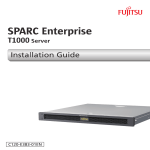
SPARC® Enterprise T2000 Server
Installation Guide
Manual Code : C120-E376-01EN
Part No. 875-4035-10
April 2007
Copyright 2007 Sun Microsystems, Inc., 4150 Network Circle, Santa Clara, California 95054, U.S.A. All rights reserved.
FUJITSU LIMITED provided technical input and review on portions of this material.
Sun Microsystems, Inc. and Fujitsu Limited each own or control intellectual property rights relating to products and technology described in
this document, and such products, technology and this document are protected by copyright laws, patents and other intellectual property laws
and international treaties. The intellectual property rights of Sun Microsystems, Inc. and Fujitsu Limited in such products, technology and this
document include, without limitation, one or more of the United States patents listed at http://www.sun.com/patents and one or more
additional patents or patent applications in the United States or other countries.
This document and the product and technology to which it pertains are distributed under licenses restricting their use, copying, distribution,
and decompilation. No part of such product or technology, or of this document, may be reproduced in any form by any means without prior
written authorization of Fujitsu Limited and Sun Microsystems, Inc., and their applicable licensors, if any. The furnishing of this document to
you does not give you any rights or licenses, express or implied, with respect to the product or technology to which it pertains, and this
document does not contain or represent any commitment of any kind on the part of Fujitsu Limited or Sun Microsystems, Inc., or any affiliate of
either of them.
This document and the product and technology described in this document may incorporate third-party intellectual property copyrighted by
and/or licensed from suppliers to Fujitsu Limited and/or Sun Microsystems, Inc., including software and font technology.
Per the terms of the GPL or LGPL, a copy of the source code governed by the GPL or LGPL, as applicable, is available upon request by the End
User. Please contact Fujitsu Limited or Sun Microsystems, Inc.
This distribution may include materials developed by third parties.
Parts of the product may be derived from Berkeley BSD systems, licensed from the University of California. UNIX is a registered trademark
in the U.S. and in other countries, exclusively licensed through X/Open Company, Ltd.
Sun, Sun Microsystems, the Sun logo, Java, Netra, Solaris, Sun StorEdge, docs.sun.com, OpenBoot, SunVTS, Sun Fire, SunSolve, CoolThreads,
J2EE, and Sun are trademarks or registered trademarks of Sun Microsystems, Inc. in the U.S. and other countries.
Fujitsu and the Fujitsu logo are registered trademarks of Fujitsu Limited.
All SPARC trademarks are used under license and are registered trademarks of SPARC International, Inc. in the U.S. and other countries.
Products bearing SPARC trademarks are based upon architecture developed by Sun Microsystems, Inc.
SPARC64 is a trademark of SPARC International, Inc., used under license by Fujitsu Microelectronics, Inc. and Fujitsu Limited.
The OPEN LOOK and Sun™ Graphical User Interface was developed by Sun Microsystems, Inc. for its users and licensees. Sun acknowledges
the pioneering efforts of Xerox in researching and developing the concept of visual or graphical user interfaces for the computer industry. Sun
holds a non-exclusive license from Xerox to the Xerox Graphical User Interface, which license also covers Sun’s licensees who implement OPEN
LOOK GUIs and otherwise comply with Sun’s written license agreements.
United States Government Rights - Commercial use. U.S. Government users are subject to the standard government user license agreements of
Sun Microsystems, Inc. and Fujitsu Limited and the applicable provisions of the FAR and its supplements.
Disclaimer: The only warranties granted by Fujitsu Limited, Sun Microsystems, Inc. or any affiliate of either of them in connection with this
document or any product or technology described herein are those expressly set forth in the license agreement pursuant to which the product
or technology is provided. EXCEPT AS EXPRESSLY SET FORTH IN SUCH AGREEMENT, FUJITSU LIMITED, SUN MICROSYSTEMS, INC.
AND THEIR AFFILIATES MAKE NO REPRESENTATIONS OR WARRANTIES OF ANY KIND (EXPRESS OR IMPLIED) REGARDING SUCH
PRODUCT OR TECHNOLOGY OR THIS DOCUMENT, WHICH ARE ALL PROVIDED AS IS, AND ALL EXPRESS OR IMPLIED
CONDITIONS, REPRESENTATIONS AND WARRANTIES, INCLUDING WITHOUT LIMITATION ANY IMPLIED WARRANTY OF
MERCHANTABILITY, FITNESS FOR A PARTICULAR PURPOSE OR NON-INFRINGEMENT, ARE DISCLAIMED, EXCEPT TO THE
EXTENT THAT SUCH DISCLAIMERS ARE HELD TO BE LEGALLY INVALID. Unless otherwise expressly set forth in such agreement, to the
extent allowed by applicable law, in no event shall Fujitsu Limited, Sun Microsystems, Inc. or any of their affiliates have any liability to any
third party under any legal theory for any loss of revenues or profits, loss of use or data, or business interruptions, or for any indirect, special,
incidental or consequential damages, even if advised of the possibility of such damages.
DOCUMENTATION IS PROVIDED “AS IS” AND ALL EXPRESS OR IMPLIED CONDITIONS, REPRESENTATIONS AND WARRANTIES,
INCLUDING ANY IMPLIED WARRANTY OF MERCHANTABILITY, FITNESS FOR A PARTICULAR PURPOSE OR NON-INFRINGEMENT,
ARE DISCLAIMED, EXCEPT TO THE EXTENT THAT SUCH DISCLAIMERS ARE HELD TO BE LEGALLY INVALID.
Copyright 2007 Sun Microsystems, Inc., 4150 Network Circle, Santa Clara, California 95054, Etats-Unis. Tous droits réservés.
Entrée et revue tecnical fournies par FUJITSU LIMITED sur des parties de ce matériel.
Sun Microsystems, Inc. et Fujitsu Limited détiennent et contrôlent toutes deux des droits de propriété intellectuelle relatifs aux produits et
technologies décrits dans ce document. De même, ces produits, technologies et ce document sont protégés par des lois sur le copyright, des
brevets, d’autres lois sur la propriété intellectuelle et des traités internationaux. Les droits de propriété intellectuelle de Sun Microsystems, Inc.
et Fujitsu Limited concernant ces produits, ces technologies et ce document comprennent, sans que cette liste soit exhaustive, un ou plusieurs
des brevets déposés aux États-Unis et indiqués à l’adresse http://www.sun.com/patents de même qu’un ou plusieurs brevets ou applications
brevetées supplémentaires aux États-Unis et dans d’autres pays.
Ce document, le produit et les technologies afférents sont exclusivement distribués avec des licences qui en restreignent l’utilisation, la copie,
la distribution et la décompilation. Aucune partie de ce produit, de ces technologies ou de ce document ne peut être reproduite sous quelque
forme que ce soit, par quelque moyen que ce soit, sans l’autorisation écrite préalable de Fujitsu Limited et de Sun Microsystems, Inc., et de leurs
éventuels bailleurs de licence. Ce document, bien qu’il vous ait été fourni, ne vous confère aucun droit et aucune licence, expresses ou tacites,
concernant le produit ou la technologie auxquels il se rapporte. Par ailleurs, il ne contient ni ne représente aucun engagement, de quelque type
que ce soit, de la part de Fujitsu Limited ou de Sun Microsystems, Inc., ou des sociétés affiliées.
Ce document, et le produit et les technologies qu’il décrit, peuvent inclure des droits de propriété intellectuelle de parties tierces protégés par
copyright et/ou cédés sous licence par des fournisseurs à Fujitsu Limited et/ou Sun Microsystems, Inc., y compris des logiciels et des
technologies relatives aux polices de caractères.
Par limites du GPL ou du LGPL, une copie du code source régi par le GPL ou LGPL, comme applicable, est sur demande vers la fin utilsateur
disponible; veuillez contacter Fujitsu Limted ou Sun Microsystems, Inc.
Cette distribution peut comprendre des composants développés par des tierces parties.
Des parties de ce produit pourront être dérivées des systèmes Berkeley BSD licenciés par l’Université de Californie. UNIX est une marque
déposée aux Etats-Unis et dans d’autres pays et licenciée exclusivement par X/Open Company, Ltd.
Sun, Sun Microsystems, le logo Sun, Java, Netra, Solaris, Sun StorEdge, docs.sun.com, OpenBoot, SunVTS, Sun Fire, SunSolve, CoolThreads,
J2EE, et Sun sont des marques de fabrique ou des marques déposées de Sun Microsystems, Inc. aux Etats-Unis et dans d’autres pays.
Fujitsu et le logo Fujitsu sont des marques déposées de Fujitsu Limited.
Toutes les marques SPARC sont utilisées sous licence et sont des marques de fabrique ou des marques déposées de SPARC International, Inc.
aux Etats-Unis et dans d’autres pays. Les produits portant les marques SPARC sont basés sur une architecture développée par Sun
Microsystems, Inc.
SPARC64 est une marques déposée de SPARC International, Inc., utilisée sous le permis par Fujitsu Microelectronics, Inc. et Fujitsu Limited.
L’interface d’utilisation graphique OPEN LOOK et Sun™ a été développée par Sun Microsystems, Inc. pour ses utilisateurs et licenciés. Sun
reconnaît les efforts de pionniers de Xerox pour la recherche et le développement du concept des interfaces d’utilisation visuelle ou graphique
pour l’industrie de l’informatique. Sun détient une license non exclusive de Xerox sur l’interface d’utilisation graphique Xerox, cette licence
couvrant également les licenciés de Sun qui mettent en place l’interface d’utilisation graphique OPEN LOOK et qui, en outre, se conforment
aux licences écrites de Sun.
Droits du gouvernement américain - logiciel commercial. Les utilisateurs du gouvernement américain sont soumis aux contrats de licence
standard de Sun Microsystems, Inc. et de Fujitsu Limited ainsi qu’aux clauses applicables stipulées dans le FAR et ses suppléments.
Avis de non-responsabilité: les seules garanties octroyées par Fujitsu Limited, Sun Microsystems, Inc. ou toute société affiliée de l’une ou l’autre
entité en rapport avec ce document ou tout produit ou toute technologie décrit(e) dans les présentes correspondent aux garanties expressément
stipulées dans le contrat de licence régissant le produit ou la technologie fourni(e). SAUF MENTION CONTRAIRE EXPRESSÉMENT
STIPULÉE DANS CE CONTRAT, FUJITSU LIMITED, SUN MICROSYSTEMS, INC. ET LES SOCIÉTÉS AFFILIÉES REJETTENT TOUTE
REPRÉSENTATION OU TOUTE GARANTIE, QUELLE QU’EN SOIT LA NATURE (EXPRESSE OU IMPLICITE) CONCERNANT CE
PRODUIT, CETTE TECHNOLOGIE OU CE DOCUMENT, LESQUELS SONT FOURNIS EN L’ÉTAT. EN OUTRE, TOUTES LES CONDITIONS,
REPRÉSENTATIONS ET GARANTIES EXPRESSES OU TACITES, Y COMPRIS NOTAMMENT TOUTE GARANTIE IMPLICITE RELATIVE À
LA QUALITÉ MARCHANDE, À L’APTITUDE À UNE UTILISATION PARTICULIÈRE OU À L’ABSENCE DE CONTREFAÇON, SONT
EXCLUES, DANS LA MESURE AUTORISÉE PAR LA LOI APPLICABLE. Sauf mention contraire expressément stipulée dans ce contrat, dans
la mesure autorisée par la loi applicable, en aucun cas Fujitsu Limited, Sun Microsystems, Inc. ou l’une de leurs filiales ne sauraient être tenues
responsables envers une quelconque partie tierce, sous quelque théorie juridique que ce soit, de tout manque à gagner ou de perte de profit,
de problèmes d’utilisation ou de perte de données, ou d’interruptions d’activités, ou de tout dommage indirect, spécial, secondaire ou
consécutif, même si ces entités ont été préalablement informées d’une telle éventualité.
LA DOCUMENTATION EST FOURNIE “EN L’ETAT” ET TOUTES AUTRES CONDITIONS, DECLARATIONS ET GARANTIES EXPRESSES
OU TACITES SONT FORMELLEMENT EXCLUES, DANS LA MESURE AUTORISEE PAR LA LOI APPLICABLE, Y COMPRIS NOTAMMENT
TOUTE GARANTIE IMPLICITE RELATIVE A LA QUALITE MARCHANDE, A L’APTITUDE A UNE UTILISATION PARTICULIERE OU A
L’ABSENCE DE CONTREFACON.
Contents
Preface
1.
xiii
Preparing for Installation
1
Tools and Equipment Needed
2
Optional Component Installation
ESD Precautions
2
Installation Overview
3
Data Ports and Cabling Notes
Port Locations
5
Cabling Notes
6
Slide Rail Assembly Notes
Safety Precautions
2.
2
5
7
10
Installing the Server
11
Installing the Server in a Rack
11
▼
To Install the Slide Rail Assemblies
▼
To Install the Cable Management Kit
▼
To Verify the Operation of the Slide Rails and the CMA
Dismounting the Server
12
19
22
24
Connecting Cables to the Server
25
v
Connector Locations
25
▼
To Connect the Ethernet Network Cables
▼
To Connect the SC Serial Management Port
▼
To Connect the SC Network Management Port
AC Power Cables
29
TTYA Serial Port
29
USB Ports
28
30
▼
To Open and Close a Cable Clip
▼
To Move a Cable Clip
Powering On the System
30
31
33
Powering On the System for the First Time
Power On Overview
33
System Console
33
ALOM CMT System Controller
Passwords
▼
27
30
Managing Cables With the CMA
3.
26
33
34
34
To Power On the System for the First Time
35
Enabling the System Controller Network Management Port
Logging Into the System Controller
38
▼
To Log Into the System Controller Using the Serial Management Port
▼
To Configure the System Controller Network Management Port
▼
To Reset the System Controller
▼
To Log Into the System Controller Using the Network Management Port
▼
To Power On the System
▼
To Connect to the System Console
▼
To Perform a Normal System Initialization
44
44
Booting the Solaris Operating System
38
39
42
Using the System Controller for Common Operations
vi
37
46
SPARC Enterprise T2000 Server Installation Guide • April 2007
44
45
43
▼
To Boot the Solaris Operating System
▼
To Reset the System
▼
To Power Cycle the System
48
Verifying System Functionality
A.
Updating the Firmware
Updating the Firmware
▼
B.
▼
Index
48
49
51
51
To Update the Firmware
Selecting a Boot Device
46
51
55
To Select a Boot Device
55
57
Contents
vii
viii
SPARC Enterprise T2000 Server Installation Guide • April 2007
Figures
FIGURE 1-1
SPARC Enterprise T2000 Server
1
FIGURE 1-2
Rear Panel Features 5
FIGURE 1-3
Front Panel USB Ports
FIGURE 1-4
Sections of the Slide Rail Assembly
FIGURE 1-5
Locating the Locks on the Slide Rail Assembly
FIGURE 2-1
Unlocking the Slide Rail Assembly
FIGURE 2-2
Location of the Mounting Bracket Release Button
FIGURE 2-3
Unlocking the Slide Rail Middle Section
FIGURE 2-4
Attaching a Mounting Bracket to the Chassis
FIGURE 2-5
Mounting a Slide Rail
FIGURE 2-6
Using the Slide Rail Spacing Tool to Adjust the Distance Between the Slide Rails
FIGURE 2-7
Mounting the Chassis on the Slide Rails
FIGURE 2-8
Inserting the CMA Rail Extension Into the Rear of the Left Slide Rail
FIGURE 2-9
Mounting the Inner CMA Connector
20
FIGURE 2-10
Attaching the Outer CMA Connector
21
FIGURE 2-11
Mounting the Left Side of the Slide Rail
FIGURE 2-12
Unlocking the Slide Rail Assembly
FIGURE 2-13
Slide Rail Release Button
FIGURE 2-14
Rear Panel Features 26
FIGURE 2-15
Front Panel USB Ports
6
8
9
12
13
14
15
16
17
18
19
22
23
24
26
ix
FIGURE 2-16
Ethernet Network Connections
FIGURE 2-17
System Controller Serial Connection
FIGURE 2-18
System Controller Network Connection
FIGURE 2-19
Serial Port
FIGURE 2-20
Opening a Cable Clip
FIGURE 2-21
Removing a Cable Clip 32
FIGURE 2-22
Mounting or Moving a Cable Clip
FIGURE 3-1
Rear Panel Power Connectors
x
27
27
28
30
31
32
36
SPARC Enterprise T2000 Server Installation Guide • April 2007
Tables
TABLE 1-1
Ethernet Connection Transfer Rates
6
TABLE 3-1
Map of Devices, OpenBoot Path Names, and Locations
46
xi
xii
SPARC Enterprise T2000 Server Installation Guide • April 2007
Preface
The SPARC Enterprise T2000 Server Installation Guide provides instructions,
background information, and reference material to help you install a SPARC
Enterprise T2000 server.
Instructions for installation in the document assume that a system administrator is
experienced with the Solaris™ Operating System (Solaris OS).
Note – All internal components except hard drives must be installed by qualified
service technicians only.
FOR SAFE OPERATION
This manual contains important information regarding the use and handling of this product.
Read this manual thoroughly. Pay special attention to the section “Notes on Safety” on
page xix. Use the product according to the instructions and information available in this
manual. Keep this manual handy for further reference.
Fujitsu makes every effort to prevent users and bystanders from being injured or from
suffering damage to their property. Use the product according to this manual.
xiii
Structure and Contents of This Manual
This manual is organized as described below:
■
CHAPTER 1 Preparing for Installation
Provides an installation overview for the SPARC Enterprise T2000 server.
■
CHAPTER 2 Installing the Server
Provides instructions for installing the SPARC Enterprise T2000 server into a
rack.
■
CHAPTER 3 Powering On the System
Provides instructions for configuring and powering on the server and for
installing additional software.
■
APPENDIX A Updating the Firmware
Provides instructions for updating the system controller firmware and the host
firmware.
■
APPENDIX B Selecting a Boot Device
Provides instructions for selecting a boot device.
■
INDEX
Provides keywords and corresponding reference page numbers so that the
reader can easily search for items in this manual as necessary.
Related Documentation
The latest versions of all the SPARC Enterprise Series manuals are available at the
following Web sites:
Global Site
http://www.fujitsu.com/sparcenterprise/manual/
Japanese Site
http://primeserver.fujitsu.com/sparcenterprise/manual/
xiv SPARC Enterprise T2000 Server Installation Guide • April 2007
Title
Description
Manual Code
SPARC Enterprise T2000 Server
Product Notes
Information about the latest product
updates and issues
C120-E374
SPARC Enterprise T2000 Server Site
Planning Guide
Server specifications for site planning
C120-H017
SPARC Enterprise T2000 Server
Getting Started Guide
Information about where to find
documentation to get your system
installed and running quickly
C120-E372
SPARC Enterprise T2000 Server
Overview
Provides an overview of the features of
this server
C120-E373
SPARC Enterprise T2000 Server
Service Manual
How to run diagnostics to troubleshoot
the server, and how to remove and
replace parts in the server
C120-E377
SPARC Enterprise T2000 Server
Administration Guide
How to perform administrative tasks that
are specific to this server
C120-E378
Advanced Lights out Management
(ALOM) CMT v1.x Guide
How to use the Advanced Lights Out
Manager (ALOM) software
C120-E386
SPARC Enterprise T2000 Server
Safety and Compliance Guide
Safety and compliance information about
this server
C120-E375
Note – Product Notes is available on the website only. Please check for the recent update on
your product.
■
Manuals included on the Enhanced Support Facility CD-ROM disk
■
Remote maintenance service
Title
Manual Code
Enhanced Support Facility User's Guide for REMCS
C112-B067
Preface
xv
Using UNIX Commands
This document might not contain information about basic UNIX® commands and
procedures such as shutting down the system, booting the system, and configuring
devices. Refer to the following for this information:
■
Software documentation that you received with your system
■
Solaris™ Operating System documentation, which is at:
http://docs.sun.com
Text Conventions
This manual uses the following fonts and symbols to express specific types of
information.
Typeface*
Meaning
Example
AaBbCc123
The names of commands, files and
directories; on-screen computer
output
Edit your.login file.
Use ls -a to list all files.
% You have mail.
AaBbCc123
What you type, when contrasted
with on-screen computer output
% su
Password:
AaBbCc123
Book titles, new words or
terms, words to be
emphasized.
Replace command-line
variables with real names or
values.
Read Chapter 6 in the User’s
Guide.
These are called class options.
You must be superuser to do
this.
To delete a file, type rm
filename.
* The settings on your browser might differ from these settings.
xvi SPARC Enterprise T2000 Server Installation Guide • April 2007
Prompt Notations
The following prompt notations are used in this manual.
Shell
Prompt Notations
C shell
machine-name%
C shell superuser
machine-name#
Bourne shell and Korn shell
$
Bourne shell and Korn shell and Korn shell superuser
#
Conventions for Alert Messages
This manual uses the following conventions to show alert messages, which are
intended to prevent injury to the user or bystanders as well as property damage, and
important messages that are useful to the user.
Warning – This indicates a hazardous situation that could result in death or serious
personal injury (potential hazard) if the user does not perform the procedure correctly
Caution – This indicates a hazardous situation that could result in minor or moderate
personal injury if the user does not perform the procedure correctly. This signal also
indicates that damage to the product or other property may occur if the user does not perform
the procedure correctly.
Tip – This indicates information that could help the user to use the product more
effectively.
Preface
xvii
Alert messages in the text
An alert message in the text consists of a signal indicating an alert level followed by
an alert statement. Alert messages are indented to distinguish them from regular
text. Also, a space of one line precedes and follows an alert statement.
Caution – The following tasks regarding this product and the optional products provided
from Fujitsu should only be performed by a certified service engineer. Users must not
perform these tasks. Incorrect operation of these tasks may cause malfunction.
■
Unpacking optional adapters and such packages delivered to the users
Also, important alert messages are shown in “Important Alert Messages” on
page xix
xviii SPARC Enterprise T2000 Server Installation Guide • April 2007
Notes on Safety
Important Alert Messages
This manual provides the following important alert signals:
Caution – This indicates a hazardous situation could result in minor or moderate
personal injury if the user does not perform the procedure correctly. This signal also
indicates that damage to the product or other property may occur if the user does
not perform the procedure correctly.
Task
Warning
Installation
Electric shock
There is a potential for electric shock if the server and related equipment
are not properly grounded.
Damage
Deploy the antitilt bar on the rack before beginning an installation.
The server weighs approximately 40 lb (18 kg). Two people are required
to lift and mount the system into a rack enclosure when using the
procedures in this chapter.
When completing a two-person procedure, always communicate your
intentions clearly before, during, and after each step to minimize
confusion.
The weight of the server on extended slide rails can be enough to
overturn an equipment rack.
Preface
xix
Product Handling
Maintenance
Caution – Certain tasks in this manual should only be performed by a certified
service engineer. User must not perform these tasks. Incorrect operation of these
tasks may cause electric shock, injury, or fire.
■
Installation and reinstallation of all components, and initial settings
■
Removal of front, rear, or side covers
■
Mounting/de-mounting of optional internal devices
■
Plugging or unplugging of external interface cards
■
Maintenance and inspections (repairing, and regular diagnosis and maintenance)
Caution – The following tasks regarding this product and the optional products
provided from Fujitsu Siemens Computers should only be performed by a certified
service engineer. Users must not perform these tasks. Incorrect operation of these
tasks may cause malfunction.
■
Unpacking optional adapters and such packages delivered to the users
■
Plugging or unplugging of external interface cards
Remodeling/Rebuilding
Caution – Do not make mechanical or electrical modifications to the equipment.
Using this product after modifying or reproducing by overhaul may cause
unexpected injury or damage to the property of the user or bystanders.
xx
SPARC Enterprise T2000 Server Installation Guide • April 2007
Alert Labels
The followings are labels attached to this product:
■
Never peel off the labels.
■
The following labels provide information to the users of this product.
M6 Screws and Cage Nuts
Attach stabilizer
For reinstall:
tighten to 7 in/lbs
LABEL P N 6 6 0
Sample of SPARC Enterprise T2000
Preface
xxi
■
xxii
Reader's Comment Form
SPARC Enterprise T2000 Server Installation Guide • April 2007
FOLD AND TAPE
NO POSTAGE
NECESSARY
IF MAILED
IN THE
UNITED STATES
BUSINESS REPLY MAIL
FIRST-CLASS MAIL PERMIT NO 741 SUNNYVALE CA
POSTAGE WILL BE PAID BY ADDRESSEE
FUJITSU COMPUTER SYSTEMS
AT TENTION ENGINEERING OPS M/S 249
1250 EAST ARQUES AVENUE
P O BOX 3470
SUNNYVALE CA 94088-3470
FOLD AND TAPE
Preface
xxiii
xxiv SPARC Enterprise T2000 Server Installation Guide • April 2007
CHAPTER
1
Preparing for Installation
This chapter provides background information about the SPARC Enterprise T2000
server installation procedures that are provided in Chapter 2.
This chapter contains these topics:
■
■
■
■
■
■
■
“Tools and Equipment Needed” on page 2
“Optional Component Installation” on page 2
“ESD Precautions” on page 2
“Installation Overview” on page 3
“Data Ports and Cabling Notes” on page 5
“Slide Rail Assembly Notes” on page 7
“Safety Precautions” on page 10
FIGURE 1-1
SPARC Enterprise T2000 Server
1
Tools and Equipment Needed
In order to install the system, you must have the following tools:
■
■
#2 Phillips screwdriver
ESD mat and grounding strap
In addition, you must provide a system console device, such as one of the following:
■
■
■
■
ASCII terminal
Workstation
Terminal server
Patch panel connected to a terminal server
Optional Component Installation
The standard components of the server are installed at the factory. However, if you
ordered options such as additional memory or a PCI card, these will be shipped
separately. If possible, install these components prior to installing the server in a
rack.
If you ordered any options that are not factory-installed, see the SPARC Enterprise
T2000 Server Service Manual for installation instructions.
Note – The list of optional components can be updated without notice. See the web
site for the most current list of components supported in the server.
ESD Precautions
Electronic equipment is susceptible to damage by static electricity. Use a grounded
antistatic wriststrap, footstrap, or equivalent safety equipment to prevent
electrostatic damage (ESD) when you install or service the SPARC Enterprise T2000
server.
2
SPARC Enterprise T2000 Server Installation Guide • April 2007
Caution – To protect electronic components from electrostatic damage, which can
permanently disable the system or require repair by service technicians, place
components on an antistatic surface, such as an antistatic discharge mat, an antistatic
bag, or a disposable antistatic mat. Wear an antistatic grounding strap connected to
a metal surface on the chassis when you work on system components.
Installation Overview
This installation guide provides procedures which are to be performed in the
following order.
1. Verify that you have received all of the components that ship with your server.
2. Gather configuration information for your system. See your system administrator
for specific details, including these parameters:
■
■
■
Netmask
IP address for the system controller
Gateway IP address
3. Install any optional components shipped with your system. If you have
purchased other optional components such as additional memory, install them
prior to mounting the server in a rack. See “Optional Component Installation” on
page 2.
4. Mount the server into a rack or cabinet. See “Installing the Server in a Rack” on
page 11.
Note – In the rest of this manual, the term rack means either an open rack or a
closed cabinet.
5. Connect the server to a serial terminal or a terminal emulator (PC or workstation)
to display system messages. See “Powering On the System for the First Time” on
page 33.
Tip – The serial terminal or a terminal emulator should be connected before you
connect the power cables. As soon as AC power is connected to the system, the
system controller immediately powers on and runs diagnostics. Diagnostic test
failures will be printed on the serial terminal. For more information, refer to the
Advanced Lights Out Management (ALOM) CMT 1.x Guide.
Chapter 1
Preparing for Installation
3
6. Connect the data cables to the server, but do not connect the AC power cable yet.
See “Connecting Cables to the Server” on page 25.
7. Connect the AC power cable to the server and examine the display for any error
messages. See “Powering On the System for the First Time” on page 33.
Caution – There is a potential for electric shock if the server and related equipment
are not properly grounded.
Note – The system controller (SC) runs on the 3.3v standby voltage. As soon as AC
power is connected to the system, the system controller immediately powers on,
runs diagnostics, and initializes the ALOM CMT firmware.
8. After the system controller boots, access the ALOM CMT command line interface
through the serial management port. See “To Log Into the System Controller
Using the Serial Management Port” on page 38.
9. Configure the SC network addresses. See “To Configure the System Controller
Network Management Port” on page 39.
Note – The SC network management port is not operational until you configure
network settings for the system controller (through the SC serial management port).
10. Enable the new configuration by resetting the system controller. See “To Reset
the System Controller” on page 42.
11. Power on the server from a keyboard using the ALOM CMT software. See “To
Power On the System” on page 44.
12. Configure the Solaris™ OS. See “Booting the Solaris Operating System” on
page 46.
The Solaris OS is preinstalled on the SPARC Enterprise T2000 server. When you
power on, you are automatically guided through the Solaris OS configuration
procedure.
13. Install any required patch or patches to the server.
Refer to the SPARC Enterprise T2000 Server Product Notes for a list of the required
patches.
14. Load additional software from the Solaris media kit (optional).
4
SPARC Enterprise T2000 Server Installation Guide • April 2007
The Solaris media kit (sold separately) includes several CDs containing software
to help you operate, configure, and administer your server. Refer to the
documentation provided with the media kit for a complete listing of included
software and detailed installation instructions.
Data Ports and Cabling Notes
Port Locations
See FIGURE 1-2 and FIGURE 1-3 for the locations of the ports on the SPARC Enterprise
T2000 server.
PCI-E Slot 2
PCI-E Slot 1
SC Net Mgt Port
SC Ser Mgt Port
PCI-X Slot 1
NET3
USB Port 1
TTYA Serial Port
PCI-X Slot 0
NET2
Power Supply 0
Power Supply 1
PCI-E Slot 0
NET1
Locator LED button
Service Required LED
Power OK LED
FIGURE 1-2
NET0
USB Port 0
Rear Panel Features
USB ports 2 and 3 are located on the front panel (FIGURE 1-3).
Chapter 1
Preparing for Installation
5
USB Port3
USB Port2
FIGURE 1-3
Front Panel USB Ports
Cabling Notes
■
Minimum cable connections for the SPARC Enterprise T2000 server:
■
■
■
■
■
■
At least one system on-board Ethernet network connection (NET port)
The system controller serial management port (SER MGT port)
The system controller network management port (NET MGT port)
Power cables for the two system power supplies
System controller (SC) management ports: There are two SC management ports
for use with the ALOM CMT system controller.
■
The SC serial management port (labeled SER MGT) uses an RJ-45 cable and is
always available. This is the default connection to the ALOM CMT system
controller.
■
The SC network management port (labeled NET MGT) is the optional
connection to the ALOM CMT system controller. This port is not available until
you have configured network settings for the system controller (through the SC
serial management port). See “Enabling the System Controller Network
Management Port” on page 37. The SC network management port uses an
RJ-45 cable for a 10/100 BASE-T connection. This port does not support
connections to Gigabit networks.
■
See the SPARC Enterprise T2000 Server Overview for more information.
Ethernet ports are labeled NET0, NET1, NET2, and NET3. The Ethernet interfaces
operate at 10 Mbps, 100 Mbps, and 1000 Mbps. The transfer rates for the Ethernet
ports are given in TABLE 1-1.
TABLE 1-1
6
Ethernet Connection Transfer Rates
Connection Type
IEEE Terminology
Transfer Rate
Ethernet
10BASE-T
10 Mbit/sec
Fast Ethernet
100BASE-TX
100 Mbits/sec
Gigabit Ethernet
1000BASE-T
1000 Mbit/sec
SPARC Enterprise T2000 Server Installation Guide • April 2007
■
TTYA serial port: Use the DB-9 connector with a null modem cable for serial
devices. This port appears as ttya in Solaris OS and OpenBoot messages. This
port is not connected to the SC serial management port.
■
USB Ports: USB ports support hot-plugging. You can connect and disconnect USB
cables and peripheral devices while the system is running, without affecting
system operations.
■
■
■
You can only perform USB hot-plug operations while the OS is running. USB
hot-plug operations are not supported when the system ok prompt is
displayed or before the system has completed booting.
You can connect up to 126 devices to each of the two USB controllers, for a
total of 252 USB devices per system.
AC power cables: Do not attach power cables to the power supplies until you
have finished connecting the data cables, and have connected the server to a serial
terminal or a terminal emulator (PC or workstation). The server goes into standby
mode and the ALOM CMT system controller initializes as soon as the AC power
cables are connected to the power source. System messages may be lost after 60
seconds if the server is not connected to a terminal, PC, or workstation.
Slide Rail Assembly Notes
The rackmount kit has two slide rail assemblies. A slide rail assembly can be installed
on either the right or left side of the rack.
Each slide rail assembly consists of a three-section slide rail and a removeable
mounting bracket (FIGURE 1-4).
Chapter 1
Preparing for Installation
7
Mounting bracket
Rear section
Middle section
Front section
FIGURE 1-4
8
Sections of the Slide Rail Assembly
■
The front, middle, and rear sections form the slide rail. The middle and rear sections
have holes for mounting screws and adjust to fit rack depths from 24 in (61 cm) to
36.5 in (93 cm). The front section can be extended to allow movement of the
server out of the rack.
■
The removeable mounting bracket slides 14 in (36 cm) out of the slide rail, then
locks in place. If you unlock the mounting bracket at this point, it slides an
additional 12 in (30 cm) before separating from the slide rail. You can then mount
the mounting bracket to the right or left side of the SPARC Enterprise T2000
server chassis.
■
Note that there are a total of five locks (FIGURE 1-5) in a slide rail assembly. Four
are on the mounting bracket. One lock is on the front section of the slide rail. The
uses of these locks are described in the installation procedure in Chapter 2.
SPARC Enterprise T2000 Server Installation Guide • April 2007
FIGURE 1-5
Locating the Locks on the Slide Rail Assembly
Chapter 1
Preparing for Installation
9
Safety Precautions
Caution – Deploy the anti-tilt bar on the equipment rack before beginning an
installation.
Caution – The server weighs approximately 40 lb (18 kg). Two people are required
to lift and mount the system into a rack enclosure when using the procedures in this
chapter.
Caution – When completing a two-person procedure, always communicate your
intentions clearly before, during, and after each step to minimize confusion.
10
SPARC Enterprise T2000 Server Installation Guide • April 2007
CHAPTER
2
Installing the Server
This chapter provides instructions for installing the SPARC Enterprise T2000 server
in an equipment rack.
Note – If your rackmount kit came with its own instructions, use the instructions in
your rackmount kit instead of the instructions in this chapter. After performing the
SPARC Enterprise T2000 server installation, proceed to Chapter 3 for first-time
power on.
This chapter contains the following sections:
■
■
■
“Installing the Server in a Rack” on page 11
“Connecting Cables to the Server” on page 25
“Managing Cables With the CMA” on page 30
Note – References to left and right are from your viewpoint as you face either the
front or rear of the equipment.
Installing the Server in a Rack
Note – Ensure that you have all of the parts in the rackmount kit before you begin
the installation of the server.
The rackmount kit contains two slide rail assemblies. A slide rail assembly can be
installed on either the right or left side of the rack.
11
A slide rail assembly consists of two parts: a slide rail and a removeable mounting
bracket. The slide rail attaches to the rack posts. The mounting bracket attaches to
the SPARC Enterprise T2000 server chassis.
▼
To Install the Slide Rail Assemblies
1. Pull both mounting brackets completely out of their respective slide rails:
a. Simultaneously press and hold the upper and lower lock buttons of the slide
rail lock (FIGURE 2-1).
FIGURE 2-1
Unlocking the Slide Rail Assembly
b. Pull the mounting bracket out until it locks in the extended position.
c. Slide the mounting bracket release button in the direction shown in FIGURE 2-2,
then slide the mounting bracket out of the slide rail.
12
SPARC Enterprise T2000 Server Installation Guide • April 2007
FIGURE 2-2
Location of the Mounting Bracket Release Button
d. Press the metal lever (labeled Push) on the middle section (FIGURE 2-3) of the
sliding rail, then push the middle section back into the rack.
Chapter 2
Installing the Server
13
Metal lever
FIGURE 2-3
Unlocking the Slide Rail Middle Section
2. Attach a mounting bracket to the right side of the chassis.
a. Position the mounting bracket against the chassis (FIGURE 2-4) so that the slide
rail lock is at the front and the three keyed openings on the mounting bracket
are aligned with the three locating pins on the side of the chassis.
14
SPARC Enterprise T2000 Server Installation Guide • April 2007
FIGURE 2-4
Attaching a Mounting Bracket to the Chassis
b. With the heads of the three locating pins protruding though the three keyed
openings in the mounting bracket, pull the mounting bracket toward the front
of the chassis until the bracket locks into place with an audible click.
c. Verify that all three locating pins are trapped in the keyed openings and that
the rear locating pin has engaged the mounting bracket lock, as shown in the
right side of FIGURE 2-4.
3. Attach the second mounting bracket to the left side of the chassis.
4. Determine which rack hole numbers to use when attaching the slide rails to the
rack posts.
The SPARC Enterprise T2000 server is two rack units tall (2 RU). The slide rails will
occupy the lower half of the 2 RU space.
Chapter 2
Installing the Server
15
5. Determine which screws you will use to mount the slide rails.
If your rack has threaded mounting holes in the rack posts, determine whether the
threads are metric or standard. Select the appropriate screws from the package
included in the mounting kit.
If your rack does not have threaded mounting holes, the mounting screws are
secured with a caged nut.
6. Attach a slide rail to the right front rack post.
a. Loosely attach the front of a slide rail to the right front rack post (FIGURE 2-5)
using two screws.
Note – Do not tighten the screws yet.
FIGURE 2-5
Mounting a Slide Rail
b. Adjust the length of the slide rail by sliding the rear mounting flange to reach
the outside edge of the rear rack post.
16
SPARC Enterprise T2000 Server Installation Guide • April 2007
c. Loosely attach the rear of the slide rail to the rear rack post with two screws.
7. Attach the second slide rail to the left rack posts in a similar manner. Again, do
not tighten the screws.
8. Use the slide rail spacing tool to adjust the distance between the slide rails:
a. At the front of the rack, plug the left side of the tool into slots at the end of the
left rail (FIGURE 2-6).
FIGURE 2-6
Using the Slide Rail Spacing Tool to Adjust the Distance Between the Slide
Rails
b. Insert the right side of the tool into the front end of the right rail, while sliding
the end of the rail to the right or left as needed to allow the the ends of the tool
to enter the ends of both rails.
The distance between the rails is now equal to the width of the server with
mounting brackets.
c. Tighten the screws to lock the ends of the rails in place.
Chapter 2
Installing the Server
17
d. At the rear of the rack, repeat Step a through Step c. for the rear ends of the
rails.
9. Deploy the anti-tilt bar, if the chassis or rack is so equipped.
Caution – The weight of the server on extended slide rails can be enough to
overturn an equipment rack.
Caution – The server weighs approximately 40 lb (18 kg). Two people are required
to lift and mount the system into a rack enclosure when using the procedures in this
chapter.
10. Insert the ends of the mounting brackets into the sliding rails (FIGURE 2-7).
FIGURE 2-7
18
Mounting the Chassis on the Slide Rails
SPARC Enterprise T2000 Server Installation Guide • April 2007
11. Slide the chassis into the rack.
Caution – Verify that the server is securely mounted in the rack, and that the slide
rails are locked to the mounting brackets, before continuing.
▼
To Install the Cable Management Kit
The cable management assembly (CMA) clips into the ends of the left and right
sliding rail assemblies. No screws are necessary for mounting the CMA.
Caution – Support the CMA during this installation. Do not allow the assembly to
hang by its own weight until it is secured by all three attachment points.
1. At the rear of the rack, plug the CMA rail extension into the end of the left sliding
rail assembly (FIGURE 2-8). The tab at the front of the rail extension will click into
place.
FIGURE 2-8
Inserting the CMA Rail Extension Into the Rear of the Left Slide Rail
The right sides of the two CMA arms have hinged extensions. On the
manufacturer’s instruction sheet, the smaller extension is called the CMA Connector
for Inner Member. It attaches to the right mounting bracket. The larger extension is
called the CMA Connector for Outer Member, and attaches to the right sliding rail.
Chapter 2
Installing the Server
19
2. Insert the smaller extension into the clip located at the end of the mounting
bracket (FIGURE 2-9).
FIGURE 2-9
Mounting the Inner CMA Connector
3. Insert the larger extension into the end of the right sliding rail (FIGURE 2-10).
20
SPARC Enterprise T2000 Server Installation Guide • April 2007
FIGURE 2-10
Attaching the Outer CMA Connector
4. Insert the hinged plastic connector at the left side of the CMA fully into the CMA
rail extension (FIGURE 2-11).
The plastic tab on the CMA rail extension locks the hinged plastic connector in
place.
Chapter 2
Installing the Server
21
FIGURE 2-11
▼
Mounting the Left Side of the Slide Rail
To Verify the Operation of the Slide Rails and
the CMA
Tip – Two people are needed this procedure: one to move the server in and out of
the rack and one to observe the cables and CMA.
1. For a free-standing rack, deploy the anti-tilt bar.
2. Unlock the slide lock buttons (FIGURE 2-12) at the right and lefts sides of the
chassis, and slowly pull the server out of the rack until the slide rails reach their
stops.
22
SPARC Enterprise T2000 Server Installation Guide • April 2007
FIGURE 2-12
Unlocking the Slide Rail Assembly
3. Inspect any attached cables for binding or kinks.
4. Verify that the CMA extends fully and does not bind in the slide rails.
5. Verify that the server extends fully and locks in the maintenence position.
The server should stop after approximately 15 inches (40 cm) of travel.
6. Pull both slide rail release buttons toward you simultaneously and slide the
server back into the rack (FIGURE 2-13).
The server should slide smoothly into the rack without binding.
Chapter 2
Installing the Server
23
FIGURE 2-13
Slide Rail Release Button
7. Verify that the CMA retracted without binding.
8. Adjust the cable hangers and CMA as required.
See “Managing Cables With the CMA” on page 30.
Dismounting the Server
If it becomes necessary to remove the server from the rack, or to open the server case
for maintenance or hardware upgrades, refer to the SPARC Enterprise T2000 Server
Service Manual for procedures.
24
SPARC Enterprise T2000 Server Installation Guide • April 2007
Connecting Cables to the Server
■
■
■
■
“To Connect the Ethernet Network Cables” on page 26
“To Connect the SC Network Management Port” on page 28
“To Connect the SC Serial Management Port” on page 27
“AC Power Cables” on page 29
In addition, the SPARC Enterprise T2000 server has serial and USB ports available
for connections to optional devices.
■
■
“TTYA Serial Port” on page 29
“USB Ports” on page 30
Note – When you are finished connecting the cables to the server, ensure that the
server can slide smoothly in and out of the rack without binding or damaging the
cables. See the section, “To Verify the Operation of the Slide Rails and the CMA” on
page 22.
Connector Locations
Use FIGURE 2-14 to locate the connectors and power supplies on the back of the
SPARC Enterprise T2000 server.
Chapter 2
Installing the Server
25
PCI-E Slot 2
PCI-E Slot 1
SC Net Mgt Port
SC Ser Mgt Port
PCI-X Slot 1
NET3
USB Port 1
TTYA Serial Port
PCI-X Slot 0
NET2
Power Supply 0
Power Supply 1
PCI-E Slot 0
NET1
Locator LED button
Service Required LED
Power OK LED
FIGURE 2-14
NET0
USB Port 0
Rear Panel Features
USB ports 2 and 3 are located on the front panel (FIGURE 2-15).
USB Port3
USB Port2
FIGURE 2-15
▼
Front Panel USB Ports
To Connect the Ethernet Network Cables
The SPARC Enterprise T2000 server has four RJ-45 Gigabit Ethernet network
connectors. They are marked NET0, NET1, NET2, and NET3 (FIGURE 2-16).
26
SPARC Enterprise T2000 Server Installation Guide • April 2007
NET2
NET3
NET0
NET1
FIGURE 2-16
Ethernet Network Connections
1. Connect a Category 5 cable from your network switch or hub to Ethernet Port 0
(NET0) on the rear of the chassis.
2. As needed, connect Category 5 cables from your network switch or hub to the
remaining Ethernet ports (NET1, NET2, NET3).
▼
To Connect the SC Serial Management Port
The SC serial management port is marked SER MGT. It is the leftmost RJ-45 port on
the rear of the chassis (FIGURE 2-17).
SER MGT
FIGURE 2-17
System Controller Serial Connection
Chapter 2
Installing the Server
27
Use this port for server management. This port is needed to set up the SC network
management port, as detailed in “Enabling the System Controller Network
Management Port” on page 37.
Note – Use the SC serial management port only for server management. It is the
default connection between the system controller and a terminal or a computer.
Caution – Do not attach a modem to this port.
● Connect a Category 5 cable from the SC serial management port to the terminal
device.
When connecting either a DB-9 or a DB-25 cable, use an adapter to perform the
crossovers given for each connector.
▼
To Connect the SC Network Management Port
The SC network management port is marked NET MGT. It is the RJ-45 port above
the rear USB ports.
NET MGT
FIGURE 2-18
System Controller Network Connection
● Connect a Category 5 cable from your network switch or hub to the Network
Management Port.
28
SPARC Enterprise T2000 Server Installation Guide • April 2007
Note – This port is not operational until you configure the network settings
(through the serial managment port), as detailed in “To Configure the System
Controller Network Management Port” on page 39.
Note – The SC network management port is configured by default to retrieve
network settings via Dynamic Host Configuration Protocol (DHCP) and allow
connections using Solaris Secure Shell (SSH®). You might need to modify these
settings for your network. Instructions are given in Chapter 3.
AC Power Cables
Note – Finish the hardware procedures in this chapter, but do not attach the AC
power cables yet.
Powering on the system for the first time requires special preparation and
procedures. For example, if you have not prepared a display before connecting the
AC power cables, system messages may be lost. You will be instructed to connect the
server to AC power in “Powering On the System for the First Time” on page 33.
Caution – The server goes into standby mode and the system controller initializes
as soon as the AC power cables are connected to the power source.
TTYA Serial Port
The TTYA serial port connector uses a DB-9 connector (item 1 in FIGURE 2-19). Use
this port for general purpose serial data transfers. This port is not connected to the
SC serial management port.
Chapter 2
Installing the Server
29
Serial port (TTYA)
FIGURE 2-19
Serial Port
Use a null modem cable or an adapter to perform the crossovers given for each
connector.
USB Ports
Four Universal Serial Bus (USB) ports are provided on the SPARC Enterprise T2000
server. USB ports 0 and 1 are located on the rear of the chassis (FIGURE 2-14). Ports 2
and 3 on the front of the chassis (FIGURE 2-15).
Managing Cables With the CMA
▼
To Open and Close a Cable Clip
1. To open a cable clip, press the front of the cable clip and lift the hinged top.
2. Route cables through the clip, then press the top of the cable clip to lock.
30
SPARC Enterprise T2000 Server Installation Guide • April 2007
FIGURE 2-20
▼
Opening a Cable Clip
To Move a Cable Clip
1. To remove a cable clip from the CMA arm, lift the cable clip approximately 3/8 in
(10 mm) to free the lower clip lock, then rotate the entire clip about 90 degrees to
free the upper clip lock.
Chapter 2
Installing the Server
31
FIGURE 2-21
Removing a Cable Clip
2. To insert a cable clip, position the upper and lower clip locks in the slots of the
CMA arm, then press the clip down approximately 3/8 in (10 mm).
FIGURE 2-22
32
Mounting or Moving a Cable Clip
SPARC Enterprise T2000 Server Installation Guide • April 2007
CHAPTER
3
Powering On the System
This chapter includes instructions for booting the SPARC Enterprise T2000 server
and for enabling the system controller network management port.
The following topics are discussed:
■
■
■
■
■
■
“Powering On the System for the First Time” on page 33
“Enabling the System Controller Network Management Port” on page 37
“Logging Into the System Controller” on page 38
“Using the System Controller for Common Operations” on page 44
“Booting the Solaris Operating System” on page 46
“Verifying System Functionality” on page 49
Powering On the System for the First
Time
Power On Overview
System Console
When you power on the system, the boot process begins under the control of the
system console. The system console displays status and error messages generated by
firmware-based tests during system startup.
33
Note – To see these status and error messages, connect a terminal or terminal
emulator to the serial management port (SERIAL MGT). For a basic procedure to
connect a terminal or terminal emulator, see “To Power On the System for the First
Time” on page 35.
For a more detailed discussion on configuring the system console and connecting
terminals, refer to the SPARC Enterprise T1000 Server Administration Guide.
ALOM CMT System Controller
After the system console finishes its low-level system diagnostics, the ALOM CMT
system controller initializes and runs a higher level of diagnostics. When you access
the ALOM CMT system controller using a device connected to the serial
management port, you see the output of the ALOM CMT diagnostics.
By default, the network management port is configured to automatically retrieve
network configuration using Dynamic Host Configuration Protocol (DHCP) and to
allow connections using Secure Shell (SSH).
Note – If you are unable to use DHCP and SSH on your network, you must connect
to the ALOM CMT system controller using the serial management port to
reconfigure the network management port. See “To Configure the System Controller
Network Management Port” on page 39.
Once the network management port (NET MGT) has been assigned an IP address,
you can connect to the ALOM CMT system controller using Telnet or SSH.
Passwords
There is no default password when connecting to the ALOM CMT system controller
for the first time using the serial management port. To set the admin password, see
“To Log Into the System Controller Using the Network Management Port” on
page 43.
When connecting to the ALOM CMT system controller using the network
management port for the first time, the default password is the last eight digits of
the chassis serial number. The serial number is located on the rear of the server. It is
also printed on the system information sheet that shipped with the server.
34
SPARC Enterprise T2000 Server Installation Guide • April 2007
▼
To Power On the System for the First Time
Tip – The serial terminal or a terminal emulator should be connected before you
connect the power cables, or you will not see the system messages. The server goes
into standby mode and the ALOM CMT system controller initializes as soon as the
AC power cables are connected to the power source.
Note – If you are not logged in, ALOM CMT times out after 60 seconds and reverts
to the system console. Type #. to return to the ALOM CMT system controller
prompt. For more information, refer to the Advanced Lights Out Manager (ALOM)
CMT 1.x Administration Guide.
The system controller runs on the 3.3v standby voltage. As soon as AC power is
connected to the system, the system controller powers on, runs diagnostics, and
initializes the ALOM CMT firmware.
1. If you have not already done so, connect a terminal or a terminal emulator (PC or
workstation) to the SC serial management port. Configure the terminal or terminal
emulator with these settings:
■
■
■
■
■
9600 baud
8 bits
No parity
1 Stop bit
No handshaking
Note – When you power on the server for the first time and you do not have a
terminal or terminal emulator (PC or workstation) connected to the SC serial
management port, you will not see system messages. The display times out and
disappears after about 60 seconds. After connecting to the SPARC Enterprise T2000
server with a terminal or terminal emulator, type #. to get to the system controller
console.
2. Turn on the terminal or terminal emulator.
3. Connect the AC power cables to Power Supply 0 and Power Supply 1, and watch
the terminal for system messages.
Chapter 3
Powering On the System
35
Power supply 0
FIGURE 3-1
Power supply 1
Rear Panel Power Connectors
After the system controller boots, the system controller login prompt is displayed on
the serial console. The following example shows a partial output from the system
controller boot sequence leading to the login prompt.
CODE EXAMPLE 3-1
Sample System Controller Output
ALOM POST 1.x
Dual Port Memory Test, PASSED.
TTY External - Internal Loopback Test
TTY External - Internal Loopback Test, PASSED.
TTYC - Internal Loopback Test
TTYC - Internal Loopback Test, PASSED.
TTYD - Internal Loopback Test
TTYD - Internal Loopback Test, PASSED.
....................
Full VxDiag Tests - PASSED
Status summary
VxDiag
POST
36
-
-
Status = 7FFF
-
PASSED
PASSED
SPARC Enterprise T2000 Server Installation Guide • April 2007
CODE EXAMPLE 3-1
Sample System Controller Output (Continued)
LOOPBACK
-
-
PASSED
I2C
EPROM
FRU PROM
-
-
PASSED
PASSED
PASSED
ETHERNET
MAIN CRC
BOOT CRC
-
-
PASSED
PASSED
PASSED
TTYD
TTYC
MEMORY
MPC885
-
-
PASSED
PASSED
PASSED
PASSED
Please login:
Note – If it receives no user input within 60 seconds, the ALOM CMT system
controller console automatically connects to the system console.
Enabling the System Controller Network
Management Port
The system controller network management port is not operational until you
configure network settings for the system controller. Configure the system controller
in this order:
1. After the system controller boots, access the ALOM CMT command line interface
through the serial management port. See “To Log Into the System Controller
Using the Serial Management Port” on page 38.
2. Configure the system controller. See “To Configure the System Controller
Network Management Port” on page 39.
3. Enable the new values by resetting the system controller. See “To Reset the
System Controller” on page 42.
Chapter 3
Powering On the System
37
You can now use the SP network management port at any time to access the system
controller. See “To Log Into the System Controller Using the Network Management
Port” on page 43.
Logging Into the System Controller
If you are powering on the system for the first time after installation, use the system
controller serial port to power on the system and run POST. See “To Log Into the
System Controller Using the Serial Management Port” on page 38.
If the network management port has already been configured, you can use it instead
of the serial management port. See “To Log Into the System Controller Using the
Network Management Port” on page 43.
▼
To Log Into the System Controller Using the
Serial Management Port
After the system controller boots you can access the ALOM CMT command line
interface to configure and manage the system.
The sc prompt is displayed at the first time the system controller is booted. The
default configuration provides an ALOM CMT user account called admin. There is
no default password, so you must create a password using the system controller (sc)
password command.
1. If this is the first time the system has been powered on, use the password
command to set the admin password.
.........................
TTYD - - PASSED
TTYC - - PASSED
MEMORY - - PASSED
MPC885 - - PASSED
sc> password
password: Changing password for admin
Setting password for admin.
New password: new_password
Re-enter new password: new-password
sc>
38
SPARC Enterprise T2000 Server Installation Guide • April 2007
After the admin password has been set, on subsequent reboots, the sc login prompt
is displayed.
2. Enter admin for the login name followed by your password.
TTYD TTYC MEMORY
MPC885
Please
Please
- PASSED
- PASSED
- - PASSED
- - PASSED
login: admin
Enter password: password
(Press Return twice)
sc>
▼
To Configure the System Controller Network
Management Port
Note – If your network allows the use of DHCP and SSH, this configuration is
performed automatically at the first time you boot the system.
Use this procedure only if:
■
■
If you are unable to use DHCP and SSH on your network.
If you need to modify the SC network management port settings.
In this procedure you connect to the ALOM CMT system controller using the serial
management port to manually reconfigure the network management port.
Note – For more information on configuring ALOM CMT, refer to the Advanced
Lights Out Management (ALOM) CMT 1.x Guide.
You set these network parameters according to the specific details of your network
configuration:
■
■
■
■
if_network – Specifies whether the SC is on the network or not
netsc_ipaddr – IP address of the system controller
netsc_ipgateway – IP address of the gateway for the subnet
netsc_ipnetmask – Netmask for the system controller subnet
To configure these parameters, use the setsc command. The usage is:
sc> setsc parameter
Chapter 3
Powering On the System
39
1. Set the if_network parameter to true.
sc> setsc if_network true
2. Set the if_connection parameter to the connection type, either telnet or ssh.
sc> setsc if_connection value
where the value can be one of the following:
■
■
■
■
none
telnet
ssh
netsc_dhcp (The system controller obtains its network interface configuration
through a DHCP server.)
See the Advanced Lights Out Management (ALOM) CMT Guide for more information
about SSH support in ALOM CMT.
3. Choose one of these methods to configure the system controller using information
from your network administrator:
■
■
Use DHCP to retrieve the network settings. Go to Step 4.
Configure a static IP configuration. Go to Step 5.
4. If you choose to use DHCP, set netsc_dhcp to true.
sc> setsc netsc_dhcp true
Go to Step 6.
5. If you choose to use a static IP configuration, set the parameters netsc_ipaddr,
netsc_ipgateway, and netsc_ipnetmask, as follows.
a. Set the IP address for the system controller.
sc> setsc netsc_ipaddr service-processor-IPaddr
b. Set the IP address for the system controller gateway.
sc> setsc netsc_ipgateway gateway-IPaddr
40
SPARC Enterprise T2000 Server Installation Guide • April 2007
c. Set the netmask for the system controller.
sc> setsc netsc_ipnetmask 255.255.255.0
This example uses 255.255.255.0 to set the netmask. Your network environment
subnet might require a different netmask. Use a netmask number most appropriate
to your environment.
6. Use the showsc command to verify that the parameters were set correctly.
sc> showsc
Advanced Lights Out Manager CMT v1.x
parameter
--------if_network
if_connection
if_emailalerts
netsc_dhcp
netsc_ipaddr
netsc_ipnetmask
netsc_ipgateway
mgt_mailhost
mgt_mailalert
sc_customerinfo
sc_escapechars
sc_powerondelay
sc_powerstatememory
sc_clipasswdecho
sc_cliprompt
sc_clitimeout
sc_clieventlevel
sc_backupuserdata
diag_trigger
diag_verbosity
diag_level
diag_mode
sys_autorunonerror
ser_baudrate
ser_parity
ser_stopbits
ser_data
netsc_enetaddr
sys_enetaddr
value
----true
ssh
false
true
xxx.xxx.xxx.xxx
255.255.255.0
0.0.0.0
#.
false
false
true
sc
0
2
true
power-on-reset error-reset
normal
max
normal
false
9600
none
1
8
xx:xx:xx:xx:xx:xx
yy:yy:yy:yy:yy:yy
Chapter 3
Powering On the System
41
Note – After setting the configuration parameters, you must reset the system
controller for the new values to take affect. See “To Reset the System Controller” on
page 42.
▼
To Reset the System Controller
After all of the configuration parameters are set, you must reset the system controller
for the new values to take affect.
● Issue the resetsc command.
You are prompted to confirm that you want to reset the system controller. Reply y
when prompted.
sc> resetsc
Are you sure you want to reset the SC [y/n]? y
User Requested SC Shutdown
Note – You can specify the –y flag to the resetsc command and bypass the
confirmation message.
The system controller resets, runs diagnostics, and returns to the login prompt.
ALOM POST 1.x
Dual Port Memory Test, PASSED.
TTY External - Internal Loopback Test
TTY External - Internal Loopback Test, PASSED.
TTYC - Internal Loopback Test
TTYC - Internal Loopback Test, PASSED.
TTYD - Internal Loopback Test
TTYD - Internal Loopback Test, PASSED.
....................
Full VxDiag Tests - PASSED
42
SPARC Enterprise T2000 Server Installation Guide • April 2007
Status summary
-
Status = 7FFF
VxDiag
POST
LOOPBACK
-
-
PASSED
PASSED
PASSED
I2C
EPROM
FRU PROM
-
-
PASSED
PASSED
PASSED
ETHERNET
MAIN CRC
BOOT CRC
-
-
PASSED
PASSED
PASSED
TTYD
TTYC
MEMORY
MPC885
-
-
PASSED
PASSED
PASSED
PASSED
Please login:
▼
To Log Into the System Controller Using the
Network Management Port
Note – You must configure the system controller parameters shown in “To
Configure the System Controller Network Management Port” on page 39 before you
can use the network management port.
1. Open a telnet session and connect to the system controller by specifying its
network address.
% telnet x.x.x.x.
Trying x.x.x.x ...
Connected to x.x.x.x.
Escape character is '^]'.
Copyright 2003 Sun Microsystems, Inc. All rights reserved.
Use is subject to license terms.
Sun(tm) Advanced Lights Out Manager 1.x
Please login:
Chapter 3
Powering On the System
43
2. Login as admin using the password you previously set.
Please login: admin
Please Enter password: password
sc>
Using the System Controller for
Common Operations
▼
To Power On the System
Powering on the system requires you to use the poweron command at the SC
console.
● To initiate the power-on sequence, issue the poweron command.
You will see an sc> alert message on the system console. This indicates that the
system has reset.
sc> poweron
SC Alert: Host System has Reset
sc>
▼
To Connect to the System Console
Output from POST, OpenBoot, and the Solaris OS is displayed in the system console
using the network console on the system controller.
● Execute the console command, and use the –f option to force the console to be
attached to your session.
Multiple users can be connected to the console, but only one can be attached.
sc> console –f
Enter #. to return to ALOM.
44
SPARC Enterprise T2000 Server Installation Guide • April 2007
Note – For more information about POST output, see the SPARC Enterprise T2000
Server Service Manual.
▼
To Perform a Normal System Initialization
After you issue the poweron command, the CPU and memory controllers initialize,
and eventually OpenBoot initializes. After a number of system console messages,
you will see the ok prompt, or the system will boot into the Solaris OS.
Note – System behavior depends on how the auto-boot variable is set. See the
SPARC Enterprise T2000 Server Service Manual for more information.
The example output below is a small section of the complete output.
Find dropin, Copying Done, Size 0000.0000.0000.1110
Find dropin, (copied), Decompressing Done, Size
0000.0000.0006.06e0 ^Qcpu cpu cpu cpu cpu cpu cpu cpu cpu cpu cpu
cpu cpu cpu cpu cpu cpu cpu cpu cpu cpu cpu cpu cpu cpu cpu cpu
cpu vpci mem32base, mem64base, cfgbase: e800000000 e000000000
e900000000
pci /pci@780: Device 0 pci pci
/pci@780/pci@0: Device 0 Nothing there
/pci@780/pci@0: Device 1 pci pci
....................
/pci@7c0/pci@0: Device
/pci@7c0/pci@0: Device
/pci@7c0/pci@0: Device
/pci@7c0/pci@0: Device
/pci@7c0/pci@0: Device
/pci@7c0/pci@0: Device
Probing I/O buses
a
b
c
d
e
f
Nothing
Nothing
Nothing
Nothing
Nothing
Nothing
there
there
there
there
there
there
SPARC Enterprise T2000, No Keyboard
...
{0} ok
Chapter 3
Powering On the System
45
To understand the various devices and their path names as represented in the
OpenBoot device tree, refer to TABLE 3-1. The table identifies each of the devices, their
full path name and their location or NAC name used to identify their physical
location.
TABLE 3-1
Map of Devices, OpenBoot Path Names, and Locations
OpenBoot Device Path Name
Device
Location Name
/pci@780
Fire IO Bridge Bus A
IOBD/PCIEa
/pci@780/pci@0
PLX 8532 PCI-E Switch A (U0901)
IOBD/PCI-SWITCH0
/pci@780/pci@0/pci@1
Intel Ophir GBE Chip (U2401)
IOBD/GBE0
/pci@780/pci@0/pci@8
PCI-E Slot 0 (J2100)
PCIE0
/pci@780/pci@0/pci@9
LSI 1064-E SAS Controller (U3401)
IOBD/SASHBA
/pci@7c0
Fire IO Bridge Bus B
IOBD/PCIEb
/pci@7c0/pci@0
PLX 8532 PCI-E Switch B (U1501)
IOBD/PCI-SWITCH1
/pci@7c0/pci@0/pci@2
Intel Ophir GBE Chip (U2601)
IOBD/GBE1
/pci@7c0/pci@0/pci@1
Intel 41210 Bridge Chip (U2901)
IOBD/PCI-BRIDGE
/pci@7c0/pci@0/pci@1/pci@0,2
PCI-X Slot 0 (J3301)
PCIX0 (J3301)
/pci@7c0/pci@0/pci@1/pci@0,2
PCI-X Slot 1 (J3201)
PCIX1 (J3201)
/pci@7c0/pci@0/pci@1/pci@0
ULI Southbridge Chip (U3702)
IOBD/PCIX-IO
/pci@7c0/pci@0/pci@8
PCI-E Slot 1 (J2202)
PCIE1 (J2202)
/pci@7c0/pci@0/pci@9
PCI-E Slot 2 (J2201)
PCIE1 (J2201)
Booting the Solaris Operating System
The Solaris OS is preinstalled on SPARC Enterprise T2000 server on the disk in slot
0. The Solaris OS is not configured (that is, the sys-unconfig command was run in
the factory). If you boot the system from this disk, you will be prompted to configure
the Solaris OS for your environment.
▼
To Boot the Solaris Operating System
1. At the ok prompt, boot from the disk that contains the Solaris OS.
If you know which disk to boot from, skip Step a and perform Step 2.
46
SPARC Enterprise T2000 Server Installation Guide • April 2007
a. If you need to determine which disk to boot from, issue the show-disks
command at the ok prompt to see the path to the configured disks, similar to
the following:
ok show-disks
a) /pci@7c0/pci@0/pci@2/pci@0,2/LSILogic,sas@4/disk
q) NO SELECTION
Enter Selection, q to quit: q
ok
2. Type the boot command at the ok prompt.
Use the value from Step 1 to construct the boot command. You will need to append
the target to the disk path. In the following example, the system is being booted
from disk 0 (zero), so @0,0 is appended to the disk path.
ok boot /pci@7c0/pci@0/pci@2/pci@0,2/LSILogic,sas@4/disk@0,0
Boot device: / pci@7c0/pci@0/pci@2/pci@0,2/LSILogic,sas@4/
disk@0,0
File and args:
Notice: Unimplemented procedure 'encode-unit' in
/pci@7c0/pci@0/pci@2/pci@0/LSILogic,sas@4
Loading ufs-file-system package 1.4 04 Aug 1995 13:02:54.
FCode UFS Reader 1.12 00/07/17 15:48:16.
Loading: /platform/SUNW,Ontario/ufsboot
Loading: /platform/sun4v/ufsboot
SunOS Release 5.10 Version
/net/spa/export/spa2/ws/pothier/grlks10-ontario:12/01/2004 64-bit
...
DEBUG enabled
misc/forthdebug (159760 bytes) loaded
/platform/sun4v/kernel/drv/sparcv9/px symbol
intr_devino_to_sysino multiply defined
...
os-tba FPU not in use
configuring IPv4 interfaces: ipge0.
Hostname: wgs94-181
The system is coming up. Please wait.
NIS domain name is xxx.xxx.xxx.xxx
starting rpc services: rpcbind keyserv ypbind done.
Setting netmask of lo0 to 255.0.0.0
Setting netmask of bge0 to 255.255.255.0
Setting default IPv4 interface for multicast: add net 224.0/4:
gateway wgs94-181
Chapter 3
Powering On the System
47
syslog service starting.
volume management starting.
Creating new rsa public/private host key pair
Creating new dsa public/private host key pair
The system is ready.
wgs94-181 console login:
▼
To Reset the System
● If it is necessary to reset the system, use the init 6 command.
# init 6
To simply reset the system, it is not necessary to power the system off and on.
▼
To Power Cycle the System
If a simple reset does not clear a system problem, you can power the system off and
on with this procedure.
1. Shut down the Solaris OS.
At the Solaris OS prompt, issue the init 0 command to halt the Solaris OS and to
return to the ok prompt.
# init 0
WARNING: proc_exit: init exited
syncing file systems... done
Program terminated
ok
2. Switch from the system console prompt to the SC console prompt by issuing the #.
escape sequence.
ok #.
sc>
48
SPARC Enterprise T2000 Server Installation Guide • April 2007
3. Using the SC console, issue the poweroff command.
sc> poweroff -fy
SC Alert: SC Request to Power Off Host Immediately.
4. Issue the poweron command.
sc> poweron
sc> SC Alert: Host System has Reset
5. Reconnect to the system console using the console command.
sc> console -f
Enter #. to return to ALOM.
The systems displays various messages, followed by the ok prompt.
Verifying System Functionality
After powering on the system for the first time, you can use the SunVTS™ software
to verify the functionality and performance of any installed components, as well as
its network connections. Refer to the SunVTS documentation for more information.
Chapter 3
Powering On the System
49
50
SPARC Enterprise T2000 Server Installation Guide • April 2007
APPENDIX
A
Updating the Firmware
The flashupdate command updates both the system controller firmware and the
SPARC Enterprise T2000 server firmware.
The flash image consists of the following components:
■
■
■
■
■
■
System controller firmware
OpenBoot
POST
Reset/Config
Sequencer
Partition description
Updating the Firmware
To use the features and fixes in subsequent firmware releases, perform this
procedure.
▼
To Update the Firmware
1. Ensure that the ALOM CMT system controller network management port is
configured.
This is required to access the new flash image over the network. See “To
Configure the System Controller Network Management Port” on page 39.
51
2. Open a Telnet or SSH session and connect to the system controller.
The following example is for Telnet.
% telnet xxx.xxx.xx.xx
Trying xxx.xxx.xx.xx...
Connected to xxx.xxx.xx.xx.
Escape character is’^]’.
Use is subject to license terms.
Advanced Lights Out Manager CMT v1.x
Please login:
3. Login as admin, using the password you defined during the configuration of
the system controller.
Please login: admin
Please Enter password: password
sc>
4. Execute the flashupdate command.
The flashupdate SC command updates the system controller flash image and the
host firmware. The flashupdate command requires the following information:
■
■
■
IP address of an FTP server on the network that can access the flash image.
Full path name to the flash image that the IP address can access.
Username and password of an account registered on the system that is specified by the IP
address.
The command usage is as follows:
flashupdate [-s IPaddr -f pathname] [-v]
where:
52
■
-s IPaddr is the IP address of any FTP server on the network that can access the
flash image
■
-f pathname is the full path name to the flash image
SPARC Enterprise T2000 Server Installation Guide • April 2007
■
-v is the flag to turn on verbose message output
sc> flashupdate -s xxx.xxx.xx.xx -f pathname
Username: username
Password: password
............................................................... .
Update complete. Reset device to use new image.
sc>
5. Reset the system controller.
After the flash has been updated, you must reset the system controller for the new
image to take affect. To reset the system controller, issue the resetsc command, as
shown below.
Note – To bypass the confirmation prompt, you can use the -y flag with the
resetsc command. If resetsc is issued from a Telnet or SSH session, upon reset
the Telnet or SSH session will be terminated. The output from the reset will be
displayed on the serial console on the system controller.
sc> resetsc
Are you sure you want to reset the SC [y/n]? y
User Requested SC Shutdown
The system controller resets, runs diagnostics, and returns to the login prompt (on
the serial console), similar to CODE EXAMPLE A-1.
CODE EXAMPLE A-1
Typical Boot Sequence Following Firmware Update
ALOM BOOTMON v1.x
ALOM Build Release: 000
Reset register: f0000000 EHRS ESRS LLRS SWRS
ALOM POST 1.x
Dual Port Memory Test, PASSED.
TTY External - Internal Loopback Test
TTY External - Internal Loopback Test, PASSED.
TTYC - Internal Loopback Test
TTYC - Internal Loopback Test, PASSED.
Appendix A
Updating the Firmware
53
CODE EXAMPLE A-1
Typical Boot Sequence Following Firmware Update
...
ETHERNET CPU LOOPBACK TEST, PASSED
Full VxDiag Tests - PASSED
Status summary
-
Status = 7FFF
VxDiag
POST
LOOPBACK
-
-
PASSED
PASSED
PASSED
I2C
EPROM
FRU PROM
-
-
PASSED
PASSED
PASSED
ETHERNET
MAIN CRC
BOOT CRC
-
-
PASSED
PASSED
PASSED
TTYD
TTYC
MEMORY
MPC885
-
-
PASSED
PASSED
PASSED
PASSED
sc>
54
SPARC Enterprise T2000 Server Installation Guide • April 2007
APPENDIX
B
Selecting a Boot Device
The boot device is specified by the setting of an OpenBoot configuration variable
called boot-device. The default setting of this variable is disk net. Because of
this setting, the firmware first attempts to boot from the system hard drive, and if
that fails, from the on-board NET0 Gigabit Ethernet interface.
This procedure assumes that you are familiar with the OpenBoot firmware and that
you know how to enter the OpenBoot environment. For more information, see the
SPARC Enterprise T2000 Server Administration Guide.
Note – The serial management port on the ALOM CMT card is preconfigured as the
default system console port. For more information, see the SPARC Enterprise T2000
Server Overview.
If you want to boot from a network, you must connect the network interface to the
network.
▼
To Select a Boot Device
● At the ok prompt, type:
ok setenv boot-device device-specifier
Where the device-specifier is one of the following:
■
■
■
■
■
■
cdrom – Specifies the DVD drive
disk – Specifies the system boot disk (internal disk 0 by default)
disk0 – Specifies internal drive 0
disk1 – Specifies internal drive 1
disk2 – Specifies internal drive 2
disk3 – Specifies internal drive 3
55
■
■
net, net0, net1, net2, net3 – Specifies the network interfaces
full path name – Specifies the device or network interface by its full path name
Note – The Solaris OS modifies the boot-device variable to its full path name, not
the alias name. If you choose a nondefault boot-device variable, the Solaris OS
specifies the full device path of the boot device.
Note – You can specify the name of the program to be booted as well as the way the
boot program operates. For more information, refer to the OpenBoot 4.x Command
Reference Manual in the OpenBoot Collection AnswerBook for your specific Solaris OS
release.
If you want to specify a network interface other than an onboard Ethernet interface
as the default boot device, you can determine the full path name of each interface by
typing:
ok show-devs
The show-devs command lists the system devices and displays the full path name
of each PCI device.
56
SPARC Enterprise T2000 Server Installation Guide • April 2007
Index
Symbols
#. escape sequence for system console, 48
^] escape character for telnet, 43
A
AC power cables and standby mode, 29
accessing ALOM CMT command line, 38
adapters for serial cables, 28
address, IP, 3
addresses, web, See web sites
admin command for firmware update, 52
admin login, setting password for, 38
ALOM CMT
60 second timeout if not logged in, 35
command line access, 38
passwords, 34
See also system controller
alternate command for Telnet session, 52
B
baud rate for serial terminal, 35
bits setting for serial terminal, 35
boot
booting the Solaris OS, 46
booting the system, 33
OpenBoot PROM boot command, 47
buttons, See "slide rail assembly locks"
C
cable clip, using, 30 to 32
cable management assembly, 19 to 24
cables
adapters for serial data cables, 28
CMA, See cable management assembly
command line access, ALOM CMT, 38
configuration information needed, 3
configuring the network management port, 37
connecting to the system console, 44
connectors illustrated, 25
console command, 44, 49
D
DB-9 TTY connector, 7, 29
definitions, See terms, 11
diagnostics, when run, 35
E
electrical mode, AC standby, 29
enabling the network management port, 37
escape character ^]for telnet, 43
escape sequence #. for system console, 48
F
first time AC power, 33
flashupdate command, 52
G
gateway IP address, 3
H
handshaking for serial terminal, no, 35
hot-plugging USB ports, 7
57
I
P
initializing the system, 45
installation instructions, optional components,
reference, 2
installing optional components, 2
IP address, 3
parity for serial terminal, no, 35
password command, 38
passwords, ALOM CMT, 34
path names, 46
PCI-E, PCI-X slot locations illustrated, 25
ports illustrated, 25
ports, slots, and LEDs illustrated, 5, 25
power cycling the system, 48
power supply locations illustrated, 25
powering on the system for the first time, 33
poweroff command, 49
poweron command, 44, 49
L
LEDs, ports, and slots illustrated, 5, 25
left and right sides defined, 11
levers, locking, See "slide rail assembly locks"
list of optional components online, 2
locations of ports, slots, and LEDs, 25
locations of ports, slots, and LEDs (illustration), 5
locator LED button location illustrated, 25
locks, See "slide rail assembly locks"
logging into system controller
using network management port, 38, 43
using serial management port, 38
M
map of OpenBoot PROM devices, 46
minimum cable connections, 6
mode, AC standby, 29
modem not for use with the sc serial management port, 28
mounting screws for rack, 16
N
NET0-NET3 ports illustrated, 25, 26
netmask, 3
network management port
configuring and enabling, 37
not operational until configured, 4, 37
RJ-45 connector, 28
null modem cable adapters, 30
null modem cable for TTY serial port, 30
O
online list of optional components, 2
OpenBoot PROM device map, 46
optional components listed online, 2
optional components, installation instructions in service
manual, 2
58
R
reset
resetting the system controller with resetsc, 42
resetting the system with uadmin, 48
resetsc command, 42, 53
resetting
system controller, 53
right and left sides defined, 11
right side defined, 11
RJ-45 cable, 6
S
SC, See system controller
screws for rack mounting, 16
serial management port RJ-45 connector, 27
serial port (TTY) DB-9 connector, 29
serial terminal
required before powering on, 35
settings, 35
setsc command, 39
show-disks command, 47
showsc command, 39, 41
slide rail assembly locks illustrated
front slide rail locks, 12
middle section lever, 14
mounting bracket locating pin lock, 15
mounting bracket release button, 13
slide rail release button, 24
slide rail spacing tool, 17
slots, ports, and LEDs illustrated, 5, 25
SPARC Enterprise T2000 Server Installation Guide • April 2007
Solaris media kit contents, 5
spacing tool for slide rails, 17
standby mode, AC, 29
standby voltage causes system controller to power on, 4
standby voltage, 3.3v, 35
stop bit, 35
system console escape sequence #., 48
system controller
access via network management port, 43
access via serial management port, 38
connecting the network management port, 28
connecting the serial management port, 27
connecting to the system console, 44
network management port not operational until
configured, 4
port locations illustrated, 25
powering on for the first time, 35
powering on the system, 44
resetting, 42, 53
See also ALOM CMT
setsc command, 39
showsc command, 39
T
telnet escape character ^], 43
Telnet session, 52
telnet session, opening, 43
terms
left and right sides, 11
slide rail assembly, 7
TTYA serial port, 7
U
uadmin command, 48
USB ports illustrated, 25, 26
Index
59
60
SPARC Enterprise T2000 Server Installation Guide • April 2007