1
Practical
Troubleshooting Guide
for the
Call Center Agent
This document has been designed based on industry accepted
troubleshooting techniques and the Oki Data MFP product line. For specific
details on other Oki printing devices refer to the documentation available for
those products. For illustration purposes the CX3641 MFP product is used.
1
Contents
Chapter 1
Troubleshooting 101
1.1 Asking the Right Questions
1.2 The Troubleshooting Process
Chapter 2
Supporting Oki Products
2.1 Product Competency
2.2 Definitions
2.3 Using All Available Resources
Chapter 3
Establishing a Troubleshooting Baseline
3.1 Establishing the Troubleshooting Baseline
3.2 Utilizing the Printer Configuration Sheets
Chapter 4
Troubleshooting Print Quality Issues
4.1 Troubleshooting Print Quality Methodology
4.2 Troubleshooting Print Quality Issues
4.3 Print-Quality Troubleshooting Practices
4.4 Troubleshooting Print Quality
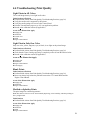
Light Prints in All Colors
Light Print in Only One Color
Blank Prints
Mottled or Splotchy Prints
Unexpected Colors
Repeating Bands, Lines, Marks, or Spots
Random Bands, Lines, Marks, or Missing Spots
Random Spots
Background
Incomplete Fusing or Cold Offset
Ghosting or Hot Offset
Toner on Back of Print
Scan Direction Bands, Voids, or Streaks
Scan Direction Dark Streaks
Process Direction Lines or Streaks
Chapter 5
Troubleshooting Media Issues
5.1
5.2
5.3
5.4
5.5
5.6
5.7
5.8
5.9
Troubleshooting Media Methodology
How to Convert Basis Weight of Paper to GSM
Troubleshooting Media Issues for Print Quality
Troubleshooting Media Issues Paper Feeding
Troubleshooting Media Issues Finishing
Media Specifications - CX2633 MFP
Media Specifications – CX3641 MFP
Media Specifications – CX1145 MFP
Procedure for Requesting Media Samples
2
Chapter 6
Troubleshooting Scanner Driver Issues
6.1 Troubleshooting Scanner Driver Methodology
6.2 Troubleshooting Suspected Driver Issues
6.3 How to Reinstall a Device Driver
6.4 How to Upgrade a Device Driver
6.5 How to Roll Back a Device Driver
Chapter 7
Troubleshooting Network Issues
7.1 Troubleshooting Network Methodology
7.2 Verifying Connections / LEDs
7.3 Testing Functionality – Using the “Ping” Command
7.4 Checking TCP/IP Settings
7.5 Isolating and Testing the Oki Device
7.6 Checking Adapter Resources
7.7 Additional Troubleshooting
Chapter 8
Troubleshooting Print Driver Issues
8.1 Troubleshooting Print Driver Methodology
8.2 Troubleshooting suspected driver Issues
8.3 How to reinstall a device driver
8.4 How to upgrade a device driver
8.5 How to roll back a device driver
Chapter 9
Troubleshooting Software Application Issues
9.1 Troubleshooting Software Application Methodology
9.2 Basic Application Troubleshooting
9.3 Other Troubleshooting Assistance
Chapter 10
Troubleshooting Fax Issues
10.1 Troubleshooting Fax Methodology
10.2 Analog Verses Digital
10.3 Understanding Digital Networks
10.4 Basic Fax Troubleshooting
3
Chapter 1
Troubleshooting 101
1.1 Asking the Right Questions
To be an effective troubleshooter you have to ask the right questions. Each question
should lead you closer to the problem area by eliminating possibilities.
The quality of your solution depends on the quality you put into the process. Getting a
complete and accurate symptom description, and reproducing the symptom, assures that
you fix the symptom the dealer and customer wanted you to fix. An organized
troubleshooting process shows the dealer and customer you have control of the situation
which will immediately instill confidence in the dealer and customer. A correct
troubleshooting process will reduce costs, prevent further issues, and ensure that the root
cause, rather than a peripheral symptom is fixed. Proper recommendations for repair or
replacement of the defective component will enhance your credibility with your
associates, the dealer technician and customer.
There are 5 general steps to all troubleshooting. These steps can be used in any industry.
They apply to technical, financial, economic, and even in your personal lives. Everyone
utilizes these steps daily and do not realize it. Troubleshooting is taking a logical
approach to problem solving. The following are the 5 steps:
Step 1
Preparation
Step 2
Gathering Information
Step 3
Detailing the Symptom
Step 4
Testing the Solution
Step 5
Document to Prevent Future Occurrences
See the next page for an illustration of using these 5 steps in the
troubleshooting process.
4
Pick a Card – Any Card
The following illustrates the mental process that occurs when troubleshooting.
This illustration utilizes a deck of cards.
Step # 1 Gathering the information
I have a deck of cards and one card is missing.
Step # 2 Detailing the Symptom
One card is missing from the deck
I alone know what the card is.
Step # 3 Troubleshooting Process
Question: Is the card a red suit or a black suit?
Answer: red.
Question: Is it a heart or a diamond?
Answer: diamond
Question: Is it a face card or a number card?
Answer: number card
Question: Is the number 5 or below (the ace is the number 1)?
Answer: no
Question: Is the number odd or even?
Answer: Odd
* It is now clear that only two possibilities still exist; the 7 or 9 of diamonds.
Question: Is it the 9 of diamonds?
Answer: no
Solution: It is the 7 of diamonds.
The key to the whole process is:
Your Knowledge of the Equipment You are Supporting.
In the case of the deck of cards, you would not have been able to ask meaningful
questions if you are not completely familiar with the deck of cards. This implies mental
preparation beforehand.
This is why it is essential that you have a thorough knowledge of the technical
publications and always keep your ears open to the voice of experience. It has and
always will be the greatest teacher.
5
1.2 The Troubleshooting Process
Common Troubleshooting Myths
"You need to be an expert on the machine or system you're troubleshooting"
Often mere possession of the system documentation or service manual gives you enough
expertise. On the other hand, systems experts who don't use a troubleshooting process fail
spectacularly.
"Troubleshooting is machine dependent"
The truth is that systems and machines may vary, but the Troubleshooting Process is
common to all!
"Great troubleshooters are born, not taught"
In reality, troubleshooting is a set of procedures, priorities, mental tools and attitudes that
anyone can master.
"Either you can troubleshoot or you can't"
Just like any ability, there's a spectrum. A person can always get better. Imagine how this
myth would sound substituting "play poker" for the word "troubleshoot".
"All you need are diagnostic machines and software"
This myth results in millions of dollars worth of unnecessary repair work and unfixed
systems. With many dealers, if the diagnosis says "bad computer”, they replace the
computer regardless of the fact that the computer is being fed garbage from a bad sensor.
Be careful not to fall into this trap.
Practical Application of the 5 Steps
Step 1
Preparation
Every one requires preparation. In troubleshooting, one must prepare their tools, work
area, documentation, and most important, their attitude.
In troubleshooting, as in any other endeavor, you must have the right attitude to succeed.
You can solve it. It's not magic -- there's always an explanation. At this point don't try
to fix it, just try to narrow it down. Don't panic. Don't get mad. Be patient and don't skip
steps. Practice teamwork. When you get in a bind, just ask yourself, "How can I narrow it
down one more time?" The best way to maintain the attitude is to remember this - it is a
mathematical certainty that you will solve any reproducible problem in a system for
which you have knowledge or system documentation.
Step 2
Gathering Information
For the Dealer Technician to obtain the full benefit of the Technical Support Hotline and
your problem solving skills, it is important that you follow industry standard practices
when working with the Dealer Technician.
6
Questions you MUST ask at initial phone contact:
•
•
•
•
•
•
•
The Technicians’ Name (Who are you speaking with)
The Dealers’ Name (Who do they work for)
The Serial Number of the Product they are calling about
Does the Technician have the product configuration sheet available
The printer / MFP’s current print count
The Last Calibration Date
Any parts replaced (If part replacement has already been attempted)
Step 3
Describing the Symptom
The Symptom Description you obtain must be complete and accurate. The more detailed
the description, the less work you'll need to do. A complete and accurate symptom
description will ensure the quickest and most accurate solution. It will minimize the risk
of "fixing the wrong problem", and help clarify the facts if there's a suspicion that you
may be receiving or giving the wrong information. Below are examples of the
information that you are trying to obtain:
Is the issue related to:
• Print Quality
• Copy Quality
• Print & Copy Quality
• Printing from a PC / Network
• Scanning
• Faxing
• Media / Jamming
If the issue is with printing and is print quality related, obtain information on:
• Customers’ operating system
• Firmware version of the product
• Application (Software) being used
• Print driver(s) being used (PCL, PS, Command Workstation)
Here is an important question to ask. Inquire if they can consistently reproduce the
symptom? If the answer is YES, the problem is said to be reproducible. If the answer is
NO, the problem is said to be intermittent.
If Reproducible:
Understand the procedure or operation they are using to reproduce the symptom. You
can't fix what you can't see! If you can't reproduce the problem, you can‘t examine the
scope of the issue and to determine the best solution. Reproducing the problem prevents
the risk of giving the technician a recommended fix that makes the problem worse or
ineffective.
7
If Intermittent:
•
•
•
•
How often does it seem to happen?
What seems to make it more frequent?
What seems to make it less frequent?
What seems to make it (temporarily) go away?
Other, possibly related symptoms:
Obtain other symptoms or oddities that have been noticed:
•
•
•
What other components or software might be involved?
Did these symptoms or oddities appear around the same time?
Were any other machines, components or software added or changed around the
same time?
First occurrence questions
•
•
•
When did it start happening?
What else happened around that time?
Where there any installations or configuration changes done around that time?
Distinction questions
Distinction questions are double edged questions involving "is" and "is not", typically in
the realms of "who", "which/what", "where", "when", and "to what extent". By
developing a matrix of what is and what is not you can gain more focus on your
hypotheses, hopefully arriving at a quicker solution.
It is critical that whatever hypothesis you arrive at, no matter how iron clad it seems, be
tested. To do otherwise invites second calls (recalls, callbacks, etc.) and the problem
getting out of control.
Don't Skip Steps. The “Process of Elimination” or “Divide and Conquer” process can be
thought of as continually forcing the problem into ever smaller boxes, until it's trapped.
Some of the worst troubleshooting debacles involve the problem escaping the box. In
other words, you may have thought you had proved it was in one area, when it was really
in another. When this happens, tests become inconclusive and days can be wasted
ordering and installing incorrect parts. You may also risk losing credibility with the
technician and you will start to doubt yourself as well. Take every precaution to avoid
this -- don't skip steps.
Step 4
Testing the Solution
Testing is the best predictor of technician and customer satisfaction. If the symptom you
obtained in step 2 and reproduced in step 3 is now gone, and no new problems have
occurred, it is likely the technician will have confidence in your abilities and the
customer will be happy. Most customer horror stories occur when testing was inadequate
or non-existent.
8
When you test, ask these four quality questions:
• Did the symptom go away?
• Did I fix the right cause?
• Did I create any other problems?
Some of the testing may be done while the system is partially disassembled, but it's
important to do a final test after it is fully reassembled to ensure the solution you
presented has resolved the issue.
Special testing for intermittent issues:
Since an intermittent issue occurs randomly and can't be forced to occur by a specific
procedure, you can not be certain the symptom went away. That's why it's essential
during Step 3 (Symptom Reproduction) that you record how often it happens and what
situations tend to increase its probability. If it occurred once per hour before, and you
were unable to reproduce it after 2 days in testing, there's a high likelihood it's fixed. A
testing period of a couple hours just wouldn't be sufficient.
Letting the customer test the intermittent issue
Sometimes it's not practical to tie up a dealer technician for the time it takes to test an
intermittent issue. When this happens it's acceptable to ask the customer to assume the
testing role. This is acceptable as long as they are informed of it, consent to it and
understand if the problem reoccurs the dealer technician will resume the troubleshooting
responsibility.
Step 5
Document to Prevent Future Occurrences
Perform as many of these actions as appropriate:
Give the dealer / customer or user care instructions:
At times the dealer technician or the customer inadvertently did something to cause the
problem. By (tactfully) giving them instructions on how to avoid repeat problems, they
will perceive a better level of service and you'll free up time that would have gone to
repeat repair.
Tell your co-workers:
Document the symptom and solution. By sharing your findings with your co-workers
through email, OkiDocs, the Support Forum, etc., you can save hours on the
troubleshooting of similar problems. Not documenting and sharing the results does a
disservice to your team mates and future customers.
In closing it is important to remember this:
Maintain a Positive Attitude
•
•
•
Be Proactive
Begin with the End in Mind
Seek First to Understand... Then to be Understood
9
Chapter 2
Supporting Oki Products
2.1 Product Competency
When a dealer technician or end user contacts our call center for product assistance, they
expect that they will be communicating with a product expert. They expect to talk to
someone who will be able to resolve their issue quickly and effectively. If you don’t
show confidence in your product competency, the customer may question your credibility
or competency on the product.
It is not necessary to be “all knowing”, but it is necessary to know the product you are
supporting and to know all of your resources that are available to you. With that
knowledge comes the “competency” and the “power” to resolve any issue you are likely
to face. You will be perceived as the “all knowing” expert they are expecting.
Other than your positive attitude, the key to the whole process - and your success - is
your knowledge of the product. This is why it is essential that you have a thorough
knowledge of the technical information available for the products. You will be able to
solve any reproducible problem for which you have knowledge and documentation.
2.2 Definitions
Technical Service Manual (Maintenance Manual)
A document containing instructions for installation, operation, use, maintenance, support,
and training for the effective deployment and maintenance of a product, process, or
system.
Technical Service Guide (Service Guide)
A document containing specific instructions for maintenance, support and repair that
includes system adjustments, disassembly, reassembly, and preventative maintenance
procedures to maintain a product or device at manufacturer’s specifications.
User Guide (User Manual)
A technical communication document intended to give assistance to people using a
particular product or device. It is usually written by a technical writer, although user
guides could be written by programmers, product or project mangers, or other technical
staff, particularly in smaller companies.
OkiDoc (Technical Service Bulletin)
A bulletin issued internally as well as to a dealer or end user by Oki Data detailing a fix
for a known concern. The bulletin is informational and is not a recall notice. The dealer is
not obligated to make the repair or notify customers. OkiDocs are intended to assist
dealers in increasing their product knowledge and facilitate resolving specific issues.
Parts Manual
A document that provides specific diagrams of the internal components of a device or
accessory with associated part numbers that will allow the technician to order
replacement items.
10
2.3 Using all Your Available Resources
1. To be effective in troubleshooting issues we do not require you memorize every
service manual, service guide, OkiDoc, or parts book available for each product you
support. However, it is essential that you know where your resources are for each
product you support and have the ability to retrieve the required information quickly and
efficiently.
2. Reading over all supporting technical documentation for the products you support is
also essential to be “Up to Speed” on the newest technical bulletins, changes in product
specifications, introduction of new service materials, new product introductions, etc. This
will allow you to know the best resource to use when assisting the dealer technician or
end user.
The following is a list of some but not all of the resources you have available.
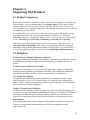
Lotus Notes
Oki BPX
11
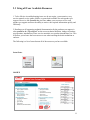
Oki Support Forum
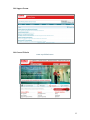
Oki General Website
www.myokidata.com
12
Oki CRM
Oki University
13
Chapter 3
Establishing the Troubleshooting Baseline
3.1 Establishing a Troubleshooting Baseline
Various factors come into play when attempting to assist a dealer service technician in
troubleshooting Okidata printing devices. Some factors include:
•
•
•
•
•
•
Technicians’ Product Training
(Has the technician been trained on the product).
Technicians’ technical ability
(Technical ability varies from person to person)
Technicians’ time servicing this product
(Do they see this product a great deal or do they see it rarely)
Is the technician aware of all of the new troubleshooting documentation available
Does the technician have and use the relevant product service documentation
(All relevant documentation is now available on the BPX)
Is the technician on-site with the product
(Technical assistance really can not be provided if they are not on-site with the product)
To be able to adequately assist a technician in troubleshooting, a baseline must be
established to ensure that the information being provided by the technician and the
troubleshooting information being given by the call center agent are as accurate as
possible so that the customer impact is kept to a minimum.
The best tool at your disposal is the printer configuration sheets. The configuration sheets
will allow you to verify the information you are being given by the dealer tech and will
allow you to establish that baseline.
The following will detail the Configuration sheets of the CX3641 MFP and briefly
describe the areas that you can gain the most insight as to the issue being addressed.
Once you have evaluated the configuration sheet information, you can direct the
technician in establishing the baseline so that the printer will be operating at manufacture
specification. Without establishing a baseline, the troubleshooting procedure is more
difficult and a resolution to the issue may never be found.
This technique can and should be utilized for all Oki products you support.
Job # 1
Your Main Goal is to get the product to Manufacture Specification
14
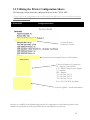
3.2 Utilizing the Printer Configuration Sheets
The following example details the configuration sheets for the CX3641 MFP.
Please refer to the configuration sheets of the particular Oki device you are troubleshooting for
details on that product.
CX3641 MFP
Configuration Sheet
Server Info
Current Printer
Firmware Version
Printer Serial Number
Current Firmware Versions for:
PI = Engine Control PCB
LO = High Voltage Power Supply
S = Scanner
DU = Duplex
T2 = Hi Cap. Tray 2
T3 = Hi Cap. Tray 3
T4 = Hi Cap. Tray 4
Fax = FX 1 PCB (If installed)
Current Update / Patch information
In order to establish a troubleshooting baseline it is important to confirm the printer serial
number in question and verify that all firmware and updates are current.
15
CX3641 MFP
Configuration Sheet
Server Setup
Be aware of the printers “Time Zone” setting.
Wrong time zone settings can effect Network,
Fax, and LDAP performance
16
CX3641 MFP
Configuration Sheet
Network Setup
Printers MAC Address
Inaccurate “Network Settings” can effect
Network, Fax, and LDAP performance
Use this Section to Assist in
Troubleshooting Network Issues
17
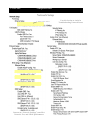
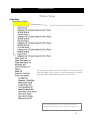
CX3641 MFP
Configuration Sheet
Printer Setup
Verification of Last Calibration Information.
The calibration method and the last date of calibration along
with the supply life (see page 10 of this document) is valuable
information for troubleshooting print quality issues.
This information can be accessed and modified
through Admin Setup on the printer control panel
18
CX3641 MFP
Configuration Sheet
PS / PCL Setup
This information can be used to verify print driver
information
19
CX3641 MFP
Configuration Sheet
Color Setup
The manner in which the values are set up in the “Color Setup” section of the configuration
sheet can effect color output. These settings can be established through the printer menu or
through Command Workstation “Color” tab – “Expert Settings”.
20
CX3641 MFP
Configuration Sheet
Job Log Setup
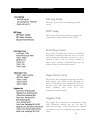
The Job Log can assist in evaluating print job
errors.
MFP Setup
MFP setup will tell if the printer recognizes the
scanner and scanner interface (BY-3 PCB).
Print Page Count
Page counts are important to assist in evaluating
the printers condition at the time of service. If the
unit is producing thousands of prints in a short
amount of time or has an excessive amount of
prints, more in-depth troubleshooting may be
needed. Wear & tear becomes a factor.
Paper Size in Tray
The printers tray configuration settings can effect
print quality and media feeding through the
printer. If the printer tray configuration is not set
correctly issues like auto media detection and
media jamming may occur (See Tray
Configuration on next page.
Supplies Life
The supply life of the printers consumables along
with calibration method and the last date of
calibration (see page of this document) are valuable
information tools for troubleshooting print quality
issues.
21
CX3641 MFP
Configuration Sheet
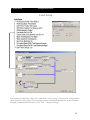
Tray Configuration
The printers tray configuration settings can
effect print quality and media feeding through
the printer. If the printer tray configuration is
not set correctly issues like auto media detection
and media jamming may occur.
22
CX3641 MFP
Configuration Sheet
Print Statistics
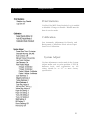
Verifies if the MFP Print Statistics Log is enabled
or disabled. Changes to Enable / Disable must be
done in service mode.
Calibration
Sets Automatic Adjustment for Density and
Background. Calibration Mode selects Paper
Source for Calibration.
System Adjust
Various adjustments can be made in the System
Adjust menu such as print position, C,M,Y,K
darkness levels, color registration, etc. All
values should be at “0” to meet factory
specification
23
CX3641 MFP
Configuration Sheet
BIOS Setup
Use “Installed Options” to verify that the
available Fiery Options are Installed
24
Chapter 4
Troubleshooting Print Quality Issues
4.1 Troubleshooting Print Quality Methodology
Print-quality defects can be attributed to printer components, consumables, media,
internal software, external software applications, and environmental conditions. To
successfully troubleshoot print-quality problems, eliminate as many variables as possible.
The first step is to generate prints using printable pages embedded in the printer on paper
from the Supported Media List. Use paper from a fresh, unopened ream that is acclimated
to room temperature and humidity. If the print-quality defect is still present when printing
on approved media, then investigate software applications (see 4.6) and environmental
conditions.
Mono printers use an Imaging Unit to develop a latent image on the Transfer Unit to form
the final image. Color printers use 4 separate Imaging Units to develop a latent image for
each color where the colors are combined on the Transfer Unit to form the final image.
In most cases, print-quality defects are the result of one particular component in the print
engine (Image Drum(s), Transfer Belt, Fuser). When a single component of the Imaging
Unit is causing a print quality defect, replace the Imaging Unit. If the defect is suspected
in the Transfer Belt, replace the Transfer Belt, and if the defect is suspected in the fuser,
replace the fuser.
When analyzing a print-quality defect, first determine if:
(Mono Printer) the defect occurring is repeating or random.
(Color Printer) occurs in all colors or only one color and if it is repeating or random.
Continuous defects in the process direction, such as voids and lines, are the most
difficult to diagnose. Inspect the visible surfaces of all rollers for obvious defects. If no
defects are observed, replace the Imaging Unit(s), Transfer Unit, and Fuser one at a time
until the defect is eliminated.
25
4.2 Troubleshooting Print Quality Issues
Print Quality Defects Associated with Specific Printer Components
Some print-quality problems can be associated with specific assemblies, the most
common problems and the associated assemblies are listed below. Also, refer to the
printer’s service manual for “Troubleshooting Print-Quality” or a specific print-quality
troubleshooting procedure for more information.
Imaging Unit
•
•
•
•
•
•
Transfer Unit
Fuser
LED Head
Streaks in Process Direction
(in the direction of feed, parallel with paper travel)
Banding in Scan Direction
(across the page, perpendicular to paper travel)
Uneven Density
Voids
Repeating Defects
Mis-registration
•
•
•
•
Toner on the back side of the printed page (simplex mode)
Light Prints
Repeating Defects
Mis-registration - only when there is obvious damage to the
belt.
•
•
•
Hot or Cold Offsetting
Repeating Defects
Dark Streaks in Process Direction
•
•
Streaks in the Process Direction
Uneven Density in the Scan Direction
Test Prints
A variety of test prints are available to aid in determining the quality of output from the
printer and to assist in troubleshooting. See the service manual for the particular device
on how to generate and analyze test prints.
26
4.3 Print-Quality Troubleshooting Practices
Initial Actions to perform prior to using any of these troubleshooting procedures.
•
Ask specific questions of the dealer technician to determine the actual problem
•
Have the dealer technician generate Configuration Pages to ascertain if all
updates are installed, the consumable life, and to use for reference after changes
are performed.
•
Generate test prints, Test Page, and Demo Page
•
Follow Standard Preventative Maintenance procedures and clean the printer
•
Verify the media used is supported by the printer.
•
Verify the media settings are correct at the Control Panel.
•
Print the internal test and demo pages to determine if it is an application issue.
•
Run the color calibration routine (If applicable)
Final Actions to perform after using any of these troubleshooting procedures.
• Instruct the dealer technician to perform printer and/or scanner calibrations
• Generate configuration pages and attach to the dealers service log
• Generate final test page, and demo page and attach to the Service Log
27
4.4 Troubleshooting Print Quality
Light Prints in All Colors
The overall image density is too light in all colors.
Initial Actions to Perform
■ Perform Initial Actions from Print Quality Troubleshooting Practices (page 26)
■ Verify the media used is supported by this printer.
■ Verify the media settings are correct at the Control Panel.
■ Print the Test and Demo pages to see if it is an application problem.
■ Run the color calibration routine (If applicable)
Areas of the Printer that Apply
■ Imaging Unit
■ LED Head
■ Transfer Unit
■ HVPS
■ Engine Control Board
Light Print in Only One Color
Only one color; yellow, magenta, cyan, or black, is too light on the printed image.
Initial Actions to Perform
■ Perform Initial Actions from Print Quality Troubleshooting Practices (page 26)
■ Check that the Toner Cartridge pull strip is completely removed from the affected color.
■ Run the color calibration routine (If applicable)
Areas of the Printer that Apply
■ Imaging Unit
■ LED Head
■ Engine Control Board
■ Toner Supply
Blank Prints
Initial Actions to Perform
■ Perform Initial Actions from Print Quality Troubleshooting Practices (page 26)
■ Run a test print to help isolate the problem between the CU Control Board and the
Engine Control Board.
Areas of the Printer that Apply
■ Imaging Unit
■ LED Head
■ Engine Control Board
Mottled or Splotchy Prints
The print image has a mottled appearance.
Note: This defect is known to occur when manually duplexing, at low humidity, and when printing on
heavy weight media.
Initial Actions
■ Perform Initial Actions from Print Quality Troubleshooting Practices (page 26)
Areas of the Printer that Apply
■ Imaging Unit
■ LED Head
■ HVPS
■ Engine Control Board
28
Unexpected Colors
The colors produced by the printer are dramatically different from the color expected.
Initial Actions
■ Perform Initial Actions from Print Quality Troubleshooting Practices (page 26)
Areas of the Printer that Apply
■ Imaging Unit
■ HVPS
■ Engine Control Board
Repeating Bands, Lines, Marks, or Spots
This is usually caused by a damaged roller. In some instances, the spots may be dark instead of
white and are repeated.
Initial Actions
■ Perform Initial Actions from Print Quality Troubleshooting Practices
■ Print the Color Test pages to identify the color causing the defect.
■ Print multiple pages, and then measure the defect and compare it to the Repeating
Defects table (Service Manual) to identify the problem component.
Areas of the Printer that Apply
■ Imaging Unit
■ Fuser
■ Transfer Unit
Random Bands, Lines, Marks, or Missing Spots
There are areas of the image extremely light or are missing entirely and do not appear to be a
repeating defect or in a single color. Caution: Leaving an Imaging Unit exposed to light for periods in
excess of 10 minutes can quickly degrade its performance and result in early failure.
Initial Actions
■ Perform Initial Actions from Print Quality Troubleshooting Practices (page 26)
■ Using a flashlight, carefully examine the area around the Imaging Units and the openings
between the Imaging Units and LED Heads. Small obstructions, such as hair or fibers, can create
streaks
■ When troubleshooting, print a test print on at least letter size paper for diagnosing this problem.
The problem may be a repeating defect that is not noticeable on smaller media.
■ Random missing spots can also be associated with “Cold Offset”, which lifts toner off the page
in certain areas. Usually this will occur in high-coverage areas where the fuser temperature is not
high enough to fuse the toner on the media. This causes toner to be re-deposited further down the
page.
Areas of the Printer that Apply
■ Imaging Unit
■ Fuser
■ Transfer Unit
■ Engine Control Board
Random Spots
There are spots of toner randomly scattered across the page. Toner melting off the Fuser
thermistors can also place random spots onto prints.
29
Initial Actions
■ Perform Initial Actions from Print Quality Troubleshooting Practices
■ Verify the Imaging Unit, Fuser, and Transfer Unit are not at or near end of life. Waste
toner, especially from the Transfer Unit, can cause random spots to appear on the page.
Note
Depending on the type of paper and environmental conditions, some light amount of
random background spotting is normal. The whiter and glossier the paper, the more
noticeable it will be.
Areas of the Printer that Apply
■ Imaging Unit
■ Fuser
■ Transfer Roller
Background
There is a very light covering of toner across the entire page. Background contamination can
appear in one of the primary colors or gray. The printer displays no error code. Note: Depending
on the type of paper and environmental conditions, some light amount of random background
spotting is normal. The whiter and glossier the paper, the more noticeable it will be.
Initial Actions:
■ Perform Initial Actions from Print Quality Troubleshooting Practices (page 26)
■ Ask the customer about their typical printing habits. A high daily duty cycle can temporarily
fatigue the OPC drums within the Imaging Unit and contribute to unwanted background toner.
Areas of the Printer that Apply
■ Imaging Unit
■ Fuser
■ Transfer Unit
■ HVPS
■ Engine Control Board
Incomplete Fusing or Cold Offset
The Fuser temperature is set too low for the media loaded in the tray causing improper fusing
resulting in the toner rubbing off easily.
Initial Actions:
■ Perform Initial Actions from Print Quality Troubleshooting Practices
■ Verify the correct media type is set at the printer’s Control Panel.
Areas of the Printer that Apply
■ Fuser
■ Media Thickness Sensor
Image Not Centered or Positioned Correctly
The image is not centered on the page correctly
Initial Actions:
■ Perform Initial Actions from Print Quality Troubleshooting Practices
Areas of the Printer that Apply
■ Imaging Unit
■ Transfer Unit
30
Ghosting or Hot Offset
There are faint, ghostly images appearing on the page. The images may be either from a previous
page or from the current page. This type of artifact can be related to the percent coverage
called out in the file being printed. If the colors are offset by less than 10 mm, this
represents mis-registration, not ghosting.
Ghosting: This can be the Imaging Unit (green roller) where a residual image is left on the green
film, which is then deposited further down the page. This is most noticeable on images that have
a dark background with light text. The text is ghosted down the page at 94 mm intervals. This is
caused by a defective Imaging Unit. Ghosting every 49 mm is caused by the developer roller and
is a limitation of the design; therefore, technicians should not replace Imaging Units for this type
of ghosting.
Hot Offset: This can be characterized by a repeating image every 87.3 mm or 124 mm. The
Fuser temperature is set too high for the given media and the toner adheres to the Fuser rollers
causing the image to be deposited further down the page or on the following pages. Offsetting
occurs on media if the fuser’s temperature setting does not match the media type loaded in the
tray.
Initial Actions:
■ Perform Initial Actions from Print Quality Troubleshooting Practices
■ Verify the correct media type is set at the Control Panel
■ Print an internal test page to see if ghosting appears there as well.
■ Try printing with fresh media from a recently opened ream.
Areas of the Printer that Apply
■ Imaging Unit
■ Fuser
■ Transfer Unit
■ LVPS
■ Temp/Humidity Sensor
■ Engine Control Board
Mis-Registration, Color Layers Not Correctly Registered
The image appears blurred and the primary colors are not aligning correctly into one image. For a
page oriented Long-Edge Feed, the following applies:
■ If the colors are shifted from left to right, this is mis-registration in the process direction.
■ If the colors are shifted from top to bottom, this is mis-registration in the scan direction.
Initial Actions:
■ Perform Initial Actions from Print Quality Troubleshooting Practices
■ If the mis-registration is in the horizontal direction, perform the color registration adjustment
■ If the mis-registration is in the vertical direction, clean the Sensor.
Areas of the Printer that Apply
■ Imaging Unit
■ LED Heads
■ Color Registration Sensors
■ Transfer Unit
■ HVPS
■ Image Processor Board
■ Engine Control Board
31
Toner on Back of Print
There is toner on the back of the printed sheet of paper.
Initial Actions:
■ Perform Initial Actions from Print Quality Troubleshooting Practices
Areas of the Printer that Apply
■ Imaging Unit
■ Transfer Unit
Process Direction Bands, Voids, or Streaks
There are areas of the image that are extremely light or missing entirely. These missing areas
form wide bands that run along the page parallel to the leading edge of the paper.
Initial Actions:
■ Perform Initial Actions from Print Quality Troubleshooting Practices
Areas of the Printer that Apply to Process Direction Bands, Voids, or Streaks
■ Imaging Unit
■ Transfer Unit belt
Scan Direction Bands, Voids, or Streaks
There are areas of the image that are extremely light or are missing entirely. The missing areas
form bands that run along the page from the leading edge to the trailing edge in the direction of
paper travel.
Initial Actions:
■ Perform Initial Actions from Print Quality Troubleshooting Practices
Areas of the Printer that Apply
■ Imaging Unit
■ Transfer Unit belt
■ LED Heads
Scan Direction Dark Streaks
There are dark lines running parallel with the leading edge of the print.
Initial Actions:
■ Perform Initial Actions from Print Quality Troubleshooting Practices
Areas of the Printer that Apply
■ Imaging Unit
■ Transfer Unit belt
Process Direction Lines or Streaks
There are dark lines running along the page in the direction of paper travel from the leading edge
to the trailing edge. This is generally due to Fuser, paper path roller and/or exit guides
contaminated with toner debris.
Initial Actions:
■ Perform Initial Actions from Print Quality Troubleshooting Practices
Areas of the Printer that Apply
■ Imaging Unit
■ Transfer Unit belt
32
Chapter 5
Troubleshooting Media Issues
5.1 Troubleshooting Media Methodology
One of the most difficult aspects of troubleshooting involves the type of media that is
being used in the printer. There are 3 areas where the Media used will affect the
printers output. Those areas are:
• Print Quality
• Paper Feeding
• Finishing
In troubleshooting media issues you should know that there are two methods to indicate
the weight of paper:
Basis Weight (measured in Pounds) (English)
Metric (measured in grams per meter square) (European).
While the Basis method is more commonly known, it has its drawbacks. There are
various types of paper such as US Bond, Index, Vellum, Cover, (etc).Unfortunately in the
English method the pound weight of US Bond and the pound weight of Index can be very
different. Although each type may indicate the same weight the media behaves quite
differently when fed through a printer (See How to Convert Basis Weight of Paper to
GSM on page 11) . Therefore, for a more accurate comparison between different types of
paper, the European Metric method should always be utilized when troubleshooting
media issues.
33
5.2 How to Convert Basis Weight of Paper to GSM
Step 1
Know that the basis weight of paper is specified as the fixed weight, measured in
pounds, of 500 sheets in a particular paper's basic sheet size. However, as there are
different types of paper, there are different "basic sheet sizes" for each type. The
thickness of a sheet of paper or caliper (represented in thousandths of an inch) is
measured with a micrometer. The greater the caliper or thickness of each individual sheet,
the greater the basis weight.
Step 2
Know that the European method (metric) of expressing paper weight measures one
sheet of paper based on two-dimensional height and a designated width of one meter.
While the method describes a hypothetical meter, its main strength is a more accurate
comparison between heavily varying types of paper. The basis method does not factor in
different dimensions, and therefore, the weight of thick letter paper may be the same as
extremely thin paper that has significantly greater dimensions.
Step 3
Note what type of paper you are converting.
1 lb. of:
Text paper is equivalent to 1.48gsm.
Cover paper is equivalent to 2.708gsm.
Index paper is equivalent to 1.81gsm.
Vellum is equivalent to 2.91gsm.
Tag paper is equivalent to 1.63gsm.
Bond paper is equivalent to 3.69gsm.
Bristol is equivalent to 2.19gsm.
* To convert, multiply the basis weight in pounds times the equivalent gsm for the specific type of paper.
34
5.3 Troubleshooting Media Issues for Print Quality
Step 1. Change the media to plain paper. Is the issue still evident?
Yes - The printer requires repair (See troubleshooting Print Quality Issues Chapter 5)
No – Proceed to step 2
Step 2. Investigate the Media
Questions you should ask?
What is the Media Type:
Glossy, Card Stock, Letter head, Magnetic Signage, etc. (found on packaging label)
What is the Media Weight:
Weight in Pounds (lb.) and Grams per Square Meter (g.s.m) (found on packaging label)
What Printer Tray is being used:
Multi Purpose Tray? Cassette?
What are the Printer Media Settings:
(Type-Weight 6.5, 6.6, 6.7) *Note: Print Driver will override printer settings.
When was the Last Printer Calibration:
Found on PS Test Page
What is the Specific Quality Issue:
Streaks, Registration, etc.
Step 3. Does the media fall within specification? (See Media Specifications 6.5, 6.6, 6.7)
Yes – (Proceed to step 4)
No – Instruct that the media is not within printer specification
Step 4. If Copy Related: Print Configuration / PS Test / Demo pages.
If problem is not evident, issue is with scanner.
If problem is evident, issue is with printer.
If problem is evident on both copy and print, install media from a fresh,
unopened package and test. Change the media direction (lef to sef).
Is the issue still evident.
Yes - The printer requires repair (See troubleshooting Print Quality Issues Chapter 5).
No – Instruct that the media is not within printer specification.
If Print Related: Determine what application is used and what print driver used.
Convert the document to PDF and output.
If the issue is still evident, output using a different print driver.
If the issue is still evident install media from a fresh, unopened package and test.
Change the media direction (lef to sef)
Is the issue still evident.
Yes – See step 5.
No – Instruct that the media is not within printer specification
Step 5. Request media samples (follow procedure on 6.8 )
35
5.4 Troubleshooting Media Issues for Paper Feeding
Step 1. Change the media to plain paper. Is the issue still evident?
Yes - The printer requires repair (Isolate using the Service manual & Troubleshooting Guide)
No – Proceed to step 2
Step 2. Investigate the Media
Questions you should ask?
What is the Media Type:
Glossy, Card Stock, Letter head, Magnetic Signage, etc. (found on packaging label)
What is the Media Weight:
Weight in Pounds (lb.) and Grams per Square Meter (gsm) (found on packaging label)
What Printer Tray is being used:
Multi Purpose Tray? Cassette?
What are the Printer Media Settings:
(Type-Weight 6.5, 6.6, 6.7) *Note: Print Driver will override printer settings.
What is the Specific Issue:
Jams (In what area of the printer), Registration, mis-feeds, etc.
Step 3. Does the media fall within specification? (See Media Specifications 6.5, 6.6, 6.7)
Yes - Proceed to step 4
No - Instruct that the media is not within printer specification
Step 4. Test the Media from a different tray. Is the issue still evident.
Yes - Install media from a fresh, unopened package and test.
(Isolate using the Service manual & Troubleshooting Guide)
No - Replace the feed rollers in the tray with the issue
If Copy Related: Print Configuration / PS Test / Demo pages.
If problem is evident on both copy and print, install media from a fresh,
unopened package and test. Change the media direction (lef to sef)
Is the issue still evident?
Yes - Isolate using the Service manual & Troubleshooting Guide
No - Instruct that the media is not within printer specification.
If Print Related: Determine what application is used and what print driver used.
Output using a different print driver. If the issue is still evident install media from
a fresh, unopened package and test. Change the media direction (lef to sef).
Is the issue still evident?
Yes – Investigate application issue
No - Instruct that the media is not within printer specification.
Step 5. Request media samples (follow procedure on 6.8)
36
5.5 Troubleshooting Media Issues for Finishing
Step 1. Change the media to plain paper. Is the issue still evident?
Yes - The printer / finisher requires repair (Isolate using the Service manuals & Troubleshooting Guide)
No – Proceed to step 2
Step 2. Investigate the Media
Questions you should ask?
What is the Media Type:
Glossy, Card Stock, Letter head, Magnetic Signage, etc. (found on packaging label)
What is the Media Weight:
Weight in Pounds (lb.) and Grams per Square Meter (gsm) (found on packaging label)
What are the Printer / Finisher Media Settings:
(Type-Weight 6.5, 6.6, 6.7)
What is the Specific Issue:
Jams, Stapling, Folding, etc.
Step 3. Does the media fall within specification? (See Media Specifications 6.5, 6.6, 6.7)
Yes - Proceed to step 4
No – Repair the Finisher
Step 4. Request media samples (follow procedure on 6.8 )
37
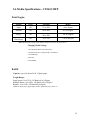
5.6 Media Specifications - CX2633 MFP
Print Engine
Setting
Trays
US Bond
Metric
Light
All
17 to 22lb.
64 to 82gsm
Medium
All
24 to 28lb.
83 to 105gsm
Heavy
All
29 to 32lb.
106 to 128gsm
Ultra Heavy
All
35 to 53lb.
129 to 200 gsm
*Note: Media weight settings can be made in the printer menu or the printer driver.
Changing Media Settings:
1. Press the SETUP button on the control panel.
2. On the touch screen: a. Press Paper Setup. b. Press MP Tray.
3. Press Media Type.
4. Select Size
5. Press ENTER.
RADF
Capacity: up to 50 sheets 20-lb. (75gsm) paper
Weight Range:
Single sheets: 16 to 32 lb., US Bond (60 to 128gsm)
Multiple Sheets: 16 to 28 lb., US Bond (60 to 105gsm)
Banners: 16 to 24 lb., US Bond (60 to 90gsm)
*Note: No staples, clips, ragged edges, wrinkles, punch holes, sticky notes, etc.
38
5.7 Media Specifications – CX3641 MFP
Print Engine - Media Input
Trays 1 to 4
Paper: 17 to 57 lb. US Bond (64 to 216gsm)
Weight Range
Standard Sizes:
Transparencies: Tray 1 Only: Transparencies 0.10 to 0.11 mm thick
Paper: plain or glossy: Letter SEF, Letter LEF, Legal-14, Legal-13.5, Legal-13,
Tabloid, Executive, A4 SEF, A4 LEF, A5, A6, B4, B5 SEF, B5 LEF
Transparencies: (Tray 1 only): Letter or A4 only.
Custom Sizes:
Capacity:
Minimum: 3.9” x 5.8”' (100 x 148 mm) Maximum: 12.9” 18 (329 x 457 mm)
*Note: Must be defined in driver before printing
Paper: Tray 1 = 530 sheets 20-lb. (75 gsm) paper
Trays 2-4 = 530 sheets 20-lb. (75 gsm) paper
Transparencies (Tray 1 only): 200 sheets
MP Tray
Paper: 17 to 87 lb. US Bond (35 to 181 lb. Index, 64 to 330gsm metric)
Weight Range
Labels: 0.1 to 0.2 mm thick, including carrier sheet
(recommended Avery 5161, 7162, 7664, 7666)
Transparencies: 0.10 to 0.11 mm thick
(recommended 3M CG3720, OKI 52205701)
Paper: Letter SEF, Letter LEF, Legal-14, Legal-13.5, Legal-13, Tabloid,
Executive, A4 SEF, A4 LEF, A5, A6, B4, B5 SEF, B5 LEF.
Standard Sizes:
Envelopes: COM-10, DL, C4 and C5 .
Labels: Letter or A4 only
Transparencies: Letter or A4 only
Custom Sizes:
Capacity:
Simplex
Duplex
Min. 2.5” x 4.1” [75 x 90 mm]
3.9” x 5.8”' (100 x 148 mm)
Max. 12.9” x 18” (328 x 457 mm)
12.9” x 18” (328 x 457 mm)
Banners: 8.25” to 12.9'' (210 to 328 mm) wide by 17” to 47.25 long (432mm to
1.2m).
Must be fed 1 sheet at a time.
Paper: 230 sheets 20-lb. (75 g/m2) paper
Labels: 100 sheets of labels (recommended Avery 5161, 7162, 7664, 7666)
Envelopes: 25 envelopes
Transparencies: 100 Transparencies (recommended, 3M CG3720, OKI
52205701)
Banners: hand-fed one at a time
Duplex
Paper Weight
• All size papers: 17 to 32 lb. US Bond (64 to 120gsm)
• Letter, Tabloid, A4 and A3 size paper only: up to 50 lb. US Bond (188gsm)
39
Media Type
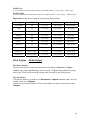
To select media type, from the printer menu (press ENTER): Menus — Trayx Config — Media Type.
Media Weight
To select media weight, from the printer menu (press ENTER): Menus — Trayx Config — Media Weight.
Important!: Printer driver settings override printer menu settings.
Setting
Tray(s)
US Bond
Metric
Index
Auto (default)
All
17 to 57 lb.
64 to 216gsm
35 to 118.6 lb.
Light
All
17 to 18 lb.
64 to 67gsm
35 to 37 lb.
Medium Light
All
18 to 20 lb.
68 to 75gsm
37 to 42 lb.
Medium
All
20 to 28 lb.
75 to 105gsm
42 to 58 lb.
Medium Heavy
All
28 to 32 lb.
106 to 120gsm
52 to 66 lb.
Heavy
All
32 to 34 lb.
121 to 128gsm
60 to 71 lb.
Ultra heavy 1
All
35 to 50 lb.
129 to 188gsm
74 to 104 lb.
Ultra heavy 2
All
51 to 57 lb.
188 to 216gsm
106 to 141 lb.
Ultra Heavy 3
MP Tray Only
57 to 71 lb.
217 to 268gsm
120 to 147 lb.
Ultra Heavy 4
MP Tray Only
71 to 87 lb.
268 to 330gsm
147 to 181 lb.
Print Engine - Media Output
Face Down Stacker
The face-down stacker on the top of the printer can hold up to 500 sheets of 80gsm
standard paper, and can handle paper stocks from 64 – 216gsm. Pages printed in reading
order (page 1 first) will be sorted in reading order (last page on top, facing down).
Face Up Stacker
The face-up stacker can hold up to 200 sheets of 80gsm standard paper and can
handle stocks up to 300gsm.
Always use this stacker and the multi-purpose feeder for paper stocks heavier than
216gsm.
40
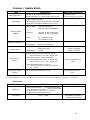
Finisher / Saddle Stitch
Item
Stacking paper size
Specification
A3, A4-LEF, A4, A5, B4, B5-LEF, B5, A6,
279mm×432mm(11×17), LGL, Executive, LTR-LEF, LTR
Additional Information
Large size: A3, B4,
279 mm × 432 mm (11×17), LGL
Finisher: 65 gsm to 90 gsm
Paper weight
Saddle-stitcher: 65 gsm to 80 gsm (65 gsm to 128 gsm)
(Thick paper: One-sheet is possible only for a cover.))
Stacking capacity
(Note 1)
Stacking of mixed sizes
Non-sort staple
Large size: 500 sheets
Small size: 1000 sheets (Note 2)
Staple-sort
Large size: 30 sets or 500 sheets
Small size: 30 sets or 1000 sheets
Booklet
6 to 7 sheets/set: 10 sets
2 to 5 sheets/set: 20 sets
Mixed sizes:
500 sheets (Note 3)
Mixed stapling:
30 sets (in the same order)
Finisher:
Large size: 22 sheets
Small size: 45 sheets
Saddle-Stitcher:
7 sheets
Stapling capacity
80 gsm or equivalent
80 gsm or equivalent
80 gsm or equivalent
Front single stapling: A3, A4-LEF, A4, B4, B5-LEF,
279 mm×432 mm (11×17), LGL, LTR-LEF, LTR
Paper size for
stapling
Rear single stapling: A3, A4-LEF, B4, B5-LEF,
Center double stapling: A3, A4-LEF, A4, B4, B5-LEF,
279 mm×432 mm (11×17), LGL, LTR-LEF, LTR
When the saddle-stitcher is
used.
Saddle-stitch double stapling: A3, A4, B4,
279 mm×432 mm (11×17), LTR, A4-LEF, B5-LEF,
LGL, LTR-LEF
Paper size for saddlestitching
A3, A4, B4, 279mm×432mm(11×17), LTR
Special paper cannot be
used.
Note 1: The stacking capacity above is a rough estimate using paper weight of 80 gsm. Note 2: When more than 500 sheets are stacked,
the stacking registration is not guaranteed. Note 3: When documents of mixed sizes are stacked, the stackability is not guaranteed.
Hole Punch
Item
Specification
Paper size
2 holes (puncher unit •2H):
A3, A4, A4R, B4, B5, B5R
2 or 3 holes (puncher unit •2/3H): 2 holes for LGL and LTRR
3 holes for 279 mm x 432 mm (11 × 17) and LTR
4 holes (puncher unit •4HF/4HS): A3, A4
Paper weight
65gsm - 128gsm
Additional Information
Not available for envelopes,
postcards and OHP films
41
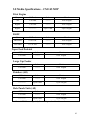
5.8 Media Specifications – CX1145 MFP
Print Engine
Trays
US Bond
Index
Metric
All
17 to 28lb.
--------
64 to 105gsm
Bypass
17 to 55lb.
--------
64 to 216gsm
Bypass
-------------
Up to 110lb.
Up to 181gsm
Sides
US Bond
Index
Metric
One Sided
9.3-41.8 lb.
--------
64 to 105gsm
Two Sided
13.3-41.8 lb.
--------
64 to 216gsm
RADF
Paper Feed Pedestal
US Bond
Index
Metric
17 to 28lb.
--------
64 to 105gsm
US Bond
Index
Metric
17 to 28lb.
--------
64 to 105gsm
US Bond
Index
Metric
17 to 28lb.
--------
64 to 105gsm
-------------
Up to 110lb.
Up to 181gsm
Large Cap Feeder
Finishers (All)
Hole Punch Units (All)
US Bond
Index
Metric
17 to 28lb.
--------
64 to 105gsm
-------------
Up to 110lb.
Up to 181gsm
*Note: OHP Film and Specially Treated Paper should not be used
42
5.9 Procedure for Requesting Media Samples
Providing Media Samples to OKI Technical Support for Evaluation
If it is a Print Quality Issue, prepare samples as outlined below.
Scanned Copy Samples (emailed) should include:
• Scanned printed samples of the media that have been reproduced with the issue
evident in lef and sef (if possible) with feed direction indicated on the sample.
• A scanned PS Test Page produced on 20lb. stock and produced on the media in
question (Indicated on the sample which is 20lb. and which is the media).
• A scan of all printer configuration sheets.
• A scanned Demo Page on 20lb. stock and the media in question.
(Indicated on the sample which is 20lb. and which is the media).
• A scanned image of the label on the media packaging.
Hard Copy Samples (mailed) should include:
•
•
•
•
•
•
Printed samples that have been reproduced in lef and sef (if possible) with feed
direction indicated on the sample.
PS Test Page on 20lb. stock and the media in question (Indicated on the sample
which is 20lb. and which is the media).
All printer configuration sheets.
Demo Page on 20lb. stock and the media in question
(Indicated on the sample which is 20lb. and which is the media).
Samples of the media being used from an unopened package(a minimum of 25 sheets)
A copy or the original of the label on the media packaging.
If it is a Paper Feeding Issue, provide a scanned image of the label on the media
packaging. Email to Technical Support so that you can begin to analyze the issue while
you are waiting for the hard copy samples.
•
•
Samples of the media being used from an unopened package(a minimum of 25 sheets)
A copy or the original of the label on the media packaging.
If it is a Finishing Issue, provide a scanned image of the label on the media packaging. Email
to Technical Support so that you can begin to analyze the issue while you are waiting for the
hard copy samples.
•
•
Samples of the media being used from an unopened package(a minimum of 25 sheets)
A copy or the original of the label on the media packaging
43
Chapter 6
Troubleshooting Scanner Driver Issues
6.1 Troubleshooting Scanner Driver Methodology
Example used: Windows XP
Windows and MAC based computers use software called a device driver to communicate
with the Oki scanner. Every hardware device you connect to your computer has its own
device driver. Over time, Oki Data may update the driver for the device to improve its
performance, to improve security, or to correct a problem. Most of the time, you can
connect and use hardware accessories without a problem. Occasionally, however, you
might encounter a problem when installing a new piece of hardware, or you might
develop a problem after using the device that previously worked correctly. If you have a
hardware problem, the problem could be caused either by the hardware or by the device
driver. Fortunately, device drivers can be easily upgraded to a newer version, rolled back
to an older version, or reinstalled. Therefore, troubleshooting hardware problems often
starts by troubleshooting device drivers.
44
6.2 Troubleshooting Suspected Driver Issues
To identify a device driver problem, answer the following questions:
•
Did you recently upgrade the device driver or other software related to your
hardware? If so, roll back the device driver to the previous version.
•
Are you experiencing occasional problems, or is your hardware not compatible
with your version of Windows? If so, upgrade the device driver.
•
Did your hardware suddenly stop working? If so, upgrade the device driver. If
that does not solve your problem, reinstall the device driver. If the problem
continues, try troubleshooting your hardware problem.
6.3 How to Reinstall a Device Driver
One of the first steps in resolving hardware problems is to reinstall the device driver.
When you do this, Windows XP will detect and install the hardware as if it were new.
To reinstall a device driver
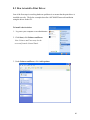
1. Log on to your computer as an administrator.
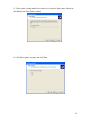
2. Click Start, right-click My Computer, and then click Manage.
45
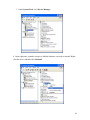
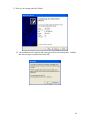
3. Under System Tools, click Device Manager.
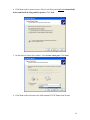
4. In the right pane, expand a category to find the hardware you need to reinstall. Rightclick the device and then click Uninstall.
46
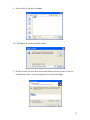
5. In the Confirm Device Removal dialog box, click OK.
6. If you see a message asking if you want to restart your computer, click Yes.
Otherwise, manually restart your computer.
After your computer restarts, Windows XP will automatically detect and reinstall the
driver. If the problem continues, try reinstalling the hardware.
6.4 How to Upgrade a Device Driver
Many hardware problems can be resolved by installing updated device drivers. Also,
device driver updates often resolve security problems and improve performance.
First you need to find the latest version of your device driver:
•
If the hardware came with your computer, visit the computer manufacturer’s Web
site for an updated driver.
•
If you added the hardware after purchasing your computer, visit the hardware
manufacturer’s Web site.
For best results, identify the specific model number of the hardware you want to update.
47
To identify your hardware
1. Log on to your computer as an administrator.
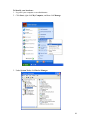
2. Click Start, right-click My Computer, and then click Manage.
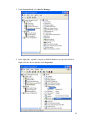
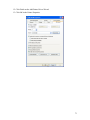
3. Under System Tools, click Device Manager.
48
4. In the right pane, expand a category to find the hardware you need to update. The
name shown in Device Manager identifies your computer hardware.
To find the updated driver, search the Web using the device name. Once you find the
latest version of the driver, download and install it. Then, restart your computer. If the
updated device driver does not solve your problem, try reinstalling the hardware.
6.5 How to Roll Back a Device Driver
If you started experiencing hardware problems after updating a device driver, return to
your previous driver version.
To roll back a device driver
1.
Log on to your computer as an administrator.
2.
Click Start, right-click My Computer, and then click Manage.
49
3. Under System Tools, click Device Manager.
4. In the right pane, expand a category to find the hardware you need to roll back.
Right-click the device and then click Properties.
50
5. In the Properties dialog box, click the Driver tab, and then click Roll Back Driver.
6. When prompted, click Yes.
7.
Click Close.
51
8. If you see a message asking if you want to restart your computer, click Yes. Otherwise,
manually restart your computer.
When your computer restarts, Windows XP will be using the previous version of your
driver. If this does not solve your problem, try reinstalling the hardware.
When a device fails to work, it's best to troubleshoot the device driver first. Then, if the
device driver is not the cause of your problem, troubleshoot the hardware device.
52
Chapter 7
Troubleshooting Network Issues
7.1 Troubleshooting Network Methodology
If an Oki device is unable to connect to a network or see other computers on a network, it
may be necessary to troubleshoot the network. A network may not work because of any of
the below reasons.
1.
2.
3.
4.
5.
6.
Recent network/OS/server changes that have been made/implemented
Network card not connected properly.
Bad network card drivers or software settings.
Firewall preventing computers from seeing each other.
Connection related issues.
Bad network hardware.
Because of the large variety of network configurations, operating systems, servers, etc, not
all of the information presented here may apply to the network or operating system. The
information offered in this chapter is designed to give you a more thorough understanding
of the troubleshooting technique and to allow you to assist the technician in isolating the
network from the Oki device.
If the computer is connected to a company or large network, the network administrator or
outside IT support agent that is used by the customer should be involved.
Instruct the technician that your responsibility ends with the Oki device they are calling
about. Your assistance can only apply to the device, not the network. Your main
responsibility is to ascertain whether the Oki device is functioning properly.
The methods of troubleshooting in this chapter may be utilized in a different order than
presented depending on the situation and/or the support that is requested.
53
7.2 Verifying Connections / LEDs
Verify that the network cable is properly connected to the
back of the computer. In addition, when checking the
connection of the network cable, ensure that the LEDs on
the port are properly illuminated. For example a network
card with a solid green LED or light usually indicates that
the card is either connected or receiving a signal. Note:
generally when the activity light is flashing this is an
indication of data being sent or received.
If, however, the card does not have any lights or has orange or red lights, it is possible
that either the card is bad, the card is not connected properly, or that the card is not
receiving a signal from the network.
If you are on a small or local network and have the capability of checking a router, hub or
switch, verify that the cables are properly connected and that the router has power.
Use the following steps to check the cable connection from your network card to the hub,
router or switch:
1. Check the LED/light at the back of your network card; the link or activity LED
should be on once the printer is initialized.
2. Likewise, if you have access to the router, check the link LED of whichever port
you're attached to, and make sure it's on.
3. If either the network card or router LED is not on, then replace the network cable
with a known good cable.
4. If there is no change, move the cable to another port on the router.
5. If the LED still does not light on either the network card or the router, plug
another device (i.e. laptop) into the same port(s). Check the LED on the new
device and the router.
6. If the LED on the new device is on, the failure is occurring on the printer network
card. If the LED does not come on, the failure is in the router or switch.
54
7.3 Testing Functionality – Using the “Ping” Command
Verify that the network card in the computer is capable of pinging or seeing itself by
using the ping command. Windows users ping the computer from a command prompt.
MAC users ping the computer from the Network Utility.
To ping the card or the localhost, type either:
ping 127.0.0.1
or
ping localhost
This should show a listing of replies from the network card. If you receive an error or if
the transmission failed, it is likely that either the network card is not physically installed
into the computer correctly, or that the card is bad.
If the network card in the computer replies to the localhost ping, perform the following
steps to ensure the computer and printer is configured using the correct TCP/IP settings.
7.4 Checking the TCP/IP Settings
1. Go to a command prompt on a local workstation (Start / Run / cmd). Type
ipconfig. Make note of IP address, subnet mask and default gateway.
2. In smaller networks using Class C addresses (i.e. 192.168.0.101); compare the
subnet mask and the default gateway. If they do not match, correct the settings on
the printer.
3. In networks where a larger number of addresses are required, multiple gateway
addresses are possible. Check with the network system administrator to ensure the
address is correct.
4. After confirming/correcting the IP address, subnet and gateway, attempt to ping
the printer address from a workstation with a known good connection to the
network.
5. If there is no reply or the host is unreachable, attempt to ping the default gateway
address. If no reply or unreachable, the failure is on the gateway router.
6. If replies are received from the gateway address, the printer may be using a
restricted or invalid IP address or the network card in the printer has failed.
Protocol
Verify that the correct protocols are installed on the computer. Most networks today will
utilize TCP/IP, but may also utilize or require IPX/SPX and NetBEUI.
When the TCP/IP protocol is installed, unless a DHCP server or other computer assigns
the address, the user must specify an IP address as well as a Subnet Mask. To do this with
Windows XP follow the below instructions:
55
1.
2.
3.
4.
5.
6.
Click Start / Settings / Control Panel
Double-click the Network Connections icon
Double-click Local Area Connection and Properties
Within the General tab double-click Internet Protocol (TCP/IP).
In the General tab select the option to specify an IP address
Enter the IP address and Subnet Mask address, an example of such an address
could be:
IP Address: 192.168.1.100
Subnet Mask: 255.255.255.0
7. When specifying these values, the computers on the network must all have the
same Subnet Mask and have a different IP Address. For example, when using the
above values on one computer you would want to use an IP address of
192.168.1.101 on another computer and then specify the same Subnet Mask.
Firewall
If your computer network utilizes a firewall, ensure that all ports required are open. If
possible, close/exit the firewall software program or disconnect the computer from the
firewall to ensure it is not causing the problem.
For assistance with disabling or configuring the firewall, contact the IT administrator or
manufacturer.
Additional Time
In some cases it may take a device some additional time to detect or see the network. If
after booting the device you are unable to see the network, give the device 2-3 minutes to
detect the network.
7.5 Isolating and Testing the Oki Device
The best and easiest way to troubleshoot a network problem is to eliminate the network.
The use of a crossover cable or adapter allows the technician to isolate the device from
the rest of the network while ensuring that the networking components of the device are
performing correctly.
Detailed information on using a crossover cable to isolate the printer from the network is
detailed in the Technicians Guide to Network Troubleshooting, which can be found on
the BPX knowledgebase in okiDoc #4029.
If a device is able to perform an action while connected by a crossover cable, but the
same action fails when connected to the network, then the device is working correctly
and the problem exists elsewhere on the network.
56
7.6 Checking the Adapter Resources
Don’t assume that the printer is the problem. It is possible that the computer is unable
to access the network due to an incorrect hardware installation.
Ensure that if this is a new network card being installed into the computer that the card's
resources are properly set and/or are not conflicting with any hardware in the computer.
If using Windows, verify that Device Manager has no conflicts or errors. If drivers are
required, it may be necessary to download the files from the manufacturer onto another
computer and then copy them using a USB drive or a CD.
7.7 Additional Troubleshooting
If after following or verifying the above recommendations you are still unable to connect
or see the network, attempt one or more of the below recommendations.
If you have installed or are using TCP/IP as your protocol you can attempt to ping
another computer's IP address to verify if the computer is able to send and receive data.
To do this, Windows users must be at a command prompt and MAC users must use the
Network Utility.
Once at the prompt assuming, that the address of the computer you wish to attempt to
ping is 192.168.1.101, you would type:
ping 192.168.1.101
If you receive a response back from this address (and it is a different computer), this
demonstrates that the computer is communicating over the network. If you are still unable
to connect or see the network, it is possible that other issues may be present.
Another method of determining network issues is to use the tracert command. To use this
command you must be at the Windows command prompt or MAC Network Utility.
Once at the prompt, assuming that the address is again 192.168.1.101, type:
tracert 192.168.1.101
or
traceroute 192.168.1.101
This should begin listing the hops between the computer and network devices. When the
connection fails, determine which device is causing the issue by reviewing the traceroute
listing.
57
58
Chapter 8
Troubleshooting Print Driver Issues
8.1 Troubleshooting Print Driver Methodology
Example used: Windows XP
Windows and MAC based computers use software called a print driver to communicate
with the Oki printer. Every hardware device you connect to your computer has its own
device driver. Over time, Oki Data may update the driver for the device to improve its
performance, to improve security, or to correct a problem. Most of the time, you can
connect and use hardware accessories without a problem. Occasionally, however, you
might encounter a problem when installing a new piece of hardware, or you might
develop a problem after using the device that previously worked correctly. If you have a
hardware problem, the problem could be caused either by the hardware or by the device
driver. Fortunately, print drivers can be easily upgraded to a newer version, uninstalled or
reinstalled. Therefore, troubleshooting hardware problems often starts by troubleshooting
device drivers.
8.2 Troubleshooting Suspected Print Driver Issues
To identify a device driver problem, answer the following questions:
•
Did you recently upgrade the device driver or other software related to your
hardware? If so, uninstall the new version and reinstall the previous version.
•
Are you experiencing occasional problems, or is your hardware not compatible
with your version of Windows? If so, upgrade the device driver.
•
Did your hardware suddenly stop working? If so, upgrade the device driver. If
that does not solve your problem, reinstall the device driver. If the problem
continues, try troubleshooting your hardware problem.
59
8.3 How to install a Print Driver
One of the first steps in resolving hardware problems is to ensure that the print driver is
installed correctly. The below examples describe a MC360MFP network installation
using the driver on the CD.
To install a device driver
1. Log on to your computer as an administrator.
2. Click Start, click Printers and Faxes.
Note: Printers and Faxes may also be
accessed from the Control Panel.
3. Under Printers and Faxes, click Add a printer.
60
4. Click Next on the welcome screen. Select Local Printer and uncheck Automatically
detect and install my Plug and Play printer. Click Next.
5. On the Select a Printer Port window, select Create a new port. Click Next.
6. Click Next on the Welcome to the Add Standard TCP/IP Printer Port Wizard.
61
7. Enter the printer’s IP address in the Printer Name or IP Address field. The Port Name
field will auto-populate. Click Next.
8. Click the Have Disk button on the Printer Driver Selection window.
9. In the Install From Disk
window, Click Browse.
62
10. In the Look In window, navigate to the location of the driver files.
11. Select the driver file and click Open.
63
12. Click OK on the Install from Disk window.
13. The driver name will now show in the Install Printer Software window. If there is
more than one choice, select the appropriate model and click Next.
14. Confirm the printer name. Click Next.
64
15. If the printer is being installed on a print server, enter the Share name. Otherwise,
click Next on the Share Printer window.
16. Click Yes to print a test page and click Next.
65
17. Review your settings and click Finish.
18. The installation will complete and a test page will be sent to the printer. Confirm
that the test page was printed and click OK.
66
8.4 How to Uninstall a Print Driver
Many hardware problems can be resolved by uninstalling and reinstalling the print driver.
Note: If you are uninstalling a USB printer, first make sure to disconnect the USB cable
from the device or computer.
To uninstall the print driver
1. Log on to your computer as an administrator.
2. Click Start, click Printers and Faxes.
Note: Printers and Faxes may also be
accessed from the Control Panel.
3. Delete the printer icon from the Printers and Faxes window. This can be done by
either right clicking the icon and selecting Delete, or highlighting the icon and
pressing the Delete key on your keyboard.
4. Reboot the computer.
67
5. After the restart, In the Printers and Faxes window, click File and select Server
Properties.
6. Switch to the Drivers tab and highlight the print driver. Click Remove.
7. Reboot the computer again to ensure all files are removed.
68
8.5 How to Upgrade a Print Driver
If you need to install an updated driver, you do not need to uninstall the current driver.
The currently installed print driver can be upgraded and replaced with the new driver.
To upgrade a print driver
1. Log on to your workstation as an administrator.
2. Click Start, click Printers and Faxes.
Note: Printers and Faxes may also be
accessed from the Control Panel.
69
3. Right click the printer icon and select Properties
4. Switch to the Advanced tab. Click New Driver.
5. Click Next on the Add Printer Driver Wizard welcome screen.
70
6. Click Have Disk.
7. In the Install From Disk window, Click Browse.
8. In the Look In window, navigate to the location of the driver files.
71
9. Select the driver file and click Open.
10. Click OK on the Install from Disk window.
11. The driver name will now show in the Install Printer Software window. If there is
more than one choice, select the appropriate model and click Next.
72
12. Click Finish on the Add Printer Driver Wizard.
13. Click OK in the Printer Properties.
73
Chapter 9
Troubleshooting Application Issues
9.1 Troubleshooting Application Methodology
When troubleshooting printing problems, it may be necessary to determine if a software
application is the cause. This can occur when an application is installed incorrectly,
contains damaged or corrupted files, is incompatible with the hardware, or is not
correctly configured.
If you suspect an application issue, there are a number of steps you can take to determine
a fix or workaround. Since there are many different software applications, as well as
different versions of the same applications, we will cover general troubleshooting only.
For additional help with any piece of software, is it recommended that you contact the
software vendor or developer.
Some print settings can be found in multiple locations. For example, a print job paper
size can be set either on the printer tray configuration, in the print driver, or in the
application. It is important to know which of these setting will have priority over the
others when troubleshooting tray selection, paper size and print options. As a general
rule:
•
Application settings override print driver and printer hardware settings.
•
Print driver settings override printer hardware settings.
74
9.2 Troubleshooting Suspected Application Issues
In order to determine if an application is causing a printing problem it is best to test the
print job from multiple workstations and environments.
•
If an error occurs when printing from one application:
o Convert the file to a PDF, instead of printing from the application in which
it was created. This can often be used as a workaround to address software
compatibility.
o Use a laptop and crossover cable (or USB cable) to eliminate the network
and test with the same version of the application, if possible.
o Print from another workstation using the same version of the application.
o Print the document from an earlier version of the application. At times,
vendors will release updates that will cause problems that were not present
in the previous version.
If the errant behavior occurs when printing from the same application in multiple
environments but does not when converted to a PDF, there may be a compatibility issue
with the application. Check with the software vendor for updates, or use an earlier
version of the software if the problem began after an update.
If the problem only occurs from an application on one workstation, it may be necessary to
uninstall and reinstall the software. Check with the software vendor to determine the best
method to reinstall the application.
75
9.3 Other Troubleshooting Assistance
The following information is intended to educate you on other tools available for
troubleshooting application issues. It is not intended nor is it your responsibility to
troubleshoot to this level with the technician. These tools offer you additional
suggestions that may be offered while troubleshooting. It must be stressed that this
information is only intended to allow the technician to explore other troubleshooting
avenues and you must instruct the technician prior to offering this information that
Okidata assumes no responsibility or liability in regard these suggestions.
Using Windows System Restore
Microsoft has included a utility in Windows called System Restore which monitors
changes to the system and creates restore points to roll the system back to a previous state.
The following resources are backed up:
•
•
•
•
•
•
Registry
Files in the Windows File Protection (Dllcache) folder
Local user profile
COM+ and WMI Databases
IIS Metabase
Specific file types monitored
Although System Restore does not monitor all changes to the file system, it can be useful,
especially if a new application has been installed and you want to ensure that the program
is completely removed when you uninstall. Many applications will leave behind entries in
the Windows registry. After uninstalling the application you can restore the registry to its
pre-installation state.
76
How to Uninstall an Application
Many problems can be resolved by uninstalling and reinstalling the application.
Microsoft recommends that you use the Add/Remove Programs feature of the Windows
Control Panel to remove any installed applications. This ensures that the files and registry
keys that were installed are removed properly. Some applications will still leave behind
registry keys and files. These keys and files are usually used for user specific settings
which may be retained when reinstalling the application.
You can only remove a program with the Add or Remove Programs tool if the program is
written for Windows. If you do not see the program that you want to remove in the
currently installed programs box, view the program documentation for instructions
about how to remove it.
After uninstalling an application it is recommended that you remove any temp files
before attempting to reinstall, as well as clean up any program folders or registry keys
associated with the application. This allows you to perform a true clean install of the
program without concern that something was left behind during the uninstall process.
77
Chapter 10
Troubleshooting Fax Issues
10.1 Troubleshooting Fax Methodology
Oki Fax and MFP products are designed to work with traditional analog phone services.
They are not designed to work with digital phone services such as DSL, PBX, VoIP, or
ISDN.
While Oki fax / MFP products are not supported on these types of lines, they may work
with the proper setup and additional equipment. Full Fax Support is offered for Oki
products that are on Dedicated Analog Telephone lines only!
It is important that the servicing dealer understand the customer environment prior to
installing an Oki Fax / MFP product to ensure that the Oki product will operate in that
customers’ environment.
Line setup options should be discussed by the servicing dealer with the telephone service
provider.
NOTE: If there is voice mail, call waiting or billing tone installed on the telephone
system, be aware of these features as they can interrupt fax communication. Information
presented in “Troubleshooting Fax Issues” (Section 5.7) are to be used only as guidelines
in that Oki Fax / MFP products are not supported on these types of lines and should be
used for reference purposes only.
78
10.2 Analog Verses Digital
Oki Fax and MFP products are designed to work with traditional analog phone services.
They are not designed to work with digital phone services such as DSL, PBX, VoIP, or
ISDN.
While Oki fax / MFP products are not supported on these types of lines, they may work
with the proper setup and additional equipment. Full Fax Support is offered for Oki
products that are on Dedicated Analog Telephone lines only!
See page 3 for more information on configuring the Oki fax / MFP product for DSL,
PBX, VoIP, and ISDN lines.
This information is provided as a courtesy to help set up and troubleshoot issues related
to connecting an Oki fax / MFP product to a digital phone line.
**Important Note**
It is important to understand the customer environment prior to installing an Oki Fax /
MFP product to ensure that the Oki product will operate in that customers’ environment.
Line setup options should be discussed with the telephone service provider. For further
information or support, contact the service provider or system administrator.
NOTE: If there is voice mail, call waiting or billing tone installed on the telephone
system, disable these features as they can interrupt fax communication. The Oki Fax /
MFP product shown in the diagrams might differ from your actual product. These
diagrams are to be used only as guidelines in that Oki fax / MFP products are not
supported on these types of lines and should be used for reference purposes only.
79
10.3 Understanding Digital Networks
What is DSL (Digital Subscriber Line)
DSL (Digital Subscriber Line) is a special service that allows digital data to be delivered
to a computer using a normal telephone line. DSL (also referred to as XDSL, ADSL,
HDSL, or RADSL) uses a much higher bandwidth for transmitting information than the
Oki fax product is capable of understanding.
To use a fax machine (or any regular phone services) with a DSL line, a filter must be
used to reserve some of the bandwidth for standard analog use. This allows for the use of
the telephone or fax, and computer on the same line and at the same time.
When setting up DSL with a service provider, request filters for the wall jacks where
regular faxing and telephone service will also be used.
DSL uses digital technology to bring high-bandwidth information over ordinary copper
telephone wires. Digital data is transmitted to the computer directly as digital data
(instead of analog) and this allows the telephone company to use a much wider
bandwidth for transmitting the data to its destination.
Unlike regular dialup phone service, DSL provides a continuously available, "always on"
connection. DSL simultaneously accommodates analog (voice) information on the same
line. DSL is generally offered at downstream data rates from 512 Kbps to about 6 Mbps.
However, if specified during the set-up of the DSL line, the signal can be separated so
that some of the bandwidth is used to transmit an analog signal (for voice and fax) or
ISDN signal while the remaining bandwidth is used to transmit digital data (for the
internet). This allows for the use of the telephone and fax and computers on the same
line and at the same time.
In order for analog equipment to use analog channels on a DSL line, a DSL micro-filter
is needed to be installed so that digital and analog channels can be separated.
Figure 1: DSL Fax Setup
Figure 1 on the next page shows the typical configuration to connect the Oki fax product
to a DSL line.
80
Connecting an Oki product to DSL
Figure 1: DSL Fax Setup
The DSL micro-filter in Figure 1 below is only a reference. The
DSL micro-filter may not look like this.
NOTE: Some DSL micro-filters have a cable that should be
attached to connect them to the wall socket while others can be
inserted into the wall socket directly.
11
2
2
33
4
1
Connect the DSL Micro-filter to the wall socket.
2
The Oki product will have an RJ-11 Fax cable supplied with it, connect this to
the product outlet at the back of the machine as shown in the diagram above.
3
Insert the other end of the supplied RJ-11 Fax cable into the analog outlet on the
DSL micro-filter.
4
Connect the PC to the DSL modem according to their respective manuals. The
DSL modem can be external or internal to the computer; if in doubt check the
specifications of your computer.
WARNING: Not all printers and faxes are compatible with DSL services. Oki does not guarantee that all Oki fax
products will be compatible with all DSL service lines or providers.
81
What is a PBX (Public Branch Exchange)
A PBX allows more then one user to be on a telephone network, based on the idea that
not everybody uses their local phone extension at the same time. A PBX is typically
installed in offices and homes. The user will have more then one-telephone number
which benefits the user because the user will not have to pay for another separate line
from the telephone companies. Calls can be routed internally to the PBX. A PBX baud
rate speed is usually about 9.6Kpbs. This is not as fast as ISDN, as ISDN can be a
guaranteed 64Kbps.
In a PBX environment you need to dial a prefix number to connect to the external public
phone network (this prefix number is programmed by the PBX). Once realizing that a
prefix number is dialed (it is the first integer in the phone number) the PBX knows that
the caller wants to communicate to an external number outside the PBX. A prefix number
usually comprises of a 0 or 9.
Note:
• PBX systems operate differently than a standard dedicated line. The PBX system
might not have a standard dial tone that the fax will recognize until an access code
(usually 0 or 9) has been dialed.
•
On a PBX system, the fax might attempt to dial too quickly. Insert a pause into
the dialing sequence just before and after the first number.
Figure 2: PBX Fax Setup
Figure 2 on the next page shows the typical configuration to connect the Oki fax product
to a PBX line.
82
Connecting an Oki product to PBX
Figure 2: PBX Fax Setup
2
1
Telephone
1
The Oki product will have an RJ-11 Fax cable supplied with it, connect this to the
product outlet at the back of the machine as shown in the diagram above.
2
Connect the Oki Product into one of the PBX wall sockets according to the
guidelines of the PBX manufacturer.
NOTE: In the set-up above, each unit will have its own telephone line and hence its own telephone number.
See your PBX manual for instructions on setting up telephone lines, including sharing telephone lines
between multiple ports. You may use any port on the PBX to connect your Oki product. The port on the
PBX can usually be programmed to get an external dial tone directly. In most cases a fax-number can be
assigned to the specific PBX port you have connected the Oki product to. For further information please
consult your PBX documentation.
83
What is ISDN (Integrated Service Digital Network)
ISDN provides two B channels and one D Channel on a single telephone company
twisted pair copper wire. Each B channel carries 64 kbps allowing each channel to carry a
telephone call either as voice, fax or internet. The D channel carries 16 Kbps and
manages both B channels. Simultaneously two channels can be used on one line. A B
channel must be free for any data to be used.
An NTBA (Network Termination for Basic Access) is installed at the end users house or
office and connects to the main switch board. The NTBA usually acts like a PBX system
as you may need to dial a prefix number to gain access to the external dial tone, also you
can call internally.
Typically the ISDN provider will allow the ISDN users a certain range of numbers they
can use. For example the ISDN provider will assign a user the phone number range
between 100 - 110 (allowing 10 phone numbers) and then it is up to the user on how they
want to assign these numbers to the telephone equipment.
An A/D converter (analog/digital converter) allows analog devices to be installed on an
ISDN network. The A/D converter routes the calls to the assigned analog ports, converts
ISDN signals to analog and allows analog equipment to communicate over ISDN.
Note:
• ISDN is a telephone company technology that provides digital service typically in
increments of 64 Kb/s channels. The phone company installs services within their
phone switches to support this digitally switched connection service.
• Connecting to an analog telephone port (also called an R-interface port) on an
ISDN terminal adapter may enable the Oki fax product to function on an ISDN
service. Contact the ISDN provider for more information and to request an Rinterface adapter.
Figure 3: ISDN Fax Setup
Figure 3 on the next page shows the typical configuration to connect the Oki Product to
an ISDN line. Equipment installed on an ISDN network must be assigned a correct tag,
meaning what type of device is it. For example: Is the device a telephone, modem or a
fax. The A/D converter must program each analog port a tag.
84
Connecting an Oki product to ISDN
Figure 3: ISDN Fax Setup
2
3
1
4
1
The Oki product will have an RJ-11 Fax cable supplied with it, connect this to the
product outlet at the back of the machine as shown in the diagram above.
2
Connect the NTBA (Network Termination for Basic Access).
3
4
Connect the A/D converter (Analog to Digital converter) and if applicable other
ISDN equipment to the NTBA.
Connect the Oki product into one of the A/D converter’s ports (analog outlets)
according to the guidelines of the A/D converter manufacturer.
WARNING: It is usually advisable to program the port on ‘Multicombi’ mode, ‘Equal’ mode or equivalent.
Please follow the instructions in the manufacturer's manual for the A/D converter to program the ports.
NOTE: The NTBA and A/D converter may be in 1 box. In most cases these names are labeled on the
equipment. The port on the A/D converter can usually be programmed to get an external dial tone directly.
You may use any A/D converter port to connect to the Oki product. Some A/D converters can assign a
different fax number to the ports available. If the A/D converter has this functionality, its users’ manual
should cover details of how this can be done.
85
What is VoIP (Voice over Internet Protocol)
Voice over IP (VoIP) services provide normal telephone service (usually long distance)
through a broadband Internet connection rather than the standard telephone network.
These services use packets to break up the voice signal on a phone line and transmit it
digitally to the receiver where the packets are reassembled.
With VoIP, analog faxing is a challenge. There are a number of problems that range from
packet-loss to interworking issues to signal corruption due to voice compression. VoIP
companies do not manage the Internet and have no way to guarantee that fax calls will
work. Because Oki fax products are designed to work with ordinary analog phone service,
Oki does not support and cannot guarantee that the Oki fax product will work with a
VoIP service.
The general public should be made aware of the fact that, not only do fax calls not work
reliably over IP networks, but neither do point-of-sale terminals, security alarm systems,
modems, or any other device that emits an analog signal. It is not because VoIP is bad,
but simply because legacy analog technologies were not designed for the Internet.
Faxing with VoIP services
These services are often not compatible with fax machines unless the provider explicitly
states they support fax over IP services. Although a fax may sometimes work on a VoIP
network, it may fail for the following reasons:
•
•
Fax transmissions are sensitive to the timing of signals. There is a slight delay in
the signal because of the time it takes to create the Internet packets. Internet
traffic becomes heavy and packets are lost which then have to be recreated.
Heavy Internet traffic also increases latency (the time it takes for a packet to
travel from its point of origin to its point of destination) which then exceeds
timing requirements.
What can be done to help the fax transmission?
The communication speed is a major factor in fax transmission over VoIP. Currently
there are three speed standards:
•
•
•
Fast - v.34 which communicates at 33.6 Kbps.
Medium - v.17 which communicates at 14.4 Kbps
Slow - v.29 which communicates at 9.6 Kbps
Changing the fax speed setting to medium or slow may improve your ability to send a fax
over a VoIP network. On all Oki fax products the connection speed can be set to a lower
speed. Consult your product user's manual for information specific to the Oki model. Try
the fax again. If you continue to have problems faxing, contact your VoIP provider as
they may have options to improve the ability to send and receive faxes over VoIP
telephone service.
86
10.4 Basic Fax Troubleshooting
Contents
A. Troubleshooting Preparation (Step 1)
B. Testing the phone line and phone cable (Step 2)
C. Verifying the fax configuration and settings (Step 3)
D. Faxes can be sent but not received
E. Faxes can be received but not sent
F. Faxes fail intermittently or with only one fax number
G. Faxes cannot be sent or received or the issue cannot be determined
H. Troubleshooting and Help
87
A. Troubleshooting Preparation (Step 1)
Make sure that the following items are available to complete the troubleshooting steps
included in this document:
•
Fax configuration and settings (Print Configuration Page(s)
•
Another analog fax device for testing (send to – receive from).
•
The phone number of another fax machine that can be used to verify whether the Oki
fax is sending and receiving correctly.
•
A single-line telephone : This phone will be used for testing the phone line.
•
The original Oki fax RJ-11 cable supplied with the unit .
B. Testing the phone line and phone cable (Step 2)
Part # 1
This step is aimed at testing both the phone line and the phone cable. To do so, follow the
instructions listed below:
1. Unplug the phone cable from the Oki Fax.
2. Verify the phone cable configuration.
Correct
2-wire
Incorrect
4-wire
3. Plug the phone cable into a single-line phone.
4. Pick up the handset and listen for a dial tone.
a. If no dial tone is present, then replace the phone cable with another one, and
listen again for a dial tone.
•
If a dial tone is present, unplug the phone cable from the test phone, and plug it
into the fax line port on the Oki Fax and test the sending and receiving functions
of the Oki fax product. If the fax works properly, stop here.
•
If the fax continues to have issues, go to Part # 2.
b. If no dial tone is present, then stop here, and contact your telephone service
provider for assistance.
88
Part # 2
If a dial tone is present, follow the steps below:
• Dial a local phone number and verify that the call can be completed.
If the outgoing call cannot be completed, stop here, and contact the telephone service
provider for assistance. If the outgoing call is completed correctly, continue
troubleshooting.
• Have someone dial your number from another phone line to verify that the phone
rings and the incoming call can be answered (allow three rings before answering). If the
line rings briefly and then stops, another device may be answering the line. This device
could be a credit card machine or a computer modem connected to the phone line and set
to answer incoming calls. Try to identify which device is answering the call, disconnect it
from the line, and test again.
•
If the incoming call cannot be received, stop here, and contact the telephone
service provider for assistance.
D. Verifying the fax configuration and settings (Step 3)
Follow the steps listed below to set up the fax with a basic configuration in order to test
the Oki Fax functionalities:
•
Remove any additional device sharing the phone line. These devices may be
plugged directly into the Oki fax product or into another wall jack on the same
line (including answering machines in another room or on the same phone line,
and any line splitters and extension cables).
•
Connect the fax to a regular analog phone line.
•
Print the Fax configuration page
•
Enable the Auto Receive Mode (See the Oki product users’ manual). Ensure that
the Oki product is connected to a telephone line reserved only for fax
communications. The Oki product will assume all incoming calls are fax
messages and automatically receive all incoming fax messages.
Configure the fax settings as indicated below:
Auto Receive Mode
On
Ring Response
1 ring
Send a fax to the test fax machine, and have someone send a fax to the Oki fax device. If
faxes still cannot be sent or received, check the following sections and determine which
one best describes your issue, and follow the troubleshooting steps provided.
89
E. Faxes can be sent but not received
Review the information below to determine the reason why faxes are not being received:
•
Verify the fax configuration and settings (print configuration page(s).
•
Phone company services : Check whether any of the following telephone line
services is enabled: Voice Mail, Call Waiting, Billing Tone Privacy Block,
Security Screen, Anonymous Call Rejection, Privacy Manager. These phone
services are intended to prevent undesired calls, so they may also block incoming
faxes. Contact the telephone company to disable these features as they can
interrupt fax communication.
•
If automatic fax reception is your desired option, verify that the Automatic
Answering feature is enabled (see configuration sheet) and also, ensure that the
Rings to Answer value is set to a number of rings equal or larger than one.
(see configuration sheet)
•
If an answering machine is connected to the same line, fax reception problems
may occur. These may be corrected by changing fax settings, or phone line
connections. For more information on using a TAM (Telephone Answering
Machine) see the Oki product users’ manual.
•
If your line is not analog, refer to How to setup the Oki Fax product on an ISDN,
PBX and DSL line to learn how to resolve a problem when the Oki Fax is set up
over one of this kind of lines.
•
If faxes still cannot be received, skip to the section “Faxes cannot be sent or
received or the issue cannot be determined” .
F. Faxes can be received but not sent
Follow the steps below to resolve this issue:
•
Verify the fax configuration and settings (Print Configuration page(s).
•
Verify that the number is dialed correctly. All the digits required to make a phone
call from the same line must be dialed. This includes digits that must be dialed to
access an outside line or long distance services.
•
If the Speed Dial has been used for dialing or the fax has been sent from your
computer, print the page to be faxed and dial the number manually on the Oki Fax
front panel.
•
Make sure that the appropriate option between Tone Dialing and Pulse Dialing is
set on the Oki Fax product depending on your phone service provider or PBX.
90
G. Faxes fail intermittently or with only one fax number
Check the following items to find out the cause of the failure:
•
If static is present on the phone line, fax communication may fail. It is advisable
to have the phone line checked and serviced by the telephone company (or have
the other party check their line).
NOTE: Phone line quality is the most common reason for intermittent fax failures. Some
old locations and buildings have inadequate phone system wiring.
•
Check the phone cable from the wall socket to the Oki Fax product. It should not
be coiled or longer than necessary.
NOTE: A coiled cable can cause cross-talk or echo on the line. Signal strength and
quality can be lost with long cables. Make sure that the original fax cable (supplied with
the Oki Fax product) is being used. Otherwise the Oki Fax product may not work
correctly.
•
Make sure that the phone cable routing (and any cables not plugged into the same
socket but sharing the same line) is not close to any electrical appliances (electric
motors, fans, kitchen appliances, or televisions) and/or near coaxial cables.
NOTE: Many of these devices do not have sufficient electrical shielding and can induce
electromagnetic force (EMF) onto the phone line.
•
Some Oki Fax models are capable of blocking faxes sent from certain phone
numbers. Verify that the telephone number of the sending fax has not been
blocked from the faxing software.
•
Turn the Error Correction Mode (ECM) off, or turn it back on, depending on its
current state. Follow the instructions included in the Changing the Error
Correction Mode (ECM) Setting of the users’ manual to learn how to modify the
ECM configuration. If faxes still cannot be sent or received, skip to the next
section, “Faxes cannot be sent or received or the issue cannot be determined” .
H. Faxes cannot be sent or received or the issue cannot be determined
Follow these steps if none of the previous sections has helped to resolve your issue:
•
Reinitialize the fax machine
•
(contact Oki Technical Support for assistance)
I. Troubleshooting and Help
For information on how to set up and configure your Oki Fax product, please consult the
Oki User Guide for that product.
If necessary, Contact Oki Technical Support for assistance.
91
Troubleshooting and Help
If you seem to be experiencing intermittent fax send and receive problems, Oki
recommends that you reduce the baud rate speed. Lowering the speed of fax
communication may solve this issue. (See page 10 for further explanation on baud rate
speed).
DSL
In order for analog equipment to use analog channels on a DSL line, a DSL micro-filter is
needed to be installed so that digital and analog channels can be separated. Change the
micro-filter if it is suspect. Verify that all other analog products that are connected to the
line are using DSL micro-filters.
Other DSL Setup Configurations to Consider
1. If the DSL router is not in the same wall jack as the fax. The Oki fax product can be
connected to a wall jack with an inline filter installed between (refer to the image below).
If the fax is connected without the filter, there will be interference with the faxing
capability.
2. If the fax is connected to the same wall jack as the computer, and the router has a builtin DSL filter. The fax and computer connections need to be split with a router (refer to
the image below). To use this setup, the router must have a built-in DSL filter (such as
Cisco 675 router) to ensure that the DSL signal is filtered from the fax connection.
92
3. If the fax is connected to the same wall jack as the computer, and the router does not
have a built-in DSL filter, the fax and computer connections will need to be split with a
router. If the router does not have a built-in DSL filter (such as a Cisco 678 router), an
inline filter needs to be installed between the fax and the router to ensure that the DSL
signal is filtered from the printer connection (refer to the image below).
4. If the fax is connected to the same wall jack as a computer without a built-in filter, the
fax can also be connected to the same telephone wall jack as a computer via a splitter
(refer to the image below).
93
PBX
PBX systems operate differently than a standard dedicated line. The PBX system might
not have a standard dial tone that the fax will recognize until an access code (usually 9)
has been dialed. Because there is no standard busy signal in PBX phone systems, if the
Oki product does not connect to another fax or detect a busy signal, it will cancel the fax.
On a PBX system, the fax might attempt to dial too quickly. Insert a pause into the
dialing sequence just before and after the first number. Contact the phone system
administrator for additional assistance.
ISDN
ISDN is a telephone company technology that provides digital service typically in
increments of 64 Kb/s channels. The phone company installs services within their phone
switches to support this digitally switched connection service. Connecting to an analog
telephone port (also called an R-interface port) on an ISDN terminal adapter may enable
the Oki fax product to function on an ISDN service. Contact the ISDN provider for more
information and to request an R-interface adapter.
94