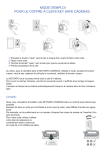
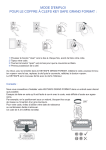
1
IBM 64 MB e 256 MB USB 2.0 Memory Keys Guia do Usuário IBM 64 MB e 256 MB USB 2.0 Memory Keys Guia do Usuário Primeira Edição (Fevereiro de 2003) © Copyright International Business Machines Corporation 2003. Todos os direitos reservados. Índice Prefácio . . . . . . Registrando seu Opcional . . . . . . . . . . . . . . . . . . . . . . . . . . . . . . . . . . v . v Capítulo 1. Introdução. . . . . . . . . . . . . . . . . . 1 . Capítulo 2. Requisitos de Instalação. Instalando o Memory Key no Windows Instalando o Memory Key no Windows Instalando o Memory Key no Windows . . . . . . . . . . . Me, Windows 2000 ou Windows 98 . . . . . . . . . . NT . . . . . . . . . . Capítulo 3. MyKey . . . . . . . . . . . . Configuração do Sistema . . . . . . . . . . Instalação . . . . . . . . . . . . . . . Personalização do MyKey . . . . . . . . . . Definindo Preferências . . . . . . . . . . Selecionar seu idioma . . . . . . . . . . Ocultar/Mostrar . . . . . . . . . . . . Ajuda. . . . . . . . . . . . . . . . Sobre . . . . . . . . . . . . . . . . Sair . . . . . . . . . . . . . . . . Mensagens Pop-up do MyKey . . . . . . . . Console do Memory Key . . . . . . . . . . LCD . . . . . . . . . . . . . . . . Botões . . . . . . . . . . . . . . . Personalizando o Memory Key . . . . . . . . Ícone do MyKey Personal . . . . . . . . Som do MyKey Personal . . . . . . . . . Rótulo do MyKey Personal . . . . . . . . Versão Memory Key . . . . . . . . . . Recursos Avançados . . . . . . . . . . . Conectar/Desconectar à/da Zona de Privacidade. Ativar/Desativar Proteção Contra Gravação . . Opções de Sincronização . . . . . . . . . Criando Pastas Pessoais . . . . . . . . . Recursos Adicionais . . . . . . . . . . . Enviar para Unidade do Memory Key . . . . Auto-execução . . . . . . . . . . . . Detecção de Problemas . . . . . . . . . . Perguntas Mais Freqüentes (FAQs) . . . . . . Como Entrar em Contato Conosco. . . . . . . . . . . . . . . . . . . . . . . . . . . . . . . . . . . . . . . . . . . . . . . . . . . . . . . . . . . . . . . . . . . . . . . . . . . . . . . . . . . . . . . . . . . . . . . . . . . . . . . . . . . . . . . . . . . . . . . . . . . . . . . . . . . . . . . . . . . . . . . . . . . . . . . . . . . . . . . . . . . . . . . . . . . . . . . . . . . . . . . . . . . . . XP . . . . 3 3 3 4 . . 5 . . 5 . . 5 . . 7 . . 8 . . 9 . . 9 . . 9 . . 9 . . 9 . . 10 . . 10 . . 11 . . 11 . . 13 . . 13 . . 13 . . 14 . . 14 . . 14 . . 14 . . 15 . . 15 . . 18 . . 19 . . 19 . . 20 . . 21 . . 22 . . 22 Capítulo 4. Utilizando o KeySafe™ de Vários Idiomas . . . . . . . 23 Requisitos do Sistema . . . . . . . . . . . . . . . . . . . 23 © Copyright IBM Corp. 2003 iii Iniciando . . . . . . . . . . . . Criando a Zona de Privacidade . . . . Utilizando a Zona de Privacidade . . . Efetuando Logout da Zona de Privacidade Personalizando as Definições . . . . . Desktop . . . . . . . . . . . Alterando a Senha . . . . . . . . Alterando a Zona de Privacidade . . . Perguntas mais Freqüentes . . . . . . . . . . . . . . . . . . . . . . . . . . . . . . . . . . . . . . . . . . Capítulo 5. Utilizando o IBM Memory Key Boot Utility Requisitos de Configuração do Sistema . . . . . . Criando um Memory Key de Inicialização da IBM . . Reinicializando o Computador com o IBM Memory Key Detecção de Problemas . . . . . . . . . . . . . . . . . . . . . . . . . . . . . . . . . . . . . . . . . . . . . . . . . . . . . . . . . . . . . . . . . . . . . . . . . . 23 23 25 26 27 27 28 29 30 . . . . . . . 33 . . . . . . . 33 . . . . . . . 33 . . . . . . . 35 . . . . . . . 35 Apêndice A. Warranty information . . . . . . . . . . . . . . 37 Warranty period . . . . . . . . . . . . . . . . . . . . . 37 Service and support . . . . . . . . . . . . . . . . . . . 37 Warranty information on the World Wide Web . . . . . . . . . 37 Online technical support . . . . . . . . . . . . . . . . . 37 Telephone technical support . . . . . . . . . . . . . . . . 38 IBM Statement of Limited Warranty Z125-4753-06 8/2000 . . . . . . . 39 Part 1 - General Terms. . . . . . . . . . . . . . . . . . 39 Part 2 - Country-unique Terms . . . . . . . . . . . . . . . 42 Apêndice B. European Union warranty information . . . . . . . . 49 Apêndice C. Notices . . . . . . . . . . . . . . . . . . . 53 Trademarks . . . . . . . . . . . . . . . . . . . . . . 54 Federal Communications Commission (FCC) statement . . . . . . . . 54 iv IBM 64 MB e 256 MB USB 2.0 Memory Keys: Guia do Usuário Prefácio Este manual contém instruções para a instalação e utilização do IBM 64 MB e 256 MB USB 2.0 Memory Keys. O pacote de opcionais contém o seguinte: v 64 MB ou 256 MB USB 2.0 Memory Key v CD do IBM 64 MB e 256 MB USB 2.0 Memory Key v Guia de Início Rápido Se algum dos itens relacionados anteriormente estiver faltando ou estiver danificado, entre em contato com o local de compra. Certifique-se de guardar o comprovante de compra; ele pode ser necessário para a solicitação do serviço de garantia. Este Guia do Usuário está disponível no CD do IBM 64 MB e 256 MB USB 2.0 Memory Key nos seguintes idiomas: v Inglês v Francês v Alemão v Espanhol v Italiano v Português do Brasil v Chinês Simplificado v Chinês Tradicional v Japonês Registrando seu Opcional Obrigado por adquirir o produto IBM. Reserve alguns minutos para registrar o produto e nos fornecer informações que nos ajudarão a melhor servi-lo no futuro. Seu feedback é importante para desenvolvermos produtos e serviços úteis a você, bem como para desenvolvermos melhores maneiras de nos comunicarmos com você. Registre seu opcional no site da IBM na Web em: www.ibm.com/pc/register A IBM enviará a você informações e atualizações sobre o produto registrado, a menos que seja indicado no questionário do site que você não deseja receber informações adicionais. © Copyright IBM Corp. 2003 v vi IBM 64 MB e 256 MB USB 2.0 Memory Keys: Guia do Usuário Capítulo 1. Introdução Os IBM 64 MB e 256 MB USB 2.0 Memory Keys são pequenos dispositivos USB portáteis de armazenamento que permitem compartilhar dados entre qualquer notebook e sistema desktop com uma porta USB funcional, sem o uso de um disquete. Os 64 MB e 256 MB Memory Keys oferecem consideravelmente mais espaço que um disquete de 1,44 MB para armazenar arquivos de texto, apresentações, planilhas ou multimídia. Este manual explica como instalar e utilizar os IBM 64 MB e 256 MB USB 2.0 Memory Keys com o Microsoft® Windows® 98 SE, Microsoft Windows Millennium Edition (Me), Microsoft Windows 2000 Professional e Windows XP. Para obter instruções sobre a instalação da chave no Microsoft Windows NT® Workstation, consulte o LEIA-ME incluído no CD que é fornecido com esse opcional. © Copyright IBM Corp. 2003 1 2 IBM 64 MB e 256 MB USB 2.0 Memory Keys: Guia do Usuário Capítulo 2. Requisitos de Instalação Antes de instalar o IBM 64 MB ou 256 MB USB 2.0 Memory Key, certifique-se de possuir o seguinte: v Um dos seguintes sistemas operacionais: – Windows 98 – Windows Me – Windows 2000 – Windows XP – Windows NT v Um conector USB disponível Os seguintes itens opcionais são necessários se você for utilizar o Memory Key como um dispositivo inicializável. Consulte Capítulo 5, “Utilizando o IBM Memory Key Boot Utility”, na página 33. v BIOS que suporte dispositivos de armazenamento USB inicializáveis. Se você não tiver certeza de que o BIOS suporta dispositivos USB inicializáveis, entre em contato com o fabricante do computador. Se for necessário, uma atualização poderá ser disponibilizada. v A documentação do BIOS que acompanha seu computador ou a atualização do BIOS, se aplicável. Instalando o Memory Key no Windows Me, Windows 2000 ou Windows XP O Windows Me, Windows 2000 e Windows XP possuem suporte incorporado para o USB 2.0 Memory Key, não sendo necessário nenhum driver de dispositivo. Simplesmente, conecte o Memory Key ao conector USB. O Memory Key agora está pronto para uso e é exibido como um disco removível, com a designação de uma letra (por exemplo, E:). Instalando o Memory Key no Windows 98 Os arquivos de driver de dispositivo do Windows 98 devem ser instalados no computador antes de o Memory Key poder ser utilizado. Para instalar os drivers de dispositivo do Memory Key no Windows 98, proceda da seguinte maneira: 1. Conecte o Memory Key ao conector USB. 2. A janela Assistente para Novo Hardware será aberta. 3. Em Assistente para Novo Hardware, clique em Avançar. © Copyright IBM Corp. 2003 3 4. Selecione Procurar o melhor driver para o dispositivo e, em seguida, clique em Avançar. 5. Insira o CD-ROM que foi fornecido com o Memory Key. 6. Selecione CD-ROM e clique em Avançar. Siga as instruções na tela. 7. O Memory Key agora está pronto para uso e é exibido como um disco removível na janela Meu computador. Nota: Um LED (diodo emissor de luz) intermitente indicará que os dados estão sendo processados. Não remova a chave enquanto o LED estiver piscando ou os arquivos de dados poderão ser perdidos. Instalando o Memory Key no Windows NT Consulte as instruções no Manual do Usuário de Driver do Windows NT que está incluído no CD IBM 64 MB e 256 MB USB 2.0 Memory Key fornecido com o Memory Key. Nota: Os aplicativos KeySafe e MyKey não são suportados no Windows NT. 4 IBM 64 MB e 256 MB USB 2.0 Memory Keys: Guia do Usuário Capítulo 3. MyKey MyKey é uma ferramenta que permite acessar e personalizar o Memory Key por meio do console do Memory Key. As mensagens e avisos o guiam pelos procedimentos resumidos de instalação, utilização e personalização do MyKey, permitindo que você torne o Memory Key mais pessoal, divertido e fácil de utilizar. Este capítulo também inclui algumas Perguntas mais Freqüentes (FAQs) importantes. Configuração do Sistema Seu computador deve possuir os seguintes requisitos para instalar e utilizar o MyKey: v Pentium II de 266 MHz v 1,7 MB de espaço livre em disco (na unidade C) v Sistemas Operacionais: Windows 98 SE, Windows Me, Windows 2000 ou Windows XP (o Windows 98 requer um driver de dispositivo do Memory Key) v O aplicativo MyKey não é suportado no Windows NT® v Privilégios administrativos para o Windows 2000 e XP Para um desempenho ótimo, a chave funciona opcionalmente com um acelerador gráfico que suporte uma intensidade de cores de 24 bits. Instalação O MyKey é suportado nos IBM 64 MB e 256 MB 2.0 Memory Keys. Se o seu Memory Key suportar o MyKey, certifique-se de possuir a versão mais recente do MyKey, que você pode transferir por download de www.pc.ibm.com/support e pesquisar por 64 MB ou 256 MB USB 2.0 Memory Key. Para instalar o MyKey, faça o seguinte: 1. Insira o CD do IBM 64 MB e 256 MB USB 2.0 Memory Key que foi fornecido com a chave e abra a pasta ″Software″. © Copyright IBM Corp. 2003 5 2. Dê um clique duplo no ícone MyKey. 3. Na tela de instalação, marque a caixa se desejar um atalho para o MyKey no desktop. Um atalho para o MyKey e para Desinstalar MyKey serão automaticamente criados no menu Iniciar. Clique em Concluir para começar a utilizar o MyKey ou em Cancelar para interromper a instalação. Nota: Por padrão, o MyKey é automaticamente carregado com o Windows. É possível desativar essa opção a partir da janela Definições. Aguarde alguns momentos até que o ícone do MyKey seja adicionado à bandeja do sistema na parte inferior da tela, próximo ao relógio. Utilize 6 IBM 64 MB e 256 MB USB 2.0 Memory Keys: Guia do Usuário esse ícone para ter o acesso mais fácil e rápido a todas as funções do MyKey. Para desinstalar o aplicativo MyKey, vá para Iniciar -> Todos os programas -> MyKey IBM -> Desinstalar MyKey IBM. Personalização do MyKey Para abrir o menu principal e acessar as funções do MyKey, dê um clique com o botão direito do mouse no ícone da bandeja do MyKey. Cada uma das opções desse menu serão descritas a seguir. Capítulo 3. MyKey 7 Definindo Preferências Clique em Preferências para definir as preferências do MyKey. Clique em qualquer opção para ativar ou desativar. Indicação visual Esse ícone exibe o console do Memory Key toda vez que o Memory Key é inserido no conector USB do computador. Indicação de áudio Esse som ocorre quando o Memory Key for inserido no conector USB do computador. Tela de apresentação Essa tela é exibida durante o carregamento do MyKey. Processo de auto-execução Esse processo lança automaticamente vários aplicativos com base nas instruções de execução automática definidas no Memory Key, semelhante à execução automática de um CD-ROM. Para obter informações sobre recursos avançados de execução automática, consulte “Recursos Adicionais” na página 19. 8 IBM 64 MB e 256 MB USB 2.0 Memory Keys: Guia do Usuário Carregar com Windows Por padrão, o MyKey é carregado quando o Windows começa a ativar os recursos avançados do Memory Key. Se esse recurso for desativado, será necessário iniciar o MyKey manualmente a partir do menu Iniciar do computador. Criar atalho na área de trabalho Isso cria ou remove um atalho do MyKey no desktop. Sempre na parte superior Por padrão, o console do Memory Key flutua na frente de todas as janelas para um acesso rápido e fácil. Se esse recurso for desativado, o console do Memory Key se tornará uma janela normal. Selecionar seu idioma Para selecionar o idioma preferido, faça o seguinte: 1. Selecione o idioma preferido. Os idiomas suportados são: inglês, francês, espanhol, italiano, alemão, português, chinês (tradicional ou simplificado) ou japonês. Apenas os idiomas suportados são exibidos na caixa de combinação. A exibição correta do idioma selecionado depende da versão específica do Windows que está sendo utilizada e da localização do sistema selecionada (Painel de controle->Configurações regionais). Se o Windows não suportar o idioma selecionado, uma ″?″ será exibida no lugar do nome do idioma. 2. Certifique-se de que você possa ler a mensagem de boas vindas exibida próxima à caixa de combinação de seleção de idioma. Se puder ler a mensagem, clique em OK para implementar a alteração do idioma. Todas as capturas de tela e o texto serão alterados de acordo com o idioma selecionado. Ocultar/Mostrar Clique em Ocultar ou Mostrar para desativar ou exibir a tela do console do Memory Key. Ajuda Essa opção lança o site de suporte da IBM onde é possível pesquisar por informações sobre o Memory Key e seus aplicativos. Sobre Essa opção fornece informações sobre a versão atual. Sair Ao sair do MyKey, o acesso rápido ao Memory Key e a funcionalidade avançada serão desativados. Capítulo 3. MyKey 9 Mensagens Pop-up do MyKey O MyKey utiliza mensagens pop-up, conforme mostrado a seguir, para fornecer informações ou para informá-lo sobre os eventos do Memory Key. Esse tipo de mensagem desaparece automaticamente após alguns segundos ou é possível clicar nela para fechá-la imediatamente. Console do Memory Key O console do Memory Key permite acessar o Memory Key para armazenar e recuperar arquivos, lançar aplicativos instalados e personalizar o Memory Key. O console do Memory Key exibe o logotipo do Memory Key, a letra da unidade do Memory Key e o rótulo do Memory Key. Para alterar esta tela com seu ícone ou rótulo pessoais, consulte “Ícone do MyKey Personal” na página 13. Para mover o console do Memory Key, clique e mantenha apertado o botão esquerdo do mouse em qualquer local dentro dele, arraste-o para um local diferente e, em seguida, solte o botão esquerdo do mouse. 1Procurar 2Ferramentas 3Ejetar 10 4Fechar 5Vídeo LCD IBM 64 MB e 256 MB USB 2.0 Memory Keys: Guia do Usuário LCD A tela de cristal líquido (LCD) mostra a capacidade total e o espaço livre do Memory Key. O indicador de espaço livre fica vermelho quando 5% ou menos do espaço total em disco estiver livre. O vídeo LCD mostrado na figura 8: Indicação da Zona de Privacidade indica se você efetuou login na Zona de Privacidade utilizando o KeySafe. O vídeo LCD indica se o Memory Key está protegido contra gravação. Para obter mais detalhes sobre a proteção contra gravação, consulte “Ativar/Desativar Proteção Contra Gravação” na página 15. Indicação de Zona de Privacidade Indicação de Proteção Contra Gravação Botões Clique em quaisquer dos botões descritos a seguir para ativá-los. Ferramentas O botão Ferramentas abre o menu do console do Memory Key. Esse menu contém as definições do console do Memory Key (consulte “Console do Memory Key” na página 10), recursos avançados como sincronização e pastas pessoais. Procurar Clique no botão procurar do Memory Key para abrir a unidade do Memory Key no Windows Explorer e acessar todos os arquivos (tanto os protegidos na Zona de Privacidade quanto os arquivos públicos). Fechar (X) Clique em X para fechar o console do Memory Key. O console desaparecerá do ícone da bandeja e a mensagem ″Saindo do Memory Key por clique em X″ será exibida, avisando-o que o programa continuará a ser executado na barra de Capítulo 3. MyKey 11 tarefas. Clique na caixa de opções se não desejar que essa mensagem seja exibida ao sair desta forma. Para abrir novamente o console do Memory Key, dê um clique duplo no ícone da bandeja ou selecione Mostrar no menu do MyKey (consulte “Personalização do MyKey” na página 7). Ejetar O botão Ejetar ajuda a assegurar a integridade de todos os dados armazenados no Memory Key antes de removê-lo. Clique em Ejetar, aguarde pela mensagem de remoção segura e, em seguida, remova o Memory Key. Alternativamente, para todos os sistemas operacionais exceto o Windows 2000 e o Windows XP, é possível utilizar a seta verde no menu da bandeja para remover com segurança o Memory Key. Atenção: A remoção do Memory Key sem utilizar o botão Ejetar ou a seta verde na barra de tarefas pode causar perda de dados! 12 IBM 64 MB e 256 MB USB 2.0 Memory Keys: Guia do Usuário Personalizando o Memory Key Para personalizar o Memory Key com seu próprio ícone, um som especial ou seu próprio rótulo, clique no botão Ferramentas no console do Memory Key e selecione Definições (consulte “Personalização do MyKey” na página 7). A janela Memory Key Definições será exibida. Ícone do MyKey Personal Para alterar o ícone padrão, abra a caixa de combinação Ícone do MyKey Personal e escolha uma dessas opções: v Selecione um dos onze ícones incluídos no MyKey. v Selecione um arquivo de ícone procurando por arquivos que você tenha criado ou deseja transferir por download a partir da Web. Clique em OK para aplicar a alteração. Nota: Essa operação falhará se o Memory Key estiver protegido contra gravação. Som do MyKey Personal Para alterar o som padrão, abra a caixa de combinação Som do MyKey Personal e escolha uma dessas opções: v Selecione um dos dez sons incluídos no MyKey. v Selecione um som diferente procurando por arquivos que você tenha criado ou deseja transferir por download a partir da Web. É possível ouvir qualquer som selecionado clicando em Reproduzir. Clique em OK para aplicar a alteração. Capítulo 3. MyKey 13 Nota: Essa operação falhará se o Memory Key estiver protegido contra gravação. Rótulo do MyKey Personal Para personalizar o Memory Key e simplificar a identificação do conteúdo, digite um rótulo pessoal, tal como seu nome ou uma categoria (com até 14 caracteres) para identificar o conteúdo do Memory Key. Versão Memory Key A versão do Memory Key é o último item relacionado na janela Memory Key Definições. Essa informação será necessária se você contatar o Suporte Técnico para obter ajuda. Recursos Avançados Quando o MyKey estiver em execução, é possível acessar vários recursos avançados que facilitam a utilização do Memory Key. Clique em Ferramentas e, em seguida, clique em uma opção no menu Recursos Avançados. Esta seção descreve esses recursos. Conectar/Desconectar à/da Zona de Privacidade Se você criou uma Zona de Privacidade no Memory Key utilizando o KeySafe, é possível efetuar login/logout desta zona facilmente fornecendo a senha correta na janela Conectar à Zona de Privacidade. Após a quinta tentativa sem êxito de efetuar login, Ejete com Segurança o Memory Key, insira-o novamente na bandeja, verifique a senha e tente efetuar login novamente. 14 IBM 64 MB e 256 MB USB 2.0 Memory Keys: Guia do Usuário Após efetuar login com êxito na Zona de Privacidade, o texto na janela é alterado para Desconectar da Zona de Privacidade. Para efetuar logout, simplesmente clique nessa opção no menu Recursos Avançados. Ativar/Desativar Proteção Contra Gravação Para proteger o Memory Key contra vírus ou perda de dados ao conectá-lo em um computador cuja segurança e integridade forem duvidosos, o MyKey permite proteger o Memory Key contra gravação. Isso impede que os arquivos protegidos sejam excluídos, criados ou modificados. Opções de Sincronização As opções de sincronização do MyKey aceleram e simplificam o processo de sincronização do trabalho entre dois ou mais computadores ou simplesmente fazendo backup de arquivos. As opções de sincronização disponíveis incluem: v Pasta: Esta opção sincroniza todas as pastas e subpastas. v Meus Favoritos: Esta opção sincroniza a pasta Meus Favoritos no seu computador e a pasta Memory Key Favorites no Memory Key. v Meus Documentos: Esta opção sincroniza a pasta Meus Documentos no seu computador e a pasta Memory Key Documents no Memory Key. Primeira Utilização da Pasta Para ativar a sincronização da pasta para a primeira utilização, proceda da seguinte forma: 1. Selecione Sincronizar Pastas no menu Ferramentas do Console do MyKey. A primeira vez em que o recurso de sincronização for utilizado em um novo computador ou com um novo Memory Key, a janela Definições de sincronização será aberta. 2. Selecione as pastas que deseja sincronizar. A primeira pasta deve ser uma pasta local existente. A segunda pasta deve ser uma pasta existente no Memory Key. Nota: Se existirem arquivos idênticos tanto na pasta local como na pasta do Memory Key da primeira vez que tentar sincronizá-los, o MyKey não Capítulo 3. MyKey 15 saberá qual arquivo é a versão mais atualizada. Portanto, certifique-se de atribuir nomes diferentes. 3. Clique em OK para iniciar o processo de sincronização ou em Cancelar para sair. Utilizações Subseqüentes da Pasta Após selecionar as pastas a serem sincronizadas, proceda da seguinte forma: 1. Selecione Sincronizar Pastas no menu Ferramentas do Console do MyKey. Isso abre a janela Detalhes de sincronização. Uma lista das ações necessárias que aguardam sua aprovação é exibida. 2. Clique em Definições para acessar/alterar as definições exibidas. 16 IBM 64 MB e 256 MB USB 2.0 Memory Keys: Guia do Usuário 3. Clique em Sincronizar para autorizar todas as operações de arquivos (não é possível selecionar uma lista parcial). 4. Se ocorrer um erro durante uma operação de arquivos (por exemplo, o disco estiver cheio ou existir um caminho ou arquivo inválido), uma mensagem de erro será exibida. Clique em OK para continuar a sincronização dos arquivos restantes ou em Cancelar para parar o processo. 5. Clique em OK quando uma mensagem for exibida indicando a conclusão da sincronização. Regras da Sincronização de Pastas As seguintes regras se aplicam ao processo de sincronização: v Novo arquivo: Se um novo arquivo for criado em qualquer pasta, o MyKey permite criar o mesmo arquivo na outra pasta ou pastas. v Arquivo excluído: Se um arquivo foi excluído em qualquer pasta, o MyKey permite excluir o arquivo na outra pasta ou pastas. v Arquivo modificado: Se um arquivo foi modificado em qualquer pasta, o MyKey permite substituir o arquivo na outra pasta ou pastas. Se o arquivo foi modificado em todas as pastas, o MyKey permite ignorar este arquivo sem desempenhar qualquer operação. Capítulo 3. MyKey 17 v Arquivo renomeado: A renomeação de um arquivo é equivalente a excluí-lo e criar um novo. Portanto, as regras para ″Arquivo excluído″ são aplicadas. Criando Pastas Pessoais Pastas pessoais são pastas de arquivos que ajudam a categorizar ou organizar os arquivos para recuperação rápida. Para criar uma pasta pessoal, proceda da seguinte maneira: 1. Clique em OK para confirmar a criação da pasta pessoal. Os seguintes diretórios serão criados: v My Memory Key, semelhante ao Desktop, armazena arquivos gerais que são acessados freqüentemente. v Memory Key Documents, semelhante à pasta Meus Documentos, armazena arquivos de trabalho. Essa pasta armazena arquivos da operação Sincronizar Meus Documentos. v Memory Key Favorites, semelhante à pasta Favoritos, armazena seus favoritos. Essa pasta armazena arquivos da operação Sincronizar Meus Favoritos. 2. Para acessar quaisquer arquivos nas pastas pessoais, é possível fazer o seguinte: v Abra a pasta Meu Perfil no Windows Explorer. 18 IBM 64 MB e 256 MB USB 2.0 Memory Keys: Guia do Usuário v Clique em Ferramentas no Console do Memory Key para exibir e acessar arquivos. Recursos Adicionais O Memory Key possui dois recursos adicionais, abordados a seguir. Enviar para Unidade do Memory Key A unidade do Memory Key designada é automaticamente adicionada ao menu Enviar para, permitindo clicar com o botão direito em um arquivo e salvá-lo na Capítulo 3. MyKey 19 unidade do Memory Key. Auto-execução A função de execução automática do MyKey permite que uma grande variedade de arquivos, como páginas da Web em hypertext markup language (HTML), seja lançada automaticamente ao inserir o Memory Key na porta USB de um computador. O MyKey executa o arquivo autorun.ini do Memory Key. É possível desativar esse recurso a partir da janela Definições do MyKey. A sintaxe de execução automática do MyKey é levemente diferente e mais extensa que a sintaxe de execução automática de um CD-ROM. Um arquivo autorun.inf típico contém duas linhas em formato texto (ASCII) para lançar o arquivo start.htm. Por exemplo, a sintaxe do arquivo autorun.inf que lança a página da Web do Memory Key poderia ser: [launcher] open=www.memorykey.com Como outro exemplo, a sintaxe do arquivo autorun.inf que lança a calculadora do Windows (calc.exe) poderia ser: 20 IBM 64 MB e 256 MB USB 2.0 Memory Keys: Guia do Usuário [launcher] open=calc.exe Detecção de Problemas O MyKey exibe várias mensagens com diretrizes para a detecção de problemas, onde possível, como a seguir: v Erro fatal - Essa mensagem de erro geral indica que um erro fatal ocorreu e a partir do qual o aplicativo não pode ser recuperado. v Versão do Windows não suportada - Essa mensagem é exibida se você tentar executar o MyKey em uma versão do Windows não suportada. (Consulte “Configuração do Sistema” na página 5.) v Sem privilégios administrativos - O aplicativo é finalizado se você tentar executar o MyKey em um computador onde não possua privilégios administrativos. v Fontes grandes - O MyKey foi projetado para utilizar fontes pequenas e pode não fornecer uma exibição ótima no vídeo se utilizar fontes grandes. Para alternar para fontes pequenas, abra o painel de controle e selecione esta seqüência: Propriedades do Vídeo -> Definições -> Avançado -> Tamanho da Fonte. v Não é possível conectar ao Memory Key - Essa mensagem indica que o MyKey não teve sucesso em obter informações do Memory Key como número da versão, capacidade, definições pessoais, etc. v Não é possível ejetar o Memory Key - Essa mensagem normalmente indica que você não fechou todos os aplicativos ou arquivos no Memory Key antes de tentar removê-lo. Feche todos os aplicativos ou arquivos e tente novamente remover o Memory Key. v O dispositivo ’xxx’ não pode ser parado neste momento. Tente parar o dispositivo novamente mais tarde - Essa mensagem aparece após você clicar em Parar na janela Desconectar ou Ejetar Hardware. Ela normalmente indica que você não fechou todos os aplicativos ou arquivos no Memory Key antes de tentar removê-lo. Feche o aplicativo MyKey e tente novamente. Se a mensagem for exibida novamente, feche todos os aplicativos ou arquivos abertos e tente remover o Memory Key novamente. Nota: Essa mensagem é gerada pelo sistema operacional, não pelo aplicativo MyKey e é relevante somente para o Windows Me, Windows XP ou Windows 2000. Capítulo 3. MyKey 21 Perguntas Mais Freqüentes (FAQs) Algumas das perguntas mais freqüentes estão relacionadas a seguir. P: Como verifico qual versão do MyKey estou utilizando? R: A maneira mais simples é clicar com o botão direito do mouse no ícone de bandeja do MyKey e, em seguida, clicar em Sobre. P: Posso utilizar o MyKey com mais de um Memory Key no computador? R: Sim. P: Por que posso utilizar o MyKey somente em alguns computadores? R: O MyKey pode ser utilizado apenas em computadores nos quais você possui privilégios administrativos. P: Por que não posso copiar arquivos para o Memory Key? R: O Memory Key pode estar protegido contra gravação ou pode não possuir espaço livre em disco suficiente. Se o Memory Key estiver protegido contra gravação, você verá o logotipo de Proteção Contra Gravação no vídeo LCD do Console do MyKey. P: Como posso restaurar o Console do Memory Key após fechá-lo? R: Dê um clique duplo ou clique com o botão direito no ícone de bandeja do MyKey e selecione Mostrar. Como Entrar em Contato Conosco Consulte o Apêndice A, “Warranty information”, na página 37 para obter informações de contato. 22 IBM 64 MB e 256 MB USB 2.0 Memory Keys: Guia do Usuário Capítulo 4. Utilizando o KeySafe™ de Vários Idiomas O KeySafe permite criar e acessar uma área segura protegida por senha, chamada de Zona de Privacidade, no IBM Memory Key. As mensagens e os avisos o guiam pela configuração do KeySafe com sua senha e pela personalização da Zona de Privacidade para atender às necessidades pessoais e de negócio, a fim de proteger as informações. Este texto resume os procedimentos e também inclui algumas Perguntas mais Freqüentes (FAQ). Requisitos do Sistema v Pentium II 266MHz v 800 KB de espaço livre em disco v Sistemas Operacionais: Windows 98 SE, Windows Me, Windows 2000 ou Windows XP (o Windows 98 requer um driver de dispositivo) v O KeySafe não é suportado no Windows NT v Acesso à unidade de disco principal (normalmente a unidade C) v Privilégios administrativos para o Windows 2000 e Windows XP Para um desempenho ótimo, utilize o Memory Key com um acelerador gráfico que suporte uma intensidade de cores de 24 bits. Iniciando Atenção: Ao criar a Zona de Privacidade, o Memory Key será formatado e TODOS os dados serão perdidos. Faça backup dos arquivos antes de criar a Zona de Privacidade. Criando a Zona de Privacidade Para criar a zona de privacidade, faça o seguinte: 1. Selecione a unidade de disquete removível associada ao Memory Key e dê um clique duplo no ícone KeySafe. 2. Selecione o idioma preferido na janela de idiomas e clique em OK. Os idiomas suportados são: inglês, francês, espanhol, italiano, alemão, © Copyright IBM Corp. 2003 23 português (do Brasil), chinês (tradicional ou simplificado) e japonês. 3. Clique em OK para continuar após ler a janela Bem-Vindo ao KeySafe. 4. Digite as informações a seguir nos campos relevantes na janela Formato do KeySafe: a. Sua senha (obrigatório) b. Digite novamente a mesma senha para confirmar (obrigatório) c. Uma dica para lembrá-lo da senha (opcional) d. Mova a barra deslizante (para cima ou para baixo) na barra deslizante do Memory Key para criar a Zona de Privacidade pela primeira vez, determinando seu tamanho. A Zona de Privacidade máxima está limitada a 90% da capacidade do Memory Key. A área que será protegida está colorida em azul. 24 IBM 64 MB e 256 MB USB 2.0 Memory Keys: Guia do Usuário 5. Após definir o tamanho da Zona de Privacidade, clique em OK. 6. Para continuar com a operação de formatação, clique em OK. Após a operação de formatação ser concluída, clique em OK novamente. Agora é possível efetuar login na Zona de Privacidade. Utilizando a Zona de Privacidade Para utilizar a Zona de Privacidade, faça o seguinte: Capítulo 4. Utilizando o KeySafe™ de Vários Idiomas 25 1. Dê um clique duplo no ícone KeySafe no desktop. Isso abre a janela Conexão do KeySafe. 2. Para efetuar login na Zona de Privacidade, digite sua senha e clique em OK. Se você esqueceu a senha, clique em Dica. Se digitar incorretamente a senha, você receberá uma mensagem. Se esquecer a senha, abra o campo Dica na janela Conexão do KeySafe para obter assistência. Após digitar a senha correta, uma mensagem de login com êxito será exibida. 3. Se você não digitar com êxito a senha após cinco tentativas, o KeySafe será finalizado automaticamente para proteger os dados protegidos. Se essa finalização ocorrer, remova o Memory Key e o insira novamente. Isso lhe dará mais cinco tentativas para digitar a senha correta antes que o Memory Key seja travado novamente. Efetuando Logout da Zona de Privacidade Para efetuar logout da Zona de Privacidade, faça o seguinte: 1. Salve e feche todos os arquivos que foram abertos no Memory Key. 26 IBM 64 MB e 256 MB USB 2.0 Memory Keys: Guia do Usuário 2. Dê um clique duplo no ícone KeySafe. 3. Clique em OK na janela Logout do KeySafe para efetuar logout. Personalizando as Definições As definições do desktop e da senha podem ser personalizadas, conforme abordado a seguir. Desktop Para personalizar o desktop, faça o seguinte: Capítulo 4. Utilizando o KeySafe™ de Vários Idiomas 27 1. Para personalizar o KeySafe do seu desktop, clique em Definições na janela Conexão do KeySafe. Isso abre a janela Definições do KeySafe. 2. Clique em quaisquer das opções relacionadas para selecioná-las (cada opção será descrita no campo Descrição, à medida que o mouse for passado sobre ela), incluindo: v Criar atalho na barra de Iniciação Rápida v Criar atalho na área de trabalho v Nenhuma confirmação de conexão v Nenhuma confirmação de desconexão v Seleção de idioma Alterando a Senha As versões mais novas do KeySafe permitem alterar a senha com o botão Alterar senha na janela Definições do KeySafe. Para utilizar o botão Alterar senha, proceda da seguinte maneira: 28 IBM 64 MB e 256 MB USB 2.0 Memory Keys: Guia do Usuário 1. Clique em Alterar senha. Isso abre uma janela de diálogo. 2. Digite, nesta ordem, a senha atual (antiga), a nova senha, a nova senha mais uma vez para confirmá-la e uma dica. Clique em OK para sair da janela de diálogo. Atenção: Ao alterar a senha sem o botão Alterar senha, o Memory Key será formatado e TODOS os dados serão perdidos. Alterando a Zona de Privacidade Atenção: A alteração do tamanho da Zona de Privacidade requer a formatação do Memory Key, fazendo com que TODOS os dados protegidos e não-protegidos sejam perdidos. Para alterar a Zona de Privacidade, proceda da seguinte maneira: 1. Clique em Formatar na janela Definições do KeySafe. Isso abre a janela Opções de Formato. 2. Digite uma senha e a confirme, digitando-a uma segunda vez. 3. Digite uma dica no caso de esquecer a senha. 4. Defina o tamanho da Zona de Privacidade com a barra deslizante. 5. Clique em OK. Se desejar desativar a Zona de Privacidade e utilizar todo o espaço do Memory Key para a Zona Pública, proceda da seguinte maneira: Capítulo 4. Utilizando o KeySafe™ de Vários Idiomas 29 1. Siga as etapas 1 a 3 descritas anteriormente. 2. Defina o tamanho da Zona de Privacidade com a barra deslizante para 0%. 3. Clique em OK para confirmar a operação. Perguntas mais Freqüentes P: Como verifico qual versão do KeySafe estou utilizando? R: A maneira mais simples é clicar com o botão direito do mouse no ícone KeySafe do Memory Key e, em seguida, clicar em Propriedades e Versão. P: Como faço o upgrade do KeySafe para a versão mais nova? R: Transfira por download o arquivo compactado da Web (www.pc.ibm.com/support) para o desktop; pesquise em 64 MB or 256 MB USB 2.0 Memory Key. Descompacte e copie o arquivo exe para o Memory Key. Lance-o no Memory Key dando um clique duplo no KeySafe. Não utilize o atalho que você possa ter criado no desktop ou na barra de início rápido, pois isso lançará a versão antiga. P: Posso apenas alterar minha senha do KeySafe sem formatar a Zona de Privacidade? R: Sim, utilizando o botão Alterar senha na janela Definições do KeySafe. Note que ao alterar a senha sem o botão Alterar senha, o Memory Key será formatado e TODOS os dados serão perdidos. P: Eu gostaria de proteger todos os dados no Memory Key. Por que estou limitado a uma Zona de Privacidade Máxima de 90%? R: O Memory Key necessita de espaço para executar o KeySafe, bem como para informações sobre o Memory Key. 10% do Memory Key é mantido livre para guardar espaço para upgrades e aplicativos futuros sem prejudicar a operação do KeySafe. 30 IBM 64 MB e 256 MB USB 2.0 Memory Keys: Guia do Usuário P: Como eu sei se estou trabalhando na Zona de Privacidade ou na Zona Pública? R: Se estiver trabalhando no Windows 2000, 98 ou ME, o ícone do KeySafe será exibido com um cadeado vermelho dentro dele quando estiver na Zona de Privacidade. Se estiver trabalhando no Windows 98, 2000, ME ou XP, a cor do plano de fundo na pasta de arquivos raiz ou no ícone do Memory Key será azul quando estiver na Zona de Privacidade. (Essa indicação visual não será observada se tiver selecionado uma exibição clássica de pastas no computador.) P: Como eu alterno entre a Zona Pública e a minha Zona de Privacidade? R: Lance o KeySafe a partir do desktop, do Memory Key ou da barra de início rápido. Se for exibido um aviso perguntando pela senha, isso significa que você está atualmente na Zona Pública. Para alternar para a Zona de Privacidade, digite a senha e clique em OK. Se for exibida uma janela pop-up com um aviso perguntando pela confirmação do logout da Zona de Privacidade, isso significa que você está trabalhando na Zona de Privacidade. Para alternar, clique em OK. Para permanecer conectado à Zona de Privacidade, clique em Cancelar. P: Eu excluí acidentalmente o KeySafe do Memory Key. Como posso acessar os dados na Zona de Privacidade? R: Copie o exe do KeySafe a partir do CD que foi fornecido com a chave ou vá para (http://www.pc.ibm.com); pesquise por 64 MB or 256 MB USB 2.0 Memory Key e transfira por download o exe. A Zona de Privacidade determinada anteriormente estará acessível. P: Posso utilizar o KeySafe com mais de um Memory Key no computador? R: Sim. Todos os IBM 64 MB e 256 MB Memory Keys suportam o aplicativo KeySafe instalado no sistema operacional. P: Posso utilizar mais de um Memory Key com o KeySafe simultaneamente? R: Não. P: Por que posso utilizar o KeySafe somente em alguns computadores? R: O KeySafe pode ser utilizado apenas em computadores nos quais você possui privilégios administrativos. P: Existe algum modo alternativo de formatar as Zonas Pública e de Privacidade no Memory Key se a formatação do KeySafe falhar? Capítulo 4. Utilizando o KeySafe™ de Vários Idiomas 31 R: Sim. Utilize o utilitário de formatação do S.O. Em seguida, copie o KeySafe e estará pronto para utilizá-lo. 32 IBM 64 MB e 256 MB USB 2.0 Memory Keys: Guia do Usuário Capítulo 5. Utilizando o IBM Memory Key Boot Utility O IBM Memory Key Boot Utility permite transformar o Memory Key em um disco inicializável. Após utilizar o aplicativo e transformar o Memory Key em um disco inicializável, será possível reinicializar computadores IBM com a Chave. Requisitos de Configuração do Sistema v BIOS que suporte dispositivos USB inicializáveis. Se você não tiver certeza de que o BIOS suporta dispositivos USB inicializáveis, entre em contato com o fabricante do computador. Se for necessário, uma atualização poderá ser disponibilizada. v A documentação do BIOS que acompanha seu computador ou a atualização do BIOS, se aplicável. Para obter mais informações sobre os computadores IBM que suportam a reinicialização a partir de dispositivos de armazenamento USB, vá para www.ibm.pc.com/support e pesquise por 64MB or 256MB USB 2.0 memory keys. v Pentium II de 266 MHz v 1,5 MB de espaço livre em disco (na unidade C). v Sistemas Operacionais: Windows 98 SE, Windows Me, Windows 2000 ou Windows XP (o Windows 98 requer um driver de dispositivo do Memory Key) v Privilégios administrativos para o Windows 2000 ou Windows XP v IBM 64MB ou 256MB Memory Key Criando um Memory Key de Inicialização da IBM Para criar um memory key de inicialização, faça o seguinte: © Copyright IBM Corp. 2003 33 1. Dê um clique duplo no ícone Aplicativo de Inicialização no CD. A janela do aplicativo é aberta. 2. Insira o Memory Key. As propriedades do disco, tais como a capacidade ou o sistema de arquivos, serão exibidas nos campos relevantes da janela do aplicativo. 3. Para criar um rótulo de volume, digite o nome do rótulo no campo Rótulo do volume (até 11 caracteres). 4. Para iniciar a criação do disco de inicialização, clique em Iniciar. Uma mensagem de aviso é exibida informando que todos os arquivos serão excluídos. Para continuar, clique em OK. Para cancelar o processo de formatação, clique em Cancelar. 5. Após clicar em Iniciar, uma barra de progresso será exibida indicando o status do processo de formatação. Após a formatação ser concluída, uma mensagem será exibida indicando que o processo de formatação obteve êxito. 6. Para sair do programa sem criar um disco de inicialização, clique em Cancelar. 34 IBM 64 MB e 256 MB USB 2.0 Memory Keys: Guia do Usuário Notas: a. A criação de um disco de inicialização requer a formatação do Memory Key. Isso excluirá todos os arquivos presentes na Chave. b. Se o processo de formatação for iniciado, não será possível interrompê-lo antes do final. c. NÃO remova o Memory Key durante a formatação e certifique-se de fechar todos os aplicativos que possam utilizar o Memory Key. Reinicializando o Computador com o IBM Memory Key Para reinicializar o computador com o IBM Memory Key, faça o seguinte: 1. Desligue o sistema. Insira o Memory Key de inicialização em qualquer slot USB disponível. 2. Ligue o sistema e utilize as etapas descritas na documentação do desktop ou computador móvel para acessar as definições do BIOS. Localize a seção que determina a Ordem de Reinicialização ou Inicialização dos discos no desktop ou computador móvel. 3. Altere a ordem para o seguinte: v Unidade de disquete antiga (pode não ser aplicável dependendo da configuração do desktop ou computador móvel) v Unidade de disco de CD-ROM ATAPI ou unidade ótica v Unidade de disco rígido - USB Memory Key v Unidade de disco rígido - a unidade de disco rígido principal ou unidades com os arquivos do sistema operacional ou de dados 4. Salve as alterações de definições e saia do BIOS. 5. Inicie novamente o computador. Ele deve reinicializar para um prompt do DOS utilizando o Memory Key. Detecção de Problemas v Criando um disco de inicialização em uma chave com uma Zona de Privacidade: Se você criou anteriormente uma Zona de Privacidade no Memory Key (utilizando o aplicativo KeySafe), será necessário excluir essa Zona de Privacidade antes de executar o aplicativo de inicialização. A forma de excluir essa Zona de Privacidade é executar o KeySafe e definir a Zona de Privacidade como ″0″. Para obter mais informações, consulte o manual do KeySafe no CD. v Criando um disco de inicialização em uma chave ativada para proteção contra gravação: Se você definiu anteriormente a chave para ser protegida contra gravação (utilizando o aplicativo MyKey), será necessário desativar esse recurso antes de executar o aplicativo de inicialização. Para obter mais informações, consulte o manual do MyKey no CD. Capítulo 5. Utilizando o IBM Memory Key Boot Utility 35 v Utilizando vários Memory Keys simultaneamente: Se você inseriu mais de um Memory Key, será avisado a remover as chaves e deixar apenas a chave que deseja utilizar como um disco de inicialização conectado. 36 IBM 64 MB e 256 MB USB 2.0 Memory Keys: Guia do Usuário Apêndice A. Warranty information This section contains the warranty period for your product, information about obtaining warranty service and support, and the IBM Statement of Limited Warranty. Warranty period Contact your place of purchase for warranty service information. Machine - IBM 64 MB and 256 MB USB 2.0 Memory Keys Warranty period Service delivery method Parts: 1 year, labor: 1 year Customer carry-in or mail-in For information on European Union legal rights under applicable national legislation governing the sale of consumer goods, see Apêndice B, “European Union warranty information”, na página 49. Service and support The following information describes the technical support that is available for your product, during the warranty period or throughout the life of the product. Refer to your IBM Statement of Limited Warranty for a full explanation of IBM warranty terms. Warranty information on the World Wide Web The IBM Machine Warranties Web site at http://www.ibm.com/servers/support/machine_warranties/ contains a worldwide overview of the IBM Limited Warranty for IBM Machines, a glossary of terms used in the Statement of Limited Warranty, Frequently Asked Questions (FAQ), and links to Product Support Web pages. The IBM Statement of Limited Warranty is available from this Web site in 29 languages in Portable Document Format (PDF). Online technical support Online technical support is available during the life of your product through the Personal Computing Support Web site at http://www.ibm.com/pc/support/. During the warranty period, assistance for replacement or exchange of defective components is available. In addition, if your IBM option is installed © Copyright IBM Corp. 2003 37 in an IBM computer, you might be entitled to service at your location. Your technical support representative can help you determine the best alternative. Telephone technical support Installation and configuration support through the IBM HelpCenter® will be withdrawn or made available for a fee, at IBM’s discretion, 90 days after the option has been withdrawn from marketing. Additional support offerings, including step-by-step installation assistance, are available for a nominal fee. To assist the technical support representative, have available as much of the following information as possible: v Option name v Option number v Proof of purchase v Computer manufacturer, model, serial number (if IBM), and manual v Exact wording of the error message (if any) v Description of the problem v Hardware and software configuration information for your system If possible, be at your computer. Your technical support representative might want to walk you through the problem during the call. For the support telephone number and support hours by country, refer to the following table. If the number for your country or region is not listed, contact your IBM reseller or IBM marketing representative. Response time may vary depending on the number and nature of the calls received. Support 24 hours a day, 7 days a week Canada (Toronto only) 416-383-3344 Canada (all other) 1-800-565-3344 U.S.A. and Puerto Rico 1-800-772-2227 All other countries and regions Go to http://www.ibm.com/pc/support/, and click Support Phone List. 38 IBM 64 MB e 256 MB USB 2.0 Memory Keys: Guia do Usuário IBM Statement of Limited Warranty Z125-4753-06 8/2000 Part 1 - General Terms This Statement of Limited Warranty includes Part 1 - General Terms and Part 2 - Country-unique Terms. The terms of Part 2 replace or modify those of Part 1. The warranties provided by IBM in this Statement of Limited Warranty apply only to Machines you purchase for your use, and not for resale, from IBM or your reseller. The term “Machine” means an IBM machine, its features, conversions, upgrades, elements, or accessories, or any combination of them. The term “Machine” does not include any software programs, whether pre-loaded with the Machine, installed subsequently or otherwise. Unless IBM specifies otherwise, the following warranties apply only in the country where you acquire the Machine. Nothing in this Statement of Limited Warranty affects any statutory rights of consumers that cannot be waived or limited by contract. If you have any questions, contact IBM or your reseller. The IBM Warranty for Machines: IBM warrants that each Machine 1) is free from defects in materials and workmanship and 2) conforms to IBM’s Official Published Specifications (“Specifications”). The warranty period for a Machine is a specified, fixed period commencing on its Date of Installation. The date on your sales receipt is the Date of Installation unless IBM or your reseller informs you otherwise. If a Machine does not function as warranted during the warranty period, and IBM or your reseller are unable to either 1) make it do so or 2) replace it with one that is at least functionally equivalent, you may return it to your place of purchase and your money will be refunded. Extent of Warranty: The warranty does not cover the repair or exchange of a Machine resulting from misuse, accident, modification, unsuitable physical or operating environment, improper maintenance by you, or failure caused by a product for which IBM is not responsible. The warranty is voided by removal or alteration of Machine or parts identification labels. THESE WARRANTIES ARE YOUR EXCLUSIVE WARRANTIES AND REPLACE ALL OTHER WARRANTIES OR CONDITIONS, EXPRESS OR IMPLIED, INCLUDING, BUT NOT LIMITED TO, THE IMPLIED WARRANTIES OR CONDITIONS OF MERCHANTABILITY AND FITNESS FOR A PARTICULAR PURPOSE. THESE WARRANTIES GIVE YOU SPECIFIC LEGAL RIGHTS AND YOU MAY ALSO HAVE OTHER RIGHTS WHICH VARY FROM JURISDICTION TO JURISDICTION. SOME JURISDICTIONS DO NOT ALLOW THE EXCLUSION OR LIMITATION OF EXPRESS OR IMPLIED WARRANTIES, SO THE ABOVE EXCLUSION OR LIMITATION MAY NOT APPLY TO YOU. IN THAT EVENT, SUCH WARRANTIES ARE LIMITED IN DURATION TO THE WARRANTY PERIOD. NO WARRANTIES APPLY AFTER THAT PERIOD. Apêndice A. Warranty information 39 Items Not Covered by Warranty: IBM does not warrant uninterrupted or error-free operation of a Machine. Any technical or other support provided for a Machine under warranty, such as assistance via telephone with “how-to” questions and those regarding Machine set-up and installation, will be provided WITHOUT WARRANTIES OF ANY KIND. Warranty Service: To obtain warranty service for a Machine, contact IBM or your reseller. If you do not register your Machine with IBM, you may be required to present proof of purchase. During the warranty period, IBM or your reseller, if approved by IBM to provide warranty service, provides without charge certain types of repair and exchange service to keep Machines in, or restore them to, conformance with their Specifications. IBM or your reseller will inform you of the available types of service for a Machine based on its country of installation. At its discretion, IBM or your reseller will 1) either repair or exchange the failing Machine and 2) provide the service either at your location or a service center. IBM or your reseller will also manage and install selected engineering changes that apply to the Machine. Some parts of IBM Machines are designated as Customer Replaceable Units (called “CRUs”), e.g., keyboards, memory, or hard disk drives. IBM ships CRUs to you for replacement by you. You must return all defective CRUs to IBM within 30 days of your receipt of the replacement CRU. You are responsible for downloading designated Machine Code and Licensed Internal Code updates from an IBM Internet Web site or from other electronic media, and following the instructions that IBM provides. When warranty service involves the exchange of a Machine or part, the item IBM or your reseller replaces becomes its property and the replacement becomes yours. You represent that all removed items are genuine and unaltered. The replacement may not be new, but will be in good working order and at least functionally equivalent to the item replaced. The replacement assumes the warranty service status of the replaced item. Many features, conversions, or upgrades involve the removal of parts and their return to IBM. A part that replaces a removed part will assume the warranty service status of the removed part. Before IBM or your reseller exchanges a Machine or part, you agree to remove all features, parts, options, alterations, and attachments not under warranty service. You also agree to 1. ensure that the Machine is free of any legal obligations or restrictions that prevent its exchange; 40 IBM 64 MB e 256 MB USB 2.0 Memory Keys: Guia do Usuário 2. obtain authorization from the owner to have IBM or your reseller service a Machine that you do not own; and 3. where applicable, before service is provided: a. follow the problem determination, problem analysis, and service request procedures that IBM or your reseller provides; b. secure all programs, data, and funds contained in a Machine; c. provide IBM or your reseller with sufficient, free, and safe access to your facilities to permit them to fulfill their obligations; and d. inform IBM or your reseller of changes in a Machine’s location. IBM is responsible for loss of, or damage to, your Machine while it is 1) in IBM’s possession or 2) in transit in those cases where IBM is responsible for the transportation charges. Neither IBM nor your reseller is responsible for any of your confidential, proprietary or personal information contained in a Machine which you return to IBM or your reseller for any reason. You should remove all such information from the Machine prior to its return. Limitation of Liability: Circumstances may arise where, because of a default on IBM’s part or other liability, you are entitled to recover damages from IBM. In each such instance, regardless of the basis on which you are entitled to claim damages from IBM (including fundamental breach, negligence, misrepresentation, or other contract or tort claim), except for any liability that cannot be waived or limited by applicable laws, IBM is liable for no more than 1. damages for bodily injury (including death) and damage to real property and tangible personal property; and 2. the amount of any other actual direct damages, up to the charges (if recurring, 12 months’ charges apply) for the Machine that is subject of the claim. For purposes of this item, the term “Machine” includes Machine Code and Licensed Internal Code. This limit also applies to IBM’s suppliers and your reseller. It is the maximum for which IBM, its suppliers, and your reseller are collectively responsible. UNDER NO CIRCUMSTANCES IS IBM LIABLE FOR ANY OF THE FOLLOWING: 1) THIRD-PARTY CLAIMS AGAINST YOU FOR DAMAGES (OTHER THAN THOSE UNDER THE FIRST ITEM LISTED ABOVE); 2) LOSS OF, OR DAMAGE TO, YOUR RECORDS OR DATA; OR 3) SPECIAL, INCIDENTAL, OR INDIRECT DAMAGES OR FOR ANY ECONOMIC CONSEQUENTIAL DAMAGES, LOST PROFITS OR LOST SAVINGS, EVEN IF IBM, ITS SUPPLIERS OR YOUR RESELLER IS INFORMED OF THEIR POSSIBILITY. SOME JURISDICTIONS DO NOT ALLOW THE EXCLUSION OR LIMITATION OF INCIDENTAL OR CONSEQUENTIAL DAMAGES, SO THE ABOVE LIMITATION OR EXCLUSION MAY NOT APPLY TO YOU. Apêndice A. Warranty information 41 Governing Law Governing Law: Both you and IBM consent to the application of the laws of the country in which you acquired the Machine to govern, interpret, and enforce all of your and IBM’s rights, duties, and obligations arising from, or relating in any manner to, the subject matter of this Agreement, without regard to conflict of law principles. Part 2 - Country-unique Terms AMERICAS BRAZIL Governing Law: The following is added after the first sentence:Any litigation arising from this Agreement will be settled exclusively by the court of Rio de Janeiro. NORTH AMERICA Warranty Service: The following is added to this Section: To obtain warranty service from IBM in Canada or the United States, call 1-800-IBM-SERV (426-7378). CANADA Governing Law: The following replaces “laws of the country in which you acquired the Machine” in the first sentence: laws in the Province of Ontario. UNITED STATES Governing Law: The following replaces “laws of the country in which you acquired the Machine” in the first sentence: laws of the State of New York. ASIA PACIFIC AUSTRALIA The IBM Warranty for Machines: The following paragraph is added to this Section: The warranties specified in this Section are in addition to any rights you may have under the Trade Practices Act 1974 or other similar legislation and are only limited to the extent permitted by the applicable legislation. Limitation of Liability: The following is added to this Section: Where IBM is in breach of a condition or warranty implied by the Trade Practices Act 1974 or other similar legislation, IBM’s liability is limited to the repair or replacement 42 IBM 64 MB e 256 MB USB 2.0 Memory Keys: Guia do Usuário of the goods or the supply of equivalent goods. Where that condition or warranty relates to right to sell, quiet possession or clear title, or the goods are of a kind ordinarily acquired for personal, domestic or household use or consumption, then none of the limitations in this paragraph apply. Governing Law: The following replaces “laws of the country in which you acquired the Machine” in the first sentence: laws of the State or Territory. CAMBODIA, LAOS, AND VIETNAM Governing Law: The following replaces “laws of the country in which you acquired the Machine” in the first sentence:laws of the State of New York. The following is added to this Section: Disputes and differences arising out of or in connection with this Agreement shall be finally settled by arbitration which shall be held in Singapore in accordance with the rules of the International Chamber of Commerce (ICC). The arbitrator or arbitrators designated in conformity with those rules shall have the power to rule on their own competence and on the validity of the Agreement to submit to arbitration. The arbitration award shall be final and binding for the parties without appeal and the arbitral award shall be in writing and set forth the findings of fact and the conclusions of law. All proceedings shall be conducted, including all documents presented in such proceedings, in the English language. The number of arbitrators shall be three, with each side to the dispute being entitled to appoint one arbitrator. The two arbitrators appointed by the parties shall appoint a third arbitrator before proceeding upon the reference. The third arbitrator shall act as chairman of the proceedings. Vacancies in the post of chairman shall be filled by the president of the ICC. Other vacancies shall be filled by the respective nominating party. Proceedings shall continue from the stage they were at when the vacancy occurred. If one of the parties refuses or otherwise fails to appoint an arbitrator within 30 days of the date the other party appoints its, the first appointed arbitrator shall be the sole arbitrator, provided that the arbitrator was validly and properly appointed. The English language version of this Agreement prevails over any other language version. HONG KONG AND MACAU Apêndice A. Warranty information 43 Governing Law: The following replaces “laws of the country in which you acquired the Machine” in the first sentence: laws of Hong Kong Special Administrative Region. INDIA Limitation of Liability: The following replaces items 1 and 2 of this Section: 1. liability for bodily injury (including death) or damage to real property and tangible personal property will be limited to that caused by IBM’s negligence; 2. as to any other actual damage arising in any situation involving nonperformance by IBM pursuant to, or in any way related to the subject of this Statement of Limited Warranty, IBM’s liability will be limited to the charge paid by you for the individual Machine that is the subject of the claim. JAPAN Governing Law: The following sentence is added to this Section:Any doubts concerning this Agreement will be initially resolved between us in good faith and in accordance with the principle of mutual trust. NEW ZEALAND The IBM Warranty for Machines: The following paragraph is added to this Section: The warranties specified in this Section are in addition to any rights you may have under the Consumer Guarantees Act 1993 or other legislation which cannot be excluded or limited. The Consumer Guarantees Act 1993 will not apply in respect of any goods which IBM provides, if you require the goods for the purposes of a business as defined in that Act. Limitation of Liability: The following is added to this Section: Where Machines are not acquired for the purposes of a business as defined in the Consumer Guarantees Act 1993, the limitations in this Section are subject to the limitations in that Act. PEOPLE’S REPUBLIC OF CHINA (PRC) Governing Law: The following replaces this Section: Both you and IBM consent to the application of the laws of the State of New York (except when local law requires otherwise) to govern, interpret, and enforce all your and IBM’s rights, duties, and obligations arising from, or relating in any manner to, the subject matter of this Agreement, without regard to conflict of law principles. Any disputes arising from or in connection with this Agreement will first be resolved by friendly negotiations, failing which either of us has the right to 44 IBM 64 MB e 256 MB USB 2.0 Memory Keys: Guia do Usuário submit the dispute to the China International Economic and Trade Arbitration Commission in Beijing, the PRC, for arbitration in accordance with its arbitration rules in force at the time. The arbitration tribunal will consist of three arbitrators. The language to be used therein will be English and Chinese. An arbitral award will be final and binding on all the parties, and will be enforceable under the Convention on the Recognition and Enforcement of Foreign Arbitral Awards (1958). The arbitration fee will be borne by the losing party unless otherwise determined by the arbitral award. During the course of arbitration, this Agreement will continue to be performed except for the part which the parties are disputing and which is undergoing arbitration. EUROPE, MIDDLE EAST, AFRICA (EMEA) THE FOLLOWING TERMS APPLY TO ALL EMEA COUNTRIES: The terms of this Statement of Limited Warranty apply to Machines purchased from IBM or an IBM reseller. Warranty Service: If you purchase an IBM Machine in Austria, Belgium, Denmark, Estonia, Finland, France, Germany, Greece, Iceland, Ireland, Italy, Latvia, Lithuania, Luxembourg, Netherlands, Norway, Portugal, Spain, Sweden, Switzerland or United Kingdom, you may obtain warranty service for that Machine in any of those countries from either (1) an IBM reseller approved to perform warranty service or (2) from IBM. If you purchase an IBM Personal Computer Machine in Albania, Armenia, Belarus, Bosnia and Herzegovina, Bulgaria, Croatia, Czech Republic, Georgia, Hungary, Kazakhstan, Kirghizia, Federal Republic of Yugoslavia, Former Yugoslav Republic of Macedonia (FYROM), Moldova, Poland, Romania, Russia, Slovak Republic, Slovenia, or Ukraine, you may obtain warranty service for that Machine in any of those countries from either (1) an IBM reseller approved to perform warranty service or (2) from IBM. If you purchase an IBM Machine in a Middle Eastern or African country, you may obtain warranty service for that Machine from the IBM entity within the country of purchase, if that IBM entity provides warranty service in that country, or from an IBM reseller, approved by IBM to perform warranty service on that Machine in that country. Warranty service in Africa is available within 50 kilometers of an IBM authorized service provider. You are responsible for transportation costs for Machines located outside 50 kilometers of an IBM authorized service provider. Governing Law: The applicable laws that govern, interpret and enforce rights, duties, and obligations of each of us arising from, or relating in any manner to, Apêndice A. Warranty information 45 the subject matter of this Statement, without regard to conflict of laws principles, as well as Country-unique terms and competent court for this Statement are those of the country in which the warranty service is being provided, except that in 1) Albania, Bosnia-Herzegovina, Bulgaria, Croatia, Hungary, Former Yugoslav Republic of Macedonia, Romania, Slovakia, Slovenia, Armenia, Azerbaijan, Belarus, Georgia, Kazakhstan, Kyrgyzstan, Moldova, Russia, Tajikistan, Turkmenistan, Ukraine, and Uzbekistan, the laws of Austria apply; 2) Estonia, Latvia, and Lithuania, the laws of Finland apply; 3) Algeria, Benin, Burkina Faso, Cameroon, Cape Verde, Central African Republic, Chad, Congo, Djibouti, Democratic Republic of Congo, Equatorial Guinea, France, Gabon, Gambia, Guinea, Guinea-Bissau, Ivory Coast, Lebanon, Mali, Mauritania, Morocco, Niger, Senegal, Togo, and Tunisia, this Agreement will be construed and the legal relations between the parties will be determined in accordance with the French laws and all disputes arising out of this Agreement or related to its violation or execution, including summary proceedings, will be settled exclusively by the Commercial Court of Paris; 4) Angola, Bahrain, Botswana, Burundi, Egypt, Eritrea, Ethiopia, Ghana, Jordan, Kenya, Kuwait, Liberia, Malawi, Malta, Mozambique, Nigeria, Oman, Pakistan, Qatar, Rwanda, Sao Tome, Saudi Arabia, Sierra Leone, Somalia, Tanzania, Uganda, United Arab Emirates, United Kingdom, West Bank/Gaza, Yemen, Zambia, and Zimbabwe, this Agreement will be governed by English Law and disputes relating to it will be submitted to the exclusive jurisdiction of the English courts; and 5) in Greece, Israel, Italy, Portugal, and Spain any legal claim arising out of this Statement will be brought before, and finally settled by, the competent court of Athens, Tel Aviv, Milan, Lisbon, and Madrid, respectively. THE FOLLOWING TERMS APPLY TO THE COUNTRY SPECIFIED: AUSTRIA AND GERMANY The IBM Warranty for Machines: The following replaces the first sentence of the first paragraph of this Section: The warranty for an IBM Machine covers the functionality of the Machine for its normal use and the Machine’s conformity to its Specifications. The following paragraphs are added to this Section: The minimum warranty period for Machines is six months. In case IBM or your reseller is unable to repair an IBM Machine, you can alternatively ask for a partial refund as far as justified by the reduced value of the unrepaired Machine or ask for a cancellation of the respective agreement for such Machine and get your money refunded. Extent of Warranty: The second paragraph does not apply. 46 IBM 64 MB e 256 MB USB 2.0 Memory Keys: Guia do Usuário Warranty Service: The following is added to this Section: During the warranty period, transportation for delivery of the failing Machine to IBM will be at IBM’s expense. Limitation of Liability: The following paragraph is added to this Section: The limitations and exclusions specified in the Statement of Limited Warranty will not apply to damages caused by IBM with fraud or gross negligence and for express warranty. The following sentence is added to the end of item 2: IBM’s liability under this item is limited to the violation of essential contractual terms in cases of ordinary negligence. EGYPT Limitation of Liability: The following replaces item 2 in this Section: as to any other actual direct damages, IBM’s liability will be limited to the total amount you paid for the Machine that is the subject of the claim. For purposes of this item, the term “Machine” includes Machine Code and Licensed Internal Code. Applicability of suppliers and resellers (unchanged). FRANCE Limitation of Liability: The following replaces the second sentence of the first paragraph of this Section:In such instances, regardless of the basis on which you are entitled to claim damages from IBM, IBM is liable for no more than: (items 1 and 2 unchanged). IRELAND Extent of Warranty: The following is added to this Section: Except as expressly provided in these terms and conditions, all statutory conditions, including all warranties implied, but without prejudice to the generality of the foregoing all warranties implied by the Sale of Goods Act 1893 or the Sale of Goods and Supply of Services Act 1980 are hereby excluded. Limitation of Liability: The following replaces items one and two of the first paragraph of this Section:1. death or personal injury or physical damage to your real property solely caused by IBM’s negligence; and 2. the amount of any other actual direct damages, up to 125 percent of the charges (if recurring, the 12 months’ charges apply) for the Machine that is the subject of the claim or which otherwise gives rise to the claim. Applicability of suppliers and resellers (unchanged). Apêndice A. Warranty information 47 The following paragraph is added at the end of this Section: IBM’s entire liability and your sole remedy, whether in contract or in tort, in respect of any default shall be limited to damages. ITALY Limitation of Liability: The following replaces the second sentence in the first paragraph:In each such instance unless otherwise provided by mandatory law, IBM is liable for no more than: 1. (unchanged) 2. as to any other actual damage arising in all situations involving nonperformance by IBM pursuant to, or in any way related to the subject matter of this Statement of Warranty, IBM’s liability, will be limited to the total amount you paid for the Machine that is the subject of the claim. Applicability of suppliers and resellers (unchanged). The following replaces the third paragraph of this Section: Unless otherwise provided by mandatory law, IBM and your reseller are not liable for any of the following: (items 1 and 2 unchanged) 3) indirect damages, even if IBM or your reseller is informed of their possibility. SOUTH AFRICA, NAMIBIA, BOTSWANA, LESOTHO AND SWAZILAND Limitation of Liability: The following is added to this Section: IBM’s entire liability to you for actual damages arising in all situations involving nonperformance by IBM in respect of the subject matter of this Statement of Warranty will be limited to the charge paid by you for the individual Machine that is the subject of your claim from IBM. UNITED KINGDOM Limitation of Liability: The following replaces items 1 and 2 of the first paragraph of this Section: 1. death or personal injury or physical damage to your real property solely caused by IBM’s negligence; 2. the amount of any other actual direct damages or loss, up to 125 percent of the charges (if recurring, the 12 months’ charges apply) for the Machine that is the subject of the claim or which otherwise gives rise to the claim; The following item is added to this paragraph: 3. breach of IBM’s obligations implied by Section 12 of the Sale of Goods Act 1979 or Section 2 of the Supply of Goods and Services Act 1982. Applicability of suppliers and resellers (unchanged). The following is added to the end of this Section: IBM’s entire liability and your sole remedy, whether in contract or in tort, in respect of any default shall be limited to damages. 48 IBM 64 MB e 256 MB USB 2.0 Memory Keys: Guia do Usuário Apêndice B. European Union warranty information Consumers in the European Union have legal rights under applicable national legislation governing the sale of consumer goods. This legislation may apply to you if you purchased this product as a consumer (that is, as a natural person, and for personal use which is not related to your trade, business or profession). To obtain warranty service under this legislation, you will need to present the proof of purchase to IBM, together with an indication that you are a consumer. Dans l’Union européenne, les consommateurs disposent de droits selon la loi en vigueur nationale régissant la vente de biens de consommation. Cette loi peut vous être applicable si vous avez acheté ce produit en tant que consommateur (c’est-à-dire, en tant que personne physique, et pour un usage privé qui n’a aucun rapport avec votre commerce, votre métier ou profession). Pour bénéficier du service prévu par la Garantie dans le cadre de cette loi, vous devez présenter la preuve d’achat correspondante à IBM, en lui indiquant que vous êtes un consommateur. I consumatori dell’Unione Europea sono tutelati dalla legislazione nazionale che regola la vendita dei beni al consumatore. Tale legislazione può essere applicata se il prodotto è stato acquistato da un consumatore (vale a dire, una persona fisica e per uso personale non legato al commercio, all’azienda o alla professione svolta). Per ottenere il servizio di garanzia con questa legislazione, occorre presentare una prova di acquisto alla IBM, insieme con l’indicazione che il richiedente è un consumatore. In der Europäischen Union haben die Verbraucher nach der geltenden nationalen Gesetzgebung Rechte hinsichtlich des Verbrauchsgüterkaufs. Diese Gesetzgebung kann für Sie gelten, wenn Sie dieses Produkt als Privatkunde erworben haben (d. h. als natürliche Person und für den persönlichen Gebrauch, der nicht mit Ihrem Gewerbe, Ihrem Unternehmen oder Ihrer beruflichen Tätigkeit zusammenhängt). Um unter dieser Gesetzgebung Garantieservice zu erhalten, müssen Sie IBM den Kaufnachweis zusammen mit einem Nachweis dafür, dass Sie Privatkunde sind, vorlegen. Los consumidores de la Unión europea tienen derechos legales de acuerdo con la legislación nacional aplicable que regula la venta de bienes de consumo. Esta legislación puede aplicarse en su caso si ha adquirido este producto como un consumidor (es decir, como una persona natural y para uso personal que no esté relacionado con su comercio, negocio o profesión). Para obtener servicio de garantía de acuerdo con esta legislación, tendrá que presentar el justificante de compra a IBM, junto con información indicando que es un consumidor. © Copyright IBM Corp. 2003 49 Na União Europeia, os consumidores gozam de direitos legais nos termos da legislação nacional aplicável que rege a venda de bens de consumo. Esta legislação poderá ser-lhe aplicável caso tenha adquirido este produto na qualidade de consumidor (ou seja, um indivíduo, para utilização pessoal, não relacionada com a sua actividade profissional, comercial ou negócio). Para obter serviço de garantia nos termos desta legislação, terá que apresentar a prova de compra à IBM, em conjunto com a indicação de que adquiriu o produto na qualidade de consumidor. Forbrugere i EU har via gældende national lovgivning visse rettigheder i forbindelse med salg af forbrugsvarer. Denne lovgivning gælder muligvis for dig, hvis du har anskaffet dette produkt som forbruger, dvs. som fysisk person og til personlig brug og ikke i forbindelse med dit fag, din forretning eller din profession. For at opnå garantiservice i henhold til denne lovgivning skal du vise kvitteringen for købet af produktet til IBM og angive, at du er forbruger. Klanten in de Europese Unie hebben wettelijke rechten onder toepasselijke landelijke wetgeving die van toepassing is op de verkoop van consumptiegoederen. Deze wetgeving is mogelijk op u van toepassing als u dit product als consument hebt aangeschaft (dat is als natuurlijk persoon en voor persoonlijk ebruik dat niet in verband staat tot uw handel, zaken of beroep). Voor het verkrijgen van garantieservice onder deze wetgeving moet u het bewijs van aankoop kunnen tonen aan IBM, samen met een indicatie dat u een consument bent. EU-maissa kuluttajilla on kulutustavaroiden myyntiä koskevan paikallisen lainsäädännön mukaiset oikeudet. Tämä lainsäädäntö saattaa koskea teitä, jos olette hankkinut tämän tuotteen kuluttajana (luonnollisena henkilönä kaupankäyntiin, liiketoimintaan tai ammatinharjoittamiseen liittymättömä henkilökohtaiseen käyttöön). Täyttäkää tässä tapauksessa alla olevat tie ja toimittakaa kortti IBM:lle rekisteröintiä varten. IBM käyttää tietoja varmistaakseen, että teille kuuluvat kuluttajan oikeudet toteutuvat. Konsumenter inom EU har lagliga rättigheter i enlighet med tillämplig lagstiftning i varje land, avseende försäljning av konsumentvaror. Denna lagstiftning kan gälla dig, om du har köpt varan i egenskap av konsument (med konsument avses en fysisk person som köper en vara för personligt bruk, ej relaterat till personens yrkesmässiga verksamhet). Om du vill ha garantiservice i enlighet med denna lagstiftning, måste du visa upp ett inköpsbevis för IBM, tillsammans med något som tyder på att du är 50 IBM 64 MB e 256 MB USB 2.0 Memory Keys: Guia do Usuário konsument. Apêndice B. European Union warranty information 51 52 IBM 64 MB e 256 MB USB 2.0 Memory Keys: Guia do Usuário Apêndice C. Notices IBM may not offer the products, services, or features discussed in this document in all countries. Consult your local IBM representative for information on the products and services currently available in your area. Any reference to an IBM product, program, or service is not intended to state or imply that only that IBM product, program, or service may be used. Any functionally equivalent product, program, or service that does not infringe any IBM intellectual property right may be used instead. However, it is the user’s responsibility to evaluate and verify the operation of any non-IBM product, program, or service. IBM may have patents or pending patent applications covering subject matter described in this document. The furnishing of this document does not give you any license to these patents. You can send license inquiries, in writing, to: IBM Director of Licensing IBM Corporation North Castle Drive Armonk, NY 10504-1785 U.S.A. INTERNATIONAL BUSINESS MACHINES CORPORATION PROVIDES THIS PUBLICATION “AS IS” WITHOUT WARRANTY OF ANY KIND, EITHER EXPRESS OR IMPLIED, INCLUDING, BUT NOT LIMITED TO, THE IMPLIED WARRANTIES OF NON-INFRINGEMENT, MERCHANTABILITY OR FITNESS FOR A PARTICULAR PURPOSE. Some jurisdictions do not allow disclaimer of express or implied warranties in certain transactions, therefore, this statement may not apply to you. This information could include technical inaccuracies or typographical errors. Changes are periodically made to the information herein; these changes will be incorporated in new editions of the publication. IBM may make improvements and/or changes in the product(s) and/or the program(s) described in this publication at any time without notice. The products described in this document are not intended for use in implantation or other life support applications where malfunction may result in injury or death to persons. The information contained in this document does not affect or change IBM product specifications or warranties. Nothing in this document shall operate as an express or implied license or indemnity under the intellectual property rights of IBM or third parties. All information contained in this document was obtained in specific environments and is presented as an illustration. The result obtained in other operating environments may vary. © Copyright IBM Corp. 2003 53 IBM may use or distribute any of the information you supply in any way it believes appropriate without incurring any obligation to you. Any references in this publication to non-IBM Web sites are provided for convenience only and do not in any manner serve as an endorsement of those Web sites. The materials at those Web sites are not part of the materials for this IBM product, and use of those Web sites is at your own risk. Any performance data contained herein was determined in a controlled environment. Therefore, the result obtained in other operating environments may vary significantly. Some measurements may have been made on development-level systems and there is no guarantee that these measurements will be the same on generally available systems. Furthermore, some measurements may have been estimated through extrapolation. Actual results may vary. Users of this document should verify the applicable data for their specific environment. Trademarks The following terms are trademarks of International Business Machines Corporation in the United States, other countries, or both: IBM HelpCenter Microsoft, Windows, and Windows NT are trademarks of Microsoft Corporation in the United States, other countries, or both. Other company, product, or service names may be trademarks or service marks of others. Federal Communications Commission (FCC) statement 64 MB or 256 MB USB 2.0 Memory Key Note: This equipment has been tested and found to comply with the limits for a Class B digital device, pursuant to Part 15 of the FCC Rules. These limits are designed to provide reasonable protection against harmful interference in a residential installation. This equipment generates, uses, and can radiate radio frequency energy and, if not installed and used in accordance with the instructions, may cause harmful interference to radio communications. However, there is no guarantee that interference will not occur in a particular installation. If this equipment does cause harmful interference to radio or television reception, which can be determined by turning the equipment off and on, the user is encouraged to try to correct the interference by one or more of the following measures: v Reorient or relocate the receiving antenna. 54 IBM 64 MB e 256 MB USB 2.0 Memory Keys: Guia do Usuário v Increase the separation between the equipment and receiver. v Connect the equipment into an outlet on a circuit different from that to which the receiver is connected. v Consult an IBM authorized dealer or service representative for help. Properly shielded and grounded cables and connectors must be used in order to meet FCC emission limits. Proper cables and connectors are available from IBM authorized dealers. IBM is not responsible for any radio or television interference caused by using other than recommended cables and connectors or by unauthorized changes or modifications to this equipment. Unauthorized changes or modifications could void the user’s authority to operate the equipment. This device complies with Part 15 of the FCC Rules. Operation is subject to the following two conditions: (1) this device may not cause harmful interference, and (2) this device must accept any interference received, including interference that may cause undesired operation. Responsible party: International Business Machines Corporation New Orchard Road Armonk, NY 10504 Telephone: 1-919-543-2193 Tested To Comply With FCC Standards FOR HOME OR OFFICE USE Industry Canada Class B emission compliance statement This Class B digital apparatus complies with Canadian ICES-003. Avis de conformite a la reglementation d’Industrie Canada Cet appareil numérique de la classe B est conforme à la norme NMB-003 du Canada. Deutsche EMV-Direktive (electromagnetische Verträglichkeit) Zulassungbescheinigunglaut dem Deutschen Gesetz über die elektromagnetische Verträglichkeit von Geräten (EMVG) vom 30. August 1995 (bzw. der EMC EG Richtlinie 89/336): Apêndice C. Notices 55 Dieses Gerät ist berechtigt in Übereinstimmungmit dem Deutschen EMVG das EG-Konformitätszeichen - CE - zu führen. Verantwortlich für die Konformitätserklärung nach Paragraph 5 des EMVG ist die: IBM Deutschland Informationssysteme GmbH, 70548 Stuttgart. Informationen in Hinsicht EMVG Paragraph 3 Abs. (2) 2: Das Gerät erfüllt die Schutzanforderungen nach EN 55024:1998 und EN 55022:1998 Klasse B. EN 55022 Hinweis: “Wird dieses Gerät in einer industriellen Umgebung betrieben (wie in EN 55022:B festgetlegt), dann kann es dabei eventuell gestört werden. In solch einem FA11 ist der Abstand bzw. die Abschirmungzu der industriellen Störquelle zu vergröβern.” Anmerkung: Um die Einhaltung des EMVG sicherzustellen sind die Geräte, wie in den IBM Handbüchern angegeben, zu installieren und zu betreiben. European Union - emission directive This product is in conformity with the protection requirements of EU Council Directive 89/336/ECC on the approximation of the laws of the Member States relating to electromagnetic compatibility. IBM can not accept responsibility for any failure to satisfy the protection requirements resulting from a non-recommended modification of the product, including the fitting of non-IBM option cards. This product has been tested and found to comply with the limits for Class B Information Technology Equipment according to European Standard EN 55022. The limits for Class B equipment were derived for typical residential environments to provide reasonable protection against interference with licensed communication devices. Union Européenne - Directive Conformité électromagnétique Ce produit est conforme aux exigences de protection de la Directive 89/336/EEC du Conseil de l’UE sur le rapprochement des lois des États membres en matière de compatibilité électromagnétique. 56 IBM 64 MB e 256 MB USB 2.0 Memory Keys: Guia do Usuário IBM ne peut accepter aucune responsabilité pour le manquement aux exigences de protection résultant d’une modification non recommandée du produit, y compris l’installation de cartes autres que les cartes IBM. Ce produit a été testé et il satisfait les conditions de l’équipement informatique de Classe B en vertu de Standard européen EN 55022. Les conditions pour l’équipement de Classe B ont été définies en fonction d’un contexte résidentiel ordinaire afin de fournir une protection raisonnable contre l’interférence d’appareils de communication autorisés. Unione Europea - Directiva EMC (Conformidad électromagnética) Este producto satisface los requisitos de protección del Consejo de la UE, Directiva 89/336/CEE en lo que a la legislatura de los Estados Miembros sobre compatibilidad electromagnética se refiere. IBM no puede aceptar responsabilidad alguna si este producto deja de satisfacer dichos requisitos de protección como resultado de una modificación no recomendada del producto, incluyendo el ajuste de tarjetas de opción que no sean IBM. Este producto ha sido probado y satisface los límites para Equipos Informáticos Clase B de conformidad con el Estándar Europeo EN 55022. Los límites para los equipos de Clase B se han establecido para entornos residenciales típicos a fin de proporcionar una protección razonable contra las interferencias con dispositivos de comunicación licenciados. Union Europea - Normativa EMC Questo prodotto è conforme alle normative di protezione ai sensi della Direttiva del Consiglio dell’Unione Europea 89/336/CEE sull’armonizzazione legislativa degli stati membri in materia di compatibilità elettromagnetica. IBM non accetta responsabilità alcuna per la mancata conformità alle normative di protezione dovuta a modifiche non consigliate al prodotto, compresa l’installazione di schede e componenti di marca diversa da IBM. Le prove effettuate sul presente prodotto hanno accertato che esso rientra nei limiti stabiliti per le le apparecchiature di informatica Classe B ai sensi del Norma Europea EN 55022. I limiti delle apparecchiature della Classe B sono stati stabiliti al fine di fornire ragionevole protezione da interferenze mediante dispositivi di comunicazione in concessione in ambienti residenziali tipici. Apêndice C. Notices 57 Japanese statement of compliance for products less than or equal to 20 A per phase First Paragraph 58 IBM 64 MB e 256 MB USB 2.0 Memory Keys: Guia do Usuário Número da Peça: 22P9028 Impresso em Brazil (1P) P/N: 22P9028