1
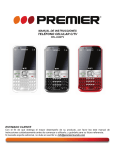
MANUAL DE INSTRUCCIONES
TELÉFONO CELULAR C/TV
CEL-4456TV
ESTIMADO CLIENTE
Con el fin de que obtenga el mayor desempeño de su producto, por favor lea este manual de
instrucciones cuidadosamente antes de comenzar a utilizarlo, y guárdelo para su futura referencia.
Si necesita soporte adicional, no dude en escribir a: [email protected]
ÍNDICE
INSTRUCCIONES DE SEGURIDAD ......................................................................................................... 3!
RECOMENDACIONES .............................................................................................................................. 3!
DESCRIPCIÓN GENERAL ........................................................................................................................ 4!
ESPECIFICACIONES TÉCNICAS............................................................................................................. 5!
INSTRUCCIONES DE OPERACIÓN ......................................................................................................... 5!
INSTALACIÓN DE TARJETA SIM ......................................................................................................... 5!
INSTALACIÓN DE LA TARJETA T-FLASH ........................................................................................... 6!
BATERÍA ................................................................................................................................................ 6!
ENCENDER Y APAGAR EL CELULAR ................................................................................................. 7!
CONECTARSE A UNA RED .................................................................................................................. 8!
LLAMADAS............................................................................................................................................. 8!
AUDÍFONOS .......................................................................................................................................... 8!
MODOS DE ENTRADA .......................................................................................................................... 8!
OPERACIÓN DEL MENÚ .......................................................................................................................... 9!
MENSAJES ............................................................................................................................................ 9!
AGENDA TELEFÓNICA ....................................................................................................................... 10!
CALENDARIO ...................................................................................................................................... 11!
HISTORIAL DE LLAMADAS................................................................................................................. 11!
BLUETOOTH ........................................................................................................................................ 11!
SERVICIOS .......................................................................................................................................... 11!
CONECTIVIDAD ................................................................................................................................... 11!
MULTIMEDIA........................................................................................................................................ 12!
ADMINISTRADOR DE ARCHIVOS ...................................................................................................... 13!
CONFIGURACIÓN ............................................................................................................................... 13!
PANTALLA ........................................................................................................................................... 15!
ORGANIZADOR ................................................................................................................................... 15!
PERFIL DE USUARIO .......................................................................................................................... 16!
JUEGOS ............................................................................................................................................... 16!
REDES ................................................................................................................................................. 16!
RESOLUCIÓN DE PROBLEMAS ........................................................................................................... 17!
P-1
PRECAUCIÓN
RIESGO DE CHOQUE
ELÉCTRICO , NO ABRA
Precaución: Para reducir el riesgo de choque eléctrico, no
retire la cubierta, no hay partes manipulables por el usuario al
interior de la unidad.
Refiera todo mantenimiento o
intervención técnica a personal técnico calificado.
Este símbolo indica la existencia de voltaje peligroso al
interior de esta unidad, que constituye un riesgo de choque
eléctrico.
Este símbolo indica que hay importantes instrucciones de
operación y mantenimiento en la literatura que acompaña a
esta unidad.
LÍNEAS DE SERVICIO AL CLIENTE PREMIER
Venezuela:
Colombia:
Panamá:
Sitio Web:
E-mail:
0800 – ELECTRIC (353-2874)
01-900-331-PEJC (7352)
300-5185
www.premiermundo.com
[email protected]
NOTA
Nos reservamos el derecho de modificar las especificaciones, características y/u operación de este
producto sin previo aviso, con el fin de continuar las mejoras y desarrollo del mismo.
P-2
•
•
•
•
•
•
•
•
•
•
•
•
•
•
•
•
•
•
INSTRUCCIONES DE SEGURIDAD
Si pierde su teléfono celular o ha sido robado notifique a su empresa de comunicaciones para que
se haga el bloqueo y trámite respectivo. Esto puede evitar pérdidas económicas debido a un uso no
autorizado.
Utilice el sistema de clave para bloquear su teléfono al igual que el código PIN de la tarjeta SIM.
No utiliza el teléfono celular mientras conduce. Utilice el sistema manos-libres cuando sea
necesario.
Los dispositivos inalámbricos pueden causar interferencia en aviones. Apague su teléfono celular
durante un vuelo.
Apague su equipo en lugares susceptibles de explosión tales como estaciones de gas o plantas
químicas, entre otros.
Siga las normas en lugares como hospitales o donde pueda causar interferencia. Tenga precaución
en no usa el equipo cerca de aparatos médicos tales como marcapasos, ayudas auditivas y algunos
otros dispositivos médicos electrónicos.
La calidad de la conversación en un teléfono celular puede verse afectada por interferencia de radio.
El equipo cuenta con una antena incorporada ubicada debajo del micrófono. No toque el área de la
antena durante la conversación para evitar que la calidad se deteriore.
El equipo debe ser instalado o reparado únicamente por personal autorizado.
Utilice únicamente accesorios y baterías aprobadas.
De a su teléfono celular un uso adecuado y evite golpearlo.
Recuerde que puede utilizar el equipo para hacer llamadas de emergencia de acuerdo con la
configuración local.
RECOMENDACIONES
Este es un equipo de alta calidad. Úselo con precaución para prolongar su vida útil.
Mantenga el equipo fuera del alcance de los niños.
Mantenga el equipo seco. Evite que este húmedo y se moje con la lluvia u otros líquidos ya que esto
puede oxidar los circuitos electrónicos.
No use ni almacene un el equipo en lugares con mucho polvo.
No guarde el equipo en lugares con altas temperaturas ya que pueden reducir la vida útil de los
circuitos electrónicos al igual que dañar la batería y algunas partes plásticas.
Tampoco guarde el equipo en un lugar muy frío ya que puede generarse condensación en los
circuitos electrónicos que podrían dañarse.
Evite que el equipo se golpee con el fin de proteger los circuitos.
P-3
DESCRIPCIÓN GENERAL
FUNCIONES DE LOS BOTONES
Marcar Presione este botón para hacer una llamada introduciendo el número que se desea marcar o
seleccionando un contacto de la agenda. También puede presionarlo para recibir una llamada entrante
o para conocer el registro de las últimas llamadas realizadas.
Finalizar Presione este botón para terminar una llamada entrante o saliente. También puede usarlo
para salir del menú y regresar al modo de espera. Manténgalo presionado por dos o tres segundos para
encender o apagar el teléfono celular.
Derecha/Izquierda Utilice estos botones que representan las funciones que se muestran en la parte
inferior de la pantalla encima de cada botón.
Botón de Dirección Presione este botón para moverse a través de las opciones cuando se está
buscando en una lista. En el modo de edición presione este botón para navegar.
Confirmar Presione este botón para confirmar su selección. En el modo de espera, mantenga
presionado este botón por unos segundos para encender y apagar la lámpara la cual está ubicada en la
parte superior del teléfono.
Borrar Presione este botón para borrar un carácter antes del cursor.
Línea de Alimentación Este botón ayuda a cambiar a otra línea cuando hay interferencia en la
interface de edición.
Shift Presione este botón para cambiar entre otros modos de entrada.
Barra de Espacio Presione este botón en la interface de edición para introducir un espacio en blanco.
En la interface de espera, presione este botón de manera prolongada para apagar o encender la
lámpara ubicada en la parte superior del teléfono.
Sym Presione este botón en la interface de edición para introducir símbolos.
Mayúsculas Presione este botón para cambiar entre mayúsculas y minúsculas.
Alt En la interface de edición, presione este botón para introducir un símbolo o número alternativo.
Botones numéricos y Letras Presione estos botones para introducir los caracteres correspondientes.
P-4
ESPECIFICACIONES TÉCNICAS
Dimensiones
Peso
Capacidad de Batería del Litio
Duración Continua en Modo de Espera
Duración Continua en Conversación
56.73 ! 104.5 ! 14.3
Con batería: 74g - Sin batería: 64g
650 mAH
75 horas
3.5 horas
INSTRUCCIONES DE OPERACIÓN
INSTALACIÓN DE TARJETA SIM
Una tarjeta SIM contiene información útil, incluyendo su número de teléfono celular, PIN (Número de
Identificación Personal), PIN2, PUK (clave de desbloqueo del PIN), PUK2 (clave de desbloqueo del
PIN2), IMSI (Identidad Internacional del Suscriptor de Celular), información de red, datos de contactos y
mensajes de texto.
Nota: Después de apagar su teléfono celular espere unos segundos antes de retirar o volver a poner
una tarjeta SIM. Tenga precaución al manipular la tarjeta SIM, ya que la fricción o doblar la tarjeta
puede dañarla. Mantenga la tarjeta SIM fuera del alcance de los niños.
INSTALACIÓN
1. Apague el teléfono celular.
2. Retire la tapa posterior.
3. Retire la batería.
4. Inserte la tarjeta SIM en la ranura correspondiente alineándola con la forma que allí se observa y
con la superficie metálica hacia abajo.
5. Coloque de nuevo la batería teniendo en cuenta el punto de contacto.
USO DEL CÓDIGO
El teléfono celular y la tarjeta SIM soportan diferentes tipos de clave con el fin de prevenir el uso
inadecuado. Cuando el teléfono le pida que introduzca alguno de esos códigos simplemente escríbalo y
presione el botón de aceptar (OK). Si coloca un código equivocado presione la tecla derecha para
borrarlo y luego introduzca el código correctamente.
CÓDIGO DE BLOQUEO DE TELÉFONO
Este código puede utilizarse para prevenir que su teléfono celular sea usado de manera inapropiada.
Por lo general, este código es proporcionado junto con el equipo por parte del fabricante. El código
inicial de bloqueo es 1234. Si usted activa el código de bloqueo deberá introducirlo cuando encienda el
teléfono.
CÓDIGO PIN
El código PIN (Número de Identificación Personal, de 4 a 8 dígitos) previene que su tarjeta SIM sea
utilizada por personas no autorizadas. Por lo general el PIN es suministrado junto con la tarjeta SIM por
parte del operador de telefonía. Si este activa la función de PIN deberá introducirlo cada vez que
encienda su teléfono celular.
P-5
La tarjeta SIM se bloqueará sistema introduce el código PIN erróneamente tres veces seguidas. Para
desbloquear debe hacer lo siguiente:
1.
2.
3.
4.
Introduzca el código correcto PUK siguiendo las instrucciones en pantalla.
Luego introduzca el nuevo PIN y presione OK.
Introduzca una vez más el nuevo PIN y presione OK.
Si el código PUK es el correcto, la tarjeta SIM se desbloqueará y el código PIN se reiniciará.
Nota: La tarjeta SIM se bloqueará al introducir el código PIN erróneamente tres veces seguidas. Para
desbloquearla debe introducir el código PUK el cual se obtiene a través de su operador de telefonía.
CÓDIGO PUK
El código PUK (Clave de Desbloqueo Personal) se requiere para cambiar un PIN bloqueado. Este viene
junto con la tarjeta SIM. En caso contrario contacte a su operador de telefonía. Si usted introduce el
código PUK de manera incorrecta 10 veces, la tarjeta SIM será inválida. Deberá entonces contactar a
su operador de telefonía para reemplazar la tarjeta SIM.
CÓDIGO DE RESTRICCIÓN
Este código se requiere cuando desee ajustar la función de restricción de llamadas. Usted puede
obtener este código de su operador de telefonía para ajustar la función.
INSTALACIÓN DE LA TARJETA T-FLASH
La tarjeta T-flash es una tarjeta móvil de almacenamiento que se encuentra dentro del teléfono celular.
Para instalar la tarjeta T-flash abra el pestillo que cubre la ranura, insértela en ella y cierre el pestillo.
Nota: Es posible que el teléfono celular no pueda reconocer de manera automática la tarjeta T-flash
que se inserta en él cuando el teléfono se encuentra encendido. Debe apagar el teléfono celular y luego
encenderlo. De esta forma se puede reconocer la tarjeta T-flash. Tenga en cuenta que esta tarjeta es
un objeto muy pequeño. Manténgalo fuera del alcance de los niños.
BATERÍA
La batería del litio que viene con el teléfono celular puede instalarse de inmediato una vez desempaque
el equipo.
INDICACIÓN DE NIVEL
El teléfono celular puede monitorear y mostrar el estado de la batería. Normalmente la energía restante
de la batería se muestra con un icono en la parte superior derecha de la pantalla. Cuando la energía es
insuficiente el teléfono mostrará el mensaje “batería baja”. Si usted ha instalado un sonido de alerta,
entonces éste se activará para indicárselo.
Cuando la batería se esté cargando se observará una animación en pantalla. Cuando la carga termine
esta animación desaparecerá.
P-6
CARGAR LA BATERÍA
• Coloque la batería en el teléfono antes de cargarla.
• Conecte el cargador al celular y asegúrese de que esté bien conectado.
• Conecte el otro extremo a la fuente de energía.
• Durante la carga el icono de batería se mantiene parpadeando hasta que esté cargada
completamente. Es normal que la batería se caliente un poco durante este periodo. Una vez que la
carga termine el icono dejará de parpadear.
Nota: Asegúrese de que los enchufes del cargador, los audífonos y el cable USB se conecten en la
dirección adecuada. Conectarlos en la dirección equivocada puede causar problemas de carga u otros
problemas. Antes de iniciar la carga asegúrese de que el voltaje y la frecuencia de la corriente
corresponden con el voltaje y potencia del cargador.
USO DE LA BATERÍA
El desempeño de la batería depende de múltiples factores: configuración de la red, fuerza de la señal,
temperatura ambiente, funciones o configuraciones, accesorios del teléfono, y el uso de las aplicaciones
de voz y datos. Para garantizar el óptimo desempeño de su batería tenga en cuenta lo siguiente:
•
•
•
•
•
•
Utilice únicamente la batería proporcionada por el fabricante. De lo contrario pueden generarse
problemas de carga o daños.
Apague el teléfono celular antes de quitar la batería.
El proceso de carga tarda un poco más para una batería nueva o para una batería que no se ha
usado por bastante tiempo. Si el voltaje de la batería es muy bajo para permitir que el equipo
encienda, cargue la batería por un tiempo más largo. En este caso, el icono de batería no
parpadeará hasta que la batería entre en modo de carga.
Durante la carga asegúrese de que la batería está colocada en un espacio a temperatura ambiente.
Si observa que la batería tiene algún tipo de daño como por ejemplo olor, calor excesivo, rupturas o
fuga de líquido, detenga su uso de inmediato.
La batería se gasta con el uso. Se necesitará mayor tiempo de carga en la medida en que la batería
se use por más tiempo. Si usted observa que el tiempo de conversación se reduce, pero se está
usando más tiempo en cargar la batería y en apariencia está cargada adecuadamente, es
recomendable adquirir una nueva batería de un proveedor reconocido.
Nota: Para garantizar la seguridad personal y proteger el medio ambiente no deseche la batería con la
basura común. Regrésela al fabricante o deposítela en un lugar adecuado en su área.
Precaución: Un cortocircuito en la batería puede causar una explosión, fuego, lesiones personales u
otras consecuencias.
ENCENDER Y APAGAR EL CELULAR
Presione el botón de Finalizar Llamada por unos segundos para encender el equipo. Aparecerá una
animación en pantalla. Si el teléfono solicita el código de desbloqueo, introdúzcalo y presione la tecla
Aceptar (OK). El código original es 1234. Introduzca el código PIN si el equipo lo solicita. Después de
estos pasos el equipo entra en el modo de espera. Para apagar el equipo presione nuevamente por
varios segundos el botón de Finalizar Llamada.
P-7
CONECTARSE A UNA RED
Una vez que la tarjeta SIM y el teléfono estén correctamente desbloqueados, el teléfono buscará
automáticamente una red disponible. Una vez que la encuentre el teléfono entra a modo de espera.
Cuando el teléfono se registre en la red el nombre del operador aparecerá en la pantalla. En este punto
usted podrá hacer y recibir llamadas normalmente.
LLAMADAS
En el modo de espera utilice los botones numéricos e introduzca el código de área y el número
telefónico al que desea llamar. Luego presione el botón de marcar. Para finalizar, presione el botón de
finalizar llamada.
LLAMAR DE UN NÚMERO DE LA AGENDA
Entre a su agenda telefónica en el equipo y utilice los botones arriba y abajo para encontrar el número
que desea marcar. Presione el botón de llamar y el equipo iniciará automáticamente la llamada.
REMARCAR EL ÚLTIMO NÚMERO
En el modo de espera presione el botón de llamar para mostrar las llamadas realizadas. Utilice los
botones arriba abajo para seleccionar el número que desea marcar y presione el botón de llamar.
CONTESTAR LLAMADAS ENTRANTES
Presione el botón de llamar o el botón izquierdo para contestar las llamadas entrantes. Presione el
botón de finalizar llamada para terminar la conversación. Para rechazar una llamada entrante presione
el botón de finalizar llamada o el botón derecho.
Nota: Si el número telefónico y el nombre de la persona que está llamando se encuentra registrado en
la agenda, el equipo mostrará en pantalla estos datos y así usted sabrá quién está llamando. Si no está
registrado entonces solamente se mostrará el número. Si usted está revisando su agenda o navegando
en su teléfono aún puede contestar llamadas entrantes.
AUDÍFONOS
Al conectar los audífonos el equipo entrará automáticamente en modo de audífonos. Asegúrese de
insertarlos adecuadamente para que funcionen correctamente.
MODOS DE ENTRADA
Este teléfono celular proporciona dos modos de entrada incluyendo modo en inglés y modo numérico.
Usted puede utilizar estos modos cuando esté introduciendo datos en la agenda, mensajes de texto,
archivos y saludo de bienvenida.
ÍCONOS PARA MÉTODOS DE ENTRADA
Después de entrar en la ventana de edición, ya sea en la agenda, mensajes de texto o memorando, se
mostrará un icono en pantalla para indicar el modo de entrada activo:
Modo numérico: “123”
Modo en inglés en mayúsculas: “ABC”
Modo en inglés en minúsculas: “abc”
P-8
CAMBIAR ENTRE MODOS DE ENTRADA
Presione el botón Control para cambiar el modo de entrada.
MODO NUMÉRICO
En este modo usted puede introducir directamente los números. La siguiente tabla muestra los números
correspondientes a cada letra cuando se está en el modo numérico.
Letra
W
E
R
S
D
F
Z
X
C
0
*
#
Número
1
2
3
4
5
6
7
8
9
0
A*
Q#
OTRAS FUNCIONES
Para introducir un espacio en blanco, presione la barra espaciadora.
Para corregir datos presione el botón de borrar.
Para insertar un símbolo presione el botón símbolo y seleccione el que desea.
OPERACIÓN DEL MENÚ
MENSAJES
Esta función le permite controlar todo lo relacionado con los mensajes. Escribir, enviar, borrar. Si la
memoria de mensajes está llena aparecerá un icono en pantalla parpadeando. Para recibir mensajes
normalmente usted deberá borrar algunos de los mensajes ya existentes.
ESCRIBIR MENSAJE
Entre a este menú para crear un mensaje de texto o un mensaje multimedia.
BUZÓN DE ENTRADA
Los mensajes recibidos se ven en este menú.
BORRADORES
En esta función usted puede guardar mensajes para enviarlos después o crear plantillas.
BUZÓN DE SALIDA
Los mensajes enviados se guardan en este menú.
P-9
BORRAR MENSAJES
Usted puede borrar mensajes almacenados en el buzón de entrada, en el buzón de salida, en
borradores, etc., con esta función.
MENSAJES DE DIFUSIÓN
El servicio de red permite que usted reciba una variedad de mensajes de texto, como por ejemplo,
mensajes de difusión acerca del clima o las condiciones de las vías. Actualmente, sólo algunos
operadores de telefonía proporcionan este servicio. Póngase en contacto con su operador de telefonía
para más información.
•
•
•
•
Modo de Recibir: actívelo o desactívelo para permitir esta función.
Configuración de Canal: seleccione el recibir algunos tipos de mensajes de difusión o edite
algunos números de canal.
Idiomas: seleccione el idioma en el cual quiere mostrar el mensaje de difusión. El idioma
seleccionado, sin embargo, puede no estar disponible para su operador de telefonía.
Leer Mensaje: ver los mensajes de difusión. Utilice los botones arriba y abajo para ver los
mensajes.
CONFIGURACIÓN DE MENSAJE
Esta función permite configurar las características de los SMS, MMS y el servicio de mensajería
AGENDA TELEFÓNICA
El teléfono celular puede almacenar hasta 300 números telefónicos. El número de teléfonos que una
tarjeta SIM puede almacenar depende de la propia capacidad de la tarjeta. Los números telefónicos
almacenados en el teléfono celular y la tarjeta SIM conforman la agenda telefónica. Después de
seleccionar un número telefónico en esta agenda, seleccione Opciones para llevar a cabo las siguientes
operaciones:
•
•
•
•
•
•
•
•
•
•
•
•
•
Ver: ver el contenido del número telefónico.
Enviar mensajes de texto: envía el mensaje de texto al número seleccionado.
Enviar mensaje multimedia: envía el mensaje multimedia al número seleccionado
Llamar: llama al número seleccionado.
Marcación IP: marcación IP del número seleccionado.
Edición: edita el número telefónico y el nombre.
Borrar: borra el número telefónico de la agenda.
Copiar: duplica el número telefónico del teléfono celular a la tarjeta SIM o viceversa.
Mover: mueve el número telefónico del teléfono celular a la tarjeta SIM o viceversa.
Enviar tarjeta de presentación: seleccione y envíe información de contactos a otras personas a
través de mensajes de texto, mensaje multimedia o Bluetooth.
Marcar varios: puede seleccionar varios números telefónicos a la vez de tal manera que pueda
llevar a cabo la misma operación en ellos.
Grupos de llamada: puede asignar contactos a los cinco grupos de llamadas que vienen de fábrica.
Para cada grupo usted puede evitar el nombre, colocar una alerta de llamada, asignar un ringtone o
establecer una imagen.
Configuración de agenda: ajusta algunos parámetros de la agenda telefónica.
P-10
CALENDARIO
En este menú usted puede observar un calendario mensual con el fin de hacer seguimiento a eventos
importantes, etc.
HISTORIAL DE LLAMADAS
Con esta función usted puede ver una lista de llamadas perdidas, hechas y recibidas.
BLUETOOTH
Con esta función usted puede llevar a cabo una conexión inalámbrica con otros dispositivos
compatibles, tales como teléfonos celulares, computadores, audífonos y equipos de automóvil. Usted
puede utilizar el Bluetooth para enviar imágenes, videos, música archivos de audio y notas, y transferir
archivos desde su computador compatible.
Nota: al utilizar conexión móvil con otro dispositivo vía Bluetooth es probable que el equipo le solicite
una contraseña. Introducir una contraseña incorrecta dará como resultado una colección fallida. Por lo
general, la contraseña se puede decidir por uno de los equipos participantes. En caso contrario, cuando
se conecte por ejemplo a unos audífonos Bluetooth, la contraseña sería la correspondiente a los
audífonos Bluetooth.
SERVICIOS
INTERNET
Esta función le permite entrar a Internet. Su teléfono celular le preguntará el modo en el cual desea
entrar.
•
•
•
•
•
•
Página de inicio: indica la página inicial de Internet.
Favoritos: se utiliza para guardar los sitios web utilizados comúnmente.
Introducir dirección: introduzca la dirección web que desea buscar y presione el botón de finalizar
para entrar directamente.
Última página web: usted puede ver la última dirección web a la cual entró con esta función.
Páginas recientes: navegue por el registro de las páginas buscadas recientemente.
Configuración: configurar el servicio WAP relacionado.
Nota: consulte a su operador de telefonía con relación a las tarifas y configuración específica.
STK
El servicio STK es el juego de herramientas de la tarjeta SIM. Este teléfono tiene soporte para la función
de servicio. Los ítems específicos dependen de la tarjeta SIM y la red. El menú de servicio será auto
agregado al menú del teléfono cuando tenga soporte de red y tarjeta SIM.
CONECTIVIDAD
En esta interface puede ajustar parámetros relacionados con los datos de la cuenta.
P-11
MULTIMEDIA
CÁMARA
El teléfono celular cuenta con una cámara la cual soporta las funciones fotográficas. Gire el teléfono
para aliviar la cámara con la imagen y presione OK para tomar la foto. En el modo de captura puede
utilizar los botones de dirección derecha o izquierda para ajustar los valores de exposición, y los
botones de dirección arriba y abajo para acercar y alejar.
VIDEOGRABADORA
Esta función le permite grabar videos. Presione OK para comenzar a grabar. En el modo de captura
puede utilizar los botones de dirección derecha o izquierda para ajustar los valores de exposición, y los
botones de dirección arriba y abajo para acercar y alejar.
TELEVISIÓN
Con esta función usted puede observar programas de televisión y agregar canales a la lista de canales.
Seleccione un lugar de recepción adecuada de señal y sintonice los diferentes canales. Utilice el botón *
(asterisco) para hacer una búsqueda automática, el botón # para entrar a modo de pantalla completa, y
presione I/- o O/+ para ajustar el volumen.
RADIO FM
Utilice el equipo como un radio tradicional de FM con sintonización automática y capacidad para
guardar estaciones. En la interface de radio FM utilice los botones de dirección derecha/izquierda para
moverse manualmente a través de las estaciones, el botón de dirección abajo para pausar o activar la
reproducción de la estación en curso, y el botón de dirección hacia arriba para permitir la autobúsqueda (una vez que se active, usted puede presionar los botones de dirección derecha/izquierda
para buscar las estaciones automáticamente). Presione I/- o O/+ para ajustar el volumen.
REPRODUCTOR DE AUDIO
Utilice esta función para reproducir archivos de audio. Utilice los botones de dirección para controlar el
proceso de reproducción. Play/pausa (botón arriba); cambiar entre canciones hacia adelante y hacia
atrás (botones derecha e izquierda); adelantar (botón derecha mantenido); retroceder (botón izquierdo
mantenido); detener (botón abajo); lista de reproducción (botón OK). Presione I/- o O/+ para ajustar el
volumen. Formatos soportados: amr, midi, mp3, wma, wav.
VISOR DE IMÁGENES
Con esta función usted puede ver las imágenes.
REPRODUCTOR DE VIDEO
Con esta función usted puede ver los videos grabados por la cámara o que han sido guardados en el
equipo. Archivos MP4 y formato AVI. Con los botones de dirección usted puede controlar el proceso de
reproducción. Play/Pausa (botón OK); adelantar (botón derecho mantenido); retroceder (botón izquierdo
mantenido). Presione I/- o O/+ para ajustar el volumen. Presione el botón # para ir a modo de pantalla
completa.
P-12
GRABADORA DE SONIDOS
El equipo soporta los formatos WAV y AMR. El formato AMR retira la compresión algorítmica. Así que
en la misma condición de memoria no requiere mayor tiempo de grabación el formato WAV.
CALCULADORA
Utilice la calculadora para hacer operaciones matemáticas sencillas. Sumar, restar, multiplicar y dividir.
Presione los botones de dirección arriba (+), abajo (-), izquierda (x), derecha (÷), para seleccionar la
operación matemática. Presione el botón suave derecho para borrar la cifra.
ADMINISTRADOR DE ARCHIVOS
El teléfono proporciona cierta cantidad de espacio para usuarios para administrar archivos y soporte de
la tarjeta T-flash. La capacidad de la tarjeta T-flash es seleccionable. Usted puede utilizar el
administrador de archivos para manejar adecuadamente varios directorios de archivos en el teléfono y
en la tarjeta T-flash.
ABRIR
Elija Administrador de Archivos para entrar al directorio raíz de la memoria. Este directorio mostrará una
lista de carpetas predeterminadas, nuevas carpetas y archivos de usuario. Cuando el teléfono se
enciende por primera vez o el directorio no ha sido modificado, el directorio raíz contiene únicamente
las carpetas de fábrica.
FORMATO
Usted puede utilizar esta función para formatear todos los archivos en la memoria. El sistema volverá a
crear una carpeta por defecto. Los datos formateados no pueden ser recuperados, así que es
importante que usted esté seguro de que desea borrarlos.
CONFIGURACIÓN
CAMBIO DE SIM TRIPLE
Usted puede seleccionar manualmente que tarjeta SIM desea utilizar de acuerdo con sus necesidades.
CONFIGURACIÓN DE SIM TRIPLE
Usted puede hacer configuraciones para las tres tarjetas SIM en el teléfono celular.
CONFIGURACIÓN DE TELÉFONO
•
•
•
•
•
Fecha y Hora: ajuste las cifras para la fecha y la hora y la hora adecuada de la ubicación. (Nota: al
retirar la batería del teléfono celular o si ésta se descarga completamente, es probable que deba
configurar de nuevo la hora y la fecha).
Programar encendido y apagado: usted puede ajustar la hora cuándo desea que el teléfono
celular se encienda o se apague automáticamente.
Idioma: seleccione el idioma para el teléfono celular.
Modo de entrada: seleccione un modo de entrada de acuerdo con sus necesidades.
Atajos: con este menú usted puede seleccionar atajos para algunas funciones del teléfono en el
modo de espera.
P-13
•
•
•
•
•
Modo de avión: cuando se active esta función, se suspenderán muchas de las funciones de
emisión de señal y no se podrán recibir llamadas ni mensajes de texto, mientras que puede hacer
uso de otras funciones que no requieren la transmisión de señal, como por ejemplo, juegos, cámara
y reproductor mp3.
Configuración UTRA: Seleccione la SIM1 o la SIM2 según necesite.
Lámpara: encienda y apague la lámpara. En el modo de espera presione y mantenga el botón OK
para encenderla y apagarla.
Color LED: encienda y apague el color LED según necesite.
Estilo de color LED: hay tres estilos disponibles para elegir. Seleccione el que más le guste.
CONFIGURACIÓN DE LLAMADAS
•
•
•
•
•
•
•
•
Llamada en espera: Después de escoger Activar, el teléfono contactará a su red. Un momento
después, la red responderá enviará un mensaje de texto para acusar recibo a su operación. Si la
función de llamada en espera está activa, la red le alertará y el teléfono celular mostrará en la
pantalla el número de la llamada entrante si usted se encuentra en ese momento con otra llamada.
Desvío de llamadas: esta función le permite desviar llamadas a otro número previamente
especificado según necesite.
Bloqueo de llamadas: esta función le permite bloquear llamadas según necesite. Cuando configure
esta función usted necesita utilizar un código de bloqueo de llamadas de la red, el cual puede ser
obtenido por su operador de telefonía. Si el código es incorrecto, un mensaje de error aparecerá en
pantalla. Después de seleccionar la opción de bloqueo de llamadas, continúe para seleccionar
activar o desactivar. El teléfono celular pedirá el código de bloqueo y luego contactará a su operador
de telefonía. Un momento después, la red enviará una respuesta y los resultados de la operación al
teléfono celular.
Cambio de línea: usted puede cambiar entre la línea 1 y 2. Por defecto, la unidad está en la línea 1.
(Nota: sistema elige la línea 2, puede que la marcación falle. Esto depende de la implementación de
su operador de telefonía).
Remarcado automático: puede activar o desactivar esta función. Cuando está activa el teléfono
marcará de nuevo automáticamente el número telefónico después de un momento si la persona no
contesta. Se puede ajustar el número de remarcado automático hasta 10 veces. En el periodo de
remarcado automático no puede marcar otros números. Para finalizar el proceso presiona botón de
finalizar. (Nota: esta función requiere soporte por parte del operador de telefonía donde se encuentra
registrada la tarjeta SIM).
Marcación IP: activa y desactiva la función de marcado IP y agrega/edita números IP.
Recordatorio de tiempo de marcación: Para ajustar un tono sencillo o cíclico en una llamada para
que usted sepa cuanto tiempo lleva.
Modo de contestar: elige un modo de contestar según necesite.
CONFIGURACIÓN DE RED
Contacte a su operador de telefonía para obtener más información acerca de los servicios de red.
•
Selección de Red: seleccione entre los modos automático y manual. Se recomienda el modo
automático. Cuando la selección de red está en modo automático el teléfono celular tendrá
preferencia por la red donde la tarjeta SIM está registrada. Cuando se selecciona el modo manual,
usted debe elegir la red donde se encuentra registrada la tarjeta SIM.
P-14
•
Preferencias de red: seleccione las preferencias de red. Por defecto, se mostrará la red donde la
tarjeta SIM se encuentra registrada.
CONFIGURACIÓN DE SEGURIDAD
Esta función le permite hacer ajustes relacionados con el uso seguro.
Seguridad de SIM
• Bloqueo de PIN: para activar el bloqueo del PIN usted necesite introducir el código PIN correcto. Si
se ajusta el bloqueo del PIN como activo deberá introducir el código PIN cada vez que encienda el
teléfono celular. Como se mencionó anteriormente en el manual, ésta introduce el código PIN de
manera incorrecta tres veces seguidas, deberá desbloquearlo con el código PUK.
• Cambio de PIN: cambia el código PIN de la tarjeta SIM.
• Cambio de PIN2: cambia el código PIN2 del código PIN.
Seguridad del Teléfono
• Bloqueo de teléfono: esta función le permite bloquear y desbloquear el teléfono. Una vez que se
active la función usted deberá introducir la contraseña correcta cuando el teléfono se la solicite. La
contraseña es de 4 a 8 dígitos.
• Cambiar contraseña: le permite cambiar la contraseña.
• Bloqueo automático del teclado: esta función le permite bloquear y desbloquear el teclado del
teléfono. Usted puede ajustar un tiempo de bloqueado de 5 segundos, 30 segundos, 1minuto o 5
minutos. El teclado se bloqueará y los botones no estarán activos.
RESTAURAR CONFIGURACIÓN DE FÁBRICA
Esta función le permite restaurar la configuración inicial de fábrica. La contraseña preestablecida es
1234.
PANTALLA
El usuario puede seleccionar un fondo de pantalla, un protector de pantalla y ajustar el encendido y
apagado de la pantalla.
ORGANIZADOR
CALENDARIO: En este menú usted puede observar un calendario mensual con el fin de hacer
seguimiento a eventos importantes, etc.
ALARMA: El equipo cuenta con cinco alarmas que usted puede activar según necesite. Para cada
alarma usted puede ajustar el ringtone y la hora.
CALCULADORA: Utilice la calculadora para hacer operaciones matemáticas sencillas. Sumar, restar,
multiplicar y dividir. Presione los botones de dirección arriba (+), abajo (-), izquierda (x), derecha (÷),
para seleccionar la operación matemática. Presione el botón suave derecho para borrar la cifra.
CRONÓMETRO: Con esta función usted puede medir diferentes tiempos.
P-15
PERFIL DE USUARIO
El teléfono celular proporciona diferentes perfiles de usuarios de tal forma que usted puede personalizar
algunas funciones para adaptar el equipo a diferentes eventos y situaciones. Usted puede elegir entre
los siguientes escenarios: General, Silencioso, Reunión, Exterior y Mi Estilo.
Cuando usted conecta unos audífonos al teléfono celular, el equipo entra automáticamente al modo de
audífonos. No existe una opción de activación de los audífonos en la pantalla. Para más detalles sobre
la operación, observe el perfil General. Sistema ajusta la configuración Audífonos -> Personalizado ->
Modo de contestar -> Automático, las llamadas entrantes serán contestadas automáticamente.
ACTIVAR
Seleccione esta función para activar el modo seleccionado.
PERSONALIZAR
Después de seleccionar uno de los cinco modos anteriores, elija Personalizar para editar los siguientes
ítems: tipo de alerta, tipo de timbre, ringtone de llamada entrante, volumen de ringtone, ringtone de
mensajes, tono de teclado, encender/apagar tono, etc.
RESTAURAR
Utilice esta función para restaurar la configuración de fábrica de los perfiles de usuario.
JUEGOS
El equipo cuenta con un juego de carros de fórmula 1. Para más información sobre cómo jugarlo por
favor refiérase a la ayuda del juego en el equipo.
REDES
Puede conectarse a las siguientes redes a través del internet:
Facebook, Ebbudy, Yahoo, Twitter.
P-16
RESOLUCIÓN DE PROBLEMAS
Esta lista es para ayudarle a resolver problemas simples que pueden presentarse en el uso del
producto. Por favor léala y verifique estos puntos antes de solicitar ayuda de personal de servicio
técnico autorizado.
PROBLEMA
CAUSA
SOLUCIÓN
Error de tarjeta SIM
La tarjeta SIM está dañada
La tarjeta SIM no está en
posición
Contacte su operador de telefonía
Verifique la posición de la tarjeta
Recepción pobre de la señal
La parte metálica la tarjeta Limpiela con una prenda suave
SIM sucia
Obstrucción de la señal por Intente desplazarse a un lugar con
otras ondas
mejor señal
Congestión en la línea
Utilice el teléfono en horas de menos
tráfico
Cargue la batería
El teléfono no enciende
La batería no tiene energía
No se pueden hacer
llamadas
Está activo el bloqueo de
llamadas
Cancele el bloqueo de llamadas
El teléfono no puede
conectarse a la red
La tarjeta SIM es inválida
Contacte su operador de telefonía
El teléfono no está en un
área de servicio
Intente entrar al área de servicio el
operador
La señal es muy débil
Muévase a un área con mayor señal
El voltaje de carga no
concuerda con el del
cargador
Asegúrese que la fuente de voltaje
coincide con el cargador
Se está usando un
cargador inadecuado
Utilice el cargador específicamente
diseñado para su teléfono celular
Contacto pobre
Asegúrese de conectar correctamente
el cargador al teléfono celular
La batería no se puede
cargar
P-17
INSTRUCTION MANUAL
CELPHONE W/TV
CEL-4456TV
DEAR CUSTOMER
In order to achieve the best performance of your product, please read this instruction manual carefully
before using, and keep it for future reference.
If you need extra support, please write to [email protected]
CAUTION
RISK OF ELECTRIC
SHOCK, DO NOT
OPEN
Caution: To reduce the risk of electric shock do not open
this device, there are not serviceable parts for customers.
Please refer any maintenance or repair to qualified
personnel.
This sign means the existence of dangerous voltage at
the inside of the unit, which states a risk of electric shock.
This sign means that there are important instructions of
operation and handling in the manual that comes with this
device.
PREMIER CUSTOMER SERVICE
Venezuela:
Colombia:
Panama:
Website
E-mail:
0800 – ELECTRIC (353-2874)
01-900-331-PEJC (7352)
300-5185
www.premiermundo.com
[email protected]
NOTE
This unit may be submitted to changes in specifications, characteristics and/or operation without prior
notice to the user, in order to continue improving and developing its technology.
P-1
Content
!
General Information.................................................................................................................................... 4!
Profile...................................................................................................................................................... 4!
Safety Information................................................................................................................................... 4!
Safety warning and Attentions ................................................................................................................ 4!
Your phone ................................................................................................................................................. 5!
Phone overview ...................................................................................................................................... 5!
Functions of Keys ................................................................................................................................... 5!
Technical specifications .......................................................................................................................... 6!
Getting started ............................................................................................................................................ 6!
Installing the SIM Cards and the Battery ................................................................................................ 6!
Installing T-Flash Card............................................................................................................................ 7!
Charging the Battery ............................................................................................................................... 7!
Powering On/Off the Mobile Phone ........................................................................................................ 9!
Linking to the Network ............................................................................................................................ 9!
Dialing Calls ............................................................................................................................................ 9!
Using the Headset .................................................................................................................................. 9!
Input method .............................................................................................................................................. 9!
Icons for Input Methods ........................................................................................................................ 10!
To Shift Entry Methods ......................................................................................................................... 10!
Numeric Input ....................................................................................................................................... 10!
English input and numeric input:........................................................................................................... 10!
Inserting a Symbol ................................................................................................................................ 10!
Using the menu ........................................................................................................................................ 10!
Messaging ............................................................................................................................................ 10!
Phonebook............................................................................................................................................ 11!
Calendar ............................................................................................................................................... 12!
Call history ............................................................................................................................................ 12!
Bluetooth............................................................................................................................................... 12!
Services ................................................................................................................................................ 12!
Connectivity .......................................................................................................................................... 12!
Multimedia ............................................................................................................................................ 12!
Camera ................................................................................................................................................. 12!
Video recorder ...................................................................................................................................... 13!
TV ......................................................................................................................................................... 13!
FM Radio .............................................................................................................................................. 13!
Audio Player ......................................................................................................................................... 13!
Calculator.............................................................................................................................................. 13!
File manager ......................................................................................................................................... 13!
Settings ................................................................................................................................................. 14!
Display .................................................................................................................................................. 15!
Organizer .............................................................................................................................................. 15!
User profile ........................................................................................................................................... 16!
Games .................................................................................................................................................. 16!
Facebook .............................................................................................................................................. 16!
Ebuddy.................................................................................................................................................. 16!
P-2
Yahoo ................................................................................................................................................... 16!
Twitter ................................................................................................................................................... 16!
Lock keypad.......................................................................................................................................... 17!
Power off............................................................................................................................................... 17!
Appendix .................................................................................................................................................. 17!
P-3
General Information
Profile
Please read this pamphlet carefully in order to make your phone in perfect condition.
Our company may change this mobile phone without prior written notice and reserves the final right to
interpret the performance of this mobile phone.
Due to different software and network operators, display on your phone may be different, refer to your
phone for details.
Safety Information
If your phone has lost or been stolen, notify the telecommunication office the SIM card is disabled
(network support is required). This can avoid economic loss caused by unauthorized use.
Please take measures as following to avoid your phone being unauthorized use:
" Set PIN code of SIM card
" Set phone password
Safety warning and Attentions
Safety warning
! ROAD SAFETY COMES FIRST
Do not use a hand-held phone while driving. Use hands-free fittings when calls are unavoidable while
driving. In some countries, dialing or receiving calls while driving is illegal!
! SWITCH OFF IN AIRCRAFT
Wireless devices can cause interference in aircraft. Using a mobile phone in flight is illegal and risky.
Please make sure that your mobile phone is powered off in flight.
! SWITCH OFF BEFORE ENTERING RISKY AREAS
Strictly observe the relevant laws, codes, and regulations on the use of mobile phones in risky areas.
Turn off your mobile phone before entering a place susceptible to explosion, such as an oil station, oil
tank, chemical plant or a place where a blasting process is under way.
! OBSERVE ALL SPECIAL REGULATIONS
Follow any special regulations in force in any area such as hospitals and always switch off your phone
whenever it is forbidden to use it or, when it may cause interference or danger. Properly use your mobile
phone near medical apparatuses, such as pacemakers, hearing aids and some other electronic medical
devices, as it may cause interference to such apparatuses.
! INTERFERENCE
The conversation quality of any mobile phone may be affected by radio interference. An antenna is built
inside the mobile phone and located below the microphone. Do not touch the antenna area during a
conversation, lest that the conversation quality deteriorate.
! QUALIFIED SERVICE
Only qualified personnel may install or repair phone equipment. Installing or repairing the mobile phone
on your own may bring great danger and violates the warranty rules.
! ACCESSORIES AND BATTERIES
Use only approved accessories and batteries.
! USE SENSIBLY
Use only in a normal and proper manner.
! EMERGENCY CALLS
Ensure the phone is switched on and in service, enter the emergency number, e.g. 112, then press the
Dial key. Give your location and state your situation briefly. Do not end the call until told to do so.
P-4
Note: Just like all other mobile phones, this mobile phone does not necessarily support all the features
described in this manual due to network or radio transmission problems. Some networks even do not
support the emergency call service. Therefore, do not rely solely on the mobile phone for critical
communications such as first aid. Please consult the local network operator.
Precautions
This mobile phone is well designed with fine art. Please exercise special care when using it. The
following suggestions will help your mobile phone survive the warranty period and extend its service life:
! Keep the mobile phone and all its fittings beyond children's reach.
! Keep the mobile phone dry. Keep away from rain, moisture, liquid or other substances that may
corrode electronic circuits.
! Do not use or store the mobile phone in dusty places, lest that active parts of the mobile phone be
damaged.
! Do not store the mobile phone in a high-temperature place. High temperature will shorten the life of
electronic circuits and damage the battery and some plastic parts.
! Do not store the mobile phone in a chilly place. Otherwise, moistures will be formed inside the mobile
phone to damage electronic circuits when the mobile phone is moved to a constant temperature
place.
! Do not throw, knock or shock the mobile phone, as that will destroy the internal circuits and highprecision components of the mobile phone.
Your phone
Phone overview
Functions of Keys
"
"
"
"
"
The mobile phone provides the following keys:
Dial
key
Press it to originate a call by entering the called number or selecting a contact from the phonebook;
or press it to receive an incoming call; or press it in standby state to show the latest call records
End key
Press it to end a call being dialed or end an ongoing call; or press it to exit the menu and return to
the standby state; or hold it for two or three seconds to power on or off the mobile phone.
Left and right soft key
The bottom line on the screen displays the functions of the Left and Right soft key.
Direction key
Press them to scroll the options when browsing a function list. In edit state, press direction keys to
navigate.
OK key
Press it to confirm your selection. In idle screen, long press OK key can turn on/off torch which
P-5
situates at the top of the phone.
" Delete
key
Press it to delete a character before cursor.
" Linefeed
This key helps to switch to another line when the interface is in the edit interface.
" Shift
key
Press this key to switch between input methods.
" Space
key
Press it in the edit interface to get a blank. In idle interface, long press Space key can turn on/off
torch which situates at the top of the phone.
" Sym
key
Press it in the edit interface to input a symbol.
" Caps key
Press it to switch between upper case and lower case.
" Alt
In edit interface, press it to input an alternative symbol or number.
" Number keys, letters
Press number keys or letter keys to in input or edit state to input numbers or letters;
Technical specifications
Phone
Dimensions (56.73!104.5!14.3):
Weight: With battery: 74g, and without battery: 64g
Lithium battery
Rated capacity: 650 mAH
Continuous standby duration: 75 Hours
Continuous conversation duration: 3.5 Hours
Getting started
Installing the SIM Cards and the Battery
An SIM card carries useful information, including your mobile phone number, PIN (Personal
Identification Number), PIN2, PUK (PIN Unlocking Key), PUK2 (PIN2 Unlocking Key), IMSI (International
Mobile Subscriber Identity), network information, contacts data, and short messages data.
Note:
After powering off your mobile phone, wait for a few seconds before removing or inserting an SIM
card.
Exercise caution when operating an SIM card, as friction or bending will damage the SIM card.
Properly keep the mobile phone and its fittings such as the SIM cards beyond children's reach.
Installation
" Hold the End key for a while to power off the mobile phone
" Push the back cover above the battery and remove it.
" Pull the left battery buckle outward and then lift the battery away.
" Insert the SIM card into the SIM card slot lightly with the corner cutting of the card aligning to the
notch of the slot and the gold plate of the card facing download, till the SIM card cannot be further
P-6
pushed in.
" Aim the positive pole and negative pole of the battery at the battery connector of the mobile phone,
and press the left of the battery to install the battery into the battery tank.
Using code
The mobile phone and the SIM cards support sorts of passwords, in order to prevent the phone and
the SIM cards from being misused. When you are prompted to input any of the codes mentioned below,
just input the correct code and then press the OK key. If you input a wrong code, press the Right soft
key to clear it and then input the correct code.
" Phone lock code
The phone lock code may be set to prevent your mobile phone from being misused. In general, this
code is provided along with the mobile phone by the manufacturer. The initial phone lock code is set to
1234 by the manufacturer. If the phone lock code is set, you need to input the phone lock code when
powering on the mobile phone.
" PIN
The PIN (Personal identification number, 4 to 8 digits) code prevents your SIM card from being used
by unauthorized people. In general, the PIN is supplied with SIM card by the network operator. If PIN
check is enabled, you need to input the PIN each time when you power on your mobile phone. The SIM
card will be locked if you input wrong PIN code for three times.
Unlocking methods as follows:
-Input the correct PUK according to the screen tips to unlock the SIM card.
-Then input the new PIN and press the OK key.
-Input the new PIN again and then press the OK key.
-If the input PUK is correct, the SIM card will be unlocked and the PIN will be reset.
Note: The SIM card will be locked if you input wrong PIN code for three times. To unlock the SIM
card, you need to input the PUK. In general, the PUK can be obtained from the network operator.
" PUK
The PUK code (Personal Unlocking Key) is required to change a blocked PIN. It is supplied with
SIM card. If not, contact your network operator. If you input wrong PUK code for 10 times, SIM card will
be invalid. Please contact the network operator to replace the SIM card.
" Barring code
A barring code is required for setting the call barring function. You can obtain this code from the
network operator to set the call barring function.
Installing T-Flash Card
The T-Flash card is a pluggable mobile storage card inside the mobile phone.
To install the T-Flash card, open its latch, place its indented side downward, insert the card into the
card slot, and then close the latch.
To remove the T-flash card, open its latch and slightly take the card out. And then close the latch.
Note:
1. The mobile phone cannot automatically identify the T-flash card being inserted when the mobile
phone is powered on. You must power off the mobile phone and then power it on, so that the phone can
identify the T-Flash card.
2. The T-Flash card is a miniature object. Keep it out of the reach of children for fear that children
swallow it!
Charging the Battery
The lithium battery delivered with the mobile phone can be put into use immediately after being
P-7
unpacked.
Battery level indication:
" Your mobile phone can monitor and display the battery state.
" Normally the remaining energy of the battery is indicated by the battery level icon at the upper right
corner of the display screen.
" When the battery energy is insufficient, the mobile phone prompts "Battery low". If you have set an
alert tone, an alert tone will be given off when the battery level is too low.
" A charging animation appears when the battery is being charged. When the charging is complete,
the animation disappears.
Using a travel adapter:
" Install the battery into the mobile phone before charging the battery.
" Connect the adapter of the travel charger with the charging slot in the mobile phone. Ensure that
the adapter is fully inserted.
" Insert the plug of the travel charger to an appropriate power outlet.
" During the charging, the battery level grids in the battery icon keep flickering till the battery is fully
charged.
" It is normal of the battery to become hot during the charging period.
" The battery icon does no longer flicker when the charging process ends.
Note:
Ensure that the plug of the charger, the plug of the earphone, and the plug of the USB cable are
inserted in the right direction. Inserting them in a wrong direction may cause charging failure or other
problems.
Before the charging, ensure that the standard voltage and frequency of the local mains supply match the
rated voltage and power of the travel charger.
Using the Battery
The performance of a battery is subject to multiple factors: radio network configuration, signal strength,
ambient temperature, chosen functions or settings, phone fittings, and the voice, data or other
application mode you choose to use.
To guarantee the optimal performance of your battery, please stick to the following rules:
" Use only the battery provided by the vendor. Otherwise, damages or even injuries could be caused
during the charging.
" Power off the mobile phone before removing the battery.
" The charging process lasts a longer time for a new battery or a battery not in use for long. If the
battery voltage is too low to enable the mobile phone to be powered on, charge the battery for a
longer time. In this case, the battery icon does not flicker until a long time after the battery enters
the charge status.
" During the charging, ensure the battery is placed in a room temperature environment or in an
environment close to room temperature.
" Immediately stop using the battery if the battery produces odor, overheats, cracks, distorts or has
other damage, or if the electrolyte leaks.
" The battery wears out with use. A longer charging time is required as the battery is put into use for
a long time. If the total conversation duration decreases but the charging time increases even
though the battery is properly charged, purchase a standard battery from the OEM or use a battery
approved by our company. Using any poor-quality fittings will cause harm to your mobile phone or
even incur danger!
Note: To guarantee your personal safety and protect the environment, do not litter the battery! Return
the old battery to the mobile phone manufacturer or place it in specified battery reclamation areas. Do
not litter any battery with other rubbish.
P-8
Warning: Short-circuits of the battery may cause explosion, fire, personal injury or other severe
consequences!
Powering On/Off the Mobile Phone
Hold the End key for a while to power on the mobile phone. A power-on animation appears on the
display screen.
Input the phone lock code and press the OK key if the mobile phone prompts you to input the phone lock
code. The original code is 1234
Input the PIN and press the OK key if the mobile phone prompts you to input the PIN. The PIN is
provided by the network operator for new opening SIM card.
Enter the standby interface.
To power off the mobile phone, hold the End key for a while.
Linking to the Network
After the SIM card and the mobile phone are successfully unlocked, the mobile phone automatically
searches for an available network. After finding a network, the mobile phone enters the standby state.
When the mobile phone is registered in the network, the name of the network operator is displayed on
the screen. Then you can dial or receive a call.
Dialing Calls
In the standby interface, press number keys to input the area code and the telephone number, and then
press the Dial key to dial a call. To end the call, press the End key.
" Dialing a call to a number in the phonebook
Enter the phonebook and use the up or down direction keys to find the telephone number you want to
call.
Press the Dial key. The mobile phone automatically dials the chosen telephone number.
" Redialing the last number
In the standby interface, press the dial key to show the dialed calls.
Press the up or down direction keys to select a number you want to dial and then press the Dial key.
" Answering incoming calls
Press the Dial key or the Left soft key to answer an incoming call.
Press the End key to end the current conversation.
To reject an incoming call, press the End key or the Right soft key.
Note: If the caller can be identified, the mobile phone will present the calling number. If the calling
number exists in the phonebook, the mobile phone will present both the name and the phone number of
the caller. If the caller cannot be identified, the mobile phone will present the calling number only. You
can answer an incoming call when using a function list or browsing the phonebook.
Using the Headset
It would enter headset mode automatically when you insert headset to the slot. Make sure of inserting it
at the bottom of the slot, or you can’t use it normally.
Input method
This mobile phone provides two input methods, including English input and numeric input. You can
P-9
use these input methods when editing the phonebook, short messages, files and greeting text.
Icons for Input Methods
After you enter an edit window such as a window for editing the phonebook, short messages or the
memorandum, an icon is displayed to indicate the current input method:
Numeric input:“123”
English input in upper case:“ABC”
English input in lower case�“abc”
To Shift Entry Methods
Press ctrl key to switch between input methods.
Numeric Input
You can input numbers with the numeric input method. Press a number key to input the
corresponding number.
English input and numeric input:
The keyboards for English input and numeric input are defined in the following table:
Key
Character or Function
Remarks
Number key 1 W1
Number key 2 E2
Number key 3 R3
Number key 4 S4
Number key 5 D5
Number key 6 F6
Number key 7 Z7
Number key 8 X8
Number key 9 C9
Number key 0 0
* key
A*
# key
Q#
English input:
# To input a blank, press Space.
# To clear wrong inputs, press the delete key.
Inserting a Symbol
Press the sym key to enter the Select symbol interface and select a symbol you want.
Using the menu
Messaging
If the short message memory is full, a blinking SMS icon appears on the top of the screen. To normally
receive short messages, you need to delete some of the existing short messages.
P-10
Write message
Access this menu to create a text message or a multimedia message.
Inbox
Received messages are listed in this menu.
Drafts
From the main menu select “Messages” to create text message. You can type a message, and you're
also able to insert a pre-defined message from “Templates”. While writing a message, select “Options”
to access all the messaging options. You can save your messages that you send often to “Drafts”.
Outbox
The messages which are sent failed are stored in the Outbox.
Sent messages
Sent messages are listed in this menu.
Delete messages
You can delete messages stored in Inbox, Outbox, Drafts, etc through this function.
Broadcast Message
This network service enables you to receive a variety of text messages, such as broadcast messages
about weather forecast or road conditions. At present, few networks provide this service. Please consult
the network operator.
" Receive mode: Set it to On to enable or Off to disable cell broadcast service.
" Channel settings: Select receiving some types of cell broadcast messages or edit/delete some
channel numbers.
" Languages: Select the language in which cell broadcast messages are displayed. The selected
language, however, may not be supported by the network operator.
" Read message: View cell broadcast messages. You can press the Up and Down direction keys to
view these messages.
Message Settings
This function enables you to set the default features about the SMS, MMS and service message.
Phonebook
The mobile phone can store up to 300 telephone numbers. The number of telephone numbers that
an SIM card can store depends on the storage capacity of the SIM card. The telephone numbers stored
in the mobile phone and in the SIM cards form a phonebook.
After selecting a telephone number in the phonebook, select Options to perform the following
operations:
" View: View the content of the telephone number.
" Sent text message: sent text message to this number.
" Sent multimedia message: sent multimedia message to this number.
" Call: call the current number.
" IP dial: IP dial the selected number.
" Edit: Edit the telephone number and name.
" Delete: Delete the telephone number from the phonebook.
" Copy: Duplicate the telephone number from the mobile phone to the SIM card or from the SIM card
to the mobile phone.
" Move: Move the telephone number to the SIM card if it is stored in the mobile phone or to the mobile
phone if it is stored in the SIM card.
" Send business card: Select and send contacts information to other recipients via text message,
multimedia message or Bluetooth.
" Mark several: Mark several phone numbers at a time so that you can perform a same operation on
P-11
them.
" Caller groups: You can assign contacts to the five default caller groups. For each group, you can
edit group name, set caller alert, call ringtone and caller picture.
" Phonebook setting: To set some parameters of phonebook.
Calendar
Once you enter this menu, there is a monthly-view calendar for you to keep track of important
appointments, etc.
Call history
Through this function, you can view a list of missed calls, dialed call and received calls.
Bluetooth
With Bluetooth, you can make a wireless connection to other compatible devices, such as mobile
phones, computers, headsets and car kits. You can use the Bluetooth to send images, video clips,
music,
sound
clips
and
notes,
and
transfer
files
from
your
compatible
pc.
Note: While using your mobile connecting to other device via Bluetooth, you may be prompted to input a
password, and an incorrect password would result in a failed connection. Usually, the password is
decidable by one of the pairing devices. In another case, when, for example, you use the mobile to
connect to a Bluetooth earphone, the password is depended on the default Bluetooth earphone
password.
Services
Internet service
This function enables you to view the internet. Your phone will ask you with existed way. You can start to
view only by starting corresponding way.
" Homepage: indicates the default website of the internet
" Bookmarks: used to save most commonly-used websites
" Input Address: input the website to be searched and press finish button to access to the network
directly.
" Last web address: you can view your last web address through this function.
" Recent Pages: browse the record of the recently browsed web pages." Settings: set up WAP-related service
Note: Consulting the local network operator for related fee and specific setup.
STK
STK service is the tool kit of SIM card. This phone supports the service function .The specific items are
depended by SIM card and network. Service menu will be auto added to the phone menu when
supported by network and SIM card.
Connectivity
Access this interface to set Data account related parameters.
Multimedia
Camera
The phone is provided with a camera, which supports the photographing functions. Roll the phone to
align the camera to the picture and then press OK key to capture photos. In the capture interface, you
can press left or right direction key to tune exposure value; up or down direction key to zoom in and
P-12
zoom out.
Video recorder
This function enables you to record dynamic pictures. In the capture interface, press left or right direction
key to tune exposure value; up or down direction key to zoom in and zoom out; OK key to capture
videos clip.
TV
You are able to access this menu to watch mobile TV programs and add the programs you like to
channel list.
Before you watch TV programs, you’d better select the right area. Then you can search available
channels and select channel to play. In TV player interface, you can press * key to start auto search;
press # key to switch to full screen play; press I/- or O/+ key to tune volume.
FM Radio
You can use the application as a traditional FM radio with automatic tuning and saved channels. In FM
radio interface, you can press left or right direction key to search channels manually, down direction key
to play/pause the playing process of the current channel, up direction key to enable auto search (once
this is enabled, you can press left or right direction key to search channels automatically). You can press
I/- or O/+ key to tune volume.
Audio Player
Use this function to play audio files. By pressing the direction key can you control the playing process of
audio player: play/pause�up direction key�, switch to last song/next song �press left or right direction
key�, fast forward (press and hold right direction key) and rewind (press and hold left direction key),
stop (down direction key), play list( OK key). In audio player interface, you can press I/- or O/+ key to
tune volume.
support format : amr midi mp3 wma WAV
Image viewer
You can view the pictures or images through this function.
Video player
You can use this video player to play 3gp/mp4 format video files, and the AVI format video files captured
by video recorder can also be played through this function. By pressing the direction key can you control
the playing process of video player: play/pause�OK key�, fast forward (press and hold right direction
key) and rewind (press and hold left direction key). In video player interface, you can press I/- or O/+ key
to tune volume�# key to switch to full screen play.
Sound recorder
The phone support WAV and AMR. The AMR takes the compression algorithm. So in the same memory
condition, it has longer recording time than WAV.
Calculator
The calculator can add, subtract, multiply and divide. To use the calculator:
" Press the up, down, left and right key to select , , !, ÷, respectively.
" Press right soft key to delete the figure.
File manager
The phone provides a certain space for users to manage files and supports the T-Flash card. The
capacity of the T-Flash card is selectable. You can use the file manager to conveniently manage various
P-13
directories and files on the phone and the T-Flash card.
Open
Choose File manager to enter the root directory of the memory. The root directory will list the default
folders, new folders and user files. When the mobile phone is powered on for the first time or when you
have not changed the directory, the root directory contains the default folders only.
Format
You can use this function to format all the data in the memory. The system will re-create a default folder.
The formatted data cannot be recovered. Therefore, think twice before using the formatting function.
Settings
Triple SIM switch
Manually selected by user and automatically decided by SIM cards are available for you to choose. You
can select one of them as per your needs.
Triple SIM Settings
Triple-SIM refers to three SIM card slots, and the three cards can standby at the same time or set one of
them to display on the idle screen.
Phone Settings
" Time and date: set the date format, the time format, and detail time of the location.
Note: If you remove the battery from the mobile phone or if the battery energy was exhausted a long
time ago, you may need to reset the date and time when re-inserting the battery or powering on the
mobile phone after recharging.
" Schedule power on/off: Set the time when the mobile phone will be automatically powered on or
off.
Alert: Before entering an area where the use of mobile phones is forbidden, make sure that the
scheduled power-on function is deactivated to avoid accidents.
" Language: Select the display language for the mobile phone.
" Pref. input method: Select an input method as preferred input method as per your need.
" Shortcuts: Access this menu to select shortcuts function to display on idle screen.
" Flight mode: when this function is engaged, it will suspend many of the device's signal transmitting
functions – thereby disabling the device's capacity to place or receive calls or text messages– while
still permitting use of other functions that do not require signal transmission (e.g., games, built-in
camera, MP3 player.)
" UTRA settings: Select SIM1 or SIM2 as needed.
" Torch: Turn on/off torch as per your need. In idle screen, long press OK key can turn on/off torch
which situates at the top of the phone.
" Color LED: Turn on/off color LED as per your need.
" Color LED Style: Three styles are available for you to choose. You can select one of them as per
your need.
Call Setting
" Call waiting: After you choose Activate, the mobile phone will contact the network. A moment later,
the network will make a response and send a message to acknowledge your operation. If the call
waiting function is activated, the network will alert you and the mobile phone screen will display the
incoming call number if others are calling you while you are already in a conversation.
" Call diverts: this network function enables you to forward incoming calls to another number you
have previously specified.
" Call barring: The call barring function enables you to bar calls as needed. When setting this
function, you need to use a network barring code, which can be obtained from the network operator.
P-14
If the code is wrong, an error message will be prompted on the screen. After selecting a call barring
option, continue to select Activate or Deactivate. The mobile phone will prompt you to input the call
barring code and then contact the network. A moment later, the network will make a response and
send the operation results to the mobile phone.
" Line switching: Switch to Line 1 or Line 2. By default, Line 1 is used.
Note: If you choose Line 2, dialing may fail. This depends on the implementation of the network
operator.
" Auto redial: Set it to On or Off to enable or disable auto redial. If you set Auto redial to On, the
mobile phone will automatically redial the number a moment later if the called party does not reply.
The number of auto redial times can be set to a maximum of 10. In the auto redial period, you
cannot dial other numbers. To end the auto redial process, press the End key.
Note: This function requires support from the network operator to which the SIM card is registered.
" IP dial: Activate/deactivate the IP dial function and add/edit IP numbers.
" Call time reminder: To set single or circle tone in a call to make you know the time.
" Answer mode: Set answer mode as per your need.
Network Settings
Contact the network operator to obtain the following network services:
" Network selection: Set Network selection mode to Automatic or Manual. Automatic is
recommended. When Network selection mode is set to Automatic, the mobile phone will prefer the
network where the SIM card is registered. When Network selection mode is set to Manual, you need
to select the network operator's network where the SIM card is registered.
" Preferred networks: Select the preferred networks. By default, the network where the current SIM
card is registered will be displayed.
Security Settings
This function provides you with related settings about safety use
" SIM1 security
! PIN lock: To activate PIN lock, you need to input the correct PIN code. If you set PIN lock to On,
you need to input the PIN each time you power on the mobile phone. In the case you input a wrong
PIN for three consecutive times, you need to input the PIN Unblocking Key (PUK). The PUK is used
to unlock and change the locked PIN. To obtain the PUK, contact the network operator.
! Change PIN: To change PIN code of SIM card.
! Change PIN2: To change PIN2 code of PIN code.
" Phone security
! Phone lock: The function enables you to lock/unlock the phone. Once this function is enabled,
correct password is required when the phone is locked. The password is 4 to 8 digits.
! Change password: to change phone password.
" Auto keypad lock: The function enables you to lock/unlock the keypad. Setting the auto locking
time that 5s, 30s, 1min or 5mins is available. The keypad will be auto locked with no operation
during the period.
Restore Factory Settings
Use this function to restore factory settings. The preset password is 1234.
Display
Users can access this item to set wallpaper, screen saver, power on/off display, etc.
Organizer
Calendar
Once you enter this menu, there is a monthly-view calendar for you to keep track of important
P-15
appointments, etc. Days with events entered will be marked.
Alarm
Five alarm clocks are set but deactivated by default. You can activate one, multiple or all of them as
needed. For each alarm clock, the ringing date and the ringing time can be set.
Calculator
The calculator can add, subtract, multiply and divide. To use the calculator:
" Press the up, down, left and right key to select , , !, ÷, respectively.
" Press right soft key to delete the figure.
Stopwatch
Stopwatch is simple application for measuring time with possibility to register several results and
suspend/resume measurement.
User profile
The mobile phone provides multiple user profiles, so that you can customize some settings to adapt to
the specific events and environments.
Customize the user profiles according to your preference and then activate the user profiles. The user
profiles fall into five scenarios: General, Silent, Meeting, Outdoor and My style.
When you insert an earpiece to the mobile phone, the mobile phone automatically enters the Headset
mode. There is no option for activating the Headset mode on the screen. For details on operation, refer
to General. If you set Headset > Customize > Answer mode to Auto, incoming calls will be
automatically answered.
Activate
Select Activate to activate the selected mode.
Customize
After choosing one of the above five modes, select Customize to edit the following items: Alert type,
Ring type, incoming call ringtone, ringtone volume, message ringtone, keypad tone, power on/off tone,
etc.
Reset
Use this function to restore factory settings of user profile.
Games
A game named F1 race is embedded in this menu. For specific operation, please refer to ‘help’ option of
the game.
Facebook
Log on Facebook through a web.
Ebuddy
Log on Ebuddy through a web.
Yahoo
Log on Yahoo through a web.
Twitter
Log on twitter through a web.
P-16
Lock keypad
Select this function to lock keypad. When the keypad is locked, you can press right soft key then space
key to unlock keypad.
Power off
Select this function to power off the mobile phone. When the phone is powered off, you can long press
end key to power on it.
Appendix
Appendix 1�Troubleshooting
If you find exceptions when operating the mobile phone, restore the factory settings and then refer to the
following table to solve the problem. If the problem persists, contact the distributor or service provider.
Fault
Cause
The SIM card
is damaged.
The SIM card
is not in
SIM card
position.
error
The metal
face of the
SIM card is
polluted.
Signals are
obstructed.
For instance,
radio waves
cannot be
effectively
transmitted
nearby a
high building
Poor received
or in a
signal quality
basement.
Line
congestions
occur when
you use the
mobile
phone in
high-traffic
hours
Solution
Contact your network service provider
Check the SIM card
Clean the SIM card with a clean cloth
Move to a place where signals can be effectively
transmitted
Avoid using the mobile phone in high-traffic hours
P-17
The mobile
phone cannot
be powered
on
The battery
energy is
exhausted.
Charge the battery
Calls cannot
be dialed
Call barring
is activated
Cancel call barring
The SIM card
is invalid
Contact your network service provider
The mobile
phone is not
in a service
area of the
GSM
network
Move to the network operator's service area
The mobile
phone cannot
connect the
network
The battery
cannot be
charged
The signal is
weak
The charging
voltage does
not match
the voltage
range
indicated on
the charger
An improper
charger is
used
Poor contact
P-18
Move to a place where the signal quality is high
Ensure the charging voltage matches the voltage range
indicated on the charger
Use the charger specially designed for the mobile phone
Ensure the charger plug is in good contact with the
mobile phone