1
English
4
Español
AV Receiver/Receptor AV
HDMI output
Salida HDMI
HDMI
RX-A550
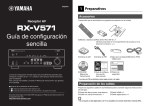
Easy Setup Guide/Guía de configuración sencilla
5 -1
BD/DVD player
Reproductor BD/DVD
HDMI input
Entrada HDMI
HDMI
Satellite/cable set top box
Reproductor digital multimedia
por cable/satélite
© 2015 Yamaha Corporation Printed in Malaysia ZQ10730
LAN
HDMI output
Salida HDMI
HDMI
Network cable
Cable de red
HDMI
Router
Enrutador
GL
TV
Televisor
1
HDMI
5 -2
Internet
Internet
Modem
Módem
HDMI
The unit
La unidad
HDMI
HDMI
6
HDMI
To an AC wall outlet
A una toma de CA
2
1
9
3
2
Audio pin cable
Cable de audio
con clavija
1
10 mm (3/8”)
10 mm
2
3
3
5
4
10° to 30°
Entre 10° y 30°
Use a subwoofer equipped
with built-in amplifier.
Utilice un altavoz de
subgraves con un
amplificador incorporado.
4
z
SLEEP
HDMI
1
2
5
6
1
2
3
4
3
4
AV
9
Subwoofer
Altavoz de subgraves
2
1
3
5
4
Front speaker (R)
Altavoz delantero (Der.)
Front speaker (L)
Altavoz delantero (Izq.)
Center speaker
Altavoz central
Surround speaker (R)
Altavoz surround (Der.)
Surround speaker (L)
Altavoz surround (Izq.)
5
6
FM
AM
BLUETOOTH
USB
NET
AUX
BD
DVD
TV
SCENE
English
Español
Read the supplied booklet “Safety Brochure” before using the unit.
This document explains how to set up a 5.1-channel system and play
back surround sound from a BD/DVD on the unit.
For more information about this product, refer to the Owner’s Manual
included on the supplied CD-ROM.
The latest Owner’s Manual can be downloaded from the following
website.
http://download.yamaha.com/
AV SETUP GUIDE
AV SETUP GUIDE is an app that guides you
through the process of connecting a TV or
playback device, such as a BD/DVD or CD
player, and speakers to the AV receiver, and
configuring the settings for the AV receiver.
Search “AV SETUP GUIDE” on the App Store or
Google Play for details.
1 Accessories used with this document
1Remote control
2Batteries (AAA, R03, UM-4) (x2)
3YPAO microphone
The following cables (not supplied) are required to build the system
described in this document.
• Speaker cables (depending on the number of speakers)
• Audio pin cable (x1)
• HDMI cables (x3)
• Network cable (x1) (when connecting to a router via a network
cable)
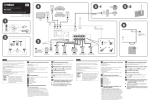
2 Placing speakers
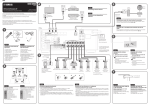
Set up the speakers in the room using the diagram as a reference.
1 Front speaker (L)
2 Front speaker (R)
3 Center speaker
4 Surround speaker (L)
5 Surround speaker (R)
9 Subwoofer
3 Connecting speakers/subwoofer
• U.S.A. and Canada models only
When connecting 6-ohm speakers, set the unit’s speaker
impedance to “6 Ω MIN”. For details, see “Setting the speaker
impedance” in the Owner’s Manual.
• Before connecting the speakers, remove the unit’s power cable
from the AC wall outlet and turn off the subwoofer.
• Ensure that the core wires of the speaker cable do not touch one
another or come into contact with the unit’s metal parts. Doing so
may damage the unit or the speakers. If the speaker cables short
circuit, “Check SP Wires” will appear on the front display when the
unit is turned on.
4 Connecting external devices
Refer to the Owner’s Manual for details regarding the connection of
devices that support HDCP 2.2.
5 Establishing a network connection
Establish wired network connection 5 -1, or a wireless network
connection 5 -2, in accordance with your network environment.
5 -1 Wired network connection
5 -2 Wireless network connection
Raise the wireless antenna so that it is standing up straight.
(Procedures for connecting the unit to a wireless router are described
in step 7 .)
Do not apply excessive force on the antenna. Doing so may damage it.
6 Connecting the power cable to an AC
wall outlet, and turning on the unit
1
2
Press z (receiver power) to turn on the unit.
Turn on the TV and switch the TV input to display
video from the unit (HDMI OUT jack).
PROGRAM
Lea el “Folleto de seguridad” que se proporciona antes de utilizar la
unidad.
Este documento explica cómo configurar un sistema de 5.1 canales y
reproducir sonido surround desde un BD/DVD de la unidad.
Para obtener más información sobre este producto, consulte el
Manual de Instrucciones que se incluye en el CD-ROM suministrado.
Puede descargar el Manual de Instrucciones más reciente en el
siguiente sitio Web.
http://download.yamaha.com/
AV SETUP GUIDE
AV SETUP GUIDE es una aplicación que le guía
en el proceso de conectar un TV o dispositivo de
reproducción, como un reproductor BD/DVD o
CD, y altavoces al receptor AV, y configurar los
ajustes del receptor AV. Para más información,
busque “AV SETUP GUIDE” en App Store o
Google Play.
1 Accesorios empleados con este
documento
1Mando a distancia
2 Pilas (AAA, R03, UM-4) (x2)
3Micrófono YPAO
Se requieren los siguientes cables (no suministrados) para crear el
sistema descrito en este documento.
• Cables de altavoz (dependiendo del número de altavoces)
• Cable de audio con patillas (x1)
• Cables HDMI (x3)
• Cable de red (x1) (si se conecta a un enrutador mediante un cable
de red)
2 Colocación de los altavoces
Configure los altavoces en la sala utilizando el diagrama como
referencia.
1 Altavoz delantero (Izq.)
2 Altavoz delantero (Der.)
3 Altavoz central
4 Altavoz surround (Izq.)
5 Altavoz surround (Der.)
9 Altavoz de subgraves
3 Conexión de los altavoces/altavoz de
subgraves
• Únicamente modelos de EE. UU. y Canadá
Si conecta altavoces de 6 Ω, ajuste la impedancia de los altavoces
de la unidad en “6 Ω MIN”. Para más detalles, consulte “Ajuste de
la impedancia de los altavoces” en el Manual de Instrucciones.
• Antes de conectar los altavoces, retire el cable de alimentación de
la unidad de una toma de CA y apague el altavoz de subgraves.
• Asegúrese de que los hilos del núcleo del cable del altavoz no
se tocan entre sí o de que no entran en contacto con las partes
metálicas de la unidad.
Esto puede dañar la unidad o los altavoces. Si se produce un
cortocircuito en los cables de los altavoces, aparecerá “Check SP
Wires” en el visor delantero cuando se enciende la unidad.
NET
MUTE
RADIO
VOLUME
4 Conexión de dispositivos externos
TOP MENU
POP-UP/MENU
SETUP
OPTION
Consulte el Manual de Instrucciones para obtener información sobre la
conexión de dispositivos
compatibles con HDCP 2.2.
ENTER
5 Establecer una conexión de red
DISPLAY
RETURN
GREEN
YELLOWde BLUE
RED conexión
Establezca una
red por cable 5 -1, o una conexión de
MEMORY
red inalámbrica
HOME 5 -2, según su entorno de red.
5 -1 Conexión de red por cable
TUNING
PRESET
5 -2 Conexión de red inalámbrica
STRAIGHT
DIRECT
ENHANCER
BASS
Eleve la antena inalámbrica para que se mantenga erguida.
RAV546
(Los procedimientos para conectar la unidad a un enrutador
inalámbrico se describen en el paso 7 .)
ZQ56680
No aplique una fuerza excesiva a la antena, ya que podría dañarla.
6 Conectar el cable de alimentación a
una toma de CA y encender la unidad
1
2
Pulse z (alimentación del receptor) para encender la
unidad.
Encienda el TV y cambie la entrada de TV para que se
muestre el vídeo de la unidad (toma HDMI OUT).
English
Español
SLEEP
HDMI
3
HDMI 1
1
2
4
5
6
1
2
3
4
5
6
FM
AM
BLUETOOTH
USB
NET
AUX
AV
7
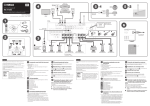
Connecting the unit to a wireless network
BD
DVD
Skip this step and proceed to step 8 when the unit is connected to a router via a network cable ( 5 -1).
The Wireless Accessory Configuration (WAC) screen 7 -1 is displayed on the TV when the unit is turned on for the first time after purchase. It may
take several tens of seconds for the screen to be displayed.
TV
NET
PROGRAM
Press the cursor key (w) when the WAC screen 7 -1 is
displayed on the TV, and confirm the unit’s network name
displayed in the screen 7 -2.
2
Select the unit’s name from “SET UP NEW AIRPLAY
SPEAKER” in the Wi-Fi screen on the iOS device, and tap
“Next”.
RED
2
3
Press and hold the INFO (WPS) key on the unit’s front panel
for more than 3 seconds.
“Press WPS button on Access Point” will be displayed in the front display.
Push the WPS button on the wireless router.
When setup is complete and a connection has been established,
“Completed” will be displayed in the front display.
Follow the instructions displayed on the iOS device screen to configure
the settings.
YELLOW
Cursor keys
BLUE
HOME
TUNING
STRAIGHT
RETURN
PRESET
DIRECT
ENHANCER
BASS
A Compartir los ajustes de los dispositivos iOS
STRAIGHT
Los ajustes de conexión inalámbrica de los dispositivos iOS (iPhone/
iPod touch)* pueden aplicarse a la unidad fácilmente.
*Se requiere un dispositivo iOS con iOS 7 o posterior.
Compruebe que el dispositivo iOS esté conectado al enrutador inalámbrico
antes de proceder con la configuración.
ZQ56680
7 -1
7 -2
Network Setup
Press the cursor key (w).
Pulse la tecla del
cursor (w).
WAC
You can share the network’s
wireless (Wi-Fi) settings with
this device using a device
with iOS7 or later.
Network Setup
To perform network setup using
another method, press ENTER.
2
Network name of this device
******* ******
OTHER:ENTER
CANCEL:RETURN
CANCEL:RETURN
English
Language
1
WAC
BACK
Select this device from iOS
device’s Wi-Fi settings, and
then follow the instructions
on the device to complete
setup.
NEXT
If “Not connected” is displayed, repeat the process from step 1 or try another
connection method.
Sáltese este paso y proceda al paso 8 si la unidad está conectada a un enrutador mediante un cable de red ( 5 -1).
La pantalla Wireless Accessory Configuration (WAC) 7 -1 se muestra en el TV cuando la unidad se enciende por primera vez tras su adquisición. La
pantalla puede tardar varias decenas de segundos en mostrarse.
Siga el procedimiento A si usa un dispositivo iOS para conectarse a una red inalámbrica. Siga el procedimiento B si se conecta a un enrutador inalámbrico
(punto de acceso) que admita WPS.
Pulse ENTER si usa un método de conexión inalámbrica que no sea A o B (indicados abajo), y siga las instrucciones en pantalla.
Teclas de cursor
RAV546
Wireless connection can be configured with one push of the WPS button on the
wireless router (access point).
Press RETURN to cancel WAC when the screen 7 -1 is
displayed on the TV.
GREEN
Conectar la unidad a una red inalámbrica
Si no se muestra la pantalla WAC, configure los ajustes de la red inalámbrica desde el menú de configuración. Consulte “Conexión a un dispositivo
de red de forma inalámbrica” en el Manual de Instrucciones.
ENTER
DISPLAY
MEMORY
B Using WPS push-button configuration
1
SETUP
OPTION
ENTER
Follow procedure A when using an iOS device to connect to a wireless network. Follow procedure B when connecting to a wireless router (access point) that
supports WPS.
Press ENTER if a wireless connection method other than A or B below will be used, and follow the on-screen instructions.
Wireless connection settings on iOS devices (iPhone/iPod touch)* can easily
be applied to the unit.
*An iOS device running iOS 7 or later is required.
Confirm that the iOS device is connected to the wireless router before
proceeding with configuration.
VOLUME (+/-)
POP-UP/MENU
SETUP
RETURN
A Sharing iOS device settings
RADIO
VOLUME
MUTE
TOP MENU
If the WAC screen is not displayed, configure wireless network settings from the setup menu. See “Connecting to a network device wirelessly” in the
Owner’s Manual.
1
7
SCENE
Pulse la tecla del cursor (w) cuando la pantalla WAC 7 -1 se
muestre en el TV, y compruebe el nombre de red de la unidad
que se muestra en la pantalla 7 -2.
Seleccione el nombre de la unidad de “SET UP NEW AIRPLAY
SPEAKER” en la pantalla Wi-Fi del dispositivo iOS y pulse
“Next”.
B Utilizar la configuración con el botón WPS
La conexión inalámbrica puede configurarse pulsando una vez el botón WPS
del enrutador inalámbrico (punto de acceso).
1
2
Mantenga pulsada la tecla INFO (WPS) del panel frontal de la
unidad durante más de 3 segundos.
El mensaje “Press WPS button on Access Point” se mostrará en el visor
delantero.
3
Pulse el botón WPS del enrutador inalámbrico.
Cuando la configuración se haya completado y se haya establecido una
conexión, el mensaje “Completed” se mostrará en el visor delantero.
Siga las instrucciones que se muestran en la pantalla del dispositivo iOS
para configurar los ajustes.
The network name of the unit is
displayed where “
*****” is indicated.
El nombre de red de la unidad se
muestra donde está la marca “
”.
Pulse RETURN para cancelar WAC cuando la pantalla se
muestre en el TV 7 -1.
Si se muestra el mensaje “Not connected”, repita el proceso desde el paso 1 o
pruebe un método de conexión distinto.
*****
8
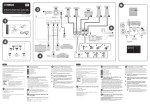
Optimizing the speaker settings automatically (YPAO)
Place the YPAO microphone at your listening position and
connect it to the YPAO MIC jack on the front panel.
The screen 8 -1 appears on the TV.
Place the YPAO microphone at your listening position (same height as your
ears). We recommend the use of a tripod as a microphone stand. You can
use the tripod screws to stabilize the microphone.
3
8
VOLUME
Turn on the subwoofer and set the volume to half. If the
crossover frequency is adjustable, set it to maximum.
2
The unit
La unidad
The Yamaha Parametric room Acoustic Optimizer (YPAO) function detects speaker connections, measures the distances from them to your listening
position(s), and then automatically optimizes the speaker settings, such as volume balance and acoustic parameters, to suit your room.
Note the following regarding YPAO measurement
• Test tones are output at high volume and may surprise or frighten
small children.
• Test tone volume cannot be adjusted.
• Keep the room as quiet as possible.
1
8
Press SETUP.
The measurement will start in 10 seconds.
It takes about 3 minutes to measure.
The screen 8 -2 appears on the TV when the measurement finishes.
• Stay in a corner of the room behind the listening position so that
you do not become an obstacle between speakers and the YPAO
microphone.
• Do not connect headphones.
4
5
6
Confirm the results displayed on the screen and press
ENTER.
1
MIN
CROSSOVER/
HIGH CUT
3
9
Ear height
Altura del oído
MIN
MAX
4
1
5
2
Listening position
Posición de escucha
Disconnect the YPAO microphone from the unit.
YPAO microphone
Micrófono YPAO
Do not leave the YPAO microphone in a place where it will be exposed to
direct sunlight or high temperature for an extended period of time.
8 -1
1
2
3
4
Playing back a BD/DVD
Now let’s play back a BD/DVD.
We recommend playing back multichannel audio (5.1-channel or
more) to feel surround sound produced by the unit.
Turn on the BD/DVD player.
Press HDMI 1.
“HDMI 1” is selected as the input source. The name of the connected
device, such as “BD Player”, may be displayed with some devices.
5
This completes the basic setup procedure.
When surround sound is not heard, or no sound is output from a specific speaker,
see “Troubleshooting” in the Owner’s Manual.
5
6
8 -2
3
Ponga el micrófono YPAO en la posición de escucha (a la misma altura
de sus oídos). Se recomienda utilizar un trípode como soporte para
el micrófono. Puede utilizar los tornillos del trípode para estabilizar el
micrófono.
Compruebe los resultados que se muestran en la pantalla y
pulse ENTER.
Utilice las teclas de cursor (e/r) para seleccionar “SAVE”
(Save) y pulse ENTER.
Desconecte el micrófono YPAO de la unidad.
No deje el micrófono YPAO en un lugar en el que pueda estar expuesto a la
luz solar directa o a altas temperaturas durante un periodo prolongado de
tiempo.
Con esto ha finalizado la optimización de los ajustes de los altavoces.
Pulse SETUP.
Si aparece un mensaje de error (com E-1) o un mensaje de advertencia
(como W-2), consulte “Mensajes de error” o “Mensajes de advertencia” en
el Manual de Instrucciones.
Playing back music stored
on a Bluetooth device
1
2
Press STRAIGHT repeatedly to select “STRAIGHT”.
Press VOLUME to adjust the volume.
Ponga el micrófono YPAO a la altura del oído en la posición
de escucha y conéctelo a la toma YPAO MIC en el panel
delantero.
4
La medición comenzará al cabo de 10 segundos.
La medición tarda unos 3 minutos en realizarse.
La pantalla 8 -2 aparece en el TV cuando acaba la medición.
Start playback on the BD/DVD player.
When “STRAIGHT” (straight decode) is enabled, each speaker produces
each channel audio signal directly (without sound field processing).
Encienda el altavoz de subgraves y ajuste su volumen a la
mitad. Si se puede ajustar la frecuencia de cruce, póngala al
máximo.
• Permanezca en una esquina de la sala detrás de la posición
de escucha para que no se convierta en un obstáculo entre los
altavoces y el micrófono YPAO.
• No conecte auriculares.
Aparece la pantalla 8 -1 en el TV.
If any error message (such as E-1) or warning message (such as W-2)
appears, see “Error messages” or “Warning messages” in the Owner’s
Manual.
9
La función Yamaha Parametric room Acoustic Optimizer (YPAO) detecta las conexiones de los altavoces, mide las distancias desde la posición de
escucha y seguidamente optimiza los ajustes de los altavoces, como balance de volumen y parámetros acústicos, de la forma adecuada para la sala.
Tenga en cuenta la siguiente medición relativa a YPAO
• Los tonos de prueba se emiten a alto volumen y pueden sorprender
o asustar a los niños pequeños.
• El volumen del tono de prueba no puede ajustarse.
• Mantenga la sala lo más silenciosa posible.
MAX
Use the cursor keys (e/r) to select “SAVE” (Save) and press
ENTER.
This completes optimization of the speaker settings.
2
Optimización de los ajustes de los altavoces automáticamente (YPAO)
3
Reproducción de música
almacenada en un
dispositivo Bluetooth
Press BLUETOOTH to select “Bluetooth” as the input
source.
Turn on the Bluetooth function on your device, and
select the model name of the unit from the Bluetooth
device list on your device.
After pairing has been completed and the unit is connected to the
Bluetooth device, “Connected” appears in the front display.
If the pass key is required, enter the number “0000”.
On the Bluetooth device, select a song and start
playback.
Refer to the Owner’s Manual for details regarding the Bluetooth function.
1
2
1
2
-------
BLUETOOTH
Remote control
Mando a distancia
Bluetooth device
Dispositivo Bluetooth
The unit’s model name is
displayed where “-------” is
indicated above.
El nombre de modelo de la
unidad se muestra donde
arriba pone “-------”.
3
Pulse BLUETOOTH para seleccionar “Bluetooth” como
fuente de entrada.
Active la función Bluetooth en su dispositivo y
seleccione el nombre de modelo de la unidad de la
lista de dispositivos Bluetooth de su dispositivo.
Cuando se completa el emparejamiento y la unidad está
conectada al dispositivo Bluetooth, la palabra “Connected” se
muestra en el visor delantero.
Si se requiere clave de acceso, introduzca el número “0000”.
Accione el dispositivo Bluetooth para reproducir
música.
9
1
2
3
4
5
Reproducción de un BD/DVD
Ahora vamos a reproducir un BD/DVD.
Le recomendamos que reproduzca audio de varios canales (5.1
canales o más) para sentir el sonido surround producido por la
unidad.
Encienda el reproductor BD/DVD.
Pulse HDMI 1.
Se selecciona “HDMI 1” como fuente de entrada. En algunos dispositivos
puede mostrarse el nombre del dispositivo conectado, como “BD Player”.
Inicie la reproducción en el reproductor BD/DVD.
Pulse varias veces STRAIGHT para seleccionar “STRAIGHT”.
Cuando está activado el modo “STRAIGHT” (decodificación directa),
cada altavoz produce directamente la señal de audio de cada canal (sin
procesamiento de campo sonoro).
Pulse VOLUME para ajustar el volumen.
Esto completa el procedimiento de configuración básica.
Consulte el Manual de Instrucciones para obtener información sobre la
función Bluetooth.
Cuando no se oye el sonido surround o un determinado altavoz no emite sonido,
consulte “Resolución de problemas” en el Manual de Instrucciones.