Transcript
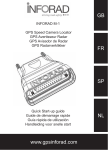
INFORAD v4E
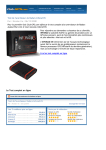
Place your INFORAD device on the flexible mat, which is designed to hold it firmly in place.
GB
GPS Speed Camera Warning Device
User’s Guide
A
B
5 – Updating the on-board speed camera database
Device operational
The speed camera database
Your INFORAD is designed to work out of the box and requires no complex installation. It is supplied
pre-loaded with a database containing the location and operating direction of over 10,000 speed cameras across Europe. Currently, the UK, Benelux, France, Spain, Ireland, Germany, Austria, Portugal,
Italy, Belgium, Luxembourg, Sweden, Norway, Switzerland, Holland and Greece are covered. Consult
the web site (see end of document) for further additions to this list.
3 - Using your INFORAD
Once powered on, the green LEDs will sweep backwards and forwards as the unit searches for the
minimum 3 satellite signals needed to calculate the device’s position. This search may take between
1 and 5 minutes depending on where you are. If you are on open ground, the search will be quicker
than if you are surrounded by tall buildings or crossing a dense forest. Once the satellites have
been located, the green LEDs will ‘freeze’ and you’ll hear a brief signal informing you that the satellites
have been located.
E
C
D
Searching for satellites
Now connect the USB cable to the cigar lighter adapter provided and insert the other end to socket (E).
Plug the adapter into the vehicle’s cigar lighter. Once powered on, the green led (D) tells you that the
unit is functioning correctly, a melody signal informing that the product is working correctly.
Sweeping green LEDs
Stationary LEDs & melody
Certified speed camera zone
Certified speed camera zone
& excessive speed
The database will change from time to time as the network evolves. INFORAD has a team of people
constantly verifying this evolution to ensure the best possible coverage. Nevertheless, there will be
times when you come across a new camera before we do. In this rare situation, please inform us of the
location via the INFORAD MANAGER software (Speed Camera Feedback Form) or on our web site.
In order to perform these tasks, you will first need to download the INFORAD MANAGER software and
register your device so that you can download updates from our web site from time to time. We advise
that you register your INFORAD and download the latest database at your earliest convenience.
If you encounter any difficulties, read section 5 “Capturing satellite signals” and failing that, contact our
technical support team (see section 7 - Online technical support ).
Before you start
Buttons and controls
Before using your INFORAD, please read this User’s Guide
it will save you valuable time and effort.
(A) – The ‘volume’ control. Rotate backwards and forwards to adjust the volume of the audible alarms.
N.B. Speed camera alarms are slightly louder than the others.
About your INFORAD
Your INFORAD employs state-of-the-art Global Positioning System (GPS) technology. It has been
designed to help you observe the Highway Code and increase your awareness of speed limits and
accident black spots. It employs no electromagnetic or laser detection equipment, does not interfere
with Police detection equipment and as a result, is perfectly legal in the UK, Belgium, Denmark,
France, the Netherlands, Norway, Spain and Sweden.
N.B. We strongly recommend you verify its legitimacy in other countries such as Germany
and Switzerland before making your journey.
1 - How does INFORAD work?
(B) – The ‘record’ button. Press this button to record your current position (a user-defined ‘Point
Rapidly sweeping red LEDs & beeps
Potential mobile speed camera zone
Potential mobile speed camera zone &
excessive speed
Capturing satellite signals
In order to determine the position of your vehicle, the unit needs to capture at least 3 satellites orbiting
the earth. Without this minimum condition, your INFORAD cannot triangulate your position and calculate
where you are. When you start the device, you will notice sweeping green LEDs. This indicates that the
device is searching the skies for 3 satellites. When it has found a minimum of three satellites, the unit
will display 2 green LEDs and emit a short melody.
of Interest’). A short melody informs you of a successful operation. These user-defined ‘Points of
Interest’ (POIs) emit a dedicated alarm (see section 4 - Alarms) and can be managed later on using the
INFORAD MANAGER software available from our web site.
(C) – The ‘speed limit’ button. Press this button to record the current speed of your vehicle. A short
meolody will inform you that a speed limit has been successfully set. If you exceed this limit, the device
will beep until your speed falls below the limit. To cancel this function, press the button again.
INFORAD monitors your vehicle’s exact position using the Global Positioning System satellite network.
By constantly comparing your current position against a database of over 10,000 speed camera
locations, INFORAD is able to give you advanced warning of impending speed camera zones.
N.B. Pressing buttons (B) and (C) together will invoke the self-test diagnostic programme. It is
preferable to do this only when asked to do so by your reseller or a support technician. If you invoke the
self-test diagnostic programme by accident, power the device down by disconnecting the USB cable
and then power it back up again by reconnecting it.
2 - Getting started
4 – Alarms
Although your INFORAD unit is pre-loaded with a speed camera database, the road network is constantly
being modified. For best results therefore, we strongly advise you to download the INFORAD MANAGER
software and then register your device with us, so that you may update the database from our web site
(see section 5 - Updating the on board speed camera database).
3 beeps & a sweeping red LED
Your INFORAD device will warn you of speed camera zones and other events using visual and audible
alarms. The display (D) comprises 5 tri-colour LEDs that will inform you of the following situations:
If for some reason, the green LEDs continue to sweep, the necessary satellites have not been found
and the unit is not yet operational. If this is the case, please check the following:
3 beeps & a sweeping orange LED
Rapidly sweeping orange LEDs & beeps
Certified SPECS
speed camera zone
Certified SPECS speed camera zone &
excessive speed
1.Be patient. When starting INFORAD for the first time, it may take a little longer to capture the satellite
signals. It should not take more than 5 minutes at most. If it does, contact Technical Support (see end
of document).
2.Keep still. For the best results, please ensure that your vehicle is stationary and free from overhead
obstructions (garage, tree cover, tall buildings etc...).
3 beeps & a sweeping red LED
between 2 green LEDs
Rapidly sweeping red LEDs & beeps between
2 green LEDs
A user-defined Point of Interest
GPS speed limiter – excessive speed
4.Check for a heated front windscreen. Your vehicle may be fitted with a heated front windscreen,
which could be the cause of signal loss. Please test as in point 3.
Installing your INFORAD
Check the contents of the package.
Check that your package is complete. It should include an INFORAD device, a proprietary USB cable,
a cigarette lighter power adapter, this manual and a flexible mat.
2 beeps & a sweeping orange LED
Installing INFORAD in your vehicle
Place the flexible mat on your dashboard as close to the windscreen as possible in clear view of the
driver’s line of sight.
INFORAD v4E
GPS Avertisseur radar
Manuel d’utilisation
B
D
3
Recherche de satellites
Une fois en service, les LEDs vertes effectuent un balayage de gauche à droite et de droite à gauche
pendant l’acquisition des données satellites qui permettent de connaître votre position géographique.
Cela peut prendre de 1 à 5 minutes en fonction de l’endroit où vous vous trouvez. L’acquisition des
satellites sera plus rapide en zone dégagée qu’en milieu urbain ou qu’en pleine forêt.
Base de données des positions radars
Balayage lumineux des LEDs
LEDs fixes et mélodie
Zone à risque certifiée
Zone à risque certifiée
et vitesse excessive
Si vous rencontrez quelque difficulté, reportez-vous au paragraphe «Acquisition des données satellites»
(§5) et, si cela ne suffit pas, contactez notre centre de support technique (voir §7 – Support technique
en ligne)
Votre INFORAD est livré avec une base de données pré installée, comprenant la position de plus de
10000 radars situés en Europe et couvre actuellement le Royaume-Uni, le Benelux, la France, les
DOM TOM, l’Italie, l’Espagne l’Ireland, l’Allemagne, l’Autriche, le Portugal, la Belgique, le Luxembourg,
la Suède, la Norvège, la Suisse, la Hollande et la Grèce. Des équipes INFORAD sillonnent constamment les routes et vérifient la validité de la base de données afin d’assurer la meilleure couverture
possible. Néanmoins, si vous découvrez une anomalie ou une nouvelle position radar qui ne figure
pas dans notre dernière base de données, nous vous remercions de nous en informer instamment en
utilisant notre logiciel INFORAD MANAGER (formulaire de renseignement sur zone à risque) ou bien
notre site Web.
La base de données évolue en permanence et afin de vous assurer une protection maximale
il est impératif de mettre à jour votre INFORAD de façon hebdomadaire à l’aide d’INFORAD
MANAGER.
Boutons et contrôles
Important
(A) – Contrôle du volume. Tournez la molette d’avant en arrière pour ajuster le volume des alarmes
sonores. N.B. Les alarmes indiquant les zones radars sont plus fortes que les autres
Avant toute utilisation, commencez par lire ce manuel.
Cela vous fera gagner beaucoup de temps.
(B) – Bouton «Enregistrement». Appuyez sur ce bouton pour mémoriser votre position actuelle
INFORAD en bref
Votre INFORAD utilise la technologie GPS (Global Positioning System). Il a été conçu pour vous
permettre d’être plus attentif à votre conduite, pour vous inciter à la prudence et vous aider au
respect de la législation routière. Ce n’est pas un détecteur de radars et par conséquence il est
donc parfaitement légal au Royaume Uni, en France, aux Pays-Bas, en Espagne, au Danemark,
en Norvège et en Suède. Nous vous recommandons vivement de vous assurer de sa légalité
dans les autres pays.
1 - Comment fonctionne INFORAD ?
INFORAD connait la position de votre véhicule en utilisant le réseau de satellites GPS (Global Positioning
System). En comparant constamment votre position avec plus de 10 000 points dangereux stockés dans
sa base de données interne, INFORAD vous avertit à l’approche d’une zone dangereuse matérialisée
ou non par un radar.
2 - Guide de mise en route rapide
Bien que votre appareil INFORAD ait déjà une base de données radars intégrée en usine, celle-ci
nécessite des mises à jour régulières à cause d’ajouts de nouveaux radars ou de changements divers.
En conséquence, pour une efficacité maximum, nous vous recommandons instamment, de télécharger
sur notre site WEB le logiciel INFORAD MANAGER, d’enregistrer votre appareil et d’effectuer une
mise à jour de la base de données. (Voir section 5 – Mise à jour de la base de données).
(Points personnels). Une courte mélodie vous informe du succès de l’opération. Ces Points Personnels
(POI:Points of Interest) sont reconnus par une alarme sonore spécifique (voir §4 – Alarmes) et peuvent
être gérés plus tard en utilisant le logiciel INFORAD MANAGER.
3 bips et balayage des LEDS rouges
Balayage rapide des LEDs rouges + Bips
Zone de contrôle mobile éventuel
Zone de contrôle mobile éventuel
et vitesse excessive
N.B. En appuyant simultanément sur les boutons (B) et (C), vous déclenchez le programme
d’autotest. Il est préférable de faire cela uniquement sur demande d’un technicien du support ou
de votre revendeur. Si vous le déclenchez accidentellement, débranchez et rebranchez le câble
USB de l’adaptateur allume-cigare.
4 – Alarmes
Votre INFORAD vous prévient à l’approche de zones à risques par des alarmes visuelles et sonores.
L’écran (D) comprend 5 LEDs tricolores qui vous informent comme suit :
3 Bips et balayage des LEDS oranges
Balayage rapide des LEDS oranges + Bips
Zone SPECS de contrôle
de vitesse
Zone SPECS de contrôle de vitesse et
vitesse excessive
Balayage rapide de LEDS rouges entre 2
LEDs vertes
Zone de point personnel (POI)
GPS Limiteur de vitesse
– vitesse excessive
Vérifiez le contenu du paquet.
Vérifiez que l’emballage INFORAD est complet. Il doit comprendre le boîtier INFORAD, un câble USB
propriétaire, un adaptateur allume-cigare, une pastille de fixation et une notice.
2 bips et balayage des LEDS oranges
Installez INFORAD dans votre véhicule
Placez la fixation flexible sur le tableau de bord au plus près du pare-brise dans la ligne de vue du conducteur
et placez fermement votre INFORAD sur la fixation. Assurez-vous que le dessus de l’appareil soit visible du
ciel par les satellites.
GPS Segnalatore di autovelox
A
B
D
3 - Utilizzo
Una volta in servizio, i LED verdi eseguono una scansione da sinistra a destra e da destra a sinistra
durante l’acquisizione dei dati dal satellite al fine di determinare la posizione geografica del veicolo.
Questa operazione può richiedere da 1 a 5 minuti a seconda del luogo in cui vi trovate. L’acquisizione
dei dati dal satellite sarà più rapida in luoghi liberi da ostacoli rispetto ai centri urbani o alle zone
alberate.
E
C
Ricerca di satelliti
Prima dell’utilizzo, leggete attentamente il presente manuale, in
quanto vi permetterà di risparmiare tempo prezioso.
Pulsanti e comandi
(A) – Regolazione del volume. Ruotate la manopola avanti e indietro per regolare il volume degli
allarmi acustici. N.B. Gli allarmi che indicano la prossimità di un autovelox sono più forti degli altri.
INFORAD in breve
Il vostro apparecchio INFORAD utilizza la tecnologia GPS (Global Positioning System) ed è stato
concepito per permettervi di prestare una maggiore attenzione alla guida, incitarvi alla prudenza e
aiutarvi a rispettare il codice stradale. Non si tratta di un rilevatore di autovelox e, di conseguenza, è
completamente legale nel Regno Unito, in Francia, in Olanda, in Spagna, in Danimarca, in Norvegia
e in Svezia.
(B) – Pulsante «Registrazione». Pressione questo tasto per salvare la sua posizione (Punti personali).
Una breve melodia confermerà l’esecuzione dell’operazione.
I Punti personali (POI: Points of Interest) vengono segnalati da un allarme acustico specifico (consultare § 4
- Allarmi) e la loro gestione può essere posticipata utilizzando il software INFORAD MANAGER.
(C) – Pulsante «Limitatore di velocità». Pressione questo tasto per salvare la velocita attuale del suo veicolo. Una breve melodia vi informerà che la velocità limite è stata impostata correttamente. In caso di
superamento della velocità limite, l’apparecchio emetterà dei «bip» fino a quando la velocità non verrà
ridotta. Per annullare questa funzione, premete nuovamente il pulsante.
N.B. Raccomandiamo vivamente di verificarne la legalità negli altri paesi.
1 - Come funziona INFORAD?
INFORAD rileva la posizione del vostro veicolo avvalendosi della rete satellitare GPS (Global Positioning
System). Attraverso un costante confronto della vostra posizione con più di 10.000 punti a rischio
memorizzati nel database interno, INFORAD vi segnala la prossimità di una zona a rischio coincidente
o meno con un autovelox.
2 - Guida rapida al funzionamento
Il vostro dispositivo INFORAD è già dotato di un database integrato in sede di fabbricazione, ma richiede
regolari aggiornamenti dovuti all’aggiunta di nuovi autovelox o modifiche di altro tipo. Di conseguenza,
per garantire la massima efficacia, raccomandiamo di scaricare immediatamente dal nostro sito Web
il software INFORAD MANAGER, registrare l’apparecchio ed eseguire l’aggiornamento del database
(consultare la sezione 5 - Aggiornamento del database).
3.Rester immobile. Pour un meilleur résultat, arrêtez-vous dans une zone dégagée d’obstacle aérien
(garage, couverture d’arbres, murs d’immeubles etc....).
2.Ensure you have an Internet connection. INFORAD MANAGER needs an Internet connection to
perform all functions properly. Please check that your ‘broadband’ or ‘dial-up’ Internet connection is running
properly. If not, restart the connection. If the ‘broadband’ or ‘dial-up’ connection is working, go to the next
step.
3.Anti-virus software and firewalls. If you have problems connecting over the Internet via INFORAD
MANAGER it may be due to anti-virus or firewall software installed on your PC.
a.Anti-virus software is constantly monitoring your Internet connection for intrusions. As a result, this
monitoring can sometimes interfere with Internet communications to the INFORAD server feeding your PC
and INFORAD unit with information.
www.gpsinforad.co.uk for UK customers.
1. Visit the WHERE TO BUY/PROFESSIONAL INSTALLATION section for options. Professional installations
will incur an extra charge.
2. Visit MY INFORAD for IFM downloads and registration.
www.gpsinforad.com for continental European customers.
7 - Online technical support
If you have difficulties installing or operating your INFORAD unit, you can refer to the section «HELP/ FAQs»
on the web site or alternatively contact our customer support by email : [email protected].
8 – Specifications
GPS receiver :
, 12 channels capable of tracking 12 satellites simultaneously.
Average acquisition time* : Initialisation: ~3 mn, 38 s when cold and 8 s after warming up.
Update time : 1 second.
Accuracy : Position 10 meters (10.9 yards) RMS speed < 1 Km/h (0.62 mph).
Processor : RISC 32 bits ARM7 at 49MHz.
Memory : Processor 128Kb RAM 8Mb.
Alarms : Audible and visual.
Power supply : Cigar lighter adapter: Input: 12/24V DC, Output: 5V DC 850 mA max.
Dimensions : Net : 70mm diameter x 22mm high.
Weight : Net : 200 grammes.
Can be simultaneously used as a GPS receiver. Compatible with NMEA0183 v2.0 for navigation
applications, running on PCs.
* Depending on local meteorological conditions.
INFORAD Ltd
Unit L6, Smithstown Industrial Estate,
Shannon, County Clare,
Ireland
Tel: +353 61 719750 - Fax: +353 61 719747
Contact: [email protected]
Technical support: [email protected]
b.The purpose of a firewall is to block data entering your PC coming from certain web sites or accessing
certain PC ‘Internet ports’. INFORAD MANAGER may require these ‘Internet ports’.
N.B. If you have any trouble operating INFORAD MANAGER, it may be that you have anti-virus or
firewall software preventing it from working correctly. In this case, you should temporarily disable this
software. Alternatively, you may try ‘lowering’ the security settings of your PC or Firewall software
If after following all these points your problem persists, please refer to the ‘Technical Support’ link which
can be found in the ‘About’ section in the INFORAD MANAGER software. You should complete the form
describing your problem. We will investigate the problem and endeavour to resolve it for you as
quickly as possible.Alternatively, you may send our support team an email. (See Online technical
support at the end of this document).
6
5
LOGICIEL INFORAD MANAGER
6 - QUESTIONS LES PLUS FREQUEMMENT POSEES
Votre INFORAD est totalement configurable grâce au logiciel INFORAD MANAGER que vous pouvez
télécharger sur notre site web. INFORAD MANAGER vous permet de configurer votre appareil et,
entre autres :
EST-CE QUE JE PEUX UTILISER MON LOGICIEL DE NAVIGATION PC AVEC MON INFORAD ?
Oui. INFORAD est compatible avec la norme NMEA-0183 v2.0.
Minimum System Requirements:
CPU:Pentium II or better
OS :MS Windows® 98SE, ME, 2000, NT, XP and VISTA
RAM:128MB
1.de modifier la distance de sécurité par rapport aux radars, en approche et en éloignement,
2.d’activer et d’utiliser l’enregistreur de parcours,
3.de diagnostiquer des erreurs,
4.de gérer votre propre base de points personnels (POI: Points of Interest),
5.de télécharger les mises à jour de la base de données.
PUIS-JE COUPER LE CABLE USB ?
Non. Si vous faites cela, vous ne pourrez plus connecter l’appareil à votre PC. Le câble fourni utilise
les protocoles nécessaires pour communiquer avec votre PC. Si vous souhaitez une installation
professionnelle, contactez votre revendeur local qui pourra vous conseiller sur les équipements spéciaux.
Vous pouvez aussi consulter notre site web pour une liste de revendeurs professionnels.
OU PUIS-JE TROUVER LES ACCESSOIRES INFORAD ?
Pour plus d’informations à ce sujet, nous vous remercions d’appeler au 0826 100 824 (France) ou
au +353 6171 9750 (Europe continentale) ou au 0870 165 3533 (UK) ou au 003 16 27 152 355
(Hollande). Vous pouvez également consulter les sites web suivants :
2.Assurez-vous que vous avez une connexion Internet. INFORAD MANAGER nécessite obligatoirement une connexion Internet pour exécuter correctement toutes ses fonctions. Vérifiez que votre connexion
Internet fonctionne correctement. Si c’est le cas, vous pouvez passer au point suivant, sinon vous devez
redémarrer la connexion.
3.Logiciel anti-virus ou pare-feu. Si vous rencontrez des problèmes de connexion Internet via INFORAD
MANAGER, il se peut qu’un logiciel anti-virus ou pare-feu installé sur votre PC en soit la cause. Dans ce
cas, vous devez arrêter ce logiciel le temps des mises à jour.
http://www.gpsinforad.com
http://www.gpsinforad.co.uk
7 - Support technique en ligne
Si vous rencontrez des difficultés pour installer ou utiliser votre appareil INFORAD, référez-vous à
la section «Questions-Réponses» sur le site web ou bien contactez notre support clients par email :
[email protected]
8 – Specifications
Récepteur GPS* :
,12 canaux capables de suivre 12 satellites simultanément
Temps d’acquisition moyen* : Initialisation: 3 minutes, 38 sec. à froid et 8 sec. à chaud
Temps de réactualisation : 1 seconde
Précision : position 10 mètres RMS - vitesse < à 1km/h
Processeur : RISC 32 bits ARM7 at 49MHz
Mémoire : Processeur 128Kb - Vive 8Mb
Alarme : Sonore et visuelle
Alimentation : 5 Vdc par adaptateur allume-cigare : Entrée: 12/24 Vdc, Sortie: 5 Vdc - 850 mA max.
Dimensions : Diamètre 70 mm - Hauteur 22 mm
Poids du package complet : 200 grammes
Utilisable simultanément comme récepteur GPS compatible NMEA-0183 v2.0 pour les applications
de navigation fonctionnant sur PC.
* Dépendant des conditions météorologiques locales
Si après avoir suivi tous ces points, le problème persiste, veuillez contacter le «support technique» en
cliquant sur le lien que vous trouverez dans la section «A propos» du logiciel INFORAD MANAGER. Vous
devez alors compléter le formulaire en décrivant votre problème. Après examen de votre problème, nous
ferons notre possible pour le résoudre dans les meilleurs délais. Vous pouvez également adresser un
email à notre équipe de support (voir Support Technique en Ligne à la fin de cette notice).
N.B. Premendo contemporaneamente i pulsanti (B) e (C), viene lanciato il programma di verifica
automatica. Consigliamo di eseguire questa operazione unicamente su consiglio di un tecnico del servizio
di assistenza o del vostro rivenditore. Se la funzione viene attivata accidentalmente, scollegate e ricollegate
il cavo USB dell’adattatore per accendisigari.
4 – Allarmi
Il dispositivo INFORAD segnala la prossimità di zone a rischio emettendo allarmi visivi e acustici. Lo
schermo (D) comprende 5 LED tricolore che vi informano nel modo seguente:
Verificate il contenuto dell’imballaggio.
Verificate che il contenuto della confezione INFORAD sia completo. Esso deve contenere il dispositivo
INFORAD, un cavo USB in dotazione, un adattatore per accendisigari, un materassino flessibile e un
manuale.
Scansione luminosa dei LED
LED fissi e melodia
Area a rischio certificata
Area a rischio certificata
e velocità eccessiva
Il vostro dispositivo INFORAD è dotato di un database preinstallato, contenente la posizione di oltre
10.000 autovelox di tutta Europa; attualmente copre Regno Unito, Benelux, Francia (DOM e TOM
compresi), Spagna, Irlanda, Germania, Austria, Portogallo, Italia, Belgium, Lussemburgo, Svezia, Norvegia, Svizzera, Olanda e la Grecia. Alcuni team INFORAD sondano costantemente le strade verificando la validità dei database in modo da garantire la migliore copertura possibile. Ciononostante, se
doveste rilevare un’anomalia o un nuovo autovelox che non figura nel nostro database più recente, vi
preghiamo di informarci immediatamente attraverso il software INFORAD MANAGER (modulo informazioni sulle aree a rischio) oppure tramite il nostro sito Web.
Il database è uno strumento in costante evoluzione e, per garantire la massima protezione, è assolutamente
necessario eseguire l’aggiornamento di INFORAD ogni due settimane attraverso il software INFORAD
MANAGER.
3 bip e scansione dei LED rossi
Scansione rapida dei LED rossi + bip
Area di controllo mobile
Area di controllo mobile
e velocità eccessiva
Acquisizione dei dati dal satellite
Per poter determinare la posizione del vostro veicolo, INFORAD deve captare le informazioni da
almeno 3 satelliti in orbita intorno alla Terra. Se non si verificano tali condizioni, la protezione di
INFORAD non è in funzione. Una volta acceso INFORAD, il diodo verde lampeggia: questo indica
che l’apparecchio sta eseguendo la ricerca dei satelliti. Non appena rintracciati i satelliti, il diodo
verde smette di lampeggiare e la protezione di INFORAD è attiva.
Se, per qualsiasi motivo, il diodo verde dovesse continuare a lampeggiare, questo significa che i
satelliti non sono stati ancora rintracciati e che la protezione di INFORAD non è in funzione. In tal
caso, eseguite le operazioni seguenti:
3 bip e scansione dei LED arancioni
Scansione rapida dei LED arancioni + bip
Area fissa di controllo di velocità
Area fissa di controllo di velocità
e velocità eccessiva
3 bip e scansione dei LED rossi tra 2
LED verdi
Scansione rapida dei LED rossi tra
2 LED verdi
Area di punti personali (POI)
GPS limitatore di velocità velocità eccessiva
2 bip e scansione dei LED arancioni
Installazione di INFORAD nel vostro veicolo
Posizionate l’adesivo flessibile sul cruscotto il più vicino possibile al parabrezza, all’interno del campo
visivo del conducente e fissate saldamente il dispositivo INFORAD sul supporto.
10
Database delle posizioni degli autovelox
1.Avvicinatelo il più possibile al parabrezza. Assicuratevi che INFORAD sia installato il più vicino
possibile alla parte anteriore del parabrezza. Questo è molto importante in quanto la parte superiore
dell’apparecchio deve restare esposta al cielo per poter captare i segnali dai satelliti. Se l’apparecchio
non si trova in posizione sufficientemente avanzata sul parabrezza, il tetto del veicolo potrebbe
nascondere alcuni satelliti ostacolando la ricezione dei segnali.
2.Abbiate pazienza. Al primo funzionamento di INFORAD, la ricezione dei segnali da satellite potrebbe richiedere un po’ più di tempo. Abbiate pazienza: l’operazione non dovrebbe richiedere più di 5
minuti. In caso contrario, consultate la sezione relativa ai problemi tecnici (alla fine del manuale).
3.Rimanete immobili. Per garantire risultati migliori, fermatevi in una zona libera da ostacoli (garage,
alberi, muri, ecc.).
4.Verificate se il parabrezza del veicolo è atermico o riscaldato. Spesso i veicoli muniti
di climatizzatore sono dotati di un parabrezza atermico o riscaldato. Questi tipi di parabrezza
indeboliscono o addirittura impediscono il passaggio dei segnali GPS. Per verificare la situazione
del vostro veicolo, provate ad attivare INFORAD da fermi all’esterno del veicolo. Se i LED verdi
smettono di lampeggiare ci sono elevate possibilità che il parabrezza sia di tipo atermico.
Installazione di Inforad
13
2.Etre patient. Au premier démarrage d’INFORAD, la capture des signaux satellites peut prendre un
peu plus de temps. Soyez patient, cela ne doit normalement pas prendre plus de 5 minutes. Si tel
n’était pas le cas, merci de consulter notre support technique (Voir en fin de notice).
5 – Aggiornamento del database
Apparecchio in funzione
In caso di difficoltà, consultate il paragrafo «Acquisizione dei dati da satellite» (§ 5) e, se non dovesse
bastare, contattate il nostro centro di assistenza tecnica (consultare § 7 - Assistenza tecnica on-line).
Importante
1.Connecting INFORAD to your PC.
N.B. The order in which you connect the cable is important.
First connect the USB cable provided in your box to the INFORAD unit and then to your PC. This USB
cable provides power and data. There are no other cables to connect. Now start the INFORAD MANAGER
software. Once running, click on the ‘start’ button presented by the ‘welcome page’ to begin detection
of your device. This should only take a few seconds. If INFORAD MANAGER cannot detect the unit, try
another USB port on your PC or check that the cable is properly inserted. Ensure that your INFORAD
is connected directly to the PC and not to a ‘docking bay’ used with certain laptops. Once INFORAD
MANAGER has detected the unit, you may proceed to the next step.
Si, pour quelque raison que ce soit, la diode verte continue à clignoter, cela signifie que les satellites
n’ont pas encore été trouvés et qu’INFORAD ne vous protège pas. Si c’est le cas, agissez comme
suit :
9
Collegate il cavo USB all’adattatore per accendisigari e alla presa (E) dell’apparecchio INFORAD. Inserite
l’adattatore nella presa accendisigari del veicolo. Una volta mezzo in moto, la spia verde (D) indica che il
dispositivo funziona correttamente, e un segnale sonoro informa che il prodotto funziona correttamente.
Manuale d’uso
INSTALLING AND USING INFORAD MANAGER
In order to use IFM, you will need to first download the software from the web site (see end of document for
web address) and register your unit. Follow the on-screen instructions. If after completing the installation
process, no icon appears on your desktop, the chances are your installation was not successful. In this
event, please try again. Once you have downloaded and installed IFM you can register your unit.
WHERE CAN I BUY INFORAD OPTIONS AND DOWNLOAD THE INFORAD MANAGER SOFTWARE?
For further information regarding options please call 0870 165 3533 (for the UK) or +353 6171 9750
(for continental Europe) or 003 16 27 152 355 (Holland). Alternatively you can go to the following web
sites :
INFORAD Ltd
Unit L6, Smithstown Industrial Estate,
Shannon, County Clare,
Ireland
Tel: +353 61 719750 - Fax: +353 61 719747
Contact: [email protected]
Support technique: [email protected]
Balayage rapide des LEDS orange, vert et
rouge + beeps
8
Assicuratevi che il lato superiore dell’apparecchio sia esposto al cielo in modo da non rimanere nascosto
ai satelliti.
IT
1.the approach and departure distance of speed camera alarms,
2.enable and use the onboard trip recorder,
3.diagnose faults,
4.manage your own user-defined Points of Interest (POI’s)
5.download database updates. In order to download database updates, you must first register the unit
on the web site.
CAN I CUT THE USB CABLE?
No. If you do this, you will no longer be able to connect the unit to your PC. The cable provided uses
proprietary protocols needed to communicate with your PC. If you require a professional installation,
contact your local stockist who will be able to advise you about a special harness option. Alternatively,
consult the web site for a list of professional stockists.
N.B. vous pouvez rencontrer d’autres alarmes pendant l’autotest ou lorsque vous connectez l’appareil à votre PC.
7
INFORAD v4E
CAN I USE PC NAVIGATION SOFTWARE WITH MY INFORAD?
Yes. The INFORAD chip set is compatible with NMEA-0183 v2.0 for this purpose.
1.Connexion d’INFORAD à votre PC.
N.B. L’ordre dans lequel vous connectez les câbles est important.
Tout d’abord, connectez le câble USB fourni à l’INFORAD puis au PC. Ce seul câble USB est suffisant
et permet à la fois l’alimentation électrique et le transfert de fichiers. Démarrez INFORAD MANAGER
et cliquez sur le bouton «démarrer» de la page d’accueil pour lancer la détection de votre appareil. Si
au bout de quelques secondes INFORAD MANAGER n’arrive pas à détecter votre appareil, vérifiez
que le câble USB est correctement branché et, éventuellement, branchez le câble sur un autre port
USB de votre PC. Assurez-vous également que votre INFORAD est bien connecté directement à votre
PC et non à un hub USB utilisé avec certains PC portables. Une fois l’appareil détecté par l’INFORAD
MANAGER, vous pouvez passer au point suivant.
4.Vérifier si votre pare-brise est athermique ou chauffant. Souvent les véhicules munis d’une climatisation sont équipés d’un pare-brise athermique ou chauffant. De tels pare-brises affaiblissent,
voire bloquent, les signaux GPS. Pour vérifier si tel est le cas, essayez votre INFORAD à l’arrêt en le
mettant à l’extérieur du véhicule. Si les LEDs vertes deviennent fixes il y a de fortes probabilités que
votre pare-brise soit athermique.
Installation de votre INFORAD
In order to use IFM, you will need to first download the software from the web site (see end of document
‘Frequently asked questions’ for the web site address in your region). IFM allows you to reconfigure your
unit and modify among other things,
Acquisition des données satellites
1.Installer le plus près possible du pare-brise. Assurez-vous que votre INFORAD est installé aussi
près que possible à l’avant du pare-brise. Ceci est très important car le dessus de l’appareil doit
pouvoir être visible du ciel pour capter les satellites. Si l’appareil n’est pas suffisamment à l’avant du
tableau de bord, le toit du véhicule peut masquer certains satellites et rendre la réception des signaux
plus difficile.
3 Bips et balayage LEDs rouges
entre 2 LEDS vertes
6 - Frequently asked questions
Minimum System Requirements:
CPU:Pentium II or better
OS :MS Windows® 98SE, ME, 2000, NT, XP and VISTA
RAM:128MB
INSTALLATION ET UTILISATION
Pour utiliser INFORAD MANAGER, vous devez d’abord télécharger le logiciel à partir du site web (voir fin
de notice pour l’adresse internet). Suivre les instructions indiquées à l’écran. Si vous n’avez pas d’icône sur
le bureau de votre PC, il y a de fortes chances qu’INFORAD MANAGER ne soit pas correctement installé.
Pour déterminer la position de votre véhicule, INFORAD doit capter les informations d’au moins 3
satellites en orbite autour de la terre. Tant que cette condition n’est pas remplie, INFORAD ne vous
protège pas. Lorsque vous démarrez INFORAD, la diode verte clignote : cela vous indique que l’appareil
est en train de rechercher les satellites. Aussitôt les satellites trouvés, la diode verte s’arrête de clignoter
et INFORAD vous protège.
(C) – Bouton «Limiteur de Vitesse». Appuyez sur ce bouton pour enregistrer la vitesse actuelle
de votre véhicule. Une courte mélodie vous informera que la vitesse limite a bien été programmée.
Lorsque vous dépasserez cette vitesse limite, l’appareil émettra des «bip» jusqu’au moment où votre
vitesse redeviendra inférieure à cette limite. Pour annuler cette fonction, appuyez une nouvelle fois
sur le bouton.
4
5 – Mise à jour de la base de données
Appareil en fonction
3 - Utilisation
E
C
2
Connectez le câble USB à l’adaptateur allume-cigare fourni et à la prise (E) de l’appareil INFORAD.
Insérez l’adaptateur dans la prise allume-cigare de votre véhicule. Dès la mise sous tension INFORAD
démarre aussitôt et une LED verte (D) clignote confirmant le fonctionnement de l’appareil, ainsi qu’une
mélodie de démarrage attestant du bon fonctionnement de l’appareil.
FR
Rapidly sweeping orange, green, red LEDs
& beeps
5.Mount close to the windscreen. Ensure that your INFORAD is mounted as close to the front
windscreen as possible. This is important, as your INFORAD needs a clear ‘line of sight’ to be able to
‘see’ at least 3 satellites overhead. If the unit is not far enough forward on the vehicle’s dashboard, the
roofline may obstruct the satellite signal and make capture difficult.
N.B. You may encounter other alarms during the self-test diagnostic or when you connect to your PC.
1
A
3.Check for an athermic front windscreen. Your vehicle may be fitted with an athermic or ‘comfort’
windscreen. This means the windscreen is manufactured with an invisible metal film designed to reflect
the sun’s heat. Such windscreens tend to weaken and in some cases even block the GPS signal. To test
if this is the case, try holding your INFORAD out of the vehicle’s window or sunroof. If the sweeping green
LEDs become fixed, your unit has succeeded in locating the necessary satellite signals and the likelihood
is that you have an athermic windscreen.
INFORAD MANAGER (IFM) SOFTWARE
Scansione rapida dei LED arancioni,
verdi, rossi + bip
11
12
SOFTWARE INFORAD MANAGER
6 - DOMANDE FREQUENTI (FAQ)
Il vostro apparecchio INFORAD è totalmente configurabile grazie al software INFORAD MANAGER,
scaricabile dal nostro sito Web. INFORAD MANAGER permette di configurare il vostro apparecchio e,
fra le varie funzioni, consente anche di:
POSSO UTILIZZARE IL MIO SOFTWARE DI NAVIGAZIONE CON INFORAD?
Sì. INFORAD è compatibile con la norma NMEA-0183 v2.0.
Minimum System Requirements:
CPU:Pentium II or better
OS :MS Windows® 98SE, ME, 2000, NT, XP and VISTA
RAM:128MB
1.modificare la distanza di sicurezza rispetto agli autovelox, in fase di avvicinamento e di allontanamento;
2.attivare e utilizzare il memorizzatore di percorso;
3.diagnosticare eventuali errori;
4.gestire il vostro database personale di punti personali (POI: Points of Interest);
5.scaricare gli aggiornamenti per il database.
INSTALLAZIONE E UTILIZZO
Per utilizzare INFORAD MANAGER, occorre innanzitutto scaricare il software dal sito Web (consultate la fine
del manuale per conoscere l’indirizzo Internet). Seguite le istruzioni che compariranno sullo schermo. Se non
compare l’icona sul desktop del vostro PC, ci sono forti possibilità che INFORAD MANAGER non sia stato
installato correttamente.
1.Collegamento di INFORAD al vostro PC.
N.B. È molto importante rispettare l’ordine di collegamento dei cavi.
Prima di tutto, collegate il cavo USB fornito all’apparecchio INFORAD e quindi al PC. È sufficiente
il cavo USB fornito: esso provvede all’alimentazione elettrica e consente il trasferimento dei file.
Lanciate INFORAD MANAGER e fate clic sul pulsante di avvio della schermata principale per iniziare
il rilevamento dell’apparecchio. Se INFORAD MANAGER non rileva l’apparecchio in pochi secondi,
verificate che il cavo USB sia collegato correttamente ed, eventualmente, collegate il cavo a un’altra
porta USB del PC. Assicuratevi inoltre che INFORAD sia collegato direttamente al PC e non a un hub
USB utilizzato in alcuni PC portatili. Quando l’apparecchio viene rilevato da INFORAD MANAGER,
passate al punto successivo.
2.Assicuratevi di essere dotati di connessione Internet funzionante. Per operare correttamente tutte
le sue funzioni, il INFORAD MANAGER ha bisogno di una connessione Internet. Verificate che la connessione Internet sia stata stabilita correttamente. In caso positivo, passate al punto successivo, altrimenti
eseguite nuovamente la connessione.
3.Software anti-virus o firewall. In caso di problemi con la connessione Internet attraverso INFORAD
MANAGER, la causa potrebbe derivare da un software anti-virus o firewall installato sul PC. In questo
caso, disattivate il software in questione per la durata delle operazioni di aggiornamento.
Se, nonostante questi accorgimenti, il problema dovesse persistere, contattate il servizio di assistenza
tecnica facendo clic sul link situato nella sezione «A proposito» del software INFORAD MANAGER.
Occorre quindi compilare il modulo descrivendo la natura del problema. Dopo aver esaminato il
problema, faremo tutto il possibile per risolverlo in tempi brevi. È possibile anche inviare un’e-mail al
nostro team di assistenza (consultare la sezione Assistenza tecnica on-line alla fine del manuale).
È POSSIBILE SOSTITUIRE/PROLUNGARE IL CAVO USB?
No. Staccando il cavo, non sarà più possibile collegare l’apparecchio al PC. Il cavo in dotazione utilizza i
protocolli necessari per comunicare con il vostro PC. Se desiderate una postazione professionale, contattate
il vostro rivenditore locale che saprà consigliarvi eventuali accessori speciali. Potete inoltre consultare il
nostro sito Web per visualizzare l’elenco dei rivenditori professionisti.
DOVE POSSO TROVARE GLI ACCESSORI INFORAD?
Per ulteriori informazioni su questo argomento, vi preghiamo di contattare telefonicamente il numero
+33 (0)826 100 824 (Francia) o +353 6171 9750 (Europa continentale) o 003 16 27 152 355 (Olanda) o
+44 (0)870 165 3533 (Regno Unito). Inoltre, è possibile consultare i seguenti siti Web:
http://www.gpsinforad.co.uk
http://www.gpsinforad.com
7 - Assistenza tecnica on-line
In caso di difficoltà durante l’installazione o il funzionamento del vostro apparecchio INFORAD, consultate la
sezione «FAQ» sul sito Web oppure contattate via e-mail il nostro servizio di Assistenza clienti:
[email protected]
8 – Specifiche tecniche
Ricevitore GPS: , 12 canali, in grado di rintracciare 12 satelliti simultaneamente.
Tempo medio di acquisizione*: Inizializzazione: ~3 min., 38 sec. a freddo e 8 sec. a caldo.
Tempi di aggiornamento: 1 seconda.
Precisione: Posizione 10 metri (10,9 iarde) velocità RMS < 1 Km/h (0,62 mph).
Processore: RISC 32 bit ARM7 a 49MHz.
Memoria: Processore 128 Kb RAM 8 Mb.
Allarmi: Acustico e visivo.
Alimentazione: Adattatore per accendisigari: Ingresso: 12/24V DC, Uscita: 5V DC 850 mA max.
Dimensioni: (netto) 70 mm diametro x 22 mm altezza.
Peso: (netto) 200 grammi.
Può essere utilizzato contemporaneamente con ricevitore GPS. Compatibile con NMEA0183 v2.0
per applicazioni di navigazione, funzionante su PC.
* A seconda delle condizioni atmosferiche.
INFORAD Ltd
Unit L6, Smithstown Industrial Estate,
Shannon, County Clare,
Irlanda
Tel.: +353 61 719750 - Fax: +353 61 719747
Contatti: [email protected]
Assistenza tecnica: [email protected]
N.B. È possibile rilevare altri allarmi durante la verifica automatica o quando collegate l’apparecchio al PC.
14
15
16
17
18