1
ENGLISH
ENGLISH
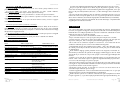
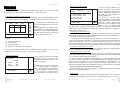
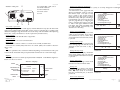
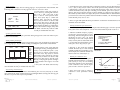
Printing out the calibration curve
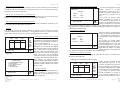
Press (F4) to print out parameters of the calibration curve in the format displayed on
LCD. The system shows if the printer is OK or not. If the printer is OK, press Enter
key(4.3d) to print it out.
Setting photometric mode
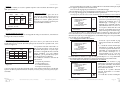
Press (1) key to set photometric mode. Two modes are available: Abs and %T. They can
be selected alternatively each time (1) key is pressed.
Photometric:
Quitting calibration curve parameter setting
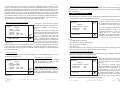
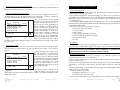
Press Return key (4.3e) to quit calibration curve parameter setting, and return to parameter setting page in quantitative measurement.
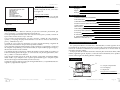
Parameter
1. Mode:
Quitting parameter setting of quantitative measurement
%T
2. WL:
660.0
3. Factor K:
1.000
Press Return key (4.3e) to quit parameter setting of quantitative measurement and
return to the main menu of quantitative measurement.
Select Item No.:
Auto-zeroing
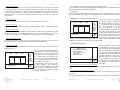
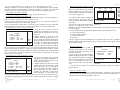
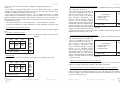
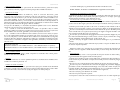
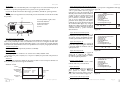
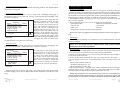
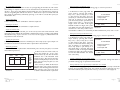
On the main menu of quantitative measurement, press Autozero key (4.4a) to set Abs
zero automatically at current measuring wavelength. Before starting auto zeroing, put the
white sample into the cell.
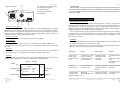
Quant.
660.0
0.000
No.
Abs
Conc.
Please Input WL
(1100 - 190):
PARM
(F1)
CLS
(F2)
SAMP
(F3)
PRIN
(F4)
14:57
Picture 38
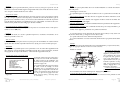
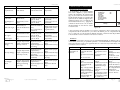
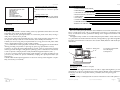
Sample Control
1. Sample Module: 8 Sample
2. Drive Cell No.: 1
3. Cell 1 Blank Corr: No.
4. Move Cell: 1
5. Cell Restoration
Select Item No.:
14:57
14:57
Picture 9
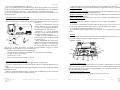
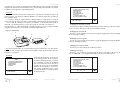
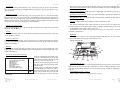
Setting measuring wavelength
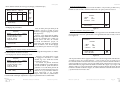
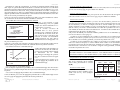
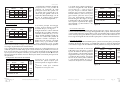
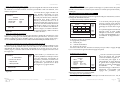
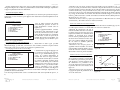
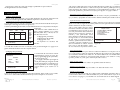
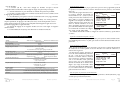
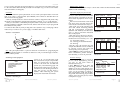
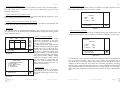
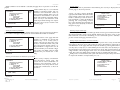
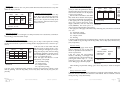
Press (2) key to display the measuring wavelength setting page in photometric measurement. The message asks users to input the measuring wavelength, as shown in pic. 10.
Setting measuring wavelength
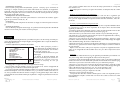
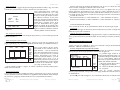
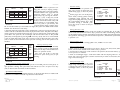
Press GoTo WL key (4.4b) to set the
measuring wavelength on the main
menu of quantitative measurement,
which is shown in picture 38.
At the bottom of this page, enter the
desired wavelength value by pressing the
numeric keys (0~9), (.) (4.2). Ce key (4.3c)
is used to clear previous data. Press Enter
key (4.3d) to confirm the numeric entry
and quit. If nothing is to be entered, press
Return key (4.3e) to quit this page directly.
The program permits setting a 4-digits
number in a range from 190 to 1100. In
case the number you set exceeds four
digits, the system will delete what has
been entered automatically and you
should start a new entry.
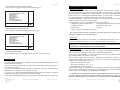
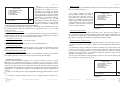
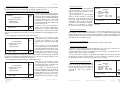
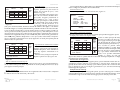
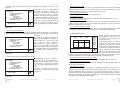
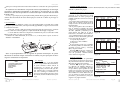
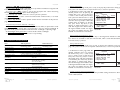
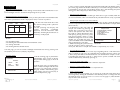
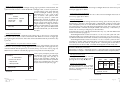
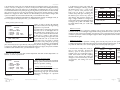
Sample Control
On the main menu of photometric
measurement, press (F3) key to display
the sample control page as shown in picture 39.
Photometric:
Parameter
1. Mode:
%T
2. WL:
660.0
3. Factor K:
1.000
Please Input WL:
(1100 - 190): 660.0
14:57
Picture 10
At the bottom of this page, enter the desired wavelength value by pressing the numeric
keys (0~9) and decimal point (.) (4.2). Ce key (4.3c) is used to cancel previous data. Press
Enter (4.3d) key to confirm the numeric entry and quit by pressing the Return (4.3e) key.
If there is no data to add, press Return (4.3e) key to exit this page directly. The program
permits setting a 5-digits number. The range is from 190 to 1100. Input values permit onedigit floating number after the decimal point In case the number you set exceeds five
digits, the system will delete automatically what has been set and you should enter new
data.
Picture 39
Page 64
User manual 5448X000
Version 1 June-06
Version 1 June-06
User manual 5448X000
Page 49