1
取扱説明書
関数電卓
形
名
EL-501E
日本語 ........................................ 1
English Operation Guide ....... E-1
お買いあげいただき、まことにありがとうござ
いました。この取扱説明書をよくお読みのう
え、正しくお使いください。
ご使用の前に、
「安全にお使いいただくために」
を必ずお読みください。
この取扱説明書は、いつでも見ることができる
場所に必ず保存してください。
– 39 –
501E_jp0607
Page 39
04.6.10, 2:07 PM
Adobe PageMaker 6.5J/PPC
安全にお使いいただくために
この取扱説明書には、安全にお使いいただくための
表示をしています。その表示を無視して誤った取り
扱いをすると、けがをしたり財産に損害を受ける場
合があります。
内容をよく理解してから本文をお読みになり、記載
事項をお守りください。
注 意
図記号
の意味
人がけがをしたり財産に損害を
受けるおそれがある内容を示し
ています。
.....
記号は、気をつける必要があるこ
とを表しています。
.........
記号は、しなければならないこと
を表しています。
–2–
501E_jp0607
Page 2
04.6.10, 2:06 PM
Adobe PageMaker 6.5J/PPC
注
意
電池は誤った使いかたをすると、破
裂や発火の原因となることがありま
す。また、液もれして機器を腐食さ
せたり、手や衣服などを汚す原因と
なることがあります。以下のことを
お守りください。
• プラス“+”の向きを表示どおり正しく入れ
る。
• 種類の違うものや新しいものと古いものを
混ぜて使用しない。
• 使えなくなった電池を機器の中に放置しな
い。
• もれた液が目に入ったときはきれいな水で洗
い流し、すぐに医師の診断を受ける。障害
をおこす恐れがあります。
• もれた液が体や衣服についたときは、すぐに
水でよく洗い流す。
• 水や火の中に入れたり、分解したり、端子を
ショートさせたりしない。
• 充電池は使用しない。
• 長期間使用しないときは、液もれ防止のため
電池を取り外す。
● 電池は幼児の手の届かないところに
置いてください。万一、お子様が飲
み込んだ場合は、ただちに医師と相
談してください。
●
–3–
501E_jp0607
Page 3
04.6.10, 2:06 PM
Adobe PageMaker 6.5J/PPC
ご注意
●
●
●
この製品は厳重な品質管理と検査を経て出荷
しておりますが、万一故障または不具合があ
りましたら、お買いあげの販売店または(電
卓)消費者相談係
(34ページ参照)までご連絡
ください。
お客様または第三者がこの製品および付属品
の使用誤り、使用中生じた故障、その他の不
具合またはこの製品の使用によって受けられ
た損害については、法令上賠償責任が認めら
れる場合を除き、当社は一切その責任を負い
ませんので、あらかじめご了承ください。
この製品は付属品を含め、改良のため予告な
く変更することがあります。
もくじ
安全にお使いいただくために .............................. 2
使用上のご注意とお手入れ ................................. 6
ハードケースについて ......................................... 7
異常が発生した場合の処理について ................... 8
表示の見かた ....................................................... 8
計算をはじめる前に
本書でのキーの表しかた ..........................
電源の入/切 .............................................
数値や計算命令の消去のしかた ................
計算の優先順位 .........................................
10
10
10
11
初期設定
モード選択 ................................................ 11
表示方式と小数部桁数の指定 ................... 12
角度単位指定 ............................................. 12
–4–
501E_jp0607
Page 4
04.6.10, 2:06 PM
Adobe PageMaker 6.5J/PPC
一般計算
加減乗除算/定数計算 ..............................
関数計算 ....................................................
乱数 ...........................................................
角度単位換算 .............................................
メモリー計算 .............................................
連続計算 ....................................................
時間計算・10進⇔60進変換 .....................
座標変換 ....................................................
13
14
15
15
15
16
17
17
2進・8進・10進・16進の変換と計算 ............... 18
複素数計算 ........................................................ 19
統計計算
データの入力と訂正 .................................. 21
統計計算式 ................................................ 22
応用例題のキー操作例 ...................................... 23
エラー・計算範囲
エラー ........................................................ 28
計算範囲 .................................................... 28
電池交換のしかた
使用電池 ....................................................
電池使用上のご注意 ..................................
電池の交換時期 .........................................
電池交換のしかた .....................................
自動節電機能 .............................................
30
30
30
31
31
仕様 .................................................................. 32
関数電卓の表示名補足 ...................................... 32
お客様ご相談窓口のご案内 .............................. 34
補修用性能部品の保有期間 .............................. 35
–5–
501E_jp0607
Page 5
04.6.10, 2:06 PM
Adobe PageMaker 6.5J/PPC
使用上のご注意とお手入れ
●
●
●
●
●
●
●
製品をズボンのポケットに入れたり、落とした
り、強いショックを与えないでください。
大きな力が加わり壊れることがあります。特に満
員電車の中などでは、強い衝撃や圧力がかかる恐
れがありますので注意してください。
日の当たる自動車内・直射日光の当たる場所・暖房
器具の近くなどに置かないでください。
高温により変形や故障の原因になります。
持ち運ぶときや使用しないときは、必ずハード
ケースを本体表側に取り付けてください。
ハードケースを取り付けずに持ち運ぶと、表示部
が割れたり傷ついたりすることがあります。
表示部(画面)やキーを強く押さえたり、爪や硬い
もの、先のとがったもので操作したりしないでく
ださい。
表示部やキーを傷めることがあります。
防水構造になっていませんので、水など液体がか
かるところでの使用や保存は避けてください。
雨、水しぶき、ジュース、コーヒー、蒸気、汗な
ども故障の原因となります。
お手入れは、乾いたやわらかい布で軽くふいてく
ださい。
シンナーやベンジンなど、揮発性の液体やぬれた
布は使用しないでください。変質したり色が変
わったりすることがあります。
ポケットやカバンに、硬いものや先のとがったも
のと一緒に入れないで下さい。
傷がつくことがあります。
–6–
501E_jp0607
Page 6
04.6.10, 2:06 PM
Adobe PageMaker 6.5J/PPC
ハードケースについて
この電卓には、使用しないときにキーや表示部を保
護するためのハードケースが付いています。
● 電卓を使うときは本体裏側に取り付けてくださ
い:
●
電卓を使わないときは本体表側に取り付けてくだ
さい:
●
電卓を使用しないときは常にハードケースを本体
表側に取り付けてください。
ハードケースは奥までしっかり取り付けてくださ
い。
ハードケースの内側には、クイックリファレンス
カードが付いています。
●
●
–7–
501E_jp0607
Page 7
04.6.10, 2:06 PM
Adobe PageMaker 6.5J/PPC
異常が発生した場合の処理について
この電卓をご使用中に強度の外来ノイズやショック
を受けた場合など、ごくまれにª キーを含め
た、すべてのキーが働かなくなるなどの異常が発生
することがあります。このようなときは、本体裏面
のリセットスイッチ(RESET)を押してください。
なお、この操作で記憶内容がすべて消去されます。
◆ リセットスイッチは次の場合にのみ押してください。
●
●
●
●
初めてお使いになるとき
電池を交換したとき
記憶内容をすべて消去するとき
異常が発生し、すべてのキーの機能が働かな
いとき
表示の見かた
●
浮動小数点方式(通常の表示方式)
←表示シンボル
●
指数方式
仮数部
指数部
(実際には、すべてのシンボルが同時に表示される
ことはありません。)
この電卓は、計算結果などを表示する場合、通常は
仮数部のみで表示しますが、±0.000000001∼±
9999999999の範囲外になると、指数方式に切り
替わります。また、表示方式は計算の用途により変
更することができます。
–8–
501E_jp0607
Page 8
04.6.10, 2:06 PM
Adobe PageMaker 6.5J/PPC
2ndF : @が押されたことを示し、続きの操作
で各キーの上側にオレンジ色で示されてい
る機能(第2機能)が選択できます。
HYP : hが押されたことを示し、続きの操作
で双曲線関数を指定できます。逆双曲線関
数を指定する場合は、@Hと押して
“2ndF HYP”を表示させます。
DEG / RAD / GRAD : 角度の単位を示します。G
を押すたびに単位を切り替えることができ
ます。初期設定は“DEG”です。
()
: (を押したときに表示され、カッコ計
算がおこなわれていることを示します。
BIN : @êを押したときに表示され、2進
モードが指定されていることを示します。
(Binary)
OCT : @îを押したときに表示され、8進
モードが指定されていることを示します。
(Octal)
HEX : @ ì を押したときに表示され、16
進モードが指定されていることを示しま
す。(Hexadecimal)
CPLX : @πを押したときに表示され、複素
数モードが指定されていることを示しま
す。
STAT : @Æを押したときに表示され、統計
モードが指定されていることを示します。
M
: 独立メモリーが使用されていることを示し
ます。
E
: エラーが発生したことを示します。
–9–
501E_jp0607
Page 9
04.6.10, 2:06 PM
Adobe PageMaker 6.5J/PPC
計算をはじめる前に
本書でのキーの表しかた
ほとんどのキーには2つ以上の機能があります。こ
の取扱説明書では、キー操作を次のように表記しま
す。
16進の “A” を指定します
を指定します
Exp を指定します
: A
: @V
: E
上記のように、キーの上側にオレンジ色で記載され
ている機能(第2機能)を指定するときは、@を最
初に押す必要があります。数字はキー枠で囲まず、
通常の数字として示します。
電源の入/切
ªを押すと電源が入り、Fを押すと電源が切
れます。
数値や計算命令の消去のしかた
●
●
●
電卓内部の数値や計算命令をクリアするときは、
ªを押してください。
(独立メモリー
(M)
に記
憶されている数値や統計データ
(統計量)
はクリア
されません。)
置数直後に置数値をクリアしたいときは、æ
を押してください。
置数値の下位桁を訂正するときは、ø
(右シフ
トキー)を押してください。
3×
4×5
↓
4×6+7=
3*
ª
4*5
æ
6+7=
3.
0.
5.
0.
31.
– 10 –
501E_jp0607
Page 10
04.6.10, 2:07 PM
Adobe PageMaker 6.5J/PPC
134
↓
123
134
øø
23
34→43
3 ™ 4 @º*=
134.
1.
123.
64.
表示数値と計算機内部の数値とを入れ替えるとき
に押します。
*
計算の優先順位
この電卓は次の優先順位に従って計算が行われます。
① sin, x2や%などの関数 ② Yxとx¿ Y ③ ×, ÷
④ +, − ⑤ =, M+などの演算終了命令
● 同一優先順位どおしの場合は、
順次計算が実行さ
れます。
● カッコが使用された場合は、
カッコ内の計算が優
先されます。カッコは保留される計算が4個を超
えない範囲で使用することができます。ただし、
(
””
を連続して使用する場合は15個まで使用する
ことができます。
初期設定
モード選択
一般モード: ª
加減乗除算や関数計算を行います。BIN、OCT、
HEX、CPLXやSTATシンボルは表示していません。
2進、8進、10進、16進モード:@ê、
@î、@í、@ì
一般モードに戻るには、@íを押してください。
複素数モード: @π
複素数の加減乗除算を行います。一般モードに戻る
には、@πを押してください。
– 11 –
501E_jp0607
Page 11
04.6.10, 2:07 PM
Adobe PageMaker 6.5J/PPC
統計モード: @”
統計計算を行います。一般モードに戻るには、
@ ” を押してください。モード選択を行う
と、同じモードを選択した場合でも、統計データ
(統計量)は消去されます。
●
Fを押したときや、自動節電機能が働いたと
きは、一般モードに戻ります。
表示方式と小数部桁数の指定
●
●
計算結果が浮動小数点方式(通常の表示方式)で表
示されているときに、´を押すと、指数方式
で表示されます。再び´を押すと浮動小数点
方式で表示されます。
小数部桁指定は、@iに続けて0から9まで
のキーを押して指定します。少数部桁指定をクリ
アするときは、@i.を押します。
100000÷3=
[浮動小数点]
ª100000/3= 33333.33333
33333.33
3.33 04
33333.33333
[TABを2に指定] @i 2
´
→ [指数]
→ [浮動小数点] ´@i.
●
浮動小数点方式で計算を行っても求めた結果が以
下の範囲にない場合は、指数方式を用いて結果が
表示されます:
0.000000001 ≦ l x l ≦ 9999999999
角度単位指定
この電卓では、次の3つの角度単位(度、ラジアン、
グラード)を指定できます。
Gを押す
– 12 –
501E_jp0607
Page 12
04.6.10, 2:07 PM
Adobe PageMaker 6.5J/PPC
一般計算
●
●
一般モードで計算してください。
計算を行う前にªを押して表示をクリアして
ください。
加減乗除算/定数計算
45+285÷3=
ª 45 + 285 / 3 =
18+6
=
15–8
( 18 + 6 )/
(15-8=
3.428571429
42 * 5 ±+ 120 =
42×(–5)+120=
(5×10 )÷(4×10 )= 5 E 3 / 4 E
3 ±=
3
140.
–90.
–3
1250000.
34+57=
45+57=
34 + 57 =
45 =
91.
102.
79–59=
56–59=
79 - 59 =
56 =
20.
–3.
56÷8=
92÷8=
56 / 8 =
92 =
7.
11.5
68×25=
68×40=
68 * 25 =
40 =
1700.
2720.
●
●
●
=や;の直前にくる)の操作は省略す
ることができます。
小数桁のみの数値を入力するときは、.の前
の0を省略できます。
定数計算の加算では、加数が定数になります。減
算や除算も同様に減数や除数が定数になります。
乗算では、被乗数が定数になります。
– 13 –
501E_jp0607
Page 13
04.6.10, 2:07 PM
Adobe PageMaker 6.5J/PPC
関数計算
●
計算の前に角度の単位を指定してください。
sin60[°]=
ª 60 s
0.866025403
π
cos–[rad]=
4
G@V/ 4
=u
0.707106781
tan–11=[g]
G 1 @T
G
●
50.
逆三角関数の結果は、次の範囲で表示されます。
θ = sin–1 x, θ = tan–1 x
θ = cos–1 x
DEG
–90 ≦ θ ≦ 90
0 ≦ θ ≦ 180
RAD
—
–—
2 ≦θ ≦ 2
0 ≦ θ ≦π
–100 ≦ θ ≦ 100
0 ≦ θ ≦ 200
GRAD
π
π
(cosh 1.5 +
sinh 1.5)2 =
ª( 1.5 hu+
1.5 hs)L
20.08553692
5=
tanh–1–
7
5/7=
@Ht
0.895879734
ln 20 =
20 I
2.995732274
log 50 =
50 l
1.698970004
e3 =
3 @e
20.08553692
101.7 =
1.7 @¡
50.11872336
1 + 1– =
–
6 @≈+ 7 @
≈=
0.309523809
8–2 – 34× 52 =
8 ™ 2 ±- 3 ™
4 * 5 L=
–2024.984375
–1
(123) 4=
12 ™ 3 ™ 4
@≈=
6 7
4
6.447419591
¿49 – ¿81 =
49 ⁄- 81 @Á
4=
3
¿27=
27 @#
3.
4! =
4 @!
24.
4.
– 14 –
501E_jp0607
Page 14
04.6.10, 2:07 PM
Adobe PageMaker 6.5J/PPC
500×25%=
500 * 25 @%=
120 ÷400=?%
120 / 400 @%=
125.
30.
500+(500×25%)= 500 + 25 @%=
625.
400–(400×30%)= 400 - 30 @%=
280.
乱数
@ ` を押すと、有効桁数3桁の乱数(疑似乱
数)を発生させることができます。この関数は2進・
8進・16進モードのときには使用できません。
角度単位換算
@gを押すたびに、角度単位が変わり、表示さ
れている数値を指定された角度単位に換算します。
90°→ [rad]
→ [g]
→ [°]
ª 90 @g
@g
@g
1.570796327
100.
90.
sin–10.8 = [°]
→ [rad]
→ [g]
→ [°]
0.8 @S
@g
@g
@g
53.13010235
0.927295218
59.03344706
53.13010235
メモリー計算
この電卓には、独立メモリー
(M)
が1本あります。
一般モードおよび2進、8進、16進モードで使用す
ることができます。
● O を使って数値を記憶します。R を使っ
て、記憶した数値を呼び出します。メモリー計算
を行う前には、ªOと押して独立メモリー
をクリアしてください。
● ;を使って記憶済みの数値に新たな数値を加
算したり減算したりすることができます。減算す
るときは、±;と押してください。
– 15 –
501E_jp0607
Page 15
04.6.10, 2:07 PM
Adobe PageMaker 6.5J/PPC
●
独立メモリーの内容は、電源が切れても保持され
ますが、電池交換のときや電池が消耗したとき
は、消去されます。
24÷(8×2)=
(8×2)×5=
ªO 8 * 2 =O
24 /R=
R* 5 =
16.
1.5
80.
12+5
–) 2+5
+)12×2
M
ªO
12 + 5 =;
2 + 5 =±;
12 * 2 =;
R
17.
–7.
24.
34.
$1= ¥140
¥33,775=$?
$2,750=¥?
140 O
33775 /R=
2750 *R=
r = 3cm
πr2 = ?
3O
@V*R
L=
140.
241.25
385000.
3.
28.27433388
連続計算
この電卓は、計算結果を次の計算で使用することが
できます。例えば、⁄やsを押すことで、計
算を行うことができます。
ただし、複数の命令を入力した後では連続計算を行
うことができません。
6+4=ANS
ANS+5
ª6+4=
+5=
10.
15.
44+37=ANS
ANS =
44 + 37 =
⁄
81.
9.
– 16 –
501E_jp0607
Page 16
04.6.10, 2:07 PM
Adobe PageMaker 6.5J/PPC
時間計算・10進⇔60進変換
10進と60進の変換を行うことができます。また、
60進数を使用した加減乗除算およびメモリー計算
を行うことができます。
123.404080
度
秒
分
ご注意:計算や変換の結果をさらに変換したとき
は、誤差が大きくなります。
12°39’18”05
→ [10]
ª 12.391805 ´
123.678 → [60]
123.678 @¨
123.404080
sin62°12’24” = [10] 62.1224 ´s
0.884635235
12.65501389
座標変換
●
計算の前に角度の単位を指定します。
直交座標
極座標
x=6 r=
→
y = 4 θ = [°]
ª6a4b
@{[r ]
b[θ]
a[r ]
7.211102551
33.69006753
7.211102551
x=
r = 14
→
θ = 36[°] y =
14 a 36 b
@}[x]
b[y]
a[x]
11.32623792
8.228993532
11.32623792
– 17 –
501E_jp0607
Page 17
04.6.10, 2:07 PM
Adobe PageMaker 6.5J/PPC
2進・8進・10進・16進の変換と計算
一般モードで、2進・8進・10進・16進で表された数値
の相互変換や加減乗除算(カッコ計算、メモリー計算
を含む)を行うことができます。2進、8進、10進、
16進の数値に入力するときは、まず各モードに設定
してください。
設定および変換のキー操作は次のとおりです。
@ê:2進モードを設定します(“BIN”が現れ
ます)。また、表示している数値を2
進数に変換します。
@î:8進モードを設定します(“OCT”が現れ
ます)。また、表示している数値を8
進数に変換します。
@ì:16進モードを設定します(“HEX”が現
れます)。また、表示している数値を
16進数に変換します。
@í:10進モードが設定され、一般の計算
を行うことができる状態になります。
また、表示している数値を10進数に
変換します。“BIN”、“OCT”、“HEX”は
消えます。
注: 16進数で、10進数の10から15に相当する数値
を入力するときに使用するA∼Fは、それぞれ
A
B
C
D
E
F
E, ™, ⁄, ´, I, および l
を押します。次のように表示されます。
A→ï
C→ó
E→ô
B→∫
D→ò
F→ö
小数部を持っている数値(10進数)を2進数、8進
数、16進数に変換した場合、小数部は切り捨てら
れ、整数部のみが変換されます。同様に、2進数、
8進数、16進数計算の結果に小数部が含まれている
– 18 –
501E_jp0607
Page 18
04.6.10, 2:07 PM
Adobe PageMaker 6.5J/PPC
場合、小数部は切り捨てられます。2進、8進、16
進モードのときの負数はそれぞれの補数として表示
されます。
DEC(25)→BIN
ª@í 25 @ê
HEX(1AC)
→ BIN
→ OCT
→ DEC
ª@ì 1AC
@ê
@î
@í
BIN(1010–100)
×11 =
ª@ê( 1010 - 100 )
* 11 =
10010.
HEX(1FF)+
OCT(512)=
HEX(?)
ª@ì 1FF @î+
512 =
1511.
@ì
349.
2FEC–
2C9E=(A)
+)2000–
1901=(B)
(C)
→ DEC
ªO@ì 2FEC 2C9E ;
2000 1901 ;
R
@í
11001.
110101100.
654.
428.
34E.
6FF.
A4d.
2637.
複素数計算
複素数の加減乗除算を行うことができます。複素数
計算を行うときは@πと押して複素数モード
にしてください。
● 複素数は”
a+bi”形式となります。”a”は実数部
で、”
bi”
は虚数部です。実数部の値を入力すると
きは置数後にaを押してください。虚数部の
値を入力するときは置数後にbを押してくだ
さい。計算結果は=を押して求めます。
– 19 –
501E_jp0607
Page 19
04.6.10, 2:07 PM
Adobe PageMaker 6.5J/PPC
●
●
計算を実行した直後は、実数部の値はaで、
虚数部の値はbで呼び出すことができます。
複素数が極座標形式のときは、aおよびb
を使って値を入力した後で、@}を押して
ください。
CPLX
0.
@π
(12–6i) + (7+15i) 12 a 6 ±b+ 7 a 15 b
– (11+4i) =
- 11 a 4 b=
8.
b
5.
a
8.
6×(7–9i) ×
(–5+8i) =
x
sx
σx
n
Σx
Σ x2
サンプル (x)
サンプル (x)
サンプル (x)
サンプル数
サンプル (x)
サンプル (x)
の平均値
の標準偏差
の母標準偏差
の総和
の2乗の和
6 a* 7 a 9 ±b*
222.
5 ±a 8 b=
b
606.
16×(sin30°+icos30°) 16 a* 30 sa 30 ub
=
(sin60°+icos60°)
/ 60 sa 60 ub
13.85640646
=
b
8.
8 a 70 b@}
+ 12 a 25 b@}
18.5408873
=@{ [r]
b [θ]
42.76427608
r1 = 8, θ1 = 70°
r2 = 12, θ2 = 25°
↓
r = ?, θ = ?°
(1 + i)
↓
r = ?, θ = ?°
1 a 1 b=
@{ [r]
b [θ]
1.
1.414213562
45.
– 20 –
501E_jp0607
Page 20
04.6.10, 2:07 PM
Adobe PageMaker 6.5J/PPC
統計計算
統計計算を行うときは@Æと押して統計モー
ドにしてください。
x
sx
σx
n
Σx
Σ x2
DATA
95
80
80
75
75
75
50
x=
σx=
n=
Σx=
Σx2=
sx=
sx2=
サンプル (x)
サンプル (x)
サンプル (x)
サンプル数
サンプル (x)
サンプル (x)
の平均値
の標準偏差
の母標準偏差
の総和
の2乗の和
@Æ
95 k
80 * 2 k
75 * 3 k
50 k
~
@p
n
@z
@w
£
L
STAT
0.
1.
3.
6.
7.
75.71428571
12.37179148
7.
530.
41200.
13.3630621
178.5714286
データの入力と訂正
@ÆやFを押すと、統計データはクリア
されます
(一般モードになります)
。新しいデータを
入力するときは、統計データをクリアしてから入力
してください。
– 21 –
501E_jp0607
Page 21
04.6.10, 2:07 PM
Adobe PageMaker 6.5J/PPC
[データの入力]
データk、または
データ*度数k(同一データが複数の場
合)
[データの訂正]
データの入力途中(kを押す前)
ªで入力中のデータを消去できます。
データの入力後(kを押した後)
データ(直前の置数値)を再入力後、@
Jを押すと消去できます。
● kや@ Jを押したときに表示される値
は、サンプル数(n)です。
DATA
30
40
40
50
Fª@Æ
30 k
40 * 2 k
50 k
STAT
0.
1.
3.
4.
↓
50 @J
40 * 2 @J
3.
1.
45 * 3 k
60 k
4.
5.
DATA
30
45
45
45
60
統計計算式
Σx
x– =
n
sx =
σx =
Σx2 – nx–2
n–1
Σx2 – nx–2
n
Σx = x1 + x2 + ・・・ + xn
Σx2 = x12 + x22 + ・・・ + xn2
(n: サンプル数)
– 22 –
501E_jp0607
Page 22
04.6.10, 2:07 PM
Adobe PageMaker 6.5J/PPC
統計計算では、次のような場合エラーになります。
● 中間結果または計算結果の絶対値が1×10 100 に
等しいか、それを超える場合
● 分母が0の場合
● 負の数の平方根を求めようとした場合
応用例題のキー操作例
三角比
例I
下図においてA地点からB地点の距離(c)と角B(θ)
がわかっているとき、A−C間の距離(b)とB−C間
の距離(a)は?
解説
1辺の長さと角度から、三角比を使って他の
辺の長さを求めることができます。
b
sinθ= ―
c
a
cosθ= ―
c
b
tanθ= ―
a
b
sinθ =―
c から、b=c・sinθ
a
cosθ = ―
c から、a=c・cosθ
キー操作
ª
(一般モード)
G (DEGシンボルが表示されるまで繰り返す)
60s*20= → 17.32050808m (b)
60u*20= → 10m (a)
– 23 –
501E_jp0607
Page 23
04.6.10, 2:07 PM
Adobe PageMaker 6.5J/PPC
●
辺b と角B がわかっているときは、以下の式を
使って求めます。
b
b
tanθ= ―
a から、a= tanθ
b
b
sinθ= ―
c から、c= sinθ
●
辺a と角B がわかっているときは、以下の式を
使って求めます。
b
tanθ= ―
a から、b=a・tanθ
a
a
cosθ= ―
c から、c= cosθ
例 II
下図において2辺の距離がわかっているとき、角B
(θ)は?
解説
2辺の長さから、三角比を使って角度を求め
ることができます。
b
sinθ= ―
c から、
b ‥‥‥‥①
θ=sin-1 ―
c
a
cosθ= ―
c から、
a
‥‥‥‥②
θ=cos-1 ―
c
b
tanθ= ―
a から、
b
θ=tan-1 ―
a ‥‥‥‥③
( )
( )
( )
– 24 –
501E_jp0607
Page 24
04.6.10, 2:07 PM
Adobe PageMaker 6.5J/PPC
この例題では③を使用します。
キー操作
ª
(一般モード)
G (DEGシンボルが表示されるまで繰り返す)
(15/24)@T@¨
→ 32.001937 (θ)
●
●
a
辺a・辺cがわかっているときは、cos-1 _
c で求
めます。
( )
( )
b
辺b・辺cがわかっているときは、sin-1 _
c で求め
ます。
正弦定理
下図において辺a 、角A 、角B がわかっていると
き、辺b・辺cの長さと角Cの角度は?
解説
2角と1辺より、正弦定理を使って他の辺と
角度を求めることができます。
b
c
a
=
=
sinB
sinC
sinA
上記定理から、
θ=sin
sinB
sinC
b = a× c = a×
sinA
sinA
-1
キー操作
θ=cos
ª
(一般モード)
G (DEGシンボルが表示されるまで繰り返す)
180-40-60=
→ 80°(C)
40s/60s*2=
→ 1.484454398m (b)
80s/60s*2=
→ 2.274316085m (c)
– 25 –
-1
θ=tan-1
501E_jp0607
Page 25
04.6.10, 2:07 PM
Adobe PageMaker 6.5J/PPC
余弦定理
下図において、a=14.7cm、b=17.8cm、θ=43°
32'54''の場合のcの長さを求めます。
解説
2辺と1角より、余弦定理を使って他の辺の
長さを求めることができます。
a2=b2+c2−2bc・cosAから
a= b2+c2−2bc・cosA ‥‥①
b2=c2+a2−2ca・cosBから
b= c2+a2−2ca・cosB ‥‥②
c2=a2+b2−2ab・cosCから
c= a2+b2−2ab・cosC ‥‥③
この例題では③を使用します。
キー操作
ª
(一般モード)
G (DEGシンボルが表示されるまで繰り返す)
((14.7L+17.8L)(43.3254´u*2*14.7*
17.8))⁄ → 12.39480134 cm (c)
ヘロンの公式
下図において辺a・辺b・辺cがわかっているとき、面
積Sは?
– 26 –
501E_jp0607
Page 26
04.6.10, 3:23 PM
Adobe PageMaker 6.5J/PPC
解説 下 記 の ヘ ロ ン の 公 式 を
使って計算します。
S=
キー操作
s(s−a)(s−b)(s−c)
ただし、
1
s= ― (a+b+c)
2
ª
(一般モード)
ªO
(Mメモリーをクリア)
(10+8+6)/2=O
→12m (s)
(R-10)*(R8)*(R-6)*R
=⁄
→ 24m2 (S)
放物運動
初速(V0)20m/sで投げたボールが50°
の角度(θ)で
上がりました。2.5秒後(t)の高さ(h)は?
解説 次の式を使って求めます。
1
― gt2
h=V0 t・sinθ− 2
(g:重力加速度9.8m/s2)
キー操作
ª
(一般モード)
G (DEGシンボルが表示されるまで繰り返す)
20*2.5*(50s)-(
2@≈)*9.8*(2.5
L)=
→ 7.677222156 m (h)
– 27 –
501E_jp0607
Page 27
04.6.10, 2:07 PM
Adobe PageMaker 6.5J/PPC
エラー・計算範囲
エラー
計算範囲を超える計算を行ったときや、数学的に不
条理な計算を実行した場合エラーになります。エ
ラーのときは、”
E”
と表示されます。ªを押して
エラーをクリアしてください。
計算範囲
●
この電卓では、原則として仮数部の最下位桁に
±1の誤差が生じます。ただし、連続して計算を
行うと誤差が累積されて、誤差が大きくなりま
す。yx, x¿ , n!, ex, lnなど内部で連続計算を行っ
ている場合も誤差が累積されて、誤差が大きくな
ります。
また、関数の特異点および変曲点の近傍では誤差
が累積されて大きくなります。
●
計算範囲:
±10-99∼±9.999999999×1099および0
置数値や演算結果、および途中結果の絶対値が
10-99未満の場合は0と見なして計算、あるいは
表示を行います。
関数
DEG:
sin x,
tan x
RAD:
GRAD:
cos x
DEG:
RAD:
GRAD:
計算範囲
< 4.499999999 × 10¹⁰
|x|=
(tan x : | x | ≠ 90 (2n–1))*
< 785398163.3
|x|=
π
(tan x : | x | ≠ – (2n–1))*
2
< 4.999999999 × 10¹⁰
|x|=
(tan x : | x | ≠ 100 (2n–1))*
< 4.500000008 × 10¹⁰
|x|=
< 785398164.9
|x|=
< 5.000000009 × 10¹⁰
|x|=
– 28 –
501E_jp0607
Page 28
04.6.10, 2:07 PM
Adobe PageMaker 6.5J/PPC
関数
計算範囲
sin–1x, cos–1x
<1
|x|=
tan–1x, 3¿x
In x, log x
ex
| x | < 10100
< x < 10100
10–99 =
10x
–10100 < x < 100
sinh x,
cosh x
tanh x
< 230.2585092
|x|=
sinh–1 x
cosh–1 x
| x | < 5 × 1099
< x < 5 × 1099
1=
tanh–1 x
|x|<1
< 230.2585092
–10100 < x =
| x | < 10100
x2
| x | < 1050
¿x
< x < 10100
0=
1/x
| x | < 10100 (x ≠ 0)
<n=
< 69*
0=
n!
→D.MS
→DEG
| x | < 1 × 10100
x, y → r, θ
| x |, | y | < 1050
r, θ → x, y
< r < 10100
0=
DEG:
| θ | < 4.5 × 10¹⁰
< 785398163.3
RAD:
|θ|=
GRAD : | θ | < 5 × 10¹⁰
DRG |
DEG→RAD, GRAD→DEG: | x | < 10100
π
– × 1098
RAD→GRAD: | x | < 2
yx
x¿y
• y > 0:
• y = 0:
• y < 0:
y
| –x |, x2 + y2 < 10100
< 230.2585092
–10100 < x lny =
0 < x < 10100
x=n
1
(0 < | x | < 1: –x = 2n–1, x ≠ 0)*,
< 230.2585092
–10100 < x ln | y | =
• y > 0:
< 230.2585092 (x ≠ 0)
–10100 < 1
–x lny =
• y = 0:
0 < x < 10100
• y < 0:
x = 2n–1
1
(0 < | x | < 1 : –
x = n, x ≠ 0)*,
1
100
< 230.2585092
–10 < – ln | y | =
x
– 29 –
501E_jp0607
Page 29
04.6.10, 2:55 PM
Adobe PageMaker 6.5J/PPC
関数
計算範囲
(A+Bi)+(C+Di)
(A+Bi)–(C+Di)
| A ± C | < 10100
| B ± D | < 10100
(A+Bi)×(C+Di)
(AC – BD) < 10100
(AD + BC) < 10100
(A+Bi)÷(C+Di)
AC + BD
< 10100
C2 + D2
BC – AD
< 10100
C2 + D2
C2 + D2 ≠ 0
→DEC
→BIN
→OCT
→HEX
DEC
BIN
OCT
HEX
< 9999999999
: |x|=
<x=
< 1111111111
: 1000000000 =
<x=
< 111111111
0=
<x=
< 7777777777
: 4000000000 =
<x=
< 3777777777
0=
<x=
< FFFFFFFFFF
: FDABF41C01 =
<x=
< 2540BE3FF
0=
* n: 整数
電池交換のしかた
使用電池
アルカリボタン電池 LR44 (または同等品) 2個
電池使用上のご注意
冒頭の
「安全にお使いいただくために」
もよく読んで
お取り扱いください。
● 消耗した電池をそのままにしておきますと、液も
れにより製品を傷めることがあります。
● 最初の電池は工場出荷時に組み込まれていますの
で、所定の連続使用時間に満たないうちに、寿命
が切れることがあります。
電池の交換時期
表示が薄く見えにくくなったら、電池の交換が必要
です。
– 30 –
501E_jp0607
Page 30
04.6.10, 2:07 PM
Adobe PageMaker 6.5J/PPC
電池交換のしかた
1. Fを押して電源を切ります。
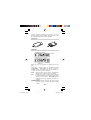
2. 2つのネジを取り外し、電池ぶたを外します。
(図1)
図1 図2
3. 古い電池をボールペンなどでひっかけて2個取り
出します。(図2)
4. 新しい電池を2個“+”面を上にして入れます。
5. 電池ぶたをもと通り取り付け、ネジで止めま
す。
6. ªを押します。
● 下のように表示していることを確認してくださ
い。もし、下のように表示されなかったり、何も
表示されないときは、もう一度電池を入れ直して
ください。
自動節電機能
この電卓は約8分間キー操作をしないと、電池の消
耗を少なくするため、自動的に電源が切れます。
– 31 –
501E_jp0607
Page 31
04.6.10, 2:07 PM
Adobe PageMaker 6.5J/PPC
仕様
計算機能:一般計算(加減乗除算・メモリー計算・関数
計算など)、複素数計算、統計計算など
内部演算: 仮数部10桁
計算保留: 演算命令用4段
電源:
3V ... (DC):
アルカリボタン電池 (LR44または同等
品) 2個
消費電力:0.0005 W
使用時間: 約3,000時間
使用温度25℃において
“55555.”
を連続
表示した場合。
使いかたやその他の要因により多少の
変動があります。
使用温度:0℃∼40℃
外形寸法:幅78.6mm×奥行144mm×厚さ11.6mm
質量:
約75g (電池含む)
付属品: アルカリボタン電池2個 (本体内蔵)、
ハードケース、取扱説明書、クイック
リファレンスカード
関数電卓の表示名補足
関数電卓本体に表示されている文字や記号につい
て、下記の一覧表を参考にしてください。
表示
@
G
Degree
Radian
Grade
呼び方
セカンド・ファンクション
ディーアールジー
ディグリー
ラジアン
グラード
第2機能指定
角度単位指定
度
ラジアン(円周による
角度表示)
グラード(直角を100と
する角度表示)
– 32 –
501E_jp0607
Page 32
04.6.10, 2:56 PM
Adobe PageMaker 6.5J/PPC
表示
i
∞
タブ
表示方式切り替え
呼び方
Æ
ª
スタティスティックス
オン/クリア
E
エクスポーネント
指数部
R
O
J
º
リコール
ストア
コレクト・データ
エクスチェンジ
ê
î
í
ì
`
バイナリー
オクタル
デシマル
ヘキサ
ランダム
メモリーの呼び出し
メモリーへの記憶
統計データの入力訂正
表示数値と計算機内部
数値との入れ替え
2進
8進
10進
16進
乱数
小数部桁数
浮動小数点方式(フロー
ティング)と指数方式
(エクスポーネント)と
の切り替え
統計モード
電源ON/数値や計算
命令の消去
H
アーク・ハイパボリック 逆双曲線
h
ハイパボリック
双曲線
s
サイン
正弦(三角関数)
u
コサイン
余弦(三角関数)
t
タンジェント
正接(三角関数)
π
コンプレックス
複素数モード
ø
右シフトキー
置数値の下位桁の訂正
æ
クリアエントリー
置数値のクリア
¨
10進から60進への変換
ディーエムエス
Degree ディグリー
度
Minute ミニット
分
Second セカンド
秒
I
ロン
自然対数
l
ログ
常用対数
– 33 –
501E_jp0607
Page 33
04.6.10, 2:07 PM
Adobe PageMaker 6.5J/PPC
お客様ご相談窓口のご案内
◆ 仕様および使用上のご注意に従った正常な使用状態
で故障した場合には、修理ご相談窓口に修理をお申
しつけください。
保証期間中(お買いあげの日から1年間)は、無料で
修理または同等品と交換させていただきます。
★保証期間内でも、次の場合は有料修理となります。
(イ) 使用上の誤り、または不当な修理や改造に
よる故障・損傷
(ロ) お買いあげ後に落とされた場合などによる
故障・損傷
(ハ) 過酷な使用による故障・損傷
(ニ) 火災・地震および風水害その他天災地変な
ど、外部に要因がある故障・損傷
(ホ) 電池の液もれによる故障・損傷
(へ) 消耗品(アルカリボタン電池)が損耗し取り
替えを要する場合
◆ 修理ご相談窓口
修理は、(電卓)消費者相談係に郵便番号、ご住所、
お名前、電話番号、お買いあげ年月日および販売店
名(または、贈答品)、故障内容などを記入のうえ製
品を郵送してください(送料はお客様負担)。
〒639-1186 奈良県大和郡山市美濃庄町492
シャープ株式会社 情報通信事業本部
(電卓)消費者相談係
電話 0570 - 05 - 0892
当ダイヤルは、全国どこからでも一律料金で
ご利用いただけます。呼出音の前に、NTTよ
り通話料金の目安をお知らせいたします。
(注)携帯電話・PHSからは、下記の番号をご
利用ください。
一般電話 (0743) 55-0892
●
– 34 –
501E_jp0607
Page 34
04.6.10, 2:57 PM
Adobe PageMaker 6.5J/PPC
◆ 一般ご相談窓口
この製品についてのご意見、ご質問は、相談室へ
お申しつけください。
(TEL)
06-6794-8021
043-299-8021
西日本相談室
東日本相談室
電話番号をよくお確かめのうえおかけくださ
い。
● 電話番号などは変わることがあります。その節
はご容赦願います。
●
補修用性能部品の保有期間
当社は電卓の補修用性能部品を製造打切後5年
保有しています。
● 補修用性能部品とは、その製品の機能を維持す
るために必要な部品です。
●
●
修理にかえ製品と交換させていただく場合は、
お買いあげいただいた製品と同一品または同等
品との交換になります。(保証期間経過後は、
ご要望により有料交換いたします。)
– 35 –
501E_jp0607
Page 35
04.6.10, 2:07 PM
Adobe PageMaker 6.5J/PPC
メモ
– 36 –
501E_jp0607
Page 36
04.6.10, 2:07 PM
Adobe PageMaker 6.5J/PPC
English Operation Guide
CONTENTS
INTRODUCTION
Operational Notes .................................................. E-3
Hard Case .............................................................. E-4
DISPLAY ...................................................................... E-4
BEFORE USING THE CALCULATOR
Key Notation Used in this Manual ......................... E-5
Power On and Off .................................................. E-5
Clearing Numbers .................................................. E-5
Priority Levels in Calculation ................................. E-6
INITIAL SET UP
Mode Selection ...................................................... E-6
Selecting the Display Notation and Decimal places .. E-7
Determination of the Angular Unit ......................... E-7
SCIENTIFIC CALCULATIONS
Arithmetic Operations ............................................ E-8
Constant Calculations ............................................ E-8
Functions ............................................................... E-9
Random Numbers ................................................ E-10
Angular Unit Conversions .................................... E-10
Memory Calculations ........................................... E-10
Chain Calculations ............................................... E-11
Time, Decimal and Sexagesimal Calculations .... E-12
Coordinate Conversions ...................................... E-12
BINARY, OCTAL, DECIMAL, AND
HEXADECIMAL OPERATIONS (N-Base) ................. E-13
COMPLEX NUMBER CALCULATIONS .................... E-14
STATISTICAL CALCULATIONS
Data Entry and Correction ................................... E-16
Statistical Calculation Formulas .......................... E-17
ERROR AND CALCULATION RANGES
Errors ................................................................... E-18
Calculation Ranges .............................................. E-18
––E-25
E-1 ––
501E_en0610.pm65
25
06/10/2004, 13:53
BATTERY REPLACEMENT
Notes on Battery Replacement ............................ E-20
When to Replace the Batteries ............................ E-20
Caution ................................................................. E-20
Replacement Procedure ...................................... E-21
Automatic Power Off Function ............................. E-21
SPECIFICATIONS ..................................................... E-22
– E-2 –
501E_en0610.pm65
2
06/10/2004, 13:52
INTRODUCTION
Thank you for purchasing the SHARP Scientific Calculator
Model EL-501E.
After reading this manual, store it in a convenient location
for future reference.
Operational Notes
• Do not carry the calculator around in your back pocket,
as it may break when you sit down. The display is made
of glass and is particularly fragile.
• Keep the calculator away from extreme heat such as on
a car dashboard or near a heater, and avoid exposing it
to excessively humid or dusty environments.
• Since this product is not waterproof, do not use it or
store it where fluids, for example water, can splash onto
it. Raindrops, water spray, juice, coffee, steam, perspiration, etc. will also cause malfunction.
• Clean with a soft, dry cloth. Do not use solvents or wet
cloth.
• Do not drop it or apply excessive force.
• Never dispose of batteries in a fire.
• Keep batteries out of the reach of children.
• This product, including accessories, may change due to
upgrading without prior notice.
SHARP will not be liable nor responsible for any incidental or consequential economic or property damage
caused by misuse and/or malfunctions of this product
and its peripherals, unless such liability is acknowledged by law.
♦ Press the RESET switch (on the back), with the tip of a
ball-point pen or similar object, only in the following
cases. Do not use an object with a breakable or sharp
tip. Note that pressing the RESET switch erases all data
stored in memory.
• When using for the first time
• After replacing the batteries
• To clear all memory contents
• When an abnormal condition occurs and all keys are
inoperative.
– E-3 –
501E_en0610.pm65
3
06/10/2004, 13:52
If service should be required on this calculator, use only a
SHARP servicing dealer, SHARP approved service facility, or SHARP repair service where available.
Hard Case
DISPLAY
• Floating point system
←Symbol
• Scientific notation system
Mantissa
Exponent
(During actual use not all symbols are displayed at the same
time.)
If the value of mantissa does not fit within the range
±0.000000001 – ±9999999999, the display changes to
scientific notation. The display mode can be changed according to the purpose of the calculation.
2ndF
: Appears when @ is pressed, indicating that
the functions shown in orange are enabled.
HYP
: Indicates that h has been pressed and the
hyperbolic functions are enabled. If @ H
are pressed, the symbols “2ndF HYP” appear,
indicating that inverse hyperbolic functions are
enabled.
DEG/RAD/GRAD: Indicates angular units and changes
each time G is pressed. The default setting
is DEG.
– E-4 –
501E_en0610.pm65
4
06/10/2004, 13:52
()
: Appears when a calculation with parentheses is
performed by pressing (.
BIN
: Indicates that @ ê has been pressed.
Binary system mode is selected.
OCT
: Indicates that @ î has been pressed.
Octal system mode is selected.
HEX
: Indicates that @ ì has been pressed.
Hexadecimal system mode is selected.
CPLX : Indicates that @ π has been pressed.
Complex number mode is selected.
STAT
: Indicates that @ Æ has been pressed.
Statistics mode is selected.
M
: Indicates that a numerical value is stored in the
independent memory.
E
: Appears when an error is detected.
BEFORE USING THE CALCULATOR
Key Notation Used in this Manual
In this manual, key operations are described as follows:
To specify A (HEX) : A
To specify π
:@V
To specify Exp
:E
Functions that are printed in orange above the key require
@ to be pressed first before the key. Numbers are not
shown as keys, but as ordinary numbers.
Power On and Off
Press ª to turn the calculator on, and F to turn it
off.
Clearing Numbers
• Press ª to clear the entries except for a numerical
value in the independent memory and statistical data.
• Press æ to clear the number entered prior to use of
function key.
• In case of one digit correction of the entered number,
press ø (right shift key).
– E-5 –
501E_en0610.pm65
5
06/10/2004, 13:52
4×5
↓
4×6+7=
3*
ª
4*5
æ
6+7=
134
↓
123
134
øø
23
34→43
3 ™ 4 @º=
3×
3.
0.
5.
0.
31.
134.
1.
123.
64.
Priority Levels in Calculation
This calculator performs operations according to the following priority:
1 Functions such as sin, x2, and %
2 yx, x¿y
3 ×, ÷
4 +, –
5 =, M+ and other calculation ending instruction
• Calculations which are given the same priority level are
executed in sequence.
• If parentheses are used, parenthesized calculations have
precedence over any other calculations.
• Parentheses can be continuously used up to 15 times
unless pending calculations exceed 4.
INITIAL SET UP
Mode Selection
Normal mode: ª
Used to perform arithmetic operations and function calculations. BIN, OCT, HEX, CPLX and STAT are not displayed.
Binary, Octal, Decimal, or Hexadecimal system mode:
@ê, @î, @í or @ì
Complex number mode: @π
Used to perform arithmetic operations with complex numbers.
To clear this mode, press @π.
– E-6 –
501E_en0610.pm65
6
06/10/2004, 13:52
Statistics mode: @Æ
Used to perform statistical calculations. To clear this mode,
press @Æ.
When executing mode selection, statistical data will be
cleared even when reselecting the same mode.
• By pressing F or Automatic power off function, the
mode is cleared and returned to the normal mode.
Selecting the Display Notation and Decimal
Places
• When calculation result is displayed in the floating point
system, pressing ∞ displays the result in the scientific notation system.
Pressing ∞ once more displays the result again in
the floating point system.
• Pressing @i and any value between 0 and 9
specifies the number of decimal places in the calculation result.
To clear the setting of decimal places, press @
i ..
100000÷3=
[Floating point]
[TAB set to 2]
→[Scientific notation]
→[Floating point]
ª100000/3=
@i 2
∞
∞@i.
33333.33333
33333.33
3.33 04
33333.33333
• If the value for floating point system does not fit in the
following range, the calculator will display the result
using scientific notation system:
0.000000001 ≤ | x | ≤ 9999999999
Determination of the Angular Unit
In this calculator, the following three angular units (degrees, radians, and grades) can be specified.
Press G
– E-7 –
501E_en0610.pm65
7
06/10/2004, 13:52
SCIENTIFIC CALCULATIONS
• Calculate in the normal mode.
• In each example, press ª to clear the display.
Arithmetic Operations
• The closing parenthesis ) just before = or ;
may be omitted.
• When entering only a decimal place, it is not necessary
to press 0 before ..
45+285÷3=
ª 45 + 285 / 3 =
18+6
=
15–8
( 18 + 6 )/
(15-8=
3.428571429
42×(–5)+120=
42 * 5 ±+ 120 =
(5×10³)÷(4×10⁻³)= 5 E 3 / 4 E
3 ±=
140.
–90.
1250000.
Constant Calculations
• In the constant calculations, the addend becomes a
constant. Subtraction and division are performed in the
same manner. For multiplication, the multiplicand becomes a constant.
34+57=
45+57=
34 + 57 =
45 =
91.
102.
79–59=
56–59=
79 - 59 =
56 =
20.
–3.
56÷8=
92÷8=
56 / 8 =
92 =
7.
11.5
68×25=
68×40=
68 * 25 =
40 =
1700.
2720.
– E-8 –
501E_en0610.pm65
8
06/10/2004, 13:53
Functions
sin60[°]=
ª 60 s
0.866025403
π
cos–[rad]=
G@V/ 4
=u
0.707106781
tan–11=[g]
G 1 @T
G
4
50.
• The range of the results of inverse trigonometric functions.
θ = sin–1 x , θ = tan–1 x
–90 ≤ θ ≤ 90
DEG
π
–—
2
RAD
GRAD
–100
θ = cos–1 x
0 ≤ θ ≤ 180
π
≤ θ≤ —
2
≤ θ ≤ 100
0
0
≤θ≤ π
≤ θ ≤ 200
(cosh 1.5 +
sinh 1.5)2 =
ª( 1.5 hu+
1.5 hs)L
20.08553692
5
tanh–1– =
7
5/7=
@Ht
0.895879734
ln 20 =
20 I
2.995732274
log 50 =
50 l
1.698970004
e3
3 @e
20.08553692
1.7 @¡
50.11872336
6 @≈+ 7 @
≈=
0.309523809
=
101.7
=
1 1
–+–=
6 7
8–2
–
34 ×
52
8 ™ 2 ±- 3 ™
4 * 5 L=
–2024.984375
=
1
–
(123) 4 =
12 ™ 3 ™ 4
@≈=
6.447419591
– E-9 –
501E_en0610.pm65
9
06/10/2004, 13:53
¿49 – 4¿81 =
49 ⁄- 81 @Á
4=
4.
3
¿27=
27 @#
3.
4! =
4 @!
24.
500×25%=
500 * 25 @%=
125.
120 ÷400=?%
120 / 400 @%=
30.
500+(500×25%)= 500 + 25 @%=
625.
400–(400×30%)= 400 - 30 @%=
280.
Random Numbers
A pseudo-random number with three significant digits can
be generated by pressing @ `. Random number
generation is not possible when binary/octal/hexadecimal
system mode is set.
Angular Unit Conversions
Each time @ g are pressed, the angular unit
changes in sequence.
90°→ [rad]
→ [g]
→ [°]
ª 90 @g
@g
@g
1.570796327
100.
90.
sin–10.8 = [°]
→ [rad]
→ [g]
→ [°]
0.8 @S
@g
@g
@g
53.13010235
0.927295218
59.03344706
53.13010235
Memory Calculations
This calculator has one independent memory (M). It is
available in the normal mode and binary, octal, hexadecimal system mode.
– E-10 –
501E_en0610.pm65
10
06/10/2004, 13:53
• The independent memory is indicated by the three keys:
O, R, ;.
Before starting a calculation, clear the memory by pressing ª and O.
• A value can be added to or subtracted from an existing
memory value. When subtracting a number from the
memory, press ± and ;.
• The contents of the memory are retained even when the
calculator is turned off. A value stored in memory will thus
remain until it is changed or until the batteries run out.
24÷(8×2)=
(8×2)×5=
ªO 8 * 2 =O
24 /R=
R* 5 =
16.
1.5
80.
12+5
–) 2+5
+)12×2
M
ªO
12 + 5 =;
2 + 5 =±;
12 * 2 =;
R
17.
–7.
24.
34.
$1= ¥140
¥33,775=$?
$2,750=¥?
140 O
33775 /R=
2750 *R=
r = 3cm
πr2 = ?
3O
@V*R
L=
140.
241.25
385000.
3.
28.27433388
Chain Calculations
This calculator allows the previous calculation result to be
used in the following calculation.
The previous calculation result will not be recalled after
entering multiple instructions.
6+4=ANS
ANS+5
ª6+4=
+5=
10.
15.
44+37=ANS
√
S
=
AN
44 + 37 =
⁄
81.
9.
– E-11 –
501E_en0610.pm65
11
06/10/2004, 13:53
Time, Decimal and Sexagesimal Calculations
This calculator performs decimal-to-sexagesimal conversion and sexagesimal-to-decimal conversion. In addition,
the four basic arithmetic operations and memory calculations can be carried out using the sexagesimal system.
Notation for sexagesimal is as follows:
123.404080
degree
second
minute
Note: When the calculation or conversion result is converted, a residual may occur.
12°39’18”05
→ [10]
ª 12.391805 ´
123.678 → [60]
123.678 @¨
123.404080
sin62°12’24” = [10] 62.1224 ´s
0.884635235
12.65501389
Coordinate Conversions
• Before performing a calculation, select the angular unit.
Rectangular coord.
Polar coord.
x=6 r=
→
y = 4 θ = [°]
ª6a4b
@{[r ]
b[θ]
a[r ]
7.211102551
33.69006753
7.211102551
x=
r = 14
→
θ = 36[°] y =
14 a 36 b
@}[x]
b[y]
a[x]
11.32623792
8.228993532
11.32623792
– E-12 –
501E_en0610.pm65
12
06/10/2004, 13:53
BINARY, OCTAL, DECIMAL, AND
HEXADECIMAL OPERATIONS (N-BASE)
This calculator can perform the four basic arithmetic operations, calculations with parentheses and memory calculations using binary, octal, decimal, and hexadecimal
numbers.
When performing calculations in each system, first set the
calculator in the desired mode before entering numbers.
It can also perform conversions between numbers expressed in binary, octal, decimal and hexadecimal systems.
Conversion to each system is performed by the following
keys:
Ï ê : Converts to the binary system. “BIN” appears.
Ï î : Converts to the octal system. “OCT” appears.
Ï ì : Converts to the hexadecimal system. “HEX”
appears.
Ï í : Converts to the decimal system. “BIN”,
“OCT”, and “HEX” disappear from the display.
Conversion is performed on the displayed value when
these keys are pressed.
Note: In this calculator, the hexadecimal numbers A – F
A
B
C
D
are entered by pressing E, ™, ⁄, ´,
E
F
I, and l, and displayed as follows:
A → å, B → ∫, C → ç, D → ∂, E → é, F → ƒ
In the binary, octal, and hexadecimal systems, fractional
parts cannot be entered. When a decimal number having
a fractional part is converted into a binary, octal, or hexadecimal number, the fractional part will be truncated. Likewise, when the result of a binary, octal, or hexadecimal
calculation includes a fractional part, the fractional part will
be truncated. In the binary, octal, and hexadecimal systems, negative numbers are displayed as a complement.
– E-13 –
501E_en0610.pm65
13
06/10/2004, 13:53
DEC(25)→BIN
ª@í 25 @ê
HEX(1AC)
→ BIN
→ OCT
→ DEC
ª@ì 1AC
@ê
@î
@í
BIN(1010–100)
×11 =
ª@ê( 1010 - 100 )
* 11 =
10010.
HEX(1FF)+
OCT(512)=
HEX(?)
ª@ì 1FF @î+
512 =
1511.
@ì
349.
2FEC–
2C9E=(A)
+)2000–
1901=(B)
(C)
→ DEC
ªO@ì 2FEC 2C9E ;
2000 1901 ;
R
@í
11001.
110101100.
654.
428.
34E.
6FF.
A4d.
2637.
COMPLEX NUMBER CALCULATIONS
To carry out addition, subtraction, multiplication, and division using complex numbers, press @π to select
the complex number mode.
• A complex number is represented in the a + bi format.
The “a” is the real part while the “bi” is the imaginary
part. When inputting the real part, after inputting the
number press a. When inputting the imaginary part,
after inputting the number press b. To obtain the
result press =.
• Immediately after completing calculation, you can recall
the value of the real part with a, and the value of the
imaginary part with b.
• If the complex numbers are represented as polar coordinates, press @} after they are input with a
and b.
– E-14 –
501E_en0610.pm65
14
06/10/2004, 13:53
CPLX
0.
@π
(12–6i) + (7+15i) 12 a 6 ±b+ 7 a 15 b
– (11+4i) =
- 11 a 4 b=
8.
b
5.
a
8.
6×(7–9i) ×
(–5+8i) =
6 a* 7 a 9 ±b*
222.
5 ±a 8 b=
b
606.
16×(sin30°+icos30°) 16 a* 30 sa 30ub
=
(sin60°+icos60°)
/ 60 sa 60 ub
13.85640646
=
b
8.
8 a 70 b@}
+ 12 a 25 b@}
18.5408873
=@{ [r]
b [θ]
42.76427608
r1 = 8, θ1 = 70°
r2 = 12, θ2 = 25°
↓
r = ?, θ = ?°
(1 + i)
↓
r = ?, θ = ?°
1 a 1 b=
@{ [r]
b [θ]
1.
1.414213562
45.
– E-15 –
501E_en0610.pm65
15
06/10/2004, 13:53
STATISTICAL CALCULATIONS
Press @ Æ to select statistics mode.
The following statistics can be obtained:
x–
Mean of samples (x data)
sx
σx
n
Σx
Σx2
DATA
95
80
80
75
75
75
50
x=
σx=
n=
Σx=
Σx2=
sx=
sx2=
Sample standard deviation (x data)
Population standard deviation (x data)
Number of samples
Sum of samples (x data)
Sum of squares of samples (x data)
@Æ
95 k
80 * 2 k
75 * 3 k
50 k
~
@p
n
@z
@w
£
L
STAT
0.
1.
3.
6.
7.
75.71428571
12.37179148
7.
530.
41200.
13.3630621
178.5714286
Data Entry and Correction
Entered data are kept in memory until @ Æ or
F are pressed. Before entering new data, clear the
memory contents.
[Data Entry]
Data k
Data * frequency k (To enter multiples of the
same data)
[Data Correction]
Correction prior to pressing k:
Delete incorrect data with ª.
– E-16 –
501E_en0610.pm65
16
06/10/2004, 13:53
Correction after pressing k:
Reenter the data to be corrected and press @ J.
• The number displayed after pressing k or @
J during data entry or correction is the number of
samples (n).
DATA
30
40
40
50
↓
DATA
30
45
45
45
60
Fª@Æ
30 k
40 * 2 k
50 k
STAT
0.
1.
3.
4.
50 @J
40 * 2 @J
3.
1.
45 * 3 k
60 k
4.
5.
Statistical Calculation Formulas
Σx
x– =
n
sx =
σx =
Σx2 – nx–2
n–1
Σx2 – nx–2
n
Σx = x1 + x2 + ··· + xn
Σx2 = x12 + x22 + ··· + xn2
In the statistical calculation formulas, an error will occur
when:
• the absolute value of the intermediate result or calculation result is equal to or greater than 1 × 10100.
• the denominator is zero.
• an attempt is made to take the square root of a negative
number.
– E-17 –
501E_en0610.pm65
17
06/10/2004, 13:53
ERROR AND CALCULATION RANGES
Errors
An error will occur if an operation exceeds the calculation
ranges, or if a mathematically illegal operation is attempted.
In the case of an error, the display will show “E”.
An error can be cleared by pressing ª.
Calculation Ranges
• Within the ranges specified, this calculator is accurate
to ±1 of the least significant digit of the mantissa.
However, a calculation error increases in continuous
calculations due to accumulation of each calculation
error. (This is the same for yx, x¿ , ex, ln, etc., where
continuous calculations are performed internally.)
Additionally, a calculation error will accumulate and
become larger in the vicinity of inflection points and
singular points of functions.
• Calculation ranges
±10-99 ~ ±9.999999999×1099 and 0.
If the absolute value of an entry or a final or intermediate
result of a calculation is less than 10–99, the value is considered to be 0 in calculations and in the display.
Function
Calculation Range
DEG:
sin x,
tan x
RAD:
GRAD:
cos x
DEG:
RAD:
GRAD:
| x | ≤ 4.499999999 × 10¹⁰
(tan x : | x | ≠ 90 (2n–1))*
| x | ≤ 785398163.3
π
(tan x : | x | ≠ – (2n–1))*
2
| x | ≤ 4.999999999 × 10¹⁰
(tan x : | x | ≠ 100 (2n–1))*
| x | ≤ 4.500000008 × 10¹⁰
| x | ≤ 785398164.9
| x | ≤ 5.000000009 × 10¹⁰
sin–1x, cos–1x
|x|≤1
tan–1x, 3¿x
In x, log x
ex
| x | < 10100
10–99 ≤ x < 10100
–10100 < x ≤ 230.2585092
10x
–10100 < x < 100
– E-18 –
501E_en0610.pm65
18
06/10/2004, 13:53
Function
sinh x,
cosh x
Calculation Range
| x | ≤ 230.2585092
tanh x
| x | < 10100
sinh–1 x
| x | < 5 × 1099
cosh–1 x
1 ≤ x < 5 × 1099
tanh–1 x
|x|<1
x2
| x | < 1050
¿x
0 ≤ x < 10100
1/x
| x | < 10100 (x ≠ 0)
n!
0 ≤ n ≤ 69*
→D.MS
→DEG
| x | < 1 × 10100
x, y → r, θ
| x |, | y | < 1050
y
| –x |, x2 + y2 < 10100
100
r, θ → x, y
0 ≤ r < 10
DEG:
| θ | < 4.5 × 10¹⁰
RAD:
| θ | ≤ 785398163.3
GRAD : | θ | < 5 × 10¹⁰
DRG |
DEG→RAD, GRAD→DEG: | x | < 10100
π
RAD→GRAD: | x | < –2 × 1098
yx
x¿y
• y > 0:
• y = 0:
• y < 0:
–10100 < x lny ≤ 230.2585092
0 < x < 10100
x=n
1
(0 < | x | < 1: –x = 2n–1, x ≠ 0)*,
–10100 < x ln | y | ≤ 230.2585092
• y > 0:
–10100 < 1–x lny ≤ 230.2585092 (x ≠ 0)
• y = 0:
0 < x < 10100
• y < 0:
x = 2n–1
1
(0 < | x | < 1 : –
x = n, x ≠ 0)*,
1
–10100 < –
x ln | y | ≤ 230.2585092
(A+Bi)+(C+Di) | A ± C | < 10100
(A+Bi)–(C+Di) | B ± D | < 10100
(A+Bi)×(C+Di)
(AC – BD) < 10100
(AD + BC) < 10100
– E-19 –
501E_en0610.pm65
19
06/10/2004, 13:53
Function
(A+Bi)÷(C+Di)
→DEC
→BIN
→OCT
→HEX
Calculation Range
AC + BD
< 10100
C2 + D2
BC – AD
< 10100
C2 + D2
2
2
C +D ≠0
DEC
BIN
OCT
HEX
: | x | ≤ 9999999999
: 1000000000 ≤ x ≤ 1111111111
0 ≤ x ≤ 111111111
: 4000000000 ≤ x ≤ 7777777777
0 ≤ x ≤ 3777777777
: FDABF41C01 ≤ x ≤ FFFFFFFFFF
0 ≤ x ≤ 2540BE3FF
* n: integer
BATTERY REPLACEMENT
Notes on Battery Replacement
Improper handling of batteries can cause electrolyte leakage or explosion. Be sure to observe the following handling rules:
• Replace both batteries at the same time.
• Do not mix new and old batteries.
• Make sure the new batteries are the correct type.
• When installing, orient each battery properly as indicated in the calculator.
• Batteries are factory-installed before shipment, and may
be exhausted before they reach the service life stated in
the specifications.
When to Replace the Batteries
If the display has poor contrast, the batteries require replacement.
Caution
• Fluid from a leaking battery accidentally entering an eye
could result in serious injury. Should this occur, wash with
clean water and immediately consult a doctor.
• Should fluid from a leaking battery come in contact with
your skin or clothes, immediately wash with clean water.
– E-20 –
501E_en0610.pm65
20
06/10/2004, 13:53
• If the product is not to be used for some time, to avoid
damage to the unit from leaking batteries, remove them
and store in a safe place.
• Do not leave exhausted batteries inside the product.
• Do not fit partially used batteries, and be sure not to mix
batteries of different types.
• Keep batteries out of the reach of children.
• Exhausted batteries left in the calculator may leak and
damage the calculator.
• Explosion risk may be caused by incorrect handling.
• Do not throw batteries into a fire as they may explode.
Replacement Procedure
1. Turn the power off by pressing F.
2. Loosen both screws and remove the battery cover.
(Fig. 1)
Fig. 1
Fig. 2
3. Remove the used batteries then replace with two fresh
batteries with the positive sides (+) facing up. (Fig. 2)
4. Replace the battery cover and screws.
5. Press ª.
• Make sure that the display appears as shown below. If
the display does not appear as shown, reinstall the
batteries and check the display once again.
Automatic Power Off Function
This calculator will turn itself off to save battery power if no
key is pressed for approximately 8 minutes.
– E-21 –
501E_en0610.pm65
21
06/10/2004, 13:53
SPECIFICATIONS
Calculations:
Scientific calculations, binary/octal/hexadecimal number calculations, complex number calculations, statistical calculations, etc.
Internal calculations:
Mantissas of up to 10 digits
Pending operations:
4 calculations
Power source:
3V ¶ (DC):
Alkaline batteries (LR44 or
equivalent) × 2
Power consumption:
0.0005 W
Operating time:
Approx. 3000 hours
when continuously displaying
55555. at 25°C (77°F).
Varies according to use and other
factors.
Operating temperature: 0°C – 40°C (32°F – 104°F)
External dimensions:
78.6 mm (W) × 144 mm (D) ×
11.6 mm (H)
3-3/32” (W) × 5-21/32” (D) × 15/32”
(H)
Weight:
Approx. 75 g (0.17 lb)
(Including batteries)
Accessories:
Batteries × 2 (installed), operation manual, quick reference card
and hard case
SHARP CORPORATION
– E-22 –
501E_en0610.pm65
22
06/10/2004, 13:53
– E-23 –
501E_en0610.pm65
23
06/10/2004, 13:53
本
社 〒545-8522
大阪市阿倍野区長池町22番22号
情報通信事業本部 〒639-1186
奈良県大和郡山市美濃庄町492
PRINTED IN CHINA
04FGK(TINSJ0513THZZ)
– 38 –
501E_jp0607
Page 38
04.6.10, 2:07 PM
Adobe PageMaker 6.5J/PPC