1
Series-X I X2 D GB F I Bedienungsanleitung Instruction Manual Manuel d‘ Installation et d‘ Utilisation Manuale d‘ Installazione e Funzionamento F GB D D GB F I I Vorwort Inhaltsverzeichnis Herzlichen Glückwunsch. Mit Ihrer Wahl für einen VDO Computer haben Sie sich für ein technisch sehr hochwertiges Gerät entschieden. Um das Potenzial des Computers optimal ausnutzen zu können, empfehlen wir Ihnen, diese Anleitung sorgfältig zu lesen. Sie erhalten alle Hinweise zur Bedienung sowie viele weitere nützliche Tips. 1. Display 4 2. Bedienung 6 3. Informations-Funktionen 4. Installation 4.1 Montage von Sensor, Magnet und Lenkerhalterung 4.2 Batterieeinbau in den Computer 4.3 Einsetzen des Computers in die Lenkerhalterung 7 F GB D 10 10 Bitte prüfen Sie zunächst die Vollständigkeit dieser Verpackung: 5. Grundeinstellungen 5.1 Sprache einstellen 5.2 Einstellen und Messen der Radgröße 5.2.1 Einstellen über Reifentabelle 5.2.2 Einstellen über Radumfang 5.3 Einstellen Uhr 5.4 Einstellen Gesamtkilometer 5.5 Umschalten von Rad 1 auf Rad 2 5.6 Service-Intervall-Anzeige 5.7 Der Navigator 5.8 Sleep-Modus 5.9 Reset-Funktionen 1 VDO Computer Batterie eingebaut 6. Garantiebedingung 19 7. Fehlerbehebung 20 8. Technische Spezifikationen 21 Wir wünschen Ihnen viel Freude beim Fahren mit Ihrem VDO Cyclecomputer. Cycle Parts GmbH Verpackungsinhalt 1 Unterleg Gummi für Sensor 2 X2 1 Universal-Lenkerhalterung mit Kabel und Sensor 1 Speichenmagnet (Clip-Magnet) Kabelbinder zur Montage der Halterung und des Sensors VDO CYCLECOMPUTING 8 8 9 9 10 11 12 14 14 15 16 17 18 18 „>>> P02“ Verweise am Anfang eines Kapitels verweisen auf das entsprechende Bild im Picturebook! www.vdocyclecomputing.com X2 3 D GB F I I F GB D 1. Display Service Indikator Zeigt an, dass Ihr Fahrrad zum Service sollte. Das Service-Intervall können Sie für Rad 1 und Rad 2 individuell festlegen. Das Display kann man in 4 Segmente gliedern: Segment 1 Zeigt immer die aktuelle Uhrzeit. Zusätzlich finden Sie im Display Indikator-Elemente. Die Beschreibung der einzelnen Indikatoren finden Sie auf der rechten Seite. Segment 2 Zeigt die aktuelle Geschwindigkeit. Segment 3 Zeigt den Wert der von Ihnen gewählten AnzeigeFunktion/Information. Segment 4 Zeigt in der oberen Zeile (Info-Zeile) die Bezeichnung der gewählten Funktion. In der zweiten Zeile (MenüZeile) wird angezeigt, B ob es weitere Informationen gibt „MEHR“ B ob es eine weitere Auswahlmöglichkeit gibt „AUSWAHL“ 4 X2 VDO CYCLECOMPUTING Stoppuhr Indikator Zeigt an, dass die Stoppuhr noch läuft, während eine andere Information im Display angezeigt wird. Indikator Rad 1/Rad 2 Der Computer kann mit zwei verschiedenen Einstellungen für 2 Fahrräder arbeiten. Der Indikator zeigt an, welches der beiden Fahrräder Sie zur Nutzung ausgewählt haben. Die Gesamtkilometer werden entsprechend für Rad 1 und für Rad 2 getrennt gezählt und gespeichert. Abweichungsindikator Geschwindigkeit (aktuell) zu Geschwindigkeit (Schnitt) Der Computer vergleicht die aktuelle Geschwindigkeit mit der Durchschnittsgeschwindigkeit. Der Indikator zeigt an B ob die aktuelle Geschwindigkeit über dem Durchschnitt liegt (+1 km/h) B unter dem Durchschnitt liegt (-1 km/h) B oder dem Durchschnitt entspricht (Toleranz +/- 1 km/h) Menusteuerungsindikator Wenn ein Untermenu aufgerufen wurde, blinken diese Indikatoren und zeigen an, dass es noch weitere Auswahlmöglichkeiten gibt oder der Computer auf eine Eingabe wartet (Einstell-Modus). Messeinheit (KMH oder MPH) Der Computer kann sowohl KMH als auch MPH anzeigen. Strecken werden entsprechend in Kilometer oder Meilen angezeigt. Der Indikator zeigt die gewählte Messeinheit an. www.vdocyclecomputing.com X2 5 D GB F I I 2. Bedienung Für die einfache Bedienung Ihres Computers haben wir das EMC = Easy Menu Control System entwickelt. Das EMC erleichtert die Bedienung des Computers über eine Volltext-Menüführung wie sie bei den meisten Handys verwendet wird. M = MENU DOWN UP C = CLEAR Im Funktions-Modus: Vom Untermenü eine Menüebene zurück springen. B C – 3 Sekunden halten: Timer auf Null zurückstellen. Im Einstell-Modus: B Zurückspringen zu Funktions-Modus. B Eine Eingabe korrigieren. B Eine Ziffer zurückspringen. = DOWN Im Funktions-Modus: Innerhalb der Funktionen abwärts blättern. Im Einstell-Modus: B Innerhalb der Einstell-Modi abwärts blättern. B Eine Ziffer verringern. 6 X2 Menü-Indikatoren im Display zeigen durch Blinken an, dass es weitere Auswahlmöglichkeiten gibt. Im Funktions-Modus und im Einstell-Modus erfolgt die Bedienung über die 4 Tasten. C = Clear B B F GB D 3. Informations-Funktionen FUNKTION 3 FUNKTION 4 FUNKTION 5 FUNKTION 6 M = MENU Im Funktions-Modus: Verfügbares Untermenü aufrufen. B Auswahl bestätigen. B Stoppuhr Starten/Stoppen. Sie erkennen ein Untermenü durch die blinkenden Menü-Indikatoren. Im Einstell-Modus: B Eine Einstellung auswählen. B Eine gemachte Einstellung bestätigen. B Eine getroffene Auswahl bestätigen. B = UP Im Funktions-Modus: B Innerhalb der Funktionen aufwärts blättern. Im Einstell-Modus: B Innerhalb der Einstell-Modi aufwärts blättern. B Eine Ziffer erhöhen. VDO CYCLECOMPUTING TAGESTOUR Zeigt die Strecke der aktuellen Tour seit dem letzten Reset. Maximalwert 999,99 km. Bei Überschreiten des Maximalwertes beginnt der Zähler wieder bei Null. Gleichzeitig werden die Werte für Fahrzeit und Durchschnittsgeschwindigkeit auf Null zurückgesetzt. TAGESTOUR/MEHR MEHR zeigt an, dass es zum Hauptmenu TAGESTOUR ein Untermenu gibt. Das Untermenu öffnen Sie mit M . Im Untermenu finden Sie: B Gesamtkilometer RAD 1 bis max. 99.999 km B Gesamtkilometer RAD 2 bis max. 99.999 km B Totalkilometer Summe für Rad 1 + Rad 2 bis max. 199.999 km Das Untermenu verlassen Sie wieder mit C . FAHRZEIT Zeigt die Fahrzeit der aktuellen Tagestour seit dem letzten Reset. Maximal 23:59:59 HH:MM:SS. Bei überschreiten des Maximalwertes beginnt die Fahrzeit-Messung bei Null. Gleichzeitig werden Tagestour und Durchschnittsgeschwindigkeit auf Null zurückgestellt. FAHRZEIT/MEHR MEHR zeigt an, dass es zum Hauptmenu FAHRZEIT ein Untermenu gibt. Das Untermenu öffnen Sie mit M . Im Untermenu finden Sie: B Gesamtfahrzeit Rad 1 bis max. 999:59 HHH:MM B Gesamtfahrzeit Rad 2 bis max. 999:59 HHH:MM www.vdocyclecomputing.com B Totalfahrzeit Rad 1+ Rad 2 bis max. 1999:59 HHHH:MM Das Untermenu verlassen Sie wieder mit C. DSCHN GSCHW Zeigt die Durchschnittsgeschwindigkeit, berechnet aus Tagestour und Fahrzeit, seit dem letzten Reset. Genauigkeit: 2 Kommastellen. Die Durchschnittsgeschwindigkeit wird neu berechnet, wenn die Tagestour oder die Fahrzeit den Maximalwert übersteigt. MAX GSCHW Zeigt die Maximalgeschwindigkeit auf der aktuellen Tour seit dem letzten Reset. Genauigkeit: 2 Kommastellen. NAVIGATOR Der Navigator ist ein zweiter Tages-KilometerZähler. Der Zähler ist: B unabhängig vom Tagestour-Zähler. B kann beliebig auf Null zurückgestellt werden. B kann auf einen Startwert eingestellt werden. B kann von diesem Startwert wahlweise vorwärts oder rückwärts zählen. Diese besonderen Möglichkeiten erleichtern das Nachfahren von Touren aus einem Tourenbuch oder Roadbook. NAVIGATOR/AUSWAHL AUSWAHL zeigt, dass es zum Hauptmenu NAVIGATOR ein Untermenu gibt. Das Untermenu öffnen Sie mit M . X2 7 D GB F I B Einstellen Hier können Sie einen Startwert einstellen und festlegen, ob von diesem Startwert vorwärts oder rückwärts gezählt werden soll. Weitere Details unter Kapitel 5.7. B Reset Im Untermenu Reset stellen Sie den NAVIGATOR auf Null zurück. Das Untermenu verlassen Sie wieder mit C . I STOPPUHR Mit der Stoppuhr können Sie beliebig Zeiten messen. Maximalwert: 23:59:59 HH:MM:SS. Beim Überschreiten des Maximalwertes beginnt die Zählung wieder bei Null. Start mit M . Stopp mit M . Reset mit C – 3 Sekunden. 4 Installation 4.1 Montage von Sensor, Magnet und Lenkerhalterung Bei Federgabelmontage unbedingt den Federweg der Gabel beachten. Das Kabel benötigt entsprechendes Spiel. >>> P01 Magnet an der Sensor- Markierung mit etwa 1 - 5 mm Abstand ausrichten.. ACHTUNG: Kabelrissgefahr. step 3 Sensor und Magnet endgültig ausrichten und fixieren: Kabelbinder festziehen und Magnet kräftig zudrücken. step 1 Legen sie das Unterleg-Gummi unter den Sensor. Montieren Sie den Sensor auf der Gabelseite, an der Sie später den Computer am Lenker montieren wollen (rechts oder links) mit beiliegendem Kabelbinder (zunächst lose, noch nicht festziehen). step 4 Kabel vom bereits montiertem Sensor am Bremskabel entlang zum Lenker verlegen (mit beiliegendem Kabelbinder fixieren. Ideal: Sensorkabel um das Bremskabel hochwendeln. Der Sensor kann je nach Platzverhältnissen vorne auf die Gabel, innen an der Gabel oder hinten an der Gabel, montiert werden. >>> P02 step 5 Entscheiden ob Lenker-oder Vorbau-Montage, entsprechend den Fuß der Lenkerhalterung um 90° drehen. Dazu die Schrauben in der Halterung lösen, Fuß herausnehmen und um 90° drehen, einsetzen und Schrauben wieder festdrehen. step 2 Speichenmagnet um eine Außen-Speiche legen. Der silberne Magnetkern zeigt dabei zum Sensor. Achtung: Schrauben nicht überdrehen. 8 X2 VDO CYCLECOMPUTING step 6 Kabelbinder durch die Schlitze in der Lenkerhalterung führen, um den Lenker oder den Vorbau legen und anziehen (noch nicht festziehen). F GB D step 7 Bei Lenkermontage: Neigungswinkel des Computers ausrichten, um optimale Ablesbarkeit zu erreichen. Kabelbinder jetzt festziehen. Überstehende Enden mit Zange abknipsen. 4.2 Batterieeinbau in den Computer >>> P03 Ihr VDO Computer wird mit einer 3V Batterie (Type 2032) geliefert. Die Batterie ist im Lieferstatus bereits eingebaut. Zum Batteriewechsel gehen Sie folgendermaßen vor: step 4 Setzen Sie den Batteriefachdeckel in die Öffnung ein und drehen Sie ihn mit einem Geldstück nach rechts bis zum Anschlag fest (ca. ⅓ Umdrehung). step 1 Legen Sie die Batterie mit dem +Pol nach oben in das Computergehäuse ein. TIPP zum Batteriewechsel: VDO empfiehlt einen jährlichen Batteriewechsel. Kaufen Sie rechtzeitig eine neue Batterie, um eine einwandfreie Funktion sicherzustellen. Beim Batteriewechsel werden alle Einstellungen und die gefahrenen Gesamtkilometer gespeichert. step 2 Achten Sie darauf, dass sich die Batterie nicht verkantet. step 3 Beachten Sie, dass die Gummidichtung glatt auf dem Batteriefachdeckel aufliegt. 4.3 Einsetzen des Computers in die Lenkerhalterung >>> P04 Das VDO Twist-Click-System verbindet den Computer sicher mit der Lenkerhalterung. step 3 Zum Herausnehmen den Computer nach links drehen (dabei nicht drücken oder ziehen). step 1 Computer in 10 Uhr-Position in die Halterung einsetzen. Gedankenstütze: Rein nach Rechts, Los nach Links step 2 Computer nach rechts auf 12-Uhr-Position drehen „twist“ und in das Haltesystem einrasten „click“. www.vdocyclecomputing.com X2 9 D GB F I I 5. Grundeinstellungen F GB D 5.2.1 Einstellen über Reifentabelle 5.1 Sprache einstellen Gehen Sie mit den -Tasten zu EINSTELLMENU/AUSWAHL. Bestätigen mit M . Sie befinden sich jetzt im Einstell-Modus (mit C – 3 Sekunden kommen Sie zurück in den Funktions-Modus). zu LANGUAGE SELECT. Bestätigen mit M . zu SPRACHE DEUTSCH. Bestätigen mit M . DEUTSCH AUSWAHL OK? Bestätigen mit M . In der Reifentabelle sind die gängigen Reifentypen aufgeführt. Wenn Ihr Reifentyp nicht aufgeführt ist, empfehlen wir die manuelle Eingabe der Radgröße. Die in der Tabelle genannten Werte sind Näherungswerte. Diese Werte weichen je nach Reifen-Marke, Reifenhöhe und Reifenprofil ab. Es kann daher auch zu Abweichungen der gemessenen Strecke und der angezeigten Geschwindigkeit kommen. Rückmeldung des Computers: SPRACHE AUSW FERTIG. Der Computer kehrt automatisch zum Ausgangsmenu EINSTELLMENU/AUSWAHL zurück. 5.2 Einstellen und Messen der Radgröße Damit Ihr VDO Computer korrekt messen kann, müssen Sie die Radgröße (Radabrollumfang) Ihres Rades einstellen. Hier gibt es 2 Möglichkeiten: 10 X2 VDO CYCLECOMPUTING www.vdocyclecomputing.com 16 x 1,75 20 x 1,75 24 x 1 ⅜ 24 x 1,75 26 x 1 26 x 1,5 26 x 1,6 26 x 1,75 26 x 1,9 26 x 2,00 26 x 2,125 26 x 1 ⅜ 26 x ¾ 27 x 1 ¼ 28 x 1,5 28 x 1,75 28 x 1 ½ 28 x 1 ⅜ 30-622 32-622 37-622 40-622 mm-Wert 1272 1590 1948 1907 1973 2026 2051 2070 2089 2114 2133 2105 1954 2199 2224 2268 2265 2205 2149 2174 2205 2224 inch-Wert 50,1 62,6 76,7 75,1 77,7 79,8 80,7 81,5 82,2 83,2 84,0 82,9 76,9 86,6 87,6 89,3 89,2 86,8 84,6 85,6 86,8 87,6 X2 11 D GB F I I Mit zu EINSTELLMENU/ AUSWAHL. Bestätigen mit M . Sie befinden sich jetzt im Einstell-Modus (mit C – 3 Sekunden kommen Sie zurück in den Funktions-Modus). RADGRÖSSE/RAD 1 (mit Einstellung für Rad 2). Bestätigen mit M . zur step 4 Diese Stelle ebenfalls am Boden markieren. Mit zu RADGRÖSSE/ EINSTELLEN. Bestätigen mit M . REIFEN AUSW./WÄHLEN. Mit wählen Sie jetzt Ihren Reifen aus. Bestätigen mit M . 5.2.2 Einstellen über Radumfang Mit zu RADGRÖSSE/ MANUELL SET. Bestätigen mit M . ACHTUNG: Wenn Sie KMH–Anzeige gewählt haben, müssen Sie den Radumfang in mm eingeben (Bei gewählter MPH-Anzeige geben Sie den Radumfang in inch ein). RAD 1 …SET UMFANG/WEITER Mit stellen Sie jetzt den gemessenen Radabrollumfang ein. Bestätigen Sie die Eingabe mit M . RAD 1/SET OK? Bestätigen mit M . Mit zu EINSTELLMENU/ AUSWAHL. Bestätigen mit M . Sie befinden sich jetzt im Einstell-Modus (mit C – 3 Sekunden kommen Sie zurück zum Funktions-Modus). >>> P05 Messen der Radabrollumfänge: step 2 Diese Stelle am Boden mit einem Strich (z.B. Kreide) markieren. X2 RADGRÖSSE/ RAD 1 zur Einstellung für Rad 2). (mit Bestätigen mit M . step 6 Geben Sie den so gemessenen Radumfang in Ihren VDO-Computer ein. Mit zu RADGRÖSSE/EINSTELLEN. Bestätigen mit M . step 1 Ventil des Vorderrades genau senkrecht zum Boden ausrichten. 12 D So stellen Sie manuell die Radgröße ein: Es erscheint die Kontrollabfrage: „Reifengröße“/ AUSWAHL OK? Wenn die angezeigte Reifengröße mit der von Ihnen gewünschten übereinstimmt, bestätigen Sie mit M . Das Display bestätigt RADGRÖSSE/SET FERTIG. Automatische Rückkehr zu EINSTELLMENU/AUSWAHL. Für die manuelle Eingabe der Radgröße müssen Sie zunächst den Radabrollumfang Ihres Rades messen. GB step 5 Den Abstand zwischen den beiden Markierungen messen. Das ist Ihr Radumfang (=AbrollUmfang). RADGRÖSSE/REIFEN AUSW. Bestätigen mit M . MASSEINHEIT/KMH. Bestätigen mit M oder zum Wechsel zu MPH. F step 3 Das Rad eine Radumdrehung nach vorn schieben, bis das Ventil erneut senkrecht zum Boden steht. So stellen Sie die Reifengröße über Auswahl des Reifens ein: VDO CYCLECOMPUTING Das Display bestätigt: RADGRÖSSE/SET FERTIG Automatische Rückkehr zu EINSTELLMENU/ AUSWAHL. Achtung: Die Werkseinstellungen betragen für Rad 1 = 2155 mm und für Rad 2 = 2000 mm. Wenn Sie keine Radgrößen eingeben, arbeitet der Computer mit diesen Werkseinstellungen. Die so gemessenen Werte für Geschwindigkeit, Strecke etc. können deutlich von den tatsächlichen Werten abweichen. MASSEINHEIT/KMH. Bestätigen mit M oder zum Wechsel zu MPH. www.vdocyclecomputing.com X2 13 D GB F I I F GB D 5.3 Einstellen Uhr So stellen Sie die Uhr ein: zu EINSTELLMENU/ Mit AUSWAHL Bestätigen mit M . Sie befinden sich jetzt im Einstell-Modus (mit C – 3 Sekunden kommen Sie zurück zum Funktions-Modus). Mit zu UHR/EINSTELLEN Bestätigen mit M . UHR…SET STUNDEN/WEITER stellen Sie die StunMit den ein. Bestätigen Sie die Stundeneinstellung mit M . UHR…SET MINUTEN/WEITER Mit stellen Sie die Minuten ein. Bestätigen Sie die Minuten-Einstellung mit M . UHR/SET OK? Bestätigen Sie mit M . UHR/24-H-ANZEIGE (mit können Sie umstellen auf 12-H-Anzeige). Bestätigen mit M . Das Display bestätigt: UHR SET FERTIG. Automatische Rückkehr zu EINSTELLMENU/AUSWAHL. 5.4 Einstellen Gesamtkilometer KM RAD 1… EING STRECKE/WEITER Die blinkende Ziffer können Sie mit einstellen. Zum Aufruf der nächsten Ziffer bestätigen Sie mit M . Wiederholen Sie die Schritte, bis die letzte, rechte Ziffer blinkt. Bestätigen mit M . 5.5 Umschalten von Rad 1 auf Rad 2 Ihr VDO Computer kann an 2 Fahrrädern verwendet werden. Wenn Sie von Rad 1 auf Rad 2 wechseln, müssen Sie den Computer vor der Fahrt auf das benutzte Rad einstellen: Mit zu EINSTELLMENU/ AUSWAHL. Bestätigen mit M . Sie befinden sich jetzt im Einstell-Modus (mit C – 3 Sekunden kommen Sie zurück zum Funktions-Modus). Sie können die Werte der Streckenzähler jederzeit (z.B. am Ende einer Saison) programmieren. Mit zu EINSTELLMENU/ AUSWAHL. Bestätigen mit M . Sie befinden sich jetzt im Einstell-Modus (mit C – 3 Sekunden kommen Sie zurück zum Funktions-Modus). Mit zu KM ZÄHLER/EINSTELLEN. Bestätigen mit M . KM ZÄHLER/RAD 1 (mit kommen Sie zur Einstellung für RAD 2). Bestätigen mit M . 14 X2 VDO CYCLECOMPUTING KM RAD 1/SET OK? Bestätigen mit M . Das Display bestätigt KM RAD 1 /SET FERTIG. Automatische Rückkehr zu EINSTELLMENU/ AUSWAHL. >>> P03 Das Display bestätigt RAD/AUSW FERTIG. Automatische Rückkehr zu EINSTELLMENU/AUSWAHL Das ausgewählte Rad 1 oder 2 wird im Display unten links ( ) angezeigt. ACHTUNG, wichtiger Hinweis: Beim Wechsel von Rad 1 auf 2 oder umgekehrt werden die Daten Tagestour, Fahrzeit, Durchschnittsgeschw. und Max-Geschw. für die letzte Tour auf Null gestellt. Mit zu RAD / AUSWAHL. Bestätigen mit M . stellen Sie um RAD 1 (mit auf RAD 2). Bestätigen mit M . RAD 1/AUSWAHL OK? Bestätigen mit M . www.vdocyclecomputing.com X2 15 D GB F I I 5.6 Service-Intervall-Anzeige 5.7 Der Navigator Die VDO Service-Intervall-Anzeige erinnert Sie daran, Ihr Rad in der Werkstatt überprüfen zu lassen. Sie können das Service-Intervall EIN- oder AUSschalten. Sie können individuelle Service-Intervalle für 2 Räder einstellen. Wenn die eingestellte Service-Intervall-Strecke gefahren wurde: B Blinkt das -Symbol im Display auf. B In der Informationszeile erscheint RAD SERVICE/RAD 1 Mit dem VDO-Navigator können Sie Fahrten nach Roadbooks absolvieren. Roadbooks = Tourenbeschreibungen mit km-Informationen für bestimmte Orientierungspunkte. Der VDO-Navigator ist ein unabhängiger km-Zähler und kann vorwärts oder rückwärts zählen. Der km-Stand kann an jedem beliebigen Punkt eingestellt werden. Sie können also auch mitten in eine Tour einsteigen oder eine km-Korrektur durchführen, wenn Sie sich verfahren haben. Jetzt sollten Sie den empfohlenen Radcheck entweder selbst durchführen oder Ihr Rad vom Fachhändler checken lassen. Drücken Sie eine beliebige Taste. Der Text RAD SERVICE verschwindet wieder. Nach weiteren 50 km erlischt auch das -Symbol wieder. Sie können das blinkende -Symbol auch abschalten. Geben Sie dazu das Service-Intervall erneut ein. RADSERVICE/EIN (mit schalten Sie auf AUS). Bestätigen mit M . RAD SERVICE/RAD 1. Mit wechseln Sie zu RAD 2. Bestätigen mit M . RAD 1…EING STRECKE. Die blinkende Ziffer können Sie mit einstellen. Zum Aufruf der nächsten Ziffer bestätigen Sie mit M . So stellen Sie die Service-Intervalle ein: Mit zu EINSTELLMENU/ AUSWAHL. Bestätigen mit M . Sie befinden sich jetzt im Einstell-Modus (mit C – 3 Sekunden kommen Sie zurück zum Funktions-Modus). Wiederholen Sie die Schritte, bis die letzte, rechte Ziffer blinkt. Bestätigen mit M . RAD 1/SET OK? Bestätigen mit M . Das Display bestätigt: RADSERVICE/SET FERTIG. Automatische Rückkehr zu EINSTELLMENU/ AUSWAHL. Einstellen des Navigators: zu NAVIGATOR/ Mit AUSWAHL. Bestätigen mit M . NAVIGATOR/EINSTELLEN. Bestätigen mit M . Sie befinden sich jetzt im Einstell-Modus (mit C – 3 Sekunden kommen Sie zurück zum Funktions-Modus). NAVIGATOR/VORWÄRTS oder RÜCKWÄRTS wählen mit Bestätigen mit M . Mit zu RADSERVICE/ EINSTELLEN. Bestätigen mit M . 16 X2 VDO CYCLECOMPUTING www.vdocyclecomputing.com F GB D NAVIGATOR...EINGABE STRECKE/ WEITER. Die blinkende Ziffer ist zum Einstellen bereit. Mit die Ziffer einstellen. Mit M nächste Ziffer aufrufen. Schritte wiederholen bis letzte Ziffer blinkt. Bestätigen mit M . NAVIGATOR/SET OK? Bestätigen mit M . NAVIGATOR/SET FERTIG erscheint zur Bestätigung und Ihr VDO-Computer kehrt automatisch ins Menü NAVIGATOR/AUSWAHL zurück. Hinweis: Der Navigator läuft automatisch immer mit, auch wenn Sie ihn nicht eingestellt haben. Navigator auf Null zurückstellen: zu Mit NAVIGATOR/AUSWAHL. Bestätigen mit M . NAVIGATOR/EINSTELLEN. Mit wechseln zu NAVIGATOR/RESET. Bestätigen mit M . X2 17 D GB F I Sicherheitsrückfrage: NAVIGATOR/RESET? Bestätigen mit M . I NAVIGATOR/RESET FERTIG erscheint kurz und Ihr VDO-Computer kehrt automatisch ins Ausgangsmenü NAVIGATOR/AUSWAHL zurück. 5.8 Sleep-Modus Ihr VDO-Computer ist mit einer Sleep-Modus Funktion ausgestattet. Im Sleep-Modus wird ein Großteil des Displays ausgeschaltet, um Batterieleistung zu sparen. Uhrzeit, Service-Intervall Anzeige und das -Symbol (falls die Stoppuhr läuft) werden weiter angezeigt. Der Sleep-Modus (Uhr wird angezeigt) schaltet sich ein, wenn 5 min. lang keine Geschwindigkeitsimpulse verarbeitet werden und keine Taste betätigt wurde. Der Sleep-Modus wird beendet, wenn wieder Geschwindigkeitsimpulse verarbeitet werden (beim Fahren) oder eine Taste betätigt wird. 5.9 Reset-Funktionen Mit der RESET Funktion stellen Sie wahlweise zurück B TOUR DATEN B TOTAL KM B FAHRZEIT TOTAL B NAVIGATOR Bei den jeweiligen Reset-Modi werden folgende Informationen gelöscht: B TOUR DATEN: Tagestour, Fahrzeit, Durchschnittsgeschw., Max-Geschw. B TOTAL KM: Gesamt km, km Rad 1, km Rad 2 B TOTAL ZEIT: Gesamt-Fahrzeit, Fahrzeit Rad 1, Fahrzeit Rad 2 B NAVIGATOR: alle Werte des zweiten Tagesstreckenzählers 18 X2 Mit zu EINSTELLMENU/ AUSWAHL. Bestätigen mit M . Sie befinden sich jetzt im Einstell-Modus (mit C – 3 Sekunden kommen Sie zurück zum Funktions-Modus). Mit zu DATEN RESET/AUSWAHL. Bestätigen mit M . VDO CYCLECOMPUTING Mit zu den Daten, die Sie zurückstellen wollen: B. DATEN RESET/TOUR DATEN B. FAHRZT TOTAL B. TOTAL KM B. NAVIGATOR Bestätigen Sie Ihre Auswahl mit M . F GB D ACHTUNG: Dieser Schritt kann nicht rückgängig gemacht werden. Bestätigen mit M , nur wenn Sie die ausgewählten Daten löschen wollen. Das Display bestätigt: DATEN RESET/RESET FERTIG. Automatische Rückkehr zu EINSTELLMENU/AUSWAHL. Abfrage. AUSWAHL/RESET? 6. Garantiebedingungen VDO Cycle Parts gewährt für Ihren VDO-Computer eine Garantie von 5 Jahren ab Kaufdatum. Die Garantie erstreckt sich auf Material- und Verarbeitungsfehler am Computer selbst, am Sensor/ Sender und an der Lenkerhalterung. Kabel und Batterien sowie Montagematerialien sind von der Garantie ausgeschlossen. Die Garantie ist nur dann gültig, wenn die betroffenen Teile nicht geöffnet wurden (Ausnahme: Batteriefach des Computers), keine Gewalt angewendet wurde und keine mutwillige Beschädigung vorliegt. Bitte bewahren Sie den Kaufbeleg sorgfältig auf, da er im Reklamationsfall vorgelegt werden muss. Bei einer berechtigten Reklamation erhalten Sie von uns ein vergleichbares Austauschgerät. Ein Anspruch auf Ersatz des identischen Modells besteht nicht, wenn durch Modellwechsel die Produktion des reklamierten Modells eingestellt wurde. www.vdocyclecomputing.com Bitte wenden Sie sich mit allen Reklamationen und Garantieansprüchen an Ihren Fachhändler, bei dem Sie das Gerät gekauft haben. Oder senden Sie Ihre Reklamation direkt an: Cycle Parts GmbH Große Ahlmühle 33 D-76865 Rohrbach (Germany) Für technische Fragen stehen wir Ihnen jederzeit unter folgender Hotline zur Verfügung: +49 (0) 63 49 - 96 35 - 10. Weitere technischen Informationen erhalten Sie unter: www.vdocyclecomputing.com Im Zuge der Weiterentwicklung behalten wir uns technische Änderungen vor. X2 19 D GB F I I 7. Fehlerbehebung Hier finden Sie eine Liste möglicher Fehler, ihrer Ursachen und was Sie dagegen tun können: Fehler Mögliche Ursache Behebung Halbe Segmente in der Anzeige (z.B. nach einem Batteriewechsel) Computer-Software läuft nach Batteriewechsel nicht korrekt Batterie herausnehmen und neu einsetzen Keine Geschwindigkeits-Anzeige Abstand von Sensor zu Magnet zu groß Position von Sensor und Magnet korrigieren Keine Geschwindigkeits-Anzeige Computerkopf nicht korrekt in der Lenkerhalterung eingerastet Computerkopf in die Lenkerhalterung setzen, bis zum Anschlag („click“) drehen Keine Geschwindigkeits-Anzeige Radumfang ist nicht korrekt eingestellt oder steht auf Null Radumfang einstellen Anzeige wird schwach Batterie leer Batterie prüfen, evtl. ersetzen Anzeige wird schwach Temperaturen unter 5° machen die Anzeige träge Bei normalen Temperaturen arbeitet die Anzeige wieder normal 20 X2 F GB D 8. Technische Spezifikationen VDO CYCLECOMPUTING Computer: ca. 45 x 52 x 16 mm, Gewicht: ca. 45 g Lenkerhalterung: Gewicht: ca. 15 g Sensor: Gewicht: ca. 20 g Batterie Computer: 3V, Type 2032 Batterie Lebensdauer: 1200 Fahr-Stunden, ca. 24.000 km (15.000 m) Arbeits-Temperatur des Displays: -15 °C to +60 °C Geschwindigkeits-Bereich: bei Radgröße 2155 mm, min 2.5 km/h, max 199.5 km/h www.vdocyclecomputing.com Fahrzeit Messbereich: bis 23:59:59 HH:MM:SS Stoppuhr Messbereich: bis 23:59:59 HH:MM:SS Tagestour-Zähler Messbereich: bis 999,99 km oder mi NAVIGATOR Messbereich: bis 999,99 km oder mi Gesamt-KM 1 u. 2 Messbereich: bis 99.999 km oder mi Total Kilometer Messbereich: bis 199.999 km oder mi Radumfang Einstellbereich: von 100 mm bis 3999 mm (3,9 bis 157,4 inch) X2 21 D GB F I I Preface Table of contents Congratulations With your selection of a VDO computer you have opted for a technically very high quality appliance. In order to fully benefit from the potential of the computer, we recommend that you carefully read this manual. It contains all operating instructions and many other useful tips. 1. Display 24 2. Operation 26 3. Information functions in function mode 27 4. Installation 28 4.1 Fitting the sensor, magnet and handlebar holder 28 4.2 Installing the battery in the computer 29 4.3 Placing the computer into the handlebar holder 29 We hope you enjoy cycling with your VDO bike computer. Cycle Parts GmbH Pack contents Please first check that this pack is complete: 1 VDO computer Battery installed 1 rubber pad for sensor 22 X2 1 universal handlebar holder with cable and sensor 1 spoke magnet (clip magnet) cable ties for fitting the holder and sensor VDO CYCLECOMPUTING 5. F GB Basic settings 5.1 Setting the language 5.2 Setting and measuring the wheel size 5.2.1 Select from tyre table 5.2.2 Setting using wheel circumference 5.3 Setting the CLOCK 5.4 Setting the total kilometres 5.5 Switch from Bike1 to Bike2 5.6 Service interval display 5.7 The navigator 5.8 Sleep mode 5.9 Reset functions D 30 30 30 31 32 34 34 35 36 37 38 38 6. Terms of guarantee 39 7. Troubleshooting 40 8. Technical spezifications 41 „>>> P02“ links at the beginning of a chapter are related to the respective picture in the picture book! www.vdocyclecomputing.com X2 23 D GB F I I F GB D 1. Display Service indicator shows that your bike should go for a service. You can set the service interval individually for bike 1 and bike 2 The display can be divided into 4 sections: Section 1 always shows the current time. Section 2 shows the current speed. You will also find indicator elements on the display You can find the description of the individual indicators on the right hand side. Section 3 shows the value of the display function/ information that you selected. Section 4 shows the description of the selected function in the top line (info line). The second line (menu line) shows, B whether there is more information „MORE“ B whether there is another selection option „SELECT“ 24 X2 VDO CYCLECOMPUTING Stopwatch indicator shows that the stopwatch is still running whilst you have retrieved other information on the display Indicator bike 1/bike 2 The computer can work with two different settings for 2 bikes. The indicator shows which of the two bikes you have chosen to use. The total distances are accordingly counted and stored separately for bike 1 and bike 2. Speed difference indicator (current) to speed (average) The computer compares the current speed with the average speed. The indicator shows B whether the current speed is higher than the average (+1 KMH) B below the average (-1 KMH) B or matches the average (tolerance +/- 1 KMH). Menu prompt indicator When a submenu has been accessed, these indicators flash and show that there are other selection options or that the computer is waiting for an entry (setting mode). Measurement unit (KMH or MPH) The computer can display both KHM and MPH. Distances are shown in kilometres or miles accordingly.The indicator shows the selected measurement unit www.vdocyclecomputing.com X2 25 D GB F I I 2. Operation To make your computer easy to use, we have developed the EMC Easy Menu Control system. The EMC makes your computer easier to operate by means of a full text menu guidance, as is used on most mobile phones. M = MENU DOWN UP C = CLEAR In function mode: Jump back a menu level from the submenu. B Hold C for 3 seconds: Set timer back to zero. In setting mode: B Jump back to function mode. B Correct an entry. B Jump back a digit. = DOWN In function mode: Scroll downwards within the functions. In setting mode: B Scroll downwards within the setting modes. B Decrease a digit. 26 X2 Menu indicators on the display flash to show that there are other selection options. In function mode and setting mode, the computer is operated using the 4 buttons. C = Clear B B F GB D 3. Information functions in function mode FUNCTION 3 FUNCTION 4 FUNCTION 5 FUNCTION 6 M = MENU In function mode: Access available submenu. B Confirm selection. B Start/stop stopwatch. You can recognise a submenu by the flashing menu indicators. In setting mode: B Select a setting. B Confirm a setting. B Confirm a selection made. B = UP In function mode: B Scroll upwards within the functions In setting mode: B Scroll upwards within the setting modes. B Increase a digit. VDO CYCLECOMPUTING TRIPDISTANCE Shows the distance of the current trip since the last reset. Maximum value 999.99 km. If the maximum value is exceeded, the counter starts again at zero. At the same time the values for ride time and average speed are set back to zero TRIPDISTANCE/MORE MORE shows that there is a submenu for the main menu TRIPDISTANCE. You open the submenu with the M button. In the submenu you will find: B Total kilometres BIKE 1 ODO BIKE 1 up to a maximum of 99,999 km. B Total kilometres BIKE 2 ODO BIKE 2 up to a maximum of 99,999 km. B Total kilometres for Bike 1 + Bike 2 ODO TOTAL up to a maximum of 199,999 km. You leave the submenu by pressing C again. RIDE TIME Shows the ride time of the current day‘s trip since the last reset. Maximum 23:59:59 HH:MM:SS If the maximum value is exceeded, the ride time measurement starts again at zero. At the same time the day‘s tripdistance and average speed are set back to zero. RIDE TIME/MORE MORE shows that there is a submenu for the main menu RIDE TIME. You open the submenu with M . In the submenu you will find. www.vdocyclecomputing.com B Total ride time bike 1 up to a maximum of 999:59 HHH:MM. B Total ride time bike 2 up to a maximum of 999:59 HHH:MM. B Total ride time bike 1+ bike 2 up to a maximum of 1999:59 HHHH:MM. You leave the submenu by pressing C again. AVG SPEED Shows the average speed, calculated from the day‘s tripdistance and ride time, since the last reset Accuracy: 2 decimal places. The average speed is recalculated if the day‘s tripdistance or ride time exceeds the maximum value. MAX SPEED Shows the maximum speed on the current trip since the last reset. Accuracy: 2 decimal places. NAVIGATOR The navigator is a second day‘s kilometre counter The counter is: B Independent of the day‘s tripdistance counter. B Can be reset to zero as often as you want. B Can be set to a starting value. B Can count forwards or backwards from this starting value. These special options make it easier to follow trips from a touring book or Roadbook. X2 27 D GB F I NAVIGATOR/SELECT SELECT shows that there is a submenu for the main NAVIGATOR menu. You open the submenu with M . B Set You can set a starting value here and decide whether the counter counts forwards or backwards from this starting value. Further details in Chapter 5.7. B Reset In the reset submenu you set the NAVIGATOR back to zero. You leave the submenu by pressing C again. I STOPWATCH You can use the stopwatch to measure as many times as you want. Maximum value: 23:59:59 HH:MM:SS. If the maximum value is exceeded, the counter starts again at zero. Start with M . Stop with M . Reset with C for 3 seconds. ATTENTION: Risk of broken cable. step 1 Place the rubber pad under the sensor. Fit the sensor on the same side of the fork where you later want to fit the computer to the handlebars (right or left) using the cable ties supplied (loose at first, do not pull tight just yet). Depending on the room available, the sensor can be fitted at the front of the fork, inner side of the fork or backside of the forks. >>> P02 Step 2 Place spoke magnet around an outer spoke. The silver middle of the magnet points towards the sensor. 28 X2 4.2 Installing the battery in the computer The battery is already installed when supplied. To change the battery, proceed as follows: 4.1 Fitting the sensor, magnet and handlebar holder >>> P01 Align the magnet to the sensor mark with a gap of about 1 - 5 mm. Step 3 Align sensor and magnet for good and fasten in place: Pull cable ties tight and push magnet in firmly. Step 4 Install cable from sensor already fitted along brake cable to the handlebars (fasten with cable ties supplied) Ideally: Coil sensor cable up around the brake cable. Step 5 Decide whether fitting to handlebar or stem and turn the base of the handlebar holder by 90° accordingly. To do so, undo the screws in the holder, take out the foot and turn it 90°, insert and tighten the screws again. Attention: Do not over tighten screws. VDO CYCLECOMPUTING F GB D Step 7 If fitting to handlebars: Align computer angle to achieve optimum readability. Now pull cable ties tight. Snip off protruding ends with clippers. Your VDO computer is supplied with a 3V battery (type 2032). 4 Installation When fitting to suspension forks, it is essental to bear in mind the spring deflection of the forks. The cable requires an appropriate amount of play. Step 6 Guide the cable ties through the slot in the handlebar holder, place around the handlebars or the stem and pull (do not pull tight just yet). step 1 Place the battery in the computer casing with the +terminal facing up. >>> P03 Step 4 Insert the battery compartment lid into the opening and turn it with a coin to the right as far as it will go (approx. 1/3 turn). TIP for changing battery: VDO recommends changing the battery once a year. Buy a new battery in good time to ensure the function works perfectly. When the battery is changed, all settings and the total kilometres cycled are saved. Step 2 Make sure that the battery does not get wedged. step 3 Take care that the rubber seal lies flat on the battery compartment lid. 4.3 Placing the computer into the handlebar holder >>> P04 The VDO twist-click system fastens the computer securely with the handlebar holder. Step 3 To take the computer out, twist to the left (do not push or pull). Step 1 Place computer into the holder in 10 o‘clock position. How to remember: Rigid to the Right, Loose to the Left Step 2 Twist computer to the right to 12 o‘clock position and click into the holder system. www.vdocyclecomputing.com X2 29 D GB F I I 5. Basic settings F GB D 5.2.1 Setting using tyre table 5.1 Setting the language Using the buttons, go to SETTINGS/SELECT. Confirm with M . You are now in setting mode (pressing C for 3 seconds gets you back to function mode). to LANGUAGE ENGLISH. Confirm with M . The common types of tyres are listed in the tyre table. If your tyre type is not listed, we recommend entering the wheel size manually. The values given in the table are approximate values. These values differ according to brand, tyre height and tyre profile. This can consequently also lead to discrepancies in the distance measured and the speed shown. ENGLISH SELECT OK? Confirm with M . to LANGUAGE SELECT. Confirm with M . LANGUAGE SELECT DONE. The computer automatically returns to the start menu SETTINGS/SELECT. 5.2 Setting and measuring the wheel size You must set the wheel size (wheel roll circumference) of your bike so that your VDO computer can measure correctly. There are 2 ways of doing this: 30 X2 VDO CYCLECOMPUTING www.vdocyclecomputing.com 16 x 1,75 20 x 1,75 24 x 1 ⅜ 24 x 1,75 26 x 1 26 x 1,5 26 x 1,6 26 x 1,75 26 x 1,9 26 x 2,00 26 x 2,125 26 x 1 ⅜ 26 x ¾ 27 x 1 ¼ 28 x 1,5 28 x 1,75 28 x 1 ½ 28 x 1 ⅜ 30-622 32-622 37-622 40-622 mm-value 1272 1590 1948 1907 1973 2026 2051 2070 2089 2114 2133 2105 1954 2199 2224 2268 2265 2205 2149 2174 2205 2224 inch-value 50,1 62,6 76,7 75,1 77,7 79,8 80,7 81,5 82,2 83,2 84,0 82,9 76,9 86,6 87,6 89,3 89,2 86,8 84,6 85,6 86,8 87,6 X2 31 D GB F I I How to set the tyre size by selecting the tyre: go to SETTINGS/ Using SELECT. Confirm with M . You are now in setting mode (pressing C for 3 seconds gets you back to function mode). WHEELSIZE/BIKE 1 (use go to setting for bike 2). Confirm with M . to Using up/down go to WHEELSIZE/SET. Confirm with M . TYRE SELECT/SELECT. Now select your tyres using . Confirm with M . Step 4 Also mark this spot on the ground. D WHEELSIZE/BIKE 1. to go to setting for (use bike 2) Confirm with M . Step 6 Enter the wheel circumference measured in this way into your VDO computer. go to Using WHEEL-SIZE/MANUAL SET. Confirm with M . ATTENTION: If you have selected KMH display, you must enter the wheel circumference in mm (If MPH display is selected, enter the wheel circumference in inches). BIKE 1 ...SET SIZE/CONTINUE Now set the wheel roll circumference measured using . Confirm the entry with M . How to set the wheel size manually: The confirmation question appears “Tyresize“/ SELECT OK? When the displayed tyre size matches the one you want, confirm with M . The display confirms WHEELSIZE/SET DONE Automatic return to SETTINGS/SELECT. 5.2.2 Setting using wheel circumference To enter the wheel size manually, you must first measure the wheel roll circumference on your bike. GB Step 5 Measure the distance between the two marks.That is your wheel circumference (=roll circumference). WHEELSIZE/ TYRE SELECT. Confirm with M . MEASUREMENT/KMH. Confirm with M or to change to MPH. F step 3 Push the bike forwards one turn of the wheel until the valve is vertical to the ground again. Using go to SETTINGS/ SELECT. Confirm with M You are now in setting mode (pressing C for 3 seconds gets you back to function mode) >>> P05 Measuring wheel roll circumferences: BIKE 1/SET OK? Confirm with M . The display confirms: WHEELSIZE/SET DONE. Automatic return to SETTINGS/SELECT. Attention: The factory settings for bike 1 = 2155 mm and for bike 2 = 2000 mm. If you do not enter any wheel sizes, the computer works with these factory settings. The values measured in this way for speed, distance etc. can differ widely from the actual values. Using go to WHEELSIZE/ SET. Confirm with M . step 1 Precisely align valve on the front wheel vertically to the ground. Step 2 Mark this spot on the ground with a line (e.g. chalk). 32 X2 VDO CYCLECOMPUTING MEASUREMENT/KMH. Confirm with M or to change to MPH. www.vdocyclecomputing.com X2 33 D GB F I I F GB D 5.3 Setting the clock How to set the clock: go to SETTINGS/ Using SELECT. Confirm with M . You are now in setting mode (pressing C for 3 seconds gets you back to function mode) CLOCK...SET HOUR/CONTINUE Set the hours using . Confirm the hour setting with M . 5.5 Switch from Bike 1 to Bike 2 CLOCK...SET MINUTES/ CONTINUE. Set the minutes using . Confirm the minutes setting with M . Using go to CLOCK/SET. Confirm with M . CLOCK/SET OK? Confirm with M . CLOCK/24-H-MODE (you can switch to 12-H mode using Confirm with M . You can set the flashing digits using . To access the next digit, confirm with M . Repeat the steps until the last digit on the right is flashing. Confirm with M . . The display confirms: CLOCK/SET DONE. Automatic return to SETTINGS/SELECT. Using go to SETTINGS/ SELECT. Confirm with M . You are now in setting mode (pressing C for 3 seconds gets you back to function mode). 34 X2 The display confirms ODO BIKE 1/SET DONE. Automatic return to SETTINGS/SELECT. Your VDO computer can be used on two bikes. If you switch from bike 1 to bike 2, you must set the computer to the bike being used before the ride. Using go to SETTINGS/ SELECT. Confirm with M . You are now in setting mode (pressing C for 3 seconds gets you back to function mode). 5.4 Setting the total kilometres You can program the values on the distance counter at any time (e.g. at the end of a season). ODO BIKE 1/SET OK? Confirm with M . Using go to BIKE/SELECT Confirm with M . The display confirms BIKE/SELECT DONE Automatic return to SETTINGS/SELECT The selected bike 1 or 2) is shown on the display bottom left. ( ) ATTENTION, important note: When switching from bike 1 to 2 or vice versa, the data for day‘s tripdistance, ride time, average speed and max. speed for the last trip are set to zero. Using go to ODOMETER/ SET. Confirm with M . ODOMETER/ODO BIKE 1 (use to go to setting for BIKE 2). Confirm with M . ODO BIKE 1 ...SET DISTANCE/ CONTINUE. VDO CYCLECOMPUTING to switch to BIKE 1 (use bike 2). Confirm with M . BIKE 1 /SELECT OK? Confirm with M . www.vdocyclecomputing.com X2 35 D GB F I I 5.6 Service interval display 5.7 The navigator The VDO service interval display reminds you to have your bike checked in the workshop. You can switch the service interval ON or OFF. You can set separate service intervals for 2 bikes When the set service interval distance has been reached: B The -symbol flashes on the display. B The information line displays BIKE SERVICE/BIKE 1 You should now either carry out the recommended bike check yourself or have the bike checked by your dealer. Press any button. The text BIKE SERVICE disappears again. After another 50 km the -also disappears. You can also switch off the flashing symbol. To do so, enter the service interval again. With the VDO navigator you can complete trips according to Roadbooks. Roadbooks = tour descriptions with km information for certain points of orientation. The VDO navigator is an independent km counter and can count forwards or backwards. The km status can be set at any desired point. You can therefore start in the middle of a trip or make a km correction if you have taken a wrong turn. How to set the service interval: Using go to SETTINGS/ SELECT. Confirm with M . You are now in setting mode (pressing C for 3 seconds gets you back to function mode). BIKE SERVICE/ON (switch to OFF using ). Confirm with M . BIKE SERVICE/BIKE 1 (use to switch to bike 2) Confirm with M . BIKE 1 ...SET DISTANCE/ CONTINUE. You can set the flashing digits using To access the next digit, confirm with M . Repeat the steps until the last digit on the right is flashing. Confirm with M . BIKE 1/SET OK? Confirm with Setting the navigator: F GB D NAVIGATOR SET DISTANCE/ CONTINUE. The flashing digit is ready to be set. Using set the digits. Access next digit with M . Repeat steps until last digit is flashing. Confirm with M . NAVIGATOR/SET OK? Confirm with M . NAVIGATOR/SET DONE appears as confirmation and your VDO computer automatically returns to the NAVIGATOR/SELECT menu. Note: The navigator always runs automatically at the same time, even if you have not set it. go to NAVIGATOR/ Using SELECT. Confirm with M . Set navigator back to zero: NAVIGATOR/SET. Confirm with M . You are now in setting mode (pressing C for 3 seconds gets you back to function mode). Using go to NAVIGATOR/ SELECT. Confirm with M . Select NAVIGATOR/FORWARD or NAVIGATOR/BACKWARD using . Confirm with M . NAVIGATOR/SET Using switch to NAVIGATOR/RESET. Confirm with M . M. The display confirms: BIKE SERVICE/SET DONE. Automatic return to SETTINGS/SELECT. go to BIKE SERVICE/ Using SET. Confirm with M . 36 X2 VDO CYCLECOMPUTING www.vdocyclecomputing.com X2 37 D GB F I Security question: NAVIGATOR/RESET? Confirm with M . I NAVIGATOR/SET DONE appears briefly and your VDO computer automatically returns to the NAVIGATOR/SELECT start menu. 5.8 Sleep mode Your VDO computer is equipped with a sleep mode function. In sleep mode, a large part of the display is switched off to save battery power. Time, service interval display and the -symbol (if the stopwatch is running) continue to be displayed. Sleep mode switches itself on after 5 minutes if no speed impulses are processed and no button is pressed. Sleep mode is ended when speed impulses are processed again (when cycling) or a button is pressed. 5.9 Reset functions You use the RESET function to set any of these back B TOUR DATA B ODO TOTAL B TOT RIDE TM B NAVIGATOR With the respective reset modes, the following information is deleted: B TOUR DATA: Day‘s tripdistance, ride time, average speed, max. speed B ODO TOTAL: Total km, km bike 1, km bike 2 B TOTAL RIDE TM: Total ride time, ride time bike 1, ride time bike 2. B NAVIGATOR: all values from the second distance counter. 38 X2 Use to go to the data you want to reset: B. DATA RESET/TOUR DATA B. DATA RESET/TOT RIDE TM B. DATA RESET/ODO TOTAL B. DATA RESET/NAVIGATOR Confirm your selection with M . go to SETTINGS/ Using SELECT. Confirm with M . You are now in setting mode (pressing C for 3 seconds gets you back to function mode). Using go to DATA RESET/ SELECT. Confirm with M . VDO CYCLECOMPUTING F GB D Query: Selected Data/RESET? ATTENTION: This step cannot be reversed. Only confirm with M , if you want to delete the selected data. The display confirms: DATA RESET/RESET DONE. Automatic return to SETTINGS/SELECT. 6. Terms of guarantee VDO Cycle Parts grants a guarantee of 5 years from the date of purchase for your VDO computer. The guarantee covers material and processing defects on the computer itself, on the sensor/transmitter and on the handlebar holder. Cables and batteries as well as assembly materials are excluded from the guarantee. The guarantee is only valid if the parts concerned have not been opened (exception: battery compartment on the computer), no force has been used and there is no sign of wilful damage. Please take care to keep the receipt as it must be presented in the event of a complaint. If the complaint is justified, you will receive a comparable replacement appliance from us. You are not entitled to an identical replacement model if the model in question is no longer in production due to a change of model. www.vdocyclecomputing.com Please contact the dealer from whom you purchased the device for all complaints and guarantee claims. Or send your complaint directly to: Cycle Parts GmbH Große Ahlmühle 33 D-76865 Rohrbach (Germany) We would be pleased to answer any technical questions you might have at the following hotline number: +49 (0) 63 49 - 96 35 - 10. Additional technical information is available at: www.vdocyclecomputing.com We reserve the right to make technical changes in the course of further development. X2 39 D GB F I I 7. Troubleshooting Here you can find a list of possible faults, their causes and what you can do about them: Error Possible cause Correction Half segments on the display (e.g. after a battery change) Computer software not running correctly after battery change Take out battery and insert again No speed display Distance from sensor to magnet too big Correct position of sensor and magnet No speed display Computer not properly clicked in the handlebar holder Place computer head in the handlebar holder, twist until it clicks No speed display Wheel circumference is not correctly set or is at zero Set wheel circumference Display becomes weak Battery dead Check battery, replace if nec. Display becomes weak Temperatures under 5° make the display sluggish At normal temperatures the display will work normally again 40 X2 F GB D 8. Technical spezifications VDO CYCLECOMPUTING Computer: approx. 45 x 52 x 16 mm, weight: approx. 45 g Handlebar holder: weight: approx. 15 g Sensor: weight approx. 20 g Computer battery: 3V, type 2032 Battery life-span: 1200 cycling hours, approx. 24,000 km (15.000 M) Working temperature of the display: -15 °C to +60 °C Speed range: for wheel size 2155 mm, min 2.5 km/h, max 199.5 km/h www.vdocyclecomputing.com Ride time measurement range: up to 23:59:59 HH:MM:SS Stopwatch measurement range: up to 23:59:59 HH:MM:SS Day‘s trip counter measurement range: up to 999.99 km or mi Navigator measurement range: up to 999.99 km or mi Total KM 1 and 2 measurement range: up to 99,999 km or mi Total kilometers measurement range: up to 199,999 km or mi Wheel circumference setting range: from 100 mm to 3999 mm (3.9 to 157.4 inches) X2 41 D GB F I I Préface Sommaire Merci ! En choisissant un compteur VDO, vous avez choisi un appareil aux qualités techniques élevées. Nous vous recommandons de lire attentivement la présente notice d‘utilisation de manière à utiliser au mieux le potentiel de votre compteur. Celle-ci vous fournira toutes les informations nécessaires pour l‘utilisation de votre compteur, ainsi que d‘autres astuces utiles. 1. Ecran 44 2. Utilisation 46 3. Fonctions d’information en modede fonctionnement 47 Nous vous souhaitons beaucoup de plaisir lors de toutes vos sorties avec votre compteur Cycle VDO. Cycle Parts GmbH Contenu de l‘emballage Veuillez tout d‘abord vérifier si l‘emballage contient toutes les pièces requises : 1 compteur VDO Batterie mise en place 1 rondelle en caoutchouc pour capteur 42 X2 1 support universel pour guidon avec câble et capteur 1 aimant pour rayon (aimant à clipser) 4. Installation 4.1 Montage du capteur, de l’aimant et du support pour guidon 4.2 Mise en place de la pile dans le compteur 4.3 Mise en place du compteur dans le support du guidon ligatures de câbles pour le montage du support, du capteur et du câble VDO CYCLECOMPUTING 48 48 49 49 F GB D 5. Réglages de base 5.1 Régler la langue 5.2 Régler et mesurer la taille de la roue 5.2.1 Sélection dans le tableau de gonflage des pneumatiques 5.2.2 Réglage au moyen de la circonférence de la roue 5.3 Régler l’heure 5.4 Régler le kilométrage total 5.5 Commutation VELO 1 / VELO 2 5.6 Affichage des intervalles de service 5.7 Navigator 5.8 Mode « Veille » 5.9 Fonction de mise à zéro 50 50 50 6. Conditions de garantie 59 7. Diagnostic de pannes 60 8. Caractéristiques techniques 61 51 52 54 54 55 56 57 58 58 „>>> P02“ au début d’un chapitre renvoie à la photo concernée dans le livret de photos ! www.vdocyclecomputing.com X2 43 D GB F I I F GB D 1. Ecran Indicateur de service Indique que votre vélo devrait être révisé. L’intervalle de service peut être déterminé individuellement pour la roue 1 et la roue 2. L’écran peut être subdivisé en 4 zones : La zone 1 indique toujours l’heure actuelle. L’écran indique également des éléments d’indication. La description des différents indicateurs se trouve sur la page de droite. La zone 2 indique la vitesse actuelle. La zone 3 indique la valeur pour la fonction / l’information sélectionnée. La zone 4 indique, dans la ligne supérieure (ligne d’informations), la désignation de la fonction sélectionnée. La seconde ligne (ligne de menu) indique B « PLUS » si d’autres informations sont disponibles. B « CHOIX » si une autre possibilité de sélection existe. 44 X2 VDO CYCLECOMPUTING Indicateur du chronomètre Indique qu’un chronomètre fonctionne pendant que vous consultez une autre information à l’écran. Indicateur Vélo 1 / Vélo 2 Le compteur peut être utilisé avec deux réglages différents, pour 2 vélos. L’indicateur indique quel vélo a été sélectionné. Les kilométrages totaux sont comptabilisés et enregistrées indépendamment pour le vélo 1 et le vélo 2. Indicateur de différence entre la vitesse (actuelle) et la vitesse (moyenne) Le compteur compare la vitesse actuelle avec la vitesse moyenne. L’indicateur indique B si la vitesse actuelle est supérieure à la moyenne (+ 1 KMH), B si la vitesse actuelle est inférieure à la moyenne (- 1 KMH), B ou si la vitesse actuelle correspond à la moyenne (tolérance de +/- 1 KMH). Indicateur de commande du menu Lorsqu’un sous-menu est appelé, ces indicateurs clignotent et indiquent que d’autres possibilités de sélection existent ou que le compteur attend une saisie (mode de réglage). Unité de mesure (KMH ou MPH) Le compteur peut travailler soit en KMH, soit en MPH. Les distances s’affichent alors en kilomètres ou en milles. L’indicateur indique l’unité de mesure sélectionnée. www.vdocyclecomputing.com X2 45 D GB F I I 2. Utilisation Le système EMC (= Easy Menu Control) a été développé afin de faciliter l’utilisation de votre compteur. L’EMC facilite l’utilisation du compteur au moyen d’une navigation en plein texte dans les menus, identique à celle de la plupart des M = MENU DOWN UP C = CLEAR En mode de fonctionnement: Revenir d’un sous-menu à un niveau supérieur. B Maintenir le bouton C enfoncé 3 secondes : Remettre le chronomètre à zéro. En mode de réglage : B Revenir en mode de fonctionnement . B Corriger une saisi. B Revenir en arrière d’un chiffre. = DOWN En mode de fonctionnement: Reculer dans les fonctions. En mode de réglage : B Reculer dans les modes de réglage. B Diminuer un chiffre. 46 X2 téléphones portables. Les indicateurs des menus à l’écran indiquent par un clignotement qu’il existe d’autres possibilités de sélection. En mode de fonctionnement et de réglage, l’utilisation se fait au moyen de 4 touches. C = Clear B B F GB D 3. Fonctions d’information en mode de fonctionnement FONCTION 3 FONCTION 4 FONCTION 5 FONCTION 6 M = MENU En mode de fonctionnement: Appeler un sous-menu disponible. B Confirmer une sélection B Démarrer/arrêter un chronomètre. Vous reconnaissez un sous-menu au clignotement des indicateurs de menu. En mode de réglage : B Sélectionner un réglage. B Confirmer un réglage auquel. vous venez de précéder. B Confirmer une sélection. B = UP En mode de fonctionnement: B Avancer dans les fonctions. En mode de réglage : B Avancer dans les modes de réglage. B Augmenter un chiffre. VDO CYCLECOMPUTING DISTANCEJOUR Indique la distance du tour actuel depuis la dernière remise à zéro. Valeur maximale : 999,99 km Le compteur revient à zéro lorsque la valeur maximale est dépassée. Les valeurs pour la durée du tour et la vitesse moyenne sont alors également remises à zéro. DISTANCEJOUR / PLUS PLUS indique qu’un sous-menu existe pour le menu principal DISTANCEJOUR. Ce sous-menu peut être ouvert au moyen de la touche M . Dans le sous-menu se trouvent : B Kilométrage total pour le VELO 1 jusqu’à max. 99 999 km B Kilométrage total pour le VELO 2 jusqu’à max. 99 999 km B Somme des kilométrages totaux pour VELO 1 + VELO 2, jusqu’à max. 199 999 km Ce sous-menu peut être quitté au moyen de la touche C . CHRONO JOUR Indique la durée du tour actuel depuis la dernière remise à zéro. Max. 23:59:59 HH:MM:SS. La mesure de la durée revient à zéro lorsque la valeur maximale est dépassée. Le tour du jour, ainsi que la vitesse moyenne sont alors également remis à zéro. CHRONO JOUR / PLUS PLUS indique qu’un sous-menu existe pour le menu principal CHRONO JOUR. Le sous-menu peut être www.vdocyclecomputing.com ouvert au moyen de la touche M . Dans le sous-menu se trouvent : Durée totale pour le VELO 1 jusqu’à max. 999:59 HHH:MM B Durée totale pour le VELO 2 jusqu’à max. 999:59 HHH:MM B Durée totale pour le VELO 1 + le VELO 2 jusqu’à max. 1999:59 HHHH:MM Ce sous-menu peut être quitté au moyen de la touche C . B VITESSE MOY Indique la vitesse moyenne, calculé sur base de la distance du tour et de sa durée, depuis la dernière remise à zéro. Précision : 2 décimales. La vitesse moyenne est à nouveau calculée lorsque la distance du tour ou sa durée dépasse la valeur maximale. VITESSE MAX Indique la vitesse maximale du tour actuel depuis la dernière remise à zéro. Précision : 2 décimales. NAVIGATOR Le Navigator est un second compteur des kilomètres quotidiens. Ce compteur B est indépendant du compteur du tour, B peut être remis à zéro indépendamment, B peut être réglé sur une valeur de départ, B peut compter ou décompteur au départ de cette valeur de départ. Ces possibilités particulières facilitent le suivi des tours au moyen d’un journal des tours ou d’un Roadbook. X2 47 D GB F I NAVIGATOR / CHOIX CHOIX indique qu’un sous-menu existe pour le menu principal NAVIGATOR. Le sous-menu peut être ouvert au moyen de la touche M . B Réglage Vous pouvez régler une valeur de départ ici et déterminer si le compteur doit compter ou décompteur au départ de cette valeur. D’autres détails sont repris au chapitre 5.7. B Mise à zéro Le sous-menu Mise à zéro vous permet de remettre le NAVIGATOR à zéro. I Ce sous-menu peut être quitté au moyen de la touche C . support, retirer le pied et le tourner à 90°, le remettre en place et resserrer les vis. CHRONO MANU Le chronomètre manuel permet de mesurer des durées au choix. Valeur maximale : 23:59:59 HH:MM:SS Le compteur revient à zéro lorsque la valeur maximale est dépassée. Démarrer avec M . Arrêter avec M . Remise à zéro avec C pendant 3 secondes. Attention : Ne pas serrer les vis trop fermement. Etape 6 Faire passer une ligature de câbles dans la fente du support du guidon pour le placer sur le guidon ou le cadre et serrer (pas encore totalement). 4.1 Montage du capteur, de l’aimant et du support pour guidon >>> P01 ASTUCE pour le remplacement de la pile : VDO recommande de remplacer la pile chaque année. Achetez une nouvelle batterie bien à temps afin de garantir le fonctionnement parfait. Tous les réglages et le kilométrage total sont enregistrés lors du remplacement de la pile. Etape 1 Mettre la pile en place dans le boîtier du compteur, pole + vers le haut. ATTENTION : Risques de rupture du câble. Etape 3 Aligner définitivement le capteur et l’aimant et les fixer : serrer la ligature de câbles et serrer fermement l’aimant. Etape 3 Veiller à ce que le joint en caoutchouc soit bien à plat dans le couvercle du compartiment à batterie. Etape 4 Faire passer le câble du capteur déjà monté le long du câble de frein, jusqu’au guidon, et le fixer au moyen d’une ligature de câbles. Idéalement : Enroule le câble du capteur autour du câble de frein. Le système Twist-Click VDO fixe le compteur en toute sécurité au support pour guidon. 48 X2 Etape 5 Tourner le pied du support pour guidon à 90° selon que le compteur doit être monté sur le guidon ou le cadre. A cette fin, desserrer les vis du VDO CYCLECOMPUTING >>> P03 Etape 4 Placer le couvercle du compartiment à batterie dans l‘ouverture et le faire tourner vers la droite au moyen d‘une pièce de monnaie jusqu‘au point de butée (rotation d‘env. 1/3). Etape 2 Placer l’aimant pour rayon autour d’un rayon extérieur. Le cœur argenté de l’aiment doit être orienté vers le capteur. Aligner l’aimant sur la marque du capteur, à une distance de 1 à 5 mm. En fonction de l’espace disponible, le capteur peut être monté à l’avant de la fourche, au centre ou à l’arrière de la fourche. >>> P02 D Votre compteur VDO est fourni avec une pile 3V (type 2032). La pile est déjà mise en place à la livraison. Procéder comme suit pour remplacer la pile : Respecter impérativement le débattement de la fourche en cas de montage sur une fourche à ressort. Un jeu équivalent est nécessaire pour la fourche. Etape 1 Placer la rondelle en caoutchouc sous le capteur. Monter le capteur sur la fourche, du côté où vous souhaitez monter le compteur (à droite ou à gauche), au moyen d’une ligature de câbles (sans la serrer dans un premier temps. GB Couper les extrémités au moyen d’une pince. 4.2 Mise en place de la pile dans le compteur 4 Installation F Etape 7 En cas de montage sur le guidon : Déterminer l’angle d’inclinaison du compteur en vue de garantir une lisibilité parfaite. Serrer alors totalement la ligature de câbles. Etape 2 Veiller à ce que la pile ne s’incline pas. 4.3 Mise en place du compteur dans le support du guidon Etape 1 Placer le compteur dans son support, tourné à « 10 heures ». www.vdocyclecomputing.com >>> P04 Etape 2 Tourner le compteur vers la droite « twist » et l‘enclencher, « à midi », dans le système de maintien « clic ». Etape 3 Pour retirer le compteur, le tourner vers la gauche (sans pousser, ni tirer). X2 49 D GB F I I 5. Réglages de base F GB D 5.2.1 Sélection dans le tableau de gonflage des pneumatiques 5.1 Régler la langue Utiliser les touches pour accéder à REGLAGES/ CHOIX. Confirmer avec M . Vous vous trouvez alors dans le mode de réglage (enfoncer la touche C pendant 3 secondes pour revenir au mode de fonctionnement). Touches pour accéder à LANGUAGE SELECT. Confirmer avec M . Touches pour accéder à LANGUE FRANÇAIS. Confirmer avec M . FRANÇAIS CHOIX OK ? Confirmer avec M . Les types de pneus courants sont repris dans le tableau de gonflage des pneumatiques. Si vous n’y trouvez pas votre type de pneus, nous vous recommandons de saisir manuellement la taille de la roue. Les valeurs données dans le tableau sont des valeurs approximatives. Ces valeurs peuvent varier en fonction de la marque, de la hauteur et du profil des pneus. Il peut donc exister des écarts pour la distance mesurée et la vitesse affichée. Message du compteur : LANGUE CHOIX OK Le compteur revient alors automatiquement au menu de départ REGLAGE / CHOIX. 5.2 Régler et mesurer la taille de la roue Pour que les mesures de votre compteur VDO soient correctes, vous devez tout d‘abord régler la taille de la roue (circonférence de la roue). Vous avez 2 possibilités : 50 X2 VDO CYCLECOMPUTING www.vdocyclecomputing.com 16 x 1,75 20 x 1,75 24 x 1 ⅜ 24 x 1,75 26 x 1 26 x 1,5 26 x 1,6 26 x 1,75 26 x 1,9 26 x 2,00 26 x 2,125 26 x 1 ⅜ 26 x ¾ 27 x 1 ¼ 28 x 1,5 28 x 1,75 28 x 1 ½ 28 x 1 ⅜ 30-622 32-622 37-622 40-622 Val. en mm Val. en pouces 1272 50,1 1590 62,6 1948 76,7 1907 75,1 1973 77,7 2026 79,8 2051 80,7 2070 81,5 2089 82,2 2114 83,2 2133 84,0 2105 82,9 1954 76,9 2199 86,6 2224 87,6 2268 89,3 2265 89,2 2205 86,8 2149 84,6 2174 85,6 2205 86,8 2224 87,6 X2 51 D GB F I I Comment régler la taille de la roue en sélectionnant un type de pneu ? TAILLE ROUE / VELO 1 (utiliser les touches pour passer au réglage du vélo 2). Confirmer avec M . Touches pour accéder à REGLAGES / CHOIX. Confirmer avec M . Vous vous trouvez alors en mode de réglage (enfoncer la touche C pendant 3 secondes pour revenir au mode de fonctionnement) Touches pour accéder à TAILLE ROUE / REGLAGE. Confirmer avec M . DIMENSION / KMH Confirmer avec M ou utiliser les touches pour passer à MPH. TYPE PNEU / SELECT. Sélectionner le type de pneu avec les touches . Confirmer avec M . 5.2.2 Réglage au moyen de la circonférence de la roue Mesure de la circonférence de la roue : 52 X2 GB D Etape 6 Saisir la circonférence ainsi mesurée dans votre compteur VDO. ATTENTION : Si vous avez sélectionné l’affichage KMH, vous devez saisir la circonférence de la roue en mm (la circonférence doit être saisie en pouces pour l’affichage MPH). TAILLE ROUE / VELO 1 (utiliser pour passer les touches au réglage du vélo 2). Confirmer avec M . Touches pour accéder à TAILLE ROUE / REGLAGE MANU. Confirmer avec M . VELO 1 … REGLAGE ROUE / CONTINUER. Définir la circonférence mesurée au moyen des touches Confirmer la saisie avec M . Comment régler manuellement la taille de la roue ? Une demande de contrôle apparaît : « Taille du pneu » / CHOIX OK ? Si la taille indiquée correspond à celle souhaitée, confirmer avec M . L’écran confirme avec TAILLE ROUE / REGLAGE OK. Retour automatique à REGLAGES / CHOIX. Pour saisir manuellement la taille de la roue, vous devez tout d’abord mesurer la circonférence de votre roue. Etape 4 Marquer également ce point au sol. Etape 5 Mesurer la distance entre les deux marques. Le résultat correspond à la circonférence de la roue (= circonférence de roulement). TAILLE ROUE / TYPE PNEU. Confirmer avec M . F Etape 3 Faire avancer la roue d‘un tour jusqu‘à ce que la valve se retrouve à nouveau à la verticale par rapport au sol. >>> P05 Etape 1 Aligner la valve de la roue avant précisément à la verticale par rapport au sol. Etape 2 Marquer ce point au sol en y traçant un trait (par ex. à la craie). VDO CYCLECOMPUTING VELO 1 / REGLAGE OK? Confirmer avec M . Touches pour accéder à REGLAGES / CHOIX. Confirmer avec M . Vous vous trouvez alors dans le mode de réglage (enfoncer la touche C pendant 3 secondes pour revenir au mode de fonctionnement). Touches pour accéder à TAILLE ROUE / REGLAGE. Confirmer avec M . L’écran confirme : TAILLE ROUE / REGLAGE OK Retour automatique à REGLAGES / CHOIX. Attention : Les réglages d‘usine s‘élèvent à 2155 mm pour le Vélo 1 et à 2000 mm pour le Vélo 2. Si vous ne saisissez pas de circonférences pour les roues, le compteur utilise les réglages d‘usine. Les valeurs mesurées pour la vitesse, la distance, etc. peuvent être nettement différentes des valeurs réelles. DIMENSION / KMH Confirmer avec M ou pour passer à MPH. www.vdocyclecomputing.com X2 53 D GB F I I F GB D 5.3 Régler l’heure Comment régler l’heure ? pour accéder à Touches REGLAGES / CHOIX. Confirmer avec M . Vous vous trouvez alors dans le mode de réglage (enfoncer la touche C pendant 3 secondes pour revenir au mode de fonctionnement). Touches pour accéder à HORLOGE / REGLAGE. Confirmer avec M . HORLOGE … REGL. HEURES / CONTINUER. Les touches permettent de déterminer les heures. Confirmer l’heure réglée avec M . HORLOGE … REGL. MINUTES / CONTINUER. Les touches permettent de déterminer les minutes. Confirmer les minutes réglées avec M . HORLOGE / REGLAGE OK? Confirmer avec M . HORLOGE / AFFICHA 24-H (passer à l’affichage « 12 heures » au moyen des touches ). Confirmer avec M . L’écran confirme : HORLOGE / REGLAGE OK. Retour automatique à REGLAGES / CHOIX. 5.4 Régler le kilométrage total Vous pouvez à tout moment programme le compteur de distance (par ex. à la fin d’une saison). Touches pour accéder à REGLAGES / CHOIX. Confirmer avec M . Vous vous trouvez alors dans le mode de réglage (enfoncer la touche C secondes pour revenir au mode de fonctionnement). 54 X2 Utiliser les touches pour accéder à DISTANCE KM / REGLAGE. Confirmer avec M . DISTANCE KM / KM VELO 1 (utiliser les touches pour passer au réglage pour VELO 2). Confirmer avec M . VDO CYCLECOMPUTING KM VELO 1 … REGL DISTANC / CONTINUER. Le chiffre clignotant peut être réglé au moyen des touches .Confirmer avec M pour appeler le chiffre suivant. Répéter les étapes jusqu’à ce que le dernier chiffre de droite clignote. Confirmer avec M . 5.5 Commutation VELO 1 / VELO 2 KM VELO 1 / REGLAGE OK? Confirmer avec M . L’écran confirme : KM VELO 1 / REGLAGE OK Retour automatique à REGLAGES / CHOIX. Votre compteur VDO peut être utilisé sur 2 vélos. Lorsque vous passez du vélo 1 au vélo 2, le compteur doit être réglé sur le vélo utilisé avant le début du tour. Touches pour accéder à REGLAGES / CHOIX. Confirmer avec M . Vous vous trouvez alors dans le mode de réglage (enfoncer la touche C pendant 3 secondes pour revenir au mode de fonctionnement). Touches pour accéder à VELO / CHOIX. Confirmer avec M . VELO 1 / CHOIX OK? Confirmer avec M. L’écran confirme avec VELO / CHOIX OK. Retour automatique à REGLAGES / CHOIX. Le vélo sélectionné 1 ou 2 s’affiche en bas de l’écran, à gauche. ( ) ATTENTION, remarque importante : Lorsque vous passez du vélo 1 au vélo 2 ou vice-versa, les données relatives au tour, à la durée, à la vitesse moyenne et à la vitesse max. du dernier tour sont remises à zéro. VELO 1 (utiliser les touches pour choisir le VELO 2). Confirmer avec M . www.vdocyclecomputing.com X2 55 D GB F I I 5.6 Affichage des intervalles de service L’affichage des intervalles de service VDO vous rappelle de faire réviser votre vélo dans un atelier. Vous pouvez ALLUMER OU ETEINDRE l’intervalle de service. Vous pouvez régler des intervalles de service individuels pour 2 vélos.Une fois la distance de l’intervalle de service réglée parcourue : B le symbole clignote à l’écran. B REVISER VELO / VELO 1 apparaît dans la ligne d’information. La révision du vélo recommandé doit alors être effectuée, soit par vous, soit par votre revendeur. Enfoncer une touche au choix. Le texte « REVISER VELO » disparaît. Après 50 km, le symbole disparaît également à nouveau. Le symbole clignotant peut également être désactivé. A cette fin, saisissez à nouveau l’intervalle de service. REVISER VELO / MARCHE (les touvous permettent de ches désactiver cette fonction). Confirmer avec M . REVISER VELO / VELO 1 (utiliser les touches passer au VELO 2). Confirmer avec M . VELO 1 … REGL DISTANCE. Le chiffre clignotant peut être réglé au moyen des touches . Confirmer avec M . Répéter les étapes jusqu’à ce que le dernier chiffre de droite clignote. Confirmer avec M . VELO 1 / REGLAGE OK? Confirmer avec M . L’écran confirme : REVISER VELO / REGLAGE OK Retour automatique à REGLAGES / CHOIX. pour accéder à Touches REVISER VELO / REGLAGE. Confirmer avec M . 56 X2 Le Navigator VDO vous permet de suivre des parcours définis dans des Roadbooks. Roadbooks = descriptions de tours reprenant des informations relatives au kilométrage pour certains points d’orientation. Le navigateur VDO est un compteur de km indépendant et peuvent compter ou décompter. Le kilométrage peut être réglé pour chaque point au choix. Vous pouvez également le lancer au milieu d‘une excursion ou procéder à une correction du kilométrage si vous vous perdez. Réglage du Navigator : Comment régler l’intervalle de service : pour accéder à Touches REGLAGES / CHOIX. Confirmer avec M . Vous vous trouvez alors dans le mode de réglage (enfoncer la touche C pendant 3 secondes pour revenir au mode de fonctionnement). F GB D 5.7 Navigator VDO CYCLECOMPUTING pour Utiliser les touches accéder à NAVIGATOR / CHOIX Confirmer avec M . NAVIGATOR…REGL DISTANC / CONTINUER. Le chiffre clignotant est près à être réglé. Régler le chiffre au moyen des touches . Appeler le chiffre suivant avec M Répéter ces étapes jusqu’à ce que le dernier chiffre clignote. Confirmer avec M . NAVIGATOR / REGLAGE OK? Confirmer avec M . NAVIGATOR / REGLAGE OK apparaît pour confirmer et votre compteur VDO revient automatiquement au menu NAVIGATEUR / CHOIX. Attention : le Navigator démarre toujours automatiquement même lorsque vous n‘avez pas programmé celui-ci. Remettre le Navigator à zéro. NAVIGATOR / REGLAGE Confirmer avec M . Vous vous trouvez alors dans le mode de réglage (enfoncer la touche C pendant 3 secondes pour revenir au mode de fonctionnement). Utiliser les touches pour accéder à NAVIGATOR / CHOIX Confirmer avec M . Sélectionner NAVIGATOR / COMPT AVANT ou COMPT ARRIER . ay moyen des touches Confirmer avec M . NAVIGATOR / REGLAGE Utiliser les touches pour passer à NAVIGATOR / MISE A ZERO. Confirmer avec M . www.vdocyclecomputing.com X2 57 D GB F I Question de sécurité : NAVIGATOR / MISE A 0? Confirmer avec M . I NAVIGATOR / MISE A 0 OK apparaît brièvement et votre compteur VDO revient automatiquement au menu de départ NAVIGATEUR / CHOIX. 5.8 Mode « Veille » Votre compteur VDO est équipé d’une fonction de veille. En mode « Veille », une grande partie de l’écran s’éteint afin d’économiser la pile. L’heure, l’affichage de l’intervalle de service et le symbole (si une fonction TIMER est enclenchée) restent affichés. Le mode « Veille » s’enclenche lorsqu’aucune impulsion de vitesse n’est traitée pendant 5 minutes et lorsqu’aucune touche n’est actionnée pendant cette période. Le mode « Veille » est désactivé lorsque des impulsions de vitesse sont à nouveau traitées (pendant le trajet) ou lorsqu’une touche est enfoncée. 5.9 Fonction de mise à zéro La fonction MISE A ZERO permet, au choix, de remettre les données suivantes à zéro : B DONNEES JOUR B TOTAL KM B CHRONO TOTAL B NAVIGATOR Les informations suivantes sont effacées dans les différents modes de mise à zéro B DONNEES JOUR : tour du jour, durée, vitesse moyenne, vitesse max. B TOTAL KM : km total, km VELO 1, km VELO 2 B CHRONO TOTAL : durée totale, durée VELO 1, durée VELO 2 B NAVIGATOR : toutes les valeurs du second 58 X2 compteur de distance Touches pour accéder à REGLAGES / CHOIX. Confirmer avec M . Vous vous trouvez alors dans le mode de réglage (enfoncer la touche C pendant 3 secondes pour revenir au mode de fonctionnement). pour accéder Touches à M.A.0 DONNEE / CHOIX. Confirmer avec M . VDO CYCLECOMPUTING Utiliser les touches pour accéder aux données que vous souhaitez remettre à zéro. B. M.A.0 DONNEE / DONNEES JOUR B. CHRONO TOTAL B. TOTAL KM B. NAVIGATOR Confirmer votre choix avec M . F GB D Question : CHOIX /MISE A ZERO? ATTENTION : Il est impossible d’annuler cette opération. Confirmer uniquement avec M , si vous souhaitez effacer les données sélectionnées. L’écran confirme : M.A. 0 DONNEE / MISE A 0 OK Retour automatique à REGLAGES / CHOIX.. 6. Conditions de garantie VDO Cycle Parts offre une garantie de 5 ans à compter de la date d‘achat pour votre compteur VDO. La garantie porte sur les défaillances du matériel ou les erreurs de traitement sur le compteur lui-même, sur le capteur/l’émetteur ou sur le support pour guidon. Les câbles et batteries, ainsi que les matériaux de montage ne sont pas couverts par la garantie. La droit à garantie n‘est valable que lorsque les pièces concernées n‘ont pas été ouvertes (exceptions : compartiment à batterie du compteur), lorsqu‘il n‘a pas été fait usage de la force et lorsqu‘aucun dégât intentionnel n‘a été causé. Veuillez conserver soigneusement la preuve d‘achat ; celle-ci doit être présentée en cas de réclamation. En cas de réclamation fondée, vous recevrez un appareil de rechange comparable. Le remplacement par un modèle identique ne peut être exigé lorsque la production du modèle faisant l‘objet de la réclamation a été stoppée par un changement de modèle. www.vdocyclecomputing.com Veuillez vous adresser à votre revendeur pour toute réclamation ou exercice du droit à la garantie. Ou envoyez votre réclamation directement à: Cycle Parts GmbH Große Ahlmühle 33 D-76865 Rohrbach (Germany) Notre hotline est en permanence à votre disposition pour toute question technique : +49 (0) 63 49 - 96 35 - 10. Vous trouverez de plus amples informations techniques à l‘adresse : www.vdocyclecomputing.com Sous réserve de modifications techniques occasionnées par l‘amélioration du produit. X2 59 D GB F I I 7. Elimination des défaillances Vous trouverez ici une liste des erreurs possibles, de leurs causes et de leurs remèdes : Défaillance Cause possible Remède Demi-segments dans l’affichage (par ex. après un remplacement de la pile) Le logiciel du compteur ne fonctionne pas correctement après un changement de la pile. Retirer la batterie et en remettre une en place. Aucun affichage de la vitesse La distance entre le capteur et l’aimant est trop grande. Corriger la position du capteur et de l’aimant. Aucun affichage de la vitesse La tête du compteur n’est pas correctement enclenchée dans le support du guidon. Placer la tête du compteur dans le support et tourner jusqu’à la butée (clic). Aucun affichage de la vitesse La circonférence de la roue n’est pas correcte ou est réglée sur zéro. Régler la circonférence de la roue. Affichage faible La pile est déchargée. Contrôler la pile et, éventuellement, la remplacer. Affichage faible Les températures inférieures à 5°C rendent l’affichage lent. L’affichage est à nouveau normal lorsque les températures remontent. 60 X2 F GB D 8. Spécifications techniques VDO CYCLECOMPUTING Compteur : env. 45 x 52 x 16 mm, poids : env. 45 g Support pour guidon : Poids : env. 15 g Capteur : Poids : env. 20 g Pile du compteur : 3V, type 2032 Durée de vie des batteries : 1200 heures de route, env. 24.000 km (15.000M) Température de travail de l‘écran : -15 °C à +60 °C Zone de vitesse : pour une roue de 2155 mm, min. 2,5 km/h, max. 199,5 km/h www.vdocyclecomputing.com Plage de mesure de la durée de l‘excursion : jusqu’à 23:59:59 HH:MM:SS Plage de mesure du chronomètre : jusqu’à 23:59:59 HH:MM:SS Plage de mesure du compteur du jour : jusqu‘à 999,99 km ou mi Plage de mesure du NAVIGATOR : jusqu‘à 999,99 km ou mi Plage de mesure des kilométrages totaux 1 et 2 : jusqu‘à 99 999 km ou mi Plage de mesure du kilométrage total : jusqu‘à 199 999 km ou mi Plage de réglage du diamètre de la roue : de 100 mm à 3999 mm (3,9 à 157,4 pouces) X2 61 D GB F I I Premessa Indice Complimenti! Con l’acquisto di un computer VDO avete scelto un apparecchio di alto livello tecnologico. Per sfruttare al massimo il potenziale del computer vi raccomandiamo di leggere attentamente le presenti istruzioni, nelle quali troverete tutte le istruzioni per l’uso e molti consigli utili. 1. Display 64 2. Comando 66 3. Funzioni di informazioni in modalità funzioni 67 4. Installazione 68 4.1 Montaggio di sensore, magnete e supporto per manubrio 68 4.2 Montaggio della batteria nel computer 69 4.3 Inserimento del computer nel supporto per manubrio 69 Vi auguriamo buon divertimento con il vostro Bike Computer VDO. Cycle Parts GmbH Contenuto della confezione Vi preghiamo di controllare subito l’integrità della confezione: 1 computer VDO Batteria montata 1 base in gomma per sensore 62 X2 1 supporto universale per manubrio con cavo e sensore 1 magnete per raggi (magnete a clip) fascette per cavi per il montaggio del supporto sensore e cavo VDO CYCLECOMPUTING F GB D 5. Impostazioni di base 5.1 Impostazione lingua 5.2 Impostazione e misurazione della misura della ruota 5.2.1 Scelta da una tabella delle gomme 5.2.2 Impostazione manuale della misura della ruota 5.3 Impostazione orario 5.4 Impostazione totale chilometri 5.5 Commutazione bici 1/bici 2 5.6 Visualizzazione intervallo service 5.7 Navigatore 5.8 Modalità sleep 5.9 Funzione reset 70 70 6. Condizioni di garanzia 79 7. Localizzazione guasti 80 8. Dati tecnici 81 70 71 72 74 74 75 76 77 78 78 „>>> P02“ LINKS all’inizio di un capitolo si riferiscono all’immagine retrospettiva sul libro delle immagini! www.vdocyclecomputing.com X2 63 D GB F I I F GB D 1. Display Indicatore service Indica che la vostra bici deve essere portata in assistenza. L’intervallo service può essere definito singolarmente per bici 1 e bici 2. Il display può essere suddiviso in 4 segmenti: Segmento 1 Mostra sempre l’ora attuale Inoltre troverete nel display gli elementi indicatori. La descrizione dei singoli indicatori è riportata sul lato destro. Segmento 2 Mostra la velocità attuale. Segmento 3 Mostra il valore della funzione/informazione da voi selezionata. Segmento 4 Mostra nella riga superiore (riga info) il nome della funzione selezionata. La seconda riga (riga menu) mostra le seguenti voci: B “DI PIU’” se vi sono ulteriori informazioni. B “SELEZIONA” se vi è un’altra possibilità di scelta. 64 X2 VDO CYCLECOMPUTING Indicatore cronometro Indica che un cronometro è ancora in funzione, mentre voi avete richiamato un’altra informazione nel display. Indicatore bici 1/bici 2 Il computer può lavorare con due diverse impostazioni per due bici. L’indicatore segnala quale delle due bici avete scelto di utilizzare. I chilometri complessivi vengono contati e salvati separatamente per bici 1 e bici 2. Indicatore di differenza tra velocità (attuale) e velocità (media) Il computer confronta la velocità attuale con la velocità media. L’indicatore segnala: B se la velocità attuale è superiore alla media (+1 KMH) B se è inferiore alla media (-1KMH) B oppure se corrisponde alla media (tolleranza +/- 1 KMH). Indicatore del comando menu Se viene richiamato un sottomenu, questi indicatori lampeggiano e segnalano che vi sono altre possibilità di selezione oppure che il computer aspetta l’inserimento di dati (modalità impostazione). Unità di misura (KMH o MPH) Il computer può mostrare sia il valore KMH che MPH. I percorsi vengono indicati in chilometri o in miglia. L’indicatore mostra l’unità di misura selezionata. www.vdocyclecomputing.com X2 65 D GB F I I 2. Comando Per facilitare l’uso del vostro computer abbiamo creato il sistema EMC = Easy Menu Control. L’EMC facilita l’uso del computer mediante una guida menu con testo esteso, simile a quelle maggiormente in uso nei telefoni cellulari. M = MENU DOWN UP = DOWN In modalità funzioni: Scorrere le funzioni verso il basso. In modalità impostazione: B Scorrere verso il basso in modalità. impostazione. B Diminuire una cifra. 66 X2 Gli indicatori menu nel display lampeggianti segnalano che vi sono altre possibilità di selezione. In modalità funzioni e in modalità impostazioni il comando avviene mediante i 4 tasti. C = Clear C = CLEAR In modalità funzioni: B Dal sottomenu tornare indietro di un livello di menu. B Tenere premuto C per 3 secondi: riazzerare il timer. In modalità impostazione: B Ritornare alla modalità funzioni. B Correggere un dato impostato. B Tornare indietro di una cifra. B F GB D 3. Funzioni di informazioni in modalità funzioni FUNcione 3 FUNcione 4 FUNcione 5 FUNcione 6 M = MENU In modalità funzioni: B Richiamare il sottomenu disponibile. B Oppure confermare la selezione. B Oppure avviare/fermare il cronometro. I sottomenu sono riconoscibili per mezzo degli indicatori di menu lampeggianti. In modalità impostazione: B Selezionare impostazione. B Confermare un’impostazione attuata. B Confermare una selezione inserita. = UP In modalità funzioni: B Scorrere le funzioni verso l’alto. In modalità impostazione: B Acorrere verso l’alto in modalità impostazione . B Aumentare una cifra.. VDO CYCLECOMPUTING DIST GIORN ndica il percorso del training attuale dall’ultimo reset. Valore massimo 999,99 km. Quando si supera il valore massimo il contatore ritorna a zero. Contemporaneamente vengono azzerati i valori di tempo corsa e velocità media. DIST GIORN/DI PIU’ DI PIU’ indica che nel menu principale DIST GIORN vi è un sottomenu. Per aprire i sottomenu premere il tasto M . Il sottomenu comprende: B Totale KM BICI 1 fino massimo 99.999 km. B Totale KM BICI 2 fino massimo 99.999 km. B Somma totale chilometri bici 1 + bici 2 fino massimo 199.999 KM. Per uscire dal sottomenu premere C . TEMPO IMPIEG Indica il tempo corsa del training giornaliero attuale dall’ultimo reset. Massimo 23:59:59 HH:MM:SS Quando si supera il valore massimo la misurazione della corsa riparte da zero. Nel contempo si riazzerano il training giornaliero e la velocità media. TEMPO IMPIEG/DI PIU’ DI PIU’ indica che nel menu principale TEMPO IMPIEG vi è un sottomenu. Per aprire il sottomenu premere il tasto M . Il sottomenu comprende: B Tempo corsa totale bici 1 fino massimo 999:59 HHH:MM. B Tempo corsa totale bici 2 fino massimo 999:59 HHH:MM. www.vdocyclecomputing.com B Tempo corsa totale bici 1 + bici 2 fino massimo 1999:59 HHHH:MM. Per uscire dal sottomenu premere C . VELOC MEDIA Indica la velocità media, calcolata da training giornaliero e corsa dall’ultimo reset. Precisione: 2 cifre dopo la virgola. La velocità media viene ricalcolata quando il training giornaliero o la corsa superano il valore massimo. VELOC MAX Indica la velocità massima nel training attuale dall’ultimo reset. Precisione: 2 cifre dopo la virgola. NAVIGATOR Il navigatore è un secondo contatore dei chilometri giornalieri. Il contatore: B è indipendente dal contatore del training giornaliero B può essere riazzerato a scelta B può essere impostato su un valore di partenza B da questo valore di partenza può contare in avanti o all’indietro. Queste possibilità specifiche semplificano la ripetizione di training contenuti in un libro dei training o roadbook. NAVIGATOR/SELEZIONA SELEZIONA indica che nel menu principale NAVIGATOR vi è un sottomenu. Per aprire il sottomenu premere il tasto M . X2 67 D GB F I Impostazione Qui potete impostare un valore di partenza e definire se il conteggio da questo valore di partenza deve essere eseguito in avanti o all’indietro. Per maggiori dettagli leggere il capitolo 5.7. B Reset Nel sottomenu reset potete riazzerare il NAVIGATOR. Per uscire dal sottomenu premere C . B I CRONOMETRO Con il cronometro potete misurare il tempo a vostro piacimento. Valore massimo 23:59:59 HH:MM:SS Quando si supera il valore massimo il contatore ritorna a zero. Premere M per far partire. Premere M per stoppare. Reset con C per 3 secondi. step 6 Inserire la fascetta per cavi nella fessura presente nel supporto del manubrio, guidarla intorno al manubrio o all’attacco manubrio e stringere saldamente (non serrare a fondo). 4.1 Montaggio di sensore, magnete e supporto per manubrio >>> P01 step 2 Posizionare il magnete per raggi intorno a un raggio esterno. L’anima magnetica argentata è rivolta verso il sensore. Allineare il magnete alla marcatura del sensore ad una distanza di circa 1 – 5 mm. Al momento dell’acquisto il vostro computer VDO è completo di batteria 3V (mod. 2032). L’apparecchi viene fornito con la batteria è già montata. Per cambiare la batteria compiere le seguenti operazioni: step 1 Inserire la batteria nell’alloggiamento del computer con il polo+ verso l’alto. step 2 Accertarsi che la batteria non sia danneggiata. GB D step 7 Per il montaggio a manubrio: orientare l’angolo di inclinazione del computer per garantire una perfetta leggibilità. Infine serrare a fondo la fascetta per cavi. Tagliare con le pinze le estremità in eccesso. 4.2 Montaggio della batteria nel computer 4 Installazione In caso di montaggio con una forcella molleggiata controllare sempre la compressione della molla della forcella. Il cavo deve avere un gioco sufficiente. Attenzione: non forzare le viti. F >>> P03 step 4 Inserire il coperchio dello scomparto della batteria nell’apertura e girarlo con una monetina verso destra fino in fondo (ca. 1/3 di giro). CONSIGLIO per il cambio batteria: VDO raccomanda di cambiare la batteria una volta all’anno. Acquistate per tempo una batteria nuova per assicurare il perfetto funzionamento. Quando si esegue il cambio di batteria tutte le impostazioni e i chilometri totali percorsi vengono salvati. ATTENZIONE: pericolo di crepe nei cavi step 1 Inserire la base di gomma sotto il sensore. Montare il sensore sul lato della forcella sul quale avete previsto di montare il computer sul manubrio (destra o sinistra), utilizzando la fascetta per cavi in dotazione (dapprima lenta, non serrare a fondo). A seconda dello spazio disponibile il sensore può essere montato davanti sulla forcella, internamente alla forcella oppure dietro quest’ultima. >>> P02 68 X2 step 3 Orientare definitivamente e fissare sensore e magnete: serrare la fascetta per cavi e premere con forza il magnete step 3 Assicurarsi che la guarnizione in gomma aderisca perfettamente sul coperchio dello scomparto della batteria. step 4 Posare il cavo dal sensore già montato lungo il cavo del freno fino al manubrio (fissare con la fascetta per cavi in dotazione). Ideale: attorcigliare insieme il cavo del sensore e quello del freno. 4.5 Inserimento del computer nel supporto per manubrio step 5 Decidere se si vuole eseguire il montaggio a manubrio o sull’attacco manubrio e di conseguenza ruotare di 90° la base del supporto del manubrio. A questo punto svitare le viti nel supporto, estrarre la base ed inserirla ruotata di 90°, infine serrare nuovamente le viti. VDO CYCLECOMPUTING >>> P04 Il sistema twist click VDO garantisce un collegamento sicuro del computer al supporto per manubrio. step 2 Ruotare ”twist” il computer verso destra tenendolo nella posizione delle ore 12.00 e bloccarlo “click” nell’apposito supporto. step 1 Inserire il computer nel supporto tenendolo nella posizione delle ore 10.00. step 3 Per estrarre il computer girarlo verso sinistra (non spingere o estrarre con eccessiva forza). Aiuti per ricordare: Dentro (avvitare) verso destra, Svitare verso sinistra www.vdocyclecomputing.com X2 69 D GB F I I 5. Impostazioni di base F GB D 5.2.1 Scelta da una tabella delle gomme 5.1 Impostazione lingua Con i tasti andate su IMPOSTAZIONI/SELEZIONA. Confermare con M . Ora siete in modalità impostazioni (premendo C per 3 secondi ritornate in modalità funzioni). per LINGUA ITALIANO. Confermare con M . ITALIANO SELEZION OK? Confermare con M . per LANGUAGE SELECT. Confermare con M . La tabella delle gomme contiene tutti i modelli di gomme più comunemente usati. Se il modello della vostra gomma non è elencato vi consigliamo di inserire manualmente la misura della ruota. I valori riportati nella tabella sono indicativi e possono differire a seconda di marca, altezza e profilo della gomma. Pertanto tra il percorso misurato e la velocità visualizzata potranno esservi alcune differenze. Feedback del computer: LINGUA SELEZIONE OK. Il computer ritorna automaticamente nel menu di partenza IMPOSTAZIONI/SELEZIONA. 5.2 Impostazione e misurazione della misura della ruota Per consentire al vostro computer VDO di eseguire una corretta misurazione dovete impostare la misura della vostra ruota (circonferenza di rotolamento della ruota). Vi sono 2 alternative: 70 X2 VDO CYCLECOMPUTING www.vdocyclecomputing.com 16 x 1,75 20 x 1,75 24 x 1 ⅜ 24 x 1,75 26 x 1 26 x 1,5 26 x 1,6 26 x 1,75 26 x 1,9 26 x 2,00 26 x 2,125 26 x 1 ⅜ 26 x ¾ 27 x 1 ¼ 28 x 1,5 28 x 1,75 28 x 1 ½ 28 x 1 ⅜ 30-622 32-622 37-622 40-622 valore mm 1272 1590 1948 1907 1973 2026 2051 2070 2089 2114 2133 2105 1954 2199 2224 2268 2265 2205 2149 2174 2205 2224 valore inch 50,1 62,6 76,7 75,1 77,7 79,8 80,7 81,5 82,2 83,2 84,0 82,9 76,9 86,6 87,6 89,3 89,2 86,8 84,6 85,6 86,8 87,6 X2 71 D GB F I I Come impostare la misura delle gomme selezionando la gomma: DIMENS RUOTA/BICI 1 (con per l’impostazione della bici 2) Confermare con M . Con in IMPOSTAZIONI/ SELEZIONA. Confermare con M . Ora siete in modalità impostazioni (premendo C per 3 secondi ritornate in modalità funzioni). step 4 Tracciare un segno sul pavimento anche in questo punto. DIMENS RUOTA/TIPO GOMMA: Confermare con M . Con n DIMENS RUOTA/ IMPOSTAZ Confermare con M . MISURAZIONE/KMH Confermare con M o cambiare in MPH. per TIPO GOMMA/SELECT Con selezionate ora la vostra gomma. Confermare con M . Appare la domanda di controllo “Tipo gomma”/SELEZION OK? Se la misura della gomma corrisponde a quella desiderata, confermare con M . Il display conferma DIMENS RUOTA/IMPOST OK. Ritorno automatico in IMPOSTAZIONI/SELEZIONA. 5.2.2 Impostazione mediante la circonferenza ruota >>> P05 Per l’inserimento manuale della misura della ruota dovete in primo luogo misurare la circonferenza di rotolamento della vostra ruota. step 1 Portare la valvola della ruota anteriore in posizione perfettamente perpendicolare al pavimento Misurazione della circonferenza di rotolamento della ruota: step 2 Tracciare sul pavimento un segno in questo punto (ad es. con gessetto). 72 X2 step 3 Far avanzare la ruota di un giro completo in avanti, fino a quando la valvola è di nuovo perpendicolare al pavimento. VDO CYCLECOMPUTING step 5 Misurare la distanza tra i due segni tracciati. Questa misura è la circonferenza della ruota (circonferenza di rotolamento). F GB D MISURAZIONE/KMH Confermare con M o per cambiare in MPH DIMENS RUOTA/BICI 1 (con per l’impostazione della bici 2). Confermare con M . step 6 Inserite nel vostro computer VDO la circonferenza della ruota così misurata. ATTENZIONE: se avete selezionato il valore KMH la circonferenza della ruota deve essere inserita in mm (se avete selezionato il valore MPH la circonferenza della ruota deve essere inserita in pollici (inch)). Procedura per impostare la misura della ruota: Con in IMPOSTAZIONI/ SELEZIONA. Confermare con M . Ora siete in modalità impostazioni (premendot C per 3 secondi ritornate in modalità funzioni). n DIMENS RUOTA/ Con IMPOSTAZ. Confermare con M . www.vdocyclecomputing.com Con n DIMENS RUOTA/ IMPOS MANUAL. Confermare con M . BICI 1 ….IMPOST RUOTA/ CONTINUA. Con impostate ora la circonferenza di rotolamento misurata. Confermare l’impostazione con M . Viene visualizzata la domanda: BICI 1/SELEZ OK? Confermare con M . Il display conferma. DIMENS RUOTA/IMPOST OK Ritorno automatico in IMPOSTAZIONI/SELEZIONA Attenzione: le impostazioni di default sono 2155 mm per la bici 1 e 2000 mm per la bici 2. Se non viene impostata la misura della ruota, il computer lavora con le impostazioni di default. I valori così misurati di velocità, percorso ecc. possono differire sensibilmente dai valori effettivi. X2 73 D GB F I I F GB D 5.3 Impostazione orario Impostazione dell’orario: in IMPOSTAZIONI/ Con SELEZIONA. Confermare con M . Ora siete in modalità impostazioni (premendo C per 3 secondi ritornate in modalità funzioni). ORA...IMPOST ORA/CONTINUA impostate le ore. Con Confermare l’impostazione delle ore con M . Con in ORA/IMPOSTAZ Confermare con M . ORA...IMPOST MIN/CONTINUA Con impostate i minuti. Confermare l’impostazione dei minuti con M . ORA/SELEZ OK? Confermare con M . ORA/OROLOGIO 24H (con potete passare alla visualizzazione su 12 ore). Confermare con M . Il display conferma: ORA/IMPOST OK. Ritorno automatico in IMPOSTAZIONI/SELEZIONA. 5.4 Impostazione totale chilometri DIST BICI 1…..IMPOST DIST/ CONTINUA. Per impostare la cifra lampeggiante premere . Per richiamare la cifra successiva confermare con M . Ripetere queste operazioni fino a quando l’ultima cifra a destra lampeggia. Confermare con M . 5.5 Commutazione bici 1/bici 2 Con in CONTA KM/ IMPOSTAZ. Confermare con M . CONTA KM/DIST BICI 1 (con ntrate nell’impostazione per la BICI 2). Confermare con M . Il vostro computer VDO può essere utilizzato per 2 bici. Se si passa dalla bici 1 alla bici 2, prima di partire occorre impostare il computer sulla bici utilizzata Con in IMPOSTAZIONI/ SELEZIONA Confermare con M . Ora siete in modalità impostazioni (premendo C per 3 secondi ritornate in modalità funzioni). X2 VDO CYCLECOMPUTING Il display conferma BICI/SELEZION OK Ritorno automatico in IMPOSTAZIONI/SELEZIONA La bici selezionata 1) o 2) viene visualizzata in basso a sinistra nel display. ( ) ATTENZIONE, nota importante: quando si passa da bici 1 a 2 o viceversa vengono riazzerati i dati del training giornaliero, la corsa, la velocità media e la velocità massima dell’ultimo training. Con in BICI/SELEZIONA Confermare con M . BICI 1 (con impostate su BICI 2)Confermare con M . BICI 1/SELEZION OK? Confermare con 74 Il display conferma DIST BICI 1/IMPOST OK. Ritorno automatico in IMPOSTAZIONI/SELEZIONA. In qualunque momento potete programmare il contatore di percorso (ad es. alla fine di una stagione). Con in IMPOSTAZIONI/ SELEZIONA. Confermare con M . Ora siete in modalità impostazioni (premendo C per 3 secondi ritornate in modalità funzioni). DIST BICI 1/SELEZ OK? Confermare con M . www.vdocyclecomputing.com M. X2 75 D GB F I I 5.6 Visualizzazione intervallo service 5.7 Navigatore La visualizzazione intervallo service vi ricorda che dovete far controllare la bici in officina. L’intervallo service può essere inserito/disinserito (ON o OFF). Gli intervalli service personalizzati possono essere impostati separatamente per 2 bici. Quando è stato compiuto il percorso intervallo service impostato: B il simbolo lampeggia nel display. B la riga delle informazioni indica MANUT. BICI/BICI 1 Adesso dovete controllare la bici personalmente oppure farla controllare dal vostro rivenditore. JPremere un tasto a piacere. Il testo „MANUT. BICI/BICI 1“ scompare di nuovo. Dopo altri 50 km scompare di nuovo anche il simbolo . Potete anche disattivare il simbolo lampeggiante. Per questa operazione inserite di nuovo l’intervallo assistenza. Con il navigatore VDO potete compiere i percorsi secondo il roadbook. Roadbook = descrizioni dei training con informazioni sui chilometri per determinati punti di orientamento. Il navigatore VDO è un contatore di km indipendente e può contare in avanti e all’indietro. Lo stato dei km può essere impostato in qualunque momento. Potete entrare anche nel pieno di un training oppure eseguire una correzione dei km, se avete sbagliato strada. MANUT. BICI/ON (Con inserire OFF) Confermare con M . MANUT. BICI/BICI 1 Con passare a BICI 2). Confermare con M . BICI 1…IMPOST DIST/CONTINUA Per impostare la cifra lampeggiante premere . Per richiamare la cifra successiva confermare con M . Impostazione del navigatore: Con in NAVIGATOR/ SELEZIONA Confermare con M . Come impostare gli intervalli service GB D NAVIGATOR:::IMPOST DIST/ CONTINUA.La cifra lampeggiante è pronta per essere impostata. Impostare la cifra con . Con M richiamare la prossima cifra. Ripetere queste operazioni fino a quando l’ultima cifra lampeggia. Confermare con M . NAVIGATOR/SELEZ OK? Confermare con M . NAVIGATOR/IMPOST OK viene visualizzata per confermare e il vostro computer VDO ritorna automaticamente al menu NAVIGATOR/SELEZIONA . Nota: il navigatore parte sempre automaticamente, anche se non è stato impostato. Riazzerare il navigatore: Ripetere queste operazioni fino a quando l’ultima cifra a destra lampeggia. Confermare con M . Con in IMPOSTAZIONI/ SELEZIONA. Confermare con M . Ora siete in modalità impostazioni (premendo C per 3 secondi ritornate in modalità funzioni). F BICI 1/SELEZ OK? Confermare con M . NAVIGATOR/IMPOSTAZ. Confermare con M . Ora siete in modalità impostazioni (premendo C per 3 secondi ritornate in modalità funzioni). Il display conferma: MANUT. BICI/IMPOST OK. Ritorno automatico in IMPOSTAZIONI/SELEZIONA. NAVIGATOR/AVANTI o NAVIGATOR/INDIETRO. Selezionare con . Confermare con M . Con in MANUT. BICI/ IMPOSTAZ. Confermare con M . Con in NAVIGATOR/SELEZIONA. Confermare con M . NAVIGATOR/IMPOSTAZ Con cambiare in NAVIGATOR/CANCELLA. Confermare con M . Domanda di sicurezza: NAVIGATOR/CANCELLA? Confermare con M . 76 X2 VDO CYCLECOMPUTING www.vdocyclecomputing.com X2 77 D GB F I I NAVIGATOR/CANCELLA OK appare brevemente e il vostro computer ritorna automaticamente al menu di partenza NAVIGATOR/SELEZIONA. Con nei dati che volete riazzerare: B. CANCEL DATI/DATI VIAGGIO B. CANCEL DATI/TOTAL CORSA B. CANCEL DATI/TOT DIST 1+2 B. CANCEL DATI/NAVIGATOR Confermare la scelta con M . 5.8 Modalità sleep Il vostro computer VDO è dotato di una funzione modalità sleep. In modalità sleep il display si disattiva quasi totalmente per risparmiare la carica della batteria. Rimangono visualizzati l’orario, l’intervallo service e il simbolo (se vi è una funzione Cronometro). La modalità sleep si inserisce quando per 5 minuti non vengono elaborati impulsi di velocità e non viene premuto alcun tasto. La modalità sleep termina quando vengono di nuovo elaborati impulsi di velocità (in marcia) oppure quando viene digitato un tasto. 5.9 Funzioni reset Con la funzione RESET si possono riazzerrare a scelta: B DATI VIAGGIO B TOT DIST 1+2 B TOTAL CORSA B NAVIGATOR Nelle varie modalità reset vengono cancellate le seguenti informazioni: B DATI VIAGGIO: training giornaliero, corsa, velocità media, velocità massima B TOT DIST 1+2: totale km, km bici 1, km bici 2 B TOTAL CORSA: totale tempo corsa, tempo corsa bici 1, tempo corsa bici 2 B NAVIGATOR: tutti i valori del contatore del percorso giornaliero 78 X2 Con in IMPOSTAZIONI/ SELEZIONA. Confermare con M . Ora siete in modalità impostazioni (premendo C per 3 secondi ritornate in modalità funzioni). in CANCEL DATI/ Con SELEZIONA. Confermare con M . VDO CYCLECOMPUTING F GB D ATTENZIONE: questa operazione non può essere annullata. Confermare con M , solo se si desidera cancellare i dati selezionati. Il display conferma: CANCEL DATI/CANCELLA OK. Ritorno automatico in IMPOSTAZIONI/SELEZIONA. Domanda: Selezione Dati/CANCELLA? 6. Condizioni di garanzia La VDO Cycle Parts rilascia per il vostro computer VDO una garanzia di 5 anni dalla data di acquisto. La garanzia copre i difetti del materiale e di lavorazione del computer, del sensore/trasmettitore e del supporto per manubrio. Sono esclusi dalla garanzia i cavi, la batteria e i materiali di montaggio. La garanzia è operante solo per le parti che non sono state aperte (eccezione: scomparto della batteria del computer) e che non presentano segni di forzature o danni intenzionali. Si prega di conservare con cura il documento d’acquisto, da esibire in caso di reclamo. Se il vostro reclamo è legittimo vi sarà consegnato un apparecchio sostitutivo di pari valore. Si esclude il diritto di sostituzione con modello identico nei casi in cui il modello reclamato non sia più disponibile a seguito di un cambio di modello. mo di rivolgervi al vostro rivenditore di fiducia dal quale avete acquistato l’apparecchio. Diversamente potrete spedire il vostro reclamo direttamente a: Cycle Parts GmbH Große Ahlmühle 33 D-76865 Rohrbach (Germany) Per eventuali problemi tecnici potete contattarci al seguente numero hotline: +49 (0) 63 49 - 96 35 - 10. Maggiori informazioni sono disponibili nel sito: www.vdocyclecomputing.com Ci riserviamo eventuali modifiche tecniche finalizzate al perfezionamento del prodotto. Per tutti i reclami e i casi di garanzia vi preghia- www.vdocyclecomputing.com X2 79 D GB F I I 7. Eliminazione dei guasti Segue un elenco dei probabili errori e delle loro cause, con eventuali rimedi da adottare: Errore Probabile causa Rimedio Segmenti dimezzati nella visualizzazione (ad es. dopo un cambio di batteria) Dopo il cambio batteria il software del computer non gira correttamente Togliete la batteria ed inserite la nuova Velocità non visualizzata Distanza eccessiva tra sensore e magnete Correggere la posizione del sensore e del magnete Velocità non visualizzata La testa del computer non è inserita correttamente nel supporto per manubrio Inserire la testa del computer nel supporto da manubrio fino a battuta (CLICK) e girare Velocità non visualizzata La circonferenza della bici non è impostata correttamente oppure è su zero Impostare la circonferenza della ruota La visualizzazione è debole Batteria scarica Controllare, eventualmente sostituire la batteria La visualizzazione è debole Le temperature inferiori a 5° ritardano la visualizzazione In normali condizioni di temperatura la visualizzazione si normalizza. 80 X2 F GB D 8. Specifiche Tecniche VDO CYCLECOMPUTING Computer: ca. 45 x 52 x 16 mm, peso: ca. 45 g Supporto per manubrio: peso: ca. 15 g Trasmettitore: peso ca. 20 g Batteria computer: 3V, mod. 2032 Durata batteria computer: 1200 ore di corsa, ca. 24.000 km (15.000 M) Temperatura d’esercizio del display: -15 °C to +60 °C Range di velocità: con misura della ruota 2155 mm, min 2.5 km/h, max 199.5 km/h Campo di misura tempo corsa: max. 23:59:59 HH:MM:SS www.vdocyclecomputing.com Campo di misura cronometro: max. 23:59:59 HH:MM:SS Campo di misura contatore training giornaliero: max 999,99 km oppure mi Campo di misura NAVIGATOR: max. 999,99 km oppure mi Campo di misura totale km 1 e 2: max. 99.999 km oppure mi Campo di misura totale chilometri: max. 199.999 km oppure mi Campo di regolazione circonferenza ruota: da 100 mm a 3999 mm (da 3,9 a 157,4 inch) X2 81 D Korrekte Entsorgung dieses Produkts (Elektromüll) (Anzuwenden in den Ländern der Europäischen Union und anderen europäischen Ländern mit einem separaten Sammelsystem). Die Kennzeichnung auf dem Produkt bzw. auf der dazugehörigen Literatur gibt an, dass es nach seiner Lebensdauer nicht zusammen mit dem normalen Haushaltsmüll entsorgt werden darf. Entsorgen Sie dieses Gerät bitte getrennt von anderen Abfällen, um der Umwelt bzw. der menschlichen Gesundheit nicht durch unkontrollierte Müllbeseitigung zu schaden. Recyceln Sie das Gerät, um die nachhaltige Wiederverwertung von stofflichen Ressourcen zu fördern. Private Nutzer sollten den Händler, bei dem das Produkt gekauft wurde, oder die zuständigen Behörden kontaktieren, um in Erfahrung zu bringen, wie Sie das Gerät auf umweltfreundliche Weise recyceln können. Gewerbliche Nutzer sollten sich an Ihren Lieferanten wenden und die Bedingungen des Verkaufsvertrags konsultieren. Dieses Produkt darf nicht zusammen mit anderem Gewerbemüll entsorgt werden. 82 X2 GB Correct Disposal of This Product (Waste Electrical & Electronic Equipment) (Applicable in the European Union and other European countries with separate collection systems). This marking shown on the product or its literature, indicates that it should not be disposed with other household wastes at the end of its working life. To prevent possible harm to the environment or human health from uncontrolled waste disposal, please separate this from other types of wastes and recycle it responsibly to promote the sustainable reuse of material resources. Household users should contact either the retailer where they purchased this product, or their local government office, for details of where and how they can take this item for environmentally safe recycling. Business users should contact their supplier and check the terms and conditions of the purchase contract. This product should not be mixed with other commercial wastes for disposal. VDO CYCLECOMPUTING F Comment éliminer ce produit (déchets d‘équipements électriques et électroniques) (Applicable dans les pays de l‘Union Européen et aux autres pays européens disposant de systèmes de collecte sélective). Ce symbole sur le produit ou sa documentation indique qu‘il ne doit pas être éliminé en fin de vie avec les autres déchets ménagers. L‘élimination incontrôlée des déchets pouvant porter préjudice à l‘environnement ou à la santé humaine, veuillez le séparer des autres types de déchets et le recycler de façon responsable. Vous favoriserez ainsi la réutilisation durable des ressources matérielles. Les particuliers sont invités à contacter le distributeur leur ayant vendu le produit ou à se renseigner auprès de leur mairie pour savoir où et comment ils peuvent se débarrasser de ce produit afin qu‘il soit recyclé en respectant l‘environnement. Les entreprises sont invitées à contacter leurs fournisseurs et à consulter les conditions de leur contrat de vente. Ce produit ne doit pas être éliminé avec les autres déchets commerciaux. www.vdocyclecomputing.com I Corretto smaltimento del prodotto (rifiuti elettrici ed elettronici) (Applicabile in i paesi dell‘Unione Europea e in quelli con sistema di raccolta differenziata). Marchio riportato sul prodotto o sulla sua documentazione indica che il prodotto non deve essere smaltito con altri rifiuti domestici al termine del ciclo di vita. Per evitare eventuali danni all‘ambiente o alla salute causati dall‘inopportuno smaltimento dei rifiuti, si invita l‘utente a separare questo prodotto da altri tipi di rifiuti e di riciclarlo in maniera responsabile per favorire il riutilizzo sostenibile delle risorse materiali. Gli utenti domestici sono invitati a contattare il rivenditore presso il quale è stato acquistato il prodotto o l‘ufficio locale preposto per tutte le informazioni relative alla raccolta differenziata e al riciclaggio per questo tipo di prodotto. Gli utenti aziendali sono invitati a contattare il proprio fornitore e verificare i termini e le condizioni del contratto di acquisto. Questo prodotto non deve essere smaltito unitamente ad altri rifiuti commerciali. X2 83 CP-X2-BDA 1 / 1 www.cyclecomputing.com Series-X



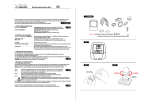
![[ITA] EzyViewCAM Manuale v3-1](http://vs1.manualzilla.com/store/data/006122133_1-b043c3946078e8a41179ed510be28eed-150x150.png)