1
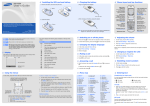
Installing the SIM card and battery
SGH-B200
User’s Guide
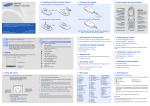
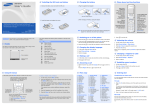
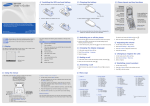
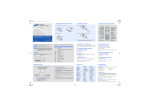
1. Remove the battery cover and insert the SIM card.
Charging the battery
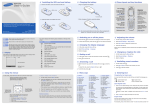
Phone layout and key functions
1. Plug the supplied travel adapter.
Web access/
Confirm key
In Idle mode, accesses
the web browser.
In Menu mode, selects
the highlighted option
or confirms input.
Battery
cover
Soft keys
Perform functions
indicated by the
text above the key.
With the triangle facing up
2. Install the battery and reattach the battery cover.
Power/End key
Turns the phone on or
off when held down.
Also ends a call.
Dial key
Makes and answers
a call. In Idle mode,
retrieves the most
recent calls.
2. When charging is finished, unplug the travel adapter.
Battery
Some of the contents in this guide may differ from your phone depending on the
software of the phone or your service provider.
4-way navigation keys
In Idle mode, access
your favourite menus
directly.
In Menu mode, scroll
through menu options.
Cancel/Clear key
Deletes characters from
the display. Returns the
display to the previous
menu level.
Sends SOS messages
when pressed four times
with the keypad locked.
X SOS mode
Voice mail server key
In Idle mode, accesses
your voice mail server
when held down.
Keypad lock key
X Keypad lock mode
World Wide Web
http://www.samsungmobile.com
Silent mode
SOS mode
Keypad lock
mode
Printed in Korea
Code No.:GH68-18702A
English (CIS). 04/2008. Rev. 1.0
Press and hold
in Idle mode to disable all sounds on the
phone. To exit, press and hold this key again.
Press C 4 times in Idle mode with the keypad locked to send
an SOS message to preset phone numbers. Once the SOS
message is sent, the phone will change to SOS mode and will
receive calls only from the registered recipients. Upon
receiving a call from the SOS message recipients, the phone
will automatically answer the call. Press
to exit SOS
mode.
Press and hold
in Idle mode to lock the keypad and ignore
accidental key pressing. To unlock, press Unlock and then .
Display
Note: Do not remove the battery from the phone without unplugging the
travel adapter first. Otherwise, the phone may be damaged.
Your phone displays the following status indicators on the top of the
screen:
Icon
Switching on or off the phone
1. Press and hold
Signal strength
3. Press and hold
Call in progress
GPRS network
Icons
for more than one second to switch on the phone.
3. Press Up or Down to adjust the volume level.
for more than two seconds to switch off the phone.
1. In Idle mode, press the Menu soft key.
Call ringer set to vibrate
Silent mode
2. Select Phone settings → Language.
Mute mode, during a call
3. Select a language.
Changing a ringtone for calls
1. In Idle mode, press the Menu soft key.
2. Select Sound settings → Ring tone.
Making a call
SOS message feature active
3. Select a ringtone.
New text message
1. In Idle mode, enter an area code and phone number, and press
New multimedia message
2. Press
.
Redialling recent numbers
to end the call.
Alarm set
Press the Reject soft key or
Soft key function
indicators
2. Press
Using the menus
Labels at the bottom corners of the display
show the current soft key functions. Press
the left soft key or right soft key to perform
the function indicated.
1. SIM AT*
1. In Idle mode, press the Menu soft key.
2. Call records
2. Press the Navigation keys to reach a desired menu and then press
the Select soft key or
.
To exit this menu
without changing
the menu settings,
press this key.
Use the 4-way navigation keys as shortcuts
to access your favourite menus.
1.
In Idle mode, press the Menu soft key.
2.
Select Phone settings → Shortcuts.
3.
Select a key.
4.
Select a menu to be assigned to the key.
If the selected menu contains additional submenus, repeat this
step.
4. Press the Navigation keys to find the setting of your choice.
5. Press the Select soft key or
to confirm your chosen setting.
2.1
2.2
2.3
2.4
2.5
2.6
Missed calls
Received calls
Dialled calls
Delete all
Call time
Call cost*
3. Network services
3.1
3.2
3.3
3.4
3.5
3.6
Call diverting
Call barring
Call waiting
Network selection
Caller ID
Closed user group
4. Sound settings
Shortcut numbers
You can quickly access the menu you want by using shortcut numbers.
The shortcut number displays in front of the menu name in Menu
mode.
4.1
4.2
4.3
4.4
4.5
4.6
3. Press
to dial the number.
to reject the call.
to end the call.
To select or modify a menu or feature:
3. If the menu contains any submenus, locate the one you want by
to
pressing the Navigation keys. Press the Select soft key or
enter the submenu.
To return to the
previous menu
level, press the
soft key or C.
to answer a
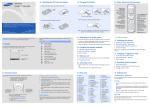
Menu map
In Idle mode, press the Menu soft key to enter the main menu.
.
2. Press Up or Down to scroll to the number you want.
1. When the phone rings, press the Accept soft key or
call.
Battery power level
Phonebook
1. In Idle mode, press
Answering a call
Keys locked
Menu
4. Press the OK soft key.
While a call is in progress, press Up or Down to adjust the earpiece
volume.
New voice mail message
Text and graphics
1. In Idle mode, press the Menu soft key.
2. Select Sound settings → Ring volume.
Changing the display language
Roaming network
Call diverting feature active
Your phone is in Idle mode when you are not on a call or using a menu.
You must be in Idle mode to dial a phone number.
Adjusting the volume
2. If the time & date message appears, press the Yes soft key and set
the time and date by following the onscreen instructions.
Description
Silent mode key
X Silent mode
Alphanumeric keys
Ring tone
Ring volume
Alert type
Keypad tone
Keypad volume
Message tone
Entering text
4.7 Alert on call
4.8 Power on/off
4.9 Extra tones
7.5 To do list
7.6 Voice memo
7.7 Currency exchange
5. Messages
8. Phonebook
5.1
5.2
5.3
5.4
8.1
8.2
8.3
8.4
8.5
8.6
8.7
8.8
Text messages
Multimedia messages
Push messages
Configuration
messages
5.5 SOS messages
6. Funbox
6.1
6.2
6.3
6.4
6.5
6.6
6.7
WAP browser
FM Radio
Games
Sounds
Images
Delete all
Memory status
7. Organiser
7.1
7.2
7.3
7.4
Alarm
Calendar
Time & Date
Calculator
Search
New entry
Group search
Edit group
Speed dial
Delete all
Memory status
SDN*
9. Phone settings
9.1
9.2
9.3
9.4
9.5
9.6
9.7
9.8
9.9
Display settings
Greeting message
Own number
Language
Security
Extra settings
Shortcuts
Connection settings
Reset settings
* Show only if supported
by your SIM card.
Changing the text input mode
In a text input field, press the right soft key until the input mode indicator
you want appears.
T9 mode
1. Press 2 to 9 to start entering a word. Press each key once for one
letter.
The word you are entering appears on the display. It may change with
each keypress. Finish entering the word before editing or deleting any
keystrokes.
Example: To enter “Hello” in T9 mode, press 4, 3, 5, 5, and 6.
2. To display alternative word choices, press 0.
3. Press
to insert a space and enter the next word.
ABC mode
Press the keys labelled with the letter you want once for the first letter,
twice for the second letter, and so on.
For example, press 2 three times to enter “C” and 5 two times to enter
“K.”
Sending an SMS message
Number mode
Press the keys corresponding to the digits you want.
Quick feature reference
1. In Idle mode, press the Menu soft key.
Symbol mode
Press the number keys corresponding to the symbol you want and press
the OK soft key. You can press Up or Down to display more symbols.
This section provides brief explanations of features on your phone.
2. Select Messages → Text messages → Write new.
Menu
Description
3. Enter the message text.
Menu
> SIM AT
Use a variety of additional services offered by
your service provider.
4. Press the Options soft key and add items using the following options:
Menu > Call records
> Missed calls, Received
calls, or Dialled calls
View the most recent calls you have dialled,
received, or missed.
Menu > Call records
> Delete all
Delete the call logs in each call type or all logs
at once.
Menu
> Call records
> Call time
View the duration of recent calls you have
dialled and received. Also reset the time
counter.
Menu > Call records
> Call cost
View the cost of your calls, if supported by your
SIM card.
Menu
> Network services
Access network services offered by your service
provider.
• Add objects: add sounds, images, or animated images.
Tips for entering text
• Add templates: add text templates.
• To move the cursor, press the Navigation keys.
• Add emoticon: add emoticons.
• To delete characters one by one, press C. To clear the display, press and
hold C.
• Add phonebook: add Phonebook contacts.
• To insert a space between characters, press
.
• To change case in T9 mode or ABC mode, press
• Add bookmark: add bookmark items.
5. Press the Options soft key and select Send only or Save and send.
.
• To enter punctuation marks in T9 mode or ABC mode, press 1.
6. If you select Save and send, select a memory location.
7. Enter destination numbers.
8. Press the Options soft key or
the message.
and select Send message to send
Menu
Select a ringtone for incoming calls or a volume
> Sound settings
level.
> Ring tone or Ring volume
Menu > Sound settings
> Alert type
Select an alert type for the call ringer.
Menu > Sound settings
> Keypad tone or Keypad
volume
Select a tone which the phone sounds when
you press a key or a volume level.
Menu
Description
Menu
> Sound settings
> Message tone
Select the alert ringtone for incoming SMS,
MMS, and broadcast messages, or set how
often you are informed of a new message.
Menu
> Sound settings
> Alert on call
Set the phone to alert you when you receive a
new message or when the time for an alarm
comes during a call.
Menu
> Sound settings
> Power on/off
Select the melody that the phone sounds when
it is switched on or off.
Menu
> Sound settings
> Extra tones
Set additional tones for the phone.
Menu > Messages
> Text messages or
Multimedia messages
> Inbox, Outbox, or Draft
Read received, sent, or saved messages.
Menu > Messages
> Text messages or
Multimedia messages
> Write new
Create and send messages to other mobile
phones.
Menu > Messages
> Text messages or
Multimedia messages
> Templates or Emoticon
templates
Preset templates of frequently used messages
or emoticons.
Menu
Description
Menu
Description
Menu
Description
Menu
Description
Menu > Messages
> Text messages or
Multimedia messages
> Settings or Setup
Set options for using messaging services.
Menu > Messages
> SOS messages
Activate the SOS message feature. Enter
recipients and select the repeat mode.
Menu > Organiser
> Voice memo
Record voice memos and listen to them.
Menu > Phone settings
> Greeting message
Enter the greeting message to be displayed
when the phone is switched on.
Launch and configure the web browser.
Delete messages in each message box or all
messages at once.
Menu > Organiser
> Currency exchange
Do currency conversions.
Menu > Messages
> Text messages or
Multimedia messages
> Delete all
Menu > Funbox
> WAP browser
Menu > Phone settings
> Own number
Check your phone numbers or assign a name to
them.
Menu > Funbox
> FM Radio
Menu > Phonebook >
Search
Search for contacts in Phonebook.
Menu > Phone settings
> Language
Select a language to be used for the display
text.
Menu > Phone settings
> Security
Protect the phone against unauthorised use.
Check memory information for messages.
Menu > Phonebook
> New entry
Add a new contact to Phonebook.
Menu > Messages
> Text messages or
Multimedia messages
> Memory status
Listen to music or news via the FM radio on
your phone. First, you must connect your
phone with the headset, which serves as a
radio antenna.
Menu > Phonebook
> Group search
Search for contacts in caller groups.
Menu > Messages
> Text messages
> Voice mail
Access your voice mail server and listen to
messages on the network.
Menu > Phonebook
> Edit group
Select a ringtone and image for incoming calls
and messages from members of a group. Also
change the group name.
Menu
> Phone settings
> Security
> Mobile Tracker
Menu > Messages
> Text messages
> Broadcast
Change settings for the service and access
broadcast messages.
Menu > Phonebook
> Speed dial
Assign speed dial numbers (2 to 9) for eight of
your most frequently dialled numbers.
Track your phone when it is stolen or lost.
When someone tries to use your phone with
other SIM card, the phone will automatically
send the preset tracking message to your
family or friends. This feature may be
unavailable due to certain features supported
by your service provider.
Menu > Phonebook
> Delete all
Delete all contacts stored in the phone’s
memory, on the SIM card, or both.
Menu > Phone settings
> Extra settings
Set the automatic redialling feature or the
answering method.
Menu > Messages
> Multimedia messages
> MMS profile
Select or configure a connection profile to be
used for MMS.
Menu > Phonebook
> Memory status
View the total number of contacts in the
phone’s memory or on the SIM card.
Menu > Phone settings
> Shortcuts
Set the Navigation keys as shortcuts to access
your favourite menus directly.
Menu > Messages
> Push messages
Change the settings for the service and access
or delete push messages.
Menu > Phonebook
> SDN
Access the list of service numbers assigned by
your service provider.
Menu
> Phone settings
> Connection settings
Create and customise the profiles containing
the settings for connecting your phone to the
network.
Menu > Messages
> Configuration messages
Access or delete messages containing network
parameters from your service provider.
Menu > Phone settings
> Display settings
Change settings for the display and backlight.
Menu > Phone settings
> Reset settings
Reset the phone to the factory default settings.
Important safety precautions
Read these guidelines before using your wireless phone. Failure to comply with
them may be dangerous or illegal.
Drive safely at all times
Do not use a hand-held phone while driving; park your vehicle first.
Switching off when refuelling
Do not use the phone at a refuelling point (service station) or near fuels or
chemicals.
Switching off in an aircraft
Wireless phones can cause interference. Using them in an aircraft is both illegal
and dangerous.
Switching off near all medical equipment
Hospitals and health care facilities may be using equipment that could be sensitive
to external RF energy. Follow any regulations or rules in force.
Interference
All wireless phones may be subject to interference, which could affect their
performance.
Special regulations
Follow any special regulations in force in any area and always switch off your phone
whenever it is forbidden to use it.
Water resistance
Your phone is not water-resistant. Keep it dry.
Sensible use
Use only in the normal position (held to your ear). Avoid unnecessary contact with
the antenna when the phone is switched on.
Menu > Funbox
> Games, Sounds,
or Images
Access games, sounds, or images in your
phone’s memory.
Menu > Funbox
> Delete all
Delete games, sounds, or images in each media
box, or all media files at once.
Menu > Funbox
> Memory status
Check the amount of memory in use for games,
sounds, and images.
Menu > Organiser
> Alarm
Set an alarm to sound at a specific time.
Menu > Organiser
> Calendar
Keep track of daily or monthly schedule.
Menu > Organiser
> Time & Date
Set the current time and date manually and set
your local time zone.
Menu > Organiser
> Calculator
Perform basic arithmetic functions.
Menu > Organiser
> To do list
Create a list of tasks and assign a deadline to
each task.
Emergency calls
Key in the emergency number for your present location, then press
end the call until given permission to do so.
. Do not
Small children and your phone
Keep the phone and all its parts including accessories out of reach of small
children.
Accessories and batteries
Use only Samsung-approved batteries and accessories, such as headsets and PC
data cables. Use of any unauthorised accessories could damage your phone and
may be dangerous.
CAUTION
Risk of explosion if a battery is replaced by an incorrect type.
Dispose of used batteries according to the instructions.
At very high volume, prolonged listening to a headset can damage
your hearing.
Qualified service
Only qualified service personnel may repair your phone.
Correct disposal of this product
(Waste Electrical & Electronic Equipment)
(Applicable in the European Union and other European countries with
separate collection systems)
This marking shown on the product or its literature, indicates that it
should not be disposed with other household wastes at the end of its
working life.
To prevent possible harm to the environment or human health from uncontrolled
waste disposal, please separate this from other types of wastes and recycle it
responsibly to promote the sustainable reuse of material resources.
Household users should contact either the retailer where they purchased this
product, or their local government office, for details of where and how they can
take this item for environmentally safe recycling.
Business users should contact their supplier and check the terms and conditions of
the purchase contract. This product should not be mixed with other commercial
wastes for disposal.
SAR information
Your wireless phone is a radio transmitter and receiver. It is designed and
manufactured not to exceed the emission limits for exposure to radio
frequency (RF) energy set by the European Union (EU) Council. These limits
are part of comprehensive guidelines and establish permitted levels of RF
energy for the general population. The guidelines are based on the safety
standards that were developed by independent scientific organisations
through periodic and thorough evaluation of scientific studies.
The standards include a substantial safety margin designed to assure the
safety of all persons, regardless of age and health.
The exposure standard for wireless phones employs a unit of measurement
known as Specific Absorption Rate (SAR). The SAR limit set by the EU
Council is 2.0W/kg. The highest SAR value for this model phone was
0.666W/kg.