1
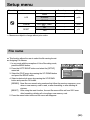
PictBridge : Print Setting
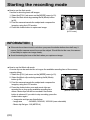
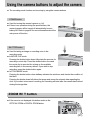
ƈAUTO SET
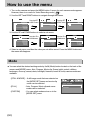
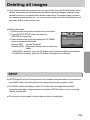
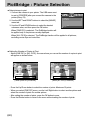
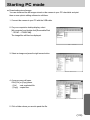
1. Connect the camera to your printer. The USB menu must
be set to [PRINTER] after you connect the camera to the
AUTO SET
NO
printer.(See p.79)
YES
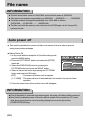
2. Use the LEFT and RIGHT buttons to select the
[AUTO SET] menu tab.
MOVE: Ɗƌ
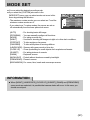
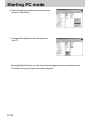
3. Use the UP and DOWN buttons to select the desired
submenu value, and then press the OK button.
[NO] : [CUSTOM SET] values are kept.
[YES]: All values in the [CUSTOM SET] are automatically changed.
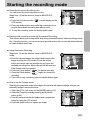
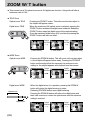
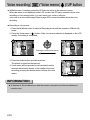
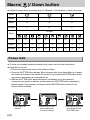
ƈCUSTOM SET : You can select the Paper Size, Print Format, Paper Type, Print Quality,
Date Print, and File Name Print menus for printed pictures.
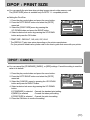
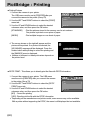
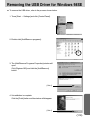
1. Connect the camera to your printer. The USB menu must
be set to [PRINTER] after you connect the camera to the
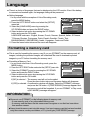
CUSTOM SET
SIZE
AUTO
printer.(See p.79)
LAYOUT
AUTO
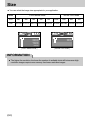
2. Use the LEFT and RIGHT buttons to select the
TYPE
AUTO
QUALITY
AUTO
[CUSTOM SET] menu tab.
DATE
AUTO
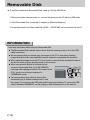
3. Use the UP and DOWN buttons to select the desired
MOVE: Ɗƌ
submenu value, and then press the RIGHT button.
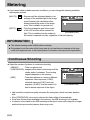
4. Use the UP and DOWN buttons to select the desired submenu value, and then press the
OK button.
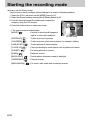
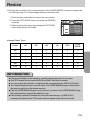
ƈThe menus you can set up are as follows:
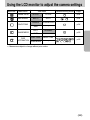
Menu
SIZE
LAYOUT
TYPE
QUALITY
DATE
FILE NAME
Function
Setting the size of the printing paper
Sub menu
AUTO, POSTCARD, CARD, LETTER, 4 X 6, L, 2L, A4, A3
Setting the number of pictures to be printed on a sheet of paper AUTO, FULL, 1, 2, 4, 8, 9, 16
Setting the quality of the printing paper AUTO, PLAIN, PHOTO, FASTPHO.
Setting the quality of the picture to be printed AUTO, DRAFT, NORMAL, FINE
Setting whether to print the date
AUTO, OFF, ON
Setting whether to print the file name AUTO, OFF, ON
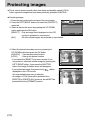
ſ Some menu options are not supported in all manufacturer and printer models.
ſ If the setting values are not changed in the automatic/manual setting, the setting values are
automatically kept.
ŝ81Ş