1
en
ail
At a glance
Start
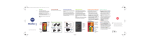
Remove the back cover
Your new Moto G with 4G LTE has pretty much
everything—camera, Internet, mail, and more. You can
even change the back cover for a new look with
Motorola Shells.
Take off the back cover.
Caution: Don't use tools to remove the cover—doing so
may damage the battery and could cause burning or
injury.
Put the SIM card & memory card in,
then power on
Put in the SIM card & optional microSD card.
Caution: Make sure you use the correct sized SIM card,
and don’t use adapters with it.
Caution: Before using your phone, please read the
safety, regulatory and legal information provided with
your product.
Motorola Migrate
Home screen & apps
Home screen & settings
Want more?
Copying your personal stuff from your old phone to your
new phone with Motorola Migrate is easy—we promise.
• From Android™: On your old phone, download the
Motorola Migrate app on Google Play™ to get
started. Then on your new phone, touch Apps
>
Motorola Migrate > Android to get started.
• From iPhone™: On your new phone, touch
Apps
>
Motorola Migrate > iPhone to get
started.
The home screen is what you see when you first turn on
your phone. From here, you can explore apps and more.
• Add shortcuts: Touch Apps , touch and hold an
app or widget, then drag it to your home screen.
• Choose widgets: To put widgets like a clock,
interactive calendar, and more on your home screen,
touch Apps
> WIDGETS (at the top).
• Customize: Change Wi-Fi, brightness, and
more—flick the status bar down and touch
.
Touch
for more settings.
Get answers, updates, and info:
Help to get
• Help is here: Touch Apps
>
walk-through tutorials, how-tos, FAQs, or chat with
people who can help, right on your phone.
• Everything Moto G: Get PC software, user guides,
and more at www.motorola.com/mymotog.
• Accessories: Get accessories for your phone at
www.motorola.com/mobility.
Play Store.
• Apps: Touch Apps
>
• News: Here’s how to find us:
YouTube™ www.youtube.com/motorola
Facebook™ www.facebook.com/motorola
Twitter www.twitter.com/motorola
Google+™ www.google.com/+Motorola/posts
Note: Your phone may look a little different.
1
Headphone Jack
Microphone
Front
Camera
Put the SIM and memory cards in.
With the gold contacts facing down, push in a card.
The SIM card clicks in.
Take off the back cover.
micro SIM
1. Put your finger in the charging port.
11:35
microSD
microSD
Memory
Card Slot
(under back
cover)
Power Key
11:35
WED, JULY 16
TH
TTHU
HU
U 77::00
00 AM
Volume Keys
2. Press your thumb on the
Motorola symbol.
(optional)
let’s get started
Back
Home
Recent
Apps
Micro USB/
Charger
Microphone
Make the switch from old to new.
Copy your stuff from your old phone to
your new one in just a few minutes.
micro
SIM
2
nano SIM &
Adapter
Power on.
P
Play Store
Micro SIM
(under back
cover)
Motorola Migrate
SIM
3. Pry the cover off.
Don’t be afraid to
use a little muscle.
Google
11:35
Watch a video to see how:
www.motorola.com/backcover
Press & hold
Power until the
screen lights
up.
Note: To remove
a SIM card, push
it in to release it.
Then slide it out. To
remove a memory
card, just pull it out.
Which phone are you moving your
stuff from?
Tip: If you
don’t copy
your content
right after
setting up your
phone, you
can always do
it later.
11:35
WED, JULY 16
TH
HU 7::00
00 AM
Flick down to see
notifications
& settings.
Search by typing, or
touch
for a voice
search.
Swipe left or right
to see more pages.
Android
Google
Play Store
Help & more
Shortcuts
Touch to open.
This product meets the applicable national or
international RF exposure guidance (SAR guideline)
when used normally against your head or, when
worn or carried, at a distance of 1.5 cm from the
body. The SAR guideline includes a considerable
safety margin designed to assure the safety of all
persons, regardless of age and health.
Want to transfer from this phone instead?
Next
Favorites
Touch Apps
to see all
your apps & widgets.
motorola.com
Motorola Assist
Google Now™
Control & customize
Photos
Chrome™
Browse
Google Maps™
Email
For Your Safety
Now, where did they say to meet up? Check your
messages, old and new.
Gmail or
Email
Find it: Apps
>
You can set up Gmail™ when you turn on your phone
for the first time or do it later. For other email, just open
Email app and follow the prompts.
the
Tip: Want to chat instead? To use Hangouts™ to video
Hangouts.
or text chat, touch Apps
>
Before assembling, charging or using your mobile device for the first time, please read
the important product safety and legal information provided with your product.
Warning: Don't try to remove or replace the battery yourself—doing so may damage
the battery and could cause burning and injury. If your phone becomes unresponsive, try
a reboot—press and hold the Power key until the screen goes dark and your phone
restarts.
For Your Safety
Wish your phone could automatically silence your
ringer during meetings or when you’re sleeping? It
can.
Motorola Assist suggests actions to automate based on
your settings. When you see a notification in the status
bar, flick the bar down to learn more.
Assist
Find it: Apps
>
Google Now brings you just the right information at just
the right time, before you even ask. Weather, traffic,
transit schedules, even the latest scores come
automatically, appearing throughout the day just as you
need them.
Find it: Touch and hold Home
—flick up to the
icon
Take super clear photos and share them easily.
Camera
Find it: Apps
>
• Take a photo: Touch anywhere on the screen to take
the photo.
• See it: Swipe left for your photo gallery ( Gallery).
• Share it: View a photo or video from your gallery,
then touch Share .
Tip: When you’re in the camera, swipe right for effects
and settings.
Avoid interruptions
Sleeping
Get a good night’s rest
See options.
www.google.com/search?clie
Assist
Meeting
Find the info you want, whenever you want.
Chrome
Find it: Apps
>
• Go to a webpage: Touch the address bar at the top
of a page and enter an address, like www.google.com.
• Add or open bookmarks: Touch Menu >
to
bookmark the page, or Bookmarks to see your other
bookmarks.
Tip: Double-tap to zoom in and out. Or pinch/separate
two fingers on the screen.
Keep your phone
quiet when you
need to.
Set your sleeping
hours to silence
your phone. Or,
make an exception
to hear calls from a
certain person, no
matter what time of
night.
Touch anywhere to
take the photo.
Touch & hold to
take multiple shots.
Search
Nearby events
University Auditorium
in 3 days, 8:00PM
Capital Cities
Videos
News
More
Merrill Civic Center East, Morrison...
Tomorrow
HowStuffWorks “What makes us
yawn?”
science.howstuffworks.com/.../question5
Concerts
Switch to front camera.
More
Set a reminder,
customize it, and
more.
See other browser
tabs, or open a new
one.
Search
See places you’ve
been & more.
Primary
See settings &
options.
[email protected]
Get directions &
navigation.
Choose multiple
messages, then touch
Menu .
www.huffingtonpost.com/.../...
Drag up or
down with one
finger to zoom.
Concerts
Images
Facts About Yawning: Why We Do It,
Why It’s Contagious...
Stuff that’s
important to you
shows up here.
The Bordertown Devils
why do we yawn
Web
Find a nearby cafe and get directions or step-by-step
navigation using the Google Maps you know and trust.
Maps >
Find it: Apps
>
Enter what you want to find, then touch a result to see
more information and options.
Switch to video camera.
Why We Yawn - WebMD
Touch a link to select
it. Touch & hold for
more options.
Type a name or
category you want
to find.
“Star” a message to
add it to the Starred
Gmail label.
Drag right for settings,
to learn how to use
navigation, & more.
Swipe left or right to
archive a message
thread.
www.m.webmd.com/a.../why-we-yawn
See your current
location.
2 deleted.
UNDO
Specific Absorption Rate (FCC & IC)
SAR (FCC & IC)
YOUR MOBILE DEVICE MEETS FCC AND IC
LIMITS FOR EXPOSURE TO RADIO WAVES.
Your mobile device is a radio transmitter and receiver. It is designed not to exceed the
limits for exposure to radio waves (radio frequency electromagnetic fields) adopted by
the Federal Communications Commission (FCC) and Industry Canada (IC). These
limits include a substantial safety margin designed to assure the safety of all persons,
regardless of age and health.
The radio wave exposure guidelines use a unit of measurement known as the Specific
Absorption Rate, or SAR. The SAR limit for mobile devices is 1.6 W/kg.
Tests for SAR are conducted using standard operating positions with the device
transmitting at its highest certified power level in all tested frequency bands. The highest
SAR values under the FCC and IC guidelines for your device model are listed below:
Head SAR
LTE Band VII, Wi-Fi, Bluetooth
1.43 W/kg
Body-worn SAR
UMTS 1900 MHz, Wi-Fi, Bluetooth
1.37 W/kg
During use, the actual SAR values for your device are usually well below the values
stated. This is because, for purposes of system efficiency and to minimize interference
on the network, the operating power of your mobile device is automatically decreased
when full power is not needed for the call. The lower the power output of the device, the
lower its SAR value.
If you are interested in further reducing your RF exposure then you can easily do so by
limiting your usage or simply using a hands-free kit to keep the device away from the
head and body.
Additional information can be found at www.motorola.com/rfhealth.
Usage
This phone supports apps and services that may use a lot of data, so make sure your data
plan meets your needs. Contact your service provider for details. Certain apps and
features may not be available in all countries.
Copyright & Trademarks
Certain features, services and applications are network dependent and may not be
available in all areas; additional terms, conditions and/or charges may apply. Contact
your service provider for details.
All features, functionality, and other product specifications, as well as the information
contained in this guide, are based upon the latest available information and believed to
Copyright & Trademarks
be accurate at the time of printing. Motorola reserves the right to change or modify
any information or specifications without notice or obligation.
Note: The images in this guide are examples only.
MOTOROLA and the Stylized M Logo are trademarks or registered trademarks of
Motorola Trademark Holdings, LLC. Google, Android, Google Play and other marks
are trademarks of Google Inc. The Android robot is reproduced or modified from
work created and shared by Google and used according to terms described in the
Creative Commons 3.0 Attribution License. All other product or service names are the
property of their respective owners.
© 2014 Motorola Mobility LLC. All rights reserved.
Product ID: Moto G (Model XT1040)
Manual Number: 68017693001-A