1
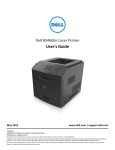
Dell B3460dn Laser Printer
User's Guide
June 2012
www.dell.com | support.dell.com
Trademarks
Information in this document is subject to change without notice.
© 2012 Dell, Inc. All rights reserved.
Reproduction of this material in any manner whatsoever without the written permission of Dell Inc. is strictly forbidden.
Trademarks used in this text: Dell, the DELL logo, Inspiron, Dell Precision, Dimension, OptiPlex, Latitude, PowerEdge, PowerVault, PowerApp, and Dell OpenManage are trademarks
of Dell Inc.; Intel, Pentium, and Celeron are registered trademarks of Intel Corporation; Microsoft and Windows are registered trademarks of Microsoft Corporation.
Other trademarks and trade names may be used in this document to refer to the entities claiming the marks and names of their products. Dell Inc. disclaims any proprietary
interest in trademarks and trade names other than its own.
Contents
2
Contents
Safety information.......................................................................................6
Learning about the printer...........................................................................8
Finding information about the printer......................................................................................................8
Selecting a location for the printer............................................................................................................9
Printer configurations.............................................................................................................................10
Using the printer control panel...............................................................................................................11
Understanding the colors of the indicator and Sleep button lights........................................................12
Additional printer setup.............................................................................13
Installing internal options........................................................................................................................13
Installing hardware options.....................................................................................................................17
Attaching cables......................................................................................................................................19
Setting up the printer software...............................................................................................................20
Networking..............................................................................................................................................22
Connecting the printer to a wireless network using the Embedded Web Server...................................25
Verifying printer setup............................................................................................................................26
Loading paper and specialty media............................................................27
Setting the paper size and type...............................................................................................................27
Configuring Universal paper settings......................................................................................................27
Using the standard bin and paper stop...................................................................................................27
Loading trays...........................................................................................................................................28
Loading the multipurpose feeder............................................................................................................32
Linking and unlinking trays......................................................................................................................35
Linking and unlinking trays ...............................................................................................................................35
Creating a custom name for a paper type ........................................................................................................35
Assigning a custom paper type name ...............................................................................................................36
Assigning a custom paper type .........................................................................................................................37
Paper and specialty media guide................................................................38
Paper guidelines......................................................................................................................................38
Using specialty media..............................................................................................................................40
Supported paper sizes, types, and weights.............................................................................................43
Contents
3
Printing......................................................................................................46
Printing a document................................................................................................................................46
Printing a document .........................................................................................................................................46
Adjusting toner darkness ..................................................................................................................................46
Printing from a mobile device.................................................................................................................47
Printing from a flash drive.......................................................................................................................47
Printing from a flash drive ................................................................................................................................47
Supported flash drives and file types................................................................................................................49
Printing confidential and other held jobs................................................................................................49
Printing confidential and other held jobs .........................................................................................................49
Printing information pages......................................................................................................................50
Printing a font sample list .................................................................................................................................50
Printing a directory list......................................................................................................................................50
Canceling a print job................................................................................................................................50
Canceling a print job from the printer control panel........................................................................................50
Canceling a print job from the computer .........................................................................................................51
Understanding the printer menus..............................................................52
Menus list................................................................................................................................................52
Paper menu.............................................................................................................................................53
Reports menu..........................................................................................................................................61
Network/Ports menu...............................................................................................................................62
Security menu.........................................................................................................................................70
Settings menu..........................................................................................................................................72
Help menu...............................................................................................................................................85
Saving money and the environment...........................................................87
Saving paper and toner...........................................................................................................................87
Saving energy..........................................................................................................................................87
Recycling..................................................................................................................................................90
Securing the printer...................................................................................91
Using the security lock feature................................................................................................................91
Statement of Volatility............................................................................................................................91
Erasing volatile memory..........................................................................................................................92
Erasing non‑volatile memory..................................................................................................................92
Finding printer security information.......................................................................................................92
Contents
4
Maintaining the printer..............................................................................93
Cleaning the printer................................................................................................................................93
Checking the status of parts and supplies...............................................................................................93
Estimated number of remaining pages...................................................................................................94
Ordering supplies....................................................................................................................................94
Storing supplies.......................................................................................................................................95
Replacing supplies...................................................................................................................................95
Moving the printer..................................................................................................................................99
Managing the printer...............................................................................101
Managing printer messages..................................................................................................................101
Accessing Status Monitor Center..........................................................................................................101
Checking the virtual display...................................................................................................................101
Viewing reports.....................................................................................................................................102
Configuring supply notifications from the Embedded Web Server.......................................................102
Modifying confidential print settings....................................................................................................103
Copying printer settings to other printers.............................................................................................103
Restoring factory default settings.........................................................................................................104
Clearing jams............................................................................................105
Avoiding jams........................................................................................................................................105
Understanding jam messages and locations.........................................................................................106
[x]‑page jam, open front door. [20y.xx]................................................................................................108
[x]‑page jam, open rear door. [20y.xx]..................................................................................................111
[x]‑page jam, clear standard bin. [20y.xx].............................................................................................112
[x]‑page jam, remove tray 1 to clear duplex. [23y.xx]...........................................................................113
[x]‑page jam, open tray [x]. [24y.xx].....................................................................................................114
[x]‑page jam, clear manual feeder. [25y.xx]..........................................................................................115
Troubleshooting.......................................................................................117
Understanding the printer messages....................................................................................................117
Solving printer problems.......................................................................................................................127
Solving print problems..........................................................................................................................133
Embedded Web Server does not open.................................................................................................156
Contacting technical support................................................................................................................158
Contents
5
Appendix..................................................................................................159
Index........................................................................................................161
Safety information
6
Safety information
Connect the power cord to a properly grounded electrical outlet that is near the product and easily accessible.
Do not place or use this product near water or wet locations.
CAUTION—POTENTIAL INJURY: This product uses a laser. Use of controls or adjustments or performance of
procedures other than those specified herein may result in hazardous radiation exposure.
This product uses a printing process that heats the print media, and the heat may cause the media to release emissions.
You must understand the section in your operating instructions that discusses the guidelines for selecting print media
to avoid the possibility of harmful emissions.
CAUTION—POTENTIAL INJURY: The lithium battery in this product is not intended to be replaced. There is a
danger of explosion if a lithium battery is incorrectly replaced. Do not recharge, disassemble, or incinerate a
lithium battery. Discard used lithium batteries according to the manufacturer's instructions and local
regulations.
CAUTION—POTENTIAL INJURY: Before moving the printer, follow these guidelines to avoid personal injury or
printer damage:
• Turn the printer off using the power switch, and then unplug the power cord from the electrical outlet.
• Disconnect all cords and cables from the printer before moving it.
• If an optional tray is installed, then remove it from the printer. To remove the optional tray, slide the latch on the
right side of the tray toward the front of the tray until it clicks into place.
• Use the handholds located on both sides of the printer to lift it.
• Make sure your fingers are not under the printer when you set it down.
• Before setting up the printer, make sure there is adequate clearance around it.
Use only the power cord provided with this product or the manufacturer's authorized replacement.
CAUTION—HOT SURFACE: The inside of the printer might be hot. To reduce the risk of injury from a hot
component, allow the surface to cool before touching.
CAUTION—SHOCK HAZARD: If you are accessing the controller board or installing optional hardware or
memory devices sometime after setting up the printer, then turn the printer off, and unplug the power cord
from the electrical outlet before continuing. If you have any other devices attached to the printer, then turn
them off as well, and unplug any cables going into the printer.
CAUTION—SHOCK HAZARD: Make sure that all external connections (such as Ethernet and telephone system
connections) are properly installed in their marked plug-in ports.
This product is designed, tested, and approved to meet strict global safety standards with the use of specific
manufacturer's components. The safety features of some parts may not always be obvious. The manufacturer is not
responsible for the use of other replacement parts.
CAUTION—POTENTIAL INJURY: Do not cut, twist, bind, crush, or place heavy objects on the power cord. Do not
subject the power cord to abrasion or stress. Do not pinch the power cord between objects such as furniture
and walls. If any of these things happen, a risk of fire or electrical shock results. Inspect the power cord regularly
for signs of such problems. Remove the power cord from the electrical outlet before inspecting it.
Refer service or repairs, other than those described in the user documentation, to a service representative.
CAUTION—SHOCK HAZARD: To avoid the risk of electrical shock when cleaning the exterior of the printer,
unplug the power cord from the electrical outlet and disconnect all cables from the printer before proceeding.
Safety information
CAUTION—POTENTIAL INJURY: To reduce the risk of equipment instability, load each tray separately. Keep all
other trays closed until needed.
CAUTION—SHOCK HAZARD: Do not set up this product or make any electrical or cabling connections, such as
the fax feature, power cord, or telephone, during a lightning storm.
SAVE THESE INSTRUCTIONS.
7
Learning about the printer
8
Learning about the printer
Finding information about the printer
What are you looking for?
Find it here
Initial setup instructions:
Setup documentation—The setup documentation came
with the printer.
• Connecting the printer
• Installing the printer software
Additional setup and instructions for using the printer:
•
•
•
•
•
•
•
•
Selecting and storing paper and specialty media
Loading paper
Configuring printer settings
User's Guide and Quick Reference Guide—The guides are
available on the Software and Documentation CD.
For updates, visit our Web site at
http://support.dell.com.
Viewing and printing documents and photos
Setting up and using the printer software
Configuring the printer on a network
Caring for and maintaining the printer
Troubleshooting and solving problems
Instructions for:
• Connecting the printer to an Ethernet network
• Troubleshooting printer connection problems
Help using the printer software
Networking Guide—Open the Software and
Documentation CD, and then look for Printer and
Software Documentation under the Pubs folder. From
the list of publications, click the Networking Guide link.
Windows or Mac Help—Open a printer software program
or application, and then click Help.
Click
?
to view context‑sensitive information.
Notes:
• Help is automatically installed with the printer
software.
• The printer software is located in the printer
program folder or on the desktop, depending on
your operating system.
The latest supplemental information, updates, and technical
support:
•
•
•
•
•
•
•
•
Documentation
Driver downloads
Product upgrades
Service call and repair information
Order status
Live chat support
E‑mail support
Voice support
Dell Support Web site—http://support.dell.com
Support telephone numbers and hours of operation for
your country or region can be found on the Support Web
site.
Have the following information ready when you contact
support so that they may serve you faster:
• service tag
• express service Code
Note: The service tag and express service code appear
on labels located on your printer.
Learning about the printer
9
What are you looking for?
Find it here
• Software and Drivers—Certified drivers for my printer and
Software and Documentation CD
installers for Dell printer software
• Readme files—Last‑minute technical changes, or advanced
technical reference materials for experienced users or
technicians
• Supplies and accessories for my printer
• Replacement cartridges
Dell Printer Supplies Web site–http://dell.com/supplies
• Safety information for preparing to operate my printer
• Regulatory information
• Warranty information
Product Information Guide
You can purchase printer supplies online, by telephone,
or in select retail stores.
Note: The Product Information Guide may not be
available in your country or region.
Selecting a location for the printer
When selecting a location for the printer, leave enough room to open trays, covers, and doors. If you plan to install any
hardware options, then leave enough room for them also. It is important to:
• Set up the printer near a properly grounded and easily accessible electrical outlet.
• Make sure airflow in the room meets the latest revision of the ASHRAE 62 standard or the CEN Technical Committee
156 standard.
• Provide a flat, sturdy, and stable surface.
• Keep the printer:
– Clean, dry, and free of dust.
– Away from stray staples and paper clips.
– Away from the direct airflow of air conditioners, heaters, or ventilators.
– Free from direct sunlight and humidity extremes.
• Observe the recommended temperatures and avoid fluctuations.
Ambient temperature 16 to 32°C (60 to 90°F)
Storage temperature
‑20 to 40°C (‑4 to 104°F)
• Allow the following recommended amount of space around the printer for proper ventilation:
Learning about the printer
1
Right side 30 cm (12 in.)
2
Front
51 cm (20 in.)
3
Left side
20 cm (8 in.)
4
Rear
20 cm (8 in.)
5
Top
30 cm (12 in.)
10
Printer configurations
CAUTION—POTENTIAL INJURY: To reduce the risk of equipment instability, load each tray separately. Keep all
other trays closed until needed.
You can configure your printer by adding up to two optional 550‑sheet trays. For instructions on installing the optional
trays, see “Installing optional trays” on page 17.
1
Printer control panel
2
Paper stop
Learning about the printer
11
3
Standard bin
4
Front door release button
5
Controller board access door
6
100‑sheet multipurpose feeder
7
Standard 550‑sheet tray
8
Optional 550‑sheet trays
Using the printer control panel
1
13
1
2
3
4
12
5
11
6
10
Use the
To
Display
View the printer status and messages.
7
9
8
Set up and operate the printer.
2
Left arrow button
Scroll to the left.
3
Select button
Select menu options.
Save settings.
4
Up arrow button
Scroll up.
5
Right arrow button
Scroll to the right.
6
Keypad
Enter numbers, letters, or symbols.
7
Sleep button
Enable Sleep mode or Hibernate mode.
The following actions wake the printer from Sleep mode:
•
•
•
•
•
8
USB port
Pressing any hard button
Opening a tray or the front door
Sending a print job from the computer
Performing a power‑on reset using the main power switch
Attaching a device in the USB port
Connect a flash drive to the printer.
Notes:
• Only the front USB port supports flash drives.
• This feature is available only in select printer models.
Learning about the printer
Use the
12
To
9
Stop or cancel button Stop all printer activities.
10
Back button
Return to the previous screen.
11
Down arrow button
Scroll down.
12
Home button
Go to the home screen.
13
Indicator light
Check the status of the printer.
Understanding the colors of the indicator and Sleep button
lights
The colors of the indicator and Sleep button lights on the printer control panel signify a certain printer status or condition.
Indicator light color and its corresponding printer status
Indicator light
Printer status
Off
The printer is off or in Hibernate mode.
Blinking green
The printer is warming up, processing data, or printing.
Solid green
The printer is on, but idle.
Blinking red
The printer requires user intervention.
Sleep button light color and its corresponding printer status
Sleep button light
Printer status
Off
The printer is idle or in Ready state.
Solid amber
The printer is in Sleep mode.
Blinking amber
The printer is waking from or entering Hibernate mode.
Blinking amber for 0.1 second, then goes
completely off for 1.9 seconds in pulsing
pattern
The printer is in Hibernate mode.
Additional printer setup
Additional printer setup
Installing internal options
Notes:
• A Service Set Identifier (SSID) is a name assigned to a wireless network. Wired Equivalent Privacy (WEP), Wi-Fi
Protected Access (WPA), WPA2, and 802.1X - RADIUS are types of security used on a network.
Available internal options
Memory cards
• DDR3 DIMM
• Flash memory
– Fonts
– Firmware
• Forms Barcode
• Prescribe
• IPDS
• Printcryption
Accessing the controller board
CAUTION—SHOCK HAZARD: If you are accessing the controller board or installing optional hardware or
memory devices sometime after setting up the printer, then turn the printer off, and unplug the power cord
from the electrical outlet before continuing. If you have any other devices attached to the printer, then turn
them off as well, and unplug any cables going into the printer.
1 Open the controller board access door.
13
Additional printer setup
14
2 Use the following illustration to locate the appropriate connector.
Warning—Potential Damage: Controller board electronic components are easily damaged by static electricity.
Touch a metal surface on the printer before touching any controller board electronic components or
connectors.
1
2
1
Memory card connector
2
Option card connector
Installing a memory card
CAUTION—SHOCK HAZARD: If you are accessing the controller board or installing optional hardware or
memory devices sometime after setting up the printer, then turn the printer off, and unplug the power cord
from the electrical outlet before continuing. If you have any other devices attached to the printer, then turn
them off as well, and unplug any cables going into the printer.
Warning—Potential Damage: Controller board electronic components are easily damaged by static electricity.
Touch a metal surface on the printer before touching any controller board electronic components or connectors.
An optional memory card can be purchased separately and attached to the controller board.
1 Access the controller board.
For more information, see “Accessing the controller board” on page 13.
2 Unpack the memory card.
Warning—Potential Damage: Do not touch the connection points along the edge of the card. Doing so may
cause damage.
Additional printer setup
15
3 Align the notch (1) on the memory card with the ridge (2) on the connector.
1
2
4 Push the memory card straight into the connector, and then push the card toward the controller board wall until
it clicks into place.
1
2
5 Close the controller board access door.
Note: When the printer software and any hardware options are installed, it may be necessary to manually add the
options in the printer driver to make them available for print jobs. For more information, see “Updating available
options in the printer driver” on page 21.
Additional printer setup
16
Installing an optional card
CAUTION—SHOCK HAZARD: If you are accessing the controller board or installing optional hardware or
memory devices sometime after setting up the printer, then turn the printer off, and unplug the power cord
from the electrical outlet before continuing. If you have other devices attached to the printer, then turn them
off as well, and unplug any cables going into the printer.
Warning—Potential Damage: Controller board electronic components are easily damaged by static electricity.
Touch a metal surface on the printer before touching any controller board electronic components or connectors.
1 Access the controller board.
For more information, see “Accessing the controller board” on page 13.
2 Unpack the optional card.
Warning—Potential Damage: Avoid touching the connection points along the edge of the card.
3 Holding the card by its sides, align the plastic pins (1) on the card with the holes (2) on the controller board.
2
1
Additional printer setup
17
4 Push the card firmly into place as shown in the illustration.
Warning—Potential Damage: Improper installation of the card may cause damage to the card and the
controller board.
Note: The entire length of the connector on the card must touch and be flushed against the controller board.
5 Close the controller board access door.
Note: When the printer software and any hardware options are installed, it may be necessary to manually add
the options in the printer driver to make them available for print jobs. For more information, see “Updating
available options in the printer driver” on page 21.
Installing hardware options
Installing optional trays
CAUTION—SHOCK HAZARD: If you are accessing the controller board or installing optional hardware or
memory devices sometime after setting up the printer, then turn the printer off, and unplug the power cord
from the electrical outlet before continuing. If you have any other devices attached to the printer, then turn
them off as well, and unplug any cables going into the printer.
Additional printer setup
18
1 Turn off the printer using the power switch, and then unplug the power cord from the electrical outlet.
1
2
2 Unpack the tray, and then remove all packing materials.
3 Pull the tray completely out of the base.
4 Remove any packing material from inside the tray.
5 Insert the tray into the base.
6 Place the tray near the printer.
7 Align the printer with the tray, and then lower the printer into place.
Note: Optional trays lock together when stacked.
2
Additional printer setup
19
8 Connect the power cord to the printer, then to a properly grounded electrical outlet, and then turn on the printer.
1
2
2
Note: When the printer software and any hardware options are installed, you may need to manually add the
options in the printer driver to make them available for print jobs. For more information, see “Updating
available options in the printer driver” on page 21.
To uninstall the optional trays, slide the latch on the right side of the printer toward the front of the printer until
it clicks into place, and then remove stacked trays one at a time from the top to the bottom.
Attaching cables
Connect the printer to the computer using a USB or parallel cable, or to the network using an Ethernet cable.
Make sure to match the following:
• The USB symbol on the cable with the USB symbol on the printer
• The appropriate parallel cable with the parallel port
Additional printer setup
20
• The appropriate Ethernet cable with the Ethernet port
Warning—Potential Damage: Do not touch the USB cable, any network adapter, or the printer in the area shown
while actively printing. Loss of data or a malfunction can occur.
1
2
3
4
5
6
7
Use the
To
1
USB port
Attach an optional wireless network adapter.
2
USB printer port
Connect the printer to a computer.
3
Ethernet port
Connect the printer to an Ethernet network.
4
Parallel port
Connect the printer to a computer.
Note: This port is available only in select printer models.
5
Power switch
Turn on or turn off the printer.
6
Printer power cord socket
Connect the printer to an electrical outlet.
7
Security slot
Attach a lock that will secure the printer in place.
Setting up the printer software
Installing the printer software
Note: If you installed the printer software on the computer before but need to reinstall the software, then uninstall
the current software first.
For Windows users
1 Close all open software programs.
2 Insert the Software and Documentation CD.
Additional printer setup
21
If the installation dialog screen does not appear after a minute, then launch the CD manually:
a Click
, or click Start and then click Run.
b In the Start Search or Run dialog, type D:\setup.exe, where D is the letter of your CD or DVD drive.
c Press Enter, or click OK.
3 Click Install, and then follow the instructions on the computer screen.
For Macintosh users
1 Close all open applications.
2 Insert the Software and Documentation CD.
If the installation dialog does not appear after a minute, then click the CD icon on the desktop.
3 Double-click the software installer package, and then follow the instructions on the computer screen.
Note: To take advantage of the full features of your printer, select the custom install option, and then select all
packages listed.
Using the Internet
Updated printer software may be available at http://support.dell.com.
Updating available options in the printer driver
When the printer software and any hardware options are installed, you may need to manually add the options in the
printer driver to make them available for print jobs.
For Windows users
1 Open the printers folder.
a Click
, or click Start and then click Run.
b In the Start Search or Run dialog, type control printers.
c Press Enter, or click OK.
2 Select the printer.
3 Right‑click the printer, and then select Properties.
4 Click the Configuration tab.
5 Do either of the following:
• Click Update Now ‑ Ask Printer.
• Under Configuration Options, manually add any installed hardware options.
6 Click Apply.
For Macintosh users
1 From the Apple menu, navigate to either of the following:
• System Preferences > Print & Scan > select your printer > Options & Supplies > Driver
• System Preferences > Print & Fax > select your printer > Options & Supplies > Driver
Additional printer setup
22
2 Add any installed hardware options, and then click OK.
Networking
Notes:
• Purchase a wireless network adapter first before setting up the printer on a wireless network. To install the
wireless network adapter, see the instruction sheet that came with the adapter.
• A Service Set Identifier (SSID) is a name assigned to a wireless network. Wireless Equivalent Privacy (WEP), Wi-Fi
Protected Access (WPA), WPA2, and 802.1X - RADIUS are types of security used on a network.
Preparing to set up the printer on an Ethernet network
To configure your printer to connect to an Ethernet network, organize the following information before you begin:
Note: If your network automatically assigns IP addresses to computers and printers, continue on to installing the
printer.
•
•
•
•
A valid, unique IP address for the printer to use on the network
The network gateway
The network mask
A nickname for the printer (optional)
Note: A printer nickname can make it easier for you to identify your printer on the network. You can choose to
use the default printer nickname, or assign a name that is easier for you to remember.
You will need an Ethernet cable to connect the printer to the network and an available port where the printer can
physically connect to the network. Use a new network cable when possible to avoid potential problems caused by a
damaged cable.
Installing the printer on an Ethernet network
For Windows users
1 Insert the Software and Documentation CD.
If the installation dialog does not appear after a minute, then launch the CD manually:
a Click
, or click Start and then click Run.
b In the Start Search or Run dialog, type D:\setup.exe, where D is the letter of the CD or DVD drive.
c Press Enter, or click OK.
2 Click Install, and then follow the instructions on the computer screen.
3 Select Ethernet connection, and then click Continue.
4 Attach the Ethernet cable when instructed to do so.
5 Select the printer from the list, and then click Continue.
Note: If the configured printer does not appear in the list, then click Modify Search.
6 Follow the instructions on the computer screen.
Additional printer setup
23
For Macintosh users
1 Allow the network DHCP server to assign an IP address to the printer.
2 Obtain the printer IP address either:
• From the printer control panel
• From the TCP/IP section in the Network/Ports menu
• By printing a network setup page or menu settings page, and then finding the TCP/IP section
Note: You will need the IP address if you are configuring access for computers on a different subnet than the printer.
3 Install the printer driver on the computer.
a Insert the Software and Documentation CD, and then double‑click the installer package for the printer.
b Follow the instructions on the computer screen.
c Select a destination, and then click Continue.
d From the Easy Install screen, click Install.
e Type the user password, and then click OK.
All the necessary applications are installed on the computer.
f Click Close when installation is complete.
4 Add the printer.
• For IP printing:
a From the Apple menu, navigate to either of the following:
– System Preferences > Print & Scan
– System Preferences > Print & Fax
b Click +.
c Click the IP tab.
d Type the printer IP address in the address field, and then click Add.
• For AppleTalk printing:
Notes:
– Make sure AppleTalk is activated on your printer.
– This feature is supported only in Mac OS X version 10.5.
a From the Apple menu, navigate to:
System Preferences > Print & Fax
b Click +, and then navigate to:
AppleTalk > select your printer > Add
Preparing to set up the printer on a wireless network
Notes:
• Make sure your wireless network adapter is installed in your printer and working properly.
• Make sure your access point (wireless router) is turned on and is working properly.
Additional printer setup
24
Make sure you have the following information before setting up the printer on a wireless network:
• SSID—The SSID is also referred to as the network name.
• Wireless Mode (or Network Mode)—The mode is either infrastructure or ad hoc.
• Channel (for ad hoc networks)—The channel defaults to automatic for infrastructure networks.
Some ad hoc networks will also require the automatic setting. Check with your system support person if you are
not sure which channel to select.
• Security Method—There are three basic options for Security Method:
– WEP key
If your network uses more than one WEP key, then enter up to four in the provided spaces. Select the key
currently in use on the network by selecting the default WEP transmit key.
or
– WPA or WPA2 preshared key or passphrase
WPA includes encryption as an additional layer of security. The choices are AES or TKIP. Encryption must be set
for the same type on the router and on the printer, or the printer will not be able to communicate on the
network.
– 802.1X–RADIUS
If you are installing the printer on an 802.1X network, then you may need the following:
•
•
•
•
Authentication type
Inner authentication type
802.1X user name and password
Certificates
– No security
If your wireless network does not use any type of security, then you will not have any security information.
Note: Using an unsecured wireless network is not recommended.
Notes:
– If you do not know the SSID of the network that your computer is connected to, then launch the wireless utility
of the computer network adapter, and then look for the network name. If you cannot find the SSID or the
security information for your network, then see the documentation that came with the access point, or contact
your system support person.
– To find the WPA/WPA2 preshared key/passphrase for the wireless network, see the documentation that came
with the access point, see the Web page associated with the access point, or consult your system support
person.
Connecting the printer to a wireless network using Wi-Fi Protected Setup (WPS)
Before you begin, make sure that:
• The access point (wireless router) is WPS certified.
• A wireless network adapter is installed in the printer and is working properly. For more information, see the
instruction sheet that came with the wireless network adapter.
Additional printer setup
25
Using the Push Button Configuration (PBC) method
1 From the printer control panel, navigate to:
> Settings >
>Network/Ports >
Wi‑Fi Protected Setup >
> Network [x] >
> Network [x] Setup >
> Wireless >
>
> Start Push Button Method >
2 Follow the instructions on the printer display.
Using the Personal Identification Number (PIN) method
1 From the printer control panel, navigate to:
> Settings >
>Network/Ports >
> Network [x] > Wireless >
> Wi‑Fi Protected Setup >
>
Start PIN Method >
2 Copy the eight‑digit WPS PIN.
3 Open a Web browser, and then type the IP address of your access point in the address bar.
Notes:
• The IP address appears as four sets of numbers separated by periods, such as 123.123.123.123.
• If you are using a proxy server, then temporarily disable it to load the Web page correctly.
4 Access the WPS settings.
5 Enter the eight‑digit PIN, and then save the setting.
Connecting the printer to a wireless network using the
Embedded Web Server
Before you begin, make sure that:
• Your printer is connected temporarily to an Ethernet network.
• A wireless network adapter is installed in your printer and working properly. For more information, see the
instruction sheet that came with your wireless network adapter.
1 Open a Web browser, and then type the printer IP address in the address field.
Notes:
• View the printer IP address in the TCP/IP section in the Network/Ports menu. The IP address appears as four
sets of numbers separated by periods, such as 123.123.123.123.
• If you are using a proxy server, then temporarily disable it to load the Web page correctly.
2 Click Settings > Network/Ports > Wireless.
3 Modify the settings to match the settings of your access point (wireless router).
Note: Make sure to enter the correct SSID.
4 Click Submit.
Additional printer setup
26
5 Turn off the printer, and then disconnect the Ethernet cable. Then wait for at least five seconds, and then turn the
printer back on.
6 To verify if your printer is connected to the network, print a network setup page. Then in the Network Card [x]
section, see if the status is “Connected”.
For more information, see the “Verifying printer setup” section of the User’s Guide.
Verifying printer setup
Printing a menu settings page
Print a menu settings page to review the current menu settings and to verify if the printer options are installed correctly.
Note: If you have not changed any menu settings, then the menu settings page lists all the factory default settings.
When you select and save other settings from the menus, they replace the factory default settings as user default
settings. A user default setting remains in effect until you access the menu again, choose another value, and save it.
From the printer control panel, navigate to:
> Settings >
>Reports >
> Menu Settings Page >
Printing a network setup page
If the printer is attached to a network, then print a network setup page to verify the network connection. This page
also provides important information that aids network printing configuration.
1 From the printer control panel, navigate to:
> Settings >
> Reports >
> Network Setup Page >
2 Check the first section of the network setup page, and then confirm that the status is Connected.
If the status is Not Connected, then the LAN drop may not be active, or the network cable may be malfunctioning.
Consult your system support person for a solution, and then print another network setup page.
Loading paper and specialty media
27
Loading paper and specialty media
The selection and handling of paper and specialty media can affect how reliably documents print. For more information,
see “Avoiding jams” on page 105 and “Storing paper” on page 40.
Setting the paper size and type
1 From the printer control panel, navigate to:
> Settings >
> Paper Menu >
> Paper Size/Type >
2 Press the up or down arrow button to select the tray or feeder, and then press
3 Press the up or down arrow button to select the paper size, and then press
.
.
4 Press the up or down arrow button to select the paper type, and then press
to change the settings.
Configuring Universal paper settings
The Universal paper size is a user‑defined setting that lets you print on paper sizes that are not preset in the printer
menus.
Notes:
• The smallest Universal paper size is 6 x 127 mm (3 x 5 inches), and is supported only from the multipurpose
feeder.
• The largest Universal paper size is 216 x 355.6 mm (8.5 x 14 inches), and is supported from all paper sources.
1 From the printer control panel, navigate to:
> Settings >
> Paper Menu >
> Universal Setup >
> Units of Measure >
> select a unit of
measure >
2 Select Portrait Width or Portrait Height, and then press
.
3 Press the left or right arrow button to change the setting, and then press
.
Using the standard bin and paper stop
The standard bin holds up to 150 sheets of 20‑lb paper. It collects prints facedown. The standard bin includes a paper
stop that keeps paper from sliding out the front of the bin as it stacks.
Loading paper and specialty media
28
To open the paper stop, pull it so that it flips forward.
Note: Close the paper stop when moving the printer to another location.
Loading trays
CAUTION—POTENTIAL INJURY: To reduce the risk of equipment instability, load each tray separately. Keep all
other trays closed until needed.
1 Pull the tray completely out.
Note: Do not remove trays while a job prints or while Busy appears on the printer display. Doing so may cause
a jam.
Loading paper and specialty media
29
2 Squeeze, and then slide the width guide tab to the correct position for the size of the paper you are loading.
3 Unlock the length guide. Squeeze, and then slide the length guide tab to the correct position for the size of the
paper you are loading.
Notes:
• For some paper sizes like letter, legal, and A4, squeeze and slide the length guide tab backward to
accommodate their length.
• If you are loading A6-size paper in the standard tray, then squeeze and then slide the length guide tab
toward the center of the tray to the A6‑size position.
• Make sure the width and length guides are aligned with the paper size indicators on the bottom of the tray.
Loading paper and specialty media
30
4 Flex the sheets back and forth to loosen them, and then fan them. Do not fold or crease the paper. Straighten the
edges on a level surface.
5 Load the paper stack.
Notes:
• Load with the printable side facedown when using recycled or preprinted paper.
• Load prepunched paper with the holes on the top edge toward the front of the tray.
Loading paper and specialty media
31
• Load letterhead facedown, with the top edge of the sheet toward the front of the tray. For two‑sided
printing, load letterhead faceup with the bottom edge of the sheet toward the front of the tray.
• Make sure the paper is below the maximum paper fill indicator located on the side of the width guide.
6 Insert the tray.
7 From the printer control panel, set the paper size and type in the Paper menu to match the paper loaded in the
tray.
Note: Set the correct paper size and type to avoid paper jams and print quality problems.
Loading paper and specialty media
32
Loading the multipurpose feeder
Use the multipurpose feeder when printing on different paper sizes and types or specialty media, such as card stock,
transparencies, and envelopes. You can also use it for single‑page print jobs on letterhead.
1 Open the multipurpose feeder.
a Pull the multipurpose feeder extender.
b Pull the extender gently so that the multipurpose feeder is fully extended and open.
Loading paper and specialty media
33
2 Squeeze the tab on the left width guide, and then move the guides for the paper you are loading.
3 Prepare the paper or specialty media for loading.
• Flex sheets of paper back and forth to loosen them, and then fan them. Do not fold or crease the paper. Straighten
the edges on a level surface.
• Hold transparencies by the edges. Flex the stack of transparencies back and forth to loosen them, and then fan
them. Straighten the edges on a level surface.
Note: Avoid touching the printable side of the transparencies. Be careful not to scratch them.
• Flex the stack of envelopes back and forth to loosen them, and then fan them. Straighten the edges on a level
surface.
4 Load the paper or specialty media.
Note: Make sure the paper or specialty media is below the maximum paper fill indicator located on the paper
guides. Overfilling may cause paper jams.
Loading paper and specialty media
• Load paper, transparencies, and card stock with the recommended printable side faceup and the top edge
entering the printer first. For more information on loading transparencies, see the packaging that the
transparencies came in.
• Load letterhead faceup with the top edge entering the printer first. For two‑sided (duplex) printing, load
letterhead facedown with the bottom edge entering the printer first.
34
Loading paper and specialty media
35
• Load envelopes with the flap on the left side facedown.
Warning—Potential Damage: Never use envelopes with stamps, clasps, snaps, windows, coated linings, or
self‑stick adhesives. These envelopes may severely damage the printer.
5 From the printer control panel, set the paper size and type in the Paper menu to match the paper or specialty media
loaded in the multipurpose feeder.
Linking and unlinking trays
Linking and unlinking trays
1 Open a Web browser, and then type the printer IP address in the address field.
Notes:
• View the printer IP address on the printer control panel in the TCP/IP section under the Network/Ports
menu. The IP address appears as four sets of numbers separated by periods, such as 123.123.123.123.
• If you are using a proxy server, then temporarily disable it to load the Web page correctly.
2 Click Settings > Paper Menu.
3 Change the paper size and type settings for the trays you are linking.
• To link trays, make sure the paper size and type for the tray match that of the other tray.
• To unlink trays, make sure the paper size or type for the tray does not match that of the other tray.
4 Click Submit.
Note: You can also change the paper size and type settings using the printer control panel. For more information,
see “Setting the paper size and type” on page 27.
Warning—Potential Damage: Paper loaded in the tray should match the paper type name assigned in the printer.
The temperature of the fuser varies according to the specified paper type. Printing issues may occur if settings are
not properly configured.
Creating a custom name for a paper type
Using the Embedded Web Server
1 Open a Web browser, and then type the printer IP address in the address field.
Loading paper and specialty media
36
Notes:
• View the printer IP address in the TCP/IP section in the Network/Ports menu. The IP address appears as four
sets of numbers separated by periods, such as 123.123.123.123.
• If you are using a proxy server, then temporarily disable it to load the Web page correctly.
2 Click Settings > Paper Menu > Custom Names.
3 Select a custom name, and then type a new custom paper type name.
4 Click Submit.
5 Click Custom Types, and then verify if the new custom paper type name has replaced the custom name.
Using the printer control panel
1 From the printer control panel, navigate to:
> Settings >
> Paper Menu >
> Custom Names
2 Select a custom name, and then type a new custom paper type name.
3 Press
.
4 Press Custom Types, and then verify if the new custom paper type name has replaced the custom name.
Assigning a custom paper type name
Using the Embedded Web Server
1 Open a Web browser, and then type the printer IP address in the address field.
Notes:
• View the printer IP address in the TCP/IP section in the Network/Ports menu. The IP address appears as four
sets of numbers separated by periods, such as 123.123.123.123.
• If you are using a proxy server, then temporarily disable it to load the Web page correctly.
2 Click Settings > Paper Menu > Custom Names.
3 Type a name for the paper type, and then click Submit.
4 Select a custom type, and then verify that the correct paper type is associated with the custom name.
Note: Plain Paper is the factory default paper type for all user‑defined custom names.
Using the printer control panel
1 From the printer control panel, navigate to:
> Settings >
> Paper Menu >
> Custom Names
2 Type a name for the paper type, and then press
.
Loading paper and specialty media
37
Assigning a custom paper type
Using the Embedded Web Server
1 Open a Web browser, and then type the printer IP address in the address field.
Notes:
• View the printer IP address in the TCP/IP section in the Network/Ports menu. The IP address appears as four
sets of numbers separated by periods, such as 123.123.123.123.
• If you are using a proxy server, then temporarily disable it to load the Web page correctly.
2 Click Settings > Paper Menu > Custom Types.
3 Select a custom paper type name, and then select a paper type.
Note: Paper is the factory default paper type for all user‑defined custom names.
4 Click Submit.
Using the printer control panel
1 From the printer control panel, navigate to:
> Settings >
> Paper Menu >
> Custom Types
2 Select a custom paper type name, and then select a paper type.
Note: Paper is the factory default paper type for all user‑defined custom names.
3 Press
.
Paper and specialty media guide
38
Paper and specialty media guide
Paper guidelines
Selecting the correct paper or specialty media reduces printing problems. For the best print quality, try a sample of the
paper or specialty media before buying large quantities.
Paper characteristics
The following paper characteristics affect print quality and reliability. Consider these characteristics when evaluating
new paper stock.
Weight
The standard printer trays can automatically feed paper weights up to 90‑g/m2 (24‑lb) bond grain long paper. The
optional trays can automatically feed paper weights up to 120‑g/m2 (32‑lb) bond grain long paper. The multipurpose
feeder can automatically feed paper weights up to 163‑g/m2 (43‑lb) bond grain long paper. Paper lighter than
60 g/m2 (16 lb) might not be stiff enough to feed properly, causing jams. For best performance, use 75‑g/m2 (20‑lb)
bond grain long paper. For paper smaller than 182 x 257 mm (7.2 x 10.1 inches), it is recommended to use 90 g/m2
(24 lb) or heavier paper.
Note: Two‑sided printing is supported only for 60–90‑g/m2 (16–24‑lb) bond paper.
Curl
Curl is the tendency for paper to curl at its edges. Excessive curl can cause paper feeding problems. Curl can occur after
the paper passes through the printer, where it is exposed to high temperatures. Storing paper unwrapped in hot, humid,
cold, or dry conditions, even in the trays, can contribute to paper curling prior to printing and can cause feeding
problems.
Smoothness
Paper smoothness directly affects print quality. If paper is too rough, toner cannot fuse to it properly. If paper is too
smooth, it can cause paper feeding or print quality issues. Always use paper between 100 and 300 Sheffield points;
smoothness between 150–250 Sheffield points produces the best print quality.
Moisture content
The amount of moisture in paper affects both print quality and the ability of the printer to feed the paper correctly.
Leave paper in its original wrapper until it is time to use it. This limits the exposure of paper to moisture changes that
can degrade its performance.
Condition paper before printing by storing it in its original wrapper in the same environment as the printer for 24–48
hours before printing. Extend the time to several days if the storage or transportation environment is very different
from the printer environment. Thick paper may also require a longer conditioning period.
Grain direction
Grain refers to the alignment of the paper fibers in a sheet of paper. Grain is either grain long, running the length of
the paper, or grain short, running the width of the paper.
Paper and specialty media guide
39
For 60–90‑g/m2 (16–24‑lb) bond paper, grain long paper is recommended.
Fiber content
Most high‑quality xerographic paper is made from 100% chemically treated pulped wood. This content provides the
paper with a high degree of stability resulting in fewer paper feeding problems and better print quality. Paper containing
fibers such as cotton can negatively affect paper handling.
Unacceptable paper
The following paper types are not recommended for use with the printer:
• Chemically treated papers used to make copies without carbon paper, also known as carbonless papers, carbonless
copy paper (CCP), or no carbon required (NCR) paper
• Preprinted papers with chemicals that may contaminate the printer
• Preprinted papers that can be affected by the temperature in the printer fuser
• Preprinted papers that require a registration (the precise print location on the page) less than ±2.5 mm (±0.10 inch),
such as optical character recognition (OCR) forms
In some cases, registration can be adjusted with a software application to successfully print on these forms:
•
•
•
•
•
Coated papers (erasable bond), synthetic papers, thermal papers
Rough‑edged, rough or heavily textured surface papers, or curled papers
Recycled papers that fail EN12281:2002 (European)
Paper weighing less than 60 g/m2 (16 lb)
Multiple‑part forms or documents
Selecting paper
Using the appropriate paper prevents jams and helps ensure trouble‑free printing.
To help avoid paper jams and poor print quality:
• Always use new, undamaged paper.
• Before loading paper, know the recommended printable side of the paper. This information is usually indicated on
the paper package.
• Do not use paper that has been cut or trimmed by hand.
• Do not mix paper sizes, types, or weights in the same tray; mixing results in jams.
• Do not use coated papers unless they are specifically designed for electrophotographic printing.
Selecting preprinted forms and letterhead
Use these guidelines when selecting preprinted forms and letterhead:
• Use grain long for 60 to 90 g/m2 (16 to 24 lb) weight paper.
• Use only forms and letterhead printed using an offset lithographic or engraved printing process.
• Avoid papers with rough or heavily textured surfaces.
Paper and specialty media guide
40
Use papers printed with heat‑resistant inks designed for use in xerographic copiers. The ink must be able to withstand
temperatures up to 230°C (446°F) without melting or releasing hazardous emissions. Use inks that are not affected by
the resin in toner. Inks that are oxidation‑set or oil‑based generally meet these requirements; latex inks might not.
When in doubt, contact the paper supplier.
Preprinted papers such as letterhead must be able to withstand temperatures up to 230°C (446°F) without melting or
releasing hazardous emissions.
Using recycled paper and other office papers
• Low moisture content (4–5%)
• Suitable smoothness (100–200 Sheffield units, or 140–350 Bendtsen units, European)
Note: Some much smoother papers (such as premium 24 lb laser papers, 50–90 Sheffield units) and much
rougher papers (such as premium cotton papers, 200–300 Sheffield units) have been engineered to work very
well in laser printers, despite surface texture. Before using these types of paper, consult your paper supplier.
• Suitable sheet-to-sheet coefficient of friction (0.4–0.6)
• Sufficient bending resistance in the direction of feed
Recycled paper, paper of lower weight (<60 g/m2 [16 lb bond]) and/or lower caliper (<3.8 mils [0.1 mm]), and paper
that is cut grain-short for portrait (or short-edge) fed printers may have lower bending resistance than is required for
reliable paper feeding. Before using these types of paper for laser (electrophotographic) printing, consult your paper
supplier. Remember that these are general guidelines only and that paper meeting these guidelines may still cause
paper feeding problems in any laser printer (for example, if the paper curls excessively under normal printing
conditions).
Storing paper
Use these paper storage guidelines to help avoid jams and uneven print quality:
• For best results, store paper where the temperature is 21°C (70°F) and the relative humidity is 40 percent. Most
label manufacturers recommend printing in a temperature range of 18–24°C (65–75°F) with relative humidity
between 40 and 60 percent.
•
•
•
•
Store paper in cartons, on a pallet or shelf, rather than on the floor.
Store individual packages on a flat surface.
Do not store anything on top of individual paper packages.
Take paper out of the carton or wrapper only when you are ready to load it in the printer. The carton and wrapper
help keep the paper clean, dry, and flat.
Using specialty media
Tips on using card stock
Card stock is heavy, single‑ply specialty media. Many of its variable characteristics, such as moisture content, thickness,
and texture, can significantly impact print quality. Print samples on the card stock being considered for use before
buying large quantities.
Paper and specialty media guide
41
When printing on card stock:
• Make sure the Paper Type is Card Stock.
• Select the appropriate Paper Texture setting.
• Be aware that preprinting, perforation, and creasing may significantly affect the print quality and cause jams or
other paper handling problems.
• Check with the manufacturer or vendor to ensure that the card stock can withstand temperatures up to 240°C
(464°F) without releasing hazardous emissions.
• Do not use preprinted card stock manufactured with chemicals that may contaminate the printer. Preprinting
introduces semi‑liquid and volatile components into the printer.
• Use grain short card stock when possible.
Tips on using envelopes
Print samples on the envelopes being considered for use before buying large quantities.
• Use envelopes designed specifically for laser printers. Check with the manufacturer or vendor to ensure that the
envelopes can withstand temperatures up to 230°C (446°F) without sealing, wrinkling, curling excessively, or
releasing hazardous emissions.
• For best performance, use envelopes made from 90‑g/m2 (24‑lb bond) paper or 25% cotton. All‑cotton envelopes
must not exceed 70‑g/m2 (20‑lb bond) weight.
• Use only new envelopes from undamaged packages.
• To optimize performance and minimize jams, do not use envelopes that:
– Have excessive curl or twist
– Are stuck together or damaged in any way
– Have windows, holes, perforations, cutouts, or embossing
– Have metal clasps, string ties, or folding bars
– Have an interlocking design
– Have postage stamps attached
– Have any exposed adhesive when the flap is in the sealed or closed position
– Have bent corners
– Have rough, cockle, or laid finishes
• Adjust the width guides to fit the width of the envelopes.
Note: A combination of high humidity (over 60%) and high printing temperature may wrinkle or seal envelopes.
Tips on using labels
Print samples on the labels being considered for use before buying large quantities.
Note: Use only paper label sheets. Vinyl, pharmacy, and two‑sided labels are not supported.
Paper and specialty media guide
42
When printing on labels:
• Use labels designed specifically for laser printers. Check with the manufacturer or vendor to verify that:
– The labels can withstand temperatures up to 240°C (464°F) without sealing, excessive curling, wrinkling, or
releasing hazardous emissions.
– Label adhesives, face sheet (printable stock), and topcoats can withstand up to 25‑psi (172‑kPa) pressure without
delaminating, oozing around the edges, or releasing hazardous fumes.
• Do not use labels with slick backing material.
• Use full label sheets. Partial sheets may cause labels to peel off during printing, resulting in a jam. Partial sheets
also contaminate the printer and the cartridge with adhesive, and could void the printer and toner cartridge
warranties.
• Do not use labels with exposed adhesive.
• Do not print within 1 mm (0.04 inch) of the edge of the label, of the perforations, or between die‑cuts of the label.
• Make sure the adhesive backing does not reach to the edge of the sheet. Zone coating of the adhesive should be
at least 1 mm (0.04 inch) away from edges. Adhesive material contaminates the printer and could void the warranty.
• If zone coating of the adhesive is not possible, then remove a 2‑mm (0.06‑inch) strip on the leading and driver edge,
and then use a non‑oozing adhesive.
• Portrait orientation is recommended, especially when printing bar codes.
Tips on using letterhead
•
•
•
•
Use letterhead designed specifically for laser printers.
Print samples on the letterhead being considered for use before buying large quantities.
Before loading letterhead, flex, fan, and straighten the stack to prevent sheets from sticking together.
Page orientation is important when printing on letterhead. For information on how to load letterhead, see:
– “Loading trays” on page 28
– “Loading the multipurpose feeder” on page 32
Tips on using transparencies
• Print a test page on the transparencies being considered for use before buying large quantities.
• Feed transparencies from the standard tray, or the multipurpose feeder.
• Use transparencies designed specifically for laser printers. Transparencies must be able to withstand temperatures
up to 185°C (365°F) without melting, discoloring, offsetting, or releasing hazardous emissions.
Note: If the transparency weight is set to Heavy and the transparency texture is set to Rough in the Paper menu,
then transparencies can be printed at a temperature up to 195°C (383°F).
• Avoid getting fingerprints on the transparencies to prevent print quality problems.
• Before loading transparencies, flex, fan, and straighten the stack to prevent sheets from sticking together.
Paper and specialty media guide
43
Supported paper sizes, types, and weights
Supported paper sizes
Note: For an unlisted paper size, select the closest larger listed size. For information on card stock and labels, see the
Card Stock & Label Guide.
Paper size
Standard tray
Optional 550‑sheet
tray
Multipurpose feeder
Duplex mode
A4
210 x 297 mm (8.3 x 11.7 in.)
A5
X
148 x 210 mm (5.8 x 8.3 in.)
A6
X
X
105 x 148 mm (4.1 x 5.8 in.)
JIS B5
X
182 x 257 mm (7.2 x 10.1 in.)
Letter
216 x 279 mm (8.5 x 11 in.)
Legal
216 x 356 mm (8.5 x 14 in.)
Executive
X
184 x 267 mm (7.3 x 10.5 in.)
Oficio (Mexico)1
216 x 340 mm (8.5 x 13.4 in.)
Folio
216 x 330 mm (8.5 x 13 in.)
Statement
X
140 x 216 mm (5.5 x 8.5 in.)
Universal2
76.2 x 127 mm (3 x 5 in.) up to
216 x 356 mm (8.5 x 14 in.)
7 3/4 Envelope (Monarch)
X
X
X
X
X
X
98 x 191 mm (3.9 x 7.5 in.)
9 Envelope
98 x 225 mm (3.9 x 8.9 in.)
1
This size setting formats the page for 216 x 356 mm (8.5 x 14 in.) unless the size is specified by the software application.
2 Universal is supported only in the standard tray if the paper size is at least 105 x 148 mm (4.1 x 5.8 in.). Universal is supported
only in the optional 550-sheet tray if the paper size is at least 148 x 210 mm (5.8 x 8.3 in.). Universal is supported only in
duplex mode if the width is at least 210 mm (8.3 in.) and length is at least 279 mm (11 in.). The smallest supported Universal
size is supported only in the multipurpose feeder.
Paper and specialty media guide
Paper size
10 Envelope
44
Standard tray
Optional 550‑sheet
tray
Multipurpose feeder
Duplex mode
X
X
X
X
X
X
X
X
X
X
X
X
X
X
X
105 x 241 mm (4.1 x 9.5 in.)
DL Envelope
110 x 220 mm (4.3 x 8.7 in.)
C5 Envelope
162 x 229 mm (6.4 x 9 in.)
B5 Envelope
176 x 250 mm (6.9 x 9.8 in.)
Other Envelope
229 x 356 mm (9 x 14 in.)
1
This size setting formats the page for 216 x 356 mm (8.5 x 14 in.) unless the size is specified by the software application.
2 Universal is supported only in the standard tray if the paper size is at least 105 x 148 mm (4.1 x 5.8 in.). Universal is supported
only in the optional 550-sheet tray if the paper size is at least 148 x 210 mm (5.8 x 8.3 in.). Universal is supported only in
duplex mode if the width is at least 210 mm (8.3 in.) and length is at least 279 mm (11 in.). The smallest supported Universal
size is supported only in the multipurpose feeder.
Supported paper types and weights
The standard tray supports 60–90‑g/m2 (16–24‑lb) paper weights. The optional tray supports 60–120‑g/m2 (16–32‑lb)
paper weights. The multipurpose feeder supports 60–163‑g/m2 (16–43‑lb) paper weights.
Paper type
550‑sheet tray
Multipurpose feeder
Duplex mode
Plain paper
Card stock
X
X
Transparencies
X
Recycled
Glossy paper
X
X
X
Paper labels1
Vinyl labels
X
X
X
X
Bond2
Envelope
X
X
Rough envelope
X
X
Letterhead
Paper and specialty media guide
Paper type
45
550‑sheet tray
Multipurpose feeder
Duplex mode
Preprinted
Colored Paper
Light Paper
Heavy Paper2
Rough/Cotton
Custom Type [x]
X
3
1 One‑sided paper labels designed for laser printers are supported for occasional use. It is recommended to print 20 or fewer
pages of paper labels per month. Vinyl, pharmacy, and two‑sided labels are not supported.
2
3
Bond and Heavy Paper are supported in duplex mode up to 90‑g/m2 (24‑lb) paper weight.
Custom Type [x] is supported in duplex mode if any of the paper type listed in the Custom Types menu is selected. For
more information, see “Custom Types menu” on page 60.
Printing
46
Printing
This chapter covers printing, printer reports, and job cancelation. Selection and handling of paper and specialty media
can affect how reliably documents print. For more information, see “Avoiding jams” on page 105 and “Storing paper”
on page 40.
Printing a document
Printing a document
1 From the Paper menu on the printer control panel, set the paper type and size to match the paper loaded.
2 Send the print job:
For Windows users
a With a document open, click File > Print.
b Click Properties, Preferences, Options, or Setup.
c Adjust the settings, if necessary.
d Click OK > Print.
For Macintosh users
a Customize the settings in the Page Setup dialog if necessary:
1 With a document open, choose File > Page Setup.
2 Choose a paper size or create a custom size to match the paper loaded.
3 Click OK.
b Customize the settings in the Page Setup dialog if necessary:
1 With a document open, choose File > Print.
If necessary, click the disclosure triangle to see more options.
2 From the Print dialog and pop‑up menus adjust the settings if necessary.
Note: To print on a specific paper type, adjust the paper type setting to match the paper loaded, or
select the appropriate tray or feeder.
3 Click Print.
Adjusting toner darkness
Using the Embedded Web Server
1 Open a Web browser, and then type the IP address of the printer in the address field.
Notes:
• View the printer IP address in the TCP/IP section in the Network/Ports menu. The IP address appears as four
sets of numbers separated by periods, such as 123.123.123.123.
Printing
47
• If you are using a proxy server, then temporarily disable it to load the Web page correctly.
2 Click Settings > Print Settings > Quality Menu > Toner Darkness.
3 Adjust the toner darkness, and then click Submit.
Using the printer control panel
1 From the printer control panel, navigate to:
> Settings >
> Print Settings >
2 Adjust the toner darkness, and then press
> Quality Menu >
> Toner Darkness
.
Printing from a mobile device
For the list of supported mobile devices and to download a compatible mobile printing application, visit our Web site.
Note: Mobile printing applications may also be available from your mobile device manufacturer.
Printing from a flash drive
Printing from a flash drive
Notes:
• Before printing an encrypted PDF file, you will be prompted to enter the file password from the printer control
panel.
• You cannot print files for which you do not have printing permissions.
1 Insert a flash drive into the USB port.
Printing
48
Notes:
• A flash drive icon appears on the printer control panel and in the held jobs icon when a flash drive is
installed.
• If you insert the flash drive when the printer requires attention, such as when a jam has occurred, then the
printer ignores the flash drive.
• If you insert the flash drive while the printer is processing other print jobs, then Busy appears. After these
print jobs are processed, you may need to view the held jobs list to print documents from the flash drive.
Warning—Potential Damage: Do not touch the printer or the flash drive in the area shown while actively
printing, reading, or writing from the memory device. Loss of data can occur.
2 From the printer control panel, select the document you want to print.
3 Press the left or right arrow button to specify the number of copies for printing, and then press
.
Notes:
• Do not remove the flash drive from the USB port until the document has finished printing.
• If you leave the flash drive in the printer after leaving the initial USB menu screen, then access held jobs
from the printer control panel to print files from the flash drive.
Printing
49
Supported flash drives and file types
Flash drive
File type
Notes:
Documents:
• Hi‑Speed USB flash drives must support the full‑speed standard. Devices supporting only
USB low‑speed capabilities are not supported.
• USB flash drives must support the File Allocation Table (FAT) system. Devices formatted
with New Technology File System (NTFS) or any other file system are not supported.
• .pdf
• .xps
Images:
•
•
•
•
•
•
•
•
.dcx
.gif
.JPEG or .jpg
.bmp
.pcx
.TIFF or .tif
.png
.fls
Printing confidential and other held jobs
Printing confidential and other held jobs
Note: Confidential and Verify print jobs are automatically deleted from memory after printing. Repeat and Reserve
jobs are held in the printer until you choose to delete them.
For Windows users
1 With a document open, click File > Print.
2 Click Properties, Preferences, Options, or Setup.
3 Click Print and Hold.
4 Select the print job type (Confidential, Repeat, Reserve, or Verify), and then assign a user name. For a confidential
print job, also enter a four‑digit PIN.
5 Click OK or Print.
6 From the printer control panel, release the print job.
• For confidential print jobs, navigate to:
Held jobs > select your user name > Confidential Jobs > enter the PIN > select the print job > specify the number
of copies > Print
• For other print jobs, navigate to:
Held jobs > select your user name > select the print job > specify the number of copies > Print
For Macintosh users
1 With a document open, choose File > Print.
If necessary, click the disclosure triangle to see more options.
2 From the print options or Copies & Pages pop‑up menu, choose Job Routing.
Printing
50
3 Select the print job type (Confidential, Repeat, Reserve, or Verify), and then assign a user name. For a confidential
print job, also enter a four‑digit PIN.
4 Click OK or Print.
5 From the printer control panel, release the print job:
• For confidential print jobs, navigate to:
Held jobs > select your user name > Confidential Jobs > enter the PIN > select the print job > specify the number
of copies > Print
• For other print jobs, navigate to:
Held jobs > select your user name > select the print job > specify the number of copies > Print
Printing information pages
For more information on printing information pages, see “Printing a menu settings page” on page 26 and “Printing a
network setup page” on page 26.
Printing a font sample list
1 From the printer control panel, navigate to:
> Settings >
> Reports >
> Print Fonts
2 Press the up or down arrow button to select the font setting.
3 Press
.
Note: The PPDS fonts appear only when the PPDS data stream is activated.
Printing a directory list
From the printer control panel, navigate to:
> Settings > Reports >
> Print Directory >
Note: The Print Directory menu item appears only when an optional flash memory is installed.
Canceling a print job
Canceling a print job from the printer control panel
From the printer control panel, press
>
.
Printing
Canceling a print job from the computer
For Windows users
1 Open the printers folder.
a Click
, or click Start and then click Run.
b In the Start Search or Run dialog, type control printers.
c Press Enter, or click OK.
2 Double‑click the printer icon.
3 Select the print job you want to cancel.
4 Click Delete.
For Macintosh users
1 From the Apple Menu, navigate to either of the following:
• System Preferences > Print & Scan > select a printer > Open Print Queue
• System Preferences > Print & Fax > select a printer > Open Print Queue
2 From the printer window, select the print job you want to cancel, and then click Delete.
51
Understanding the printer menus
52
Understanding the printer menus
Menus list
Paper Menu
Reports
Network/Ports
Default Source
Menu Settings Page
Active NIC
Paper Size/Type
Device Statistics
Standard Network2
Configure MP
Network Setup Page1
Standard USB
Substitute Size
Profiles List
Reports
Paper Texture
Print Fonts
Network Card
Paper Weight
Paper Loading
Print Directory
Print Demo
TCP/IP
IPv6
Custom Types
Asset Report
Wireless
Universal Setup
AppleTalk
SMTP Setup
Security
Settings
Help
Confidential Print
General Settings
Print All Guides
Security Audit Log
Flash Drive Menu
Print Quality
Set Date and Time
Print Settings
Printing Guide
Media Guide
Print Defects Guide
Menu Map
Information Guide
Connection Guide
Moving Guide
1
Depending on the printer setup, this menu item appears as Network Setup Page or Network [x] Setup Page.
2
Depending on the printer setup, this menu item appears as Standard Network or Network [x].
Understanding the printer menus
53
Paper menu
Default Source menu
Use
To
Default Source
Tray [x]
MP Feeder
Manual Paper
Manual Envelope
Set a default paper source for all print jobs.
Notes:
• Tray 1 (standard tray) is the factory default setting.
• From the Paper menu, set Configure MP to "Cassette" for MP Feeder to
appear as a menu setting.
• If two trays contain paper of the same size and type, and the trays have
the same settings, then the trays are automatically linked. When one tray
is empty, the print job continues using the linked tray.
Paper Size/Type menu
Use
To
Tray [x] Size
A4
A5
A6
JIS‑B5
Letter
Legal
Executive
Oficio (Mexico)
Folio
Statement
Universal
Specify the paper size loaded in each tray.
Tray [x] Type
Plain Paper
Transparency
Recycled
Labels
Bond
Letterhead
Preprinted
Colored Paper
Light Paper
Heavy Paper
Rough/Cotton
Custom Type [x]
Specify the type of paper loaded in each tray.
Notes:
• Letter is the US factory default setting. A4 is the international factory
default setting.
• If two trays contain paper of the same size and type, and the trays have
the same settings, then the trays are automatically linked. When one
tray is empty, the print job continues using the linked tray.
• The A6 paper size is supported only in Tray 1 and the multipurpose
feeder.
Notes:
• Plain Paper is the factory default setting for Tray 1. Custom Type [x] is
the factory default setting for all other trays.
• If available, a user‑defined name will appear instead of Custom Type [x].
• Use this menu to configure automatic tray linking.
Note: Only installed trays and feeders are listed in this menu.
Understanding the printer menus
54
Use
To
MP Feeder Size
A4
A5
A6
JIS B5
Letter
Legal
Executive
Oficio (Mexico)
Folio
Statement
Universal
7 3/4 Envelope
9 Envelope
10 Envelope
DL Envelope
C5 Envelope
B5 Envelope
Other Envelope
Specify the paper size loaded in the multipurpose feeder.
MP Feeder Type
Plain Paper
Card Stock
Transparency
Recycled
Labels
Bond
Envelope
Rough Envelope
Letterhead
Preprinted
Colored Paper
Light Paper
Heavy Paper
Rough/Cotton
Custom Type [x]
Specify the type of paper loaded in the multipurpose feeder.
Notes:
• Letter is the US factory default setting. A4 is the international factory
default setting.
• From the Paper menu, set Configure MP to “Cassette” for MP Feeder
Size to appear as a menu.
• The multipurpose feeder does not automatically detect paper size.
Make sure to set the paper size value.
Notes:
• Plain Paper is the factory default setting.
• From the Paper menu, set Configure MP to “Cassette” for MP Feeder
Type to appear as a menu.
Note: Only installed trays and feeders are listed in this menu.
Understanding the printer menus
55
Use
To
Manual Paper Size
A4
A5
A6
JIS B5
Letter
Legal
Executive
Oficio (Mexico)
Folio
Statement
Universal
Specify the paper size being manually loaded.
Manual Paper Type
Plain Paper
Card Stock
Transparency
Recycled
Labels
Bond
Letterhead
Preprinted
Colored Paper
Light Paper
Heavy Paper
Rough/Cotton
Custom Type [x]
Specify the paper type being manually loaded.
Manual Envelope Size
7 3/4 Envelope
9 Envelope
10 Envelope
DL Envelope
C5 Envelope
B5 Envelope
Other Envelope
Specify the envelope size being manually loaded.
Manual Envelope Type
Envelope
Rough Envelope
Custom Type [x]
Specify the envelope type being manually loaded.
Note: Letter is the US factory default setting. A4 is the international factory
default setting.
Notes:
• Plain Paper is the factory default setting.
• From the Paper menu, set Configure MP to “Manual” for Manual Paper
Type to appear as a menu.
Note: 10 Envelope is the US factory default setting. DL Envelope is the
international factory default setting.
Note: Envelope is the factory default setting.
Note: Only installed trays and feeders are listed in this menu.
Understanding the printer menus
56
Configure MP menu
Use
To
Configure MP
Cassette
Manual
First
Determine when the printer selects paper from the multipurpose feeder.
Notes:
• Cassette is the factory default setting. Cassette configures the
multipurpose feeder as the automatic paper source.
• Manual sets the multipurpose feeder only for manual‑feed print jobs.
• First configures the multipurpose feeder as the primary paper source.
Substitute Size menu
Use
To
Substitute Size
Off
Statement/A5
Letter/A4
All Listed
Substitute a specified paper size if the requested paper size is not available.
Notes:
• All Listed is the factory default setting. All available substitutions are
allowed.
• Off indicates that no size substitutions are allowed.
• Setting a size substitution lets the print job continue without Change
Paper appearing.
Paper Texture menu
Use
To
Plain Texture
Smooth
Normal
Rough
Specify the relative texture of the plain paper loaded.
Card Stock Texture
Smooth
Normal
Rough
Specify the relative texture of the card stock loaded.
Transparency Texture
Smooth
Normal
Rough
Specify the relative texture of the transparencies loaded.
Recycled Texture
Smooth
Normal
Rough
Specify the relative texture of the recycled paper loaded.
Note: Normal is the factory default setting.
Notes:
• Normal is the factory default setting.
• The options appear only if card stock is supported.
Note: Normal is the factory default setting.
Note: Normal is the factory default setting.
Understanding the printer menus
57
Use
To
Labels Texture
Smooth
Normal
Rough
Specify the relative texture of the labels loaded.
Bond Texture
Smooth
Normal
Rough
Specify the relative texture of the bond paper loaded.
Envelope Texture
Smooth
Normal
Rough
Specify the relative texture of the envelopes loaded.
Rough Envelope Texture
Rough
Specify the relative texture of the rough envelopes loaded.
Letterhead Texture
Smooth
Normal
Rough
Specify the relative texture of the letterhead loaded.
Preprinted Texture
Smooth
Normal
Rough
Specify the relative texture of the preprinted paper loaded.
Colored Texture
Smooth
Normal
Rough
Specify the relative texture of the colored paper loaded.
Light Texture
Smooth
Normal
Rough
Specify the relative texture of the paper loaded.
Heavy Texture
Smooth
Normal
Rough
Specify the relative texture of the paper loaded.
Rough/Cotton Texture
Rough
Specify the relative texture of the cotton paper loaded.
Custom [x] Texture
Smooth
Normal
Rough
Specify the relative texture of the custom paper loaded.
Note: Normal is the factory default setting.
Note: Rough is the factory default setting.
Note: Normal is the factory default setting.
Note: Normal is the factory default setting.
Note: Normal is the factory default setting.
Note: Normal is the factory default setting.
Note: Normal is the factory default setting.
Note: Normal is the factory default setting.
Notes:
• Normal is the factory default setting.
• The options appear only if the custom type is supported.
Understanding the printer menus
58
Paper Weight menu
Use
To
Plain Weight
Light
Normal
Heavy
Specify the relative weight of the plain paper loaded.
Card Stock Weight
Light
Normal
Heavy
Specify the relative weight of the card stock loaded.
Transparency Weight
Light
Normal
Heavy
Specify the relative weight of the transparencies loaded.
Recycled Weight
Light
Normal
Heavy
Specify the relative weight of the recycled paper loaded.
Labels Weight
Light
Normal
Heavy
Specify the relative weight of the labels loaded.
Bond Weight
Light
Normal
Heavy
Specify the relative weight of the bond paper loaded.
Envelope Weight
Light
Normal
Heavy
Specify the relative weight of the envelope loaded.
Rough Envelope Weight
Light
Normal
Heavy
Specify the relative weight of the rough envelope loaded.
Letterhead Weight
Light
Normal
Heavy
Specify the relative weight of the letterhead loaded.
Preprinted Weight
Light
Normal
Heavy
Specify the relative weight of the preprinted paper loaded.
Note: Normal is the factory default setting.
Note: Normal is the factory default setting.
Note: Normal is the factory default setting.
Note: Normal is the factory default setting.
Note: Normal is the factory default setting.
Note: Normal is the factory default setting.
Note: Normal is the factory default setting.
Note: Normal is the factory default setting.
Note: Normal is the factory default setting.
Note: Normal is the factory default setting.
Understanding the printer menus
59
Use
To
Colored Weight
Light
Normal
Heavy
Specify the relative weight of the colored paper loaded.
Light Weight
Light
Specify that the weight of the paper loaded is light.
Heavy Weight
Heavy
Specify that the weight of the paper loaded is heavy.
Cotton/Rough Weight
Light
Normal
Heavy
Specify the relative weight of the cotton or rough paper loaded.
Custom [x] Weight
Light
Normal
Heavy
Specify the relative weight of the custom paper loaded.
Note: Normal is the factory default setting.
Note: Heavy is the factory default setting.
Notes:
• Normal is the factory default setting.
• The options appear only when the custom type is supported.
Paper Loading menu
Use
To
Recycled Loading
Duplex
Off
Determine and set two‑sided printing for all print jobs that specify
Recycled as the paper type.
Bond Loading
Duplex
Off
Determine and set two‑sided printing for all print jobs that specify
Bond as the paper type.
Letterhead Loading
Duplex
Off
Determine and set two‑sided printing for all print jobs that specify
Letterhead as the paper type.
Preprinted Loading
Duplex
Off
Determine and set two‑sided printing for all print jobs that specify
Preprinted as the paper type.
Colored Loading
Duplex
Off
Determine and set two‑sided printing for all print jobs that specify
Colored as the paper type.
Notes:
• Duplex sets two‑sided printing as the default for all print jobs unless one‑sided printing is set from Printing
Preferences or Print dialog.
• If Duplex is selected, then all print jobs are sent through the duplex unit, including one‑sided jobs.
• Off is the factory default setting for all the menus.
Understanding the printer menus
60
Use
To
Light Loading
Duplex
Off
Determine and set two‑sided printing for all print jobs that specify
Light as the paper type.
Heavy Loading
Duplex
Off
Determine and set two‑sided printing for all print jobs that specify
Heavy as the paper type.
Custom [x] Loading
Duplex
Off
Determine and set two‑sided printing for all print jobs that specify
Custom [x] as the paper type.
Note: Custom [x] Loading is available only if the custom type is
supported.
Notes:
• Duplex sets two‑sided printing as the default for all print jobs unless one‑sided printing is set from Printing
Preferences or Print dialog.
• If Duplex is selected, then all print jobs are sent through the duplex unit, including one‑sided jobs.
• Off is the factory default setting for all the menus.
Custom Types menu
Use
To
Custom Type [x]
Paper
Card Stock
Transparency
Rough/Cotton
Labels
Envelope
Associate a paper or specialty media type with a factory default Custom Type [x]
name or a user‑defined custom name created in the Embedded Web Server.
Recycled
Paper
Card Stock
Transparency
Rough/Cotton
Labels
Envelope
Cotton
Notes:
• Paper is the factory default setting for Custom Type [x].
• The custom media type must be supported in the selected tray or feeder
in order to print from that source.
Specify a paper type when the Recycled setting is selected in other menus.
Notes:
• Paper is the factory default setting.
• The Recycled paper type must be supported in the selected tray or
feeder in order to print from that source.
Understanding the printer menus
61
Universal Setup menu
Use
To
Units of Measure
Inches
Millimeters
Identify the units of measure.
Portrait Width
3–8.5 inches
76–216 mm
Set the portrait width.
Notes:
• Inches is the US factory default setting.
• Millimeters is the international factory default setting.
Notes:
• If the width exceeds the maximum, then the printer uses the
maximum width allowed.
• 8.5 inches is the US factory default setting. You can increase the
width in 0.01‑inch increments.
• 216 mm is the international factory default setting. You can increase
the width in 1‑mm increments.
Set the portrait height.
Portrait Height
3–14.17 inches
76–360 mm
Notes:
• If the height exceeds the maximum, then the printer uses the
maximum height allowed.
• 14 inches is the US factory default setting. You can increase the
height in 0.01‑inch increments.
• 356 mm is the international factory default setting. You can increase
the height in 1‑mm increments.
Specify the feed direction if the paper can be loaded in either direction.
Feed Direction
Short Edge
Long Edge
Notes:
• Short Edge is the factory default setting.
• Long Edge appears only when the longest edge is shorter than the
maximum width supported in the tray.
Reports menu
Reports menu
Use
To
Menu Settings Page
Print a report containing information about the paper loaded in trays, installed
memory, total page count, alarms, timeouts, printer control panel language,
TCP/IP address, status of supplies, status of the network connection, and other
information.
Device Statistics
Print a report containing printer statistics, such as supply information and details
about printed pages.
Understanding the printer menus
62
Use
To
Network Setup Page
Print a report containing information about the network printer settings, such as
the TCP/IP address information.
Note: This menu item appears only in network printers or in printers connected
to print servers.
Profiles List
Print a list of profiles stored in the printer.
Note: This menu item appears only when LDSS is enabled.
Print Fonts
PCL Fonts
PostScript Fonts
Print a report of all the fonts available for the printer language currently set in
the printer.
Print Directory
Print a list of all the resources stored in an optional flash memory card.
Note: A separate list is available for PCL and PostScript emulations.
Notes:
• Job Buffer Size must be set to 100%.
• Make sure the optional flash memory is installed correctly and working
properly.
• This menu item appears only when an optional flash memory card is
installed.
Asset Report
Print a report containing printer asset information, such as serial number and
model name.
Network/Ports menu
Active NIC menu
Use
To
Active NIC
Auto
[list of available network cards]
Notes:
• Auto is the factory default setting.
• This menu item appears only when an optional network card is installed.
Standard Network or Network [x] menu
Note: Only active ports appear in this menu. All inactive ports are omitted.
Use
To
PCL SmartSwitch
On
Off
Set the printer to automatically switch to PCL emulation when a print job requires
it, regardless of the default printer language.
Notes:
• On is the factory default setting.
• If PCL SmartSwitch is disabled, then the printer does not examine incoming
data and it uses the default printer language specified in the Setup menu.
Understanding the printer menus
63
Use
To
PS SmartSwitch
On
Off
Set the printer to automatically switch to PS emulation when a print job requires it,
regardless of the default printer language.
Notes:
• On is the factory default setting.
• If PS SmartSwitch is disabled, then the printer does not examine incoming
data and it uses the default printer language specified in the Setup menu.
NPA Mode
Off
Auto
Set the printer to perform the special processing required for bidirectional
communication following the conventions defined by the NPA protocol.
Notes:
• Auto is the factory default setting.
• Changing this setting from the printer control panel and then exiting the
menus causes the printer to restart. The menu selection is then updated.
Network Buffer
Disabled
Auto
3KB to [maximum size allowed]
Set the size of the network input buffer.
Notes:
• Auto is the factory default setting.
• The value can be changed in 1‑KB increments.
• The maximum size allowed depends on the amount of memory in the printer,
the size of the other link buffers, and whether Resource Save is set to On or
Off.
• To increase the maximum size range for the Network Buffer, disable or
reduce the size of the parallel, serial, and USB buffers.
• Changing this setting from the printer control panel and then exiting the
menus causes the printer to restart. The menu selection is then updated.
Set the printer to process Macintosh binary PostScript print jobs.
Mac Binary PS
On
Off
Auto
Notes:
• Auto is the factory default setting.
• Off filters print jobs using the standard protocol.
• On processes raw binary PostScript print jobs.
Reports menu
To access the menu, navigate to any of the following:
• Network/Ports menu > Networks/Ports > Standard Network > Standard Network Setup > Reports
• Network/Ports menu > Networks/Ports > Network [x] > Network [x] Setup > Reports
Use
To
Print Setup Page Print a report containing information about the network printer settings, such as the TCP/IP address.
Understanding the printer menus
64
Network Card menu
To access the menu, navigate to either of the following:
• Network/Ports > Standard Network > Standard Network Setup > Network Card
• Network/Ports > Network [x] > Network [x] Setup > Network Card
Use
To
View Card Status
Connected
Disconnected
View the connection status of the network card.
View Card Speed
View the speed of an active network card.
Network Address
UAA
LAA
View the network addresses.
Job Timeout
Set the amount of time it takes for a network print job to be canceled.
0–255 seconds
Notes:
• 90 seconds is the factory default setting.
• A setting value of 0 disables the timeout.
• If a value of 1–9 is selected, then the setting is saved as 10.
TCP/IP menu
To access the menu, navigate to any of the following:
• Network/Ports > Standard Network > Standard Network Setup > TCP/IP
• Network/Ports > Network [x] > Network [x] Setup > TCP/IP
Note: This menu is available only in network printers or printers connected to print servers.
Use
To
Set Hostname
Set the host name.
Notes:
• This setting can be changed only from the Embedded Web Server.
• The host name is limited to 15 characters, and accepts US‑ASCII, alphanumeric
characters and hyphen only.
IP Address
View or change the current TCP/IP address.
Note: Manually setting the IP address sets the Enable DHCP and Enable Auto IP
settings to Off. It also sets Enable BOOTP and Enable RARP to Off on systems that
support BOOTP and RARP.
Netmask
View or change the current TCP/IP netmask.
Gateway
View or change the current TCP/IP gateway.
Enable DHCP
On
Off
Specify the DHCP address and parameter assignment.
Note: On is the factory default setting.
Understanding the printer menus
65
Use
To
Enable AutoIP
Yes
No
Specify the Zero Configuration Networking setting.
Enable FTP/TFTP
Yes
No
Enable the built-in FTP server, which lets you send files to the printer using File Transfer
Protocol.
Enable HTTP Server
Yes
No
Enable the built-in Web server (Embedded Web Server). When enabled, the printer
can be monitored and managed remotely using a Web browser.
WINS Server Address
View or change the current WINS server address.
Enable DDNS
Yes
No
View or change the current DDNS setting.
Enable mDNS
Yes
No
View or change the current mDNS setting.
DNS Server Address
View or change the current DNS server address.
Backup DNS Server Address
View or change the backup DNS server addresses.
Note: Yes is the factory default setting.
Note: Yes is the factory default setting.
Note: Yes is the factory default setting.
Note: Yes is the factory default setting.
Note: Yes is the factory default setting.
Backup DNS Server Address 2
Backup DNS Server Address 3
Enable HTTPS
Yes
No
View or change the current HTTPS setting.
Note: Yes is the factory default setting.
IPv6 menu
To access the menu, navigate to any of the following:
• Network/Ports > Standard Network > Standard Network Setup > IPv6
• Network/Ports > Network [x] > Network [x] Setup > IPv6
Note: This menu is available only in network printers or printers connected to print servers.
Use
To
Enable IPv6
On
Off
Enable Internet Protocol Version Six (IPv6) in the printer.
Auto Configuration
On
Off
Specify whether or not the network adapter accepts the automatic IPv6
address configuration entries provided by a router.
*
IPv6 uses bigger numbers to create IP addresses.
Note: On is the factory default setting.
Note: On is the factory default setting.
These settings can be changed only from the Embedded Web Server.
Understanding the printer menus
66
Use
To
Set Hostname*
Set the host name.
Note: The host name is limited to 15 characters, and accepts US‑ASCII,
alphanumeric characters and hyphen only.
View Address*
View the current IPv6 addresses.
View Router Address*
View the current router address.
Enable DHCPv6
On
Off
Enable DHCPv6 in the printer.
*
Note: On is the factory default setting.
These settings can be changed only from the Embedded Web Server.
Wireless menu
Note: This menu is available only in printer models connected to a wireless network.
To access the menu, navigate to any of the following:
• Network/Ports > Standard Network > Standard Network Setup >Wireless
• Network/Ports > Network [x] > Network [x] Setup > Wireless
Use
To
Wi‑Fi Protected Setup (WPS)
Start Push Button Method
Start PIN Method
Establish a wireless network and enable network security.
Notes:
• Start Push Button Method connects the printer to a wireless
network by pressing buttons on both the printer and the access
point (wireless router) within a given period of time.
• Start PIN Method connects the printer to a wireless network by
using a PIN on the printer and entering it into the wireless settings
of the access point.
Enable/Disable WPS Auto‑detection
Enable
Disable
Automatically detect the connection method that an access point with
WPS uses—Start Push Button Method or Start PIN Method.
Network Mode
Infrastructure
Ad hoc
Specify the network mode.
Note: Disable is the factory default setting.
Notes:
• Ad hoc is the factory default setting. This configures wireless
connection directly between the printer and a computer.
• Infrastructure lets the printer access a network using an access
point.
Compatibility
802.11b/g
802.11b/g/n
Specify the wireless standard for the wireless network.
Choose Network
Select an available network for the printer to use.
View Signal Quality
View the quality of the wireless connection.
Note: The 802.11b/g/n is the factory default setting.
Understanding the printer menus
67
Use
To
View Security Mode
View the encryption method for the wireless network.
AppleTalk menu
Note: This menu is available only in printer models connected to a wired network or when an optional network card
is installed.
To access the menu, navigate to any of the following:
• Network/Ports > Standard Network > Standard Network Setup > AppleTalk
• Network/Ports > Network Setup [x] > AppleTalk
Use
To
Activate
Yes
No
Enable or disable AppleTalk support.
View Name
Show the assigned AppleTalk name.
Note: Yes is the factory default setting.
Note: The name can be changed only from the Embedded Web Server.
View Address
Show the assigned AppleTalk address.
Note: The address can be changed only from the Embedded Web Server.
Set Zone
Provide a list of AppleTalk zones available on the network.
[list of zones available on the network] Note: The factory default setting is the default zone for the network. If no
default zone exists, then the zone marked with an asterisk (*) is the default
setting.
Standard USB menu
Use
To
PCL SmartSwitch
On
Off
Set the printer to automatically switch to PCL emulation when a print job received
through a USB port requires it, regardless of the default printer language.
Notes:
• On is the factory default setting.
• When set to Off, the printer does not examine incoming data. The printer uses
PostScript emulation if the PS SmartSwitch is set to On. It uses the default
printer language specified in the Setup menu if the PS SmartSwitch is set to
Off.
PS SmartSwitch
On
Off
Set the printer to automatically switch to PS emulation when a print job received
through a USB port requires it, regardless of the default printer language.
Notes:
• On is the factory default setting.
• When set to Off, the printer does not examine incoming data. The printer uses
PCL emulation if the PCL SmartSwitch is set to On. It uses the default printer
language specified in the Setup menu if the PCL SmartSwitch is set to Off.
Understanding the printer menus
68
Use
To
NPA Mode
On
Off
Auto
Set the printer to perform the special processing required for bidirectional
communication following the conventions defined by the NPA protocol.
Notes:
• Auto is the factory default setting. Auto sets the printer to examine data,
determine the format, and then process it appropriately.
• The printer automatically restarts when changing the setting from the printer
control panel. The menu selection is then updated.
USB Buffer
Disabled
Auto
3K to [maximum size allowed]
Set the size of the USB input buffer.
Notes:
•
•
•
•
Auto is the factory default setting.
Disabled turns off job buffering.
The USB buffer size value can be changed in 1-KB increments.
The maximum size allowed depends on the amount of memory in the printer,
the size of the other link buffers, and whether Resource Save is set to On or
Off.
• To increase the maximum size range for USB Buffer, disable or reduce the size
of the parallel, serial, and network buffers.
• The printer automatically restarts when the setting is changed from the printer
control panel. The menu selection is then updated.
Mac Binary PS
On
Off
Auto
Set the printer to process Macintosh binary PostScript print jobs.
ENA Address
yyy.yyy.yyy.yyy
Set the network address information for an external print server.
ENA Netmask
yyy.yyy.yyy.yyy
Set the netmask information for an external print server.
ENA Gateway
yyy.yyy.yyy.yyy
Set the gateway information for an external print server.
Notes:
• Auto is the factory default setting.
• On processes raw binary PostScript print jobs.
• Off filters print jobs using the standard protocol.
Note: This menu is available only when the printer is attached to an external print
server through the USB port.
Note: This menu is available only when the printer is attached to an external print
server through the USB port.
Note: This menu is available only when the printer is attached to an external print
server through the USB port.
Understanding the printer menus
69
SMTP Setup menu
Use
To
Primary SMTP Gateway
Specify SMTP server gateway and port information.
Primary SMTP Gateway Port
Note: 25 is the default SMTP gateway port.
Secondary SMTP Gateway
Secondary SMTP Gateway Port
SMTP Timeout
5–30
Specify the amount of time in seconds before the server stops trying to
send an e‑mail.
Note: 30 seconds is the factory default setting.
Reply Address
Specify a reply address of up to 128 characters in the e-mail sent by the
printer.
Use SSL
Disabled
Negotiate
Required
Set the printer to use SSL for increased security when connecting to the
SMTP server.
Notes:
• Disabled is the factory default setting.
• When the Negotiate setting is used, the SMTP server determines if
SSL will be used.
SMTP Server Authentication
No authentication required
Login/Plain
CRAM‑MD5
Digest‑MD5
NTLM
Kerberos 5
Specify the type of user authentication required for printing privileges.
Device‑Initiated E‑mail
None
Use Device SMTP Credentials
Specify what credentials will be used when communicating to the SMTP
server. Some SMTP servers require credentials to send an e-mail.
Device Userid
Device Password
Note: “No authentication required” is the factory default setting.
Notes:
• None is the factory default setting for Device‑Initiated E‑mail.
• Device Userid and Device Password are used to log in to the SMTP
server when Use Device SMTP Credentials is selected.
Understanding the printer menus
70
Security menu
Miscellaneous Security Settings menu
Use
To
Login Restrictions
Panel Login Timeout
Remote Login Timeout
Limit the number and time frames of failed login attempts on the printer control
panel before all users are locked out.
Notes:
• Panel Login Timeout specifies how long the printer remains idle on the printer
control panel before automatically logging the user off. Settings range from 1
to 900 seconds. 3 seconds is the factory default setting.
• Remote Login Timeout specifies how long a remote interface remains idle
before automatically logging the user off. Settings range from 1 to 120
minutes. 10 minutes is the factory default setting.
Minimum PIN Length
1–16
Limit the digit length of the PIN.
Note: 4 is the factory default setting.
Security Audit Log menu
Use
To
Export Log
Let an authorized user export the audit log.
Notes:
• To export the audit log from the printer control panel, connect a flash drive to
the printer.
• You can also download the audit log from the Embedded Web Server, and
then save it on your computer.
Delete Log
Delete now
Do not delete
Specify whether or not audit logs are deleted.
Configure Log
Enable Audit
Yes
No
Enable Remote Syslog
No
Yes
Remote Syslog Facility
0–23
Severity of events to log
0–7
Specify how and whether or not audit logs are created.
Note: Delete now is the factory default setting.
Notes:
• Enable Audit determines if events are recorded in the secure audit log and
remote syslog. No is the factory default setting.
• Enable Remote Syslog determines if logs are sent to a remote server. No is the
factory default setting.
• Remote Syslog Facility determines the value used to send logs to the remote
syslog server. 4 is the factory default setting.
• If the security audit log is activated, then the severity value of each event is
recorded. 4 is the factory default setting.
Understanding the printer menus
71
Set Date and Time menu
Use
To
Current Date and Time
Show the current date and time settings for the printer.
Manually Set Date and Time
[input date/time]
Enter the date and time.
Notes:
• For touch‑screen printer models, date and time are set in YYYY-MM-DD
HH:MM format.
• Manually setting the date and time sets Enable NTP to No.
• For non‑touch‑screen printer models, the wizard lets you set the date and
time in YYYY‑MM‑DD‑HH:MM format.
Time Zone
[list of time zones]
Select the time zone.
Automatically observe DST
On
Off
Set the printer to use the applicable daylight saving time (DST) start and end times
associated with the printer Time Zone setting.
Enable NTP
On
Off
Enable Network Time Protocol, which synchronizes the clocks of devices on a
network.
Note: GMT is the factory default setting for non‑touch‑screen printer models.
Note: On is the factory default setting.
Notes:
• On is the factory default setting.
• The setting is turned off if you manually set the date and time.
Understanding the printer menus
72
Settings menu
General Settings menu
Use
To
Display Language
English
Francais
Deutsch
Italiano
Espanol
Dansk
Norsk
Nederlands
Svenska
Portuguese
Suomi
Russian
Polski
Greek
Magyar
Turkce
Cesky
Simplified Chinese
Traditional Chinese
Korean
Japanese
Set the language of the text appearing on the printer display.
Show Supply Estimates
Show estimates
Do not show estimates
View the estimates of the supplies on the printer control panel,
Embedded Web Server, menu settings, and the device statistics
reports.
Eco-Mode
Off
Energy
Energy/Paper
Paper
Minimize the use of energy, paper, or specialty media.
Note: Not all languages are available for all printers, and you may
need to install special hardware for those languages to appear.
Notes:
• Off is the factory default setting. Off resets the printer to its
factory default settings.
• Energy minimizes the power used by the printer.
• Energy/Paper minimizes the use of power and of paper and
specialty media.
• Paper minimizes the amount of paper and specialty media
needed for a print job.
Understanding the printer menus
73
Use
To
Run Initial setup
Yes
No
Run the setup wizard.
Notes:
• Yes is the factory default setting.
• After completing the setup wizard by selecting Done at the
country or region selection screen, the default becomes No.
Paper Sizes
US
Metric
Specify the unit of measurement for paper sizes.
Notes:
• US is the factory default setting.
• The initial setting is determined by your country or region
selection in the initial setup wizard.
Timeouts
Sleep Mode
Disabled
1–120 min
Set the amount of time the printer waits after a job is printed before
it goes into a reduced power state.
Notes:
• “30 min” is the factory default setting.
• “Disabled” appears only when Energy Conserve is set to Off.
• Lower settings conserve more energy, but may require
longer warm‑up times.
• Select a high setting if the printer is in constant use. Under
most circumstances, this keeps the printer ready to print
with minimum warm‑up time.
Timeouts
Hibernate Timeout
Disabled
1 hour
2 hours
3 hours
6 hours
1 day
2 days
3 days
1 week
2 weeks
1 month
Set the amount of time the printer waits before it enters Hibernate
mode.
Timeouts
Hibernate Timeout on Connection
Hibernate
Do Not Hibernate
Set the printer to Hibernate mode even if there is an active Ethernet
connection.
Timeouts
Screen Timeout
15–300 sec
Set the amount of time in seconds the printer waits before the it
returns to a ready state.
Notes:
• “Disabled” is the factory default setting in all countries
except European Union countries and Switzerland.
• “3 days” is the factory default setting for all European Union
countries and Switzerland.
Note: “Do Not Hibernate” is the factory default setting.
Note: “30 sec” is the factory default setting.
Understanding the printer menus
74
Use
To
Timeouts
Prolong Screen Timeout
On
Off
Display a message that lets you reset the screen timeout timer
instead of returning to the printer display.
Timeouts
Print Timeout
Disabled
1–255 sec
Set the amount of time in seconds the printer waits to receive an
end‑of‑job message before canceling the remainder of the print
job.
Note: Off is the factory default setting.
Notes:
• “90 sec” is the factory default setting.
• When the timer expires, any partially printed page still in the
printer is printed, and then the printer checks to see if any
new print jobs are waiting.
• Print Timeout is available only when using PCL emulation.
This setting has no effect on PostScript emulation print jobs.
Timeouts
Wait Timeout
Disabled
15–65535 sec
Set the amount of time in seconds the printer waits for additional
data before canceling a print job.
Print Recovery
Auto Continue
Disabled
5–255 sec
Let the printer automatically continue printing from certain offline
situations when these are not resolved within the specified time
period.
Print Recovery
Jam Recovery
On
Off
Auto
Specify whether the printer reprints jammed pages.
Note: “40 sec” is the factory default setting.
Note: Disabled is the factory default setting.
Notes:
• Auto is the factory default setting. The printer reprints
jammed pages unless the memory required to hold the
pages is needed for other printer tasks.
• On sets the printer to always reprint jammed pages.
• Off sets the printer to never reprint jammed pages.
Print Recovery
Jam Assist
On
Off
Notes:
• On is the factory default setting. On sets the printer to
automatically dump blank pages or partially printed pages to
the standard bin after a jammed page has been cleared.
• Off requires the user to remove all pages from all possible
jam locations.
Print Recovery
Page Protect
Off
On
Successfully print a page that may not have printed otherwise.
Notes:
• Off is the factory default setting. Off prints a partial page
when there is not enough memory to print the whole page.
• On sets the printer to process the whole page so that the
entire page prints.
Understanding the printer menus
75
Use
To
Press Sleep Button
Do nothing
Sleep
Hibernate
Determine how the printer, while in idle state, reacts to a short
press of the Sleep button.
Press and Hold Sleep Button
Do nothing
Sleep
Hibernate
Determine how the printer, while in idle state, reacts to a long press
of the Sleep button.
Factory Defaults
Do Not Restore
Restore Now
Use the printer factory default settings.
Note: Sleep is the factory default setting.
Note: Sleep is the factory default setting.
Notes:
• Do Not Restore is the factory default setting. Do Not Restore
retains the user‑defined settings.
• Restore Now sets all printer settings to the factory default
settings except Network/Ports menu settings. All downloads
stored in the RAM are deleted. Downloads stored in the flash
memory are not affected.
Custom Home Message
Off
IP Address
Hostname
Contact Name
Location
Zero Configuration Name
Custom Text 1
Select a custom home message that appears as an alternating
display of the printer status.
Note: Off is the factory default setting.
Setup menu
Use
To
Printer Language
PCL Emulation
PS Emulation
Set the default printer language.
Notes:
• PCL Emulation is the factory default setting.
• PostScript emulation uses a PostScript interpreter for
processing print jobs.
• PCL Emulation uses a PCL interpreter for processing print
jobs.
• Setting a printer language default does not prevent a
software program from sending print jobs that use another
printer language.
Understanding the printer menus
76
Use
To
Print Area
Normal
Whole Page
Set the logical and physical printable area.
Notes:
• Normal is the factory default setting. When attempting to
print data on the non‑printable area defined by the Normal
setting, the printer clips the image at the boundary.
• Whole Page allows the image to be moved into the
non‑printable area defined by the Normal setting. This
setting affects only pages printed using a PCL 5 interpreter
and has no effect on pages printed using the PCL XL or
PostScript interpreter.
Download Target
RAM
Flash
Set the storage location for downloads.
Notes:
• RAM is the factory default setting. Storing downloads in the
RAM is temporary.
• Storing downloads in a flash memory places them in
permanent storage. Downloads remain in the flash memory
even when the printer is turned off.
• This menu item appears only when an optional flash memory
is installed.
Resource Save
On
Off
Specify how the printer handles temporary downloads, such as
fonts and macros stored in the RAM, when the printer receives a
print job that requires more than the available memory.
Notes:
• Off is the factory default setting. Off sets the printer to retain
downloads only until memory is needed. Downloads are
deleted in order to process print jobs.
• On sets the printer to retain downloads during language
changes and printer resets. If the printer runs out of
memory, then Memory Full [38] appears on the
printer display, but downloads are not deleted.
Understanding the printer menus
77
Finishing menu
Use
To
Sides (Duplex)
1 sided
2 sided
Specify whether two‑sided (duplex) printing is set as the default for all print jobs.
Notes:
• “1 sided” is the factory default setting.
• You can set two‑sided printing from the software program.
For Windows users:
1 Click File > Print.
2 Click Properties, Preferences, Options, or Setup.
For Macintosh users:
1 Choose File > Print.
2 Adjust the settings from the print dialog and pop‑up menus.
Duplex Binding
Long Edge
Short Edge
Define the way two‑sided pages are bound and printed.
Notes:
• Long Edge is the factory default setting. Long Edge binds pages along their long
edge (left edge for portrait and top edge for landscape).
• Short Edge binds pages along their short edge (top edge for portrait and left
edge for landscape).
Copies
1–999
Specify the default number of copies for each print job.
Blank Pages
Do Not Print
Print
Specify whether to insert blank pages in a print job.
Collate
(1,1,1) (2,2,2)
(1,2,3) (1,2,3)
Stack the pages of a print job in sequence when printing multiple copies.
Separator Sheets
Off
Between Copies
Between Jobs
Between Pages
Specify whether to insert blank separator sheets.
Note: 1 is the factory default setting.
Note: Do Not Print is the factory default setting.
Note: “(1,2,3) (1,2,3)” is the factory default setting.
Notes:
• Off is the factory default setting.
• Between Copies inserts a blank sheet between each copy of a print job if
Collate is set to (1,1,1) (2,2,2). If Collate is set to (1,2,3) (1,2,3), then a blank
page is inserted between each set of printed pages, such as after all page 2's
and after all page 3's.
• Between Jobs inserts a blank sheet between print jobs.
• Between Pages inserts a blank sheet between each page of a print job. This
setting is useful when printing transparencies or when inserting blank pages in
a document.
Separator Source
Tray [x]
Multi‑Purpose Feeder
Specify the paper source for separator sheets.
Note: Tray 1 (standard tray) is the factory default setting.
Understanding the printer menus
78
Use
To
Paper Saver
Off
2‑Up
3‑Up
4‑Up
6‑Up
9‑Up
12‑Up
16‑Up
Print multiple‑page images on one side of a paper.
Paper Saver Ordering
Horizontal
Reverse Horizontal
Reverse Vertical
Vertical
Specify the positioning of multiple‑page images when using Paper Saver.
Paper Saver Orientation
Auto
Landscape
Portrait
Specify the orientation of a multiple‑page document.
Paper Saver Border
None
Solid
Notes:
• Off is the factory default setting.
• The number selected is the number of page images that will print per side.
Notes:
• Horizontal is the factory default setting.
• Positioning depends on the number of page images and whether they are in
portrait or landscape orientation.
Note: Auto is the factory default setting. The printer chooses between portrait and
landscape.
Print a border when using Paper Saver.
Note: None is the factory default setting.
Quality menu
Use
To
Print Resolution
300 dpi
600 dpi
1200 dpi
1200 Image Q
2400 Image Q
Specify the printed output resolution in dots per inch.
Pixel Boost
Off
Fonts
Horizontally
Vertically
Both directions
Isolated
Enable more pixels to print in clusters for clarity, in order to enhance images horizontally
or vertically, or to enhance fonts.
Note: 600 dpi is the factory default setting.
Note: Off is the factory default setting.
Understanding the printer menus
79
Use
To
Toner Darkness
1–10
Lighten or darken the printed output.
Notes:
• 8 is the factory default setting.
• Selecting a smaller number can help conserve toner.
Enhance Fine Lines
On
Off
Enable a print mode preferable for files such as architectural drawings, maps, electrical
circuit diagrams, and flow charts.
Notes:
• Off is the factory default setting.
• You can set this option from the printer software. For Windows users, click File >
Print, and then click Properties, Preferences, Options, or Setup. For Macintosh
users, choose File > Print, and then adjust the settings from the Print dialog and
pop‑up menus.
• To set this option using the Embedded Web Server, type the network printer IP
address in the Web browser address field.
Gray Correction
Auto
Off
Automatically adjust the contrast enhancement applied to images.
Brightness
‑6 to 6
Adjust the printed output either by lightening or darkening it. You can conserve toner
by lightening the output.
Note: Auto is the factory default setting.
Note: 0 is the factory default setting.
Contrast
0–5
Adjust the contrast of printed objects.
Note: 0 is the factory default setting.
Utilities menu
Use
To
Format Flash
Yes
No
Format the flash memory.
Warning—Potential Damage: Do not turn off the printer while the flash memory is
being formatted.
Notes:
• Flash memory refers to the memory added by installing a flash memory card in
the printer.
•
•
•
•
Yes deletes all data stored in the flash memory.
No cancels the format request.
The flash memory option card must not be read/write‑ or write‑protected.
This menu item appears only when a non‑defective flash memory card is
installed.
Understanding the printer menus
80
Use
To
Hex Trace
Assist in isolating the source of a print job problem.
Notes:
• When activated, all data sent to the printer is printed in hexadecimal and
character representation, and control codes are not executed.
• To exit or deactivate Hex Trace, turn off or reset the printer.
Coverage Estimator
Off
On
Provide an estimate of the percentage coverage of toner on a page. The estimate is
printed on a separate page at the end of each print job.
Note: Off is the factory default setting.
XPS menu
Use
To
Print Error Pages
Off
On
Print a page containing information on errors, including XML markup errors.
Note: Off is the factory default setting.
PDF menu
Use
To
Scale to Fit
Yes
No
Scale page content to fit the selected paper size.
Annotations
Do Not Print
Print
Print annotations in a PDF.
Note: No is the factory default setting.
Note: Do Not Print is the factory default setting.
PostScript menu
Use
To
Print PS Error
On
Off
Print a page containing the PostScript error.
Lock PS Startup Mode
On
Off
Disable the SysStart file.
Note: Off is the factory default setting.
Note: Off is the factory default setting.
Understanding the printer menus
81
Use
To
Font Priority
Resident
Flash
Establish the font search order.
Notes:
• Resident is the factory default setting.
• This menu item is available only when a formatted flash memory card is
installed and operating properly.
• Make sure the flash memory card is not read/write‑, write‑, or
password‑protected.
• Job Buffer Size must not be set to 100%.
PCL Emul menu
Use
To
Font Source
Resident
Download
Flash
All
Specify the set of fonts used by the Font Name menu.
Notes:
• “Resident” is the factory default setting. “Resident” shows the factory
default set of fonts downloaded in the RAM.
• “Download” shows all the fonts downloaded in the RAM.
• “Flash” shows all fonts resident in that option. The optional flash memory
card must be properly formatted and cannot be read/write‑, write‑, or
password‑protected.
• “All” shows all fonts available to any option.
Font Name
Courier 10
Identify a specific font and the option where it is stored.
Symbol Set
10U PC‑8
12U PC‑850
Specify the symbol set for each font name.
Note: Courier 10 is the factory default setting. Courier 10 shows the font
name, font ID, and the storage location in the printer. The font source
abbreviation is R for Resident, F for Flash, and D for Download.
Notes:
• 10U PC‑8 is the US factory default setting. 12U PC‑850 is the international
factory default setting.
• A symbol set is a set of alphabetic and numeric characters, punctuation,
and special symbols. Symbol sets support the different languages or
specific program, such as math symbols for scientific text. Only the
supported symbol sets are shown.
PCL Emulation Settings
Point Size
1.00–1008.00
Change the point size for scalable typographic fonts.
Notes:
• 12 is the factory default setting.
• Point size refers to the height of the characters in the font. One point
equals approximately 0.014 inch.
• Point sizes can be increased or decreased in 0.25‑point increments.
Understanding the printer menus
82
Use
To
PCL Emulation Settings
Pitch
0.08–100
Specify the font pitch for scalable monospaced fonts.
PCL Emulation Settings
Orientation
Portrait
Landscape
Notes:
•
•
•
•
10 is the factory default setting.
Pitch refers to the number of fixed‑space characters per inch (cpi).
Pitch can be increased or decreased in 0.01‑cpi increments.
For nonscalable monospaced fonts, the pitch appears on the display but it
cannot be changed.
Specify the orientation of text and graphics on the page.
Notes:
• Portrait is the factory default setting. Portrait prints text and graphics
parallel to the short edge of the page.
• Landscape prints text and graphics parallel to the long edge of the page.
PCL Emulation Settings
Lines per Page
1–255
Specify the number of lines that print on each page.
Notes:
• 60 is the US factory default setting. 64 is the international default setting.
• The printer sets the amount of space between each line based on the
Lines per Page, Paper Size, and Orientation settings. Select the Paper Size
and Orientation you want before setting Lines per Page.
PCL Emulation Settings
A4 Width
198 mm
203 mm
Set the printer to print on A4‑size paper.
Notes:
• 198 mm is the factory default setting.
• The 203‑mm setting sets the width of the page to allow printing of eighty
10‑pitch characters.
PCL Emulation Settings
Auto CR after LF
On
Off
Specify whether the printer automatically performs a carriage return (CR) after
a line feed (LF) control command.
PCL Emulation Settings
Auto LF after CR
On
Off
Specify whether the printer automatically performs a line feed (LF) after a
carriage return (CR) control command.
Note: Off is the factory default setting.
Note: Off is the factory default setting.
Understanding the printer menus
83
Use
To
Tray Renumber
Assign MP Feeder
Off
None
0–199
Assign Tray [x]
Off
None
0–199
Assign Manual Paper
Off
None
0–199
Assign Manual Env
Off
None
0–199
Configure the printer to work with printer software or programs that use
different source assignments for trays and feeders.
Tray Renumber
View Factory Defaults
MPF Default = 8
T1 Default = 1
T1 Default = 4
T1 Default = 5
T1 Default = 20
T1 Default = 21
Env Default = 6
MPaper Default = 2
MEnv Default = 3
Display the factory default setting assigned to each tray or feeder.
Tray Renumber
Restore Defaults
Yes
No
Restore all tray and feeder assignments to their factory default settings.
Notes:
• Off is the factory default setting.
• None cannot be selected. It is only displayed when it is selected by the
PCL 5 interpreter. It also ignores the Select Paper Feed command.
• 0–199 allows a custom setting to be assigned.
Understanding the printer menus
84
HTML menu
Use
Font Name
Albertus MT
Antique Olive
Apple Chancery
Arial MT
Avant Garde
Bodoni
Bookman
Chicago
Clarendon
Cooper Black
Copperplate
Coronet
Courier
Eurostile
Garamond
Geneva
Gill Sans
Goudy
Helvetica
Hoefler Text
Intl CG Times
Intl Courier
Intl Univers
To
Joanna MT
Letter Gothic
Lubalin Graph
Marigold
MonaLisa Recut
Monaco
New CenturySbk
New York
Optima
Oxford
Palatino
StempelGaramond
Taffy
Times
TimesNewRoman
Univers
Zapf Chancery
NewSansMTCS
NewSansMTCT
New SansMTJA
NewSansMTKO
Set the default font for HTML documents.
Note: The Times font is used in HTML documents that do not
specify a font.
Use
To
Font Size
1–255 pt
Set the default font size for HTML documents.
Notes:
• 12 pt is the factory default setting.
• Font size can be increased in 1‑point increments.
Scale
1–400%
Scale the default font for HTML documents.
Notes:
• 100% is the factory default setting.
• Scaling can be increased in 1% increments.
Orientation
Portrait
Landscape
Set the page orientation for HTML documents.
Note: Portrait is the factory default setting.
Understanding the printer menus
85
Use
To
Margin Size
8–255 mm
Set the page margin for HTML documents.
Notes:
• 19 mm is the factory default setting.
• Margin size can be increased in 1‑mm increments.
Backgrounds
Do Not Print
Print
Specify whether to print backgrounds on HTML documents.
Note: Print is the factory default setting.
Image menu
Use
To
Auto Fit
On
Off
Select the optimal paper size, scaling, and orientation.
Invert
On
Off
Invert bitonal monochrome images.
Scaling
Anchor Top Left
Best Fit
Anchor Center
Fit Height/Width
Fit Height
Fit Width
Scale the image to fit the selected paper size.
Orientation
Portrait
Landscape
Reverse Portrait
Reverse Landscape
Set the image orientation.
Note: On is the factory default setting. It overrides scaling and orientation settings
for some images.
Notes:
• Off is the factory default setting.
• This setting does not apply to GIF or JPEG images.
Notes:
• Best Fit is the factory default setting.
• When Auto Fit is set to On, Scaling is automatically set to Best Fit.
Note: Portrait is the factory default setting.
Help menu
The Help menu consists of a series of Help pages that are stored in the printer as PDFs. They contain information about
using the printer and performing printing tasks.
English, French, German, and Spanish translations are stored in the printer. Other translations are available on the
Software and Documentation CD.
Use
To
Print All Guides
Print all the guides.
Print Quality
Print information about solving print quality issues.
Understanding the printer menus
86
Use
To
Printing Guide
Print information about loading paper and other specialty media.
Media Guide
Print a list of the paper sizes supported in trays and feeders.
Print Defects Guide
Print information about resolving print defects.
Menu Map
Print a list of the printer control panel menus and settings.
Information Guide
Print a guide in locating additional information.
Connection Guide
Print information about connecting the printer locally (USB) or to a network.
Moving Guide
Print instructions for safely moving the printer.
Saving money and the environment
87
Saving money and the environment
Saving paper and toner
Studies show that as much as 80% of the carbon footprint of a printer is related to paper usage. You can significantly
reduce your carbon footprint by using recycled paper and the following printing suggestions, such as printing on both
sides of the paper and printing multiple pages on one side of a single sheet of paper.
For information on how you can quickly save paper and energy using one printer setting, see "Using Eco-Mode".
Using recycled paper
As an environmentally conscious company, we support the use of recycled office paper produced specifically for use
in laser printers. For more information on recycled papers that work well with your printer, see “Using recycled paper
and other office papers” on page 40.
Conserving supplies
Use both sides of the paper
If your printer model supports duplex printing, then you can control whether print appears on one or two sides of the
paper by selecting 2‑sided printing from the Print dialog.
Place multiple pages on one sheet of paper
You can print up to 16 consecutive pages of a multiple‑page document onto one side of a single sheet of paper by
selecting a setting from the Multipage printing (N‑Up) section of the Print dialog screen.
Check your first draft for accuracy
Before printing or making multiple copies of a document:
• Use the preview feature, which you can select from the Print dialog to see how the document will look like before
you print it.
• Print one copy of the document to check its content and format for accuracy.
Avoid paper jams
Correctly set the paper type and size to avoid paper jams. For more information, see “Avoiding jams” on page 105.
Saving energy
Using Eco‑mode
Use Eco‑Mode to quickly select one or more ways to reduce your printer's environmental impact.
1 From the printer control panel, navigate to:
Saving money and the environment
> Settings > Settings >
88
> General Settings >
> Eco‑Mode >
> select the setting you want
Use
To
Off
Use the factory default settings for all settings associated with Eco‑Mode. This setting supports the
performance specifications for your printer.
Energy
Reduce energy use, especially when the printer is idle.
• Printer engine motors do not start until a job is ready to print. You may notice a short delay before
the first page is printed.
• The printer enters Sleep mode after one minute of inactivity.
Energy/Paper Use all the settings associated with Energy and Paper modes.
Plain Paper
2 Press
• Enable the automatic two‑sided (duplex) feature.
• Turn off print log features.
.
Reducing printer noise
Use Quiet mode to reduce the printer noise.
1 From the printer control panel, navigate to:
> Settings > Settings >
> General Settings >
> Quiet Mode >
2 Select a setting you want.
Use
To
On
Reduce printer noise.
Notes:
• Print jobs will process at a reduced speed.
• Printer engine motors do not start until a document
is ready to print. There is a short delay before the
first page is printed.
Off
Use factory default settings.
Note: This setting supports the performance
specifications of the printer.
3 Press
.
Adjusting Sleep mode
To save energy, decrease the number of minutes the printer waits before it enters Sleep mode.
Available settings range from 1–180 minutes. The factory default setting is 30 minutes.
Using the Embedded Web Server
1 Open a Web browser, and then type the printer IP address in the address field.
Saving money and the environment
89
Notes:
• View the printer IP address in the TCP/IP section in the Network/Reports menu. The IP address appears as
four sets of numbers separated by periods, such as 123.123.123.123.
• If you are using a proxy server, then temporarily disable it to load the Web page correctly.
2 Click Settings > General Settings > Timeouts.
3 In the Sleep Mode field, enter the number of minutes you want the printer to wait before it enters Sleep mode.
4 Click Submit.
Using the printer control panel
1 From the printer control panel, navigate to:
> Settings > Settings >
> General Settings >
> Timeouts >
> Sleep Mode >
2 Press the left or right arrow button to select the number of minutes you want the printer to wait before it enters
Sleep mode.
3 Press
.
Using Hibernate Mode
Hibernate is an ultra‑low power operating mode. When operating in Hibernate mode, all other systems and devices
are powered down safely.
Note: The Hibernate and Sleep modes can be scheduled.
Using the Embedded Web Server
1 Open a Web browser, and then type the printer IP address in the address field.
Notes:
• View the printer IP address in the TCP/IP section in the Network/Reports menu. The IP address appears as
four sets of numbers separated by periods, such as 123.123.123.123.
• If your are using a proxy server, then temporarily disable it to load the Web page correctly.
2 Click Settings > General Settings > Sleep Button Settings.
3 From the Press Sleep Button or Press and Hold Sleep Button drop‑down menu, select Hibernate.
4 Click Submit.
Using the printer control panel
1 From the printer control panel, navigate to:
> Settings > Settings >
> General Settings >
2 Press Press Sleep Button or Press and Hold Sleep Button, and then press
3 Press Hibernate >
.
.
Saving money and the environment
90
Adjusting the brightness of the printer display
To save energy, or if you have trouble reading the display, adjust its brightness settings.
Using the Embedded Web Server
1 Open a Web browser, and then type the printer IP address in the address field.
Notes:
• View the printer IP address in the TCP/IP section in the Network/Ports menu. The IP address appears as four
sets of numbers separated by periods, such as 123.123.123.123.
• If you are using a proxy server, then temporarily disable it to load the Web page correctly.
2 Click Settings > General Settings.
3 In the Screen Brightness field, enter the brightness percentage you want for the display.
4 Click Submit.
Recycling
Recycling Dell products
To return Dell products for recycling:
1 Visit our Web site at www.dell.com/recycle.
2 Select your country or region.
3 Follow the instructions on the computer screen.
Securing the printer
91
Securing the printer
Using the security lock feature
The printer is equipped with a security lock feature. Attach a security lock compatible with most laptop computers in
the location shown to secure the printer in place.
Statement of Volatility
Your printer contains various types of memory that can store device and network settings, and user data.
Type of memory
Description
Volatile memory
Your printer uses standard random access memory (RAM) to
temporarily buffer user data during simple print jobs.
Non-volatile memory
Your printer may use two forms of non-volatile memory:
EEPROM and NAND (flash memory). Both types are used to
store operating system, device settings, and network
information.
Erase the content of any installed printer memory in the following circumstances:
•
•
•
•
•
The printer is being decommissioned.
The printer is being moved to a different department or location.
The printer is being serviced by someone from outside your organization.
The printer is being removed from your premises for service.
The printer is being sold to another organization.
Securing the printer
92
Erasing volatile memory
The volatile memory (RAM) installed in your printer requires a power source to retain information. To erase the buffered
data, turn off the printer.
Erasing non‑volatile memory
Erase individual settings, device and network settings, security settings, and embedded solutions by following these
steps:
1 Turn off the printer.
2 Hold down 2 and 6 on the keypad while turning the printer on. Release the buttons only when the screen with the
progress bar appears.
The printer performs a power-on sequence, and then the Configuration menu appears. When the printer is fully
turned on, a list of functions appears on the printer display.
3 Press the up or down arrow button until Wipe All Settings appears.
The printer will restart several times during this process.
Note: Wipe All Settings securely removes device settings, solutions, jobs, and passwords from the printer
memory.
4 Navigate to:
Back > Exit Config Menu
The printer will perform a power‑on reset, and then return to normal operating mode.
Finding printer security information
In high-security environments, it may be necessary to take additional steps to make sure that confidential data stored
in the printer cannot be accessed. For more information, see the Embedded Web Server Administrator’s Guide.
Maintaining the printer
93
Maintaining the printer
Periodically, certain tasks are required to maintain the optimum performance of your printer.
Warning—Potential Damage: Failure to replace parts and supplies when directed, may cause damage to your
printer or prevent the printer from performing optimally.
Cleaning the printer
Cleaning the printer
Note: You may need to perform this task after every few months.
Warning—Potential Damage: Damage to the printer caused by improper handling is not covered by the printer
warranty.
1 Make sure that the printer is turned off and unplugged from the electrical outlet.
CAUTION—SHOCK HAZARD: To avoid the risk of electrical shock when cleaning the exterior of the printer,
unplug the power cord from the electrical outlet and disconnect all cables from the printer before
proceeding.
2 Remove paper from the standard bin and multipurpose feeder.
3 Remove any dust, lint, and pieces of paper around the printer using a soft brush or vacuum.
4 Dampen a clean, lint-free cloth with water, and use it to wipe the outside of the printer.
Warning—Potential Damage: Do not use household cleaners or detergents to prevent damage to the exterior
of the printer.
5 Make sure all areas of the printer are dry before sending a new print job.
Checking the status of parts and supplies
A message appears on the printer display when a replacement supply item is needed or when maintenance is required.
Checking the status of parts and supplies on the printer control panel
From the printer control panel, navigate to:
> Status/Supplies >
View Supplies >
Checking the status of parts and supplies from the Embedded Web Server
Note: Make sure the computer and printer are connected to the same network.
1 Open a Web browser, and then type the printer IP address in the address field.
Maintaining the printer
94
Notes:
• View the printer IP address in the TCP/IP section in the Network/Ports menu. The IP address appears as four
sets of numbers separated by periods, such as 123.123.123.123.
• If you are using a proxy server, then temporarily disable it to load the Web page correctly.
2 Click Device Status > More Details.
Estimated number of remaining pages
The estimated number of remaining pages is based on the recent printing history of the printer. Its accuracy may
vary significantly and is dependent on many factors, such as actual document content, print quality settings, and
other printer settings.
The accuracy of the estimated number of remaining pages may decrease when the actual printing consumption is
different from the historical printing consumption. Consider the variable level of accuracy before purchasing or replacing
supplies based on the estimate. Until an adequate print history is obtained on the printer, initial estimates assume
future supplies consumption based on the International Organization for Standardization* test methods and page
content.
* Average continuous black declared cartridge yield in accordance with ISO/IEC 19752.
Ordering supplies
Ordering supplies using the Supplies Ordering Utility
1 Click
or Start.
2 Click All Programs or Programs, and then select the printer program folder from the list.
3 Select your printer, and then navigate to:
Status Monitor Center > Order Supplies
4 From the Order Printer Supplies dialog, do any of the following:
• Click Order Online to order supplies on the Internet.
• Click Order by Phone to order supplies by phone.
Ordering supplies using Printer Home
1 Click
or Start.
2 Click All Programs or Programs, and then select the printer program folder from the list.
3 Select your printer, and then navigate to:
Dell Printer Home > Maintenance > Order supplies
4 From the Order Printer Supplies dialog, do any of the following:
• Click Order Online to order supplies on the Web.
• Click Order by Phone to order supplies by phone.
Maintaining the printer
95
Storing supplies
Choose a cool, clean storage area for the printer supplies. Store supplies right side up in their original packing until you
are ready to use them.
Do not expose supplies to:
•
•
•
•
•
•
Direct sunlight
Temperatures above 35°C (95°F)
High humidity above 80%
Salty air
Corrosive gases
Heavy dust
Replacing supplies
Replacing the toner cartridge
1 Press the button on the right side of the printer, and then open the front door.
Maintaining the printer
96
2 Pull the toner cartridge out using the handle.
3 Unpack the toner cartridge, and then remove all packing materials.
4 Shake the new cartridge to redistribute the toner.
5 Insert the toner cartridge into the printer by aligning the side rails of the cartridge with the arrows on the side rails
inside the printer.
Warning—Potential Damage: Do not expose the imaging unit to direct light for more than 10 minutes.
Extended exposure to light may cause print quality problems.
6 Close the front door.
Maintaining the printer
Replacing the imaging unit
1 Press the button on the right side of the printer, and then open the front door.
2 Pull the toner cartridge out using the handle.
97
Maintaining the printer
98
3 Lift the blue handle, and then pull the imaging unit out of the printer.
4 Unpack the new imaging unit, and then shake it.
5 Remove all packing materials from the imaging unit.
Warning—Potential Damage: Do not expose the imaging unit to direct light for more than 10 minutes.
Extended exposure to light may cause print quality problems.
Warning—Potential Damage: Do not touch the photoconductor drum. Doing so may affect the print quality of
future print jobs.
Maintaining the printer
99
6 Insert the imaging unit into the printer by aligning the arrows on the side rails of the imaging unit with the arrows
on the side rails inside the printer.
7 Insert the toner cartridge into the printer by aligning the side rails of the cartridge with the arrows on the side rails
inside the printer.
8 Close the front door.
Moving the printer
Before moving the printer
CAUTION—POTENTIAL INJURY: Before moving the printer, follow these guidelines to avoid personal injury or
printer damage:
• Turn the printer off using the power switch, and then unplug the power cord from the electrical outlet.
• Disconnect all cords and cables from the printer before moving it.
Maintaining the printer
100
• If an optional tray is installed, then remove it from the printer. To remove the optional tray, slide the latch on the
right side of the tray toward the front of the tray until it clicks into place.
• Use the handholds located on both sides of the printer to lift it.
• Make sure your fingers are not under the printer when you set it down.
• Before setting up the printer, make sure there is adequate clearance around it.
Use only the power cord provided with this product or the manufacturer's authorized replacement.
Warning—Potential Damage: Damage to the printer caused by improper moving is not covered by the printer
warranty.
Moving the printer to another location
The printer and its hardware options can be safely moved to another location by following these precautions:
• Any cart used to move the printer must have a surface able to support the full footprint of the printer.
• Any cart used to move the hardware options must have a surface able to support the dimensions of the hardware
options.
• Keep the printer in an upright position.
• Avoid severe jarring movements.
Shipping the printer
When shipping the printer, use the original packaging.
Managing the printer
101
Managing the printer
Managing printer messages
Use the Status Messenger application to view error messages requiring your intervention on your printer. When there
is an error, a bubble appears telling you what the error is, and points you to the appropriate recovery information.
If you installed Status Messenger with your printer software, then the application launches automatically when the
software installation is completed. The installation is successful if you see the Status Messenger icon in the system tray.
Notes:
• This feature is available only in Windows XP or later.
• Make sure bidirectional communication support is in place so the printer and computer can communicate.
Disabling Status Messenger
1 From the system tray, right click the Status Messenger icon.
2 Select Exit.
Enabling Status Messenger
1 Click
or Start.
2 Click All Programs or Programs, and then select the printer program folder from the list.
3 Select your printer, and then click Status Messenger.
Accessing Status Monitor Center
Use the Status Monitor Center application to view the status of any USB‑ or network‑connected printer and order
supplies online.
Note: Make sure bidirectional communication support is in place so the printer and computer can communicate.
1 Click
or Start.
2 Click All Programs or Programs, and then select the printer program folder from the list.
3 Click Status Monitor Center.
Note: To order supplies online, click the Supplies Ordering Utility link.
Checking the virtual display
1 Open a Web browser, and then type the printer IP address in the address field.
Notes:
• Print a network setup page or menu settings page, and then locate the IP address in the TCP/IP section. The
IP address appears as four sets of numbers separated by periods, such as 123.123.123.123.
Managing the printer
102
• If you are using a proxy server, then temporarily disable it to load the Web page correctly.
2 Press Enter to open the Web page of your printer.
3 Click Applications > Remote Operator Panel > Launch VNC Applet.
Note: VNC Applet requires a Java plug‑in to launch.
4 Click Click here to continue.
The virtual display works as an actual display would work on a printer control panel.
Viewing reports
You can view some reports from the Embedded Web Server. These reports are useful for assessing the status of the
printer, network, and supplies.
1 Open a Web browser, and then type the printer IP address in the address field.
Notes:
• View the printer IP address in the TCP/IP section in the Network/Ports menu. The IP address appears as four
sets of numbers separated by periods, such as 123.123.123.123.
• If you are using a proxy server, then temporarily disable it to load the Web page correctly.
2 Click Reports, and then click the type of report you want to view.
Configuring supply notifications from the Embedded Web
Server
You can determine how you would like to be notified when supplies run nearly low, low, very low, or reach their
end‑of‑life by setting the selectable alerts.
Notes:
• Selectable alerts can be set on the toner cartridge, imaging unit, and maintenance kit.
• All selectable alerts can be set for nearly low, low, and very low supply conditions. Not all selectable alerts can
be set for the end‑of‑life supply condition. E‑mail selectable alert is available for all supply conditions.
• The percentage of estimated remaining supply that prompts the alert can be set on some supplies for some
supply conditions.
1 Open a Web browser, and then type the printer IP address in the address field.
Notes:
• View the printer IP address in the TCP/IP section in the Network/Ports menu. The IP address appears as four
sets of numbers separated by periods, such as 123.123.123.123.
• If you are using a proxy server, then temporarily disable it to load the Web page correctly.
2 Click Settings > Print Settings > Supply Notifications.
3 From the drop‑down menu for each supply, select one of the following notification options:
Managing the printer
103
Notification
Description
Off
The normal printer behavior for all supplies occurs.
E‑mail Only
The printer generates an e-mail when the supply condition is reached. The status of the
supply will appear on the menus page and status page.
Warning
The printer displays the warning message and generates an email about the status of the
supply. The printer does not stop when the supply condition is reached.
Continuable Stop1
The printer stops processing jobs when the supply condition is reached, and the user needs
to press a button to continue printing.
Non Continuable Stop1,2
The printer stops when the supply condition is reached. The supply must be replaced to
continue printing.
1
The printer generates an e-mail about the status of the supply when supply notification is enabled.
2
The printer stops when some supplies become empty to prevent damage.
4 Click Submit.
Modifying confidential print settings
Note: This feature is available only in network printers or printers connected to print servers.
1 Open a Web browser, and then type the printer IP address in the address field.
Notes:
• View the printer IP address in the TCP/IP section in the Network/Ports menu. The IP address appears as four
sets of numbers separated by periods, such as 123.123.123.123.
• If you are using a proxy server, then temporarily disable it to load the Web page correctly.
2 Click Configuration > Other Settings tab > Security > Confidential Print Setup.
3 Modify the settings:
• Set a maximum number of PIN entry attempts. When a user exceeds a specific number of PIN entry attempts,
all of the jobs for that user are deleted.
• Set an expiration time for confidential print jobs. When a user has not printed the jobs within the specified time,
all of the jobs for that user are deleted.
4 Save the modified settings.
Copying printer settings to other printers
Note: This feature is available only in network printers.
1 Open a Web browser, and then type the printer IP address in the address field.
Notes:
• View the printer IP address in the TCP/IP section in the Network/Ports menu. The IP address appears as four
sets of numbers separated by periods, such as 123.123.123.123.
• If you are using a proxy server, then temporarily disable it to load the Web page correctly.
2 Click the Copy Printer Settings.
Managing the printer
104
3 To change the language, select a language from the drop-down menu, and then click Click here to submit language.
4 Click Printer Settings.
5 Type the IP addresses of the source and target printers in their appropriate fields.
Note: If you want to add or remove a target printer, then click Add Target IP or Remove Target IP.
6 Click Copy Printer Settings.
Restoring factory default settings
If you want to keep a list of the current menu settings for reference, then print a menu settings page before restoring
the factory default settings. For more information, see “Printing a menu settings page” on page 26.
If you want a more comprehensive method of restoring the printer factory default settings, then perform the Wipe All
Settings option. For more information, see “Erasing non‑volatile memory” on page 92.
Warning—Potential Damage: Restoring factory defaults returns most printer settings to the original factory default
settings. Exceptions include the display language, custom sizes and messages, and network/port menu settings. All
downloads stored in the RAM are deleted. Downloads stored in the flash memory or in the printer hard disk are not
affected.
From the printer control panel, navigate to:
> Settings >
> Settings >
> General Settings >
> Factory Defaults >
> Restore Now >
Clearing jams
105
Clearing jams
Carefully select paper and specialty media and load it properly to avoid most jams. If jams do occur, then follow the
steps outlined in this chapter.
Note: Jam recovery is set to Auto by default. The printer reprints jammed pages unless the memory required to hold
the pages is needed for other printer tasks.
Avoiding jams
Load paper properly
• Make sure paper lies flat in the tray.
Correct loading of paper
•
•
•
•
Incorrect loading of paper
Do not remove a tray while the printer is printing.
Do not load a tray while the printer is printing. Load it before printing, or wait for a prompt to load it.
Do not load too much paper. Make sure the stack height is below the maximum paper fill indicator.
Do not slide the paper into the tray. Load paper as shown in the illustration.
Clearing jams
106
• Make sure the guides in the tray or the multipurpose feeder are properly positioned and are not pressing tightly
against the paper or envelopes.
• Push the tray firmly into the printer after loading paper.
Use recommended paper
• Use only recommended paper or specialty media.
• Do not load wrinkled, creased, damp, bent, or curled paper.
• Flex, fan, and straighten paper before loading it.
•
•
•
•
Do not use paper that has been cut or trimmed by hand.
Do not mix paper sizes, weights, or types in the same tray.
Make sure the paper size and type are set correctly on the computer or printer control panel.
Store paper according to manufacturer recommendations.
Understanding jam messages and locations
When a jam occurs, a message indicating the jam location and information to clear the jam appears on the printer
display. Open the doors, covers, and trays indicated on the display to remove the jam.
Notes:
• When Jam Assist is set to On, the printer automatically flushes blank pages or pages with partial prints to the
standard bin after a jammed page has been cleared. Check your printed output stack for discarded pages.
• When Jam Recovery is set to On or Auto, the printer reprints jammed pages. However, the Auto setting does not
guarantee that the page will print.
Clearing jams
107
1
2
6
5
3
4
Area
Printer control panel message
What to do
1
Standard bin
[x]‑page jam, clear standard
bin. [20y.xx]
Remove the jammed paper.
2
Rear door
[x]‑page jam, open rear
door. [20y.xx]
Open the rear door, and then remove the jammed paper.
3
Tray 1
[x]‑page jam, remove tray 1 to
clear duplex. [23y.xx]
Pull tray 1 completely out, then push the front duplex flap
down, and then remove the jammed paper.
Note: You may need to open the rear door to clear
some 23y.xx paper jams.
4
Tray [x]
[x]‑page jam, remove tray
[x]. [24y.xx]
Pull the indicated tray out, and then remove the jammed
paper.
5
Multipurpose
feeder
[x]‑page jam, clear manual
feeder. [250.xx]
Remove all paper from the multipurpose feeder, and then
remove the jammed paper.
6
Front door
[x]‑page jam, open front
door. [20y.xx]
Open the front door, then remove the toner cartridge,
imaging unit, and jammed paper.
Clearing jams
[x]‑page jam, open front door. [20y.xx]
CAUTION—HOT SURFACE: The inside of the printer might be hot. To reduce the risk of injury from a hot
component, allow the surface to cool before touching it.
1 Press the button on the right side of the printer, and then open the front door.
2 Pull the toner cartridge out using the handle.
108
Clearing jams
109
3 Lift the blue handle, and then pull the imaging unit out of the printer.
Warning—Potential Damage: Do not touch the shiny blue photoconductor drum under the imaging unit. Doing
so may affect the quality of future print jobs.
4 Lift the blue flap in front of the printer.
5 Place the imaging unit aside on a flat, smooth surface.
Warning—Potential Damage: Do not expose the imaging unit to direct light for more than 10 minutes.
Extended exposure to light may cause print quality problems.
Clearing jams
110
6 Firmly grasp the jammed paper on each side, and then gently pull it out.
Note: Make sure all paper fragments are removed.
7 Insert the imaging unit by aligning the arrows on the side rails of the unit with the arrows on the side rails inside
the printer, and then insert the imaging unit into the printer.
8 Insert the toner cartridge by aligning the side rails of the cartridge with the arrows on the side rails inside the printer,
and then insert the cartridge into the printer.
Clearing jams
111
9 Close the front door.
10 From the printer control panel, select Next >
> Clear the jam, press OK >
to clear the message and continue
printing.
[x]‑page jam, open rear door. [20y.xx]
1 Open the front door.
2 Gently pull down the rear door.
CAUTION—HOT SURFACE: The inside of the printer might be hot. To reduce the risk of injury from a hot
component, allow the surface to cool before touching it.
3 Firmly grasp the jammed paper on each side, and then gently pull it out.
Note: Make sure all paper fragments are removed.
Clearing jams
112
4 Close the rear door.
5 From the printer control panel, select Next >
> Clear the jam, press OK >
to clear the message and continue
printing.
[x]‑page jam, clear standard bin. [20y.xx]
1 Firmly grasp the jammed paper on each side, and then gently pull it out.
Note: Make sure all paper fragments are removed.
2 From the printer control panel, select Next >
printing.
> Clear the jam, press OK >
to clear the message and continue
Clearing jams
[x]‑page jam, remove tray 1 to clear duplex. [23y.xx]
CAUTION—HOT SURFACE: The inside of the printer might be hot. To reduce the risk of injury from a hot
component, allow the surface to cool before touching it.
1 Pull the tray completely out of the printer.
2 Locate the blue lever, and then pull it down to release the jam.
3 Firmly grasp the jammed paper on each side, and then gently pull it out.
Note: Make sure all paper fragments are removed.
113
Clearing jams
114
4 Insert the tray.
5 From the printer control panel, select Next >
> Clear the jam, press OK >
to clear the message and continue
printing.
[x]‑page jam, open tray [x]. [24y.xx]
1 Pull the tray completely out of the printer.
Note: The message on the printer display indicates the tray where the jammed paper is located.
2 Firmly grasp the jammed paper on each side, and then gently pull it out.
Note: Make sure all paper fragments are removed.
Clearing jams
115
3 Insert the tray.
4 From the printer control panel, select Next >
> Clear the jam, press OK >
to clear the message and continue
printing.
[x]‑page jam, clear manual feeder. [25y.xx]
1 From the multipurpose feeder, firmly grasp the jammed paper on each side, and then gently pull it out.
Note: Make sure all paper fragments are removed.
2 Flex the sheets of paper back and forth to loosen them, and then fan them. Do not fold or crease the paper. Straighten
the edges on a level surface.
Clearing jams
116
3 Reload paper into the multipurpose feeder.
Note: Make sure the paper guide lightly rests against the edge of the paper.
4 From the printer control panel, select Next >
printing.
> Clear the jam, press OK >
to clear the message and continue
Troubleshooting
117
Troubleshooting
Understanding the printer messages
Cartridge, imaging unit mismatch [41.xy]
1 Check if the toner cartridge and imaging unit are both MICR (Magnetic Imaging Content Recording) or non-MICR
supplies.
Note: For a list of supported supplies, contact the place where you purchased the printer.
2 Change the toner cartridge or imaging unit so that both are MICR or non‑MICR supplies.
Notes:
• Use MICR toner cartridge and imaging unit for printing checks and other similar documents.
• Use non-MICR toner cartridge and imaging unit for regular print jobs.
Cartridge low [88.xy]
You may need to order a toner cartridge. Press
to clear the message and continue printing.
Cartridge nearly low [88.xy]
If necessary, press
on the printer control panel to clear the message and continue printing.
Cartridge very low, [x] estimated pages remain [88.xy]
You may need to replace the toner cartridge very soon. For more information, see the “Replacing supplies” section of
the User’s Guide.
If necessary, press
to clear the message and continue printing.
Change [paper source] to [custom type name] load [orientation]
Try one or more of the following:
• Load the correct size and type of paper in the tray, and then press
on the printer control panel.
Note: Make sure the paper size and type settings are specified in the Paper menu on the printer control panel.
• Cancel the print job.
Troubleshooting
118
Change [paper source] to [custom string] load [orientation]
Try one or more of the following:
• Load the correct size and type of paper in the tray, and then press
on the printer control panel.
Note: Make sure the paper size and type settings are specified in the Paper menu on the printer control panel.
• Cancel the print job.
Change [paper source] to [paper size] load [orientation]
Try one or more of the following:
• Load the correct size and type of paper in the tray, and then press
on the printer control panel.
Note: Make sure the paper size and type settings are specified in the Paper menu on the printer control panel.
• Cancel the print job.
Change [paper source] to [paper type] [paper size] load [orientation]
Try one or more of the following:
• Load the correct size and type of paper in the tray, and then press
on the printer control panel.
Note: Make sure the paper size and type settings are specified in the Paper menu on the printer control panel.
• Cancel the print job.
Close front door
Close the front door of the printer.
Complex page, some data may not have printed [39]
Try one or more of the following:
• From the printer control panel, press
to clear the message and continue printing.
• Reduce the number and size of fonts, the number and complexity of images, and the number of pages in the print
job.
• Cancel the print job.
• Install additional printer memory.
Defective flash detected [51]
Try one or more of the following:
• Replace the defective flash memory card.
• From the printer control panel, press
• Cancel the current print job.
to ignore the message and continue printing.
Troubleshooting
119
Error reading USB drive. Remove USB.
An unsupported USB device is inserted. Remove the USB device, and then insert a supported one.
Error reading USB hub. Remove hub.
An unsupported USB hub has been inserted. Remove the USB hub, and then install a supported one.
Imaging unit low [84.xy]
You may need to order an imaging unit. If necessary, press
to clear the message and continue printing.
Imaging unit nearly low [84.xy]
If necessary, press
on the printer control panel to clear the message and continue printing.
Imaging unit very low, [x] estimated pages remain [84.xy]
You may need to replace the imaging unit very soon. For more information, see the "Replacing supplies" section of the
User’s Guide.
If necessary, press
to clear the message and continue printing.
Incorrect paper size, open [paper source] [34]
Try one or more of the following:
• Load the correct size of paper in the tray.
•
•
•
•
•
From the printer control panel, press
to clear the message and print using a different tray.
Check the tray length and width guides and make sure the paper is loaded properly in the tray.
Make sure the correct paper size and type are specified in Print Properties or in the Print dialog.
Make sure the paper size and type settings are specified in the Paper menu on the printer control panel.
Make sure the paper size is correctly set. For example, if the MP Feeder Size is set to Universal, then make sure the
paper is large enough for the data being printed.
• Cancel the print job.
Insert Tray [x]
Insert the indicated tray into the printer.
Troubleshooting
120
Insufficient memory to support Resource Save feature [35]
Try one or more of the following:
• From the printer control panel, press
• Install additional printer memory.
to disable Resource Save, clear the message, and continue printing.
Insufficient memory to collate job [37]
Try one or more of the following:
• From the printer control panel, press
to print the portion of the job already stored and begin collating the rest
of the print job.
• Cancel the current print job.
Insufficient memory for Flash Memory Defragment operation [37]
Try one or more of the following:
• From the printer control panel, press
to stop the defragmentation and continue printing.
• Delete fonts, macros, and other data in the printer memory. From the printer control panel, navigate to:
> Settings >
> Settings >
>Print Settings >
> Utilities Menu >
> Format Flash >
> Yes >
• Install additional printer memory.
Insufficient memory, some Held Jobs were deleted [37]
From the printer control panel, press
to clear the message.
Insufficient memory, some held jobs will not be restored [37]
Do either of the following:
• From the printer control panel, press
to clear the message.
• Delete other held jobs to free up additional printer memory.
Load [paper source] with [custom string] [orientation]
Try one or more of the following:
• Load the indicated tray or feeder with the correct size and type of paper.
• From the printer control panel, press
to clear the message and continue printing.
Note: If the printer finds a tray that has the correct paper type and size, then it feeds from that tray. If the
printer cannot find a tray that has the correct size and type of paper, then it prints from the default paper
source.
Troubleshooting
121
• Cancel the current job.
Load [paper source] with [custom type name] [orientation]
Try one or more of the following:
• Load the tray or feeder with the correct size and type of paper.
• From the printer control panel, press
to clear the message and continue printing.
Note: If the printer finds a tray that has the correct size and type of paper, then it feeds from that tray. If the
printer cannot find a tray that has the correct size and type of paper, then it prints from the default paper
source.
• Cancel the current job.
Load [paper source] with [paper size] [orientation]
Try one or more of the following:
• Load the tray or feeder with the correct size of paper.
• From the printer control panel, press
to clear the message and continue printing.
Note: If the printer finds a tray that has the correct paper size, then it feeds from that tray. If the printer cannot
find a tray that has the correct size of paper, then it prints from the default paper source.
• Cancel the current job.
Load [paper source] with [paper type] [paper size] [orientation]
Try one or more of the following:
• Load the tray or feeder with the correct size and type of paper.
• From the printer control panel, press
to clear the message and continue printing.
Note: If the printer finds a tray that has the correct size and type of paper, then it feeds from that tray. If the
printer cannot find a tray that has the correct size and type of paper, then it prints from the default paper
source.
• Cancel the current job.
Load Manual Feeder with [custom type name] [orientation]
Try one or more of the following:
• Load the feeder with the correct size and type of paper.
• From the printer control panel, press
to clear the message and continue printing.
Note: If no paper is loaded in the feeder, then the printer manually overrides the request, and then prints from
an automatically selected tray.
• Cancel the current job.
Troubleshooting
122
Load Manual Feeder with [custom string] [orientation]
Try one or more of the following:
• Load the feeder with the correct size and type of paper.
• From the printer control panel, press
to clear the message and continue printing.
Note: If no paper is loaded in the feeder, then the printer manually overrides the request, and then prints from
an automatically selected tray.
• Cancel the current job.
Load Manual Feeder with [paper size] [orientation]
Try one or more of the following:
• Load the feeder with the correct size of paper.
• From the printer control panel, press
to clear the message and continue printing.
Note: If no paper is loaded in the feeder, then the printer manually overrides the request, and then prints from
an automatically selected tray.
• Cancel the current job.
Load Manual Feeder with [paper type] [paper size] [orientation]
Try one or more of the following:
• Load the feeder with the correct size and type of paper.
• From the printer control panel, press
to clear the message and continue printing.
Note: If no paper is loaded in the feeder, then the printer manually overrides the request, and then prints from
an automatically selected tray.
• Cancel the current job.
Maintenance kit low [80.xy]
You may need to order a maintenance kit. Contact technical support or your Dell printer dealer, and then report the
message. If necessary, press
on the printer control panel to clear the message and continue printing.
Maintenance kit nearly low [80.xy]
For more information, contact technical support or your Dell printer dealer, and then report the message. If necessary,
press
on the printer control panel to clear the message and continue printing.
Maintenance kit very low, [x] estimated pages remain [80.xy]
You may need to replace the maintenance kit very soon. For more information, contact technical support or your Dell
printer dealer.
Troubleshooting
If necessary, press
123
on the printer control panel to clear the message and continue printing.
Memory full [38]
Try one or more of the following:
• From the printer control panel, press
• Decrease the resolution setting.
• Install additional printer memory.
to clear the message.
Network [x] software error [54]
Try one or more of the following:
•
•
•
•
From the printer control panel, press
to clear the message and continue printing.
Unplug the router, then wait for 30 seconds, and then plug it back again.
Turn off the printer, wait for about 10 seconds, and then turn the printer back on.
Update the network firmware in the printer or the print server. For more information, contact your system support
person.
Non‑Dell [supply type], see User’s Guide [33.xy]
Note: The supply type can be toner cartridge or imaging unit.
The printer has detected a non‑Dell supply or part installed in the printer.
Your Dell printer is designed to function best with genuine Dell supplies and parts. Use of third-party supplies or parts
may affect the performance, reliability, or life of the printer and its imaging components.
All life indicators are designed to function with Dell supplies and parts and may deliver unpredictable results if thirdparty supplies or parts are used. Imaging component usage beyond the intended life may damage your Dell printer or
associated components.
Warning—Potential Damage: Use of third-party supplies or parts can affect warranty coverage. Damage caused by
the use of third-party supplies or parts may not be covered by the warranty.
To accept any and all of these risks and to proceed with the use of non-genuine supplies or parts in your printer,
press
and
simultaneously for 15 seconds to clear the message and continue printing.
If you do not wish to accept these risks, then remove the third-party supply or part from your printer, and then install
a genuine Dell supply or part.
Note: For the list of supported supplies, see the “Ordering supplies” section of the User's Guide or visit
http://support.dell.com.
Troubleshooting
124
Not enough free space in flash memory for resources [52]
Try one or more of the following:
• From the printer control panel, press
to clear the message and continue printing.
• Delete fonts, macros, and other data stored in the flash memory.
From the printer control panel, navigate to:
> Settings >
> Settings >
> Print Settings >
> Utilities Menu >
> Format Flash >
>
Yes >
• Use a larger‑capacity flash memory card.
Note: Downloaded fonts and macros that are not stored in the flash memory are deleted when the printer is turned
off or restarted.
PPDS font error [50]
Try one or more of the following:
• From the printer control panel, press
to clear the message and continue printing.
• If the printer cannot find the requested font, then navigate to:
> Settings >
> Settings > Print Settings >
> PPDS menu >
> Best Fit >
> On >
The printer finds a similar font and reformats the affected text.
• Cancel the current print job.
Reinstall missing or unresponsive cartridge [31.xy]
Try one or more of the following:
• Check if the toner cartridge is missing. If missing, install the toner cartridge.
For information on installing the cartridge, see the “Replacing supplies” section of the User’s Guide.
• If the toner cartridge is installed, then remove the unresponsive toner cartridge, and then reinstall it.
Note: If the message appears after reinstalling the supply, then the cartridge is defective. Replace the toner
cartridge.
Reinstall missing or unresponsive imaging unit [31.xy]
Try one or more of the following:
• Check if the imaging unit is missing. If missing, install the imaging unit.
For information on installing the imaging unit, see the “Replacing supplies” section of the User’s Guide.
• If the imaging unit is installed, then remove the unresponsive imaging unit, and then reinstall it.
Note: If the message appears after reinstalling the supply, then the imaging unit is defective. Replace the
imaging unit.
Troubleshooting
125
Remove paper from standard output bin
Remove the paper stack from the standard bin.
Replace cartridge, 0 estimated pages remain [88.xy]
Replace the toner cartridge to clear the message and continue printing. For more information, see the instruction sheet
that came with the supply or see the “Replacing supplies” section of the User’s Guide.
Note: If you do not have a replacement cartridge, then see the “Ordering supplies” section of the User’s Guide or
visit our Web site.
Replace imaging unit, 0 estimated pages remain [84.xy]
Replace the imaging unit to clear the message and continue printing. For more information, see the instruction sheet
that came with the supply or see the “Replacing supplies” section of the User’s Guide.
Note: If you do not have a replacement imaging unit, then see the “Ordering supplies” section of the User’s Guide or
visit our Web site.
Replace maintenance kit, 0 estimated pages remain [80.xy]
Contact technical support or your Dell printer dealer, and then report the message. The printer is scheduled for
maintenance.
Replace unsupported cartridge [32.xy]
Remove the toner cartridge, and then install a supported one to clear the message and continue printing. For more
information, see the instruction sheet that came with the supply or see the “Replacing supplies” section of the User’s
Guide.
Note: If you do not have a replacement cartridge, then see the “Ordering supplies” section of the User’s Guide or
visit our Web site.
Replace unsupported imaging unit [32.xy]
Remove the imaging unit, and then install a supported one to clear the message and continue printing. For more
information, see the instruction sheet that came with the supply or see the “Replacing supplies” section of the User’s
Guide.
Note: If you do not have a replacement imaging unit, then see the “Ordering supplies” section of the User’s Guide or
visit our Web site.
SMTP server not set up. Contact system administrator.
From the printer control panel, press
to clear the message.
Note: If the message appears again, then contact your system support person.
Troubleshooting
126
Standard network software error [54]
Try one or more of the following:
•
•
•
•
From the printer control panel, press
to confirm.
Unplug the router, then wait for 30 seconds, and then plug it back again.
Turn off the printer, and then turn it back on.
Update the network firmware in the printer or print server. For more information, contact your system support
person.
Standard parallel port disabled [56]
• From the printer control panel, select Continue to clear the message. For non‑touch‑screen printer models, press
to confirm.
Notes:
• The printer discards any data received through the parallel port.
• Make sure the Parallel Buffer menu is not set to Disabled.
Standard USB port disabled [56]
Try one or more of the following:
• From the printer control panel, press
to clear the message and continue printing.
Note: The printer discards any data received through the USB port.
• From the printer control panel, set USB Buffer to Auto.
Too many flash options installed [58]
1 Turn off the printer.
2 Unplug the power cord from the electrical outlet.
3 Remove the extra flash memory.
4 Connect the power cord to a properly grounded electrical outlet.
5 Turn the printer back on.
Too many trays attached [58]
1 Turn off the printer.
2 Unplug the power cord from the electrical outlet.
3 Remove the extra trays.
4 Connect the power cord to a properly grounded electrical outlet.
5 Turn the printer back on.
Troubleshooting
127
Unformatted flash detected [53]
Try one or more of the following:
• From the printer control panel, press
• Format the flash memory device.
to stop the defragmentation and continue printing.
Note: If the error message remains, then the flash memory device may be defective and need to be replaced.
Unsupported option in slot [x] [55]
1 Turn off the printer.
2 Unplug the power cord from the electrical outlet.
3 Remove the unsupported option card from the printer controller board, and then replace it with a supported card.
4 Connect the power cord to a properly grounded electrical outlet.
5 Turn the printer back on.
Solving printer problems
• “Basic printer problems” on page 127
• “Option problems” on page 129
• “Paper feed problems” on page 131
Basic printer problems
The printer is not responding
Action
Yes
No
Step 1
Go to step 2.
Turn on the printer.
Make sure the printer is turned on.
Is the printer turned on?
Step 2
Check if the printer is in Sleep mode or Hibernate mode.
Is the printer in Sleep mode or Hibernate mode?
Step 3
Check if one end of the power cord is plugged into the printer and the
other to a properly grounded electrical outlet.
Is the power cord plugged into the printer and a properly grounded
electrical outlet?
Press the Sleep button Go to step 3.
to wake the printer
from Sleep mode or
Hibernate mode.
Go to step 4.
Plug one end of the
power cord into the
printer and the other to
a properly grounded
electrical outlet.
Troubleshooting
128
Action
Yes
No
Step 4
Unplug the other
electrical equipment,
and then turn on the
printer. If the printer
does not work, then
reconnect the other
electrical equipment.
Go to step 5.
Go to step 6.
Make sure to match the
following:
Check other electrical equipment plugged into the electrical outlet.
Does other electrical equipment work?
Step 5
Check if the cables connecting the printer and the computer are inserted
in the correct ports.
• The USB symbol on
the cable with the
USB symbol on the
printer
Are the cables inserted in the correct ports?
• The appropriate
Ethernet cable with
the Ethernet port
Step 6
Make sure the electrical outlet is not turned off by a switch or breaker.
Turn on the switch or
reset the breaker.
Go to step 7.
Is the electrical outlet turned off by a switch or breaker?
Step 7
Connect the printer
Check if the printer is plugged into any surge protectors, uninterruptible power cord directly to
a properly grounded
power supplies, or extension cords.
electrical outlet.
Go to step 8.
Is the printer plugged into any surge protectors, uninterruptible power
supplies, or extension cords?
Step 8
Go to step 9.
Connect the printer
cable securely to the
printer and the
computer, print server,
option, or other
network device.
Go to step 10.
Turn off the printer,
remove all packing
materials, then
reinstall the hardware
options, and then turn
on the printer.
Go to step 11.
Use correct printer
driver settings.
Check if one end of the printer cable is plugged into a port on the printer
and the other to the computer, print server, option, or other network
device.
Is the printer cable securely attached to the printer and the computer,
print server, option, or other network device?
Step 9
Make sure to install all hardware options properly and remove any packing
material.
Are all hardware options properly installed and all packing material
removed?
Step 10
Check if you have selected the correct port settings in the printer driver.
Are the port settings correct?
Troubleshooting
129
Action
Yes
No
Step 11
Go to step 12.
Install the correct
printer driver.
Check the installed printer driver.
Is the correct printer driver installed?
Step 12
Turn off the printer, then wait for about 10 seconds, and then turn the
printer back on.
The problem is solved. Contact technical
support.
Is the printer working?
Printer display is blank
Action
Yes
No
Step 1
The problem is solved. Go to step 2.
Press the Sleep button on the printer control panel.
Does Ready appear on the printer display?
Step 2
Turn off the printer, then wait for about 10 seconds, and then turn the
printer back on.
The problem is solved. Turn off the printer,
and then contact
technical support.
Do Please wait and Ready appear on the printer display?
Option problems
Cannot detect internal option
Action
Yes
No
Step 1
The problem is solved. Go to step 2.
Turn off the printer, then wait for about 10 seconds, and then turn on the
printer.
Does the internal option operate correctly?
Step 2
Check if the internal option is properly installed in the controller board.
a Turn off the printer using the power switch, and then unplug the power
cord from the electrical outlet.
b Make sure the internal option is installed in the appropriate connector
in the controller board.
c Connect the power cord to the printer, then to a properly grounded
electrical outlet, and then turn on the printer.
Is the internal option properly installed in the controller board?
Go to step 3.
Connect the internal
option to the controller
board.
Troubleshooting
130
Action
Yes
No
Step 3
Go to step 4.
Reinstall the internal
option.
Print a menu settings page, and then check to see if the internal option is
listed in the Installed Features list.
Is the internal option listed in the menu settings page?
Step 4
a Check if the internal option is selected.
The problem is solved. Contact technical
support.
It may be necessary to manually add the internal option in the printer
driver to make it available for print jobs. For more information, see
“Updating available options in the printer driver” on page 21.
b Resend the print job.
Does the internal option operate correctly?
Tray problems
Action
Yes
No
Step 1
a Open the tray and do one or more of the following:
The problem is solved. Go to step 2.
• Check for paper jams or misfeeds.
• Check if the paper size indicators on the paper guides are aligned
with the paper size indicators on the tray.
• If you are printing on custom‑size paper, then make sure that the
paper guides rest against the edges of the paper.
• Make sure the paper is below the maximum paper fill indicator.
• Make sure paper lies flat in the tray.
b Check if the tray closes properly.
Is the tray working?
Step 2
a Turn off the printer, then wait about 10 seconds, and then turn the
printer back on.
The problem is solved. Go to step 3.
b Resend the print job.
Is the tray working?
Step 3
Check if the tray is installed and recognized by the printer.
Print a menu settings page, and then check if the tray is listed in the
Installed Features list.
Is the tray listed in the menu settings page?
Go to step 4.
Reinstall the tray. For
more information, see
the setup
documentation that
came with the tray.
Troubleshooting
131
Action
Yes
No
Step 4
Go to step 5.
Manually add the tray
in the printer driver.
Check if the tray is available in the printer driver.
Note: If necessary, manually add the tray in the printer driver to make it
available for print jobs. For more information, see “Updating available
options in the printer driver” on page 21.
Is the tray available in the printer driver?
Step 5
Check if the option is selected.
a From the application you are using, select the option. For Mac OS X
version 9 users, make sure the printer is set up in Chooser.
The problem is solved. Contact technical
support.
b Resend the print job.
Is the tray working?
Paper feed problems
Paper frequently jams
Action
Yes
No
Step 1
a Pull out the tray, and then do one or more of the following:
Go to step 2.
The problem is solved.
Go to step 3.
The problem is solved.
• Make sure paper lies flat in the tray.
• Check if the paper size indicators on the paper guides are aligned
with the paper size indicators on the tray.
• Check if the paper guides are aligned against the edges of the
paper.
• Make sure the paper is below the maximum paper fill indicator.
• Check if you are printing on a recommended paper size and type.
b Insert the tray properly.
If jam recovery is enabled, then the print jobs will reprint
automatically.
Do paper jams still occur frequently?
Step 2
a Load paper from a fresh package.
Note: Paper absorbs moisture due to high humidity. Store paper in
its original wrapper until you use it.
b Resend the print job.
Do paper jams still occur frequently?
Troubleshooting
132
Action
Yes
No
Step 3
Contact technical
The problem is solved.
a Review the tips on avoiding jams. For more information, see “Avoiding support.
jams” on page 105.
b Follow the recommendations, and then resend the print job.
Do paper jams still occur frequently?
Paper jam message remains after jam is cleared
Action
Yes
No
Open front door and remove all trays.
Contact technical
support.
The problem is solved.
Yes
No
a Clear any jammed pages.
Note: Make sure all paper fragments are removed.
b Press
to clear the message and continue printing.
Does the paper jam message remain?
Jammed pages are not reprinted
Action
a Turn on jam recovery.
1 From the printer control panel, navigate to:
> General Settings >
> Print Recovery >
>
Settings >
Jam Recovery
2 Press the left or right arrow button to scroll to On or Auto, and
then press
.
b Resend the pages that did not print.
Were the jammed pages reprinted?
The problem is solved. Contact technical
support.
Troubleshooting
133
Solving print problems
Printing problems
Multiple‑language PDF files do not print
Action
Yes
No
Step 1
The problem is solved. Go to step 2.
a Check if the print options for the PDF output are set to embed all fonts.
b Generate a new PDF file, and then resend the print job.
Do the files print?
Step 2
a Open the document you want to print in Adobe Acrobat.
The problem is solved. Contact technical
support.
b Click File > Print > Advanced > Print As Image > OK > OK.
Do the files print?
Error message about reading the flash drive appears
Action
Yes
No
Step 1
Go to step 2.
Insert the flash drive
into the front USB slot.
Check if the flash drive is inserted into the front USB slot.
Note: The flash drive will not work if it is inserted into the rear USB slot.
Is the flash drive inserted into the front USB slot?
Step 2
Check if the printer is busy.
Note: A green blinking light indicates that the printer is busy.
Wait until the printer is Go to step 3.
ready, then view the
held jobs list, and then
print the documents.
Is there an error message on the display?
Step 3
Check for an error message on the display.
Note: A blinking red light indicates a printer error. Since the printer
requires attention, the printer ignores the flash drive.
Does the printer require attention?
Clear the message.
Go to step 4.
Troubleshooting
134
Action
Yes
No
Step 4
Go to step 5.
Use a supported flash
drive.
Contact your system
support person.
Contact technical
support.
Yes
No
Check if the flash drive is supported.
For more information regarding tested and approved USB flash
memory devices, see “Supported flash drives and file types” on
page 49.
Is the flash drive supported?
Step 5
Check if the USB slot is disabled by the system support person.
Is the USB slot disabled?
Print jobs do not print
Action
Step 1
The problem is solved. Go to step 2.
a From the document you are trying to print, open the Print dialog and
check if you have selected the correct printer.
Note: If the printer is not the default printer, then you must select
the printer for each document that you want to print.
b Resend the print job.
Do the jobs print?
Step 2
The problem is solved. Go to step 3.
a Check if the printer is plugged in and turned on, and if Ready appears
on the printer display.
b Resend the print job.
Do the jobs print?
Step 3
The problem is solved. Go to step 4.
If an error message appears on the printer display, then clear the message.
Note: The printer continues to print after clearing the message.
Do the jobs print?
Step 4
a Check if the ports (USB, serial, or Ethernet) are working and if the
cables are securely connected to the computer and the printer.
Note: For more information, see the setup documentation that
came with the printer.
b Resend the print job.
Do the jobs print?
The problem is solved. Go to step 5.
Troubleshooting
135
Action
Yes
No
Step 5
The problem is solved. Go to step 6.
a Turn off the printer, then wait for about 10 seconds, and then turn the
printer back on.
b Resend the print job.
Do the jobs print?
Step 6
a Remove, and then reinstall the printer software. For more
The problem is solved. Contact technical
support.
information, see “Installing the printer software” on page 20.
Note: For more information, visit http://support.dell.com.
b Resend the print job.
Do the jobs print?
Print job takes longer than expected
Action
Yes
No
Step 1
The problem is solved. Go to step 2.
Change the environmental settings of the printer.
a From the printer control panel, navigate to:
Settings > General Settings
b Select Eco‑Mode or Quiet Mode, and then select Off.
Note: Disabling Eco-Mode or Quiet Mode may increase the
consumption of energy or supplies, or both.
Did the job print?
Step 2
The problem is solved. Go to step 3.
Reduce the number and size of fonts, the number and complexity of
images, and the number of pages in the print job, and then resend the job
Did the job print?
Step 3
The problem is solved. Go to step 4.
a Remove held jobs stored in the printer memory.
b Resend the print job.
Did the job print?
Step 4
a Disable the Page Protect feature.
From the printer control panel, navigate to:
Settings > General Settings > Print Recovery > Page Protect > Off
b Resend the print job.
Did the job print?
The problem is solved. Go to step 5.
Troubleshooting
136
Action
Yes
Step 5
The problem is solved. Contact technical
support.
Install additional printer memory, and then resend the print job.
No
Did the job print?
Job prints from the wrong tray or on the wrong paper
Action
Yes
No
Step 1
a Check if you are printing on paper that is supported by the tray.
The problem is solved. Go to step 2.
b Resend the print job.
Did the job print from the correct tray or on the correct paper?
Step 2
The problem is solved. Go to step 3.
a From the Paper menu on the printer control panel, set the paper size
and type to match the paper loaded in the tray.
b Resend the print job.
Did the job print from the correct tray or on the correct paper?
Step 3
The problem is solved. Go to step 4.
a Depending on your operating system, open Printing Preferences or
the Print dialog, and then specify the paper type.
b Resend the print job.
Did the job print from the correct tray or on the correct paper?
Step 4
a Check if the trays are not linked.
b Resend the print job.
Did the job print from the correct tray or on the correct paper?
The problem is solved. Contact technical
support.
Troubleshooting
137
Incorrect characters print
Action
Yes
No
Step 1
Make sure the printer is not in Hex Trace mode.
Deactivate Hex Trace
mode.
Go to step 2.
Contact technical
support.
The problem is solved.
Note: If Ready Hex appears on the printer display, then turn off the
printer, and then turn it back on to deactivate Hex Trace mode.
Is the printer in Hex Trace mode?
Step 2
a From the printer control panel, select Standard Network or
Network [x], and then set SmartSwitch to On.
b Resend the print job.
Do incorrect characters print?
Tray linking does not work
Note: The trays and the multipurpose feeder do not automatically detect the paper size. You must set the size from
the Paper Size/Type menu.
Action
Yes
No
a From the printer control panel, set the paper size and type in the Paper The problem is solved. Contact technical
support.
menu to match the paper loaded in the trays to be linked.
Note: The paper size and type must match for trays to be linked.
b Resend the print job.
Do the trays link correctly?
Large jobs do not collate
Action
Yes
No
Step 1
a From the Finishing menu on the printer control panel, set Collate to
(1,2,3) (1,2,3).
b Resend the print job.
The problem is solved. Go to step 2.
Did the job print and collate correctly?
Step 2
a From the printer software, set Collate to (1,2,3) (1,2,3).
Note: Setting Collate to (1,1,1) (2,2,2) in the software overrides the
setting in the Finishing menu.
b Resend the print job.
Did the job print and collate correctly?
The problem is solved. Go to step 3.
Troubleshooting
138
Action
Yes
Step 3
The problem is solved. Contact technical
support.
Reduce the complexity of the print job by eliminating the number and size
of fonts, the number and complexity of images, and the number of pages
in the job.
No
Did the job print and collate correctly?
Unexpected page breaks occur
Action
Yes
No
Step 1
The problem is solved. Go to step 2.
Adjust the print timeout settings.
a From the printer control panel, navigate to:
Settings > General Settings > Timeouts > Print Timeout
b Select a higher setting, and then press
c Resend the print job.
.
Did the file print correctly?
Step 2
a Check the original file for manual page breaks.
b Resend the print job.
Did the file print correctly?
Print quality problems
Characters have jagged or uneven edges
The problem is solved. Contact technical
support.
Troubleshooting
139
Action
Yes
Step 1
Go to step 2.
a Print a font sample list to check if the fonts you are using are supported
by the printer.
1 From the printer control panel, navigate to:
No
Select a font that is
supported by the
printer.
Menus > Reports > Print Fonts
2 Select PCL Fonts or PostScript Fonts.
b Resend the print job.
Are you using fonts that are supported by the printer?
The problem is solved. Contact technical
support.
Check if the fonts installed on the computer are supported by the printer.
Step 2
Are the fonts installed on the computer supported by the printer?
Clipped pages or images
Leading edge
ABCDE
ABCDE
ABCDE
Trailing edge
Action
Yes
No
Step 1
Go to step 2.
The problem is solved.
Go to step 3.
Do one or more of the
following:
a Move the width and length guides in the tray to the correct positions
for the paper loaded.
b Resend the print job.
Is the page or image clipped?
Step 2
From the printer control panel, set the paper size and type in the Paper
menu to match the paper loaded in the tray.
Do the paper size and type match the paper loaded in the tray?
• Specify the paper
size from the tray
settings to match
the paper loaded in
the tray.
• Change the paper
loaded in the tray
to match the paper
size specified in the
tray settings.
Troubleshooting
140
Action
Yes
No
Step 3
Go to step 4.
The problem is solved.
Contact technical
support.
The problem is solved.
Action
Yes
No
Step 1
Go to step 2.
Load paper with the
correct paper type and
weight in the tray.
Go to step 3.
Change the paper
loaded in the tray to
match the paper type
and weight specified in
the tray settings.
Go to step 4.
The problem is solved.
a Depending on your operating system, specify the paper size from
Printing Preferences or from the Print dialog.
b Resend the print job.
Is the page or image clipped?
Step 4
a Reinstall the imaging unit.
1 Remove the toner cartridge.
2 Remove the imaging unit.
Warning—Potential Damage: Do not expose the imaging unit to
direct light for more than 10 minutes. Extended exposure to
light may cause print quality problems.
3 Install the imaging unit, and then the cartridge.
b Resend the print job.
Is the page or image clipped?
Shadow images appear on prints
Leading edge
A
AB
BC
CD
D
A
AB
BC
CD
D
Trailing edge
Load paper with the correct paper type and weight in the tray.
Is paper with the correct paper type and weight loaded in the tray?
Step 2
From the printer control panel, set the paper type and weight in the Paper
menu to match the paper loaded in the tray.
Is the tray set to the type and weight of the paper loaded?
Step 3
a Depending on your operating system, specify the paper type and
weight from Printing Preferences or from the Print dialog.
b Resend the print job.
Do shadow images still appear on prints?
Troubleshooting
141
Action
Yes
No
Step 4
Contact technical
support.
The problem is solved.
Action
Yes
No
Step 1
The problem is solved. Go to step 2.
Replace the imaging unit, and then resend the print job.
Do shadow images still appear on prints?
Gray background on prints
Leading edge
ABCDE
ABCDE
ABCDE
Trailing edge
a From the Quality Menu on the printer control panel, decrease the
toner darkness.
Note: 8 is the factory default setting.
b Resend the print job.
Did the gray background disappear from the prints?
Step 2
The problem is solved. Go to step 3.
Reinstall the imaging unit and the toner cartridge.
a Remove the toner cartridge.
b Remove the imaging unit.
Warning—Potential Damage: Do not expose the imaging unit to
direct light for more than 10 minutes. Extended exposure to light
can cause print quality problems.
c Install the imaging unit, and then the cartridge.
d Resend the print job.
Did the gray background disappear from the prints?
Step 3
Replace the imaging unit, and then resend the print job.
Did the gray background disappear from the prints?
The problem is solved. Contact technical
support.
Troubleshooting
142
Incorrect margins on prints
ABCD
ABCD
ABCD
Action
Yes
No
Step 1
The problem is solved. Go to step 2.
a Move the width and length guides in the tray to the correct positions
for the paper size loaded.
b Resend the print job.
Are the margins correct?
Step 2
From the printer control panel, set the paper size in the Paper menu to
match the paper loaded in the tray.
Does the paper size match the paper loaded in the tray?
Go to step 3.
Do one or more of the
following:
• Specify the paper
size from the tray
settings to match
the paper loaded in
the tray.
• Change the paper
loaded in the tray
to match the paper
size specified in the
tray settings.
Step 3
a Depending on your operating system, specify the paper size from
Printing Preferences or from the Print dialog.
b Resend the print job.
Are the margins correct?
The problem is solved. Contact technical
support.
Troubleshooting
143
Paper curl
Action
Yes
Go to step 2.
Step 1
Move the width and length guides in the tray to the correct positions for
the size of the paper loaded.
No
Adjust the width and
length guides.
Are the width and length guides positioned correctly?
Step 2
Go to step 3.
From the printer control panel, set the paper type and weight in the Paper
menu to match the paper loaded in the tray.
Do the paper type and weight match the type and weight of the paper in
the tray?
Step 3
a Depending on your operating system, specify the paper type and
weight from Printing Preferences or from the Print dialog.
b Resend the print job.
Specify the paper type
and weight from the
tray settings to match
the paper loaded in the
tray.
Go to step 4.
The problem is solved.
Go to step 5.
The problem is solved.
Contact technical
support.
The problem is solved.
Is the paper still curled?
Step 4
a Remove the paper from the tray, and then turn it over.
b Resend the print job.
Is the paper still curled?
Step 5
a Load paper from a fresh package.
Note: Paper absorbs moisture due to high humidity. Store paper in
its original wrapper until you use it.
b Resend the print job.
Is the paper still curled?
Print irregularities
Leading edge
)
)
ABCDE
ABCDE
ABCDE
Trailing edge
Troubleshooting
Action
144
Yes
Step 1
Go to step 2.
a Move the width and length guides in the tray to the correct positions
for the size of the paper loaded in the tray.
b Resend the print job.
No
The problem is solved.
Do print irregularities still appear?
Step 2
Go to step 3.
Specify the paper size
and type from the tray
settings to match the
paper loaded in the
tray.
Go to step 4.
The problem is solved.
From the printer control panel, set the paper size and type in the Paper
menu to match the paper loaded in the tray.
Do the printer settings match the type and weight of the paper loaded in
the tray?
Step 3
a Depending on your operating system, specify the paper type and
weight from Printing Preferences or from the Print dialog.
b Resend the print job.
Do print irregularities still appear?
Step 4
Check if the paper loaded in the tray has texture or rough finishes.
Are you printing on textured or rough paper?
Step 5
a Load paper from a fresh package.
From the printer
Go to step 5.
control panel, set the
paper texture in the
Paper menu to match
the paper loaded in the
tray.
Go to step 6.
The problem is solved.
Contact technical
support or your Dell
printer dealer.
The problem is solved.
Note: Paper absorbs moisture due to high humidity. Store paper in
its original wrapper until you use it.
b Resend the print job.
Do print irregularities still appear?
Step 6
Replace the imaging unit, and then resend the print job.
Do print irregularities still appear?
Troubleshooting
145
Repeating defects appear on prints
Action
Yes
Step 1
Go to step 2.
• 97 mm (3.82 in.)
• 47 mm (1.85 in.)
• 38 mm (1.5 in.)
Is the distance between defects equal to one of the listed measurements?
Replace the imaging unit, and then resend the print job.
1 Check if the
distance between
the defects equal
to 80 mm (3.15 in.)
2 Take note of the
distance, and then
contact technical
support or your
Dell printer dealer.
Measure the distance between the defects.
Check for a distance between the defects that equals:
Step 2
No
Contact technical
support or your Dell
printer dealer.
The problem is solved.
Yes
No
Do the repeating defects still appear?
Print is too dark
Action
Go to step 2.
Step 1
a From the Quality menu on the printer control panel, reduce the toner
darkness.
Note: 8 is the factory default setting.
b Resend the print job.
Is the print still too dark?
The problem is solved.
Troubleshooting
146
Action
Yes
No
Step 2
Go to step 3.
Do one or more of the
following:
a From the printer control panel, set the paper type, texture and weight
in the Paper menu to match the paper loaded in the tray.
b Resend the print job.
• Specify the paper
type, texture, and
weight from the
tray settings to
match the paper
loaded in the tray.
Is the tray set to the type, texture, and weight of the paper loaded?
• Change the paper
loaded in the tray
to match the paper
type, texture and
weight specified in
the tray settings.
Step 3
Go to step 4.
a Depending on your operating system, specify the paper type, texture
and weight from Printing Preferences or from the Print dialog.
The problem is solved.
b Resend the print job.
Is the print still too dark?
Step 4
Check if the paper loaded in the tray has texture or rough finishes.
Are you printing on textured or rough paper?
Step 5
From the printer
Go to step 5.
control panel, change
the texture settings in
the Paper Texture
menu to match the
paper you are printing
on.
Go to step 6.
The problem is solved.
Contact technical
support.
The problem is solved.
a Load paper from a fresh package.
Note: Paper absorbs moisture due to high humidity. Store paper in
its original wrapper until you use it.
b Resend the print job.
Is the print still too dark?
Step 6
Replace the imaging unit, and then resend the print job.
Is the print still too dark?
Troubleshooting
147
Print is too light
Action
Yes
Step 1
Go to step 2.
a From the Quality menu on the printer control panel, increase the toner
darkness.
No
The problem is solved.
Note: 8 is the factory default setting.
b Resend the print job.
Is the print still too light?
Step 2
Go to step 3.
Change the paper type,
texture, and weight to
match the paper
loaded in the tray.
Go to step 4.
Step 3
a Depending on your operating system, specify the paper type, texture,
and weight from Printing Preferences or from the Print dialog.
b Resend the print job.
The problem is solved.
From the printer control panel, set the paper type, texture, and weight in
the Paper menu to match the paper loaded in the tray.
Is the tray set to the type, texture, and weight of the paper loaded?
Is the print still too light?
Step 4
Make sure that the paper has no texture or rough finishes.
Are you printing on textured or rough paper?
Step 5
a Load paper from a fresh package.
Note: Paper absorbs moisture due to high humidity. Store paper in
its original wrapper until you use it.
b Resend the print job.
Is the print still too light?
From the printer
Go to step 5.
control panel, change
the texture settings in
the Paper Texture
menu to match the
paper you are printing
on.
Go to step 6.
The problem is solved.
Troubleshooting
148
Action
Yes
No
Step 6
Go to step 7.
The problem is solved.
Contact technical
support.
The problem is solved.
Action
Yes
No
Step 1
Go to step 2.
The problem is solved.
a Redistribute the toner in the imaging unit.
1 Remove the toner cartridge, and then the imaging unit.
2 Firmly shake the imaging unit.
Warning—Potential Damage: Do not expose the imaging unit to
direct light for more than 10 minutes. Extended exposure to
light may cause print quality problems.
3 Install the imaging unit, and then the cartridge.
b Resend the print job.
Is the print still too light?
Step 7
Replace the imaging unit, and then resend the print job.
Is the print still too light?
Printer is printing blank pages
a Check if there is packing material left on the imaging unit.
1 Remove the toner cartridge, and then the imaging unit.
2 Check if the packing material is properly removed from the imaging
unit.
Warning—Potential Damage: Do not expose the imaging unit to
direct light for more than 10 minutes. Extended exposure to
light may cause print quality problems.
3 Reinstall the imaging unit, and then the cartridge.
b Resend the print job.
Is the printer still printing blank pages?
Troubleshooting
149
Action
Yes
No
Step 2
Go to step 3.
The problem is solved.
Contact technical
support.
The problem is solved.
Yes
No
a Redistribute the toner in the imaging unit.
1 Remove the toner cartridge, and then the imaging unit.
2 Firmly shake the imaging unit.
Warning—Potential Damage: Do not expose the imaging unit to
direct light for more than 10 minutes. Extended exposure to
light may cause print quality problems.
3 Reinstall the imaging unit, and then the cartridge.
b Resend the print job.
Is the printer still printing blank pages?
Step 3
Replace the imaging unit, and then resend the print job.
Is the printer still printing blank pages?
Skewed print
)E
) D
ABC
E
ABCD E
ABCD
Action
Step 1
Go to step 2.
a Move the width and length guides in the tray to the correct positions
for the size of the paper loaded.
The problem is solved.
b Resend the print job.
Is the print still skewed?
Step 2
a Check if you are printing on a paper that is supported by the tray.
b Resend the print job.
Is the print still skewed?
Contact technical
support.
The problem is solved.
Troubleshooting
150
Printer is printing solid black pages
Action
Yes
No
Step 1
a Reinstall the imaging unit.
1 Remove the toner cartridge, and then the imaging unit.
Go to step 2.
The problem is solved.
Contact technical
support.
The problem is solved.
Action
Yes
No
Step 1
Go to step 2.
Set the paper type to
Transparency.
Contact technical
support.
The problem is solved.
Warning—Potential Damage: Do not expose the imaging unit to
direct light for more than 10 minutes. Extended exposure to
light may cause print quality problems.
2 Install the imaging unit, and then the cartridge.
b Resend the print job.
Is the printer printing solid black pages?
Step 2
Replace the imaging unit, and then resend the print job.
Is the printer printing solid black pages?
Transparency print quality is poor
From the printer control panel, set the paper type in the Paper menu to
match the paper loaded in the tray.
Is the paper type for the tray set to Transparency?
Step 2
a Check if you are using a recommended type of transparency.
b Resend the print job.
Is the print quality still poor?
Troubleshooting
151
Streaked horizontal lines appear on prints
ABCDE
ABCDE
ABCDE
Action
Yes
Step 1
Go to step 2.
a Depending on your operating system, specify the tray or feeder from
Printing Preferences or the Print dialog.
No
The problem is solved.
b Resend the print job.
Do streaked horizontal lines appear on prints?
Step 2
Go to step 3.
Change the paper type
and weight to match
the paper loaded in the
tray.
Go to step 4.
The problem is solved.
Go to step 5.
The problem is solved.
Contact technical
support.
The problem is solved.
From the printer control panel, set the paper type and weight in the Paper
menu to match the paper loaded in the tray.
Do the paper type and weight match the type and weight of the paper in
the tray?
Step 3
a Load paper from a fresh package.
Note: Paper absorbs moisture due to high humidity. Store paper in
its original wrapper until you use it.
b Resend the print job.
Do streaked horizontal lines appear on prints?
Step 4
a Reinstall the imaging unit.
1 Remove the toner cartridge, and then the imaging unit.
Warning—Potential Damage: Do not expose the imaging unit to
direct light for more than 10 minutes. Extended exposure to
light may cause print quality problems.
2 Install the imaging unit, and then the cartridge.
b Resend the print job.
Do streaked horizontal lines appear on prints?
Step 5
Replace the imaging unit, and then resend the print job.
Do streaked horizontal lines appear on prints?
Troubleshooting
152
Streaked vertical lines appear on prints
Leading edge
ABCDE
ABCDE
ABCDE
Trailing edge
Action
Yes
Step 1
Go to step 2.
a Depending on your operating system, specify the paper type, texture,
and weight from Printing Preferences or from the Print dialog.
b Resend the print job.
No
The problem is solved.
Do streaked vertical lines appear on prints?
Step 2
Go to step 3.
From the printer control panel, set the paper texture, type, and weight in
the Paper menu to match the paper loaded in the tray.
Do one or more of the
following:
• Specify the paper
texture, type, and
weight from the
tray settings to
match the paper
loaded in the tray.
Do the paper texture, type, and weight match the paper in the tray?
• Change the paper
loaded in the tray
to match the paper
texture, type, and
weight specified in
the tray settings.
Step 3
Go to step 4.
The problem is solved.
Go to step 5.
The problem is solved.
a Load paper from a fresh package.
Note: Paper absorbs moisture due to high humidity. Store paper in
its original wrapper until you use it.
b Resend the print job.
Do streaked vertical lines appear on prints?
Step 4
a Reinstall the imaging unit.
1 Remove the toner cartridge, and then the imaging unit.
Warning—Potential Damage: Do not expose the imaging unit to
direct light for more than 10 minutes. Extended exposure to
light may cause print quality problems.
2 Install the imaging unit, and then the cartridge.
b Resend the print job.
Do streaked vertical lines appear on prints?
Troubleshooting
153
Action
Yes
No
Step 5
Contact technical
support or your Dell
printer dealer.
The problem is solved.
Action
Yes
No
Step 1
a Make sure your software program is using a correct fill pattern.
Go to step 2.
The problem is solved.
Step 2
Go to step 3.
a Load the specified tray or feeder with a recommended type of paper.
The problem is solved.
Replace the imaging unit, and then resend the print job.
Do streaked vertical lines appear on prints?
Horizontal voids appear on prints
Leading edge
Trailing edge
b Resend the print job.
Do horizontal voids appear on prints?
b Resend the print job.
Do horizontal voids appear on prints?
Step 3
Go to step 4.
The problem is solved.
Contact technical
support.
The problem is solved.
a Redistribute the toner in the imaging unit.
1 Remove the toner cartridge, and then the imaging unit.
2 Firmly shake the imaging unit.
Warning—Potential Damage: Do not expose the imaging unit to
direct light for more than 10 minutes. Extended exposure to
light may cause print quality problems.
3 Reinstall the imaging unit, and then the cartridge.
b Resend the print job.
Do horizontal voids appear on prints?
Step 4
Replace the imaging unit, and then resend the print job.
Do horizontal voids appear on prints?
Troubleshooting
154
Vertical voids appear on prints
Leading edge
Trailing edge
Action
Yes
No
Step 1
Go to step 2.
The problem is solved.
Step 2
Go to step 3.
a From the printer control panel, set the paper type and weight in the
Paper menu to match the paper loaded in the tray.
The problem is solved.
a Make sure your software program is using a correct fill pattern.
b Resend the print job.
Do vertical voids appear on prints?
b Resend the print job.
Do vertical voids appear on prints?
Step 3
Go to step 4.
The problem is solved.
Contact technical
support.
The problem is solved.
Check if you are using a recommended type of paper.
a Load the indicated tray or feeder with a recommended type of paper.
b Resend the print job.
Do vertical voids appear on prints?
Step 4
a Redistribute the toner in the imaging unit.
1 Remove the toner cartridge, and then the imaging unit.
2 Firmly shake the imaging unit.
Warning—Potential Damage: Do not expose the imaging unit to
direct light for more than 10 minutes. Extended exposure to
light may cause print quality problems.
3 Reinstall the imaging unit, and then the cartridge.
b Resend the print job.
Do vertical voids appear on prints?
Note: The laser
scanning unit may be
defective.
Troubleshooting
155
Toner specks appear on prints
Action
Yes
No
Replace the imaging unit, and then resend the print job.
Contact technical
support.
The problem is solved.
Action
Yes
No
Step 1
Go to step 2.
The problem is solved.
Contact technical
support or your Dell
printer dealer.
The problem is solved.
Do toner specks appear on prints?
Toner fog or background shading appears on prints
ABCDE
ABCDE
ABCDE
Reinstall the imaging unit.
a Remove, and then install the imaging unit.
b Resend the print job.
Do fog or shading appear on prints?
Step 2
Replace the imaging unit, and then resend the print job.
Do fog or shading appear on prints?
Toner rubs off
Leading edge
ABC
DEF
Trailing edge
Troubleshooting
156
Action
Yes
No
Step 1
Go to step 2.
Specify the paper type
and weight from the
tray settings to match
the paper loaded in the
tray.
From the Paper menu
on the printer control
panel, set the paper
texture.
Contact technical
support or your Dell
printer dealer.
Action
Yes
No
Replace the imaging unit, and then resend the print job.
Contact technical
support.
The problem is solved.
Action
Yes
No
Step 1
The problem is solved. Go to step 2.
From the Paper menu on the printer control panel, check the paper type
and weight.
Do the paper type and texture match the paper loaded in the tray?
Step 2
Check if you are printing on paper with texture or rough finishes.
Are you printing on textured or rough paper?
Uneven print density
Is the print density uneven?
Embedded Web Server does not open
a Turn on the printer.
b Open a Web browser, and then type the printer IP address.
c Press Enter.
Does the Embedded Web Server open?
Troubleshooting
157
Action
Yes
No
Step 2
The problem is solved. Go to step 3.
Make sure the printer IP address is correct.
a View the printer IP address:
• From the TCP/IP section in the Network/Ports menu
• By printing a network setup page or menu settings page, and then
finding the TCP/IP section
Note: An IP address appears as four sets of numbers separated
by periods, such as 123.123.123.123.
b Open a Web browser, and then type the IP address.
Note: Depending on the network settings, you may need to type
“https://” instead of “http://” before the printer IP address
to access the Embedded Web Server.
c Press Enter.
Does the Embedded Web Server open?
Step 3
The problem is solved. Go to step 4.
Check if the network is working.
a Print a network setup page.
b Check the first section of the network setup page and confirm that the
status is Connected.
Note: If the status is Not Connected, then the connection may be
intermittent, or the network cable may be defective. Contact your
system support person for a solution, and then print another
network setup page.
c Open a Web browser, and then type the printer IP address.
d Press Enter.
Does the Embedded Web Server open?
Step 4
The problem is solved. Go to step 5.
Check if the cable connections to the printer and print server are secure.
a Connect the cables properly. For more information, see the setup
documentation that came with the printer.
b Open a Web browser, and then type the printer IP address.
c Press Enter.
Does the Embedded Web Server open?
Step 5
Temporarily disable the Web proxy servers.
Proxy servers may block or restrict you from accessing certain Web
sites including the Embedded Web Server.
Does the Embedded Web Server open?
The problem is solved. Contact your system
support person.
Troubleshooting
158
Contacting technical support
When you call technical support, describe the problem you are experiencing, the message on the printer display, and
the troubleshooting steps you have already taken to find a solution.
You need to know your printer model type and the service tag number or express service code. For more information,
see the label on the inside top front cover or at the back of the printer. The service tag number is also listed on the
menu settings page.
For more information, check the Dell Support Web site at http://support.dell.com.
Appendix
159
Appendix
Dell Technical Support Policy
Technician‑assisted technical support requires the cooperation and participation of the customer in the troubleshooting
process and provides for restoration of the Operating System, application software and hardware drivers to the original
default configuration as shipped from Dell, as well as the verification of appropriate functionality of the printer and all
Dell‑installed hardware. In addition to this technician assisted technical support, online technical support is available
at Dell Support. Additional technical support options may be available for purchase.
Dell provides limited technical support for the printer and any Dell‑installed software and peripherals. Support for
third‑party software and peripherals is provided by the original manufacturer, including those purchased and/or
installed through Software & Peripherals (DellWare), ReadyWare, and Custom Factory Integration (CFI/DellPlus).
Contacting Dell
You can access Dell Support at support.dell.com. Select your region on the WELCOME TO DELL SUPPORT page, and fill
in the requested details to access help tools and information.
You can contact Dell electronically using the following addresses:
• World Wide Web
www.dell.com/
www.dell.com/ap/ (Asian/Pacific countries only)
www.dell.com/jp/ (Japan only)
www.euro.dell.com (Europe only)
www.dell.com/la/ (Latin American and Caribbean countries)
www.dell.ca (Canada only)
• Anonymous file transfer protocol (FTP)
ftp.dell.com
Log in as user: anonymous, and use your email address as your password.
• Electronic Support Service
[email protected]
[email protected]
[email protected] (Latin America and Caribbean countries only)
[email protected] (Asian/Pacific countries only)
support.jp.dell.com (Japan only)
support.euro.dell.com (Europe only)
• Electronic Quote Service
[email protected] (Asian/Pacific countries only)
[email protected] (Canada only)
Appendix
160
Warranty and Return Policy
Dell Inc. (“Dell”) manufactures its hardware products from parts and components that are new or equivalent to new
in accordance with industry‑standard practices. For information about the Dell warranty for your printer, refer to the
Product Information Guide.
Index
161
Index
Numerics
250‑sheet tray
installing 17
550‑sheet tray
installing 17
Symbols
[x]‑page jam, clear manual feeder.
[25y.xx] 115
[x]‑page jam, clear standard bin.
[20y.xx] 112
[x]‑page jam, open front door.
[20y.xx] 108
[x]‑page jam, open rear door.
[20y.xx] 111
[x]‑page jam, open tray [x].
[24y.xx] 114
[x]‑page jam, remove tray 1 to clear
duplex. [23y.xx] 113
A
accessing Status Monitor
Center 101
accessing the controller board 13
Active NIC menu 62
adjusting printer display
brightness 90
adjusting Sleep mode 88
adjusting toner darkness 46
AppleTalk menu 67
attaching cables 19
available internal options 13
avoiding jams 40
avoiding paper jams 105
C
cables
Ethernet 19
parallel 19
USB 19
canceling
print job, from computer 51
canceling a print job
from a computer 51
from the printer control panel 50
cannot open Embedded Web
Server 156
card stock
loading, multipurpose feeder 32
tips 40
Cartridge low [88.xy] 117
Cartridge nearly low [88.xy] 117
Cartridge very low, [x] estimated
pages remain [88.xy] 117
Cartridge, imaging unit mismatch
[41.xy] 117
Change [paper source] to [custom
string] load [orientation] 118
Change [paper source] to [custom
type name] load [orientation] 117
Change [paper source] to [paper
size] load [orientation] 118
Change [paper source] to [paper
type] [paper size] load
[orientation] 118
checking an unresponsive
printer 127
checking status of parts and
supplies 93
checking the status of parts and
supplies 93
checking the virtual display
using the Embedded Web
Server 101
cleaning
exterior of the printer 93
cleaning the printer 93
Close front door 118
Complex page, some data may not
have printed [39] 118
confidential jobs
modifying print settings 103
confidential print jobs
printing from a Macintosh
computer 49
printing from Windows 49
configuration information
wireless network 23
configurations
printer 10
Configure MP menu 56
configuring
multiple printers 103
supply notifications, imaging
unit 102
supply notifications, maintenance
kit 102
supply notifications, toner
cartridge 102
configuring supply notifications 102
configuring the Universal paper size
settings 27
connecting to a wireless network
using PBC, Push Button
Configuration method 24
using PIN, Personal Identification
Number method 24
using the Embedded Web
Server 25
conservation settings
brightness, adjusting 90
conserving supplies 87
Eco‑Mode 87
Hibernate Mode 89
Quiet mode 88
Sleep mode 88
conserving supplies 87
contacting technical support 158
control panel, printer 11
indicator light 12
Sleep button light 12
controller board
accessing 13
custom paper type
assigning 37
custom paper type name
creating 35
custom paper type names
assigning 36
Custom Type [x]
assigning a paper type 37
Custom Type [x] name
creating 35
Custom Types menu 60
D
Default Source menu 53
Defective flash detected [51] 118
device and network settings
erasing 92
directory list
printing 50
Index
display troubleshooting
printer display is blank 129
display, control panel 11
display, printer control panel
adjusting brightness 90
documents, printing
from Macintosh 46
from Windows 46
E
Eco‑Mode setting 87
embedded solutions
erasing 92
Embedded Web Server
adjusting brightness 90
checking the status of parts 93
checking the status of supplies 93
copying settings to other
printers 103
modifying confidential print
settings 103
problem accessing 156
Embedded Web Server
Administrator's Guide
where to find 92
envelopes
loading, multipurpose feeder 32
tips on using 41
environmental settings
conserving supplies 87
Eco‑Mode 87
Hibernate Mode 89
printer display brightness,
adjusting 90
Quiet mode 88
Sleep mode 88
erasing non‑volatile memory 92
erasing volatile memory 92
Error reading USB drive. Remove
USB. 119
Error reading USB hub. Remove
hub. 119
Ethernet network
preparing to set up for Ethernet
printing 22
Ethernet network setup
using Macintosh 22
using Windows 22
Ethernet networking
Macintosh 22
Windows 22
Ethernet port 19
162
Ethernet setup
preparing for an 22
exterior of the printer
cleaning 93
F
factory defaults, restoring 104
finding more information about the
printer 8
Finishing menu 77
firmware card 13
flash drive
printing from 47
flash drives
supported file types 49
font sample list
printing 50
G
General Settings menu 72
green settings
Eco‑Mode 87
Hibernate Mode 89
Quiet mode 88
Sleep mode 88
H
held jobs
printing from a Macintosh
computer 49
printing from Windows 49
Help menu 85
Hibernate Mode
using 89
HTML menu 84
I
Image menu 85
imaging unit
replacing 97
Imaging unit low [84.xy] 119
Imaging unit nearly low [84.xy] 119
Imaging unit very low, [x] estimated
pages remain [84.xy] 119
Incorrect paper size, open [paper
source] [34] 119
indicator light 11
individual settings
erasing 92
Insert Tray [x] 119
installing an optional card 16
installing printer on a network
Ethernet networking 22
installing printer software 20
adding options 21
installing the 250‑sheet tray 17
installing the 550‑sheet tray 17
Insufficient memory for Flash
Memory Defragment operation
[37] 120
Insufficient memory to collate job
[37] 120
Insufficient memory to support
Resource Save feature [35] 120
Insufficient memory, some Held
Jobs were deleted [37] 120
Insufficient memory, some held
jobs will not be restored [37] 120
internal options 13
IPv6 menu 65
J
jams
accessing 106
avoiding 105
understanding messages 106
jams, clearing
in duplex area 113
in front door 108
in manual feeder 115
in rear door 111
in standard bin 112
in tray [x] 114
L
labels, paper
tips 41
letterhead
loading, multipurpose feeder 32
tips on using 42
light, indicator 11
linking trays 35
assigning custom paper type
names 36
Load [paper source] with [custom
string] [orientation] 120
Load [paper source] with [custom
type name] [orientation] 121
Load [paper source] with [paper
size] [orientation] 121
Load [paper source] with [paper
type] [paper size] [orientation] 121
Index
Load Manual Feeder with [custom
string] [orientation] 122
Load Manual Feeder with [custom
type name] [orientation] 121
Load Manual Feeder with [paper
size] [orientation] 122
Load Manual Feeder with [paper
type] [paper size] [orientation] 122
loading
multipurpose feeder 32
trays 28
loading the optional tray 28
loading the standard tray 28
lock, security 91
M
Maintenance kit low [80.xy] 122
Maintenance kit nearly low
[80.xy] 122
Maintenance kit very low, [x]
estimated pages remain
[80.xy] 122
managing printer messages 101
memory
types installed on printer 91
memory card 13
installing 14
Memory full [38] 123
menu settings
loading on multiple printers 103
menu settings page
printing 26
menus
Active NIC 62
AppleTalk 67
Configure MP 56
Custom Types 60
Default Source 53
Finishing 77
General Settings 72
Help 85
HTML 84
Image 85
IPv6 65
list of 52
Miscellaneous 70
Network [x] 62
Network Card 64
Paper Loading 59
Paper Size/Type 53
Paper Texture 56
Paper Weight 58
163
PCL Emul 81
PDF 80
PostScript 80
Quality 78
Reports 61, 63
Security Audit Log 70
Set Date and Time 71
Setup 75
SMTP Setup menu 69
Standard Network 62
Standard USB 67
Substitute Size 56
TCP/IP 64
Universal Setup 61
Utilities 79
Wireless 66
XPS 80
Miscellaneous menu 70
mobile device
printing from 47
moving the printer 9, 99, 100
multipurpose feeder
loading 32
N
Network [x] menu 62
Network [x] software error
[54] 123
Network Card menu 64
network setup page
printing 26
Non‑Dell [supply type], see User’s
Guide [33.xy] 123
non‑volatile memory 91
erasing 92
Not enough free space in flash
memory for resources [52] 124
number of remaining pages
estimate 94
O
optional card
installing 16
optional tray
loading 28
options
250‑sheet tray, installing 17
550‑sheet tray, installing 17
firmware cards 13
memory card 14
memory cards 13
updating in printer driver 21
ordering supplies
using Printer Home 94
P
paper
characteristics 38
letterhead 39
loading, multipurpose feeder 32
preprinted forms 39
recycled 40
selecting 39
setting size 27
setting type 27
storing 40
unacceptable 39
Universal size setting 27
using recycled 87
paper feed troubleshooting
message remains after jam is
cleared 132
paper jams
avoiding 105
paper jams, clearing
in duplex area 113
in front door 108
in manual feeder 115
in rear door 111
in standard bin 112
in tray [x] 114
Paper Loading menu 59
paper messages
[x]‑page jam, remove tray 1 to
clear duplex. [23y.xx] 113
Paper Size/Type menu 53
paper sizes
supported by the printer 43
paper stop, using 27
Paper Texture menu 56
paper types
duplex support 44
supported by printer 44
where to load 44
Paper Weight menu 58
parallel port 19
parts
checking status 93
checking, using the Embedded
Web Server 93
parts and supplies, status of
checking, on printer control
panel 93
Index
PCL Emul menu 81
PDF menu 80
Personal Identification Number
method
using 24
PostScript menu 80
PPDS font error [50] 124
preparing to set up the printer on
an Ethernet network 22
print irregularities 143
print job
canceling from the printer control
panel 50
canceling, from computer 51
print quality troubleshooting
blank pages 148
characters have jagged edges 138
clipped pages or images 139
gray background on prints 141
horizontal voids appear on
prints 153
print irregularities 143
print is too dark 145
print is too light 147
printer is printing solid black
pages 150
repeating print defects appear on
prints 145
shadow images appear on
prints 140
skewed print 149
streaked horizontal lines appear
on prints 151
streaked vertical lines 152
toner fog or background
shading 155
toner rubs off 155
toner specks appear on prints 155
transparency print quality is
poor 150
uneven print density 156
white streaks 154
print troubleshooting
error reading flash drive 133
incorrect characters print 137
incorrect margins on prints 142
jammed pages are not
reprinted 132
job prints from wrong tray 136
job prints on wrong paper 136
jobs do not print 134
Large jobs do not collate 137
164
multiple‑language PDF files do not
print 133
paper curl 143
paper frequently jams 131
print job takes longer than
expected 135
tray linking does not work 137
unexpected page breaks
occur 138
printer
configurations 10
minimum clearances 9
moving 9, 99, 100
selecting a location 9
shipping 100
printer configurations
basic model 10
configured model 10
printer control panel 11
adjusting brightness 90
factory defaults, restoring 104
indicator light 12
Sleep button light 12
using 11
printer control panel, virtual
display
using the Embedded Web
Server 101
printer information
where to find 8
printer is printing blank pages 148
printer messages
[x]‑page jam, clear manual feeder.
[25y.xx] 115
[x]‑page jam, clear standard bin.
[20y.xx] 112
[x]‑page jam, open front door.
[20y.xx] 108
[x]‑page jam, open rear door.
[20y.xx] 111
[x]‑page jam, open tray [x].
[24y.xx] 114
Cartridge low [88.xy] 117
Cartridge nearly low [88.xy] 117
Cartridge very low, [x] estimated
pages remain [88.xy] 117
Cartridge, imaging unit mismatch
[41.xy] 117
Change [paper source] to [custom
string] load [orientation] 118
Change [paper source] to [custom
type name] load
[orientation] 117
Change [paper source] to [paper
size] load [orientation] 118
Change [paper source] to [paper
type] [paper size] load
[orientation] 118
Close front door 118
Complex page, some data may not
have printed [39] 118
Defective flash detected [51] 118
Error reading USB drive. Remove
USB. 119
Error reading USB hub. Remove
hub. 119
Imaging unit low [84.xy] 119
Imaging unit nearly low
[84.xy] 119
Imaging unit very low, [x]
estimated pages remain
[84.xy] 119
Incorrect paper size, open [paper
source] [34] 119
Insert Tray [x] 119
Insufficient memory for Flash
Memory Defragment operation
[37] 120
Insufficient memory to collate job
[37] 120
Insufficient memory to support
Resource Save feature [35] 120
Insufficient memory, some Held
Jobs were deleted [37] 120
Insufficient memory, some held
jobs will not be restored
[37] 120
Load [paper source] with [custom
string] [orientation] 120
Load [paper source] with [custom
type name] [orientation] 121
Load [paper source] with [paper
size] [orientation] 121
Load [paper source] with [paper
type] [paper size]
[orientation] 121
Load Manual Feeder with [custom
string] [orientation] 122
Load Manual Feeder with [custom
type name] [orientation] 121
Load Manual Feeder with [paper
size] [orientation] 122
Index
Load Manual Feeder with [paper
type] [paper size]
[orientation] 122
Maintenance kit low [80.xy] 122
Maintenance kit nearly low
[80.xy] 122
Maintenance kit very low, [x]
estimated pages remain
[80.xy] 122
managing 101
Memory full [38] 123
Network [x] software error
[54] 123
Non‑Dell [supply type], see User’s
Guide [33.xy] 123
Not enough free space in flash
memory for resources [52] 124
PPDS font error [50] 124
Reinstall missing or unresponsive
cartridge [31.xy] 124
Reinstall missing or unresponsive
imaging unit [31.xy] 124
Remove paper from standard
output bin 125
Replace cartridge, 0 estimated
pages remain [88.xy] 125
Replace imaging unit, 0 estimated
pages remain [84.xy] 125
Replace maintenance kit, 0
estimated pages remain
[80.xy] 125
Replace unsupported cartridge
[32.xy] 125
Replace unsupported imaging unit
[32.xy] 125
SMTP server not set up. Contact
system administrator. 125
Standard network software error
[54] 126
Standard parallel port disabled
[56] 126
Standard USB port disabled
[56] 126
Too many flash options installed
[58] 126
Too many trays attached [58] 126
Unformatted flash detected
[53] 127
Unsupported option in slot [x]
[55] 127
Unsupported USB hub, please
remove 119
165
printer options troubleshooting
internal option is not
detected 129
tray problems 130
printer problems, solving basic 127
printer software
installing 20
printing
directory list 50
font sample list 50
from a mobile device 47
from flash drive 47
from Macintosh 46
from Windows 46
menu settings page 26
network setup page 26
printing a document 46
printing a network setup page 26
printing confidential and other held
jobs
from a Macintosh computer 49
from Windows 49
printing from a flash drive 47
printing from a mobile device 47
publications
where to find 8
Push Button Configuration method
using 24
Q
Quality menu 78
Quiet mode 88
R
recycled paper
using 40, 87
recycling
Dell products 90
reducing noise 88
Reinstall missing or unresponsive
cartridge [31.xy] 124
Reinstall missing or unresponsive
imaging unit [31.xy] 124
Remove paper from standard
output bin 125
repeat print jobs
printing from a Macintosh
computer 49
printing from Windows 49
repeating print defects appear on
prints 145
Replace cartridge, 0 estimated
pages remain [88.xy] 125
Replace imaging unit, 0 estimated
pages remain [84.xy] 125
Replace maintenance kit, 0
estimated pages remain
[80.xy] 125
Replace unsupported cartridge
[32.xy] 125
Replace unsupported imaging unit
[32.xy] 125
replacing
imaging unit 97
toner cartridge 95
reports
viewing 102
Reports menu 61, 63
reserve print jobs
printing from a Macintosh
computer 49
printing from Windows 49
S
safety information 6, 7
security
modifying confidential print
settings 103
Security Audit Log menu 70
security lock 91
security settings
erasing 92
security Web page
where to find 92
selecting a location for the
printer 9
selecting paper 39
Set Date and Time menu 71
setting
paper size 27
paper type 27
TCP/IP address 64
setting up the printer
on an Ethernet network
(Macintosh only) 22
on an Ethernet network (Windows
only) 22
Setup menu 75
shipping the printer 100
Sleep mode
adjusting 88
SMTP server not set up. Contact
system administrator. 125
Index
SMTP Setup menu 69
software
Status Messenger 101
Status Monitor Center 101
Supplies Ordering Utility 94
standard bin, using 27
Standard Network menu 62
Standard network software error
[54] 126
Standard parallel port disabled
[56] 126
standard tray
loading 28
Standard USB menu 67
Standard USB port disabled
[56] 126
statement of volatility 91
Status Monitor Center
accessing 101
status of parts and supplies
checking 93
storing
paper 40
supplies 95
streaked horizontal lines appear on
prints 151
streaked vertical lines appear on
prints 152
streaks appear 154
Substitute Size menu 56
supplies
checking status 93
checking, using the Embedded
Web Server 93
conserving 87
ordering 94
storing 95
using recycled paper 87
Supplies Ordering Utility
ordering supplies 94
supply notifications
configuring 102
supported flash drives 49
supported paper sizes 43
supported paper types and
weights 44
T
TCP/IP menu 64
tips
card stock 40
labels, paper 41
166
letterhead 42
on using envelopes 41
transparencies 42
tips on using envelopes 41
toner cartridge
replacing 95
toner darkness
adjusting 46
Too many flash options installed
[58] 126
Too many trays attached [58] 126
transparencies
loading, multipurpose feeder 32
tips 42
trays
linking 35
loading 28
unlinking 35
troubleshooting
cannot open Embedded Web
Server 156
checking an unresponsive
printer 127
contacting technical support 158
solving basic printer
problems 127
troubleshooting, display
printer display is blank 129
troubleshooting, paper feed
message remains after jam is
cleared 132
troubleshooting, print
error reading flash drive 133
incorrect characters print 137
incorrect margins on prints 142
jammed pages are not
reprinted 132
job prints from wrong tray 136
job prints on wrong paper 136
jobs do not print 134
Large jobs do not collate 137
multiple‑language PDF files do not
print 133
paper curl 143
paper frequently jams 131
print job takes longer than
expected 135
tray linking does not work 137
unexpected page breaks
occur 138
troubleshooting, print quality
blank pages 148
characters have jagged edges 138
clipped pages or images 139
gray background on prints 141
horizontal voids appear on
prints 153
print irregularities 143
print is too dark 145
print is too light 147
printer is printing solid black
pages 150
repeating print defects appear on
prints 145
shadow images appear on
prints 140
skewed print 149
streaked horizontal lines appear
on prints 151
streaked vertical lines 152
toner fog or background
shading 155
toner rubs off 155
toner specks appear on prints 155
transparency print quality is
poor 150
uneven print density 156
white streaks on a page 154
troubleshooting, printer options
internal option is not
detected 129
tray problems 130
U
unacceptable paper 39
uneven print density 156
Unformatted flash detected
[53] 127
Universal paper size settings
configuring 27
Universal Setup menu 61
unlinking trays 35
Unsupported option in slot [x]
[55] 127
Unsupported USB hub, please
remove 119
updating options in printer
driver 21
USB port 19
using Hibernate Mode 89
using recycled paper 87
using the printer control panel 11
Utilities menu 79
Index
V
verify print jobs
printing from a Macintosh
computer 49
printing from Windows 49
vertical voids appear 154
viewing
reports 102
virtual display
checking, using Embedded Web
Server 101
voids appear 154
volatile memory 91
erasing 92
volatility
statement of 91
W
Wireless menu 66
wireless network
configuration information 23
wireless network setup
using the Embedded Web
Serve 25
X
XPS menu 80
167