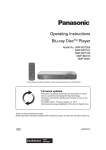
1
DMP-BDT700EG-SQT0268.book 1 ページ 2014年5月15日 木曜日 午後4時19分 Operating Instructions Blu-ray DiscTM Player Model No. DMP-BDT700 Firmware updates Panasonic is constantly improving the unit’s firmware to ensure that our customers are enjoying the latest technology. Panasonic recommends updating your firmware as soon as you are notified. For details, refer to “Firmware updates” (> 15) or http://panasonic.jp/support/global/cs/ (This site is in English only.) Thank you for purchasing this product. Please read these instructions carefully before using this product, and save this manual for future use. SQT0268 EG until 2014/7/7 DMP-BDT700EG-SQT0268.book 2 ページ 2014年5月15日 木曜日 午後4時19分 Precautions WARNING Unit To reduce the risk of fire, electric shock or product damage, ≥ Do not expose this unit to rain, moisture, dripping or splashing. ≥ Do not place objects filled with liquids, such as vases, on this unit. ≥ Use only the recommended accessories. ≥ Do not remove covers. ≥ Do not repair this unit by yourself. Refer servicing to qualified service personnel. ≥ Do not let metal objects fall inside this unit. ≥ Do not place heavy items on this unit. AC mains lead To reduce the risk of fire, electric shock or product damage, ≥ Ensure that the power supply voltage corresponds to the voltage printed on this unit. ≥ Insert the mains plug fully into the socket outlet. ≥ Do not pull, bend, or place heavy items on the lead. ≥ Do not handle the plug with wet hands. ≥ Hold onto the mains plug body when disconnecting the plug. ≥ Do not use a damaged mains plug or socket outlet. Batteries Mishandling of batteries can cause electrolyte leakage and may cause a fire. ≥ Danger of explosion if battery is incorrectly replaced. Replace only with the type recommended by the manufacturer. ≥ When disposing of the batteries, please contact your local authorities or dealer and ask for the correct method of disposal. ≥ Do not mix old and new batteries or different types at the same time. ≥ Do not heat or expose to flame. ≥ Do not leave the battery(ies) in a car exposed to direct sunlight for a long period of time with doors and windows closed. ≥ Do not take apart or short circuit. ≥ Do not recharge alkaline or manganese batteries. ≥ Do not use batteries if the covering has been peeled off. Remove batteries if you do not intend to use the remote control for a long period of time. Store in a cool, dark place. Restriction on use of unauthorized copied content This unit adopts the following technology for copyright protection. Cinavia Notice This product uses Cinavia technology to limit the use of unauthorized copies of some commercially-produced film and videos and their soundtracks. When a prohibited use of an unauthorized copy is detected, a message will be displayed and playback or copying will be interrupted. More information about Cinavia technology is provided at the Cinavia Online Consumer Information Center at http://www.cinavia.com. To request additional information about Cinavia by mail, send a postcard with your mailing address to: Cinavia Consumer Information Center, P.O. Box 86851, San Diego, CA, 92138, USA. The mains plug is the disconnecting device. Install this unit so that the mains plug can be unplugged from the socket outlet immediately. Small object Keep the Memory Card and the batteries out of reach of children to prevent swallowing. CAUTION Unit ≥ This unit utilizes a laser. Use of controls or adjustments or performance of procedures other than those specified herein may result in hazardous radiation exposure. ≥ Do not place sources of naked flames, such as lighted candles, on this unit. ≥ This unit may receive radio interference caused by mobile telephones during use. If such interference occurs, please increase separation between this unit and the mobile telephone. ≥ This unit is intended for use in moderate climates. ≥ Some portions of this unit may become hot during use. When moving or cleaning this unit, disconnect the AC mains lead and wait for 3 minutes or longer. Placement Place this unit on an even surface. To reduce the risk of fire, electric shock or product damage, ≥ Do not install or place this unit in a bookcase, built-in cabinet or in another confined space. Ensure this unit is well ventilated. ≥ Do not obstruct this unit’s ventilation openings with newspapers, tablecloths, curtains, and similar items. ≥ Do not place the unit on amplifiers/receivers or equipment that may become hot. The heat can damage the unit. ≥ Do not expose this unit to direct sunlight, high temperatures, high humidity, and excessive vibration. -2- DMP-BDT700EG-SQT0268.book 3 ページ 2014年5月15日 木曜日 午後4時19分 Wireless LAN connection To dispose or transfer this unit The following limits are in place regarding the usage of this unit. You must be aware of these limits before using this unit. Panasonic will in no way be responsible for any incidental damage which may arise due to a failure to obey these limits, or to any condition of use or disuse of this unit. ≥ Data transmitted and received over radio waves may be intercepted and monitored. ≥ This unit contains delicate electronic components. Please use this unit in the manner in which it was intended and follow the following points: – Do not expose this unit to high temperatures or direct sunlight. – Do not bend, or subject this unit to strong impacts. – Keep this unit away from moisture. – Do not disassemble or alter this unit in any way. The unit may keep the user settings information in the unit. If you discard this unit either by disposal or transfer, then follow the procedure to return all the settings to the factory presets to delete the user settings. (> 34, “To return all settings to the factory preset.”) ≥ The operation history may be recorded in the memory of this unit. Disposal of Old Equipment and Batteries Only for European Union and countries with recycling systems Declaration of Conformity (DoC) Hereby, “Panasonic Corporation” declares that this product is in compliance with the essential requirements and other relevant provisions of Directive 1999/5/EC. Customers can download a copy of the original DoC to our R&TTE products from our DoC server: http://www.doc.panasonic.de Contact to Authorized Representative: Panasonic Marketing Europe GmbH, Panasonic Testing Centre, Winsbergring 15, 22525 Hamburg, Germany This product is intended to be used in the following countries. Austria, Belgium, Bulgaria, Cyprus, Czech Republic, Denmark, Finland, France, Germany, Greece, Hungary, Ireland, Italy, Iceland, Liechtenstein, Luxembourg, Malta, Netherlands, Norway, Poland, Portugal, Romania, Slovakia, Slovenia, Spain, Sweden, United Kingdom, Switzerland This product is intended for general consumer. (Category 3) The WLAN feature of this product shall exclusively be used inside buildings. This product on purpose to connect to access point of 2.4 GHz or 5 GHz WLAN. These symbols on the products, packaging, and/or accompanying documents mean that used electrical and electronic products and batteries must not be mixed with general household waste. For proper treatment, recovery and recycling of old products and used batteries, please take them to applicable collection points in accordance with your national legislation. By disposing of them correctly, you will help to save valuable resources and prevent any potential negative effects on human health and the environment. For more information about collection and recycling, please contact your local municipality. Penalties may be applicable for incorrect disposal of this waste, in accordance with national legislation. Note for the battery symbol (bottom symbol): This symbol might be used in combination with a chemical symbol. In this case it complies with the requirement set by the Directive for the chemical involved. -3- DMP-BDT700EG-SQT0268.book 4 ページ 2014年5月15日 木曜日 午後4時19分 Table of contents Precautions . . . . . . . . . . . . . . . . . 2 Getting started Accessories . . . . . . . . . . . . . . . . . Unit and media care . . . . . . . . . . . Playable media. . . . . . . . . . . . . . . Control reference guide . . . . . . . . 5 5 6 8 Playback Inserting or removing media . . . . 16 HOME menu . . . . . . . . . . . . . . . . 16 Playback . . . . . . . . . . . . . . . . . . . 17 Enjoying Network Service . . . . . . 20 Home Network feature . . . . . . . . 21 VIERA Link “HDAVI Control™”. . . . . . . . . . . 23 Connections and settings Settings Connecting to a TV . . . . . . . . . . Connecting to an amplifier/receiver . . . . . . . . . Connecting to the network . . . . . Settings . . . . . . . . . . . . . . . . . . . 10 11 13 14 Option menu . . . . . . . . . . . . . . . . 24 Setup menu. . . . . . . . . . . . . . . . . 28 Reference Troubleshooting guide . . . . . . . . 34 Specifications . . . . . . . . . . . . . . . 39 -4- DMP-BDT700EG-SQT0268.book 5 ページ 2014年5月15日 木曜日 午後4時19分 Getting started Accessories Unit and media care Check the supplied accessories before using this unit. 1 Remote control (N2QAYA000085) 2 Batteries for remote control 1 AC mains lead 1 HDMI Cable 1 CD-ROM ∫ Clean this unit with a soft, dry cloth Getting started ≥ Never use alcohol, paint thinner or benzine to clean this unit. ≥ Before using chemically treated cloth, carefully read the instructions that came with the cloth. ∫ This unit’s lens Lens cleaner: RP-CL720AE ≥ This lens cleaner may not be available for sale in all countries, e.g. not available in Germany, please consult your Panasonic dealer for advice. ≥ This lens cleaner is sold as specific for DIGA, but can be used on this unit as well. ≥ Product numbers are provided in these operating instructions correct as of May 2014. These may be subject to change. ≥ Do not use AC mains lead with other equipment. ∫ Using the remote control Insert the batteries to the terminal so that it (i and j) matches those in the remote control. ∫ Clean discs DO DO NOT Wipe with a damp cloth and then wipe dry with a dry cloth. R03/LR03, AAA (Alkaline or manganese batteries) ∫ Disc and card handling precautions Point it at the remote control signal sensor on this unit. (> 9) ≥ Handle discs by the edges to avoid inadvertent scratches or fingerprints on the disc. ≥ Do not attach labels or stickers to discs. ≥ Do not use disc cleaning sprays, benzine, thinner, static electricity prevention liquids or any other solvent. ≥ Clean any dust, water, or foreign matter from the terminals on the rear side of the card. ≥ Do not use the following discs: – Discs with exposed adhesive from removed stickers or labels (rented discs, etc.). – Discs that are badly warped or cracked. – Irregularly shaped discs, such as heart shapes. -5- DMP-BDT700EG-SQT0268.book 6 ページ 2014年5月15日 木曜日 午後4時19分 Getting started Playable media Device Media markings Device types BD-Video BD-RE BD BD-R DVD-Video DVD-R DVD DVD-R DL Contents format Video Video, JPEG, MPO Video, MKV, Xvid Video Video, AVCHD, MKV, Xvid, JPEG, MPO, AAC, FLAC, MP3, WAV, WMA DVD-RW Video, AVCHD — +R/+RW/+R DL Music CD CD — MKV, Xvid, JPEG, MPO, AAC, FLAC, MP3, Music [CD-DA], WAV, WMA SD Memory Card (from 8 MB to 2 GB) SDHC Memory Card (from 4 GB to 32 GB) AVCHD, AVCHD 3D, SDXC Memory Card (48 GB, 64 GB) MP4, (Compatible with both mini and micro JPEG, MPO types) SD USB CD-R CD-RW Music [CD-DA] — USB devices (up to 2 TB) MKV, MP4, MPEG2, Xvid, JPEG, MPO, AAC, FLAC, MP3, WAV, WMA ≥ See pages 7 and 39 for more information on the types of content that can be played. -6- DMP-BDT700EG-SQT0268.book 7 ページ 2014年5月15日 木曜日 午後4時19分 Getting started ∫ Types of discs that cannot be played by this unit ∫ SD card ≥ miniSD Cards, microSD Cards, microSDHC Cards and microSDXC Cards can be used, but must be used with an adaptor card. These are usually supplied with such cards, or otherwise customer provided. ≥ To protect the card’s contents, move the record prevention tab (on the SD card) to “LOCK”. ≥ This unit is compatible with SD Memory Cards that meet SD Card Specifications FAT12 and FAT16 formats, as well as SDHC Memory Cards in FAT32 format and SDXC Memory Cards in exFAT. ≥ If the SD card is used with incompatible computers or devices, recorded contents may be erased due to the card being formatted etc. ≥ Usable memory may be slightly less than the card capacity. Any other disc that is not specifically supported or previously described. ≥ DVD-RAM ≥ Super Audio CD ≥ Photo CD ≥ DVD-Audio ≥ Video CD and Super Video CD ≥ HD DVD ∫ Region management information The unit can play back BD-Video/DVD-Video discs of the following regions codes, including “ALL”: Example: BD-Video DVD-Video 2 ∫ Finalize Any DVD-R/RW/R DL, +R/+RW/+R DL and CD-R/RW that are recorded by a recorder need to be finalized by the recorder to play on this unit. Please refer to the recorder’s instructions. ∫ BD-Video ≥ This unit supports high bit rate audio (Dolby® Digital Plus, Dolby® TrueHD, DTS-HD High Resolution AudioTM and DTS-HD Master AudioTM) adopted in BD-Video. ∫ 3D ≥ 3D videos and 3D still pictures can be played back when this unit is connected to a 3D compatible TV using a High Speed HDMI Cable. ≥ 2D video can be enjoyed as 3D virtually. (> 26) ∫ Music CD Operation and sound quality of CDs that do not comply with CD-DA specifications (copy control CDs, etc.) cannot be guaranteed to work. ∫ USB device ≥ This unit does not guarantee connection with all USB devices. ≥ This unit does not support USB device charging. ≥ FAT12, FAT16, FAT32, and NTFS file systems are supported. ≥ This unit supports USB2.0 High Speed. ≥ This unit supports an HDD formatted in FAT32 and NTFS. If the HDD is not recognized, the power to the HDD may not be supplied. Supply power from an external source. ∫ BD-RE, BD-R Discs recorded in DR mode using Panasonic Blu-ray Disc recorders may not play back the audio etc., correctly. ≥ It may not be possible to play the above media in some cases due to the type of media, the condition of the recording, the recording method, and how the files were created. ≥ The producers of the disc can control how discs are played, so you may not always be able to control play as described in these operating instructions. Read the disc’s instructions carefully. -7- DMP-BDT700EG-SQT0268.book 8 ページ 2014年5月15日 木曜日 午後4時19分 Getting started Control reference guide When other Panasonic devices respond to the remote control of the unit, change the remote control code. (> 33) 16 1 17 2 1 2 3 4 5 6 7 3 8 9 5 18 19 20 6 21 4 7 8 22 9 10 11 12 13 14 15 16 17 10 11 12 23 24 13 14 15 25 26 27 18 19 20 21 22 23 24 25 26 27 -8- Turn the unit on and off Open or close the disc tray (> 16) Select title numbers, etc./Enter numbers or characters Show MiracastTM screen (> 21) Start up the DLNA function (> 21) Show Pop-up menu (> 17) [3, 4, 2, 1] : Move the highlight for selection [OK] : Confirm the selection (2;)(;1) : Frame-by-frame (> 17) Show Option menu (> 24) Coloured buttons (red, green, yellow, blue) Used for various purposes depending on the display Basic playback control buttons (> 17) Show “Playback Information Window” (> 18) Show the status messages (> 18) Show “Picture Settings” (> 25) Switch the “Sound Effects” setting (> 26) Light up the remote control buttons Transmit the remote control signal TV operation buttons You can operate the Panasonic TV using this unit’s remote control. Some buttons may not work depending on the TV. [Í TV] : Turn the TV on and off [AV] : Change input [W X CH] : Channel select [i j VOL] : Adjust the volume Show “Player Settings” (> 28) Show HOME menu (> 16) Show the Home screen of the Network Service (> 20) Show Top menu (> 17) Return to previous screen Show “Subtitles”/“Subtitle Settings” (> 24) Change soundtrack (> 17) Show “3D Settings” (> 26) Switch the “High Clarity Sound” settings (> 26) Switch the brightness of the unit’s display (> 33) DMP-BDT700EG-SQT0268.book 9 ページ 2014年5月15日 木曜日 午後4時19分 Getting started 7 8 9 Pull to flip down the front panel. 1 1 2 3 4 5 6 2 3 4 5 6 Disc tray (> 16) Display USB port (> 16) SD card slot (> 16) Remote control signal sensor Distance: Within approx. 7 m Angle: Approx. 20e up and down, 30e left and right V.OFF LED (Video off LED) It is possible to set the LED to turn on/off. (> 33) 7 8 9 Open or close the disc tray* (> 16) Basic playback control switches* (> 17) Standby/on switch* (Í/I) (> 14) Touch to switch the unit from on to standby mode or vice versa. In standby mode, the unit is still consuming a small amount of power. * These buttons work just by touching the marks. When these buttons are touched, the LED will light up. Rear panel terminals (> 10–13) -9- DMP-BDT700EG-SQT0268.book 10 ページ 2014年5月15日 木曜日 午後4時19分 Connections and settings Connecting to a TV Connections and settings Connect the AC mains lead after making all connections. ≥ Before making any connections, we recommend that you temporarily disconnect all the units from AC power. ≥ Use HDMI AV OUT MAIN terminal with the supplied HDMI cable. ≥ Insert the AC mains lead up to A, a point just before the round hole. To a household mains socket HDMI IN AC mains lead (supplied) HDMI cable (supplied) ≥ To enjoy 4K output, you need to connect this unit to a 4K compatible TV. ≥ Use the High Speed HDMI cables. Non-HDMI-compliant cables cannot be utilized. To enjoy images in 4K (50p/60p), you need an HDMI cable that supports 18 Gbps. When outputting 1080p or 24p (4K) signal, please use HDMI cables 5.0 meters or less. It is recommended that you use Panasonic’s HDMI cable. A High Speed HDMI-compliant cable that supports 18 Gbps is supplied with this unit. Part number : K1HY19YY0032 ≥ To enjoy image in 4K (50p/60p), set “4K ( 50p/60p ) Output” to “Automatic”. (> 28) ≥ In case problems occur for the playback of content such as no picture or picture distortion, check the HDMI cable, related connections and the compatibility of TV video input. To output images in 4K, connect the HDMI cable to a 4K compatible terminal of the connected device. ≥ This unit consumes a small amount of AC power (> 39) even when turned off in standby mode. For the purpose of energy conservation, the unit should be disconnected if you will not be using it for extended period of time. - 10 - DMP-BDT700EG-SQT0268.book 11 ページ 2014年5月15日 木曜日 午後4時19分 Connections and settings Connecting to an amplifier/receiver Perform either one of the following connections in accordance with your amplifier/receiver input terminal. HDMI AV OUT HDMI cable (supplied) HDMI cable HDMI IN HDMI OUT (ARC) HDMI IN (ARC) Amplifier/receiver ≥ Use HDMI AV OUT MAIN terminal with the supplied HDMI cable. ≥ Set “Digital Audio Output” (> 29). ≥ To enjoy images in 4K (50p/60p), you need to connect a 4K (50p or 60p) compatible amplifier and a TV with an HDMI cable that supports 18 Gbps. ≥ When connecting to a non-3D or 4K compatible amplifier/receiver, connect this unit to a TV, then connect the TV and the amplifier/receiver. Please note, however, that the audio can only be up to 5.1ch. ≥ When using the TV or amplifier/receiver that does not have the indication of “(ARC)” (non-ARC-compatible) on the HDMI terminal, the amplifier/receiver and TV must also be connected using an optical digital cable or coaxial cable in order to enjoy the TV’s sound through the amplifier/ receiver. HDMI AV OUT SUB You can enjoy richer sound by using the HDMI AV OUT SUB terminal. HDMI cable (supplied) HDMI cable HDMI IN HDMI IN Amplifier/receiver ≥ Set “HDMI(SUB) Output Mode” to “V.OFF(Video Off)”. (> 28) – Audio is output in high resolution. ≥ It is possible to play back 3D videos, 3D still pictures and 4K videos, etc., when the connected TV is 3D or 4K compatible, even if the amplifier/receiver is not 3D or 4K compatible. ≥ The HDMI AV OUT SUB terminal is not compatible with the VIERA Link “HDAVI Control” (> 23). - 11 - DMP-BDT700EG-SQT0268.book 12 ページ 2014年5月15日 木曜日 午後4時19分 Connections and settings DIGITAL AUDIO OUT (OPTICAL or COAXIAL) Coaxial cable COAXIAL IN OR OPTICAL IN Optical digital cable Amplifier/receiver ≥ Set “HDMI Audio Output” to “Off” (> 29). ≥ Set “Digital Audio Output” (> 29). 2ch AUDIO OUT L AUDIO IN R Amplifier/receiver Audio cable ≥ Connect terminals of the same colour. 7.1ch AUDIO OUT Connect Audio cables to terminals corresponding to the speakers you have connected. Cable connections A Front speaker (L/R) B Surround speaker (L/R) C Centre speaker D Subwoofer E Surround back speaker (L/R) (Only for 7.1ch AUDIO OUT) ≥ Set “Analogue Multi Channel” to “On”, and set the speaker presence and size according to your environment (> 30). (Audio is not output from HDMI AV OUT terminal.) - 12 - DMP-BDT700EG-SQT0268.book 13 ページ 2014年5月15日 木曜日 午後4時19分 Connections and settings Connecting to the network The following services can be used when this unit is connected to broadband. ≥ Firmware can be updated (> 15) ≥ You can enjoy BD-Live (> 18) ≥ You can enjoy Network Service (> 20) ≥ You can access other devices (Home Network) (> 21) ≥ This unit supports Wi-Fi DirectTM and can make a wireless connection to wireless devices without router. You can use this function when enjoying Home Network feature, etc. Internet access is not available while connected via Wi-Fi DirectTM. (> 21, 31) For details about connection method, refer to the instructions supplied with the connected equipment. Wireless LAN connection This unit has built-in Wi-Fi® and can be connected to a wireless router. Wireless router, etc. Internet ≥ For up-to-date compatibility information on your wireless router, refer to http://panasonic.jp/support/global/cs/ (This site is in English only.) ≥ The unit is not compatible with public wireless LAN services provided in airports, stations, cafes, etc. ≥ See page 3 for the precautions of wireless LAN connection. LAN cable connection LAN Cable Broadband router, etc. Internet ≥ Use category 5 or above straight LAN cables (STP) when connecting to peripheral devices. ≥ Inserting any cable other than a LAN cable in the LAN port can damage the unit. - 13 - DMP-BDT700EG-SQT0268.book 14 ページ 2014年5月15日 木曜日 午後4時19分 Connections and settings Settings Wireless Settings The following settings can be performed anytime in the Setup menu. (> 31, 32) Select a connection method to wireless access point. Please refer to the operating instructions of your wireless access point about connection methods. Easy Settings Search for wireless network After connecting your new player for the first time and pressing [Í], the basic settings screen will appear. Preparation Turn on the TV and select the appropriate video input. 1 Press [Í]. Setup screen appears. 2 Follow the on-screen instructions to continue with the settings. Easy Network Setting After completing “Easy Settings”, you can perform “Easy Network Setting”. Select “Wired” or “Wireless” and press [OK]. WPS (PUSH button) WPS (PUSH button): If your wireless router supports WPS (PUSH button), you can easily perform the settings by pressing WPS button on it. e.g. *2 WPS (Wi-Fi Protected SetupTM) is a standard that facilitates settings relating to the connection and security of wireless LAN devices. 1 Press WPS button or corresponding button of the wireless router until the lamp starts flashing. ≥ For details, refer to the operating instruction of the wireless router. 2 Select “Start”. Search for wireless network: Easy Network Setting ≥ When you select “Search for wireless network”, the available wireless networks will be displayed. Select your network name. Select a connection mode. Wired Wireless OK RETURN ∫ “Wired” connection Follow the on-screen instructions to apply your connection settings. ∫ “Wireless” connection Before beginning wireless connection setup ≥ Obtain your network name (SSID*1). ≥ If your wireless connection is encrypted, please be sure that you know your encryption key. Select “Search for wireless network” or “WPS (PUSH button)”, then follow the on-screen instructions and apply the settings. – If your network name is not displayed, search again by pressing the red button on the remote control. – Stealth SSID will not be displayed when you select “Search for wireless network”. Enter manually by using “Manual setting”. (Press [PLAYER SETTING] > select “Network” > select “Network Settings” > select “Wireless Settings” > select “Connection Setting” > select “Manual setting”) ≥ If your wireless network is encrypted, Encryption Key input screen will be displayed. Input the encryption key of your network. - 14 - DMP-BDT700EG-SQT0268.book 15 ページ 2014年5月15日 木曜日 午後4時19分 Connections and settings Firmware updates ≥ Refer to the operating instructions of the hub or router. ≥ Do not use this unit to connect to any wireless network for which you do not have usage rights. Using these networks may be regarded as illegal access. ≥ If you have trouble getting online on your PC after performing network settings on this unit, perform the network settings on your PC. ≥ Please be aware that connecting to a network without encryption may result in the leaking of data such as personal or secret information. *1 *2 An SSID (Service Set IDentification) is a name used by wireless LAN to identify a particular network. Transmission is possible if the SSID matches for both devices. The wireless router compatible with Wi-Fi Protected SetupTM may have the mark. Occasionally, Panasonic may release updated firmware for this unit that may add or improve the way a feature operates. These updates are available free of charge. This unit is capable of checking the firmware automatically when connected to the Internet via a broadband connection.* When a new firmware version is available, the following message is displayed. Firmware Update New Version: X.XX Current Installed Version: X.XX Do you want to start firmware update? For the update information, please visit the following website: http://panasonic.net/support/ Yes No OK RETURN DO NOT DISCONNECT the unit from the AC power or perform any operation while the update takes place. After the firmware is installed, “Finish” will be displayed on the unit’s display. Unit will restart and the following screen will be displayed. The firmware has been updated. Current Version: x.xx ≥ If downloading on this unit fails or this unit is not connected to the Internet, then you can download the latest firmware from the following website and burn it to a CD-R to update the firmware. http://panasonic.jp/support/global/cs/ (This site is in English only.) To show the firmware version on this unit. (> 33, “Firmware Version Information”) ≥ Downloading will require several minutes. It may take longer or may not work properly depending on the connection environment. ≥ If you do not want to check for the latest firmware version, set “Automatic Update Check” to “Off”. (> 33) * You must agree to the terms of use for the Internet function and the privacy policy. (> 31, “Notice”) - 15 - DMP-BDT700EG-SQT0268.book 16 ページ 2014年5月15日 木曜日 午後4時19分 Playback Inserting or removing media HOME menu Playback Major functions of this unit can be operated from the HOME menu. Preparation Turn on the TV and select the appropriate video input. 1 2 Press [Í] to turn on the unit. Press [OK] or [2, 1] to select the item. ≥ Press [OK] or [3, 4] to select the item if necessary Notes ≥ When inserting a media item, ensure that it is facing the correct way, which is the right side facing up. ≥ When removing the SD card, press the centre of the card and pull it straight out. ≥ If you connect a Panasonic product with a USB connection cable, the setup screen may be displayed on the connected equipment. For details, refer to the instructions for the connected equipment. CAUTION Do not place objects in front of the unit. The disc tray may collide with objects when it is opened, and this may cause malfunction. Videos/Music/Photos Disc SD Card USB Play back the contents. (> 17) ≥ When multiple contents are recorded, select the types of contents or the title. Home Network DLNA Client Miracast Media Renderer (> 21) (> 21) (> 22) Network Service Displays the Home screen of Network Service. (> 20) Setup Player Settings (> 28) Changes the background of Wallpaper HOME menu. SD Card (> 18) Management To show the HOME menu Press [HOME]. ≥ Items to be displayed may vary with the media. - 16 - DMP-BDT700EG-SQT0268.book 17 ページ 2014年5月15日 木曜日 午後4時19分 Playback Playback 1 Search/Slow motion Insert the media. Playback starts depending on the media. 2 Select the item to play and press [OK]. Repeat this step if necessary. ≥ DISCS CONTINUE TO ROTATE WHILE MENUS ARE DISPLAYED. Press [∫] when you have finished playback to protect the unit’s motor, your TV screen and so on. ≥ When the following conditions are met, a still picture will be played back in 4K. The resolution of the still picture will be changed automatically. – The unit is connected to a 4K compatible TV – “HDMI Video Format” is set to “Automatic” (> 28) – The still picture is being played back in 2D ≥ MKV: Successive play is not possible. ≥ It is not possible to play back AVCHD and MPEG2 videos which have been dragged and dropped or copied and pasted to the media. Search While playing, press [6] or [5]. ≥ Xvid, MKV, MP4 and MPEG2: Audio is not heard. Slow motion While paused, press [6] or [5]. ≥ BD-Video and AVCHD: [5] only. ≥ Xvid, MKV, MP4 and MPEG2: Not effective. The speed increases up to 5 steps. ≥ Music, MP3, etc.: The speed is fixed to a single step. ≥ Press [1] to revert to normal playback speed. Skip While playing or paused, press [:] or [9]. Skip to the title, chapter or track. Operations during playback The following functions may not work depending on the media and contents. Stop Press [∫]. The stopping point is memorized. Resume play function Press [1] to restart from this point. ≥ The point is cleared if the media is removed. ≥ On BD-Video discs including BD-J, the resume play function does not work. Pause Press [;]. ≥ Press [;] again or [1] to restart play. Manual Skip Skip forward 1 minute Press [+60s]. Skip backward 10 seconds Press [-10s]. ≥ Xvid and MKV: Not effective. Frame-by-frame While paused, press [2] (2;) or [1] (;1). ≥ Press and hold to fast forward. ≥ Press [1] to revert to normal playback speed. ≥ BD-Video and AVCHD: Forward only. ≥ Xvid, MKV, MP4 and MPEG2: Not effective. Changing soundtrack Press [AUDIO]. You can change the audio channel number or soundtrack language, etc. Show top menu/pop-up menu Press [TOP MENU] or [POP-UP MENU]. Select the item and press [OK]. - 17 - DMP-BDT700EG-SQT0268.book 18 ページ 2014年5月15日 木曜日 午後4時19分 Playback Show the status messages Enjoying 3D video and photos While playing, press [PLAYBACK INFO.]. You can check the detailed disc playback status. Audio/video attribute information of disc. Settings status of “Digital Audio Output” (> 29). Preparation Connect this unit to a 3D compatible TV. (> 10) ≥ Perform the necessary preparations for the TV. ≥ Play back following the instructions displayed on the screen. ≥ 3D Settings (> 26, 30) HDMI output information. Press [RETURN] to exit. While playing, press [STATUS]. The status messages give you information about what is currently being played. Each time you press [STATUS], the display information may change or disappear from the screen. ≥ Depending on media and contents, the display may change or not appear. ≥ Please refrain from viewing 3D images if you do not feel well or are experiencing visual fatigue. In the event that you experience dizziness, nausea, or other discomfort while viewing 3D images, discontinue use and rest your eyes. ≥ 3D video might not output the way it is set in “HDMI Video Format” and “24p Output” (> 28). ≥ When playing back 3D photos from “Photos” screen, select from the “3D” list. (Still pictures in “2D” are played back in 2D.) If “2D” and “3D” indications are not displayed, press the red button on the remote control to switch the view of playback contents. e.g., BD-Video Enjoying BD-Live BD-Video Play A B C D T: Title, C: Chapter, PL: Playlist Elapsed time in the title Current position Total time e.g., JPEG Date 11.12.2010 Size 500 x 375 Manufacturer Equipment 1 Perform network connection and settings. (> 13, 14) 2 Insert an SD card with 1 GB or more free space. ≥ The SD card is used as the local storage. 3 Insert the disc. No. ≥ During music playback, the elapsed time, file name and other relevant information are displayed on the unit’s display. e.g.,MP3 With “BD-Live” discs, you can enjoy bonus contents that use Internet access. For this BD-Live function, insertion of an SD card is necessary along with Internet connection. ∫ Deleting data/Formatting SD cards Select “SD Card Management” in the HOME menu (> 16), then select “BD-Video Data Erase” or “Format SD Card”. ≥ The usable functions and the operating method may vary with each disc, please refer to the instructions on the disc and/or visit their website. ≥ “BD-Live Internet Access” may need to be changed for certain discs (> 32). - 18 - DMP-BDT700EG-SQT0268.book 19 ページ 2014年5月15日 木曜日 午後4時19分 Playback Slideshow Play a slideshow of photos and adjust various settings during the playback. 1 2 3 Insert the media. Select “Photos”. Select an item and press the green button. The following items can be set. Start Slideshow Start the slideshow. You can display still pictures in the selected folder one by one at a constant interval. Interval Change the display interval. Transition Effect Select the effect when sliding pictures. Repeat Play Set whether to repeat the slideshow. Soundtrack Set whether to play background music. ≥ FLAC and MP3, etc., on the USB device can be played back during the slideshow of JPEG on the USB device or the SD card. ≥ A music CD can also be played back during the slideshow of JPEG on the SD card. Soundtrack Folder Select the folder from which the music files are played. Random Soundtrack Background music is played in random order. ≥ Still pictures displayed as “ ” cannot be displayed as thumbnail with this unit. ≥ When both the music CD and the USB device with recorded music are inserted into this unit, the music CD has priority to be played back as background music. ≥ You cannot play back AAC as background music. - 19 - DMP-BDT700EG-SQT0268.book 20 ページ 2014年5月15日 木曜日 午後4時19分 Playback Enjoying Network Service 1 2 Network Service allows you to access some specific websites supported by Panasonic. Network Service provides a variety of selected Internet services such as the following. ≥ Online movie rental service ≥ Video browsing service Select the item and press [OK]. To exit from Network Service Press [HOME]. * MORE BACK Internet * Images are for illustration purposes, contents may change without notice. Preparation ≥ Network connection (> 13) ≥ Network setting (> 14) Press [INTERNET]. ≥ When playing content in the media, Network Service cannot be accessed by pressing [INTERNET]. ≥ In the following cases, settings are possible using the Setup menu items. – When restricting the use of Network Service (> 32, “Network Service Lock”) – When the audio is distorted (> 31, “Audio Auto Gain Control”) – When wrong time is displayed (> 31, “Time Zone”, “Summer Time”) ≥ When using a slow Internet connection, the video may not be displayed correctly. A high speed Internet service with a speed of at least 6 Mbps is recommended. ≥ Be sure to update the firmware as soon as a firmware update notice is displayed on the screen. If the firmware is not updated, you may not be able to use Network Service function properly. (> 15) ≥ Network Service Home Screen is subject to change without notice. ≥ The services through Network Service are operated by their respective service providers, and service may be discontinued either temporarily or permanently without notice. Therefore, Panasonic will make no warranty for the content or the continuity of the services. ≥ Some features of websites or content of the service may not be available. ≥ Some content may be inappropriate for viewers. ≥ Some content may only be available for specific countries and may be presented in specific languages. - 20 - DMP-BDT700EG-SQT0268.book 21 ページ 2014年5月15日 木曜日 午後4時19分 Playback Home Network feature Playing back contents on the DLNA server Before using the following features, be sure to configure the connected equipment on your Home Network. Using MiracastTM You can enjoy the content you are viewing on a Miracast-compatible smartphone, etc. on the big screen of your TV. ≥ Compatible with AndroidTM devices, ver. 4.2 and above and Miracast certified. For information on whether the smartphone, etc. supports Miracast, contact the manufacturer of the device. Player 1 2 ≥ About support format of DLNA (> 40). Player Server Preparation 1 Perform network connection (> 13) and network settings (> 14) of this unit. 2 Add the contents and folder to the libraries of the Windows Media® Player or the smartphone, etc. ≥ Playlist of Windows Media® Player can play back only the contents that are stored in the libraries. Miracast compatible device ≥ When connected to DIGA, register this unit to your DIGA. Press [MIRACAST]. 1 Operate the Miracast compatible device. ≥ On the device, enable Miracast and select this unit (DMP-BDT700) as the device to be connected. For details, refer to the instructions supplied with the device. To exit from Miracast Press [HOME]. You can share photos, videos and music stored in the DLNA Certified media server [PC with Windows 7 installed, smartphone, recorders (DIGA), etc.] connected to your home network. Press [DLNA]. ≥ The list can be updated by pressing the red button on the remote control. ≥ The connection method can be switched to Wi-Fi Direct by pressing the green button on the remote control. 2 3 Select the equipment and press [OK]. Select the item to play and press [OK]. ≥ You may be able to use convenient functions depending on the content by pressing [OPTION]. To exit from Home Network Press [HOME]. - 21 - DMP-BDT700EG-SQT0268.book 22 ページ 2014年5月15日 木曜日 午後4時19分 Playback Using the Digital Media Controller You can use a smartphone or tablet as the Digital Media Controller (DMC) to playback contents from DLNA server on the Renderer (this unit). Possible applications: Renderer Controller Renderer * Server * Server i Controller To exit from Media Renderer screen Press [HOME]. About DLNA and Media Renderer For more details, refer to the following website and the operating instructions for each of the equipment. http://panasonic.jp/support/global/cs/ (This site is in English only.) ≥ Wi-Fi Direct connection while using Home Network feature is only temporary, and the network connection method returns to the original setting when exiting. ≥ Depending on the device or connection environment, the data transfer rate may decrease. ≥ Depending on the contents and the connected equipment, playback may not be possible. ≥ Items displayed in grey on the display cannot be played back by this unit. * * DMC compatible software should be installed. Preparation Perform steps 1 and 2. (> 21) 3 Perform the “Remote Device Settings”. (> 31) ≥ You can register up to 16 devices. 1 2 3 4 Press [HOME]. 5 Operate the DMC compatible devices. Select “Home Network”. Select “Media Renderer”. Select “Home Network” or “Wi-Fi Direct” and press [OK], then follow the indications on the screen. - 22 - DMP-BDT700EG-SQT0268.book 23 ページ 2014年5月15日 木曜日 午後4時19分 Playback VIERA Link “HDAVI Control™” Power off link All connected equipment compatible with “HDAVI Control”, including this unit, automatically turns off when you switch the television off. What is VIERA Link “HDAVI Control”? VIERA Link “HDAVI Control” is a convenient function which will link the operations of this unit and a Panasonic TV (VIERA) or other device under “HDAVI Control”. You can use this function by connecting the equipment with an HDMI cable*. See the operating instructions for connected equipment for operational details. Playing music continuously even after turning off the television When the unit is connected to a Panasonic TV (VIERA) that supports HDAVI Control 2 or later and an amplifier/receiver supports VIERA Link. 1 While playing music Press [OPTION]. 2 Select “TV Power Off”. * Only when connecting via an HDMI AV OUT MAIN terminal on this unit. Preparation 1 Set “VIERA Link” to “On” (> 33). (The default setting is “On”.) 2 Set the “HDAVI Control” operations on the connected equipment (e.g., TV). 3 Turn on all “HDAVI Control” compatible equipment and select this unit’s input channel on the connected TV so that the “HDAVI Control” function works properly. Also, when the connection or settings are changed, repeat this procedure. Automatic input switching Power on link When the following operations are performed, the input channel of the television will be automatically switched and the screen of this unit will be displayed. When the television is off, the television will automatically turn on. – When play starts on the unit – When an action that uses the display screen is performed (e.g., HOME menu) Easy control only with VIERA remote control Only when TV supports “HDAVI Control 2” or later By using the TV remote control, you can perform various playback operations and settings. See the operating instructions of the TV for more details. ≥ The buttons that you can use for this unit vary depending on the TV. For details, refer to the operating instructions of the TV. ≥ The operation of this unit may be interrupted when you press certain buttons on the TV remote control. ≥ This unit supports “HDAVI Control 5” function. “HDAVI Control 5” is the standard for Panasonic’s HDAVI Control compatible equipment. This standard is compatible with Panasonic’s conventional HDAVI equipment. ≥ VIERA Link “HDAVI Control”, based on the control functions provided by HDMI which is an industry standard known as HDMI CEC (Consumer Electronics Control), is a unique function that we have developed and added. As such, its operation with other manufacturers’ equipment that supports HDMI CEC cannot be guaranteed. ≥ Please refer to individual manuals for other manufacturers’ equipment supporting VIERA Link function. - 23 - DMP-BDT700EG-SQT0268.book 24 ページ 2014年5月15日 木曜日 午後4時19分 Settings Option menu Settings Operation Menu A variety of playback operations and settings can be performed from this menu. Available options differ depending on the playing contents and the condition of the unit. ∫ Soundtrack (> 17) This setting is also able to switch by pressing [AUDIO]. 1 ∫ Audio Channel Select the audio channel number. Press [OPTION]. ≥ When playing music, select “Playback Settings” and press [OK]. e.g., BD-Video Operation Menu Soundtrack ∫ Subtitles ∫ Subtitle Settings Change the subtitle settings. This setting is also displayed by pressing [SUBTITLE]. 1 ENG DTS-HD MSTR Multi Subtitle Settings Angle 1 Repeat Play Off Secondary Video ∫ Angle Select the number of the angle. Playback Information Window Control Panel Top Menu Pop-up Menu Aspect 2 Normal Select an item and change the settings. To exit the screen Press [OPTION]. Regarding Language : (> 41) ∫ Repeat Play Select the item that you want to repeat. ≥ You can repeat the playback of a chapter, playlist, the entire disc, etc., but the items displayed will differ depending on the type of the media. ≥ Select “Off” to cancel. ∫ Random Select whether or not to play random. ∫ Start Slideshow Start the slideshow. ∫ Status Show the status messages. ∫ Rotate RIGHT ∫ Rotate LEFT Rotate the still picture. ∫ Wallpaper Set the still picture to the wallpaper of HOME menu. (> 16) ∫ Video The recording method of original video appears. ∫ Secondary Video Video Select on/off for images. The recording method of original video appears. Soundtrack Select on/off for audio and the language. - 24 - DMP-BDT700EG-SQT0268.book 25 ページ 2014年5月15日 木曜日 午後4時19分 Settings ∫ Playback Information Window (> 18) This setting is also displayed by pressing [PLAYBACK INFO.]. ∫ Display Select a setting suitable for your screen. ∫ Picture Type Select the picture quality mode during play. ∫ Control Panel Display the Control Panel. Playing back while using VIERA Link, etc. e.g., ∫ Sharpness Adjustment Adjust the sharpness of images. The greater the value is, the sharper images will be. Exit ∫ Noise Reduction Reduce unnecessary noise in videos. The greater the value is, the less noise will appear. Press [RETURN] to hide the Control Panel. ∫ Luminance/Colour Adjustment Adjust the contrast, brightness, white gamma, black gamma, colour saturation and hue. ∫ Top Menu Display Top Menu. ∫ Bandwidth Limitation Adjust the bandwidth limitations. ∫ Pop-up Menu Display Pop-up Menu. ∫ 24p / 25p Conversion Play back videos with film-like motion. ≥ When this unit is connected to a TV compatible with 4K/24p or 4K/25p: If “HDMI Video Format” (> 28) is set to “Automatic”, videos will be output in 4K/24p or 4K/25p. ≥ When this unit is connected to a TV compatible with 1080/24p or 1080/25p: If “HDMI Video Format” (> 28) is set to “Automatic”, “1080i” or “1080p”, videos will be output in 1080/24p or 1080/25p. ≥ Noise may appear on the image when you switch the setting. ∫ Menu Display Menu. ∫ Aspect Switch the screen mode. ∫ Reception The radio wave status during the playback of DLNA is displayed. (Only when a wireless connection is used) Picture Settings These settings are also displayed by pressing [PICTURE SETTING]. ∫ Progressive Select the method of conversion for progressive output to suit the type of material being played. ≥ If the video is disrupted when “Auto” is selected, select either “Video” or “Film” depending on the material to be played back. Picture Settings Set 1 Display Picture Type Sharpness Adjustment entt Noise Reduction Normal During BD-Video playback, these icons switch to the ones for BD Video content. Normal Luminance/Colour Adjustment Bandwidth Limitationn 24p / 25p Conversionn Progressive ∫ Reset to Default Picture Settings Return “Playback Settings” of the selected tab (“Set 1” or “Set 2”) to the factory preset. Off Auto Reset to Default Picture turre Settings Set 1 Switch “Set 1”, “Set 2” or “Standard” by using [2, 1]. ≥ You can register desired settings to “Set 1” and “Set 2”. Settings for BD Video playback and settings for the playback of other types of media are registered separately. (The default settings for “Set 1”/”Set 2” are the same as the settings for “Standard”.) ≥ You cannot change the “Standard” settings. - 25 - DMP-BDT700EG-SQT0268.book 26 ページ 2014年5月15日 木曜日 午後4時19分 Settings Sound Effect Settings *1 *2 ∫ Sound Effects*1, *2 Select the sound effect. This setting is also able to switch by pressing [SOUND EFFECT]. ≥ Night Surround : Enjoy a movie with powerful sound even when the volume is kept low at night. The audio is set in such a way that it can be heard easily. ≥ Re-master : This feature gives you brighter sound by increasing the high frequency portion of the audio. (Upsampling up to 192 kHz/32 bit is possible.) Recommended setting Re-master 1 Pop and rock Re-master 2 Jazz Re-master 3 Classical Not every function can be set individually. This function is effective for audio from HDMI AV OUT or DIGITAL AUDIO OUT only when “Digital Audio Output” is set to “PCM” (> 29). Sound Settings ∫ Dialogue Enhancer* The volume of the centre channel is raised to make dialog easier to hear. ∫ High Clarity Sound Stop processing signals that affect the audio quality or turn off the unit’s display to make the audio quality clearer. (> 30) Select whether or not to output images. This setting is able to switch by pressing [HIGH CLARITY]. ≥ If “On (Video Off)” is selected, the setting will be cancelled after you play back a video. * This function is effective for audio from HDMI AV OUT or DIGITAL AUDIO OUT only when “Digital Audio Output” is set to “PCM” (> 29). ≥ Digital Tube Sound : This feature gives you a warm sound, like that produced by a vacuum tube amplifier. (Upsampling up to 192 kHz/32 bit is possible.) Recommended setting 3D Settings Digital Tube Sound 1 A crisp, delicate sound Digital Tube Sound 2 A tight, hi-fi sound Digital Tube Sound 3 A soft, rich sound Digital Tube Sound 4 A clear, powerful sound Digital Tube Sound 5 A distinctive mid-range sound ∫ 3D Picture Mode Digital Tube Sound 6 A soft, enveloping sound Normal Play back pictures with normal 3D effects. Soft You can enjoy 3D pictures with a feeling of broadness, holding back the depth perception. Manual Play back 3D pictures with settings of “Manual Settings”. These settings are also displayed by pressing [3D SETTING]. ∫ Signal Format ∫ Sound Effect Frequency Set the maximum sampling frequency for the audio selected in “Sound Effects”. ≥ Even when “96/88.2kHz” is selected, an audio source with a sampling frequency of 96 kHz or higher will be output with the original sampling frequency. ≥ When “Sound Effects” is set to “Off”, this setting is disabled. Original Keep original picture format. Side by side 3D picture format comprising of left and right screens. 2D to 3D Converts 2D pictures to 3D effect. - 26 - DMP-BDT700EG-SQT0268.book 27 ページ 2014年5月15日 木曜日 午後4時19分 Settings ∫ Manual Settings Distance Set the amount of depth perception. Screen Type Selects how the screen appears during 3D playback (flat or round). Frame Width Set the amount of feathering at the edge of screen. Frame Colour Set the colour of feathering at the edge of screen. ∫ Graphic Display Level (Only when “Full HD” is selected in “3D Type” (> 30).) 3D position for the Option menu or message screen, etc. can be adjusted during 3D playback. - 27 - DMP-BDT700EG-SQT0268.book 28 ページ 2014年5月15日 木曜日 午後4時19分 Settings Setup menu Change the unit’s settings if necessary. The settings remain intact even if you switch the unit to standby. Some items are common to the Option menu. You can get the same effect with both menus. 1 Press [PLAYER SETTING]. Player Settings Picture HDMI Output Still Mode Sound Seamless Play Automatic On ¾ 4K ( 50p/60p ) Output This unit automatically chooses to output images in 4K*1 (50p/60p) when connected to a 4K (50p or 60p) compatible TV. ≥ This item is available only when “HDMI Video Format” is set to “Automatic”. ≥ Images will not be output correctly with an HDMI cable that does not support 18 Gbps. (The supplied HDMI cable supports 18 Gbps.) ≥ If “Automatic” is selected, “HDMI(SUB) Output Mode” will be set to “V.OFF(Video Off)”. 3D ¾ 24p Output Movies and other material recorded at 24p*2 are output at 24p. ≥ When this unit is connected to TV compatible with 4K/24p and “HDMI Video Format” is set to “Automatic”, images will be output in 4K/ 24p. ≥ When this unit is connected to a TV compatible with 1080/24p and “HDMI Video Format” is set to “Automatic”, “1080i” or “1080p”, images will be output in 1080/24p. ≥ When BD-Video images other than 24p are played, images are output at 60p. Language Network Ratings System OK RETURN 2 Select an item and change the settings. To exit the screen Press [HOME]. Picture ∫ HDMI Output Press [OK] to show the following settings: ¾HDMI Video Format The items supported by the connected devices are indicated on the screen as “¢”. When any item without “¢” is selected, the images may be distorted. ≥ If “Automatic” is selected, the best suited output resolution to the connected TV is automatically selected. ≥ To enjoy high-definition video up-converted to 1080p, you need to connect the unit directly to 1080p compatible HDTV (High Definition TV). If this unit is connected to an HDTV through other equipment, the other equipment must also be 1080p compatible. - 28 - ¾ HDMI Colour Mode This setting is for selecting colour-space conversion of the image signal. ¾ Deep Colour Output This setting is for selecting whether to use Deep Colour Output when a TV that supports Deep Colour is connected. ¾ Contents Type Flag Depending on the playback content, the TV will output adjusting to the optimal method when a TV that supports this function is connected. ¾ HDMI(SUB) Output Mode Set to output the video from the HDMI AV OUT SUB terminal or not. DMP-BDT700EG-SQT0268.book 29 ページ 2014年5月15日 木曜日 午後4時19分 Settings ∫ Still Mode ¾ BD-Video Secondary Audio Select whether or not to mix the primary and secondary audio (including the button click sound). If “Off” is selected, the unit outputs the primary audio only. Select the type of picture shown when you pause playback. Automatic Automatically selects the type of picture shown. Field Select if jittering occurs when “Automatic” is selected. Frame Select if small text or fine patterns cannot be seen clearly when “Automatic” is selected. ¾ HDMI Audio Output This setting selects whether or not to output audio from HDMI. ≥ Select “Off” when the TV is connected to this unit via HDMI AV OUT terminal, and this unit is also connected to other devices, such as an amplifier/receiver via an DIGITAL AUDIO OUT terminal. ∫ Seamless Play The chapter segments in playlists are played seamlessly. ≥ Select “On” when the picture freezes for a moment at the chapters segment in playlists. *1 *2 ∫ OPTICAL / COAXIAL Down Sampling A high resolution image/display technology of approximately 4000 (width) k 2000 (height) pixels. A progressive image recorded at a rate of 24 frames per second (motion-picture film). Many BD-Video movie contents are recorded in 24 frames/second in accordance with the film materials. Sound ∫ Dynamic Range Compression You can listen at low volumes but still hear dialogue clearly. (Dolby Digital, Dolby Digital Plus and Dolby TrueHD only) ≥ “Automatic” is effective only when playing Dolby TrueHD. ∫ Digital Audio Output Press [OK] to show the following settings: ¾Dolby D/Dolby D +/Dolby TrueHD ¾DTS/DTS-HD ¾MPEG Audio Select the audio signal to output. ≥ Select “PCM”, when the connected equipment cannot decode the respective audio format. This unit decodes the audio format and transmits to the connected equipment. ≥ If you do not make proper settings the audio may be static or noisy. Select whether or not to convert the sampling frequency of the audio to be output from the OPTICAL/COAXIAL terminal. If you choose to convert the sampling frequency, you can limit the maximum output to 48 kHz or 96 kHz. ≥ Set a frequency supported by the connected device. ≥ When playing back BD-Video, signals are converted to 48 kHz despite the settings in the following cases: – when the signals have a sampling frequency of 192 kHz – when the disc has copy protection – when “BD-Video Secondary Audio” is set to “On” ∫ Downmix Select the downmix system of multi-channel to 2-channel sound. ≥ Select “Surround encoded”, when the connected equipment supports the virtual surround function. ≥ The downmix effect is not available when “Digital Audio Output” is set to “Bitstream”. ≥ The audio will be output in “Stereo” in the following cases: – AVCHD playback – Playback of secondary audio (including the button click sound). ∫ HDMI Output Settings of Music Playback Minimise the audio noise during music playback by automatically switching the video output to 1080i. - 29 - DMP-BDT700EG-SQT0268.book 30 ページ 2014年5月15日 木曜日 午後4時19分 Settings ∫ 7.1ch Audio Reformatting ∫ 3D Type Surround sound with 6.1ch or less is automatically expanded and played back at 7.1ch. ≥ If “Off” is selected, sound is played over the original number of channels. (Note that in the case of 6.1ch audio, playback will be at 5.1ch.) ≥ Audio reformatting is enabled in the following cases: – When you have selected “PCM” in “Digital Audio Output”. – When the audio is Dolby Digital, Dolby Digital Plus, Dolby TrueHD or LPCM. – BD-Video playback Select the format of the connected TV. ≥ Change the settings for 3D on the TV also when “Side by side” is selected. ∫ Settings for High Clarity Sound Set a terminal that will stop processing audio signals or whether or not to turn on/off the unit’s display when “High Clarity Sound” (> 26) is set to “On (Video Off)” or “On (Video On)”. ≥ Set an option for video playback and audio playback. ∫ Audio Delay Synchronization between picture and sound is corrected by adjusting the delay time of the audio output. ∫ Analogue Multi Channel Multi-channel surround sound is output from the AUDIO OUT terminal. ≥ If “On” is selected, audio will not be output from the HDMI AV OUT terminal. – Speaker presence and size ( ) – Delay time ( ) – Channel balance ( ) To finish the speaker setting Select “Complete”. ∫ 3D Playback Message Set to display or hide the 3D viewing warning screen when playing back the 3D compatible video software. Language ∫ Soundtrack Preference Choose the language for audio. ≥ If “Original” is selected, the original language of each disc will be selected. ≥ Enter a code (> 41) when you select “Other ¢¢¢¢”. ∫ Subtitle Preference Choose the language for the subtitle. ≥ If “Automatic” is selected and the language selected for “Soundtrack Preference” is not available, subtitles of that language will automatically appear if available on that disc. ≥ Enter a code (> 41) when you select “Other ¢¢¢¢”. ∫ Menu Preference Choose the language for the disc menus. ≥ Enter a code (> 41) when you select “Other ¢¢¢¢”. ∫ Subtitle Text Select a desired item according to the language used for MKV/Xvid subtitles text. ≥ This item is displayed only after playing back a file. ∫ On-Screen Language Choose the language for menus and on-screen messages. 3D ∫ 3D BD-Video Playback Select the playback method of 3D compatible video software. ∫ 3D AVCHD Output Select the output method of 3D AVCHD videos. - 30 - DMP-BDT700EG-SQT0268.book 31 ページ 2014年5月15日 木曜日 午後4時19分 Settings ¾ Network Service Settings (> 20) Network Press [OK] to show the following settings: ∫ Easy Network Setting (> 14) ∫ Network Settings Perform network-related settings individually. Press [OK] to show the following settings: ¾LAN Connection Mode Select the LAN connection method. ≥ When not using wireless LAN (when turning it off), select “Wired”. ¾Wireless Settings This allows the wireless router and connection settings to be set up. Current connection settings and connection state can be checked. Press [OK] to show the following settings: Connection Setting The wireless router connection wizard will be displayed. Double Speed Mode Setting (2.4GHz) Set the connection speed for a 2.4 GHz wireless format. ≥ If you connect using the “Double Speed Mode (40MHz)”, 2 channels use the same frequency band, and there is consequently a greater risk of reception interference. This can cause the connection speed to drop or become unstable. ¾IP Address / DNS Settings This is for checking the state of the network connection and setting the IP address and DNS-related. Press [OK] to show the respective setting. ¾Proxy Server Settings This is for checking the state of connection with the Proxy server and performing settings. Press [OK] to show the respective setting. Second Screen Browsing When this function is set to “On”, you can enjoy the content you are viewing on a network service application of smartphone, etc. with the home network on the big screen of your TV. Audio Auto Gain Control Volume that is different depending on the contents is adjusted automatically to the standard volume while using the Network Service. ≥ Depending on contents, this function effect will not work. ≥ Select “Off” when the audio is distorted. Time Zone Set the unit’s time to match your location. ≥ Some Network Service contents require the time zone to be set. Set time zone if necessary. Summer Time Select “On” when using summer time. Notice Displays the terms of service for the cloud services. ¾ Network Drive Connection This unit can access a hard disk shared folder on a network and play back videos, still pictures, and music. For the setting and operation method of connected equipment, refer to the following website. http://panasonic.jp/support/global/cs/ (This site is in English only.) ¾ Remote Device Settings (> 22) Press [OK] to show the following settings: Remote Device Operation Enable to operate the unit by DMC. ≥ If “On” is selected, “Quick Start” will be activated. Device Name Entry Set the name of this unit to be displayed on the connected equipment. - 31 - DMP-BDT700EG-SQT0268.book 32 ページ 2014年5月15日 木曜日 午後4時19分 Settings Registration Type ∫ TV Settings Press [OK] to show the following settings: Automatic Allow connections to all the equipment accessing this unit. Manual Set the permission for individual equipment connections accessing this unit. ¾ TV Aspect Remote Device List Registering/deregistering of the displayed equipment can be performed when “Manual” in “Registration Type” is selected. ¾BD-Live Internet Access (> 18) You can restrict Internet access when BD-Live functions are used. ≥ If “Limit” is selected, Internet access is permitted only for BD-Live contents which have content owner certificates. Set to match the type of TV connected. When connected to a 4:3 aspect TV and playing 16:9 ratio image: The sides are cut off so the picture fills 4:3 Pan & Scan the screen. When playing BD-Video, video is output as “4:3 Letterbox”. 4:3 Letterbox Black bands appear at the top and bottom of the picture. When connected to a 16:9 widescreen TV and playing 4:3 ratio image: Ratings The following items use the same password. Don’t forget your password. ∫ DVD-Video Ratings Set a ratings level to limit DVD-Video play. ∫ BD-Video Ratings Set an age limit of BD-Video play. 16:9 Video is displayed as a 4:3 ratio image in the centre of the screen. 16:9 full Video is displayed as a horizontally stretched 16:9 image. ¾ TV System Perform the setup so it matches the TV System of the connected TV. ∫ Network Service Lock You can restrict the usage of Network Service. ¾ Screen Saver Function This is to prevent image retention on the screen. ≥ When this is set to “On”: If a list of playback content is displayed and there is no operation for 10 minutes or more, the screen switches to HOME menu automatically. ≥ While playing and pausing, etc., this function is not available. System ∫ Easy Settings You can execute basic settings. ¾ On-Screen Messages Choose whether to show status messages automatically. - 32 - DMP-BDT700EG-SQT0268.book 33 ページ 2014年5月15日 木曜日 午後4時19分 Settings ¾VIERA Link Set to use “HDAVI Control” function when connected via HDMI cable to a device that supports “HDAVI Control”. ≥ Select “Off” when you do not want to use “HDAVI Control”. ∫ Firmware Update (> 15) Press [OK] to show the following settings: ¾ Automatic Update Check When this equipment remains connected to the Internet, it will check for the latest firmware version when it is turned on and you can update it if necessary. ∫ Unit Settings Press [OK] to show the following settings: ¾Front Panel Display Changes the brightness of the unit’s display. This setting is also able to switch by pressing [DIM]. ≥ If “Automatic” is selected, the display is set to bright and only dimmed during playback. ≥ This setting does not work when “Front Panel Display” in “Settings for High Clarity Sound” is set to “Off”. (> 30) (Except for when “High Clarity Sound” is set to “Off”) ¾ Update Now You can update the firmware manually if a firmware update is available. ∫ System Information Press [OK] to show the following settings: ¾ Software Licence Information about the software used by this unit is displayed. ¾ Firmware Version Information Display firmware version of this unit and wireless LAN module. ¾HDMI(SUB) V.OFF LED Control Set to light the HDMI (SUB) V.OFF LED or not. ≥ This will light when “HDMI(SUB) Output Mode” (> 28) is set to “V.OFF(Video Off)”. ∫ Quick Start Speed of start-up from standby mode is increased. ≥ When set to “On”, the internal control unit will be powered and in Network standby mode. The idle power consumption will increase so compared to when set to “Off”. (Power consumption > 39) ∫ Default Settings This returns all values in the Setup menu and the Option menu to the default settings, except for some settings of network, ratings, remote control code, on-screen language, etc. ∫ Remote Control Change the remote control code if other Panasonic products react to this remote control. - 33 - DMP-BDT700EG-SQT0268.book 34 ページ 2014年5月15日 木曜日 午後4時19分 Reference Troubleshooting guide Reference Before requesting service, please perform the following checks. If the problem remains unresolved, consult your dealer for instructions. ∫ Unit does not respond to remote control or unit’s buttons. Touch and hold [Í/I] on the main unit for 3 seconds. – If still unable to turn the unit off, disconnect the AC mains lead, wait 1 minute, then reconnect the AC mains lead. Do you have the latest firmware installed? Panasonic is constantly improving the unit’s firmware to ensure that our customers are enjoying the latest technology. (> 15) The following do not indicate a problem with this unit: – Regular disc rotating sounds. – Image disturbance during search. – Image disturbance when replacing 3D discs. General operation To return to the factory default. ¾ Select “Yes” in “Default Settings” in the Setup menu. (> 33) To return all settings to the factory preset. ¾ Reset the unit as follows: 1 Turn the unit off. 2 Press and hold [OK], the yellow button and the blue button on the remote control at the same time for more than 5 seconds. (Perform this operation when the light on the remote control button is turned off.) (> 8, [LIGHT]) – “00 RET” is displayed on the unit’s display. 3 Press [1] (right) repeatedly on the remote control until “08 FIN” is displayed on the unit’s display. 4 Press and hold [OK] for more than 5 seconds. ∫ Cannot eject disc. This unit is turned off when the input for the TV is switched. ¾ This is a normal phenomenon when using VIERA Link (HDAVI Control 4 or later). For details please read the operating instructions for the TV. 1 Turn the unit off. 2 Press and hold [OK], the yellow button and the blue button on the remote control at the same time for more than 5 seconds. (Perform this operation when the light on the remote control button is turned off.) (> 8, [LIGHT]) – “00 RET” is displayed on the unit’s display. 3 Press [1] (right) repeatedly on the remote control until “06 FTO” is displayed on the unit’s display. 4 Press [OK]. The remote control doesn’t work properly. ¾ Change the batteries in the remote control. (> 5) ¾ The remote control and this unit are using different codes. If “Setcode ” is displayed on the unit’s display when a button is pressed on the remote control, change the code on the remote control. Press and hold [OK] and the displayed number (“”) for more than 5 seconds. The TV tuner mode is not displayed when the TV is turned on. ¾ This phenomenon may occur, depending on the TV setting, when “Quick Start” is set to “On”. ¾ Depending on the TV, this phenomenon may be prevented by reconnecting the HDMI cable to a different HDMI input terminal or by changing the HDMI auto connection setting. This unit is turned off automatically. ¾ To save on electricity, this unit is turned off automatically if there is no button operation for about 20 minutes when not playing back (such as when paused or displaying the menu, displaying still pictures, etc.). - 34 - DMP-BDT700EG-SQT0268.book 35 ページ 2014年5月15日 木曜日 午後4時19分 Reference You have forgotten your ratings password. You want to cancel the ratings level. ¾ The ratings level returns to the factory defaults. 1 Turn the unit on. 2 Press and hold [OK], the yellow button and the blue button on the remote control at the same time for more than 5 seconds. (Perform this operation when the light on the remote control button is turned off.) (> 8, [LIGHT]) – “00 RET” is displayed on the unit’s display. 3 Press [1] (right) repeatedly on the remote control until “03 VL” is displayed on the unit’s display. 4 Press [OK]. The TV screen turns black. ¾ In the following cases, HDMI authentication takes place and a black screen is displayed: – When “24p / 25p Conversion” is set to “Auto”. – When “24p Output” is set to “On”. – When the display is switched between 2D and 3D images. – When you quit the 4K playback by displaying another screen, including the HOME menu. – When “HDMI Output Settings of Music Playback” is set to “Sound Quality Priority”. This unit does not recognize the USB connection correctly. ¾ Disconnect and re-connect the USB cable. If it still does not recognize the connection, turn this unit off and on again. ¾ USB devices may not be recognized by this unit when connected using the following : – a USB hub – a USB extension cable ¾ If you connect USB HDD to this unit, use the USB cable that is supplied with the HDD. The buttons of the unit do not work. ¾ Touch the buttons with your finger. They may not work if operated with your fingernails or hands wearing gloves. Picture The images from this unit do not appear on the TV. Picture is distorted. ¾ An incorrect resolution is selected in “HDMI Video Format”. Reset the setting as follows: 1 Turn the unit on. 2 Press and hold [OK], the yellow button and the blue button on the remote control at the same time for more than 5 seconds. (Perform this operation when the light on the remote control button is turned off.) (> 8, [LIGHT]) – “00 RET” is displayed on the unit’s display. 3 Press [1] (right) repeatedly on the remote control until “04 PRG” is displayed on the unit’s display. 4 Press and hold [OK] for more than 5 seconds. Set the item again. (> 28) – When Dolby Digital Plus, Dolby TrueHD, and DTS-HD® audio are not output properly, select “Yes” in “Default Settings” (> 33) and make proper settings. ¾ The connected devices are changed. Reset the setting as follows: 1 Turn the unit on. 2 Press and hold [OK], the yellow button and the blue button on the remote control at the same time for more than 5 seconds. (Perform this operation when the light on the remote control button is turned off.) (> 8, [LIGHT]) – “00 RET” is displayed on the unit’s display. 3 Press [1] (right) repeatedly on the remote control until “13 L4K” is displayed on the unit’s display. 4 Press and hold [OK] for more than 5 seconds. – “4K ( 50p/60p ) Output” will be set to “Off”. Make the correct setting again. (> 28) ¾ The unit and TV are using different video systems. 1 Turn the unit on. 2 Press and hold [OK], the yellow button and the blue button on the remote control at the same time for more than 5 seconds. (Perform this operation when the light on the remote control button is turned off.) (> 8, [LIGHT]) – “00 RET” is displayed on the unit’s display. 3 Press [1] (right) repeatedly on the remote control until “05 P/N” is displayed on the unit’s display. 4 Press and hold [OK] for more than 5 seconds. The system switches from PAL to NTSC or vice versa. - 35 - DMP-BDT700EG-SQT0268.book 36 ページ 2014年5月15日 木曜日 午後4時19分 Reference ¾ PAL discs cannot be correctly viewed on an NTSC TV. ¾ When “3D BD-Video Playback” in the Setup menu is set to “Automatic”, images may not be output depending on the connection method. After removing the disc from this unit, select “Set before play” in the Setup menu, and select “2D Playback” in the setup screen displayed when playing 3D discs. (> 30) ¾ When outputting in 4K, images may be distorted depending on the HDMI cable. Use the supplied HDMI cable. Video is not output. ¾ Video is not output when the “High Clarity Sound” is set to “On (Video Off)”. (> 26) ¾ Video from the HDMI AV OUT SUB terminal is not output when the “HDMI(SUB) Output Mode” is set to “V.OFF(Video Off)”. (> 28) Video is not output in high-definition. ¾ Confirm that “HDMI Video Format” in the Setup menu is set properly. (> 28) ¾ To enjoy image in 4K (50p/60p), set “4K ( 50p/ 60p ) Output” to “Automatic”. (> 28) 3D video is not output. ¾ Connect to a full high-definition TV. ¾ Change the settings as required by the connected TV format. (> 30, “3D Type”) ¾ Is there a non-3D compatible amplifier/ receiver connected between this unit and a TV? (> 11) ¾ If there is a non-3D compatible amplifier/ receiver connected to the HDMI AV OUT SUB terminal, set the “HDMI(SUB) Output Mode” to “V.OFF(Video Off)”. (> 11, 28) ¾ Are the settings on this unit and the TV correct? (> 18) ¾ Is the amplifier/receiver that is connected between this unit and TV on? ¾ Depending on the connected TV, the video being played back might switch to 2D video due to changes in resolution etc. Check the 3D setting on the TV. 3D video is not output correctly as 2D. ¾ Select “Set before play” in the Setup menu, and select “2D Playback” in the setup screen displayed when playing 3D discs. (> 30, “3D BD-Video Playback”) ¾ Discs that have recorded titles with Side by side (2 screen structure) and that can be enjoyed in 3D are played back in accordance with the settings of the TV. A black band is displayed around the edge of the screen. The aspect ratio of the screen is abnormal. ¾ Confirm the “Aspect” and “TV Aspect” are set properly. (> 25, 32) ¾ Adjust the aspect setting on the TV. There is a lot of image lag when playing video. ¾ Set “0” all items in the “Noise Reduction”. (> 25) ¾ Set “Audio Delay”. (> 30) Audio Cannot switch audio. ¾ The audio cannot switch, if “Digital Audio Output” is set to “Bitstream”. Set “Digital Audio Output” to “PCM”. (> 29) Cannot hear the desired audio type. ¾ Check the connections and the “Digital Audio Output” settings. (> 11, 29) ¾ When the unit is connected to an amplifier/ receiver with the AUDIO OUT terminals, set “Analogue Multi Channel”. (> 30) ¾ To output audio from a device connected with an HDMI cable, set “HDMI Audio Output” to “On” in the Setup menu. (> 29) ¾ When connecting this unit to a TV via an HDMI AV OUT MAIN and to an amplifier/ receiver via an HDMI AV OUT SUB, set “HDMI(SUB) Output Mode” to “V.OFF(Video Off)”. (> 11, 28) There is no sound coming out from the TV. ¾ Audio may not output from the TV when the amplifier/receiver is connected to the HDMI AV OUT SUB, and “HDMI(SUB) Output Mode” (> 28) is set to “V.OFF(Video Off)”. In such a case, output audio from the amplifier/ receiver. To output audio from the TV, set the “HDMI(SUB) Output Mode” to “Normal”. There is no sound coming out. ¾ To output audio using DIGITAL AUDIO OUT terminal, set “OPTICAL / COAXIAL Down Sampling” properly. (> 29) - 36 - DMP-BDT700EG-SQT0268.book 37 ページ 2014年5月15日 木曜日 午後4時19分 Reference Playback Disc cannot be played. ¾ The disc is dirty. (> 5) ¾ The disc is not finalized. (> 7) Still pictures (JPEG) do not play back normally. ¾ The images that were edited on the PC, such as Progressive JPEG, etc., may not be played back. I can’t play back BD-Live. ¾ The SD card is write-protected. (> 7) ¾ Confirm that this unit is connected to the broadband Internet. (> 13) ¾ Confirm the “BD-Live Internet Access” settings. (> 32) ¾ Confirm an SD card is inserted into the SD card slot. (> 16) ¾ Connect this unit to the network by a wired connection. When using wireless LAN connection, video from the DLNA Certified media server is not played back or video frames are dropped during playback. ¾ Higher transfer rate router such as 802.11n (2.4 GHz or 5 GHz) wireless router may solve the problem. If you use 802.11n (2.4 GHz or 5 GHz) wireless router, it is necessary to set the encryption type to “AES”. Simultaneous use with a microwave, cordless telephone etc. at 2.4 GHz may result in connection interruptions or other problems. ¾ On the “Wireless Settings” screen (> 31), the continuous lighting of at least 4 “Reception” indicators is the target for a stable connection. If 3 or fewer indicators are lit or the connection is being interrupted, change the position or angle of your wireless router and see if the connection state improves. If there is no improvement, connect to a wired network and perform the “Easy Network Setting” (> 14) again. Messages on the screen Network I can’t connect to the network. ¾ Confirm the network connection and settings. (> 13, 14, 31) ¾ There may be interference that prevents the unit from detecting your home network. Place the unit and the wireless router closer to each other. This unit may be able to detect your network name (> 15, “SSID”). ¾ Check the operating instructions for each device and connect accordingly. Cannot read. Please check the disc. ¾ You inserted an incompatible disc. Cannot play this title. ¾ You tried to play a non-compatible image. No disc inserted. ¾ The disc may be upside down. $ This operation cannot be performed now. ¾ Some operations are unsupported by the unit. (For example, reverse slow motion, etc.) IP address is not set. ¾ The “IP Address” in “IP Address / DNS Settings” is “---. ---. ---. ---”. Set the “IP Address”, “Subnet Mask”, and “Gateway Address”. (Select the automatic address acquisition if necessary.) The wireless access point currently has a low network security setting. It is recommended to change to a higher setting. ¾ Set a stronger network security level referring to the wireless router operating instructions. - 37 - DMP-BDT700EG-SQT0268.book 38 ページ 2014年5月15日 木曜日 午後4時19分 Reference Messages on the unit’s display F99 ¾ The unit fails to operate properly. Touch [Í/I] on the main unit for 3 seconds to switch the unit to standby, then switch back on. NET ¾ While connecting to a network. Start ¾ A firmware update will start. Please do not turn off the unit. UPDATE /5 (“ ” stands for a number.) ¾ A firmware update is in progress. Please do not turn off the unit. Finish ¾ The firmware update is complete. NoPLAY ¾ There is a viewing restriction on a BD-Video or DVD-Video. (> 32) NoREAD ¾ The media is dirty or badly scratched. The unit cannot play. Remove ¾ The USB device is drawing too much power. Remove the USB device. Setcode (“ ” stands for a number.) ¾ The remote control and this unit are using different codes. Change the code on the remote control. Press and hold [OK] and the indicated number button at the same time for more than 5 seconds. U59 ¾ Temperature of this unit is hot and the unit switches to standby for safety reasons. Wait for about 30 minutes. Install or place this unit with good ventilation. H or F (“ ” stands for a number.) ¾ There is something unusual. ¾ Check the unit using the troubleshooting guide. If the service number remains displayed, do the following. 1 Disconnect the plug from the household mains socket, wait a few seconds, then reconnect it. 2 Touch [Í/I] to turn the unit on. If the service number remains displayed despite doing the above, request service from the dealer. Inform the dealer of the service number when requesting service. - 38 - DMP-BDT700EG-SQT0268.book 39 ページ 2014年5月15日 木曜日 午後4時19分 Reference Specifications Mass Approx. 2.8 kg ≥ Specifications are subject to change without notice. General File format Signal system PAL/NTSC Operating temperature range i5 oC to i35 oC Operating humidity range 10 % to 80 % RH (no condensation) AUDIO OUT (Pin jack) Analogue Audio output (L/R, 7.1ch): Standard : 0.5 Vrms, Full scale : 2.0 Vrms at 1 kHz (<500 ≠) Audio performance Frequency response: 4 Hz to 88 kHz File format MKV Xvid S/N ratio: 115 dB (2ch L/R, FL/FR) MPEG (TS/PS) DIGITAL AUDIO OUT (OPTICAL/COAXIAL) 1 pc. Output format : PCM, Dolby Digital, DTS® HDMI OUT (19 pin type A) 2 pcs. Output Audio format : PCM, Dolby Digital, Dolby Digital Plus, Dolby TrueHD, DTS®, DTS-HD High Resolution AudioTM, DTS-HD Master AudioTM 1 pc. SD card slot 1 pc. LAN (Ethernet) Port 1 pc. 10BASE-T/100BASE-TX Wireless LAN Standard Compliance: IEEE802.11 a/b/g/n “.MPG”, “.mpg”, “.MPEG”, “.mpeg”, “.M2TS”, “.m2ts”, “.MTS”, “.mts”, “.TS”, “.ts” Security: WPATM/WPA2TM (Encryption type: TKIP/AES, Authentication type: PSK), WEP (64 bit/128 bit) LASER Specification System with 2 lens, 3 integration units (405 nm wavelength for BDs, 661 nm wavelength for DVDs, 783 nm wavelength for CDs,) Class 1 LASER Product Wave length: 783 nm (CDs)/ 661 nm (DVDs)/405 nm (BDs) Laser power: No hazardous radiation is emitted with the safety protection Power supply AC 220 V to 240 V, 50 Hz Power consumption Approx. 21 W Power consumption in standby mode Approx. 0.2 W (Quick Start: Off) Power consumption in Network standby mode Approx. 6.0 W (Quick Start: On) Some mp4/MPEG files may not be played back correctly, depending on the video resolution, frame rate condition and so on. JPEG “.JPG”, “.jpg” ≥ MOTION JPEG and Progressive JPEG are not supported. ≥ You may not be able to play back the file if you have edited the folder structure or the file name on a PC or other device. MPO “.MPO”, “.mpo” 3D still picture MP3 “.MP3”, “.mp3” This unit supports ID3 tags, but only titles, artist names and album names can be displayed. FLAC “.FLAC”, “.flac” This unit supports tags, but only titles, artist names and album names can be displayed. Maximum sampling rate: 192 kHz/24 bit WAV “.WAV”, “.wav” Maximum sampling rate: 192 kHz/32 bit AAC “.M4A”, “.m4a” Maximum sampling rate: 48 kHz/320 kbps “.WMA”, “.wma” This unit supports tags, but only titles, artist names and album names can be displayed. Maximum sampling rate: 48 kHz/385 kbps Frequency Range: 2.4 GHz/5 GHz band Optical pick-up Reference ≥ The video file and subtitles text file are Subtitles text file inside the same folder, “.SRT”, “.srt”, and the file names are “.SSA”, “.ssa”, the same except for the “.ASS”, “.ass” file extensions. “.AVI”, “.avi” ≥ Some MKV/Xvid files may not be played back correctly, Subtitles text file depending on the video “.SRT”, “.srt”, resolution, frame rate “.SUB”, “.sub”, condition, subtitle “.TXT”, “.txt” format and so on. mp4 “.MP4”, “.mp4”, (H.264+AAC) “.MOV”, .mov” Dynamic range: 110 dB (2ch L/R, FL/FR) USB port (Type A) Extension “.MKV”, “.mkv” WMA ≥ With certain recording states and folder structures, the play order may differ or playback may not be possible. Dimensions (WkHkD) 446 mmk68 mmk256 mm Including the projecting parts - 39 - DMP-BDT700EG-SQT0268.book 40 ページ 2014年5月15日 木曜日 午後4時19分 Reference Audio information Supported format for DLNA The audio output differs depending on which terminals are connected to the amplifier/receiver, and the settings on the unit. (> 29, “Digital Audio Output”) ≥ File formats that are not supported by your DLNA server cannot be played. Video ≥ The number of channels listed is the maximum possible number of output channels when connected to amplifier/ receiver compatible with the respective audio format. Container HDMI AV OUT/ DIGITAL AUDIO OUT (COAXIAL/OPTICAL) MKV “Digital Audio Output” Xvid Terminal Output channel HDMI AV OUT “Bitstream” Outputs using original audio*1 Dolby Digital/ DIGITAL DTS Digital AUDIO OUT SurroundTM “PCM” BD-Video : 7.1ch PCM*1*2 DVD-Video : 5.1ch PCM AVCHD MP4 PS Down-mixed 2ch PCM TS *1 *2 H.264 AAC PCM Vorbis FLAC Example of file extension .mkv MPEG-4 Advanced MP3 .avi Simple Profile Dolby Digital (ASP) Dolby Digital .mts H.264 AAC .mp4, .mov Dolby Digital .mpg, .mpeg MPEG2 Linear PCM MPEG2 AAC .m2ts, .ts H.264 Dolby Digital Photo AUDIO OUT Output channel Video codec Audio codec 7.1ch AUDIO OUT 2ch AUDIO OUT Format JPEG BD-Video : 7.1ch*1*2 DVD-Video : 5.1ch Example of file extension .jpg Audio 2ch Audio codec MP3 FLAC WAV AAC WMA Linear PCM When “BD-Video Secondary Audio” is set to “On”, the audio will be output as Dolby Digital, DTS Digital SurroundTM or 5.1ch PCM. The audio output is amplified from 5.1ch or 6.1ch to 7.1ch depending on the DTS, Inc. specifications. Example of file extension .mp3 .flac .wav .m4a .wma — ≥ Depending on the server, the contents other than stated above can be played back. - 40 - DMP-BDT700EG-SQT0268.book 41 ページ 2014年5月15日 木曜日 午後4時19分 Reference Language code list Language Code Language Abkhazian: 6566 Afar: 6565 Afrikaans: 6570 Albanian: 8381 Amharic: 6577 Arabic: 6582 Armenian: 7289 Assamese: 6583 Aymara: 6589 Azerbaijani: 6590 Bashkir: 6665 Basque: 6985 Bengali; Bangla: 6678 Bhutani: 6890 Bihari: 6672 Breton: 6682 Bulgarian: 6671 Burmese: 7789 Byelorussian: 6669 Cambodian: 7577 Catalan: 6765 Chinese: 9072 Corsican: 6779 Croatian: 7282 Czech: 6783 Danish: 6865 Dutch: 7876 English: 6978 Esperanto: 6979 Estonian: 6984 Faroese: 7079 Fiji: 7074 Finnish: 7073 French: 7082 Frisian: 7089 Galician: 7176 Georgian: 7565 German: 6869 Greek: 6976 Greenlandic: 7576 Guarani: 7178 Display languages list Code Language Gujarati: 7185 Hausa: 7265 Hebrew: 7387 Hindi: 7273 Hungarian: 7285 Icelandic: 7383 Indonesian: 7378 Interlingua: 7365 Irish: 7165 Italian: 7384 Japanese: 7465 Javanese: 7487 Kannada: 7578 Kashmiri: 7583 Kazakh: 7575 Kirghiz: 7589 Korean: 7579 Kurdish: 7585 Laotian: 7679 Latin: 7665 Latvian, Lettish: 7686 Lingala: 7678 Lithuanian: 7684 Macedonian: 7775 Malagasy: 7771 Malay: 7783 Malayalam: 7776 Maltese: 7784 Maori: 7773 Marathi: 7782 Moldavian: 7779 Mongolian: 7778 Nauru: 7865 Nepali: 7869 Norwegian: 7879 Oriya: 7982 Pashto, Pushto: 8083 Persian: 7065 Polish: 8076 Portuguese: 8084 Punjabi: 8065 Quechua: 8185 Code Rhaeto-Romance: 8277 Romanian: 8279 Russian: 8285 Samoan: 8377 Sanskrit: 8365 Scots Gaelic: 7168 Serbian: 8382 Serbo-Croatian: 8372 Shona: 8378 Sindhi: 8368 Singhalese: 8373 Slovak: 8375 Slovenian: 8376 Somali: 8379 Spanish: 6983 Sundanese: 8385 Swahili: 8387 Swedish: 8386 Tagalog: 8476 Tajik: 8471 Tamil: 8465 Tatar: 8484 Telugu: 8469 Thai: 8472 Tibetan: 6679 Tigrinya: 8473 Tonga: 8479 Turkish: 8482 Turkmen: 8475 Twi: 8487 Ukrainian: 8575 Urdu: 8582 Uzbek: 8590 Vietnamese: 8673 Volapük: 8679 Welsh: 6789 Wolof: 8779 Xhosa: 8872 Yiddish: 7473 Yoruba: 8979 Zulu: 9085 Display Language Display Language Display Language ENG FRA DEU ITA ESP NLD SVE NOR DAN POR RUS - 41 - English French German Italian Spanish Dutch Swedish Norwegian Danish Portuguese Russian JPN CHI KOR MAL VIE THA POL CES SLK HUN FIN Japanese Chinese Korean Malay Vietnamese Thai Polish Czech Slovak Hungarian Finnish ARA HIN PER IND MRI BUL RUM GRE TUR Arabic Hindi Persian Indonesian Maori Bulgarian Romanian Greek Turkish Others DMP-BDT700EG-SQT0268.book 42 ページ 2014年5月15日 木曜日 午後4時19分 Reference “AVCHD”, “AVCHD 3D”, “AVCHD Progressive” and “AVCHD 3D/ Progressive” are trademarks of Panasonic Corporation and Sony Corporation. Java is a registered trademark of Oracle and/or its affiliates. Manufactured under license from Dolby Laboratories. Dolby and the double-D symbol are trademarks of Dolby Laboratories. For DTS patents, see http://patents.dts.com. Manufactured under license from DTS Licensing Limited. DTS, DTS-HD, the Symbol, & DTS and the Symbol together are registered trademarks, and DTS-HD Master Audio | Essential is a trademark of DTS, Inc. © DTS, Inc. All Rights Reserved. THX and the THX logo are trademarks of THX Ltd., registered in the United States and other jurisdictions. All rights reserved. HDMI, the HDMI Logo, and High-Definition Multimedia Interface are trademarks or registered trademarks of HDMI Licensing LLC in the United States and other countries. This product is licensed under the AVC patent portfolio license and VC-1 patent portfolio license for the personal and non-commercial use of a consumer to (i) encode video in compliance with the AVC Standard and VC-1 Standard (“AVC/VC-1 Video”) and/or (ii) decode AVC/VC-1 Video that was encoded by a consumer engaged in a personal and non-commercial activity and/or was obtained from a video provider licensed to provide AVC/VC-1 Video. No license is granted or shall be implied for any other use. Additional information may be obtained from MPEG LA, LLC. See http://www.mpegla.com. HDAVI ControlTM is a trademark of Panasonic Corporation. MPEG Layer-3 audio coding technology licensed from Fraunhofer IIS and Thomson. SDXC Logo is a trademark of SD-3C, LLC. “DVD Logo” is a trademark of DVD Format/Logo Licensing Corporation. The Wi-Fi CERTIFIED Logo is a certification mark of the Wi-Fi Alliance. The Wi-Fi Protected Setup Mark is a mark of the Wi-Fi Alliance. “Wi-Fi”, “Wi-Fi Protected Setup”, “Wi-Fi Direct”, “Miracast”, “WPA” and “WPA2” are marks or registered marks of the Wi-Fi Alliance. DLNA, the DLNA Logo and DLNA CERTIFIED are trademarks, service marks, or certification marks of the Digital Living Network Alliance. Windows is a trademark or a registered trademark of Microsoft Corporation in the United States and other countries. Android is a trademark of Google Inc. Copyright 2004-2014 Verance Corporation. CinaviaTM is a Verance Corporation trademark. Protected by U.S. Patent 7,369,677 and worldwide patents issued and pending under license from Verance Corporation. All rights reserved. This product incorporates the following software: (1) the software developed independently by or for Panasonic Corporation, (2) the software owned by third party and licensed to Panasonic Corporation, (3) the software licensed under the GNU General Public License, Version 2.0 (GPL V2.0), (4) the software licensed under the GNU LESSER General Public License, Version 2.1 (LGPL V2.1), and/or (5) open source software other than the software licensed under the GPL V2.0 and/or LGPL V2.1. The software categorized as (3) - (5) are distributed in the hope that it will be useful, but WITHOUT ANY WARRANTY, without even the implied warranty of MERCHANTABILITY or FITNESS FOR A PARTICULAR PURPOSE. Please refer to the detailed terms and conditions thereof shown in the Player Settings menu. At least three (3) years from delivery of this product, Panasonic will give to any third party who contacts us at the contact information provided below, for a charge no more than our cost of physically performing source code distribution, a complete machine-readable copy of the corresponding source code covered under GPL V2.0, LGPL V2.1 or the other licenses with the obligation to do so, as well as the respective copyright notice thereof. Contact Information: [email protected] The source code and the copyright notice are also available for free in our website below. http://panasonic.net/avc/oss/ (1) MS/WMA This product is protected by certain intellectual property rights of Microsoft Corporation and third parties. Use or distribution of such technology outside of this product is prohibited without a license from Microsoft or an authorized Microsoft subsidiary and third parties. (2) MS/PlayReady/Final Product Labeling This product contains technology subject to certain intellectual property rights of Microsoft. Use or distribution of this technology outside of this product is prohibited without the appropriate license(s) from Microsoft. (3) MS/PlayReady/End User Notices Content owners use Microsoft PlayReady™ content access technology to protect their intellectual property, including copyrighted content. This device uses PlayReady technology to access PlayReady-protected content and/or WMDRM-protected content. If the device fails to properly enforce restrictions on content usage, content owners may require Microsoft to revoke the device’s ability to consume PlayReady-protected content. Revocation should not affect unprotected content or content protected by other content access technologies. Content owners may require you to upgrade PlayReady to access their content. If you decline an upgrade, you will not be able to access content that requires the upgrade. (4) Vorbis, FLAC, WPA Supplicant The software licenses are displayed when “Software Licence” in the Setup menu is selected. (> 33) - 42 - DMP-BDT700EG-SQT0268.book 43 ページ 2014年5月15日 木曜日 午後4時19分 Reference - 43 - DMP-BDT700EG-SQT0268.book 44 ページ 2014年5月15日 木曜日 午後4時19分 NORSK FORSIKTIG ADVARSEL Produkt For å redusere faren for brann, elektrisk støt eller skade på apparatet: ≥ Utsett ikke produktet for regn, fukt, drypping eller sprut. ≥ Ikke plasser objekter som er fylt med væske, som vaser, på apparatet. ≥ Bruk kun anbefalt tilbehør. ≥ Fjern ikke deksler. ≥ Reparer ikke denne enheten selv, overlat service til kvalifisert servicepersonell. Vekselstrømnett Nettstøpselet er trukket ut fra denne enheten. Installer denne enheten slik at nettstøpselet umiddelbart kan trekkes fra stikkontakten. Produkt ≥ Dette produktet anvender en laser. Betjening av kontroller eller justering eller andre inngrep enn de beskrevet i denne bruksanvisning kan føre til farlig bestråling. ≥ Plasser ikke åpen ild, slik som levende lys, oppå apparatet. ≥ Dette apparatet er beregnet for bruk under moderate klimaforhold. Plassering For å redusere faren for brann, elektrisk støt eller skade på apparatet: ≥ Ikke plasser apparatet i en bokhylle, et innebygget kabinett eller et annet lukket sted. Pass på at produktet er godt ventilert. ≥ Apparatets ventilasjonsåpninger må ikke dekkes til med aviser, duker, gardiner eller lignende. LASER-spesifikasjon Klasse 1 LASER-produkt: Bølgelengde : 783 nm (CD)/661 nm (DVD)/405 nm (BD) Laserstyrke : Ingen farlig stråling sendes ut (Inside of product) (Produktets innside) EU Manufactured by: Importer for Europe: Panasonic Corporation Kadoma, Osaka, Japan Panasonic Marketing Europe GmbH Panasonic Testing Centre Winsbergring 15, 22525 Hamburg, Germany Panasonic Corporation Web Site: http://panasonic.net C Panasonic Corporation 2014 p SQT0268 F0514SK0