1
Vodafone Guardian
app User Guide
With Vodafone Guardian, you and your child can select
the best smartphone settings to support safe and
responsible mobile use at any age.
What is Vodafone’s
Guardian app?
Vodafone Guardian is an Android app that lets you and your child select the
best smartphone settings to support safe and responsible mobile use at any
age. Families now have the flexibility to decide what services children have
access to at any time of the day, including their internet browser, camera, Wifi,
apps and games and decide who can call and text your child.
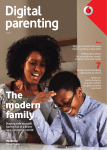
When combined with the expert advice in Vodafone’s Digital
Parenting Magazine, Vodafone Guardian helps parents have
important conversations with their children to help them
learn responsible and safe ways to use their mobile.
Technology is ubiquitous in the lives of young people. They are exposed to
all forms of technology, often from a very early age, and for some parents
it can be quite daunting when it comes to navigating the many aspects
of their child’s experience of digital technologies. By talking openly about
the benefits and risks, parents and young people can, together, come up
with safe and responsible ways of managing their use of technology.
Vodafone’s Guardian app will help keep children safe and help start a
conversation with teenagers.
Associate Professor Jane Burns,
Ceo of the Young and Well Cooperative Research Centre
Associate Professor Jane Burns, Chief Executive Officer of the Young and Well Cooperative Research Centre youngandwellcrc.org.au says apps like Vodafone Guardian
will help open the way for important conversations about the use of digital technology between parents and their children, particularly as they transition to adolescence.
*The app is free to purchase, however data charges may apply to download and operate the app. Data charges and text messages sent by the app will be charged in accordance with your mobile plan rates. Full
functionality of the App requires network coverage. See vodafone.com.au/coverage for Vodafone coverage details. Ensure you understand the features of the app prior to downloading. To download, you must have
a compatible device, see vodafone.com.au/guardian. For personal use only. Android, Google play store, YouTube, Gmail and Google are trade marks of Google, Inc. Vodafone Pty Limited ABN 76 062 954 554.
Vodafone Guardian User Guide
2
How does it work?
Vodafone Guardian app for Android lets you and your child select
the best Smartphone settings to support safe and responsible
mobile use at any age.
You can also access tips and advice from Australian
and International child safety and parenting
experts in Vodafone’s Digital Parenting magazine
www.vodafone.com.au/digitalparenting
Vodafone Guardian allows you to:
• Set days and times your child can use their phone for calling,
receiving TXT and internet browser access (e.g. turn off during
school hours, at bed time)
• Bar calls from numbers that aren’t in the contacts list (i.e. only
accept calls from friends and family)
• Decide what days and times the Internet browser, Wi-Fi, or
specific applications and games can be used
• Unsubscribe from any existing subscriptions to Premium Rate
Text Services, helping to control costs
• Give your child the ability to block TXTs from individual contact
numbers to help address bullying. Blocked TXTs are locked in a
password protected archive for 30 days
• A search function so you can easily find the phone functions
you’re looking for (e.g. find ‘internet’ or ‘apps’)
Manage how much data you share with Help
Improve Guardian
Help Improve Guardian allows you to decide how much data you
share with us. You can select from two options: 1) only share data
telling us if Vodafone Guardian is active, the name of your mobile
network operator and what country you are in or 2) to help us
improve the app and to help researchers looking into issues such
as cyberbullying, you can choose share data about the make and
model of your handset and what settings you have selected within
the Vodafone Guardian app. No personal information is collected
such as names, phone numbers, contacts or messages.
Whichever option you select, data will be sent weekly and data
charges may apply depending on your data tariff. For full
details on what data is collected, where it is stored and
how to manage Help Improve Guardian, go to page 5 or
www.vodafone.com.au/guardian
What does it cost?
The app is free to purchase however data charges may apply to
download and operate the app (including Help Improve Guardian
which sends data each week). Data charges and TXT messages
sent by the app will be charged in accordance with your mobile
plan rates.
• Message Helper gives you the option to preview TXT messages
and choose to ‘accept’ or ‘I do not accept’ each message. If you
choose not to accept a TXT message, it is moved to a passwordprotected archive for 30 days and will no longer appear in your
Inbox. This can help people who are receiving unwanted or
threatening TXT messages.
Full details about Vodafone Guardian’s functions are
available on the following pages.
Who can use Vodafone Guardian and where can I find it?
Vodafone Guardian is available on most Android™ powered smartphones and can be
used on any mobile network in Australia.
It’s easy to install, just search for ‘Vodafone Guardian’ from Google Play Store™
on your mobile. You can also send a TXT with the word ‘Guardian’ to 12 66 44 or
scan this QR code*.
If you need more information on Vodafone Guardian go to vodafone.com.au/guardian
(* Requires QR scanner to be installed. Standard download charges apply)
Vodafone Guardian User Guide
3
Steps to install
1. Terms
2. Install Guardian Protector
Read through Vodafone
Guardian’s Terms of Use as you
scroll down to the end of the
screen. If you agree to the terms
click ‘Accept’ and continue
with the installation. If you do
not agree to the terms, click
‘Decline’ and installation will
be cancelled.
This means the parent contact
will receive a notification by
text if Vodafone Guardian is
uninstalled at any time, provided
the parent contact and child
have network coverage at the
time and the child has credit on
their account. (Standard text
charges apply).
3&4
Parent Contact and Password
Entering a Parent Contact means you’ll
be notified by TXT if Vodafone Guardian is
uninstalled or deactivated, provided the
parent contact and child have network
coverage at the time and the child has
credit on their account. (Standard text
charges apply).
Entering a Password means that you’ll
be able to access Vodafone Guardian
to change any of the settings or access
message stored in the archive if necessary.
5. Message Helper
6. Help Improve Guardian
This means that if Message
Helper is enabled every time a
TXT message is received the user
will be promted to ‘accept’ or ‘I
do not accept’ this TXT message.
It can be helpful if users are
receiving unwanted or upsetting
TXT messages. When ‘I do not
accept’ is selected, the message
is removed from the phone’s
inbox and stored in a passwordprotected archive for 30 days
(see the Archive in section on
page 9).
You can decide how much data
you share with us. You can select
from two options : 1) only share
data telling us if Vodafone Guardian
is active, the name of your mobile
network operator and what country
you are in or 2) to help us improve
the app and to help researchers
looking into issues such as
cyberbullying, you can choose
share data about the make and
model of your handset and what
settings you have selected within the Vodafone Guardian
app. No personal data is collected, such as your name, phone
number, contacts or messages. For full details see Page 5.
Vodafone Guardian User Guide
4
Important things to know
What happens to calls and TXT when set to
‘not allowed’?
Calls made to the phone when not allowed on the ‘Active Hours’
setting will be diverted to voicemail.
TXT/MMS sent to the phone when not allowed on the ‘Active
Hours’ setting will be sent straight to the password-protected
message archive on the phone and stored for 30 days.
If you choose to block contacts that aren’t in the phone’s contact
list (under ‘Others’ in the ‘Calls and Messages’ menu), voicemail
access will also be blocked. If you would like to give your child
access to voicemail you need to add your mobile provider’s
voicemail access number to the phone’s contacts/address
book and then select the settings to ‘always allow’ in Vodafone
Guardian under ‘Contacts’. For Vodafone customers the voicemail
access number is 121.
Anti-bullying support
If you want to stop receiving TXT’s or MMS from another mobile
number, you can store the number in the phone’s contact list then
open Vodafone Guardian and go to ‘Calls and Messages’ and
‘Contacts’ to block all future TXT’s from that number. Any future
messages sent from that contact number will be stored in the
password protected archive for 30 days and won’t be visible to the
user. If the contact is unblocked all messages sent by the contact
in the last 30 days will be delivered back to the Inbox.
You can also choose to review all incoming TXT messages by using
the Message Helper function. When Message Helper is enabled
every time a TXT message is received the user will be prompted to
‘accept’ or ‘I do not accept’ this TXT message. This can be helpful
if users are receiving unwanted or upsetting TXT messages. When
‘I do not accept’ is selected, the message is removed from the
phone’s inbox and stored in a password-protected archive for 30
days (see the Archive in section on page 9).
What numbers are always allowed?
Vodafone Guardian has an ‘always allowed list’ – which is a set of
numbers that will always be allowed no matter what restrictions have
been set. These are emergency service numbers like triple zero (000),
child support numbers such as Kids Help Line and key Vodafone
numbers like customer care and support (for Vodafone customers). For
a full listing of these numbers please see vodafone.com.au/guardian
Vodafone Guardian User Guide
Emergency Override
The emergency override function disables Vodafone Guardian
for 15 minutes, after which it is automatically enabled again.
This function is available just in case your child needs to contact
someone urgently and the settings are activated to block
outgoing calls. The Parent Contact will be notified by TXT if the
Emergency Override function is used and Vodafone Guardian is
temporarily disabled.
If your child tries to use a function that is set to ‘not available’ in
the settings (e.g. internet browser, camera) they will receive an
on-screen notification advising them they can’t do this at this
time. The child is given an ‘emergency override’ option which will
give them 15 minutes of unrestricted usage. The parent contact
will be sent a TXT notification, provided the parent contact and
child have network coverage at the time and the child has credit
on their account. (Standard TXT charges apply).
Manage how much data you share with us with Help
Improve Guardian
Help Improve Guardian allows you to select from two options :
1) only share data telling us if Vodafone Guardian is active, the
name of your mobile network operator and the country you are in
or 2) to help us improve the app and to help researchers looking
into issues such as cyberbullying, you can choose share data
about the make and model of your handset and what settings you
have selected within the Vodafone Guardian app. This includes
phone settings or the amount of contacts which have been set
to ‘allowed’, ‘never allowed’ or ‘allowed between times/days of
the week’; if settings have been set to ‘yes’ or ‘no’; and whether
Guardian Protect has been installed. No personal data is collected
such as your name, phone number, contacts or messages.
Encrypted data is sent once per week and will be stored on a
server owned by Amazon Data Services Ireland Ltd. (company
number 390566) in Ireland until November 2012, and will then be
securely transferred to a data centre in Ratingen, Germany owned
by Vodafone Information Systems GmbH (company number HRB
53554). Only employees of Vodafone will have access to the data
managed under Vodafone Group’s Information Security Policies.
You can find out more about Vodafone’s approach to customer
privacy at www.vodafone.com/privacy.
Data charges may apply depending on your data tariff. Help Improve
Guardian will be automatically deactivated when roaming overseas.
5
Settings and Options
tailoring Vodafone Guardian to your child’s needs
Calls and messages
There are five options for you to chose from.
1. Message Helper
You can also choose to review all incoming TXT
messages by using the Message Helper function.
When Message Helper is enabled every time a TXT
message is received the user will be prompted to
‘accept’ or ‘I do not accept’ this TXT message. This can
be helpful if users are receiving unwanted or upsetting
TXT messages. When ‘I do not accept’ is selected, the
message is removed from the phone’s inbox and stored
in a password-protected archive for 30 days (see the
Archive section on page 9).
2. Active hours
You can set the times and days when your child can
receive incoming calls, TXT (SMS), PXTs (MMS) and make
outgoing calls for each contact in the address book.
We recommend that you ensure important contacts like
‘home’ or ‘mum/dad’ are set to ‘always allowed’. This
ensures they supersede any restrictions you’ve set in
‘Active Hours’ and your child has access to call you.
You can also manually block access to Voicemail by
saving the number in the phone’s contact list and then
use Vodafone Guardian’s settings to ‘never allow’ or only
allow between certain hours.
3. Contacts
Gives you the option to set the time and day to allow
calling and texting for each contact in your child’s
contact list.
We recommend that you ensure important contacts
like ‘home’ or ‘mum/dad’ are set to ‘always allowed’.
This ensures they supersede any restrictions you’ve set
in ‘Active Hours’ and your child has access to call you.
Vodafone Guardian User Guide
6
Settings and Options
tailoring Vodafone Guardian to your child’s needs
Calls and messages (cont.)
4. Others
Gives you the option to block calls
and TXT from contacts who aren’t in
the phone’s address book and private
numbers.
5. Premium Texts
Gives you the option to unsubscribe from any
existing Premium Rate Text services that are
already on your child’s account, helping to
control costs.
The next time a Premium Rate Text arrives, it will
automatically send a reply with the word ‘stop’
to unsubscribe.
If you would like to block all Premium Rate
Numbers moving forward you’ll need to contact
your mobile network provider. Vodafone
customers can do this by logging in to My
Vodafone at myvodafone.com.au
Anti-bullying support
If you want to stop receiving calls, TXTs or MMS from another mobile number you can store the number in the phone’s contact
list then open Vodafone Guardian and go to ‘Calls and Messages’ and ‘Contacts’ to block all future calls and TXT’s from that number.
Any future messages sent from that contact number will be stored in the password protected archive for 30 days and won’t be visible
to the user unless you unblock the contact in which case all messages sent in the last 30 days will be delivered to the Inbox. Any
future calls from that contact will be automatically sent to voicemail.
Message Helper gives you the option to preview choose to ‘accept’ or ‘I do not accept’ TXT messages. Messages that you
choose not to accept are moved to a password-protected archive for 30 days. This can help people who are receiving unwanted or
threatening TXT messages.
Vodafone Guardian User Guide
7
Settings and Options
tailoring Vodafone Guardian to your child’s needs
Phone features
This allows you to decide the times and days when smartphone
features or services can be used, for example during school hours
or after bedtime.
The most popular are listed first, or click ‘More’ to access all
the phone’s features, e.g. individual apps, games, email, other
internet browsers.
Wi-Fi
Browser
This option blocks the phone ‘s standard internet browser. This
doesn’t block all internet on the phone, you will also need to block
access to other apps that use the internet e.g. YouTube; Google
Search; Gmail and WiFi separately – see ‘More’ section below.
Settings
Internet access via Wifi (at home or at free public access points)
can be disabled by selecting ‘never allowed’ or only allowed during
selected hours.
This option prevents your child from amending phone settings
such as language, time and ringtone. This is a useful option if
you are letting a younger child play with your phone. On a child’s
phone, this will stop Vodafone Guardian from being uninstalled.
Bluetooth
Adding and removing apps
Using Bluetooth to communicate between other phones and
devices e.g. to send music tracks, games and messages can be
disabled by selecting ‘never allowed’ or only allowed during
selected hours.
This stops your child from downloading apps from Google Play
Store (Market) or the applications manager (Package Installer).
A majority of apps will be chargeable and require a credit card for
payment, however this option prevents downloading free apps
as well.
Camera
If you apply ‘never allowed’ the child will not be able to take
pictures or view the photo album.
Vodafone Guardian User Guide
More
This option allows you to block individual apps on the phone
e.g. YouTube; FM Radio; Maps; also on certain phones you can
block the ‘Messaging’ app and this will prevent your child from
accessing their TXT messaging service and therefore they won’t
be able to send text. Note – they will still be able to receive TXT
unless you set the “Active Hours” for this function – see Step #1 in
“Calls and Messages”.
8
Quick tips / FAQs
How do I block internet on my child’s phone?
Go to ‘Phone Features’ then ‘Browser’ and ‘Wi-Fi’ To block
internet apps (e.g. Gmail/ You Tube) go to ‘Phone Features’ then
‘More’ then select each app to block You can block each of these
all the time or just restrict by time of day
How do I stop my child from using TXT messaging?
To block your child sending TXT and checking their message inbox
go to ‘Phone Features’ then ‘More’ then select ‘Messaging’ app
to block (child will still see incoming TXT if these aren’t restricted
as detailed below). You can restrict incoming TXT by selecting
‘Calls and Messages’; ‘Active Hours’ then ‘Incoming SMS’.
How do I ensure my child and I can call each other?
Go to ‘Calls and Messages’ then ‘Contacts’ select your number
and ensure your setting for ‘Incoming Calls’ and ‘Outgoing
Calls’ is ‘Always allowed’.
What happens if my child needs to use
their phone urgently?
When your child attempts to make a call they get an on screen
prompt that gives them the option to ‘Emergency Override’. This
gives them 15 minutes to use their phone without any restrictions.
Provided the child and the parent contact have network coverage
and the child has credit on their account, the parent contact
will be sent a text notification that Vodafone Guardian has been
deactivated for 15 minutes (standard text charges apply).
Your child will always be able to call emergency services
provided their phone has network reception and
available battery. Visit www.vodafone.com.au/guardian
for the full list of emergency services numbers.
How do I stop sending data with Help Improve
Guardian?
If you change your mind and want to change the amount of data
you choose to share with us, from the main menu select ‘Help
Improve Guardian’ and then change your selection.
If you do not want to send any data at all you will need to uninstall
Vodafone Guardian entirely from your phone’s ‘Settings’ and
‘Applications’ menu.
Vodafone Guardian User Guide
How do I stop my child from uninstalling the
Vodafone Guardian app?
We recommend that you block ‘Settings’ in the ‘Phone Features’
as this will prevent your child from being able to remove the app.
During the set-up you’re prompted to download the Vodafone
Guardian add-on app called ‘Protector’. This will send the parent
contact a TXT if your child uninstalls the app (provided the parent
contact and your child have network coverage at the time).
Standard TXT charges apply. If your child does this when their
phone is inflight mode or out of coverage the parent contact will
receive a message when the phone is back in coverage / nonflight mode (providing the parent contact also has coverage at
the time). If your child’s phone has no credit when they do this no
message will be sent.
How do I change my password?
Simply log in to the app and select ‘Password’ from the main
menu and follow the on-screen prompts.
What do I do if I forgot my password?
When you try to log into the app select ‘Forgotten Password’ and
a new password will be sent to the parent contact phone. Please
be aware that if a Parent Contact number is not set, then then the
app will need to be uninstalled and re-installed in order to re-set
the password. See page 10 for instructions on how to uninstall
Vodafone Guardian.
How do I set a different parent contact?
Simply log in to the app and select ‘Parent Contact’ from the
main menu and follow the on-screen prompts.
How do I change the settings that I selected when I
installed Vodafone Guardian?
You can change the settings after installation from Vodafone
Guardian’s main menu, such as Parent Contact number, Password
and the amount of data you send via Help Improve Guardian.
Message Helper can be changed by selecting ‘Calls & Messages’
and ‘Message Helper’. Guardian Protector can be uninstalled
from the phone’s ‘Settings’ and ‘Applications’ menu.
9
Quick tips / FAQs
How can I access the archive with stored messages?
Press the phone’s main menu button (usually on the front of the
phone on the bottom left). A menu will pop up with ‘View Archive’
and ‘Deactivate Guardian’. Select ‘View Archive’ and you will
receive a Warning message. To access the archive select ‘Continue’
and then enter the Vodafone Guardian password. The archive can
only be accessed with the password. Please note that messages
will only be stored in the archive for 30 days.
How do I switch Vodafone Guardian off?
If you press your phone’s menu it will bring up the
‘Deactivate Guardian’ option and follow on screen prompts.
When you open the app up again you will be given the option to
‘Reactivate Guardian’.
How do I remove Vodafone Guardian?
To uninstall the app go to ‘Settings’ on the phone, select
‘Applications’, and then uninstall the Guardian app. Ensure
Settings is set to ‘always allowed’ from Vodafone Guardian’s
Phone Features menu.
My child has an iPhone – can I set up
parental controls?
Vodafone Guardian is not available on iPhones but some parental
controls are available under ‘Settings’ and ‘Restrictions’.
Where can I access Vodafone Guardian’s Terms
of Use?
Go to vodafone.com.au/guardian
How can I give feedback about Vodafone Guardian?
For general feedback you can send an email to
[email protected]
I’m having a technical issue with using Vodafone
Guardian – where can I get help?
To report any technical issue that require customer support
contact [email protected]
Where can I find out which Android smartphones are
supported by Vodafone Guardian?
The full list of Android mobile devices supported by Vodafone
Guardian is available at vodafone.com.au/guardian
I’ve added a new contact to my phone but the
contact is being blocked – how can this contact
be allowed?
You will need to log-in to Vodafone Guardian and follow the
prompts to apply any changes to allowed/not allowed settings.
Vodafone Guardian User Guide
10