1
Paper Reviewing User Guide
Release 1.2
Indico Team
January 20, 2015
CONTENTS
1
Paper reviewing module author’s guide
1.1 Getting started . . . . . . . . . . . .
1.2 Download template area . . . . . . .
1.3 Upload paper area . . . . . . . . . .
1.4 How to submit the reviewing material
.
.
.
.
.
.
.
.
.
.
.
.
.
.
.
.
.
.
.
.
.
.
.
.
.
.
.
.
.
.
.
.
.
.
.
.
.
.
.
.
.
.
.
.
.
.
.
.
.
.
.
.
.
.
.
.
.
.
.
.
.
.
.
.
.
.
.
.
.
.
.
.
.
.
.
.
.
.
.
.
.
.
.
.
.
.
.
.
.
.
.
.
.
.
.
.
.
.
.
.
.
.
.
.
.
.
.
.
.
.
.
.
.
.
.
.
.
.
.
.
.
.
.
.
.
.
.
.
.
.
.
.
.
.
.
.
1
1
2
3
3
i
ii
CHAPTER
ONE
PAPER REVIEWING MODULE
AUTHOR’S GUIDE
1.1 Getting started
Firstly, you must log in to the system; you will find a link Download Template in the left menu under
Paper Reviewing.
1
Paper Reviewing User Guide, Release 1.2
1.2 Download template area
If the paper reviewing manager provides you a template for the papers, you can download it by clicking
on the template name.
2
Chapter 1. Paper reviewing module author’s guide
Paper Reviewing User Guide, Release 1.2
1.3 Upload paper area
You can access the list of contributions and follow their status from View:
By clicking on the View link you can access the specific information for the contribution
where you can upload a new paper.
1.4 How to submit the reviewing material
• The next step will be to submit your reviewing material. You can do this by clicking on the Upload
paper link in the right of the page.
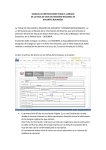
When you click a popup will be opened in order to submit your paper. You have to follow
these two steps to submit your paper.
• Step 1: Use Upload paper link, in the right panel, under Call for paper in order
to add the material to be reviewed.
1.3. Upload paper area
3
Paper Reviewing User Guide, Release 1.2
Choose the file(s) for your contribution. If you want you can add a description and a display name for the file(s) in the Advanced tab. After that click on Create Resource.
• Step 2: You have to submit the reviewing material by clicking on Submit button. You
need to be sure that the material you are submitting is correct because you cannot modify
it after submitting.
4
Chapter 1. Paper reviewing module author’s guide
Paper Reviewing User Guide, Release 1.2
• Now you can see the Reviewing status of your paper in the colored box placed in
the right panel, under Call for paper.
• The reviewing process ends when the final judgement for your paper is Accepted or
Rejected.
• The reviewing process will continue if the final judgement for your contribution is To
1.4. How to submit the reviewing material
5
Paper Reviewing User Guide, Release 1.2
be corrected. You will have to send the material again, after correction. Then the
reviewing process will start again. You can see the Reviewing history after clicking on the
History link.
6
Chapter 1. Paper reviewing module author’s guide
Paper Reviewing User Guide, Release 1.2
1.4. How to submit the reviewing material
7