1
6. DATA LOGGING
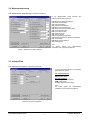
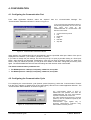
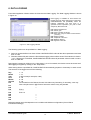
From Main Application Window select the View then the Data Logging. The Data Logging Window is shown
in Figure 19.
Data logging is available for both RS232 and
RS485 protocols. When data logging is activated,
CONFIGURATOR will periodically collect the
following parameters and save them to a
specified comma separated (.csv) file for later
analysis by Microsoft Excel:
P74: Present temperature
P77: Sensor gain
P78: Current number of echoes
P79: Echo map. (Only for RS232 communication
protocol )
P80: Window position
P81: Amplitude of the echo
P82: Blocking distance
P83: Signal to noise ratio
Figure 19. Data Logging Window
The following options can be specified for a Data Logging:
♦
♦
Period in minutes defines how often will the CONFIGURATOR collect all the above parameters and save
them to a file.
Filename defines full path where the file with data logging values will be stored. File extension is fixed to
".csv". If filename is not defined, CONFIGURATOR will still collect all parameter values but will not store
them to a disk file.
Data logging is started by clicking on the “Start button”. Once it is started, this window cannot be closed until
data logging is stopped by clicking on the “Stop button”.
When storing data to a specified file, CONFIGURATOR automatically prepares a “timestamp” to each record.
The structure of the logged record is the following:
Day
Month
Year
Hour
Minute
Second
P74
P77
P78
P79
……
P79
P80
P81
P82
P83
1…31
1..12
4 digit format (for example, 1999)
0…23
0…59
0…59
As returned from the Remote Control Unit without any formatting. If necessary, user may
write a simple macro in MS Excel to format the values in any way wanted.
-“-“Echo 1
……….
Echo 10
-“-“-“-“-
Delimiter between each field depends on a local Microsoft Windows configuration (Control Panel
International Settings).
CONFIGURATOR Program
USER’S MANUAL
16