1
User Manual
Congratulations on your purchase of the Merlin elite HD Magnifier
with OCR from Enhanced Vision. The Merlin elite is a full-color HighDefinition HD, auto-focus video magnifier system designed to enhance
the lifestyle of the visually impaired. With the LCD monitor’s adjustable
arm, Merlin elite can provide the user with the ultimate flexibility in the
position of the screen making reading easier than ever.
The Merlin elite is a fully integrated solution, offering the advantage of a
built-in HD LCD screen and OCR. Merlin elite enables individuals with
low vision to read, write, view photos, enjoy crafts and hobbies, and
more – in color, black-and-white, or enhanced high-contrast positive
or negative viewing modes. Merlin elite also includes 3 different
preset viewing combinations for both text and background to provide
improved viewing when reading. An additional 28 text and background
combinations are available and can be programmed. With easy-touse buttons, you can enlarge or reduce the image in seconds, change
viewing modes for easier visibility.
Prior to using this system, please carefully read and follow the
instructions provided within this booklet. Your Merlin elite is ready to use
right out of the box. By reviewing all Merlin elite features and controls
before use and following the directions carefully, you’ll be able to enjoy
all the great benefits from your purchase.
Enhanced Vision products are designed to give you the highest quality
image, convenient and easy-to-use features and years of reliable
service. Thank you for choosing the Enhanced Vision Merlin elite.
FCC COMPLIANCE NOTICE
This device complies with Part 15 of the FCC Rules. Operation is
subject to the following two conditions: (1) This device may not cause
harmful interference, and (2) this device must accept any interference
received, including interference that may cause undesired operation.
This equipment has been tested and found to comply with the limits for
a Class B digital device, pursuant to Part 15 of the FCC Rules. These
limits are designed to provide reasonable protection against harmful
interference in a residential installation. This equipment generates, uses,
and can radiate radio frequency energy and, if not installed and used
in accordance with the instructions, may cause harmful interference to
radio communications. However, there is no guarantee that interference
will not occur in a particular installation. If this equipment does cause
harmful interference to radio or television reception, which can be
determined by turning the equipment off and on, the user is encouraged
to try to correct the interference by one or more of the following
measures:
– Reorient or relocate the receiving antenna.
– Increase the separation between the equipment and receiver.
– Connect the equipment into an outlet on a circuit different from that to which the receiver is connected.
– Consult the dealer or an experienced radio/TV technician for help.
Unauthorized changes or modification to this system can void the user’s
authority to operate this equipment.
If your Low Vision device has an option to connect to a TV, it must be
used with shielded interface cables in order to meet FCC emissions
limits for Class B digital devices. It is the responsibility of the user to use
the shielded interface cables supplied with the equipment.
FCC Compliance Notice
Safety and Care . . . . . . . . . . . . . . . . . . . . . . . . . . . . . . . . . . . . . . . . . . . . 5-9
Merlin elite at a Glance . . . . . . . . . . . . . . . . . . . . . . . . . . . . . . . . . . . 10-11
Setting Up Merlin elite . . . . . . . . . . . . . . . . . . . . . . . . . . . . . . . . . . . 12-13
Button Definitions . . . . . . . . . . . . . . . . . . . . . . . . . . . . . . . . . . . . . . . 14-15
Using the Control Console . . . . . . . . . . . . . . . . . . . . . . . . . . . . . . . . . . 16
Using the X-Y Table . . . . . . . . . . . . . . . . . . . . . . . . . . . . . . . . . . . . . . . . . 17
Tips for Reading and Writing . . . . . . . . . . . . . . . . . . . . . . . . . . . . . . . 18
Changing Magnification . . . . . . . . . . . . . . . . . . . . . . . . . . . . . . . . . . . . . 19
Changing Viewing Mode . . . . . . . . . . . . . . . . . . . . . . . . . . . . . . . . 20-22
Adjusting Brightness & White Balance . . . . . . . . . . . . . . . . . . . . 23
Using and Adjusting Markers . . . . . . . . . . . . . . . . . . . . . . . . . . . . 24-25
Volume Adjustment & VGA Toggle . . . . . . . . . . . . . . . . . . . . . . . . . . 26
OCR/Text-To-Speech Mode . . . . . . . . . . . . . . . . . . . . . . . . . . . . . . . 27-29
Saving, Recalling, & Deleting Images . . . . . . . . . . . . . . . . . . . 30-31
Screen Saver . . . . . . . . . . . . . . . . . . . . . . . . . . . . . . . . . . . . . . . . . . . . . . . 32
Language Settings/Product Info . . . . . . . . . . . . . . . . . . . . . . . . . 33-34
Troubleshooting & Firmware Update . . . . . . . . . . . . . . . . . . . . 35-36
Merlin elite Specifications . . . . . . . . . . . . . . . . . . . . . . . . . . . . . . . . . . . 37
Warranty Statement . . . . . . . . . . . . . . . . . . . . . . . . . . . . . . . . . . . . . . . . . 38
Table of Contents
SAFETY AND CARE
For your safety and to obtain the most benefit from the Merlin elite, please
read these safety precautions very carefully.
The Merlin elite is designed to enlarge and enhance images and read
print aloud in order to improve the quality of life for people who are visually
impaired. The extent to which this product can improve the ability to see
images depends on a person’s individual condition and level of visual
impairment.
The Merlin elite is not designed to restore vision, correct eye conditions
or halt degenerative vision loss. An eye care professional can determine
the usefulness and suitability of the Merlin elite for a patient’s individual
condition.
Precautions for Use
• Follow all warnings, cautions, and instructions marked on the product.
• Use the Merlin elite on a stable, level surface such as a solid desk or
table, according to its intended design specifications.
• Avoid placing the Merlin elite on an unstable table, cart or stand. It may
fall causing serious damage to the unit or bodily injury to the user.
• Use the Merlin elite indoors only – it should NOT be exposed to extreme
or rapid changes in temperature or humidity. Do not place the Merlin elite
near a radiator, heater or areas exposed to long hours of direct sunlight.
These conditions may cause damage to the unit’s electronics or optics.
• At least once per week, clean the Merlin elite with a soft dry cloth
or an electrostatic dusting wipe. DO NOT use liquid cleaners on its
plastic surfaces. No additional methods of sterilization or cleaning are
recommended nor required.
• Do not use the Merlin elite near flammable materials or liquids.
Safety and Care
5
Additional Electrical Safety Precautions
• The power supply cord is a disconnect device for electrical equipment.
The socket-outlet should be installed near the equipment and be easily
accessible.
• This product is equipped with a 3-wire grounding type plug as a safety
feature. This plug has a third (grounding) pin and can only be plugged
into a grounding-type power outlet. If necessary, contact an electrician to
replace your power outlet with a grounding-type power outlet.
• Do not use the Merlin elite in, near or around water. The Merlin elite is not
designed to offer protection against contact with liquids of any kind.
• Use only the power supply provided with your Merlin elite. Using
unauthorized power supplies may cause serious damage to Merlin elite’s
electronic components.
• Using any other power supply than the one provided by Enhanced Vision
for the Merlin elite will void the warranty.
• Always place the power cord away from traffic areas to avoid damage of
power supply.
• Prevent the risk of electrical shock by NOT attempting to disassemble the
unit. Please refer all service to an authorized repair facility.
• To avoid personal injury or damage to the Merlin elite, do not make
connections other than those shown in the photo below.
! Caution
Specified Input
Connections Only!
6
Safety and Care
Additional Mechanical Safety Precautions
Your Merlin elite contains moving parts. Please use caution
when moving the X-Y table, adjusting the LCD monitor arm,
or when transporting the Merlin elite to avoid possible injury to hands
and fingers.
! Caution
Moving Parts!
Safety and Care
7
To Move Merlin elite to Another Location
• Use caution if you are repositioning the Merlin elite a short distance
across a desk or table. Make sure you do not pull on any power
cords or connector cables.
• Disconnect and secure all power and video cables and lock the X-Y
table before moving the unit.
• Carry the unit only by the two recessed handles located on either
side of its base. Do not carry it by the LCD monitor arm.
Caring for Merlin elite
• Always turn the power OFF (by holding the Power button for 5
seconds) on the Merlin elite when the system is not in use.
• Pressing the Power button on the Front Panel, right side, of
the Merlin elite for less than 5 seconds will put the device in
Standby. Pressing the Power button again will wake the Merlin
elite up from Standby.
• Always turn the power OFF (by holding the Power button for 5
seconds) before cleaning the Merlin-elite.
• Clean the Merlin elite with a soft dry cloth or an electrostatic dusting
wipe. DO NOT use liquid cleaners on its plastic surfaces.
• The protective glass covering the camera can be cleaned as needed
with the lens cloth provided within the packaging of the Merlin elite.
8
Safety and Care
Susceptibility to Interference:
There may be temporary degradation of the image when the Merlin elite
is subjected to a strong radio frequency field, electro-static discharge
or transient electrical noise. An electro-static discharge (caused by
static electricity) may cause the screen to go blank. If this happens,
disconnect the AC power from the electrical outlet, wait 30 seconds,
and connect the AC power again.
Compliance Warnings:
• Electromagnetic compatibility: The use of accessories and cables
other than those specified by Enhanced Vision may result in
increased emissions or decreased immunity of the Merlin elite.
• Placement of equipment: The Merlin elite should not be used
adjacent to or stacked with other equipment.
Product enhancements and revisions are an
integral part of what we do here at Enhanced Vision.
Please visit - http://www.enhancedvision.com/low-vision-product-line html
and select your Enhanced Vision Product. You will find the most
up-to-date version of the User Manual at the bottom of the page.
Safety and Care
9
MERLIN elite AT A GLANCE
Take a few moments to familiarize yourself with the components
of your Merlin elite:
1. 24” LCD Screen: displays high quality image
2. Power button
3. Zoom Wheel ((Size (Magnification) dial)) – ‘FIND’ key in center
4. Viewing Mode button
5. LCD Monitor Arm
6. ‘Service port’ cable (Used for Firmware Upgrade ONLY!)
7. X-Y table
8. X-Y table locking lever
9. Recessed handles for carrying Merlin elite
10. Merlin elite 19V power supply
11. Merlin elite Power Cord (Attaches to 19v Power Supply)
(power cord style may vary based upon country)
12. 3.5mm jack for Headphones
Accessories included:
13. Control Console: allows the user to control the Merlin elite
functions
*Must be plugged in to use and have access to the menu items for OCR/Text-To-Speech
14. Merlin elite Firmware Update cable
15. Lens Cloth: permits cleaning of the LCD display and lenses
10
Merlin elite at a Glance
1
12
4
9
5
2
3
6
8
9
7
10
11
14
15
13
Merlin elite at a Glance
11
SETTING UP THE MERLIN elite
Figure 1
Figure 2
Figure 3
Figure 4
12
1.Find a steady and level location, such as a table or desk, where you will
be comfortable using Merlin elite. Carry
the Merlin elite only by the two recessed
handles on the side of the base for a
secure grip. Do not lift the unit by the
LCD monitor arm. Place it on the table
or desk (see Figure 1).
2.Connect the Control Console cord (See
Page 10 Item 13) to the USB port at the
back, left side (facing the back), of the
Merlin elite base (See Figure 2).
3.Connect the power cord to the power
supply (See Figure 3). Connect the
power cord to an available electrical
outlet (See Figure 4). Connect the other
end of the power supply to the Merlin
elite where it is labeled “19VDC” (See
Figure 2).
To offer additional protection during an
electrical storm, a surge protector may
also be used and is recommended.
Setting Up Merlin elite
If the lights on the Power, Zoom Wheel and Mode buttons do not
illuminate, or if an image does not appear on the HD LCD monitor,
please check the power supply connections (review steps 2-3 on page
12 for details).
NOTE: The Merlin elite turns ON by default upon plugging it
into an electrical outlet the first time.
Pressing the Power button on the Front Panel, right side, of the Merlin
elite for less than 5 seconds will put the device in Standby. Pressing
the Power button again will wake the Merlin elite up from Standby.
To turn the Merlin elite off, press and hold the Power Button for more
than 5 seconds or until “Merlin elite HD/OCR” appears on the screen.
Setting Up Merlin elite
13
CONTROL CONSOLE
3
1
2
4
8
7
5
10
9
6
See Page 15 for detailed descriptions
14
Button Definitions
BUTTON DEFINITIONS & COMBINATIONS
1
2
3
4
5
6
7
8
9
10
Button Combinations
Throughout the User Manual there will be ‘button combinations’ (ie.
Press the “Find” and “Mode” buttons). This indicates that the buttons
should be pressed simultaneously.
Button Definitions
15
Turning Lights On/Off (toggle)
To turn the Merlin elite lights On/Off:
button for more than 5 seconds
Press and hold the “Marker”
***Note: The Merlin elite lights will automatically turn on when it is first
powered on ***
Control Console LED Backlight
To turn the LED Backlight On/Off on the Merlin elite Control Console,
Press and Hold the Find Button when plugging in the Control Console
into the Merlin elite.
NOTE: If your Merlin elite is plugged into a power strip/surge
protector, make sure the power switch is turned on before
attempting to turn on Merlin elite. If the power strip/surge
protector comes with a circuit breaker, make sure the circuit
breaker has been reset before attempting to turn on Merlin elite.
16
Using the Control Console
USING X-Y TABLE
Locking the X-Y Table
To lock the X-Y table, pull the lever all the way to the front position until it locks
(A). Unlock the X-Y table by pushing the lever to the back position (B).
Using the Locking Lever:
Placing the locking lever in the ‘locked’ position is primarily used when you want
to move or transport the Merlin elite to a new location.
Placing the locking lever in the
‘unlocked ‘ position allows for full movement of the X-Y table for activities such
as reading.
Placing the locking lever between ‘locked’ and ‘unlocked’ (Intermediate lock) can
be used for tasks such as writing, hobbies, etc...
A
B
Reading With the X-Y Table
1.With the X-Y table unlocked, place a book, newspaper, etc., on the table.
2.Use the magnification dial to enlarge the image to a comfortable viewing size.
3.Glide the X-Y table to the left, which will make the words flow across the
screen for reading.
4.When you have reached the end of a line, glide the table back to the beginning
of the line.
5.Move the table away from you slightly to display the start of the next line.
6.Repeat steps 4, 5 and 6 to continue reading.
Using X-Y Table
17
TIPS FOR READING AND WRITING
Reading with Merlin elite
• New users of video magnifier systems have a tendency to overmagnify their reading material. Make the type large enough to see it
comfortably, but not so large that it becomes tedious to scan across
a page.
• Use the X-Y table to move reading materials under the camera,
rather than moving the material manually, except small items such
as a checkbook or a business card.
• New users should use two hands when moving the X-Y table for
reading, until they become comfortable using one hand.
Writing with Merlin elite
• Beginners should start at smaller magnification sizes, and then
increase magnification as they become more comfortable using
Merlin elite for writing.
• The smaller the magnification size the bigger you tend to write; the
higher the magnification size the smaller you’ll write.
• Use a pen that makes a bold line, such as a heavy point pen, a felttip marker or a fine point marker, for easier visibility.
• It might be helpful to use lined paper to more easily find and keep
your place.
• It might be easier to keep your place if you write a few words at a
time, then move the X-Y table and write again, rather than moving
continually as you write.
• Write in either color, black-and-white or positive viewing modes.
18
Tips for Reading and Writing
CHANGING MAGNIFICATION
The Merlin elite offers a large range of magnification capabilities.
The following directions can be used with the Merlin elite Front Panel
Controls (See Figure 1) or Control Console (See Figure 2).
1. To adjust the magnification turn the “Zoom Wheel” located on the Front
Panel or Control Console until you reach your desired magnification. Turning the wheel clockwise will increase magnification and
turning the wheel counter-clockwise will decrease magnification.
2. The Zoom Level will appear in the upper right corner of your monitor
when you are increasing or decreasing magnification. “Max Zoom,” will
appear at the maximum magnification and “Min Zoom,” will appear at the
minimum magnification.
NOTE: The extent of the magnification is dependent upon the distance of
the Camera to the object.
Figure 1
Changing Magnification
Figure 2
19
CHANGING VIEWING MODES
The Merlin elite was designed to provide optimum viewing for people with
certain visual conditions by offering a range of choices in both text and
background colors.
Use the Mode key located on the Front Panel and Control Console to toggle between full color viewing, Black and White, Enhanced Positive,
Enhanced Negative, and up to 5 of your favorite color select modes. Each
push will allow you to cycle through all seven viewing modes. The 5 favorite
color select modes can be modified to any of the 28 color select options by
following the instructions provided on page 20.
VIEWING MODES
Full Color Image (default)
This mode gives a true color representation of the image being magnified.
Black-and-White Image
This mode gives a black and white representation of the image
being magnified.
Enhanced-Positive Image
This mode provides a white background with black
Crisp, Clear
text. It increases the contrast to offer crisp text
Text Images!
images for reading.
Enhanced Positive
Enhanced-Negative Image
This mode provides a black background with white
Crisp, Clear
text. It increases the contrast to offer crisp text images Text Images!
for reading.
Enhanced Negative
20
Changing Viewing Modes
Color Select 1
In factory default this mode provides a black background with green text.
This is one of the most commonly used color combinations. To change this
mode to any of the 28 available follow the instructions on page 19.
Color Select 2
In factory default this mode provides a black background with yellow text.
To change this mode to any of the 28 available follow the instructions on
page 19.
Color Select 3
In factory default this mode provides a yellow background with blue text.
To change this mode to any of the 28 available follow the instructions on
page 19.
Color Select 4
In factory default this mode is turned off. Follow the instructions on page 19
to turn this color mode on.
Color Select 5
In factory default this mode is turned off. Follow the instructions on page 19
to turn this color mode on.
COLOR SELECT MODE MENU
Pressing and holding the “Mode” button for about 3 seconds on the Front
Panel or Control Console will bring up the Color Select Menu. Scroll
through the available Color Select Modes by turning the Zoom Wheel.
Press Find on the Front Panel (Center of Zoom Wheel) or Control Console
to select the highlighted Color Mode.
Changing Viewing Modes
21
Changing Favorite
Color Modes
The Merlin elite provides 28
selectable Color Select Modes
and allows selecting up to 5
favorites for use. The following
directions can be used to change
the favorite color modes on your
Merlin elite.
1.Press the “Mode” and
“Find” buttons located on
the Front Panel or Control
Console of the Merlin elite to
enter the Menu.
2.Turn the “Zoom Wheel”
clockwise until “Color Mode
Selection” is highlighted
3.Press the “Find” button to select the “Color Mode Selection”
sub menu.
4.Turn the “Zoom Wheel” until the desired Color Select Mode
is highlighted.
5.Press the “Find” button to select or deselect the highlighted
color mode.
6.Once 5 Color Select Modes have been selected no other color
modes can be selected. To choose another Color Select Mode,
deselect one of the 5 Color Modes previously selected.
22
Changing Viewing Modes
Adjusting the Brightness
1. Press the “Mode” and “Find” buttons located on the Front Panel or Control Console of the Merlin elite to enter the Menu.
2. The “Brightness” should already be highlighted. Press the “Find”
button to select the brightness adjustment option.
3. Turn the “Zoom Wheel” clockwise to brighten the display or
counterclockwise to dim the display.
4. Once the desired brightness is set, press the “Mode” button to exit or
wait 10 seconds for the Menu to exit.
Adjusting the White Balance
The color white is often affected by the lighting used in a room. The Merlin
elite White Balance selection allows you to achieve optimum clarity.
1. Press the “Mode” and “Find” buttons located on the Front Panel or
Control Console of the Merlin elite to enter the Menu.
2. Turn the “Zoom Wheel” clockwise until “System Configuration” is
highlighted.
3. Press the “Find” button to select the “System Configuration”
sub menu.
4. Choose between Auto, Normal, Warm, or Cold by highlighting the
desired White Balance.
“Color: Auto” – Automatically adjusts to the lighting in the room
“Color: Normal” – Casts a balanced tone
“Color: Warm” – Casts a red tone
“Color: Cold” – Casts a blue tone
5. Press the “Find” button to select the desired setting.
6. Press the “Mode” button to exit the menu.
Adjusting Brightness & White Balance
23
USING LINE MARKERS, WINDOWING & COLUMN MARKERS
Line Markers and Windowing
Line Markers can be used as a reading guide by providing horizontal lines
across the screen.
Windowing can be used as a reading guide by only displaying a
portion of the screen.
Turning Markers On/Off:
Pressing the “Marker” button on the Control Console will allow you to toggle through the Marker Options:
Off • Column Marker • Line Marker • Windowing
*Column Marker can be removed from the rotation by accessing the Menu
and deselecting it. (No black box)*
**Column Marker is only available when Control Console is plugged in.**
Adjusting Line Markers and Windowing
(Column Marker Cannot be adjusted):
To adjust the position of the Marker:
1. Press the “Mode” and “Find” buttons located on the Front Panel or
Control Console of the Merlin elite to enter the Menu.
2. Turn the “Zoom Wheel” until “Marker Position” is selected. Then press
the “Find” button to select.
3. When this option is selected it will be highlighted RED. When this
occurs, you can turn the “Zoom Wheel” clockwise/counterclockwise to
move the Line Markers or Visible area up/down.
Shortcut Key on Control Console:
Press and hold the Marker button while
pressing Line Up or Line Down
24
Using & Adjusting Markers
To adjust the size between the Line Markers or size of the Windowing:
1. Press the “Mode” and “Find” buttons located on the Front Panel or
Control Console of the Merlin elite to enter the Menu.
2. Turn the “Zoom Wheel” until “Marker Size” is selected. Then press the
“Find” button to select.
3. When this option is selected it will be highlighted RED. When this
occurs, you can turn the “Zoom Wheel” clockwise/counterclockwise to
increase/decrease the size between the line markers or the size of the
visible window.
Control Console Shortcut:
Press and hold the Marker button while turning
the Zoom Wheel clockwise/counter-clockwise.
SYSTEM CONFIGURATION SETTINGS-BEEP,VOICE PROMPT,
CLOCK, SCREEN SAVER, AND SAVE & RECALL
System Configuration
1. Press the “Mode” and “Find”
buttons located on the Front Panel or
Control Console of the Merlin elite to enter
the Menu.
2. Turn the “Zoom Wheel” clockwise until
“System Configuration” is highlighted.
3. Press the “Find” button to select the
“System Configuration” sub menu.
To select an option, turn the zoom
wheel to highlight the desired option.
Press the “Find” button to select/deselect
that option. A black box next to that option
indicates that it is ENABLED.
Using & Adjusting Markers
25
VOLUME ADJUSTMENT & VGA TOGGLE
Adjusting the Volume of your Merlin elite in CCTV mode
On the Merlin elite’s Control Console you can press the “Volume”
buttons to increase or decrease the volume.
A message on the top right corner of the screen will display the
volume level when adjusting the volume. The Merlin-elite provides up to
10 volume levels.
VGA Toggle
At the back of the Merlin elite is a VGA port which allows for a
computer signal to be attached to the Merlin elite display. This
port makes it possible to use the Merlin elite display as a
computer monitor to save desk space.
• To toggle from the camera image to the computer image press the “Mode”
and “Marker” buttons on the Control Console simultaneously.
• To toggle from the computer image back to the camera image, press the
“Find” button on the Front Panel or Control Console of the Merlin elite.
When using the Merlin elite Display as a computer monitor, the controls
for the camera (e.g. Zoom, Mode, & Marker) will not work for the
computer image.
Using the Merlin elite HD LCD as a computer monitor is similar to attaching
a typical computer monitor to your computer or connecting a secondary
display to your laptop. Refer to your computer or laptop user manual on
how to connect a display. The Merlin elite HD LCD supports resolutions up
to 1920 x 1080
Working Distance
You can increase the ‘working distance’ (distance from source material to
camera lens) of the Merlin elite by enabling this setting. This feature is best
utilized when you have thicker ‘source material’ (ie.. a thick book) on the
X-Y Table
***Note: You MAY notice a slight reduction in image quality (above
Magnification level 8) when this setting is enabled***
26
Volume Adjustment & VGA Toggle
OCR/TEXT-TO-SPEECH MODE
Using the OCR
Merlin elite provides users with the ability to scan a document placed
underneath the camera and read it aloud. OCR/Text-to-Speech is only
available when the Merlin elite Control Console is plugged in.
- If the document contains multiple columns, place the desired
column in the middle of the screen. Using the “Column Marker” will help
in locating the column the Merlin elite will read aloud (see page 22)
- Turning the “Deskew” option on will allow for a larger margin of error for
a document that is not perfectly straight. (see page 29)
1.Place the document under the Merlin elite camera as straight as possible.
2.Press the “Capture”
button on the Control Console.
- This will take a snapshot of the document and process it for OCR.
3.After the Merlin elite has completed the processing step it will begin to
read the document aloud.
4.To exit OCR/Text-to-speech Mode, press the “Capture”
the Merlin elite Control Console.
OCR/Text-to-Speech Mode
button on
27
Adjusting Volume
• To increase/decrease the volume, Press the
or
on the Control
Console. *Note: CCTV and OCR mode volume levels are independent
from each other.
Adjusting Reading Speed
• To increase/decrease the speed that the OCR will read the document
aloud, press the
or
on the Control Console.
Skip to Next or Previous Sentence
• To skip to or go back to the previous sentence, press the
the Control Console.
or
on
• Jump to first/Last sentence of the Document. Press and hold the
or
for 2 seconds.
Pause/Play
• Pressing the
• By pressing the
on the Control Console will pause the Merlin elite.
again, the unit will continue reading.
Using Headphones with the Merlin elite
On the left hand side of the Merlin elite monitor, there is an available
3.5mm input jack for use of standard headphones.
*Note: Sound from the Merlin elite speakers will not be available while the
headphone jack is in use.
*Headphones are not included with Merlin elite.
28
OCR/Text-to-Speech Mode
OCR Menu Settings
Male Voice/Female Voice
• Set the Merlin elite to read aloud or prompt in a Male or Female Voice.
Deskew
• When on, the Merlin elite will automatically adjust a document
when not set straight under the camera.
Progress Bar
• Enables/Disables the visibility of a progress bar when the Merlin elite is
processing a document to Text-To-Speech.
OCR/Text-to-Speech Mode
29
Saving and Recalling Files
The Merlin elite has the ability to save files from CCTV or OCR modes. This will allow
the user to take a snapshot of a document, save it, and view it at a later time.
Saving a File
1. Place a document underneath the camera head and set the desired
Color Mode and Zoom.
button on the Merlin elite Control Console for
2. Press and hold the “Save”
2 seconds. When the file is saved the Merlin elite will display “IMAGE SAVED”. If the storage space is full, the Merlin elite will display “DEVICE FULL”
with a voice prompt (if enabled)
The Merlin elite will name that file by the month, day, year, time, and mode it was
saved at.
mm.dd.yyyy – hh:mm [OCR/IMG]
*In CCTV mode, if you save more than one file consecutively within a minute,
the previous image saved will be overwritten.
**In OCR mode, if you save more than one file consecutively within a minute,
the Merlin elite will display “Already Saved”
Recalling a Saved File
1. Press and hold the “Recall”
button on the Merlin elite Control Console
for 2 Seconds.
2.The Merlin elite will enter the Recall menu
displaying a list of available files.
If the storage space is empty, the message
“NO FILES” will be displayed with a voice prompt
(if enabled).
3. Use the “Zoom Wheel”
on the Merlin elite Front Panel or Control Console to
navigate through the list of files. When a file on the list is highlighted, it will display a
preview of that file on the right side of the screen.
30
Saving and Recalling Images
4. Pressing the Find button on the highlighted file will display the image in full screen
and begin to read aloud if saved in OCR mode.
5. Pressing the line up or line down keys
will allow you to quickly navigate
through various pages of saved Image (IMG) and Text-to-Speech files (OCR)
** Please note, all files are grouped in two formats:
Yellow for Image files (IMG) and Green for Text-to-Speech (OCR) files. If an Image
(IMG) file is selected you can change the Color Mode using the “Mode”
button
if you desire.
To exit the Recall menu back to CCTV mode, press the “Capture”
button on the
Merlin elite Control Console.
To exit the full screen display back to CCTV mode, press the “Capture”
button
on the Merlin elite Control Console
Deleting a Saved File
1. While in the Recall menu use the “Zoom Wheel”
Panel or Control Console to navigate to the file.
2. Press the “Pause/Play”
desired file.
on the Merlin elite Front
button on the Merlin elite Control Console on the
3. A sub menu will appear next to the selected file allowing you to “CANCEL” or
“DELETE”.
on the Merlin elite Front Panel or DaVinci Control
4. Use the “Zoom Wheel”
Console to select “CANCEL” or “DELETE”.
5. Pressing the “Find” button on Merlin elite Front Panel or Control Console while
“CANCEL” is highlighted will bring you back to the Recall menu. Pressing the FIND
button on Merlin elite Front Panel or Control Console while “DELETE” is highlighted
will delete the selected file. The Merlin elite will display “IMAGE DELETED” when the
file has been successfully deleted. Pressing the MODE button on the Merlin elite
Control Console will allow you to exit the Recall menu.
Deleting All Files
While in the Recall menu - Press and Hold the Pause/Play button
on the Merlin elite
Control Console for 10 seconds. A submenu will appear allowing you to “Cancel” or
“Delete All”
Saving and Recalling Images
31
System 50Hz - EU/International
When this feature is ENABLED it eliminates ‘screen flicker’ which can
occur when Merlin elite is used with EU/International systems (which commonly default to 50Hz).
Merlin elite Screen Saver
When the Screen Saver feature is turned on, the Merlin elite will display
the date and time on the entire screen if there is no activity for 10 minutes.
Any movement under the camera or pressing any button on the Merlin elite
Front Panel or Control Console will revert the Merlin elite back to its
previous state. It is possible to manually display the screen saver by
pressing the “Pause/Play”
32
and “Save”
buttons at the same time.
Merlin elite Screen Saver
Language Setting
The Merlin elite supports multiple languages
that can be set in the Primary Language
menu.
Setting the Primary Language
The primary language that is set will be the
main language for the Merlin elite. The
Menu text and prompts that will be displayed on the Merlin elite will be in the
language that the user selects in this menu.
1. Press the “Mode” and “Find” buttons
located on the Merlin elite Front Panel or
Control Console to enter the Menu.
2. Turn the “Zoom Wheel” clockwise until
“Primary Language” is highlighted.
3. Press the “Find” button to select the “Primary Language” sub menu.
To select an option, turn the “Zoom Wheel” to highlight the desired language. Press the “Find” button to select that option. A black box next to that
option indicates that that option is ON.
Setting the OCR Language
The Merlin elite is capable of reading text
aloud in multiple languages. By default, the
Merlin elite will only read aloud text written
in the same language that is set in the
Primary Language menu.
By selecting an additional OCR Language,
the user can select additional languages,
other than the previously set primary
language, the Merlin elite will be able
to read text written in that additional language aloud.
1. Press the “Mode” and “Find” buttons
located on the Front Panel or Control
Console of the Merlin elite to enter the Menu.
2. Turn the “Zoom Wheel” clockwise until “OCR Settings” is highlighted.
Language Setting
33
3. Press the “Find” button to enter the “OCR Settings” menu options.
To select an additional OCR Language, turn the “Zoom Wheel” to highlight
the desired language. Press the “Find” button to select that option. A black
box next to that option indicates that it is ENABLED. The Primary
Language will already be selected and the user will not be able to deselect
that option. Multiple languages can be set at one time.
** Languages may vary upon region and can change with future updates.
Product Information
The Product Information will display the technical information of the Merlinelite and also allows the user to restore the Merlin elite back to its factory
settings.
1. Press the “Mode” and “Find” buttons located on the Merlin elite Front
Panel or Control Console to enter the Menu.
2. Turn the zoom wheel clockwise until “Product Information” is highlighted.
3. Press the “Find” button to display the “Product Information” sub menu.
4. While in this menu you can:
a. Check the firmware
versions and other software related version numbers.
b. Or restore the settings of the Merlin elite by rotating the zoom wheel clock wise to “Factory Restore” then pressing the “Find” button.
** When resetting the Merlin elite
to its factory settings, the
Male/Female voice and Primary
Language preference will remain
the same.
34
Language Setting
TROUBLESHOOTING
The Merlin elite will not power on
-Push the Power button on the Merlin elite’s Front Panel. Lights on the
Power button, Zoom Wheel and Mode button should illuminate indicating
the power is turned on.
-Make sure the power supply from the Merlin elite is securely connected to
a working outlet.
-Make sure the two parts of the power supply cord are securely connected.
-Make sure the power supply cord is completely plugged into the DC 19V
IN jack on the back of the viewing stand base.
-Check the power strip/surge protectors on/off switch and circuit breaker if
Merlin elite is plugged into one.
The images seem to be out of focus
-Clean the protective glass covering the camera with the nonabrasive lens
cleaning cloth provided with your Merlin elite.
-Clean the monitor screen with a non-abrasive cloth sprayed with a glass
cleaning solution.
-Make sure the target material is steady on the tray. It might take a few
moments for the camera to achieve perfect focus after motion has
stopped. This is normal.
-Make sure the LED Lamps near the Merlin elite Camera are ON. Making
sure there is sufficient ambient lighting will assist in creating a better
image.
X-Y Table Does Not Move Smoothly
-Make sure the locking lever is positioned completely to the back.
X-Y Table Does Not Stay in Locked Position
-Make sure the locking lever is all the way to the front.
Troubleshooting
35
The Merlin elite is taking a long time to process the document for
Text-to-speech.
- Disabling the “Deskew” in the menu will increase the processing speed.
By disabling “Deskew” in the document must be placed under the Merlin
elite camera as straight as possible.
When “Auto Language” is disabled, the Merlin elite will only read text that
is the same as the setting in “Primary Language”. For Example, in a
multi-language written document, the Merlin elite will only read the English
text when “Primary Language” is set to “English” and “Auto Language”
is set to OFF.
Resetting the Merlin elite
- If the Merlin elite is not responding you can ‘reset’ it by pressing the “Find”
and “Power” Buttons simultaneously. Any setting changes you have made
will be retained.
Replacement LED lamps
Your Merlin elite comes equipped with two 100,000-hour LED lamps
designed to provide years of trouble-free service. However, in the unlikely
event that the LEDs need replacement, contact your place of purchase
or Enhanced Vision at (800)440-9476 for instructions or assistance on
replacing the LEDs.
Firmware Update
To keep your Merlin elite up to date visit our software support page at: http://
www.enhancedvision.com/support/software.html
If you have any questions or require technical assistance
with your product, please call (800) 440-9476,
Monday – Friday, from 8 a.m. to 5 p.m. PST.
36
Troubleshooting
MERLIN ELITE SPECIFICATIONS
Product
- Dimensions:
• 24” LCD: 27.75” H x 22.75” W x 20” D
(70.5cm H X 57.8cm W x 50.8cm D)
- Product Weight:
• 24” LCD: 40.1 lbs (18.2 Kg)
Display
- Type: 24” Standard Diagonal LCD
- Average lifetime: 40,000 hours
- Resolution: 1920 x 1080 (24” model)
- Response Rate: 1.5 milliseconds (24” monitor) All monitor
specifications subject to change without prior notice
Magnification range
24” LCD: 2.4x (minimum) - to 70x (maximum)
- 24” Field of View (Reading Mode): 7.4mm (1/3”) (min);
216mm (8.5”) (max)
Viewing Modes
- Color, black & white, high contrast Positive/Negative, Digital Color
Select (3 modes).
Power Supply
- Input voltage/current: 120-240 VAC / 0.3-0.5A (nominal)
- Output voltage: 19 VDC
- Frequency: 50/60 Hz
- Power usage: 30W
Equipment Classification (IEC 601-1):
•
Type of Protection: Class 1
•
Degree of Protection: Type B
•
Mode of Operation: Continuous
•
Operating temperature range: 0-40°C / 32-104°F
•
Storage/transport temperature range: 0-60°C / 32-140°F
Warranty: 3 Years
*Product specifications subject to change without notice.
Specifications
37
WARRANTY STATEMENT
Enhanced Vision
Merlin elite Warranty Policy
Enhanced Vision products are designed to give you the highest quality image,
convenient features, ease of use and reliable service. The Merlin elite has
been inspected and tested prior to shipping. Enhanced Vision warrants the
Merlin elite against defects in material and workmanship under normal use for
three years from the date of original purchase. Enhanced Vision, at its option,
will at no charge either repair the product or replace it during the warranty
period. There are no other expressed or implied warranties accompanying this
product.
This warranty does not cover: a) Defects or damage from misuse, use in other
than normal and customary manner, accident or neglect; b) Defects or damage
from improper operation, maintenance, installation, adjustment, alterations or
modification; c) Defects or damage from spills of food or liquid; d) All plastic
surfaces and all other externally exposed parts that are scratched or damaged
due to normal use; e) Damage due to operation of the Merlin elite with
equipment not supplied by Enhanced Vision.
• You must provide proof of purchase, bearing the date of purchase, in order to receive warranty service.
• Anyone using this product does so knowingly assuming certain risks, due to
the need to utilize vision enhancement devices.
• A 2-year extended warranty option is available within 12 months from the date
of purchase. Please contact Enhanced Vision for detailed information.
Service Process
In the event that technical support or repair service is needed, please contact
your local Enhanced Vision representative or the Enhanced Vision warranty
service center.
If warranty service is required, please contact Enhanced Vision at (800)440-9476
Monday through Friday, between 8 a.m. and 5 p.m. Pacific Standard Time (PST)
to request a return authorization number. Warranty repairs will not be accepted
without a valid return authorization number.
You may wish to keep the original product packaging in case warranty
service is required. The manufacturer cannot provide packaging for
warranty repairs.
NOTE: Please completely fill out and send in the enclosed warranty
38
Warranty Statement
OTHER PRODUCTS FROM ENHANCED VISION
Pebble
The Pebble is a handheld electronic video magnifier
that you can take anywhere. Weighing less than 8
ounces, Pebble features a uniquely-designed folding
handle and includes both near-viewing and table
reading modes. Small enough to fit in your pocket or
purse, the Pebble is the ideal companion to provide
magnification, on the go. Featuring a built-in 3.5” or
4.3" LCD screen, the Pebble's Freeze-Frame feature
allows you to capture any still image and adjust
magnification. Up to 28 different viewing modes
allow you to choose alternate color combinations
based on your personal preference. Pebble can be
powered using standard rechargeable batteries
(included)
Magnification: 2X – 10X
Pebble-mini
Pebble-mini’s ultra-compact design makes it the ideal
hand-held magnifier whether you’re home
or on the go. Easily read prescriptions, mail,
labels, price tags, menus and so much more. 3.0”LCD
screen. Freeze frame and image capture.
28 available viewing modes.
Magnification 2X to 10X
Other Products from Enhanced Vision
39
OTHER PRODUCTS FROM ENHANCED VISION
Transformer
Transformer is the most flexible and portable solution
for reading, writing and viewing magnified images
at any distance. Compatible with popular magnification
software and the latest Windows operating systems.
Transformer’s unique design is perfect for work,
home or school. Weighs less than 3 pounds.
Battery operated up to 4 hours. 28 custom color
select modes.
Magnification 2.4X to 30X
(based on 17”screen)
Amigo
Amigo is a truly portable desktop magnifier. Optimal
viewing is achieved with a tilting 6.5 inch viewing
screen. Amigo provides 3.5 to 14x digital magnification and the lightest weight in its class. Amigo is
battery operated and can be taken anywhere.
DaVinci
DaVinci is a high performance desktop video
magnifier (CCTV), featuring HD, text-to-speech
(OCR) and a 3-in-1 camera. With HD you will
experience high definition color and contrast giving
you a beautiful, crystal clear picture and vibrant
colors. Experience the joy of reading with our new
text-to-speech feature. DaVinci will read any printed
text aloud with the push of a button.
Magnification: 24” LCD: 2x (minimum)
- to 80x (maximum)
40
Other Products from Enhanced Vision
Acrobat LCD
With your choice of a built-in 19”,22” or 24” LCD,
the Acrobat is a 3-in-1 video magnifier ideal for near,
distance and self viewing. By rotating the camera,
you can read, write, groom, and magnify images at
any distance. The Acrobat LCD offers a complete
system for those at work, school or home.
Magnification: 2X – 65X (19” LCD)
Magnification: 2X – 75X (22” LCD)
Magnification: 2X – 82X (24” LCD)
CONTACT INFORMATION
Enhanced Vision manufacturers many different types of products
tailored to meet the needs of our low vision customers. If you
have questions about any of our products, please don’t hesitate to
give us a call.
Contact Information:
(US Office) Phone: (714) 465-3400
Fax: (714) 374-1821
(UK Office) Phone: +44 (0) 115 9442317 Fax: +44 (0) 115 9440720
(DE Office) Phone: + 49 (0) 6078 911772 Fax: + 49 (0) 6078 911774
www.enhancedvision.com
Technical Support:
Main Toll Free (800) 440-9476 ext. 3
Local Phone: (714) 465-3400 ext. 3
E-mail: [email protected]
Contact Information
41
Notes
_________________________________________________________________
_________________________________________________________________
_________________________________________________________________
_________________________________________________________________
_________________________________________________________________
_________________________________________________________________
_________________________________________________________________
_________________________________________________________________
_________________________________________________________________
_________________________________________________________________
_________________________________________________________________
_________________________________________________________________
_________________________________________________________________
_________________________________________________________________
_________________________________________________________________
Notes
Notes
_________________________________________________________________
_________________________________________________________________
_________________________________________________________________
_________________________________________________________________
_________________________________________________________________
_________________________________________________________________
_________________________________________________________________
_________________________________________________________________
_________________________________________________________________
_________________________________________________________________
_________________________________________________________________
_________________________________________________________________
_________________________________________________________________
_________________________________________________________________
_________________________________________________________________
Notes
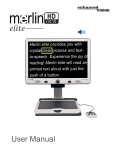
The Merlin elite is a high performance desktop video magnifier
(CCTV) - featuring text to speech (OCR). With HD you will
experience high definition color and contrast giving you a
beautiful, crystal clear picture with vibrant colors. Experience the
joy of reading with our new text-to- speech feature. Merlin elite
will read any printed text aloud with just the push of a button. For
more information, please visit www.enhancedvision.com.
www.enhancedvision.com
(800) 440-9476 (US Office, toll free)
(714) 465-3400 (US Office)
+44 (0) 115 9442317 (UK Office)
Tel. + 49 (0) 6078 911772 (DE Office)
Fax + 49 (0) 6078 911774 (DE Office)
Part # MAN-0505-00 X3
March, 2013
Copyright © 2009 by Enhanced Vision. All rights reserved.
Product specifications subject to change without prior notice.