1
Polycom SoundStation IP 7000 User Guide
1
Contents
1.0 Introduction ............................................................................................................. 3
1.1 Parts List .................................................................................................................................. 3
2.0 How to set up the Polycom SoundStation IP 7000 ................................................ 3
2.1 Installation ................................................................................................................................ 3
2.2 External Microphone ................................................................................................................ 3
2.3 Features ................................................................................................................................... 4
3.0 Using the Polycom SoundStation IP 7000 ............................................................. 4
3.1 Start-up..................................................................................................................................... 4
3.2 Making a call ............................................................................................................................ 4
3.3 Answering a call ....................................................................................................................... 4
3.4 Ending a call ............................................................................................................................. 5
3.5 Muting a call ............................................................................................................................. 5
3.5 Place a call on hold .................................................................................................................. 5
3.6 Transferring a call .................................................................................................................... 5
3.6.1 Performing a Consultative Transfer .................................................................................... 5
3.6.2 Performing a Blind Transfer ................................................................................................ 6
2
1.0 Introduction
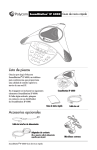
This quick start guide will help you to setup your new Polycom SoundStation IP 7000 conference unit on Horizon.
For a full user guide, please go to the Polycom website
1.1 Parts List
The box should include the SoundStation IP 7000, a Polycom quick start
guide and a network cable.
2.0 How to set up the Polycom SoundStation IP 7000
2.1 Installation
To install the SoundStation IP 7000, plug one end of the network cable into the network port on the bottom of the
SoundStation IP 7000 console and plug the other end of the network cable into your data port with Power over
Ethernet (PoE).
2.2 External Microphone
Connect the external microphones (optional accessory), as shown below.
3
2.3 Features
Speaker
Microphone
LED Indicator
LED Indicator
Microphone
LED Indicator
Keypad
Microphone
Graphic LCD Display
3.0 Using the Polycom SoundStation IP 7000
The features below show the basic functions of the SoundStation IP 7000. Full details are available in the full user
guide found on the Polycom website
3.1 Start-up
After it has been connected to the network, the SoundStation IP 7000 automatically powers up via Power PoE,
and begins a process of establishing itself on the network. When this is complete, the Idle screen is displayed as
shown below.
3.2 Making a call
To place a call without hearing a dial tone, enter the phone number of the party you want to call, and then press
or the Dial soft key.
3.3 Answ ering a call
Press
or the Answer soft key.
4
3.4 Ending a call
Press
or the End Call soft key.
3.5 Muting a call
Press
to mute a call. The LEDs glow red to indicate that the other party (or parties) cannot hear you.
You can still hear all other parties while Mute is enabled. To turn mute off, press the same button as before.
3.5 Place a call on hold
During a call, press the Hold soft key. The LEDs blink red to indicate that a call is on hold. The following figure
shows James Smith on hold. The Resume soft key now displays on the screen and can be pressed to return to
the call.
3.6 Transferring a call
3. 6. 1 P e rfo rm ing a C onsu lt at iv e T r an sfe r
Perform a consultative transfer if you want to talk to the party to whom you are transferring the call. Or, you can
choose not to talk to the party. In this case, you wait for the party’s ring-back sound, and then transfer the call.
During a call, press the Transfer soft key. The call is placed on hold. The Transfer to screen displays.
Place a call to the party to whom you want to transfer the call. See Placing Calls on page 3-2.
When you hear the ring-back sound, press the Transfer soft key. The transfer is complete. If you want to
talk privately to the person to which you are transferring the call before the transfer is complete, wait until
the person answers the call, talk to the person, and then press the Transfer soft key.
5
You can cancel the transfer before the call connects by pressing the Cancel soft key.
3. 6. 2 P e rfo rm ing a Bl ind T r an sf e r
When you use a blind transfer, you transfer a call without speaking to the party to whom you are transferring the
call. The call is automatically transferred as soon as you dial the party’s number.
To perform a blind transfer:
During a call, press the Transfer soft key. The Transfer to screen displays, with the Blind soft key.
Press the Blind soft key.
The Transfer to screen displays.
Place a call to the party to whom you want to transfer the call. See Placing Calls on page 3-2.
The call automatically transfers to the party you specified.
6