1
GOBO RANGE USER GUIDE - GETTING STARTED
Using a GoBoShow or GoBoPro could not be easier. To help you get started this leaflet gives a brief
overview and adds a few simple ideas for effective gobo projection. This leaflet is by no means a
definitive guide only a brief introduction to some of the potential applications and accessories available at
the time of going to press. A starting point from which you can explore the possibilities of effects
projection with the best equipment that you can buy.
For more detailed information please consult the manual or instructions for the Projector and Effect
Accessories before use.
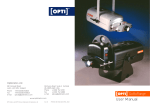
The illustration above is a basic key to some of the terminology used in the manual, instructions and this leaflet.
MOUNTING
There are three methods of mounting:
1.
Suspended with the mounting
bracket securely fixed to a suitable
mounting point.
2.
Bolted to a flat surface with the
bracket under the projector.
3.
For this the hanging bracket needs
to be removed, by undoing the
pivot knobs and locking levers,
and replaced under the projector.
For extra stability or ‘freestanding’
the standard hanging bracket can be
replaced with a Stand (GS2059).
3
1
2
Stand (GS2059)
IMPORTANT
If the projector is fixed above head
height OPTI recommend that it
should also be secured with a
Safety Chain (not supplied).
Adjusting the mounting bracket
There are two types of adjustment both
achieved by loosening the central/pivot
knobs and locking levers.
1
1.
Rotated on it’s axis (to adjust angle).
2.
Moved along the body of the
projector (to adjust balance).
POWER SUPPLY
230 or 240V ~ 50Hz, 120 or 100V ~ 60Hz
Mains supply is via the mains input
socket located on the rear panel. The
IEC power cable supplied is usually
fitted with a mains plug. Where a mains
plug is not fitted please follow local
wiring codes and check that the unit is
compatible with supply (European &
American are shown opposite).
To turn on the projector, on models
without a switch, simply plug in the IEC
lead. Models fitted with a switch click to
the ‘ON’ position marked I.
Wiring of the plug
European Colour Coding
GREEN/YELLOW > green, green yellow or ‘E’
terminal.
BLUE
>
BROWN >
black or ‘N’ terminal.
red or ‘L’ terminal.
American Color Coding
WARNING
GREEN/YELLOW > ground terminal.
This appliance must be
earthed at all times.
WHITE
>
neutral terminal.
BLACK
>
live terminal.
ADJUSTING THE 12V~ RAILS
In order to accommodate a larger lens, extra
Effect Accessories and/or Mirrors it may be
necessary to adjust the the 12V~ Rails.
1.
Loosen the Rail Adjustment Screws
on each side of the projector.
2.
Slide both rails, in or out, to the
desired position.
3.
Tighten the Rail Adjustment Screws
taking care not to over tighten.
LENSES & FOCUSING
The GoBoShow & GoBoPro come with an
85mm focal length 48.5mmØ lens as
standard. 45mm, 60mm, 120mm and
150mm are also available at 48.5mmØ.
The lower the focal length (e.g. 45mm in
comparison to an 85mm) the wider the
inclusive lens angle and so the larger the
projected image over the same distance.
K Range Lenses
To adjust focus:
The GoBoShow and GoBoPro can also be
fitted with 52.5mmØ lenses from the
K Range, like these illustrated.
1.
2.
Slide the Lens back or forth until the
desired focus is achieved.
3.
Tighten the Lens retaining Screw.
Loosen the Lens Retaining Screw.
The 25mm focal length lens (FG6175)
requires a Lens Mount (GS6100).
The 85-210mm Zoom lens (FG6200)
requires a Lens Mount (GS6100) and an
additional Lens Support (GS6101).
Lens Calculations
The formulae given enable the correct focal length lens selection (1) for a known projection distance and object size (the image on
the glass gobo) to achieve the desired projected image size. They also enable cross calculations to determine unknown factors from
the known facts. e.g. what the projected image size will be (3) using the lens, object size and projection distances available or what
object size is needed (4) on the gobo to achieve the desired image size etcetera. All dimensions must be in millimetres.
PROJECTION DISTANCE
x OBJECT
SIZE
IMAGE SIZE
3
IMAGE
SIZE
IMAGE SIZE
x FOCAL
LENGTH
OBJECT SIZE
4
OBJECT
SIZE
1
FOCAL
LENGTH
2
PROJECTION
DISTANCE
=
=
=
=
PROJECTION DISTANCE
x OBJECT
SIZE
FOCAL LENGTH
IMAGE SIZE x FOCAL LENGTH
PROJECTION DISTANCE
2
EFFECT ACCESSORIES
All GoBoShow and GoBoPro Effect
Accessories fit onto the 12V~ rails of the
projector between the body of the
projector and the Lens Housing.
B
Fitting an Effect
Accessory
A
1.
Loosen the rail knobs adjacent to
slots A and B to ensure that they are
not proud of the casing.
2.
Clip on the horizontal locating slot, A,
and push home past contact spring.
3.
Locate the upright locating slot, B,
over the other rail and push home
past the contact spring.
4.
Slide the effect to 15mm from the
body of the projector at 90° to rails.
Important to ensure the effect
receives maximum cooling from
the air duct.
5.
Tighten both rail knobs securely.
6.
To remove or adjust position loosen
both rail knobs.
SINGLE EFFECT ACCESSORIES
SLIDE/GOBO
HOLDER
GS6033
SLIDE/GOBO
ROTATORS
GS6028 &
GS6037
50mm CASSETTE
ROTATOR
GS6391
WHEEL ROTATORS
GS6340, GS6350,
GS6360,
GS6378SM &
GS6378MF
FOUR 50mm CASSETTE
AUTOCHANGER
GS6386
FOUR ROTATING
SLIDE/GOBO
AUTOCHANGER
GS6035
MULTI EFFECT AUTOCHANGERS
EIGHT STATIC GOBO
AUTOCHANGER
GS6049
SIX STATIC SLIDE/GOBO
AUTOCHANGER
GS6039
ADAPTORS
Fitting a 3” Effect Cassette onto a
Solar Cassette Rotator
1.
Twist motor to raise
drive wheel.
2.
Push cassette firmly
home over metal
flanges on
back plate.
3.
CLOCK ADAPTOR GS6007
SOLAR GATE ADAPTOR GS6319
Standard with GS Clock Attachments
Also fits all other Single Solar Effect Holders and Rotators
3
Release motor so
that drive wheel
makes contact with
the Cassette.
* For 3” Cassettes only the gap should, as a safety precaution, be reduced to a maximum of 5mm.
Power Supply
Both Adaptors have
the same power
supply / plug
arrangement.
2 pin 12V~ Solar
Plug fits into Jack
Plug Connector
(GS6012) which
then fits into the
3.5mm Jack Plug
Socket on either of
the GS Adaptors.
CREATING EFFECTS
Sunlight through trees
FIG 1 A number 2 Distortion Wheel on a
Variable Speed Wheel Rotator (GS6378SM) in
front of a 3” dot cassette (FG7141) on a Solar
Cassette Rotator (FG6320) fitted into a Solar
Gate Adaptor (GS6319), creates the effect of
sunlight through trees.
Alternatively a 6” dot wheel (FG7078) may be
used on a Solar Wheel Rotator (FG6340) in
place of the cassette.
FIG 1
Light on water
FIG 2 A number 2 Distortion Wheel fitted onto
a Variable Speed Rotator (GS6 378SM) with
an Ex tension Shaft (GS6340E) in front of a
Number 3 Distortion Wheel fitted onto a 1/2 rpm
Wheel Rotator (GS6340) with an Ex tension
Shaft creates the effect of light on water.
In order to fit the Wheel Rotator, as shown, the
Lens Housing must be turned upside down to
get the lens close enough to focus properly.
FIG 2
Rippling images
FIG 3 A number 1 Distortion Wheel fitted onto
a Variable Speed and Direction Wheel Rotator
(GS6 378SM) with an Ex tension Shaft
(GS6340E) in front of a gobo creates the effect
of the projected image being underwater or a
flag blowing in the wind.
In order to fit the Wheel Rotator, as shown, the
Lens Housing must be turned upside down to
get the lens close enough to focus properly.
FIG 3
The degree of ripple can be varied by
adjusting the speed and/or direction of
wheel rotation.
Clouds through windows
FIG 4 A Cloud Wheel (FG7045) fitted onto a
1/2 rpm (GS6340) or Variable Speed and
Direction Wheel Rotator (GS6 378SM) with
an Ex tension Sh aft (GS6340E) in front of a
window gobo creates the effect of looking at
the sky, with the clouds passing by, through
a window.
In order to fit the Wheel Rotator, as shown, the
Lens Housing must be turned upside down to
get the lens close enough to focus properly.
Other shaped widows, like port holes for
instance, can be combined with other 6”
Effect Wheels, like Deep (FG7049), to create
the effect of being in a vehicle moving
through an environment.
FIG 4
4
CREATING EFFECTS
Distortion of Standard Effects
Flickering Flames
FIG 5 A number 2 Disortion Wheel fitted onto
a Variable Speed and Direction Wheel Rotator
(GS6378SM) with an Extension Shaft
(GS6340E) in front of a Fire Wheel (FG7053)
fitted onto a 1/2 rpm Wheel Rotator (GS6340)
creates flickering flames.
➧
Underwater
FIG 5 A number 1 Distortion Wheel fitted onto
a Variable Speed and Direction Wheel Rotator
(GS6378SM) with an Extension Shaft
(GS6340E) in front of a Deep Wheel (FG7049)
fitted onto a 1/2 rpm Wheel Rotator (GS6340)
creates an underwater effect.
➧
FIG 5
Adding Colour
Examples
FIG 6
FIG 8
FIG 9
FIG 7
FIG 6
A Liquid Wheel in front of a 50mm Gobo or 3” Effect Cassette creates a constantly moving multi colour effect washed over or through the
projected image. An Organic Wheel (FG7083) can also be used to add colour or a Distortion Wheel to ripple.
FIG 7
An Eight Gobo Autochanger (GS6049) with a set of 50mm Coloured Dichroic Glass (GS7400) creates a programmable colour changer.
FIG 8
Six Static Slide/Gobo Autochanger (GS6039) colour changed using a Spektraflash Wheel (FG7084).
FIG 9
Six Static Slide/Gobo Autochanger (GS6039) colour changed using an Eight Gobo Autochanger (GS6049).
MIRRORS
Moving the image
Once Effect and Effect Accessory combination
has been selected the projected image can be
deflected with a Deflector Mirror (GS6310) or
moved around using a motorised mirror.
The Barrel Mirror (GS6315) continuously pans
a repeated image in one direction.
GS6316
The Circular Motion Mirror (GS6316) moves
an image around in an adjustable orbit.
The Linear Motion Mirror (GS6317) pans an
image back and forth over adjustable distance.
GS6315
GS6317
The X-Y Mirror (GS6314) can move a projected
image in any direction and pattern at variable
speeds and can also be DMX controlled.
All mirrors adjust through 360° on the lens axis,
except the X-Y which operates through 360°.
5
GS6314
TROUBLESHOOTING
Disconnect unit from power supply and allow lamp to cool before carrying out any checks on the projector.
PROJECTOR
SUGGESTED ACTION
Unit not working.
Check mains supply and power cable connections. Check condition and rating of fuse in
mains inlet. Safety cut out not operating because hatch cover not fully closed. Is there a
lamp securely in place? If still not working contact your dealer with serial number of unit.
No light output but fans running.
Has unit been allowed to warm up? Discharge lamps can take 5 minutes to achieve full
brightness after ignition. Check lamp is not broken i.e. no visible breakages inside or
outside of the lamp envelope. Please note that clouded lamp glass does not necessarily
mean a faulty lamp. This can result from running for short periods of time e.g. 10 minutes.
The lamp glass will clear when run for 30 minutes. Check lamp is fully inserted into base.
Change lamp if necessary, as detailed in projector instructions, taking care not to touch
the glass envelope of the lamp with bare hands.
Has the unit been running for more than 15 minutes? The projector is fitted with a safety
cut-out which activates if the lamp has not ignited within this time. If fitted with a shutter,
is shutter closed?
Low output/poor image uniformity.
Possible lamp misalignment. Follow relamping instructions for safe access to lamp area
then, check lamp is correctly seated in lamp holder. Also, check optical components are
correctly seated in lens frame and are not damaged.
Unit cuts out.
GoBoPro
GoBoShow
Optical System Key (from above with hatch cover removed)
1. Mirror.
3. Heat Filter.
2. Primary Lens.
4. Secondary Lens.
Possible overheating. Unit will cut out if run with a surrounding temperature greater than
45°c and will restart after about 15 minutes when cooled. If no action is taken to reduce the
surrounding temperature this cycle will repeat and shorten lamp life. Is the unit in a confined
space? Is there a good circulation of air around the unit? Is the top fan vent grill obstructed
or dirty? Check that the top fan is running. If not switch off and contact your dealer.
IMPORTANT
All OPTI Kinetics Effects Projectors are designed for indoor use only.
ACCESSORY
SUGGESTED ACTION
Not working.
Is effect accessory correctly connected to the projector rails (which provide power)?
See effect fitting instructions.
Is any metalic object shorting (across) the rails? If there is, a safety device will turn off
rail power until object removed.
Is any object obstructing movement of the effect? Is it touching the projector?
Mirrors not working.
Check cable connection to projection lens holder. Check that lens holder is correctly
fitted to rails. Is the mirror catching on the lens or lens housing?
Effects will not focus correctly.
Check that projection lens is fitted around the right way with print to front. Check
projection effect (i.e. gobo or 35mm slide) is positioned correctly over air duct.
35mm slides melt or distort.*
Check fan is on full (i.e. position 3 right).
Check the slide is in the correct position
in the airflow, over the air duct,
approximately 15mm from the body of
the projector .
* IMPORTANT
Never use original 35mm slides. Always use duplicate 35mm slides. Never use 35mm slides with the GoBoShow F1.
Always use GoBoShow F2 or GoBoPro projectors. For maximum life use a slide mount with no glass in it.
6