1
CHAPTER 4
Scan Tool Operation
The Laptop-Dyno™ software is designed for easy operation. This section shows how to
operate the software and describes the features on each screen.
Not every vehicle is equipped with all sensor types supported by the scan tool. Therefore,
the scan tool interrogates the vehicle and creates a custom list of sensors and options
unique to the vehicle connected.
Ensure the PC, cable, and OBD II adapter do not Interfere with the vehicle
controls. A cable dangling in front of the foot pedals, gear shifter, or steering
wheel can interferer with vehicle operation and cause a fatal accident. Always
ensure the PC, cable, and OBD II adapter are securely fastened out of the way.
If the scan tool cannot be safely attached as to not interfere with the vehicle
controls, then do not drive the vehicle with the OBD II adapter connected to
the vehicle.
Connect Scan Tool to Vehicle
The scan tool must be connected to the vehicle’s diagnostic connector, except in
demonstration mode where the vehicle data is simulated. See Demo Mode for more
information about the demo mode.
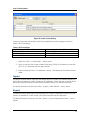
1. Turn the vehicle ignition off.
2. Connect the OBD II cable to the vehicle’s OBDII connector. Normally the vehicle
connector is located under the dash on the driver’s side in plain sight.
3. Turn the vehicle’s ignition on. Vehicle does not have to be running. For engine
running tests, the vehicle can be started and idling.
12