1
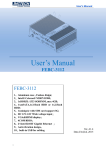
FEBC-5950
User’s Manual
1
FEBC-5950
1、Aluminum case , Fanless disign;
2、4th Generation Intel® CoreTM processors;
3、Intel® H81 Express Chipset;
4、2xDDR3-1333/1600 SODIMM ,max 16GB;
5、1xmSATA/minipcie,2x2.5inch SATA HDD;
6、DC 9V-36V Wide voltage input;
6、VGA display;
7、6COM/8DIO;
8、2×Intel Gigabit Ethernet (I210&I217);
9、4xPCI or 1xPCI-E x16 + 3xPCI
2
Copyright
The documentation and the software included with this product are copy- righted 2006 by
ShenZhen JHC Technology Co., Ltd. All rights are reserved. ShenZhen JHC Technology
Co., Ltd. reserves the right to make improvements in the products described in this
manual at any time without notice. No part of this manual may be reproduced, copied,
translated or transmitted in any form or by any means without the prior written
permission of ShenZhen JHC Technology Co., Ltd. Information provided in this manual
is intended to be accurate and reliable. However, ShenZhen JHC Technology Co.,
Ltd.assumes no responsibility for its use, nor for any infringements of the rights of third
parties, which may result from its use.
Acknowledgements
Award is a trademark of Award Software International, Inc.
IBM, PC/AT, PS/2 and VGA are trademarks of International Business Machines
Corporation.
Intel and Pentium are trademarks of Intel Corporation.
Microsoft Windows and MS-DOS are registered trademarks of Microsoft Corp.
RTL is a trademark of Realtek Semi-Conductor Co., Ltd.
All other product names or trademarks are properties of their respective owners.
For more information on this and other JHC products, please visit our websites at:
http://www.jhctech.com.cn
I
Product Warranty (2 years)
JHC warrants to you, the original purchaser, that each of its products will be free from
defects in materials and workmanship for two years from the date of purchase.
This warranty does not apply to any products which have been repaired or altered by
persons other than repair personnel authorized by JHC, or which have been subject to
misuse, abuse, accident or improper installation.
JHC assumes no liability under the terms of this warranty as a consequence of such
events.
Because of JHC.s high quality-control standards and rigorous testing,most of our
customers never need to use our repair service. If an JHC product is defective, it will be
repaired or replaced at no charge during the warranty period. For out-of-warranty repairs,
you will be billed according to the cost of replacement materials, service time and freight.
Please consult your dealer for more details.
If you think you have a defective product, follow these steps:
1. Collect all the information about the problem encountered. (For example, CPU
speed, JHC products used, other hardware and software used, etc.) Note anything
abnormal and list any onscreen messages you get when the problem occurs.
2. Call your dealer and describe the problem. Please have your manual, product, and
any helpful information readily available.
3. If your product is diagnosed as defective, obtain an RMA (return merchandise
authorization) number from your dealer. This allows us to process your return more
quickly.
4. Carefully pack the defective product, a fully-completed Repair and Replacement
Order Card and a photocopy proof of purchase date (such as your sales receipt) in a
shippable container. A product returned without proof of the purchase date is not
eligible for warranty service.
5. Write the RMA number visibly on the outside of the package and ship it prepaid to
your dealer.
II
Declaration of Conformity
CE
This product has passed the CE test for environmental specifications
when shielded cables are used for external wiring. We recommend the use
of shielded cables. This kind of cable is available from JHC. Please
contact your local supplier for ordering information. Test conditions for
passing included the equipment being operated within an industrial enclosure.
In order to protect the product from being damaged by ESD (Electrostatic
Discharge) and EMI leakage, we strongly recommend the use of
CE-compliant industrial enclosure products.
FCC Class A
Note: This equipment has been tested and found to comply with the limits for a Class A
digital device, pursuant to part 15 of the FCC Rules. These limits are designed to provide
reasonable protection against harmful interference when the equipment is operated in a
commercial environment This equipment generates, uses, and can radiate radio frequency
energy and, if not installed and used in accordance with the instruction manual, may
cause harmful interference to radio communications. Operation of this equipment in a
residential area is likely to cause harmful interference in which case the user will be
required to correct the interference at his own expense.
Technical Support and Assistance
Step 1. Visit the JHC web site at www.jhctech.com.cn
where you can find the latest information about the product.
Step 2. Contact your distributor, sales representative, or JHC’s customer service center
for technical support if you need additional assistance. Please have the following
information ready before you call:
- Product name and serial number
- Description of your peripheral attachments
- Description of your software (operating system, version,application software,
etc.)
- A complete description of the problem
- The exact wording of any error messages
III
Contents
General Information ............................................................................................................ 1
1.1 Introduction ....................................................................................................... 2
1.2 Features ............................................................................................................. 2
1.3 Specifications .................................................................................................... 2
1.3.1 General .................................................................................................... 2
1.3.2 Display .................................................................................................... 3
1.3.3 Ethernet ...................................................................................................... 3
1.3.4 Power Consumption ................................................................................... 3
1.3.5 Power Requirement .................................................................................... 3
1.4 Environmental Specifications ............................................................................... 3
1.5 Mechanical Specifications .................................................................................... 4
Hardware Installation .......................................................................................................... 5
2.1 Introduction ........................................................................................................... 6
2.2 Jumpers and connectors ........................................................................................ 6
2.2.1 Setting Jumpers .......................................................................................... 6
2.3 Jumper Location.................................................................................................... 6
2.3.1 JP4: Clear CMOS Date .............................................................................. 8
2.3.2 JP1/2 USB Power Select ............................................................................ 9
2.3.3 Auto Power-on Select .............................................................................. 10
2.3.4 COM 1/COM 2 RS232/422/485 Select ....................................................11
2.3.5 COM 1/COM 2 RS232/Power Select ...................................................... 13
2.3.6 Mini PCIe Signal Select ........................................................................... 14
2.3.7 Mini PCIe Power Select ........................................................................... 14
2.3.8 Digital I/O Connectors ............................................................................. 15
2.3.9 Front Panel Connector ............................................................................. 16
2.3.10 SATA Power Connectors ........................................................................ 17
2.4 I/O indication ...................................................................................................... 17
2.4.1 Ethernet Connector (LAN) ...................................................................... 18
2.4.2 Power Input Connector (DC-IN) ............................................................. 19
2.4.3 USB 2.0 Connector .................................................................................. 19
2.4.4 COM1/COM2 Connector......................................................................... 20
2.4.5 COM3/COM4/COM5/COM6 Connector ................................................ 21
2.4.6 DIO Connector ......................................................................................... 21
BIOS Setup ....................................................................................................................... 22
3.1 Main .................................................................................................................... 24
3.2 Advanced............................................................................................................. 25
3.2.1 ACPI Power Management Configuration ................................................ 25
3.2.2 Trusted Computing................................................................................... 26
3.2.3 CPU Configuration .................................................................................. 27
3.2.4 SATA Configuration................................................................................. 28
3.2.5 PCH-FW Configuration ........................................................................... 30
3.2.6 USB Configuration .................................................................................. 31
3.2.7 Super IO Configuration............................................................................ 32
A
3.2.8 PC Health Status ...................................................................................... 33
3.2.9 Second Super IO Configuration ............................................................... 35
3.2.10 Network Stack ........................................................................................ 37
3.3 Chipset ................................................................................................................ 38
3.3.1 System Agent (SA) Configuration ........................................................... 39
3.3.2 PCH-IO Configuration ............................................................................. 39
3.4 Boot ..................................................................................................................... 40
3.4.1 CSM Parameters ...................................................................................... 41
3.5 Security ............................................................................................................... 42
3.6 Save & Exit ......................................................................................................... 42
Driver Installation ............................................................................................................. 44
4.1 Follow the sequence below to install the drivers: ............................................... 45
4.2 Installation: ......................................................................................................... 45
Watchdog Sample Code .................................................................................................... 46
B
CHAPTER
1
General Information
1
1.1 Introduction
FEBC-5950 is an intelligent,fanless embedded system powered by Intel 4th Generation
Intel® CoreTM processors with multiple I/O interface and 2.5” HDD driver bay.
FEBC-5950 offers 1xVGA interface, 2xGiga Lan ports, 2xUSB3.0 ports, 2xUSB2.0 ports,
6xCOM ports, 1xMini PCIe socket,4xPCI/PCIE socket; The FEBC-5950 supports two
2.5” SATA HDD driver bay,1xmSATA for storage options.
1.2 Features
Key features
1、Aluminum case , Fanless disign;
2、4th Generation Intel® CoreTM processors;
3、2xDDR3-1333/1600 SODIMM ,max 16GB;
4、1xmSATA,2x2.5inch SATA HDD;
5、1xminipcie/mSATA;
6、DC 9V~36V Wide voltage input;
6、VGA display;
7、6COM/8DIO;
8、2×Intel Gigabit Ethernet ;
9、4xPCI or 1xPCI-E x16 + 3xPCI
1.3 Specifications
1.3.1 General
CPU: Intel® CoreTM i3-4330T (4M Cache, 3.0 GHz) 35W;
Intel® Pentium® Processor G3220T (3M Cache, 2.60 GHz) 35W;
Intel® Core™ i5-4670T Processor (6M Cache, up to 3.30 GHz) 45W
BIOS: AMI BIOS
System Memory: Up to 16G DDR3 1333/1600GHz SODIMM
Watchdog Timer: 255-level interval timer, setup by software
Serial Ports:
– 4x RS-232, 2 x RS-232/422/485
DIO:
– 8 bit DIO
2
USB:
– 2 x USB 2.0 compliant Ports, 2xUSB3.0 compliant port.
Expansion Interface: Support up to 1 x full size Mini-PCIe , 4xPCI or 1xPCI-E x16 +
3xPCI
Storage:
– Supports 1 xmSATA
– SATA: Support `2x 2.5” SATAII HDD
1.3.2 Display
Chipset: Intel HD Graphics;
Display Memory: Shared system memery
VGA Resolution: up to 1920x1200 pixels with 24-bit color @ 60Hz
1.3.3 Ethernet
Chipset: 1xIntel WGI210 Gigabit Ethernet; 1x Intel® I217 Gigabit Ethernet Phy
Speed: 10/100/1000 Mbps
Interface: Up to 2 x RJ45
1.3.4 Power Consumption
Input Voltage: DC 9~36V
Power Adapter: AC to DC 19 V/6.32 A, 120 W
1.3.5 Power Requirement
System power:
– Minimum power input: DC 12 V 5 A
1.4 Environmental Specifications
Operating temperature: -10 ~ 55°C (With extended temperature mSATA devices) &
0 ~ 50°C (With standard temperature mSATA&HDD devices)
Relative humidity: 95% @ 40°C (non-condensing)
Storage temperature: -20 ~ 70°C (-40 ~ 185°F)
Vibration loading during operation:
– With SSD/mSATA: 3 Grms, IEC 60068-2-64, random, 5 ~ 500 Hz, 1 hr/axis
3
EMC: CE, FCC Class A
1.5 Mechanical Specifications
FEBC-5950 Dimensions:
4
CHAPTER
2
Hardware Installation
5
2.1 Introduction
The following sections show the internal jumper settings and the external connectors and
pin assignments for applications.
2.2 Jumpers and connectors
The FEBC-5950 Embedded Box Computer consists of an JHC SBC (Single Board
Computer) board that is housed in an aluminum plate chassis. Your HDD and SDRAM,
are all readily accessible by removing the aluminum bottom cover. Any maintenance or
hardware upgrades can be easily completed after removing the bottom cover.
Warning:Do not remove any mechanical parts until you have verified that no power is
flowing within the Embedded Box Computer. Power must be switched off and the power
cord must be unplugged.
2.2.1 Setting Jumpers
You can configure your FEBC-5950 to match the needs of your application by setting the
jumpers. A jumper is the simplest kind of electrical switch. It consists of two metal pins
and a small metal clip (often protected by a plastic cover) that slides over the pins to
connect them. To —close“ a jumper, you connect the pins with the clip. To —open“ a
jumper you remove the clip. Sometimes a jumper will have three pins, labeled 1, 2, and 3.
In this case, you would connect either pins 1 and 2 or pins 2 and 3.
The jumper settings are schematically depicted in this manual as follows:
A pair of needle-nose pliers may be helpful when working with jumpers. If you have any
doubts about the best hardware configuration for your application, contact your local
distributor or sales representative before you make any changes.
2.3 Jumper Location
The FEBC-5950 Embedded Box Computer has a number of jumpers inside the chassis
that allows you to configure your system to suit your application. The table below lists
the functions of the various jumpers. The table below shows the function of each of the
board's jumpers:
6
Jumpers
Jumper
JP4
JP1
JP2
JP7
JP8
JP11
JP13
JP14
JP12
JP15
JP17
JP18
JP9
JP6
Name
Clear CMOS Date
USB power select
USB power select
Auto Power-on Select
COM1 RS232/422/485 select
COM1 RS232/power select
COM2 RS232/422/485 select
COM4 RS232/power select
Mini PCIe Signal Select
Mini PCIe Power Select
7
Description
3-Pin Block
3-Pin Block
3-Pin Block
3-Pin Block
6-Pin Block
6-Pin Block
6-Pin Block
6-pin Block
6-pin Block
6-pin Block
6-pin Block
6-pin Block
12-pin Block
3-Pin Block
Headers
Header
Front Panel
SATA Power 0/SATA
Power 1
KB/MS
COM2/COM3/
COM4/COM5/
COM6
Name
Description
Front Panel header
11-pin block
SATA (Serial ATA) Power Connectors 5-pin block
PS/2 Keyboard/Mouse Connector
Serial port headers
9-pin block
9-pin block
Digital I/O
Digital I/O Connector
8-Pin block
2.3.1 JP4: Clear CMOS Date
If you encounter the following,
a) CMOS data becomes corrupted.
b) You forgot the supervisor or user password.
you can reconfigure the system with the default values stored in the ROM BIOS. To load
the default values stored in the ROM BIOS, please follow the steps below.
1. Power-off the system and unplug the power cord.
2. Set JP4 pins 2 and 3 to On. Wait for a few seconds and set JP4 back to its default
setting, pins 1 and 2 On.
8
3. Now plug the power cord and power-on the system.
2.3.2 JP1/2 USB Power Select
JP1, JP2 are used to select the power of the USB ports. Selecting +5V_standby will allow
you to use a USB device to wake up the system.
Important:
If you are using the Wake-On-USB Keyboard/Mouse function for 2 USB ports,
the+5V_standby power source of your power supply must support ≥1.5A. For 3 or
moreUSB ports, the +5V_standby power source of your power supply must
support ≥2A.
9
2.3.3 Auto Power-on Select
JP7 is used to select the method of powering on the system. If you want the system to
power-on whenever AC power comes in, set JP7 pins 2 and 3 to On. If you want to use
the powerbutton, set pins 1 and 2 to On.
When using the JP7 “Power On” feature to power the system back on after a power
failure occurs, the system may not power on if the power lost is resumed within 5
seconds (power flicker).
10
2.3.4 COM 1/COM 2 RS232/422/485 Select
These jumpers allow you to configure the Serial COM ports to RS232, RS422 (Full
Duplex) or RS485. JP8, JP11 and JP13 are used to configure the Serial COM port 1. JP12,
JP15 and JP17 are used to configure the Serial COM port 2. The pin functions of Serial
COM ports 1 and 2 will vary according to these jumpers’ setting.
Note:
When COM 1 RS232/422/485 is selected, JP11 and JP13 must be set in accordance to JP8. And
when COM 2 RS232/422/485 is selected, JP15 and JP17 must be set in accordante to JP12.
11
12
2.3.5 COM 1/COM 2 RS232/Power Select
JP14 (for COM 1) and JP18 (for COM 2) are used to configure the Serial COM ports to
pure RS232 or RS232 with power.
13
2.3.6 Mini PCIe Signal Select
JP9 is used to select the Mini PCIe signal: PCIe or mSATA.
2.3.7 Mini PCIe Power Select
JP6 is used to select the power supplied with the Mini PCIe.
14
2.3.8 Digital I/O Connectors
Digital I/O Connector
The 8-bit Digital I/O connector provides powering-on function to external devices that
are connected to the connector.
Digital I/O Connector
Pins
Function
Pins
Function
1
DIO0
2
DIO1
3
DIO2
4
DIO3
5
DIO4
6
DIO5
7
DIO6
8
DIO7
15
2.3.9 Front Panel Connector
HDD-LED - HDD LED
This LED will light when the hard drive is being accessed.
RESET-SW - Reset Switch
This switch allows you to reboot without having to power off the system.
PWR-BTN - Power Switch
This switch is used to power on or off the system.
PWR-LED - Power/Standby LED
When the system’s power is on, this LED will light. When the system is in the S1 (POS Power On Suspend) state, it will blink every second. When the system is in the S3 (STR Suspend To RAM) state, it will blink every 4 seconds.
16
2.3.10 SATA Power Connectors
These SATA power connectors supply power to the SATA drive. Connect one end of the
provided power cable to the SATA power connector and the other end to your storage
device.
2.4 I/O indication
Rear view
17
2.4.1 Ethernet Connector (LAN)
The FEBC-5950 is equipped with two Intel WGI210IT for 10/100/1000Mbps
Ethernet controllers. The Ethernet port provides a standard RJ-45 jack connector
with LED indicators on the front side to show its Active/Link status (Green LED)
and Speed status (white LED). Table 2.2 for pin assignments
Figure 2.4 Ethernet Connector
Table 2.2: RJ-45 Connector pin assignments
Pin
10/100/1000BaseT Signal Name
1
TX+(10/100), BI_DA+(GHz)
2
TX-(10/100), BI_DA-(GHz)
3
RX+(10/100), BI_DB+(GHz)
18
4
BI_DC+(GHz)
5
BI_DC-(GHz)
6
RX-(10/100), BI_DB-(GHz)
7
BI_DD+(GHz)
BI_DD-(GHz)
8
Note: NC represents —No Connection“
2.4.2 Power Input Connector (DC-IN)
The FEBC-5950 comes with a DC-in power jack: 3-pole Phoenix terminal block that
9~36V external power input. Please refer to Table 2.3 for their pin assignments.
Figure 2.3 Power Conector
Table 2.3: Power Connector Pin Assignments
Pin
1
Signal Name
2
V-——电源负极
V+——电源正极
3
G——GND
2.4.3 USB 2.0 Connector
The FEBC-5950 can support up to five USB-interface connectors. By default it provides
two USB-interface connectors located on the front metal faceplate, and an additional
three USB-interface connectors can be supported through adding the Dual-USB
Cable-Bracket. These USB-interface connectors give complete Plug & Play and hot swap
capability for up to 127 external devices. The USB interface complies with USB UHCI,
Rev. 2.0 compliance. The USB inter-face can be disabled in the system BIOS setup.
The USB-interface connector is used for connecting any device that con-forms to the
USB interface. Many recent digital devices conform to this standard. The USB interface
supports Plug and Play, which enables you to connect or disconnect a device whenever
you want, without turning off the computer.
19
Figure 2.6 USB connector
Table 2.4: USB Connector
Pin
Signal name
1
VCC
2
USB_P0
3
USB_P0+
4
GND
2.4.4 COM1/COM2 Connector
The FEBC-5950 provides two D-sub 9-pin connector, which offers two RS-232/422/485
serial communication interface port of COM1 and COM2. The default setting of COM1/2
is RS-232. Please refer to Table 2.5 for their pin assign-ments and jumper settings for
setting up RS-422 and RS-485.
1
2
6 7
3
4
8
5
9
Figure 2.7: COM 1/COM2 Connector
Table 2.5: COM1~2 Serial Port Pin Assignments
RS-232
RS-422
Pin
Signal Name
Signal Name
1
DCD
Rx+
2
RxD
Rx3
TxD
Tx+
4
DTR
Tx5
GND
GND
6
DSR
NC
7
RTS
NC
8
CTS
NC
9
RI
NC
Note: NC represents —No Connection“
20
RS-485
Signal Name
DATA+
DATANC
NC
GND
NC
NC
NC
NC
2.4.5 COM3/COM4/COM5/COM6 Connector
The FEBC-5950 provides Four RS-232 ports by two D-sub 9-pin con-nectors. Please
refer to Table 2.6 for their pin assignments.
1 2
6 7
3
4
8
5
9
Figure 2.8: COM3, COM4 Connector
Table 2.6: COM3~6 Serial Port Pin Assignments
Pin
Signal Name
1
DCD
2
RxD
3
TxD
4
DTR
5
GND
6
DSR
7
RTS
8
CTS
9
RI
2.4.6 DIO Connector
Digital I/O Connector
Pin
1
2
3
4
5
NO.
DIO0
DIO1
DIO2
DIO3
DIO_GND
Pin
6
7
8
9
21
NO.
DIO4
DIO5
DIO6
DIO7
CHAPTER
3
BIOS Setup
22
Overview
The BIOS is a program that takes care of the basic level of communication
between the CPU and peripherals. It contains codes for various advanced
features found in this system board.The BIOS allows you to configure the
system and save the configuration in a battery-backed CMOS so that the data
retains even when the power is off. In general, the information stored in the
CMOS RAM of the EEPROM will stay unchanged unless a configuration
change has been made such as a hard drive replaced or a device added.
It is possible that the CMOS battery will fail causing CMOS data loss. If this
happens, you need to install a new CMOS battery and reconfigure the BIOS
settings.
Default Configuration
Most of the configuration settings are either predefined according to the Load
Optimal Defaults settings which are stored in the BIOS or are automatically
detected and configured without requiring any actions. There are a few
settings that you may need to change depending on your system configuration.
Entering the BIOS Setup Utility
The BIOS Setup Utility can only be operated from the keyboard and all
commands are key- board commands. The commands are available at the
right side of each setup screen.
The BIOS Setup Utility does not require an operating system to run. After you
power up the system, the BIOS message appears on the screen and the
memory count begins. After the memory test, the message “Press DEL to run
setup” will appear on the screen. If the message disappears before you
respond, restart the system or press the “Reset” button. You may also restart
the system by pressing the <Ctrl> <Alt> and <Del> keys simultaneously.
Legends
23
Scroll Bar
When a scroll bar appears to the right of the setup screen, it indicates that
there are more available fields not shown on the screen. Use the up and down
arrow keys to scroll through all the available fields.
Submenu
which contains additional options are available for that field. To display the
submenu, move the highlight to that field and press <Enter>.
AMI BIOS Setup Utility
3.1 Main
The Main menu is the first screen that you will see when you enter the BIOS
Setup Utility.
System Time
The time format is <hour>, <minute>, <second>. The time is based on the
24-hour military-time clock. For example, 1 p.m. is 13:00:00. Hour displays
hours from 00 to 23. Minute displays minutes from 00 to 59. Second displays
seconds from 00 to 59.
System Date
The date format is <day>, <month>, <date>, <year>. Day displays a day, from
Sun- day to Saturday. Month displays the month, from January to December.
Date displays the date, from 1 to 31. Year displays the year, from 1980 to
2099.
24
3.2 Advanced
The Advanced menu allows you to configure your system for basic operation.
Some entries are defaults required by the system board, while others, if
enabled, will improve the performance of your system or let you set some
features according to your preference.
3.2.1 ACPI Power Management Configuration
This section is used to configure the ACPI power management.
25
Resume by PME
Enables this field to use the PME signal to wake up the system.
Resume by Ring
Enables this field to use the Ring signal to wake up the system.
Resume by RTC Alarm
When Enabled, the system uses the RTC to generate a wakeup event.
3.2.2 Trusted Computing
This section configures settings relevant to Trusted Computing innovations.
26
Security Device Support
This field is used to enable or disable BIOS supporting for the security device. O.S
will not show the security device. TCG EFI protocol and INT1A interface will not be
available.
3.2.3 CPU Configuration
This section is used to configure the CPU. It will also display the detected CPU
information.
27
Hyper-threading
Enables this field for Windows XP and Linux which are optimized for
Hyper-Threading
technology. Select disabled for other OSes not optimized for Hyper-Threading
technology.
When disabled, only one thread per enabled core is enabled.
Active Processor Cores
Number of cores to enable in each processor package.
Intel Virtualization Technology
When this field is set to Enabled, the VMM can utilize the additional hardware
capabilities
provided by Vanderpool Technology.
EIST
This field is used to enable or disable the Intel Enhanced SpeedStep Technology.
3.2.4 SATA Configuration
This section is used to configure the settings of Serial ATA devices.
28
SATA Controller(s)
This field is used to enable or disable the Serial ATA devices.
SATA Mode Selection
The mode selection determines how the SATA controller(s) operates.
IDE Mode
This option configures the Serial ATA drives as Parallel ATA storage devices.
AHCI Mode
This option allows the Serial ATA devices to use AHCI (Advanced Host Controller
Interface).
When IDE mode is selected in the SATA Mode Selection, it will display the following
information:
When AHCI mode is selected in the SATA Mode Selection, it will display the
following information:
29
SATA Controller Speed
Indicates the maximum speed that the Serial ATA controller can support.
Port 0, Port 1, mSATA Port, CFAST Port
Enables or disables these Serial ATA ports.
Hot Plug
Designates the serial ATA port as hot pluggable.
3.2.5 PCH-FW Configuration
This section is used to configure the parameters of Management Engine Technology.
30
Firmware Update Configuration
Enables or disables the Me FW Image Re-Flash function.
3.2.6 USB Configuration
This section is used to configure USB.
Legacy USB Support
Enabled
Enables legacy USB.
Auto
Disables support for legacy when no USB devices are connected.
Disabled
Keeps USB devices available only for EFI applications.
31
USB3.0 Support
Enable or disable the support of the USB 3.0 (XHCI) controller.
XHCI Hand-off
This is a workaround for OSes without the support of XHCI hand-off. The change of
XHCI ownership should be claimed by the XHCI driver.
EHCI Hand-off
This is a workaround for OSes without the support of EHCI hand-off. The change of
EHCI ownership should be claimed by the EHCI driver.
3.2.7 Super IO Configuration
This section is used to configure the I/O functions supported by the onboard Super I/O
chip.
Restore AC Power Loss
Power Off
When power returns after an AC power failure, the system’s power is off. You must
press the Power button to power-on the system.
Power On
When power returns after an AC power failure, the system will automatically
power-on.
Last State
When power returns after an AC power failure, the system will return to the state
where you left off before power failure occurs. If the system’s power is off when AC
power failure occurs, it will remain off when power returns. If the system’s power is
on
when AC power failure occurs, the system will power-on when power returns.
Watchdog Timer Unit
Selects the watchdog timer unit: second or minute.
Super IO Watchdog Timer
Sets the timeout value of the super IO watchdog timer. 0 means disabled.
Serial Port 0 Configuration and Serial Port 1 Configuration
32
Sets parameters of serial port 0 (COM A) and serial port 1 (COM B).
Serial Port
Enables or disables the serial port (COM).
Change Settings
Selects the IO/IRQ settings for the super I/O device.
RS485 Auto Flow
Sets the RS485 auto flow for the serial port.
3.2.8 PC Health Status
This section displays the hardware health monitor.
33
Smart Fan Function
CPU Smart Fan Control
When this feature is set to Automatic, the CPU’s fan speed will rotate according to the
CPU’s temperature. The higher the temperature, the faster the speed of rotation.
System Smart Fan Control
34
When this feature is set to Automatic, the System’s fan speed will rotate according to
the System’s temperature. The higher the temperature, the faster the speed of rotation.
Boundary 1 to Boundary 4
The range is 0-127.
Speed Count 1 to Speed Count 5
The range is 1-100%.
Case Open
Sets this field to Enabled to allow the system to alert you of a chassis intrusion event.
3.2.9 Second Super IO Configuration
This section is used to configure the parameters of the system second super I/O chip.
Serial Port 0 Configuration to Serial Port 3 Configuration
Sets parameters of serial port 0 (COM A) to serial port 3 (COM D).
35
36
Serial Port
Enables or disables the serial port (COM).
Change Settings
Selects the IO/IRQ settings for the super I/O device.
RS485 Auto Flow
Sets the RS485 auto flow for the serial port.
3.2.10 Network Stack
This section is used to enable or disable UEFI network stack.
37
When Network Stack is enabled, it will display the following information:
Ipv4 PXE Support
When enabled, Ipv4 PXE boot supports. When disabled, Ipv4 PXE boot option will
not be created.
Ipv6 PXE Support
When enabled, Ipv6 PXE boot supports. When disabled, Ipv6 PXE boot option will
not be created.
3.3 Chipset
This section configures relevant chipset functions.
38
3.3.1 System Agent (SA) Configuration
This section is used to configure the parameters of System Agent.
3.3.2 PCH-IO Configuration
This section illustrates the PCH parameters.
39
Onboard I217 LAN Controller
Enables or disables the onboard I217 LAN controller.
Onboard I210 LAN Controller
Enables or disables the onboard I210 LAN controller
High Precision Timer
Enables or disables the High Precision Event Timer.
3.4 Boot
Setup Prompt Timeout
Selects the number of seconds to wait for the setup activation key. 65535(0xFFFF)
40
denotes indefinite waiting.
Bootup NumLock State
This allows you to determine the default state of the numeric keypad. By default, the
system boots up with NumLock on wherein the function of the numeric keypad is the
number keys. When set to Off, the function of the numeric keypad is the arrow keys.
Quiet Boot
Enables or disables the quiet boot function.
Boot Option
Sets the system boot order.
Hard Drive BBS Priorities
Sets the order of the legacy devices in the group.
3.4.1 CSM Parameters
Launch CSM
This option controls if CSM will be launched.
Boot option filter
This option controls what devices system can be boot to.
Launch PXE OpROM policy
Controls the execution of UEFI and legacy PXE OpROM.
Launch Storage OpROM policy
Controls the execution of UEFI and legacy storage OpROM.
Other PCI device ROM priority
For PCI devices other than Network, Mass Storage, or Video defines which OpROM
to launch.
41
3.5 Security
Administrator Password
Sets the administrator password.
User Password
Sets the user password.
3.6 Save & Exit
42
Save Changes and Reset
To save the changes, select this field and then press <Enter>. A dialog box will appear.
Select Yes to reset the system after saving all changes made.
Discard Changes and Reset
To discard the changes, select this field and then press <Enter>. A dialog box will
appear. Select Yes to reset the system setup without saving any changes.
Restore Defaults
To restore and load the optimized default values, select this field and then press
<Enter>.A dialog box will appear. Select Yes to restore the default values of all the
setup options.
Launch EFI Shell from filesystem device
Attempts to Launch EFI Shell application (Shellx64.efi) from one of the available
filesystem devices.
43
CHAPTER
4
Driver Installation
44
The FEBC-5950 comes with a CD-ROM that contains all drivers and utilities that
meet your needs.
4.1 Follow the sequence below to install the drivers:
Step 1 – Install Chipset Driver
Step 2 – Install VGA Driver
Step 3 – Install LAN Driver
Step 4 – Install Audio Driver
Please read instructions below for further detailed installations.
4.2 Installation:
Insert the FEBC-5950 CD-ROM into the CD-ROM drive. And install the drivers from
Step 1 to Step 4 in order.
Step 1 – Install Chipset Driver
1. Click on the Step 1 - Intel Chipset Software Installation Utility folder and
double click on the infinst_autol.exe
2. Follow the instructions that the window shows
3. The system will help you install the driver automatically
Step 2 – Install VGA Driver
1. Click on the Step 2 - Intel Graphics Media Accelerator Driver Production
Version folder and select the OS folder your system is
2. Double click on the Setup.exe file located in each OS folder
3. Follow the instructions that the window shows
4. The system will help you install the driver automatically
Step 3 –Install LAN Driver
1. Click on the Step 3 - Realtek folder and select the OS folder
2. Double click on the Setup.exe file
3. Follow the instructions that the window shows
4. The system will help you install the driver automatically
Step 4 –Install Audio Driver
1. Click on the Step 4 - Realtek HD Audio Codec folder and select the OS folder
your system is
2. Double click on Setup.exe file located in each OS folder
3. Follow the instructions that the window shows
4. The system will help you install the driver automatically
45
APPENDIX
A
Watchdog Sample Code
46
;Software programming example:
;--------------------------------------------;(1) Enter Super IO Confi guration mode
;--------------------------------------------MOV DX,4EH
MOV AL,87H
OUT DX,AL
OUT DX,AL
;------------------------------------------------------------------------------------------;(2) Confi guration Logical Device 8, register CRF0/CRF1 (WDT Control/WDT
timer)
;------------------------------------------------------------------------------------------MOV DX,4EH
MOV AL,07H ;Ready to Program Logical Device
OUT DX,AL
MOV DX,4FH
MOV AL,08H ;Select Logical Device 8
OUT DX,AL
MOV DX,4EH
MOV AL, F1H ;Select watchdog timer register
OUT DX,AL
MOV DX,4FH
MOV AL,10H ;Set watchdog timer value
OUT DX,AL
MOV DX,4EH
MOV AL, F0H ;Select watchdog Control Register
OUT DX,AL
MOV DX,4FH
MOV AL,02H ;Set Watchdog Control Value
OUT DX,AL
;---------------------------------------------------------------;(1) Exit extended function mode
;---------------------------------------------------------------MOV DX,4EH
MOV AL,AAH
OUT DX,AL
47