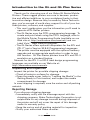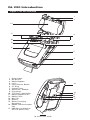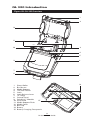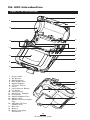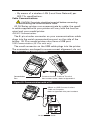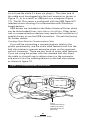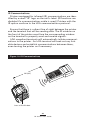
1
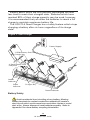
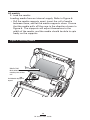
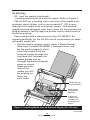
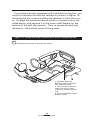
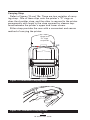
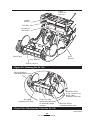
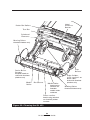
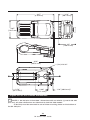
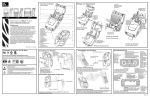
3. Close the Media Cover: Refer to Figure 8.
• If you plan to use the printer in the tear-off mode, close
the media cover as shown at “2”, then rotate the latch
assembly as shown until it locks into place, as shown at
“4”.
• If you plan to use the printer in the peel-off mode, peel a
few labels off of the media and pull it out of the printer as
shown at “1”. Close the media cover as shown at “2”.
Rotate the “EZ-Peel” peeler bar until it locks into place on
the latch, as shown at “3”, then rotate the Latch as shown
until it locks into place, as shown at “4”.
• Turn on the printer or press the Feed button if the printer
is already on.
The printer will advance the media to the next label, if
printing labels. If you are printing on journal media, the
printer will advance a short strip of media and will then be
ready for printing.
Figure 8: Closing the Media Cover
Pull Media out
of Printer
Media Cover
“EZ-Peel” Peeler
Bar
Flip down if using
media in the peeloff mode.
Latch
Assembly
20
QL Series User Guide