1
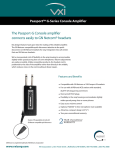
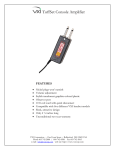
TuffSet Powerline
Amplifier
VXI Corporation
One Front Street, Rollinsford, NH 03869
603-742-2888
1-800-742-8588
email:
[email protected]
website:
www.vxicorp.com
©2002 VXI Corporation
VXI TuffSet Powerline Amplifier – Instruction Guide
2
VXI TuffSet Powerline Amplifier – Instruction Guide
COMPONENTS
1
2
3
4
4
7
6
1.
Headset Stand
2.
Top Door
3.
Headset/Handset Switch
4.
Compatibility Switches
5.
Microphone Volume Control
6.
Mute Switch
7.
Receive Volume Control
8.
Headset Port
9.
To Phone Line Jack on Phone
5
8
10. Optional AC Adapter Port - Use only Listed Direct Plug-In Power
Unit marked “Class 2” and rated 9 VDC 100 mA.
11. To Handset Jack on Phone
12. Handset Cord Jack
Note: Refer to icons printed on bottom of amplifier.
13. Wall Jack
14. Black Cord (4 position plugs)
15. Gray Cord (6 position plugs)
16. Lower Coil Cord
14
9
10
11
12
15
16
13
3
VXI TuffSet Powerline Amplifier – Instruction Guide
STEP 2:
STEP 1:
Connect the Cords- Follow instructions below
for your phone type.
Connection for Electronic Phones (Figure 1)
1. Disconnect your telephone cord from the back of your
telephone and insert it into the Wall Line Jack . This jack
will accept both 8-position and 6-position modular plugs.
Connecting the Headset
The Powerline headset port is compatible with the
supplied VXI lower cord, and is also compatible with
GN Netcom® and Fellowes® headsets (please see
instructions below for installation requirements).
2. Plug the gray cord into the Phone Line Jack on the
amplifier
. Plug the free end of this cord into the
now vacant jack on your phone.
3. Remove the coiled handset cord from your
telephone and plug it into the jack marked
.
4. Connect one end of the black cord into the now
empty handset jack on your phone. Connect the
other end of this cord into the jack marked
.
Figure 3
Connecting a VXI Headset
Connect the VXI headset to the lower coil cord
provided with the amplifier and insert modular plug
into the front port of the amplifier (Figure 3).
Connecting a GN Netcom or Fellowes Headset
Figure 1
Connection for Carbon Phones (Figure 2)
1. Remove the coiled handset cord from your telephone and
plug it into the jack marked
.
2. Connect one end of the black cord into the now empty
handset jack on your phone. Connect the other end of this
cord into the jack marked
.
Figure 2
4
Connect the GN Netcom or Fellowes headset, including
its lower cord, by inserting modular plug into the front
port of the amplifier (Figure 3).
Discard the VXI-provided lower cord.
STEP 3:
Setting up the Headset/Handset
Set the headset/handset switch to the headset position
(Figure 4).
Figure 4
VXI TuffSet Powerline Amplifier – Instruction Guide
STEP 4:
STEP 6:
Setting the Mute Switch
Place a Call
To activate the headset microphone, rotate the mute
switch forward so the green box on the switch is
showing (Figure 5). Note: If the red box on the switch
is showing, your microphone will be muted.
Adjust microphone volume until the other party can hear you
clearly and hear minimal background noise (Figure 7).
Figure 7
Figure 5
STEP 7:
Adjust Receive Volume
STEP 5:
Setting Compatibility Switches
1. Place headset on head
2. Take phone off of the hook
3. If you do not get a clear dial tone, locate the compatibility
switches below the top door and adjust the switches in the
following order as depicted in Figure 6:
-A4 through A1
-B4 through B1
Adjust the receive volume control by sliding the wheel until you can
comfortably hear the other party (Figure 8).
Figure 8
Try all switch positions. Choose the setting with the
best dial tone. Proceed to Step 6 to place a test call to
ensure that your settings also provide the clearest
voice.
Figure 6
5
VXI TuffSet Powerline Amplifier – Instruction Guide
Troubleshooting
Why can’t I hear callers?
• Check if all cords are connected
• Adjust receive volume control on amplifier
• Adjust compatibility switches
Why can’t callers hear me?
• Make sure mute switch on telephone or amplifier is not
turned on
• Make sure microphone is positioned correctly. See your headset
instructions that are included with your headset
• Adjust microphone volume control
• Adjust compatibility switches
LIMITED WARRANTY
1. If your VXI headset or amplifier fails to work for any reason during the
first two years from the date of purchase as shown by the purchaser’s
warranty registration, VXI will repair or replace the headset or amplifier,
at its election, free of charge. To register your product, you may do so
online at www.vxicorp.com, or by calling customer service at 800-7428588. Without warranty registration, the warranty period begins on the
date of manufacture. All products returned to VXI after the two-year
warranty period will be repaired as “out of warranty” products, and
purchaser will be billed for such repairs pursuant to the Out-of-Warranty
Repair provisions set forth below.
2. The obligations of VXI under this warranty shall be limited to repair or
replacement (at our option) of any part returned, freight pre-paid to VXI.
Returned products require a Return Authorization that may be requested
from VXI at 800-742-8588 or www.vxicorp.com. Send repairs to: VXI
Corporation, One Front Street, Rollinsford, NH 03869.
There is excess noise in my speaker. What can I do to fix this?
3. THIS LIMITED WARRANTY IS IN LIEU OF ALL OTHER WARRANTIES,
EXPRESS OR IMPLIED, INCLUDING THE IMPLIED WARRANTIES OF
MERCHANTABILITY AND FITNESS FOR A PARTICULAR PURPOSE.
• Turn down the volume on the microphone on your amplifier or
telephone
4. Some jurisdictions do not permit the exclusion of implied warranties
and the foregoing exclusions may not apply to you.
5. In no event shall VXI be responsible for any other damages whatsoever
including direct, indirect, special, incidental, consequential or otherwise
for breach of this or any other warranty, express or implied.
6. Products returned to VXI for Warranty and Out-of-Warranty repairs,
freight prepaid and with proper Returned Authorizations, will be return
shipped to the customer at VXI’s expense within five (5) days of VXI’s
receipt of payment.
GN Netcom and Fellowes are trademarks or registered trademarks of their
respective owners.
6
VXI TuffSet Powerline Amplifier – Instruction Guide
7
VXI TuffSet Powerline Amplifier – Instruction Guide
P/N 200911B
VXI Corporation
One Front Street, Rollinsford, NH 03869
603-742-2888 1-800-742-8588 http://www.vxicorp.com
THIS PAGE DOES NOT PRINT!
VXI Part Number:
VXI Artwork Number:
Size:
Pages:
Ink:
Stock:
200911B
200912B
5.75” W x 7.25” H
8
1/1; black; full bleed
80 gm offset text