1
5
SETTING UP CLOSED CAPTIONING
Changing the Appearance of Digital Closed Captions
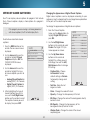
Your TV can display closed captions for programs that include
them. Closed captions display a transcription of a program’s
dialogue.
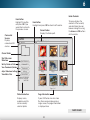
Digital closed captions can be displayed according to your
preference. See the diagram on the next page for an explanation
of the parts of the closed caption area.
To change the appearance of digital closed captions:
If the program you are viewing is not being broadcast
with closed captions, the TV will not display them.
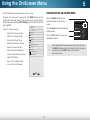
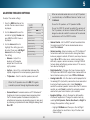
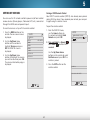
1. From the Closed Caption
menu, use the Arrow buttons to
highlight Digital CC Style and
press OK.
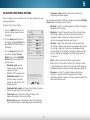
To activate or deactivate closed
captions:
1. Press the MENU button on the
remote. The on-screen menu is
displayed.
2. Use the Arrow buttons on the
remote to highlight Closed
Captions and press OK. The
CLOSED CAPTION menu is
displayed.
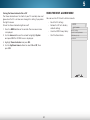
2. Use the Left/Right Arrow
buttons on the remote to select
Custom. The Digital CC Style
menu appears as shown.
VIZIO
CLOSED CAPTION
Analog Closed Caption
Off
Digital Closed Caption
Off
Digital CC Style
Wide
Zoom
Normal
Panoramic
3. Use the Up/Down Arrow
buttons on the remote to
highlight the setting you wish
to change,
then
use the Left/
Exit
2D
3D
Right Arrow buttons to change
the setting:
As Broadcast
3. Use the Arrow buttons on the
remote to highlight the type
of closed captions you wish to
see:
• Analog Closed Caption for
analog (NTSC) TV channels.
• Digital Closed Caption for
digital (ATSC) TV channels.
VIZIO
DIGITAL CC STYLE
Caption Style
Custom
Text Size
As Broadcast
Color
As Broadcast
Opacity
As Broadcast
BG Color
As Broadcast
BG Opacity
As Broadcast
Window Color
Window Opacity
Black
Transparent
ABC
• Caption Style - Choose
As Broadcast to keep
Input
Wide
CC
default settings or Custom
to manually change each
setting.
• Text
Size -Audio
Make the text
Picture
larger or smaller.
Sleep
Timer
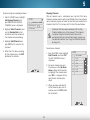
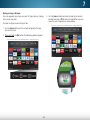
4. After highlighting the type of
closed captions you wish to
see, use the Left/Right Arrow
buttons on the remote to select
the caption channel you wish
to display, then press EXIT.
• Color - Change the color of the text.
• Opacity - Change the transparency of the text.
Network
Settings
Help
• BG Color - Change the color of the background directly
behind the text.
• BG Opacity - Change the transparency of the
background directly behind the text.
• Window Color - Change the color of the closed
captioning box.
32