1
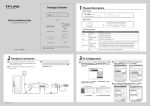
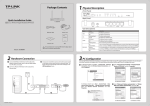
Package Contents
1 Overview of the Product
The TL-SG108E 8-Port Gigabit Easy Smart Switch is an ideal upgrade from an unmanaged switch, designed for Small and Medium Business networks
that require simple network management. Network administrators can effectively monitor traffic via Port Mirroring, Loop Prevention and Cable Test
features. To optimize traffic on your business network, it offers both port and tag based QoS to keep latency-sensitive traffic moving smoothly and
jitter-free. Additionally, port-based, tag-based and MTU VLAN can improve security and meet more network segmentation requirements. Moreover,
with the innovative energy-efficient technology, they are eco-friendly solution for your business network.
Installation Guide
8-Port Gigabit Easy Smart Switch
Resource CD
TL-SG108E
Front Panel
Rear Panel
1000M LED(Green)
On: Connected to a 1000Mbps device
Flashing: Transimitting/receiving data
Installation Guide
10/100M LED(Yellow)
8-Port Gigabit Easy Smart Switch
On: Connected to a 10/100Mbps device
Flashing: Transimitting/receiving data
MODEL NO.
Power Cord and Rubber Cushions
MODEL NO.
TL-SG108E
IG
1. Make sure that the box contains the above items. If any of
the listed items are damaged or missing, please contact
your distributor.
2. The switch or TL-SG108E mentioned in this User Guide
stands for TL-SG108E 8-Port Gigabit Easy Smart Switch
without any explanation.
TL-SG108E
Reset Button
Ethernet Ports(1-8)
On: Power on
Off: Power off
3
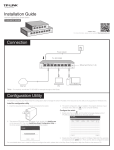
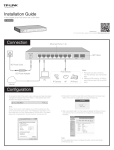
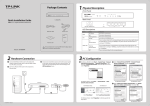
The switch can be either located on a desktop or mounted on a wall.
1
Power LED
3 Connection
2 Installation
Mounting the Switch on a Desk
Step 1.
2
Connect equipment
Mounting the Switch on a Wall
RJ45
L=110mm
Cable
Step 2.
Step 3.
Step 4.
7106504641 REV1.0.0
Step 1.
Remove the adhesive backing paper from the rubber
cushions.
Drill two holes into the wall. Insert a screw into each hole
and leave a part of its head exposed.
Step 2.
Place the two wall-mounting slots over the screws and
slide the switch down to fasten it.
Attach the supplied four rubber cushions to the
recessed areas on the bottom at each corner of the
switch.
Turn over the switch.
Connect power
Internet
TL-SG108E
Line
WAN
LAN
Place the switch upside down on a flat desk.
Modem
(TD-8816 for example)
Router
(TL-ER604W for example)
Bottom of the Switch
Step 1.
Step 2.
Power Socket
Kensington
Security Slot
Cable
Cable
Initialization
Powering on the switch, it will automatically initialize and its LED
indicators will respond as follows:
1. The Power LED indicator will light on all the time.
2. After keeping off for several seconds, the rest of the LED
indicators will flash momentarily, and then work normally
after the initialization.
If the LED indicators don’t respond as described above,
please check the power supply and its connection.
4 Set up the Configuration Utility
The switch is plug and play. You can install a configuration utility to
select additional options to manage and customize the switch for
your network. The utility is provided on the resource CD, and is only
supported on Windows now.
Install the configuration utility
1.
2.
Insert the resource CD into a computer that is connected to the
switch.
Open the file folder and double click the icon
. Then
follow the prompts to install the program. The switch configuration
utility is installed in the program directory of your computer and a
utility icon
on your computer desktop.
Configure the switch
1.
2.
3.
Double click the icon
on your computer desktop.
The configuration utility home page displays a list of TP-LINK
Easy Smart Switches on the local network.
Double click the switch which you want to configure.
You are asked to enter the username and password for the switch.
The default username and password are both admin.
Use the utility to configure the switch.
Appendix 1: Troubleshooting
Q1. The Power LED is not lit
The Power LED should be lit up when the power system works
normally. If the Power LED is not lit, please check as follows:
1) Make sure the AC power cord connected the switch with
power source properly.
2) Make sure the voltage of the power supply meets the
requirement of the input voltage of the switch.
3) Make sure the power source is ON.
Q2.The Link/Act LED is not lit when a device is
connected to the corresponding port
You are recommended to check the following items:
1) Make sure that the cable connectors are firmly plugged
into the switch and the device.
2) Make sure the connected device is turned on and working
well.
3) The cable must be less than 100 meters long (328 feet).
Environmental and Physical
General
Standards
IEEE802.3, IEEE802.3u, IEEE802.3ab,
IEEE802.3x, IEEE802.1p, IEEE802.1q
Operating Temperature
0 ~40 ℃ ( 32 ~104℉ )
Storage Temperature
-40 ~70 ℃(-40 ~158℉ )
Protocol
CSMA/CD
Operating Humidity
10%~90% non-condensing
Ethernet: 10Mbps (Half Duplex)
20Mbps (Full Duplex)
Storage Humidity
5%~90% non-condensing
Data Transfer Rate
Fast Ethernet: 100Mbps (Half Duplex)
200Mbps (Full Duplex)
Gigabit Ethernet: 2000Mbps (Full Duplex)
10Base-T:
UTP category 3, 4, 5 cable (maximum 100m)
EIA/TIA-568 100Ω STP (maximum 100m)
100Base-TX:
Network Media(Cable) UTP category 5, 5e cable (maximum 100m)
EIA/TIA-568 100Ω STP (maximum 100m)
1000Base-T:
UTP category 5 cable (maximum 100m)
EIA/TIA-568 100Ω STP (maximum 100m)
Number of Ports
8 10/100/1000Mbps Auto-Negotiation RJ45 ports
LED indicators
Power, 10/100Mbps LED, 1000Mbps LED
Transfer Method
Store and Forward
MAC Address Learning automatically learning, automatically aging
10Base-T: 14881pps/Port
Frame Filter Rate
100Base-Tx: 148810pps/Port
1000Base-T: 1488095pps/Port
10Base-T: 14881pps/Port
For more details about how to install the utility and how to configure
the switch, see the Easy Smart Configuration Utility User Guide on the
resource CD.
FCC STATEMENT
Appendix 2: Specifications
Frame Forward Rate
100Base-Tx: 148810pps/Port
1000Base-T: 1488095pps/Port
CE Mark Warning
Technical Support
COPYRIGHT & TRADEMARKS
Specifications are subject to change without notice.
is
a registered trademark of TP-LINK TECHNOLOGIES CO., LTD. Other
brands and product names are trademarks or registered trademarks
This equipment has been tested and found to comply with the limits
This is a class A product. In a domestic environment, this product may
of their respective holders.
for a Class A digital device, pursuant to part 15 of the FCC Rules. These
cause radio interference, in which case the user may be required to take
No part of the specifications may be reproduced in any form or by any
limits are designed to provide reasonable protection against harmful
adequate measures.
means or used to make any derivative such as translation,
interference when the equipment is operated in a commercial
transformation, or adaptation without permission from TP-LINK
environment. This equipment generates, uses, and can radiate radio
TECHNOLOGIES CO., LTD. Copyright © 2014 TP-LINK TECHNOLOGIES
frequency energy and, if not installed and used in accordance with the
CO., LTD. All rights reserved.
instruction manual, may cause harmful interference to radio
http://www.tp-link.com
communications. Operation of this equipment in a residential area is
likely to cause harmful interference in which case the user will be
required to correct the interference at his own expense.
SAFETY NOTICES
This device complies with part 15 of the FCC Rules. Operation is
subject to the following two conditions:
1)
This device may not cause harmful interference.
2)
This device must accept any interference received, including
interference that may cause undesired operation.
Any changes or modifications not expressly approved by the party
responsible for compliance could void the user’s authority to operate
the equipment.
Cautions
Do not use this product near water, for example, in a wet basement or
near a swimming pool.
Avoid using this product during an electrical storm. There may be a
remote risk of electric shock from lightning.
For more troubleshooting help, go to www.tp-link.com/en/support/faq
To download the latest Firmware, Driver, Utility and User Guide, go to
http://www.tp-link.com/en/support/download/
For all other technical support, please contact us by using the following details:
Global
Tel: +86 755 2650 4400
Fee: Depending on rate of different carriers,
IDD.
E-mail: [email protected]
Service time: 24hrs, 7 days a week
Singapore
Tel: +65 6284 0493
Fee: Depending on rate of different carriers.
E-mail: [email protected]
Service time: 24hrs, 7 days a week
UK
Tel: +44 (0) 845 147 0017
Fee: Landline: 1p-10.5p/min, depending on
the time of day. Mobile: 15p-40p/min,
depending on your mobile network.
E-mail: [email protected]
Service time: 24hrs, 7days a week
USA / Canada
Toll Free: +1 866 225 8139
E-mail: [email protected](USA)
[email protected](Canada)
Service time: 24hrs, 7days a week
Malaysia
Toll Free: 1300 88 875 465
E-mail: [email protected]
Service time: 24hrs, 7days a week
Ukraine
Tel: 0 800 505 508
Fee: Free for Landline; Mobile: Depending on
rate of different carriers
E-mail: [email protected]
Service time: Monday to Friday 10:00 to 22:00
Italy
Tel: +39 023 051 9020
Fee: Depending on rate of different carriers.
E-mail: [email protected]
Service time: Monday to Friday,
09:00 to 13:00; 14:00 to 18:00
Germany / Austria
Tel: +49 1805 875 465 (German Service)
+49 1805 TPLINK
+43 820 820 360
Fee: Landline from Germany: 0.14EUR/min.
Landline from Austria: 0.20EUR/min.
E-mail: [email protected]
Service Time: Monday to Friday, 09:00 to
12:30 and 13:30 to 18:00. GMT+1 or GMT+2
(DST in Germany)
* Except bank holidays in Hesse
Australia / New Zealand
Tel: AU 1300 87 5465 (Depending on 1300 policy.)
NZ 0800 87 5465 (Toll Free)
E-mail: [email protected] (Australia)
[email protected] (New Zealand)
Service time: 24hrs, 7 days a week
Turkey
Tel: 0850 72 444 88(Turkish Service)
Fee: Depending on rate of different carriers.
E-mail: [email protected]
Service time: 9:00 to 21:00, 7days a week
Switzerland
Tel: +41 (0) 848 800 998 (German Service)
E-mail: [email protected]
Fee: 4-8 Rp/min, depending on rate of different
time
Service time: Monday to Friday, 09:00 to 12:30
and 13:30 to 18:00. GMT+ 1 or GMT+ 2 (DST)
Brazil
Toll Free: 0800 608 9799 (Portuguese Service)
E-mail: [email protected]
Service time: Monday to Friday, 9:00 to 20:00;
Saturday, 9:00 to15:00
Poland
Tel: +48 (0) 801 080 618
+48 223 606 363 (if calls from mobile phone)
Fee: Depending on rate of different carriers.
E-mail: [email protected]
Service time: Monday to Friday 9:00 to 17:00
GMT+1 or GMT+2 (DST)
France
Tel: 0820 800 860 (French service)
Email: support.fr @tp-link.com
Fee: 0.118 EUR/min from France
Service time: Monday to Friday, 9:00 to 18:00
*Except French Bank holidays
Indonesia
Tel: (+62 )021 6386 1936
Fee: Depending on rate of different carriers.
E-mail: [email protected]
Service time: Sunday to Friday, 09:00 to
12:00, 13:00 to 18:00 *Except public holidays
Russian Federation
Tel: 8 (499) 754 5560 (Moscow NO.)
8 (800) 250 5560 (Toll-free within RF)
E-mail: [email protected]
Service time: From 9:00 to 21:00 (Moscow time)
*Except weekends and holidays in RF
TP-LINK TECHNOLOGIES CO., LTD.
www.tp-link.com