1
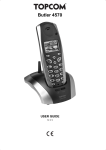
BUTLER 4870 TWIN/
TRIPLE/QUATTRO
USER GUIDE
1.4
AE63
Important
To use ‘Caller ID’ (display caller), this service has to be activated on your phone line.
Normally you need a separate subscription from your telephone company to activate this
function. If you don’t have the Caller ID function on your phone line, the incoming telephone
numbers will NOT be shown on the display of your telephone.
This product is in compliance with the essential requirements and other relevant provisions of the R&TTE directive 1999/5/EC.
The Declaration of conformity can be found on :
http://www.topcom.net/support/cedeclarations.php
To be connected to the public analogue telephone network.
The features described in this manual are published with reservation to modifications.
Topcom Butler 4870 Twin/Triple/Quattro
Getting started
Installing the base
Installing the handset
If you have purchased a twin/triple/quattro version
Getting to know your telephone
KEYS/LED
Icons
Base light
Navigating the menu
Menu overview
Using the telephone
Switching the handset on/off
Changing the language
Making a call
Receiving a call
Handsfree mode
Adjust earpiece/handsfree volume
Redial a number from the list
Secrecy function (Mute function)
Locating a handset (paging function)
Keypad lock
Using the alphanumerical keypad
Phonebook
Caller Identification
Personalise the handset
Setting the date and time
Setting the Time format
Using the alarm feature
Ringtone and volume
Handset name
Auto answer
Menu color
Prefix code
Keypad beeps
Wall papers
Setting the contrast
Base settings
Flash time
System PIN
Dial mode
Ringtone and volume
Tools
Appointments
Stopwatch
Additional handsets and bases
Adding a new handset
Removing a handset
Select a base
Topcom Butler 4870 Twin/Triple/Quattro
6
6
6
7
7
7
8
8
8
9
9
9
10
10
10
10
11
11
11
11
11
11
12
14
14
14
14
14
15
15
15
16
16
16
16
16
16
16
17
17
17
17
17
18
18
18
18
19
ENGLISH
1
1.1
1.2
1.3
2
2.1
2.2
2.3
2.4
2.5
3
3.1
3.2
3.3
3.4
3.5
3.6
3.7
3.8
3.9
3.10
3.11
4
5
6
6.1
6.2
6.3
6.4
6.5
6.6
6.7
6.8
6.9
6.10
6.11
7
7.1
7.2
7.3
7.4
8
8.1
8.2
9
9.1
9.2
9.3
3
Topcom Butler 4870 Twin/Triple/Quattro
9.4
10
11
12
13
13.1
13.2
13.3
4
Using the intercom feature
Troubleshooting
Default settings
Technical data
Topcom warranty
Warranty period
Warranty handling
Warranty exclusions
19
20
20
20
21
21
21
21
Topcom Butler 4870 Twin/Triple/Quattro
Topcom Butler 4870 Twin/Triple/Quattro
•
•
•
•
•
•
•
•
•
Only use the charger plug supplied. Do not use other chargers, as this may damage the
battery cells.
Only insert rechargeable batteries of the same type. Never use ordinary, nonrechargeable batteries. Insert rechargeable batteries so they connect to the right poles
(indicated in the battery compartment of the handset).
Do not touch the charger and plug contacts with sharp or metal objects.
The operation of some medical devices may be affected.
The handset may cause an unpleasant buzzing sound in hearing aids.
Do not place the basic unit in a damp room or at a distance of less than 1.5 m away from
a water source. Keep water away from the handset.
Do not use the telephone in environments where there is a risk of explosions.
Dispose of the batteries and maintain the telephone in an environment-friendly manner.
As this telephone cannot be used in case of a power cut, you should use a mainsindependent telephone for emergency calls, e.g. a mobile phone.
Disposal of the device (environment)
At the end of the product lifecycle, you should not throw this product into the normal
household garbage but bring the product to a collection point for the recycling of electrical
and electronic equipments. The symbol on the product, user guide and/or box indicate this.
Some of the product materials can be re-used if you bring them to a recycling point. By reusing some parts or raw materials from used products you make an important contribution to
the protection of the environment.
Please contact your local authorities in case you need more information on the collection
points in your area.
Cleaning
Clean the telephone with a slightly damp cloth or with an anti-static cloth. Never use cleaning
agents or abrasive solvents.
The CE symbol indicates that the unit complies with the essential requirements
of the R&TTE directive.
Topcom Butler 4870 Twin/Triple/Quattro
5
ENGLISH
Safety Instructions
Topcom Butler 4870 Twin/Triple/Quattro
1
1.1
Getting started
Installing the base
For installation, do the following:
• Plug one end of the adaptor into the outlet and the other end into the adapter jack on the
bottom of the telephone.
• Connect one end of the telephone cord with the wall phone jack and the other end to the
bottom of the telephone.
• Put the telephone-and AC power line cord in the base quides as shown on the picture
below:
3RZHUFRUG
7HO
7HOHSKRQHFRUG
1.2
•
•
•
•
Installing the handset
Open the battery compartment (see below).
Insert the batteries respecting the (+ and -) polarity.
Close the battery compartment.
Leave the handset on the base unit for 20 hours. The Line/Charge indicator
on the base unit will light up.
Cover
Back view of hand-set
+
-
(LED)
+
Rechargeable batteries
Before you use the telephone for the first time, you must first make sure the battery is
charged for 20 hours. If you do not do this, the telephone will not work optimally.
6
Topcom Butler 4870 Twin/Triple/Quattro
Topcom Butler 4870 Twin/Triple/Quattro
If you have purchased a twin/triple/quattro version
If you have purchased a Twin or triple version
• Plug one end of the adaptor into the outlet and the other end into the adapter jack on the
bottom of the charger.
• Insert the battries inside the handset.
• Charge the handset for at least 20 hours.
2
Getting to know your telephone
2.1
KEYS/LED
Handset
1.
2.
3.
4.
5.
6.
7.
8.
9.
10.
11.
12.
Display
Up/Redial key
Soft Menu key 2
Right/Flash key R
On-hook / Off key
Alphanumeric keys
Keypad lock
Ringer Off-key
Down/call log key
Off-hook key/ Handsfree/ On-key
Left/INT key
Soft Menu key 1
1
2
3
12
11
10
INT
R
4
5
9
6
/
8
7
Base
13.
In use/Power/Handset on base LED
14.
Paging key
13
14
Topcom Butler 4870 Twin/Triple/Quattro
7
ENGLISH
1.3
Topcom Butler 4870 Twin/Triple/Quattro
2.2
*
**
Icons
Call in progress
New voice mail**
End Call
Keypad locked
Missed calls in call list*
Alarm set
Handset ringer volume OFF
Handset not registered or out of range
Within base range
Menu
Phonebook
Mute
OK / Confirm
Back
If the Caller line identification service is available on the telephone line
If the Phonemail service is available on the telephone line
Battery status:
Empty
Low battery
Medium
Full
2.3
Base light
Handset on base
•
•
•
•
2.4
OFF: No base power connected or handset not in base for charging
ON: handset charging
Blinking slowly: Off hook or during ringing
Blinking rapidly: during registration
Navigating the menu
The Butler 4870 has a menu system which is easy to use. Each menu leads to a list of
options. The menu map is shown on the following paragraph.
When the handset is switched on and in standby, press the option button under
to open
the main menu.
Press the
or
button to scroll to the menu option you want. Then press OK 3 to select
further options or confirm the setting displayed.
8
Topcom Butler 4870 Twin/Triple/Quattro
Topcom Butler 4870 Twin/Triple/Quattro
To the previous level in the menu, press
.
To cancel and return to standby at any time, press
the handset returns to standby automatically.
2.5
. If no button is pressed for 15 seconds,
Menu overview
Menu
Submenu items
Handset
Ringtone
Ring Volume
Handset name
Keypad Beep
Wallpaper
Menu Color
Contrast
Auto Talk
Prefix
Select Base
Language
Registration
Base settings
Ringtone
Ringer volume
Dial mode
Recall
System PIN
Alarm/Clock
Set Alarm
Date & time
Time Format
Tools
Appointment
Stopwatch
Power Off
3
3.1
•
•
Using the telephone
Switching the handset on/off
Press and hold
to switch the handset off.
Press
or place the handset in the base to switch the handset back on.
Topcom Butler 4870 Twin/Triple/Quattro
9
ENGLISH
Exit or go back one level in the menu
Topcom Butler 4870 Twin/Triple/Quattro
3.2
Changing the language
Enter the "Handset" menu in order to change the language:
• Select
with the left menu key
.
• The "Handset" menu appears on the display. Select OK 3.
• Use the navigator key to scroll through the menu and select "Language". The
and
arrows indicate that further options are available. To confirm the language press
OK 3. The screen displays "Saved". If you have chosen English, your handset's menus
will be in English.
• To return to the previous menu, select
.
3.3
Making a call
3.3.1 Direct dialling
• Press
to obtain a line.
• Dial the number to be called.
• To hang up at the end of the call, press
or put the handset back on the base.
3.3.2 Pre-dialling
With the pre-dialling feature you can enter and modify a number before making the call.
• Dial a number of up to 25 digits. Press the ‘0’ key and hold to insert a pause. The screen
displays a "P".
• Select
with the right menu key
to correct. Press
to initiate the call. To hang
up at the end of the call, press
or put the handset back on the base.
3.4
Receiving a call
When you receive an external call, the screen displays: "External Call".
To take the call:
• Press
(if the handset is not on its base/charger)
OR
• Lift the handset off its base (if the Auto Talk option is active) (See 6.6 ”Auto answer”).
• The call in progress
icon appears on the screen. The call duration is displayed after
about 15 seconds.
3.4.1 Turning the ringvolume off during incoming call
You can turn the ring volume off during incoming call by pressing the left menu key ‘Quiet’.
3.5
Handsfree mode
Handsfree lets you talk to your caller without holding the handset. It also enables other
people in the room listen to both sides of your conversation.
Make a handsfree call
• Press
twice. The display shows
. Dial the number. Your call can be heard over the
handset’s loudspeaker.
• To switch back to the handset at any time, press
again. Press
to end the call.
You can switch any call to handsfree by pressing
during the call.
10
Topcom Butler 4870 Twin/Triple/Quattro
Topcom Butler 4870 Twin/Triple/Quattro
Adjust earpiece/handsfree volume
During a normal or handsfree call, press
3.7
or
to select volume 1-5.
Redial a number from the list
You can redial up to 10 of the last numbers called. If you have stored a name in the
phonebook to go with the number, the name will be displayed instead (see § “4 Phonebook” ).
Redial a number from the list:
• Press
to enter the redial list. Scroll with
or
until the number you want is
displayed.
• Press
to dial the number or press OPTION to :
– Delete Call : To delete the number from the list
– Save Number : To store the number into the phonebook
– Delete All : To erase all the redial list
3.8
Secrecy function (Mute function)
During conversation you can turn off the microphone so that the person on the other side of
the line will not hear you:
• Select
using the left menu key to deactivate the microphone.
• ‘Mute ON’ appears on the display
• Press the left menu key “Off” again to activate the microphone again
3.9
Locating a handset (paging function)
If you forgot where you left your handset you can press the paging key
handset registered with the base will ring for about 30 seconds.
on the base. All
3.10 Keypad lock
You can lock the keypad to prevent accidental dialling while carrying the handset around.
• Press and hold the ‘#’-key until ‘Keypad locked’ and
icon appears
• To unlock press left menu key ‘UNLOCK’ followed by the #-key
3.11 Using the alphanumerical keypad
With your telephone, you can also enter alphanumeric characters. This is useful for entering
a name into the phonebook, giving a name to a handset,...
To select a letter, press the corresponding key as many times as necessary. For exapmle, to
select an ‘A’, press ‘2’ once, to select a ‘B’, press ‘2’ twice and so on. To select ‘A’ and then
B consecutively, select ‘A’, wait until the cursor moves on to the next character, then press
‘2’ twice.
To select a space, press ‘0’. To switch between small letters and capitals, press the *-key.
Topcom Butler 4870 Twin/Triple/Quattro
11
ENGLISH
3.6
Topcom Butler 4870 Twin/Triple/Quattro
4
Phonebook
Each handset can store up to 200 names and numbers. Names can be up to 16 characters
long and numbers up to 24 digits.
To add an entry
•
•
•
•
•
•
•
Press right menu key
.
If the Phonebook is empty, ‘Phonebook Empty’ appears
If names have been stored, they are listed. Press ‘OPTION’. ‘New Entry’ is highlighted.
Press OK 3.
Use the keypad to enter the name, then press ‘Save’.
Use the keypad to enter the number, then press ‘Save’.
Select the desired ring melody with the up and down keys
and press ‘Save’.
Press
to return to standby.
To Dial an entry
•
•
•
Press right menu key
.
Scroll
or
to the name you want or use the keypad to enter the first letter of the
name.
Press
to dial the number.
Edit name and number
•
•
•
•
•
•
•
Press right menu key
.
Scroll
or
to the name you want or use the keypad to enter the first letter of the
name.
Press ‘OPTION‘. Scroll to ‘Edit Entry’ and press OK 3.
Press
to delete and use the keypad to change the name. Press ‘Save’.
Edit the number and press ‘Save’.
Select the desired ring melody and press ‘Save’. Display returns to the list of names.
Press
to return to standby.
View details
•
•
•
•
12
Press
then scroll
or
to the name you want, the press OPTION.
Scroll
to Show Details and press OK 3.
Displays shows the name, number and ring tone you may have assigned to the entry.
Press
to return to the option menu.
Topcom Butler 4870 Twin/Triple/Quattro
Topcom Butler 4870 Twin/Triple/Quattro
Delete an entry or all entries
ENGLISH
• Press
then scroll
or
to the name you want to delete, then press OPTION.
• Scroll
to Delete Entry to delete current entry only
OR
• Delete All to delete all entries and press OK 3.
• Press YES to confirm or NO to cancel.
• Press
to return to the option menu.
Copy a phonebook entry to another handset
•
•
•
•
•
•
•
•
Press
then scroll
or
to the name you want, then press OPTION.
Scroll
to Copy Entry
Press OK 3and the available handset (all handset that are registered on the base) are
shown.
Select the desired handset with the Up
or Down
key and press OK 3.
‘Copying to Handset x’ appears on the display.
On the destination handset you will see ‘Receive Phonebook record?’.
Press at the destination handset ‘Yes’ to confirm or ‘No’ to stop the entry transfer.
Copy all phonebook entry to another handset
By copy all entries from one handset to another you will erase all existing
records at the destination handset !
•
•
•
•
•
•
•
Press
then scroll
or
to the name you want, then press OPTION.
Scroll
to Copy All
Press OK 3 and the available handset (all handset that are registered on the base) are
shown.
Select the desired handset with the Up
or Down
key and press OK 3.
‘Copying to Handset x’ appears on the display.
On the destination handset you will see ‘Replace All Phonebook Records?’.
Press at the destination handset ‘Yes’ to confirm or ‘No’ to stop the entry transfer.
Topcom Butler 4870 Twin/Triple/Quattro
13
Topcom Butler 4870 Twin/Triple/Quattro
5
Caller Identification
This service only works when you have a Caller ID/Clip subscription. Contact
your telephone company !!
When you receive a call, the telephone number of the caller appears on the handset display.
The telephone can receive calls in both FSK and DTMF. You can also see his or her name
if it’s transmitted by the network. If the name is programmed in the Phone Book, the name in
the Phone Book is displayed!
The telephone can store 30 calls in a Call List (received and missed) that can be reviewed
later. When the memory is full, the new calls automatically replace the oldest calls in the
memory. Missed calls are signalled by an icon on the display.
To read the received calls:
• Press
and you will immidiatly see the Received call list (combination of received and
missed calls).
• Scroll to the list with the navigator keys
or
.
Press
to dial a number or select ‘Option’ to delete one entry or all entries or to add the
number to the phone book.
6
6.1
•
•
•
6.2
•
•
•
•
6.3
Personalise the handset
Setting the date and time
Press
Scroll
to Alarm/Clock and press OK 3. Select Date & Time and press OK 3.
Enter the year (format: YY),the Month, the Day, the time and the minutes and press
each time ‘Save’ to confirm.
Setting the Time format
Press
Scroll
to Alarm/Clock and press OK 3.
Scroll
to Time Format and press OK 3.
Select 12Hrs or 24 Hrs and press OK 3.
Using the alarm feature
Set the date and time and use your Butler to give you a reminder alarm. You can have a
different alarm setting for each handset registered to your base. The alarm rings only at the
handset, not at the base or any other handset.
14
Topcom Butler 4870 Twin/Triple/Quattro
6.3.1 Set the alarm
• Press
• Scroll
to Alarm/clock and press OK 3. Select Set Alarm and press OK 3.
• Select Once, On Daily, Mon to Fri or Off with the navigator and press OK 3. If you
choose Once, On Daily or Mon to Fri the display will show:
TIME (24 hr):
00:00
Enter the time when you want the telephone to ring and confirm by pressing the OK 3
key. Select the desired ring tone with the up/down keys
and press OK 3.
• To deactivate the Alarm function, select "Off" and confirm with “OK 3“.
6.4
Ringtone and volume
6.4.1 Ringtone
You can choose 16 different ringer melodies for internal and external calls.
• From the standby screen, press
then scroll
to Handset and press OK 3.
• Press OK 3 to highlight Ringtone. Press OK 3 to select External (for external calls). Or
scroll to Internal (for internal calls), then press OK 3.
• Scroll
and
to the melody you want. During scrolling a sample is played. Press
OK 3 to select or
to return to the previous menu.
6.4.2 Ringer volume
There are five handset ringer volume levels and off.
• Press
then scroll to Handset and press OK 3.
• Scroll
to Ringer Volume and press OK 3.
• The current setting is displayed. Press
to increase or
• Press OK 3 to confirm.
6.5
to decrease the volume.
Handset name
You can change the name displayed on the handset during standby (max. 11 characters long):
• Press
then scroll to Handset and press OK 3.
• Scroll
to Handset Name and press OK 3.
• Enter the handset name you want. Press
to make a correction and Save to confirm.
6.6
Auto answer
When there is an incoming call and the handset is on the base, the phone automatically takes
the line when lifted. This function can be turned on or off:
• Press
then scroll to Handset and press OK 3.
• Scroll
to Autotalk and press OK 3.
• Select On or Off and press OK 3 to confirm or
to return.
Topcom Butler 4870 Twin/Triple/Quattro
15
ENGLISH
Topcom Butler 4870 Twin/Triple/Quattro
Topcom Butler 4870 Twin/Triple/Quattro
6.7
•
•
•
6.8
Menu color
Press
then scroll to Handset and press OK 3.
Scroll
to Menu Colour and press OK 3.
Select Blue, Green or Red and press OK 3 to confirm or
to return.
Prefix code
It’s possible to use your telephone with a prefix number. When dialling telephone numbers,
you can add automatically the prefix code infront of the number.
• Press
then scroll to Handset and press OK 3.
• Scroll
to Prefix and press OK 3.
• Scroll
to “Edit” and press OK 3.
• Enter the Prefix code, e.g. ‘0’ and press Save.
• Scroll
to On/Off and press OK 3.
• Select ON or OFF and press OK 3.
6.9
•
•
•
Keypad beeps
Press
then scroll to Handset and press OK 3.
Scroll
to Keypad Beep and press OK 3.
Select On or Off and press OK 3 to confirm or
to return.
6.10 Wall papers
You can set 3 different wall paper pictures which appears in the back ground during standby:
• Press
then scroll to Handset and press OK 3.
• Scroll
to WallPaper and press OK 3.
• Scroll
and
to the picture you want. During scrolling a sample is shown. Press
OK 3 to select or
to return to the previous menu.
6.11 Setting the contrast
•
•
•
7
7.1
•
•
16
Press
then scroll to Handset and press OK 3.
Scroll
to Contrast and press OK 3.
Scroll
and
to the contrast you want (1-8). Press OK 3 to select or
return to the previous menu.
to
Base settings
Flash time
Press
then scroll to Base Settings and press OK 3. Scroll to Recall and press
OK 3.
Press
or
to select short flash time (100ms) or long flash time (250ms) and press
Save to confirm.
Topcom Butler 4870 Twin/Triple/Quattro
Topcom Butler 4870 Twin/Triple/Quattro
System PIN
The System PIN is used for registering and deregistering handsets and some other optional
settings. The default System PIN is 0000.
• Press
then scroll to Base Settings and press OK 3. Scroll to System Pin and
press OK 3.
• Enter the Old PIN (Original setting 0000) and press Save.
• Enter the New PIN, press Save and enter it again and press Save.
7.3
Dial mode
There are two types of dialling mode:
• DTMF/Tone dialling (the most common)
• Pulse dialling ( for older installations )
To change the dialling mode:
• Press
then scroll to Base Settings and press OK 3. Scroll to Dial mode and press
OK 3.
• Select Tone or Pulse dialling with the up/down
keys and press Save.
7.4
Ringtone and volume
7.4.1 Ringtone
You can choose 9 different ringer melodies.
• From the standby screen, press
then scroll
to Base Settings and press OK 3.
• Press OK 3 to highlight Ringtone.
• Scroll
and
to the melody you want. During scrolling a sample is played. Press
Save to select or
to return to the previous menu.
7.4.2 Ringer volume
There are five base ringer volume levels and off.
• Press
then scroll to Base Settings and press OK 3.
• Scroll
to Ringer Volume and press OK 3.
• The current setting is displayed. Press
to increase or
• Press OK 3 to confirm.
8
8.1
to decrease the volume.
Tools
Appointments
You can set 5 appointments/reminders which you can give a name and an alarm by date and
time:
• Press
then scroll to Tools and press OK 3.
• Scroll
to Appointments and press OK 3.
• Scroll
to one of the 5 appointments and press “Option” and select :
– Edit : to change the appointment settings. Edit the name of the appointment and
press Save. Enter the date of the appointment and press Save. Enter the time
and press Save. Select the desired alarm melody with the up/down
keys
and press Save.
OR
– Delete : to delete the current selected appointment. Press Yes to confirm or No
to go back.
Topcom Butler 4870 Twin/Triple/Quattro
17
ENGLISH
7.2
Topcom Butler 4870 Twin/Triple/Quattro
8.2
Stopwatch
There is a stopwatch inside the handset inside the tools menu:
• Press
then scroll to Tools and press OK 3.
• Scroll
to Stopwatch and press OK 3.
• Press Start to start the stopwatch and Stop to stop. When it’s stopped, you can restart
by pressing Start again or you can reset the counter by selecting Reset
9
Additional handsets and bases
You can subscribe up to 5 handsets on a Butler base. Each handset can register to 4 base
stations and the user can select which base he wants to use.
9.1
Adding a new handset
Only needed when you have deregistered a handset or when you bought a
new one!!
First put the base into registration mode:
• Press and hold the paging button on the base.
• The LED on the base will start to blink on the base for 90 seconds. During that time the
base is ready to register a handset.
On the handset:
• Select
to open the menu. Select Handset menu and press OK 3.
• Select Registration with the navigator and press OK 3.
• Select Register with the navigator and press OK 3.
• Select the number of the base to be associated with the handset (1 to 4). Confirm by
pressing OK 3.
• Enter the system PIN (0000 by default) and confirm with OK 3.
9.2
Removing a handset
This procedure needs to be carried out on a different handset from the one you want to
uninstall.
• Select
to open the menu. Select Handset menu and press OK 3.
• Select Registration with the navigator and press OK 3.
• Select De-Register with the navigator and press OK 3.
• Enter the system PIN (0000 by default) and confirm with OK 3.
• Enter the handset number that need to be removed and press OK 3.
18
Topcom Butler 4870 Twin/Triple/Quattro
Topcom Butler 4870 Twin/Triple/Quattro
Select a base
You can switch your Butler handset between bases. You can also set it to automatically base
select with the strongest signal. The handset must first be registered with each base
individually.
• Select
to open the menu. Select Handset menu and press OK 3.
• Select Select Base with the navigator and press OK 3.
• Select Manual or Auto with the navigator and press OK 3.
• When selecting manual you have to us the up/down
keys to select the base and
press OK 3.
When you do Automatic base selection, the handset will only search in
standby for the strongest base when it’s out of range on the current base
(not during communication)!
9.4
Using the intercom feature
9.4.1 Calling an internal handset
• Press INT. The screen displays "Handset _".
• Enter the internal handset number.
9.4.2 Transfer a external call to another handset
During an external call:
• Press INT.
• Enter the number of the handset you want to call. Your external correspondent is placed
on hold. When the internal correspondent answers, press
to transfer the call. If the
internal correspondent doesn't answer, press INT to retrieve the external correspondent
or to go from one to the other.
9.4.3 Conference call
You can talk between 2 handset and a external line at the same time. During an external call:
• Press INT.
• Enter the number of the handset you want to call. Your external correspondent is placed
on hold.
• When the internal correspondent answers, press ‘Conf.’. If the internal correspondent
doesn't answer, press INT to retrieve the external correspondent.
9.4.4 Taking an external call during an internal communication
When you are on intercom with another handset, you can still pick up outside calls.
To take an incoming call:
• Press
. The internal communication is interrupted.
• Then press
.You are in communication with the outside caller.
Topcom Butler 4870 Twin/Triple/Quattro
19
ENGLISH
9.3
Topcom Butler 4870 Twin/Triple/Quattro
10 Troubleshooting
Symptom
Possible cause
Solution
No display
Batteries uncharged
Check the position of the
batteries
Recharge the batteries
Handset turned OFF
No tone
The icon
Turn ON the handset
Telephone cord badly connected Check the telephone cord
connection
flashes
The line is occupied by another
handset
Wait until the other handset
hangs up
Handset out of range
Bring the handset closer to the
base
The base has no power supply
Check the mains connection to
the base
The handset is not registered on Register the handset on the base
the base
Base or handset do not ring
The ringing volume is zero or low Adjust the ringing volume
Not possible to transfer a call on The FLASH time is too short
PABX
Set the unit to Long Flash time
Telephone does not react to
pressing the keys
Remove the batteries and put
them back in place
Manipulation error
11 Default settings
Handset name:
Auto talk:
Prefix code:
Handset ring volume:
Ear volume:
Melody Handset:
Pin code:
Key lock:
Handset
ON
Empty (Off)
5
3
10
0000
Off
12 Technical data
Standard:
Frequency range:
Number of channels:
Modulation:
Speech coding:
Emission power:
Range:
Numbr of handsets:
Powersupply base:
Handset Batteries:
Handset autonomy:
20
DECT (Digital Enhanced Cordless Telecommunications)
GAP (Generic Access Profile)
1880 MHZ to 1900 MHz
120 duplex channels
GFSK
32 kbit/s
10 mW (average power per channel)
300 m in open space /50 m maximum inhouse
Up to 4
230V / 50 Hz / 6V DC 200mA
2 rechargeable batteries AAA, NiMh 1,2V
100 hours in standby
Topcom Butler 4870 Twin/Triple/Quattro
Topcom Butler 4870 Twin/Triple/Quattro
10 hours
+5 °C to +45 °C
100 or 250 ms
ENGLISH
Talk time:
Normal conditions of use:
Flash time:
13 Topcom warranty
13.1 Warranty period
The Topcom units have a 24-month warranty period. The warranty period starts on the day
the new unit is purchased. The warranty on batteries is limited to 6 months after purchase.
Consumables or defects causing a negligible effect on operation or value of the equipment
are not covered. The warranty has to be proven by presentation of the original purchase
receipt, on which the date of purchase and the unit-model are indicated.
13.2 Warranty handling
A faulty unit needs to be returned to a Topcom service centre including a valid purchase note.
If the unit develops a fault during the warranty period, Topcom or its officially appointed
service centre will repair any defects caused by material or manufacturing faults free of
charge.
Topcom will at its discretion fulfil its warranty obligations by either repairing or exchanging
the faulty units or parts of the faulty units. In case of replacement, colour and model can be
different from the original purchased unit. The initial purchase date shall determine the start
of the warranty period. The warranty period is not extended if the unit is exchanged or
repaired by Topcom or its appointed service centres.
13.3 Warranty exclusions
Damage or defects caused by incorrect treatment or operation and damage resulting from
use of non-original parts or accessories not recommended by Topcom are not covered by
the warranty. Topcom cordless phones are designed to work with rechargeable batteries
only. The damage caused by the use of non-rechargeable batteries is not covered under
warranty. The warranty does not cover damage caused by outside factors, such as lightning,
water and fire, nor any damage caused during transportation.
No warranty can be claimed if the serial number on the units has been changed, removed or
rendered illegible.
Topcom Butler 4870 Twin/Triple/Quattro
21
SERVICE RETURN CARD - RÜCKSENDEKARTE CARTE DE RETOUR SERVICE - RETOURFICHE
RETURN WITH YOUR DEFECT PRODUCT
Name/Vorname/Prénom/Naam:
Surname/Familienname/Nom/Familienaam:
Street/Straße/Rue/Straat:
Nr./N°:
Box/Postfach/Boîte/Postbus:
Location/Ort./Lieu/Plaats:
Post code/Postleitzahl/Code Postal/Postcode:
Country/Land/Pays/Land:
Tel./Tél.:
E-mail:
Model name/Modellbezeichnung/Nom du modèle/Modelnaam:
Serial Nr/Seriennummer/N° série/Serienummer:
Purchase date/Kaufdatum/Date d’achat/Aankoopdatum:
(DD/MM/YYYY) - (TT/MM/JJJJ)
Fault description/Beschreibung des Defekts/Description de la panne/Beschrijving defect:
(Original Proof of Purchase has to be attached to this return card to be valid for warranty)
Model name/Modellbezeichnung/Nom du modèle/Modelnaam:
Serial Nr/Seriennummer/N° série/Serienummer:
Purchase date/Kaufdatum/Date d’achat/Aankoopdatum:
(DD/MM/YYYY) - (TT/MM/JJJJ)
Fault description/Beschreibung des Defekts/Description de la panne/Beschrijving defect:
R00001
visit our website
www.topcom.net
MC600047