1
3-226-678-11 (1)
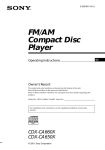
FM/AM
Compact Disc
Player
Operating Instructions
Owner’s Record
The model and serial numbers are located on the bottom of the unit.
Record these numbers in the space provided below.
Refer to these numbers whenever you call upon your Sony dealer regarding this
product.
Model No. CDX-L550X Serial No.
For installation and connections, see the supplied installation/connections
manual.
CDX-L550X
© 2001 Sony Corporation
US
Warning
Welcome !
This equipment has been tested and found to
comply with the limits for a Class B digital
device, pursuant to Part 15 of the FCC Rules.
These limits are designed to provide
reasonable protection against harmful
interference in a residential installation. This
equipment generates, uses, and can radiate
radio frequency energy and, if not installed
and used in accordance with the instructions,
may cause harmful interference to radio
communications. However, there is no
guarantee that interference will not occur in a
particular installation. If this equipment does
cause harmful interference to radio or
television reception, which can be determined
by turning the equipment off and on, the user
is encouraged to try to correct the interference
by one or more of the following measures:
— Reorient or relocate the receiving antenna.
— Increase the separation between the
equipment and receiver.
— Connect the equipment into an outlet on a
circuit different from that to which the
receiver is connected.
— Consult the dealer or an experienced radio/
TV technician for help.
Thank you for purchasing this Sony Compact
Disc Player. You can enjoy its various features
even more with:
•CD TEXT information (displayed when a CD
TEXT disc* is played).
•Optional controller accessories
Rotary commander RM-X4S
Card remote commander RM-X114
You are cautioned that any changes or
modifications not expressly approved in this
manual could void your authority to operate
this equipment.
CAUTION
The use of optical instruments with this
product will increase eye hazard.
2
* A CD TEXT disc is an audio CD that includes
information such as the disc name, artist name,
and track names. This information is recorded on
the disc.
Table of Contents
Location of controls .................................................. 4
Precautions ................................................................ 6
Notes on discs ........................................................... 6
Getting Started
Resetting the unit ................................................. 7
Detaching the front panel ................................... 8
Setting the clock ................................................... 9
CD Player
Playing a disc ........................................................ 9
Display items ...................................................... 10
Playing tracks repeatedly
— Repeat Play ............................................... 10
Playing tracks in random order
— Shuffle Play ............................................... 10
Other Functions
Using the rotary commander ........................... 14
Adjusting the sound characteristics ................ 15
Quickly attenuating the sound ........................ 15
Changing the sound and display settings
— Menu .......................................................... 16
Selecting the sound position
— “My Best sound Position (MBP)” .......... 17
Setting the equalizer .......................................... 17
Additional Information
Maintenance ........................................................ 18
Removing the unit ............................................. 19
Specifications ...................................................... 20
Troubleshooting .................................................. 21
Error displays/Messages .................................. 22
Radio
Storing stations automatically
— Best Tuning Memory (BTM) ................... 11
Receiving the stored stations ............................ 11
Storing only the desired stations ..................... 12
Storing station names
— Station Memo ........................................... 12
Locating a station by name
— List-up ....................................................... 13
3
Location of controls
Refer to the pages listed for details.
CD : During Playback
RADIO : During radio reception
MENU : During menu mode
CDX-L550X
1 MBP (My Best sound Position) button 17
2 Z (eject) button (located on the front side
of the unit, behind the front panel) 9
3 MENU button 9, 11, 12, 13, 16, 18
4 Volume control dial
5 LIST button 13
6 Receptor for the card remote
commander
7 Display window
8 OPEN button 8, 9
9 EQ7 button 17
0 RESET button (located on the front side of
the unit, behind the front panel) 7
qa OFF (Stop/Power off) button* 8, 9
qs SOUND button 15, 17
qd SOURCE (Power on/Radio/CD) button
8, 9, 11, 12, 17
4
qf ENTER button
RADIO 13
MENU 9, 11, 12, 13, 16, 18
qg MODE button 11, 12
qh DSPL (display mode change) button
10, 13
qj Number buttons
CD
(1) REP 10
(2) SHUF 10
RADIO 11, 12
* Warning when installing in a car
without an ACC (accessory) position
on the ignition key switch
Be sure to press (OFF) on the unit for 2
seconds to turn off the clock display after
turning off the engine.
Otherwise, the clock display does not turn
off and this causes battery drain.
Card remote commander
RM-X114 (optional)
DSPL
MODE
PRESET +
MENU
SEEK–
SOUN
D
DISC +
SOURCE
DISC –
LIST
SEEK+
ENTE
R
PRESET –
OFF
+
ATT
VOL
–
(PRESET)
(+): to select upwards
(SEEK)
(+):to select
rightwards
/>
(SEEK)
(–): to select
leftwards/
.
(PRESET)
(–): to select downwards
In menu mode, the currently selectable
button (s) of these four are indicated with a
“M” in the display.
The corresponding buttons of the card
remote commander control the same
functions as those on this unit.
1 DSPL button
2 MENU button
3 SOURCE button
4 SEEK (</,) buttons
5 SOUND button
6 OFF button
7 VOL (+/–) buttons
qk PRESET buttons (+/–)
RADIO 11, 13
MENU 9, 11, 12, 13, 16, 18
ql SEEK buttons (–/+) 15
9
CD
RADIO 11, 12
MENU 9, 12, 16, 18
8 MODE button
9 LIST button
0 PRESET (M/m) buttons
qa ENTER button
qs ATT button
Note
If the unit is turned off by pressing (OFF) for 2
seconds, it cannot be operated with the card
remote commander unless (SOURCE) on the unit is
pressed, or a disc is inserted to activate the unit
first.
Tip
Refer to “Replacing the lithium battery” for details
on how to replace the batteries (page 19).
5
Precautions
Notes on discs
•If your car was parked in direct sunlight,
allow the unit to cool off before operating it.
•Power antennas will extend automatically
while the unit is operating.
•To keep the disc clean, do not touch the
surface. Handle the disc by its edge.
•Keep your discs in their cases or disc
magazines when not in use. Do not subject
the discs to heat/high temperature. Avoid
leaving them in parked cars or on
dashboards/rear trays.
If you have any questions or problems
concerning your unit that are not covered in
this manual, please consult your nearest Sony
dealer.
Moisture condensation
On a rainy day or in a very damp area,
moisture condensation may occur inside the
lenses and display of the unit. Should this
occur, the unit will not operate properly. In
such a case, remove the disc and wait for about
an hour until the moisture has evaporated.
To maintain high sound quality
Be careful not to splash juice or other soft
drinks onto the unit or discs.
•Do not attach labels, or use discs with sticky
ink/residue. Such discs may stop spinning
when used, causing a malfunction, or may
ruin the disc.
•Discs with special shapes (heart-shaped
discs, octagonal discs, etc.) cannot be played
on this unit. Attempting to do so may
damage the unit. Do not use such discs.
• You cannot play 8 cm (3 in.) CDs.
•Before playing, clean the discs with a
commercially available cleaning cloth. Wipe
each disc from the center out. Do not use
solvents such as benzine, thinner,
commercially available cleaners, or antistatic
spray intended for analog discs.
6
Notes on CD-R discs
•You can play CD-Rs (recordable CDs)
designed for audio use on this unit.
Look for this mark to distinguish CD-Rs for
audio use.
Getting Started
Resetting the unit
This mark denotes that a disc is not for audio
use.
•Some CD-Rs (depending on the equipment
used for its recording or the condition of the
disc) may not play on this unit.
•You cannot play a CD-R that is not finalized*.
* A process necessary for a recorded CD-R disc to
be played on the audio CD player.
Before operating the unit for the first time or
after replacing the car battery, you must reset
the unit.
Remove the front panel and press the RESET
button with a pointed object, such as a ballpoint pen.
RESET button
Note
Pressing the RESET button will erase the clock
setting and some stored contents.
7
Detaching the front panel
You can detach the front panel of this unit to
protect the unit from being stolen.
Attaching the front panel
Place hole A of the front panel onto the
spindle B on the unit, then lightly push the
left side in.
Press (SOURCE) (or insert a CD) to operate the
unit.
Caution alarm
If you turn the ignition switch to the OFF
position without removing the front panel, the
caution alarm will beep for a few seconds.
If you connect an optional amplifier and do not
use the built-in amplifier, the beep sound will
be deactivated.
1
A
B
Press (OFF)*.
CD playback or radio reception stops (the
key illumination and display remain on).
* If your car has no ACC position on the
ignition switch, be sure to turn the unit off by
pressing (OFF) for 2 seconds to avoid car
battery drain.
2
Press (OPEN), then slide the front panel
to the right, and gently pull out the left
end of the front panel.
x
1
2
Notes
• If you detach the panel while the unit is still
turned on, the power will turn off automatically
to prevent the speakers from being damaged.
• Do not drop or put excessive pressure on the
front panel and its display window.
• Do not subject the front panel to heat/high
temperature or moisture. Avoid leaving it in
parked cars or on dashboards/rear trays.
Tip
When carrying the front panel with you, use the
supplied front panel case.
8
Note
Do not put anything on the inner surface of the
front panel.
Setting the clock
The clock uses a 12-hour digital indication.
CD Player
Example: To set the clock to 10:08
1
Press (MENU), then press either side of
(PRESET) repeatedly until “CLOCK”
appears.
Playing a disc
1
Press (OPEN) and insert the disc
(labeled side up).
3 Press the (+) side of (SEEK).
The minute indication flashes.
2
Close the front panel.
Playback starts automatically.
4 Press either side of (PRESET) to set
the minute.
If a disc is already inserted, press (SOURCE)
repeatedly until “CD” appears to start
playback.
1 Press (ENTER).
The hour indication flashes.
2 Press either side of (PRESET) to set
the hour.
2
Press (ENTER).
The clock starts. After the clock setting is
completed, the display returns to normal
play mode.
Tip
When D.INFO mode is set to ON, the time is always
displayed (page 16).
To
Stop playback
Eject the disc
Skip tracks
– Automatic
Music Sensor
Fast-forward/
reverse
– Manual Search
Press
(OFF)
(OPEN) then Z
(SEEK) (./>)
[once for each track]
(SEEK) (m/M)
[hold to desired point]
Note
When the last track on the disc is over, playback
restarts from the first track of the disc.
9
Display items
When the disc/track changes, any prerecorded
title of the new disc/track is automatically
displayed (if the Auto Scroll function is set to
“ON,” names exceeding 8 characters will be
scrolled (page 16)).
Displayable items
• Music source
• Clock
• Function
Playing tracks repeatedly
— Repeat Play
The current track will repeat itself when it
reaches the end.
During playback, press (1) (REP)
repeatedly until “REP-1” appears in the
display.
Repeat Play starts.
To return to normal play mode, select
“REP-OFF.”
Playing tracks in random
order — Shuffle Play
Displayable items
• Disc name*1/artist name*2
• Track title*1
• Elapsed playing time
To
Switch display
item
Press
(DSPL)
*1 “NO NAME” indicates there is no prerecorded
name to display.
*2 Only for CD TEXT discs with the artist name.
Notes
• Some characters cannot be displayed.
• For some CD TEXT discs with very many
characters, information may not scroll.
• This unit cannot display the artist name for each
track of a CD TEXT disc.
10
You can select to play the tracks on the current
disc in random order.
During playback, press (2) (SHUF)
repeatedly until “SHUF-1” appears in the
display.
Shuffle Play starts.
To return to normal play mode, select
“SHUF-OFF.”
Radio
Receiving the stored
stations
The unit can store up to 6 stations per band
(FM1, FM2, FM3, AM1, and AM2).
1
Press (SOURCE) repeatedly to select the
radio.
Caution
When tuning in stations while driving, use
Best Tuning Memory to prevent accidents.
2
Press (MODE) repeatedly to select the
band.
3
Press the number button ((1) to (6)) on
which the desired station is stored.
Storing stations
automatically
— Best Tuning Memory (BTM)
The unit selects the stations with the strongest
signals within the selected band, and stores
them in the order of their frequency.
1
Press (SOURCE) repeatedly to select the
radio.
2
Press (MODE) repeatedly to select the
band.
3
Press (MENU), then press either side of
(PRESET) repeatedly until “BTM”
appears.
4
Press (ENTER).
A beep sounds when the setting is stored.
Notes
• If only a few stations can be received due to
weak signals, some number buttons will retain
their former settings.
• When a number is indicated in the display, the
unit starts storing stations from the one currently
displayed.
Tip
Press either side of (PRESET) to receive the
stations in the order they are stored in the memory
(Preset Search function).
If preset tuning does not work
Press either side of (SEEK) to search for
the station (automatic tuning).
Scanning stops when the unit receives a
station. Repeat until the desired station is
received.
Tips
• If automatic tuning stops too frequently, turn on
the Local Seek to limit seek to stations with
stronger signals (see “Changing the sound and
display settings,” page 16).
• If you know the frequency of the station you
want to listen to, press and hold either side of
(SEEK) to locate the approximate frequency,
then press (SEEK) repeatedly to fine adjust to
the desired frequency (manual tuning).
If FM stereo reception is poor
Select monaural reception mode.
(see “Changing the sound and display
settings,” page 16).
The sound improves, but becomes
monaural (“ST” disappears).
Note
If interference occurs, this unit will automatically
narrow the reception frequency to eliminate noise
(IF AUTO function). In such cases, some FM stereo
broadcasts may become monaural while in the
stereo reception mode.
Tip
To always hear FM stereo broadcasts in stereo, you
can change the IF AUTO setting and widen the
frequency signal reception (see “Changing the
sound and display settings,” page 16). Note that
some interference may occur in this setting.
11
Storing only the desired
stations
You can manually preset the desired stations
on any chosen number button.
Storing station names
— Station Memo
You can assign a name to each radio station
and store it in memory. The name of the
station currently tuned in appears in the
display. You can assign a name using up to 8
characters for a station.
1
Press (SOURCE) repeatedly to select the
radio.
2
Press (MODE) repeatedly to select the
band.
1
Tune in a station whose name you want
to store.
3
Press either side of (SEEK) to tune in the
station that you want to store.
2
4
Press (MENU), then press either side of
(PRESET) repeatedly until “NAMEEDIT”
appears.
Press the desired number button ((1) to
(6)) for 2 seconds until “MEM” appears.
The number button indication appears in
the display.
3
Press (ENTER).
4
Enter the characters.
1 Press the (+)*1 side of (PRESET)
repeatedly to select the desired
character.
AtBtC…t0t1t2…
t + t – t * … t _*2 t A
Storing the station names
Note
If you try to store another station on the same
number button, the previously stored station will
be erased.
*1 For reverse order, press the (–) side of
(PRESET).
*2 (blank space)
2 Press the (+) side of (SEEK) after
locating the desired character.
If you press the (–) side of (SEEK), you
can move back to the left.
3 Repeat steps 1 and 2 to enter the
entire name.
5
12
Press (ENTER).
Tips
• Simply overwrite or enter “_” to correct or erase
a name.
• There is another way to start storing station
names: Press (LIST) for 2 seconds instead of
performing steps 2 and 3. You can also complete
the operation by pressing (LIST) for 2 seconds
instead of step 5.
Locating a station by
name — List-up
1
During radio reception, press (LIST).
The name assigned to the station currently
tuned appears in the display.
2
Press either side of (PRESET) repeatedly
until you find the desired station.
If no name is assigned to the selected
station, the frequency appears in the
display.
3
Press (ENTER) to tune in the desired
station.
Displaying the station name
Switch the display item to frequency or station
name*.
To
Switch display
item
Press
(DSPL) during radio
reception
* If the station name is not stored, “NO NAME”
appears in the display for one second.
Erasing the station name
1
During radio reception, press (MENU),
then press either side of (PRESET)
repeatedly until “NAME DEL” appears.
2
Press (ENTER).
3
Press either side of (PRESET) repeatedly
to select the station whose name you
want to erase.
4
Press (ENTER) for 2 seconds.
The name is erased.
Repeat steps 3 to 4 if you want to erase
other names.
5
Press (MENU) twice.
The unit returns to normal radio reception
mode.
Note
If you have already erased all of the station names,
“NO DATA” appears in step 4.
13
By rotating the control
Other Functions
You can also control the unit with a rotary
commander (optional).
SEEK/AMS
control
Using the rotary
commander
First, attach the appropriate label depending
on how you want to mount the rotary
commander.
The rotary commander works by pressing
buttons and/or rotating controls.
Rotate and release to:
– Skip tracks.
– Tune in stations automatically.
Rotate, hold, and release to:
– Fast-forward/reverse a track.
– find a station manually.
By pushing in and rotating the
control
SOUND
MODE
DSPL
DSPL
MODE
SOUND
PRESET
control
By pressing buttons
Push in and rotate the control to:
– Receive preset stations.
(ATT)
(SEL)
(MODE)
OFF
(SOURCE)
(DSPL)
(OFF)
Rotate the VOL control
to adjust the volume.
Press
(SOURCE)
(MODE)
(ATT)
(OFF)*
(SOUND)
(DSPL)
To
Change source (radio/CD)
Change radio band
Attenuate sound
Stop playback or radio
reception
Adjust the sound menu
Change the display item
* If your car has no ACC (accessory) position on the
ignition key switch, be sure to press (OFF) for 2
seconds to turn off the clock indication after
turning off the ignition.
14
Changing the operative direction
The operative direction of controls is factoryset as shown below.
To increase
Adjusting the sound
characteristics
You can adjust the bass, treble, balance, and
fader.
The bass and treble levels can be stored
independently for each source.
To decrease
1
If you need to mount the rotary commander on
the right hand side of the steering column, you
can reverse the operative direction.
BAS (bass) t TRE (treble) t
BAL (left-right) t FAD (front-rear)
2
Press (SOUND) for 2 seconds while
pushing the VOL control.
Select the item you want to adjust by
pressing (SOUND) repeatedly.
Each time you press (SOUND), the item
changes as follows:
Adjust the selected item by pressing
either side of (SEEK).
When adjusting with the rotary
commander, press (SOUND) and rotate the
VOL control.
Note
Adjust within 3 seconds after selecting the item.
Quickly attenuating the
sound
(With the rotary commander or the card
remote commander)
Press (ATT) on the rotary commander or
card remote commander.
After “ATT-ON” momentarily appears, the
“ATT” appears in the display.
To restore the previous volume level, press
(ATT) again.
15
Changing the sound and
display settings — Menu
The following items can be set:
1
Press (MENU).
To set A.SCRL, press (MENU) during CD
Playback.
2
Press either side of (PRESET) repeatedly
until the desired item appears.
3
Press the (+) side of (SEEK) to select the
desired setting (Example: ON or OFF).
4
Press (ENTER).
After the mode setting is completed, the
display returns to normal play mode.
SET (Set Up)
•CLOCK (page 9)
•BEEP — to turn the beeps on or off.
•RM (Rotary Commander) — to change the
operative direction of the controls of the
rotary commander.
— Select “NORM” to use the rotary
commander as the factory-set position.
— Select “REV” when you mount the rotary
commander on the right side of the
steering column.
DSPL (Display)
•D.INFO (Dual Information) — to display the
clock and the play mode at the same time
(ON).
•M.DSPL (Motion Display) — to select the
Motion Display mode from “1,” “2,” and
“OFF.”
— Select “1” to show decoration lines in the
display and activate Demo display.
— Select “2” to show decoration lines in the
display and deactivate Demo display.
— Select “OFF” to deactivate the Motion
Display.
•A.SCRL (Auto Scroll)
— Select “ON” to scroll all automatically
displayed names exceeding 8 characters.
— When Auto scroll is set to off and the
disc/track name is changed, the disc/
track name does not scroll.
SND (Sound)
•LOUD (Loudness) — to enjoy bass and treble
even at low volumes. The bass and treble will
be reinforced.
P/M (Play Mode)
•LOCAL-ON/OFF (Local seek mode)
(page 11)
— Select “ON” to only tune into stations
with stronger signals.
•MONO-ON/OFF (Monaural mode) (page 11)
— Select “ON” to hear FM stereo broadcast
in monaural. Select “OFF” to return to
normal mode.
•IF AUTO/WIDE (page 11)
16
Note
The displayed item will differ depending on the
source.
Tip
You can easily switch among categories (“SET,”
“DSPL,” “SND,” and “P/M”) by pressing either side
of (PRESET) for 2 seconds.
Selecting the sound
position
Setting the equalizer
— “My Best sound Position (MBP)”
When you drive without passengers, you can
enjoy the most comfortable sound
environment with “My Best sound Position.”
“My Best sound Position” has two presets,
which adjust the sound level of balance and
fader. You can select one very easily with the
MBP button.
Balance Level
Fader Level
Display
window
Right
Left
Front
Rear
MBP-A
– 4dB
0
0
– 4dB
MBP-B
0
– 4dB
0
– 4dB
MBP-OFF
0
0
0
0
Press (MBP) repeatedly for the desired
listening position.
The mode of “My Best sound Position” is
shown in the display in order of the table.
You can select an equalizer curve for seven
music types (VOCAL, CLUB, JAZZ, NEW
AGE, ROCK, CUSTOM, and XPLOD).
You can store and adjust the equalizer settings
for frequency and level.
Selecting the equalizer curve
1
Press (SOURCE) to select a source (radio
or CD).
2
Press (EQ7) repeatedly until the desired
equalizer curve appears.
Each time you press (EQ7), the item
changes.
To cancel the equalizing effect, select
“OFF.”
After 3 seconds, the display returns to the
normal playback mode.
continue to next page t
After one second, the display goes back to
the normal playback mode.
If you want to adjust the sound level of
balance and fader more precisely, you can
do it using the (SOUND) button. (See
“Adjusting the sound characteristics” on
page 15.)
Notes
• When the BAL (balance) or FAD (fader) in
“Adjusting the sound characteristics” (page 15) is
adjusted, the MBP setting returns to OFF.
• When MBP is set to OFF, the BAL and FAD setting
is activated.
17
Adjusting the equalizer curve
1
Press (MENU).
2
Press either side of (PRESET) repeatedly
until “EQ7 TUNE” appears, then press
(ENTER).
3
Press either side of (SEEK) to select the
desired equalizer curve, then press
(ENTER).
Each time you press (SEEK), the item
changes.
4
Select the desired frequency and level.
1 Press either side of (SEEK) to select
the desired frequency.
Each time you press (SEEK), the
frequency changes.
62 Hz y 157 Hz y 396 Hz
y 1.0 kHz y 2.5 kHz y 6.3 kHz
y 16.0 kHz
Additional
Information
Maintenance
Fuse replacement
When replacing the fuse, be sure to use one
matching the amperage rating stated on the
original fuse. If the fuse blows, check the
power connection and replace the fuse. If the
fuse blows again after replacement, there may
be an internal malfunction. In such a case,
consult your nearest Sony dealer.
2 Press either side of (PRESET) to
adjust the desired volume level.
The volume level is adjustable by 1 dB
steps from –10 dB to +10 dB.
Fuse (10 A)
Warning
Never use a fuse with an amperage rating
exceeding the one supplied with the unit as
this could damage the unit.
To restore the factory-set equalizer
curve, press (ENTER) for two seconds.
5
Press (MENU) twice.
When the effect setting is complete, the
normal playback mode appears.
Cleaning the connectors
The unit may not function properly if the
connectors between the unit and the front
panel are not clean. In order to prevent this,
detach the front panel (page 8) and clean the
connectors with a cotton swab dipped in
alcohol. Do not apply too much force.
Otherwise, the connectors may be damaged.
Main unit
Back of the front panel
18
Notes
• For safety, turn off the ignition before cleaning
the connectors, and remove the key from the
ignition switch.
• Never touch the connectors directly with your
fingers or with any metal device.
Removing the unit
1
Remove the front cover
1 Detach the front panel (page 8).
2 Press the clip inside the front cover
with a thin screwdriver.
Replacing the lithium battery
Under normal conditions, batteries will last
approximately 1 year. (The service life may be
shorter, depending on the conditions of use.)
When the battery becomes weak, the range of
the card remote commander becomes shorter.
Replace the battery with a new CR2025 lithium
battery.
3 Repeat step 2 for the other side.
2
x
Remove the unit
1 Use a thin screwdriver to push in the
clip on the left side of the unit, then
pull out the left side of the unit until
the catch clears the mounting.
+ side up
4 mm
(3/16 in.)
2 Repeat step 1 for the right side.
3 Slide the unit out of its mounting.
Notes on lithium battery
•Keep the lithium battery out of the reach of
children. Should the battery be swallowed,
immediately consult a doctor.
•Wipe the battery with a dry cloth to assure a
good contact.
•Be sure to observe the correct polarity when
installing the battery.
•Do not hold the battery with metallic
tweezers, otherwise a short-circuit may
occur.
WARNING
Battery may explode if mistreated.
Do not recharge, disassemble, or dispose of
in fire.
19
Specifications
AUDIO POWER SPECIFICATIONS
POWER OUTPUT AND TOTAL HARMONIC DISTORTION
23 watts per channel minimum continuous average power into
4 ohms, 4 channels driven from 20 Hz to 20 kHz with no more
than 5% total harmonic distortion.
CD player section
Signal-to-noise ratio
Frequency response
Wow and flutter
Laser Diode Properties
Material
Wavelength
Emission Duration
Laser output power
90 dB
10 – 20,000 Hz
Below measurable limit
GaAlAs
780 nm
Continuous
Less than 44.6 µW*
Power amplifier section
Outputs
Speaker outputs
(sure seal connectors)
Speaker impedance
4 – 8 ohms
Maximum power output 52 W × 4 (at 4 ohms)
General
Outputs
* This output is the value measured at a distance
of 200 mm from the objective lens surface on the
Optical Pick-up Block.
Input
Tuner section
Tone controls
FM
Tuning range
Antenna terminal
Intermediate frequency
Usable sensitivity
Selectivity
Signal-to-noise ratio
87.5 – 107.9 MHz
External antenna connector
10.7 MHz/450 kHz
8 dBf
75 dB at 400 kHz
66 dB (stereo),
72 dB (mono)
Harmonic distortion at 1 kHz
0.6 % (stereo),
0.3 % (mono)
Separation
35 dB at 1 kHz
Frequency response
30 – 15,000 Hz
AM
Tuning range
Antenna terminal
Intermediate frequency
Sensitivity
530 – 1,710 kHz
External antenna connector
10.7 MHz/450 kHz
30 µV
Power requirements
Dimensions
Mounting dimensions
Mass
Supplied accessories
Optional accessories
Audio outputs
Power antenna relay
control lead
Power amplifier control
lead
Telephone ATT control
lead
Bass ±10 dB at 62 Hz
Treble ±10 dB at 16 kHz
12 V DC car battery
(negative ground)
Approx. 178 × 50 × 176 mm
(7 1/8 × 2 × 7 in.)
(w/h/d)
Approx. 182 × 53 × 161 mm
(7 1/4 × 2 1/8 × 6 3/8 in.)
(w/h/d)
Approx. 1.2 kg
(2 lb 10 oz)
Parts for installation and
connections (1 set)
Front panel case (1)
Rotary commander
RM-X4S
Card remote commander
RM-X114
Note
This unit cannot be connected to a digital
preamplifier or an equalizer.
Design and specifications are subject to change
without notice.
20
Troubleshooting
The following checklist will help you remedy
problems you may encounter with your unit.
Before going through the checklist below,
check the connection and operating
procedures.
General
No sound.
•Rotate the volume control dial clockwise to
adjust the volume.
•Cancel the ATT function.
•Set the fader control to the center position
for a 2-speaker system.
The contents of the memory have been
erased.
•The RESET button has been pressed.
t Store again into the memory.
•The power cord or battery has been
disconnected.
•The power connecting cord is not
connected properly.
The power is continuously supplied to the
unit.
The car does not have an ACC position.
The power antenna does not extend.
The power antenna does not have a relay
box.
CD playback
A disc cannot be loaded.
•Another CD is already loaded.
•The CD is forcibly inserted upside down or
in the wrong way.
Playback does not begin.
•Dirty or defective disc.
•CD-R that is not finalized.
•You tried to playback a CD-R not designed
for audio use.
•Some CD-Rs may not play due to its
recording equipment or the disc condition.
A disc is automatically ejected.
The ambient temperature exceeds 50°C
(122°F).
No beep sound.
The beep sound is cancelled (page 16).
The operation buttons do not function.
Press the RESET button.
Indications disappear from/do not appear in
the display.
•The clock display disappears if you press
(OFF) for 2 seconds.
t Press (OFF) again for 2 seconds to
display the clock.
•Remove the front panel and clean the
connectors. See “Cleaning the connectors”
(page 18) for details.
The sound skips from vibration.
•The unit is installed at an angle of more
than 60°.
•The unit is not installed in a sturdy part of
the car.
Stored stations and correct time are erased.
The fuse has blown.
Makes noise when the ignition key is in the
ON, ACC, or OFF position.
The leads are not matched correctly with the
car’s accessory power connector.
The sound skips.
Dirty or defective disc.
continue to next page t
No power is being supplied to the unit.
•Check the connection. If everything is in
order, check the fuse.
•The car does not have an ACC position.
t Press (SOURCE) (or insert a disc) to
turn on the unit.
21
Radio reception
Preset tuning is not possible.
•Store the correct frequency in the memory.
•The broadcast signal is too weak.
The stations cannot be received.
The sound is hampered by noises.
•Connect a power antenna control lead
(blue) or accessory power supply lead
(red) to the power supply lead of a car’s
antenna booster. (Only when your car has
built-in FM/AM antenna in the rear/side
glass.)
•Check the connection of the car antenna.
•The auto antenna will not go up.
t Check the connection of the power
antenna control lead.
•Check the frequency.
Automatic tuning is not possible.
•The local seek mode is set to “ON.”
t Set the local seek mode to “OFF”
(page 16).
•The broadcast signal is too weak.
t Perform manual tuning.
The “ST” indication flashes.
•Tune in the frequency accurately.
•The broadcast signal is too weak.
t Set to the monaural reception mode
(page 16).
A program broadcast in stereo is heard in
monaural.
The unit is in monaural reception mode.
t Cancel monaural reception mode
(page 16).
Interference occurs during FM reception.
The wide mode is selected.
t Set the IF mode to “IF AUTO” (page 16).
22
Error displays/Messages
Error displays
The following indications will flash for about 5
seconds, and an alarm sound will be heard.
ERROR
•A CD is dirty or inserted upside down.
t Clean or insert the CD correctly.
•A CD cannot play because of some
problem.
t Insert another CD.
HI TEMP
The ambient temperature is more than 50°C
(122°F).
t Wait until the temperature goes down
below 50°C (122°F).
RESET
The CD unit cannot be operated because of
some problem.
t Press the RESET button on the unit.
If these solutions do not help improve the
situation, consult your nearest Sony dealer.
Messages
L.SEEK +/–
The Local Seek mode is on during automatic
tuning (page 11).
“
” or “
”
You have reached the beginning or the end
of the disc and you cannot go any further.
23
Sony Corporation Printed in Korea