1
Configuring your PinPoint-E
Using a Terminal Application
with AT Commands
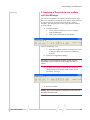
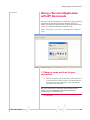
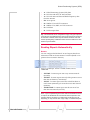
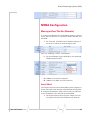
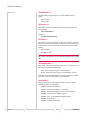
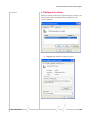
You can access and configure your PinPoint‐E using a terminal application such as Microsoft HyperTerminal, PuTTY, or similar. The following directions are for HyperTerminal which is part of a standard installation of Windows XP.
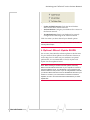
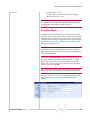
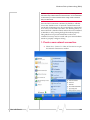
Start > All Programs > Accessories > Communications > HyperTer‐
minal
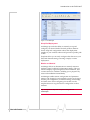
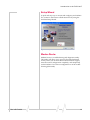
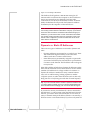
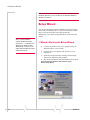
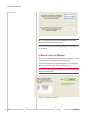
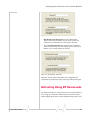
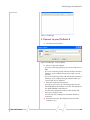
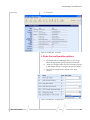
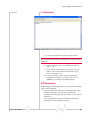
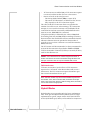
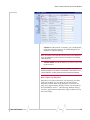
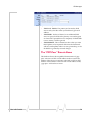
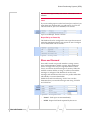
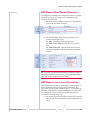
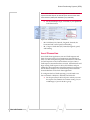
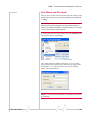
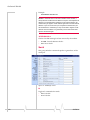
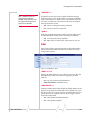
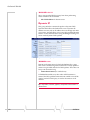
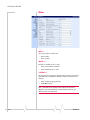
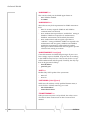
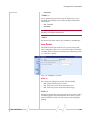
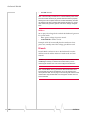
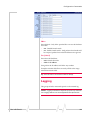
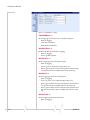
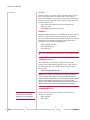
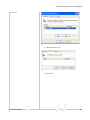
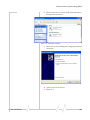
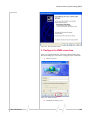
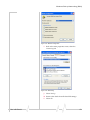
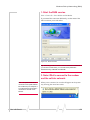
Figure 5-13: HyperTerminal
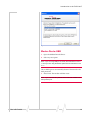
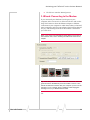
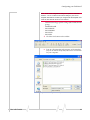
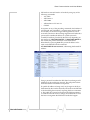
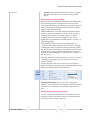
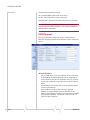
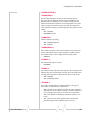
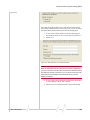
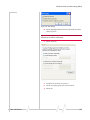
1. Choose a name and icon for your
connection.
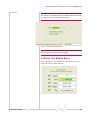
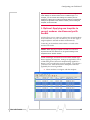
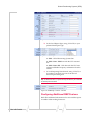
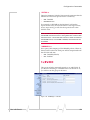
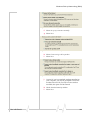
a. Choose a name for your connection, such as PinPoint‐E or Sierra Wireless AirLink Solutions. The name and icon are only for your own reference so you can find the connection at a later date. Tip: If you want to have a connection saved for both local and
remote, it is recommended the connection name reflect the
connection type, i.e. PinPoint-E local.
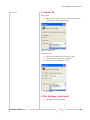
b. Select OK.
Rev 3.0B Feb.08
47