1
Battery Saver
RCRBB04GR
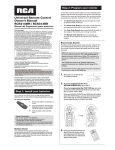
Universal Remote Control
Owner’s Manual
Manual del Propietario (parte posterior)
FCC Statement:
This device complies with part 15 of the FCC Rules. Operation is subject
to the following two conditions: (1) This device may not cause harmful
interference, and (2) this device must accept any interference received,
including interference that may cause undesired operation.
Note: This equipment has been tested and found to comply with the
limits for a Class B digital device, pursuant to part 15 of the FCC Rules.
These limits are designed to provide reasonable protection against
harmful interference in a residential installation. This equipment
generates, uses and can radiate radio frequency energy and, if not
installed and used in accordance with the instructions, may cause
harmful interference to radio communications. However, there is no
guarantee that interference will not occur in a particular installation. If
this equipment does cause harmful interference to radio or television
reception, which can be determined by turning the equipment off and
on, the user is encouraged to try to correct the interference by one or
more of the following measures:
•
Reorient or relocate the receiving antenna.
•
Increase the separation between the equipment and receiver.
•
Connect the equipment into an outlet on a circuit different from
that to which the receiver is connected.
•
Consult the dealer or an experienced radio/TV technician for help.
Caution: Any Changes or modifications not expressly approved by the
party responsible for compliance could void the user’s authority to
operate this equipment.
Industry Canada Regulatory Information
This class B digital apparatus complies with Canadian ICES-003
Avis d’Industrie Canada
Cet appareil numérique de la classe B est conforme a la nome NMB003du Canada
SAVE THIS MANUAL AND THE CODE LISTS!
Remote controls can sometimes lose their programming
when you change the batteries. Make sure you keep the
manual and code lists in a safe place so that you can
reprogram the remote if you need to.
Tip: This remote is already programmed to operate
most RCA-branded TVs, VCRs, DVD players and satellite
receivers. Just press the corresponding key—DVD•VCR
for a DVD player, TV for a television, SAT•CBL•STRM for a
satellite receiver, DVR•AUX for a DVR.
Congratulations on your purchase of this 4-device RCA
Universal Remote Control. This remote features a library
of codes with the latest devices of all major brands, with
support for streaming media players as well. The navigation
keys have been redesigned to function seamlessly with the
more sophisticated menu and guide systems found in today’s
home entertainment devices.
Your universal remote control saves battery power by
automatically turning off if any key is pressed for more
than 60 seconds. This saves your battery life should
your remote get stuck in a place where the keys remain
depressed, such as between sofa cushions.
Step 2: Program your remote
Insert the batteries,
matching the batteries
to the (+) and (–) marks
inside the battery
compartment.
3.
Push the battery cover
back into place.
Did your
•
The Direct Code Entry lets you enter a code from the
accompanying code list for your brand of device.
YES: Pres
done! You
•
The Auto Code Search goes automatically through all
the codes for the device you’re trying to control.
NO: Press
code for y
•
The Manual Code Search lets you manually go
through all the codes for the device you’re trying to
control.
Keep pres
device tur
NOTES
Brand Code Search
The Brand Code Search goes through only the codes for one
of the select brands listed in the accompanying code list. If
your brand of device is listed, this search can be very quick
and easy.
TIPS: Each device key is associated with a type
of device—the TV is preset to search for TVs,
SAT•CBL•STRM for satellite receivers, cable boxes
or digital TV converters or streaming media players,
DVD•VCR for DVD players, and DVR•AUX for DVRs. To
program a device key for a different type of device, see
the Changing a Key’s Device Type section.
To exit without saving a new code at any point in the
Brand Code Search, press the CLEAR key.
1.
2.
Throughout
keep the rem
you are curre
Test the rem
device key is
maximum fu
a different co
Functionality
During the B
keypresses t
The search t
blinks four ti
code under t
The POWER
remote has g
the Brand Co
yet, try a diff
Manually turn on the device you
want to control.
Find your device’s brand in the
Brand Code list section of the
accompanying code list. Circle
the number for your brand and
keep the list handy.
.
..
...
...
...... ............ ...... 10060, ...... ....
......
......
......
...... ............ ...... 11675, ...... ............
......
......
......
......
...... ............ ...... 10812, ...... ............ ............
......
......
iral
......
...... ........... ...... ............ .................. 107
Adm ent ......
......
...... ......
......
...... ...... 10156, 10
Adv o ...... ............ ......
......
80, 1
....
Aik i ...... ............ ...... ........................
...... 101
Aka atron Action ...... ...... ...... 51, . 10875,...
......
Alb erica .................. ............ . 104 ...... ...... .
...... ...... ......
Am m.................. ...... ............
...... ......
Ana ...... ital...... ...... ...... ...... ............ ....
......
AOC x Dig x ...... ........................ ...... ............ ...
Ape iovo ...... ...... ............ ...... ............ ..
Aud ........................ ...... ............ ...... ............
...... ntura ............ ...... ............ ...... ...........
..
...... ......
...... ......
Ave on...... ell
...... ...... ..............
......
How
Axi &
...... ...... ...... ......
......
Bell Q ...... ............ ...... ...... ...... .....
......
Ben dford ...... ........................ ...... ...
Bra ksonic ...... ...... ............ ......
Bro dle .................. ...... .......................
...... ...... ...... .....
Can nivale ......
...... ...... ......
Car ver...... ...... ...... ...... .........
Car ra ...... .................. ...... ......
Cele nghong ...... ............ s ...... .
Vizio
......
tion
Cha zen ...... ......
a
...
Toshib
Solu ............
Code
Citi ion......
......
cial
TV
Sony
...... .....
nd
Clar mer ............
...... ......
Bra
Sharp
Com certo ...... ...... .....
ng
Con tec .............................. ....
Samsu
...... ..
nic
......
Con
......
......
ig
vox Panaso
Cra sley ...... ...... ............
Magna
Philips
Cro wn ...... hes ............
JVC
Cro tis Mat ...... ...........
ia
Insign
RCA
Cur ............ ...... ........
a
GE
Toshib
...... ............ ...... .......
AN
onic
...... ............ ...... ..
PROSC
Symph
CXC ron ....................
Sony
VCR
...... ..
Cyt woo
Sharp
Dae l ............ ......
nic
Panaso
Del on ...... Visio
ishi
vox Mitsub
Den mond ........
Magna
.
Dia ont
Philips
Dumabrand...
JVC
ng
Dur in......
Samsu
RCA
a
Dw ex .....
Toshib
GE
r
AN
Dyn trog
Sony
PROSC
D
Elec troh
Sharp
DV
Elec rso
ng
Samsu
Eme ...
r
Pionee
...... r
nic
Emp
vox Panaso
Magna
Env
Philips
ESA
JVC
Fi
Apex
RCA
F
nic
ch
e Sear
d Cod
Bran de.
g the r’s Gui
g usin Use
min in the
o
ram
zand o
ined
prog
outl
ar utili ltad
resa
hod
ram
prog marcas,
s para de
gos
zado
utili de códi
rio.
son
cas entrada usua
del
mar
y
las ueda
guía
de
la
búsq en
gos
Có
códi s de
de
odo
Los
mét
/Lista
los
List
sts
e Li
Cod
os
ódig
eC
s
rca
ad
Ma
de
List
os
dig
for
Bran
used
met
es are Entry
d Cod and
0
1
2
0
GE
AN
PROSC
0
4
3
2
1
6
5
AB
SAT/C
V
Motoro
RCA
GE
AN
0
la
DirecT
1
7
LE
fic
s Scienti
Hughe rk Atlanta
l Netwo s
k Generaents System
Networs/ Instrum
Dish
System r
Echosta
2
2.
Repeat the
When the
press the
Instead, w
POWER ke
3.
Once the u
code that
4.
Test the ke
control a v
that has b
device’s fu
code store
another co
9
8
7
6
5
4
3
2
1
Testing the C
1. Try a varie
If some de
to try a dif
9
8
7
6
5
4
3
PROSC
3
4
5
8
vox
Magna
Philips
6
9
AMNIO
ADB
7
Panaso
8
9
3.
Press and hold the device key you want to program.
While you’re holding down the device key, use your
other hand to press and hold the remote’s POWER key
at the same time.
4.
Wait until the POWER key comes
on and stays on. Then release
both keys.
Battery Precautions:
• Do not mix old and new batteries.
• Do not mix alkaline, standard (carbon-zinc) or
rechargeable (nickel-cadmium) batteries.
• Always remove old, weak or worn-out batteries promptly
and recycle or dispose of them in accordance with Local
and National Regulations.
Keep the r
at the fron
want to co
the remote
remote is
your devic
The Brand Code Search searches through the codes
for select brands of devices.
To install the batteries:
2.
6.
•
Your universal remote requires two AAA alkaline batteries
(not included).
Press and push the
battery compartment
cover to remove it.
Look at th
your devic
Press that
keypad.
To use this universal remote with your home entertainment
system, first you need to program it to control your devices.
There are four ways you can program the universal remote
to operate your devices. Try them in the order listed here:
Step 1: Install your batteries
1.
5.
power by
d for more
should
eys remain
mote
5.
6.
entertainment
l your devices.
iversal remote
er listed here:
gh the codes
Look at the number you circled for
your device’s brand code number.
Press that number on the remote
keypad.
Keep the remote pointed directly
at the front panel of the device you
want to control. Press POWER on
the remote and wait 2 seconds. The
remote is testing a single code for
your device’s brand.
Did your device turn off?
code from the
f device.
YES: Press the STOP key to store the code. You’re
done! You’ve programmed this device key.
ally through all
control.
NO: Press POWER again. The remote tests the next
code for your brand.
ually go
re trying to
Keep pressing POWER every 2 seconds until your
device turns off. When it does, press STOP.
Direct Code Entry
Auto Cod
Direct Code Entry lets you enter a code from the
accompanying code list for your brand of device. It’s not as
easy as the other methods, but it’s potentially the fastest
method.
The Auto Co
codes for the
the one that
and store tha
TIP: Each device key is associated with a type
of device—the TV is preset to search for TVs,
SAT•CBL•STRM for satellite receivers, cable boxes
or digital TV converters or streaming media players,
DVD•VCR for DVD players, and DVR•AUX for DVRs. To
program a device key for a different type of device, see
the Changing a Key’s Device Type section.
1.
2.
NOTES
codes for one
g code list. If
e very quick
ype
s,
e boxes
a players,
or DVRs. To
f device, see
oint in the
.
..
...
...
...... ............ ...... 10060, ...... ....
......
......
......
...... ............ ...... 11675, ...... ............
......
......
......
......
...... ............ ...... 10812, ...... ............ ............
......
......
iral
......
...... ........... ...... ............ .................. 107
Adm ent ......
......
...... ......
......
...... ...... 10156, 10
Adv o ...... ............ ......
......
80, 1
....
Aik i ...... ............ ...... ........................
...... 101
Aka atron Action ...... ...... ...... 51, . 10875,...
......
Alb erica .................. ............ . 104 ...... ...... .
...... ...... ......
Am m.................. ...... ............
...... ......
Ana ...... ital...... ...... ...... ...... ............ ....
......
AOC x Dig x ...... ........................ ...... ............ ...
Ape iovo ...... ...... ............ ...... ............ ..
Aud ........................ ...... ............ ...... ............
...... ntura ............ ...... ............ ...... ...........
..
...... ......
...... ......
Ave on...... ell
...... ...... ..............
......
How
Axi &
...... ...... ...... ......
......
Bell Q ...... ............ ...... ...... ...... .....
......
Ben dford ...... ........................ ...... ...
Bra ksonic ...... ...... ............ ......
Bro dle .................. ...... .......................
...... ...... ...... .....
Can nivale ......
...... ...... ......
Car ver...... ...... ...... ...... .........
de
Car ra ...... .................. ...... ......
/Lista
Cele nghong ...... ............ s ...... .
Vizio
......
List
tion
Cha zen ...... ......
a
...
Toshib
Solu ............
Code
Citi ion......
......
cial
TV
Sony
...... .....
Clar mer ............
...... ......
Sharp
Com certo ...... ...... .....
ng
Con tec .............................. ....
Samsu
...... ..
nic
......
Con
......
......
ig
vox Panaso
Cra sley ...... ...... ............
Magna
Philips
Cro wn ...... hes ............
JVC
Cro tis Mat ...... ...........
ia
Insign
Cur ............ ...... ........
a
Toshib
...... ............ ...... .......
AN
onic
...... ............ ...... ..
Symph
CXC ron ....................
Sony
VCR
...... ..
Cyt woo
Sharp
Dae l ............ ......
nic
Panaso
Del on ...... Visio
ishi
vox Mitsub
Den mond ........
Magna
.
Dia ont
Philips
Dumabrand...
JVC
ng
Dur in......
Samsu
RCA
a
Dw ex .....
Toshib
GE
r
AN
Dyn trog
Sony
PROSC
D
Elec troh
Sharp
DV
Elec rso
ng
Samsu
Eme ...
r
Pionee
...... r
nic
Emp
vox Panaso
Magna
Env
Philips
ESA
JVC
Fi
Apex
RCA
F
nic
ch
e Sear
d Cod
Bran de.
g the r’s Gui
g usin Use
min in the
o
ram
zand o
ined
prog
outl
ar utili ltad
resa
ram
thod
prog marcas,
s para de
gos
zado
s
utili de códi
rca
rio.
son
Ma
cas entrada usua
del
mar
de
y
os
eda
guía
úsqu en la
Códig
s
List
de
os
ódig
eC
ad
0
1
2
0
3
2
1
GE
AN
PROSC
0
Motoro
AN
PROSC
0
4
3
2
1
RCA
GE
5
6
AB
SAT/C
la
DirecT
1
V
7
LE
fic
s Scienti
Hughe rk Atlanta
l Netwo s
k Generaents System
Networs/ Instrum
Dish
System r
Echosta
2
3
4
5
8
vox
Magna
Philips
6
AMNIO
ADB
Testing the Code for Maximum Functionality
1. Try a variety of the device’s functions with the remote.
If some device features don’t work, go to the next step
to try a different code.
2.
9
to program.
ey, use your
’s POWER key
0
1
2
Manuall
want to
0
3
2
1
GE
AN
PROSC
0
RCA
GE
3
2
1
4
6
5
AB
SAT/C
Motoro
AN
PROSC
0
la
DirecT
1
9
8
7
6
5
4
2.
Press an
While yo
other ha
at the sa
3.
Wait unt
on and s
both key
4.
Keep the
directly a
of the de
control.
remote a
The rem
of 10 cod
9
8
7
6
5
4
3
7
LE
fic
s Scienti
Hughe rk Atlanta
l Netwo s
k Generaents System
Networs/ Instrum
Dish
System r
V
Echosta
2
3
4
5
8
vox
Magna
Philips
6
9
AMNIO
ADB
7
Panaso
8
9
Press and hold the device key you want to program
(the POWER key comes on).
While you’re holding down the device key, use your
other hand enter the first five-digit code for your brand
in the code list (the POWER key goes off after the first
digit).
The POWER key blinks four times and turns off when the
remote has gone through all the codes. The remote exits
the Brand Code Search. If your device hasn’t turned off
yet, try a different search method.
Panaso
8
1.
sts
e Li
Cod
os
ódig
eC
ad
List
The search times out after two minutes (the POWER key
blinks four times and turns off, and the last programmed
code under that device key is retained).
9
7
.
..
...
...
...... ............ ...... 10060, ...... ....
......
......
......
...... ............ ...... 11675, ...... ............
......
......
......
......
...... ............ ...... 10812, ...... ............ ............
......
......
iral
......
...... ........... ...... ............ .................. 107
Adm ent ......
......
...... ......
......
...... ...... 10156, 100
Adv o ...... ............ ......
......
80, 1
....
Aik i ...... ............ ...... ........................
ch
...... 101
Aka atron Action ...... ...... ...... 51, . 10875,...
e Sear
......
Alb erica .................. ............ . 104 ...... ...... .
d Cod
...... ...... ......
Am m.................. ...... ............
Bran de.
...... ......
g the r’s Gui
Ana ...... ital...... ...... ...... ...... ............ ....
......
g usin Use
AOC x Dig x ...... ........................ ...... ............ ...
min in the
o
Ape iovo ...... ...... ............ ...... ............ ...
ram
zand o
ined
Aud ........................ ...... ............ ...... ............
prog
outl
for
ar utili ltad
...... ntura ............ ...... ............ ...... ...........
resa
hod
ram
...... ......
used
...... ...... ........
Ave on...... ell
met
prog marcas,
...... ............ ...... ...... ..
es are Entry
How
Axi
para
...... ...... ......
&
de
......
s
d Cod and
gos
Bell Q ...... ............ ...... ...... ...... .....
zado
Bran
......
s
utili de códi
Ben dford ...... ........................ ...... ...
rca
rio.
son
Bra ksonic ...... ...... ............ ......
Ma
cas entrada usua
del
mar
de
y
Bro dle .................. ...... .......................
las ueda
os
...... ...... ...... .....
de
la guía
Can nivale ......
...... ...... ......
búsq en
gos
Códig
Car ver...... ...... ...... ...... .........
códi s de
de
odo
Los
Car ra ...... .................. ...... ......
mét
/Lista
Cele nghong ...... ............ s ...... .
los
Vizio
......
List
tion
Cha zen ...... ......
a
....
Toshib
Solu ............
Code
Citi ion......
......
cial
TV
Sony
...... .....
nd
Clar mer ............
...... ......
Bra
Sharp
Com certo ...... ...... .....
ng
Con tec .............................. ....
Samsu
nic
Con ig ...... ...... ............ ..
vox Panaso
Cra sley ...... ...... ............
Magna
Philips
Cro wn ...... hes ............
JVC
Cro tis Mat ...... ...........
ia
Insign
RCA
Cur ............ ...... ........
a
...... ......
.
GE
Toshib
......
......
......
AN
onic
...... ............ ...... ..
PROSC
Symph
CXC ron ....................
Sony
VCR
...... ..
Cyt woo
Sharp
Dae l ............ ......
nic
o
......
Panaso
Del
Visi
on
ishi
vox Mitsub
Den mond ........
Magna
.
Dia ont
Philips
Dumabrand...
JVC
ng
Dur in......
Samsu
RCA
a
Dw ex ......
Toshib
GE
r
AN
Dyn trog
Sony
PROSC
D
Elec troh
Sharp
DV
Elec rso
ng
Samsu
Eme ...
r
Pionee
...... r
nic
Emp
vox Panaso
Magna
Env
Philips
ESA
JVC
Fi
Apex
RCA
F
nic
During the Brand Code Search, the remote ignores
keypresses that aren’t part of the search.
9
8
7
6
5
4
3.
Test the remote with the device to make sure the
device key is programmed with the correct code for
maximum functionality. If some features don’t work, try
a different code. See the “Testing the Code for Maximum
Functionality” section below for more information.
9
8
7
6
5
4
3
Throughout the programming of each key, be sure to
keep the remote pointed at the IR sensor of the device
you are currently programming the remote to control.
To exit with
Auto Code
Manually turn on the device
you want to control.
Find the Code List that came with
the remote. Locate the section for
the type of device you’re trying to
program, and find your brand in
that section. Circle the codes for
your brand and keep them handy.
TIPS: Each
of device—
SAT•CBL•S
or digital T
DVD•VCR f
program a
the Changi
Repeat the Brand Code Search from the beginning.
When the device turns off for the first time, don’t
press the STOP key, which would store the same code.
Instead, with the unit now off, continue to press the
POWER key repeatedly until the unit turns back on.
3.
Once the unit turns back on, you have found another
code that operates the device. Press the STOP key.
4.
Test the key’s functionality again by attempting to
control a variety of the device’s functions. If the code
that has been stored controls the majority of the
device’s functions, programming is complete. If the
code stored does not give maximum functionality, try
another code.
4.
When you’ve finished
entering the five-digit code,
keep holding down the
device key and look at the
POWER key.
Is the POWER key on?
YES: You’re done! You’ve
programmed this device
key.
NO, it blinked four times and turned off: You have
either entered a code number that is not in the code
lists or missed a step in the code entry procedure. Try
step 3 again.
NOTES
Remember to enter the code for future reference in the
box provided in the Code Retrieval section of this manual.
If your brand isn’t listed in the code list, use one of the
Code Search methods to program the remote control.
(Refer to the Auto and Manual Code Search methods.)
If you release the device key any time during the Direct
Code Entry procedure, the POWER key blinks four times,
and the process is exited. The last programmed code
under the device key is retained.
Test the remote with the device to make sure the device
key is programmed with the correct code for maximum
functionality. If some features don’t work, try a different
code in the list.
Did you
YES: Go
NO: Pre
of 10 cod
Keep pre
turns off
5.
When yo
press th
the remo
seconds
last of th
Did you
YES: Pre
key. You
program
NO: Pre
code in t
Keep pre
device tu
Note: If you
your device
two second
Auto Code Search
e. It’s not as
he fastest
oxes
layers,
DVRs. To
evice, see
The Auto Code Search goes automatically through all the
codes for the device you’re trying to control. When you find
the one that operates your device, you can stop the search
and store that code.
TIPS: Each device key is associated with a type
of device—the TV is preset to search for TVs,
SAT•CBL•STRM for satellite receivers, cable boxes
or digital TV converters or streaming media players,
DVD•VCR for DVD players, and DVR•AUX for DVRs. To
program a device key for a different type of device, see
the Changing a Key’s Device Type section.
To exit without saving a new code at any point in the
Auto Code Search, press the CLEAR key.
1.
.
..
...
...
...... ............ ...... 10060, ...... ....
......
......
......
...... ............ ...... 11675, ...... ............
......
......
......
......
...... ............ ...... 10812, ...... ............ ............
......
......
iral
......
...... ........... ...... ............ .................. 107
Adm ent ......
......
...... ......
......
...... ...... 10156, 100
Adv o ...... ............ ......
......
80, 1
....
Aik i ...... ............ ...... ........................
...... 101
Aka atron Action ...... ...... ...... 51, . 10875,...
......
Alb erica .................. ............ . 104 ...... ...... .
...... ...... ......
Am m.................. ...... ............
...... ......
Ana ...... ital...... ...... ...... ...... ............ ....
......
AOC x Dig x ...... ........................ ...... ............ ...
Ape iovo ...... ...... ............ ...... ............ ...
Aud ........................ ...... ............ ...... ............
...... ntura ............ ...... ............ ...... ...........
...... ......
...... ...... ........
Ave on...... ell
......
...... ..
Axi & How............ ...... ............
...... ......
Bell Q ...... ............ ...... ...... ...... .....
......
Ben dford ...... ........................ ...... ...
Bra ksonic ...... ...... ............ ......
Bro dle .................. ...... .......................
...... ...... ...... .....
Can nivale ......
...... ...... ......
Car ver...... ...... ...... ...... .........
de
Car ra ...... .................. ...... ......
/Lista
Cele nghong ...... ............ s ...... .
Vizio
......
List
tion
Cha zen ...... ......
a
de
....
Toshib
Solu ............
Citi ion......
......
d Co
cial
TV
Sony
...... .....
Clar mer ............
...... ......
Sharp
Com certo ...... ...... .....
ng
Con tec .............................. ....
Samsu
nic
Con ig ...... ...... ............ ..
vox Panaso
Cra sley ...... ...... ............
Magna
Philips
Cro wn ...... hes ............
JVC
Cro tis Mat ...... ...........
ia
A
Insign
Cur ............ ...... ........
a
GE
Toshib
...... ............ ...... .......
N
onic
ROSCA
...... ............ ...... ..
Symph
CXC ron ....................
Sony
VCR
...... ..
Cyt woo
Sharp
Dae l ............ ......
nic
o
......
Panaso
Del
Visi
on
ishi
vox Mitsub
Den mond ........
Magna
.
Dia ont
Philips
Dumabrand...
JVC
ng
Dur in......
Samsu
RCA
a
Dw ex ......
Toshib
GE
r
AN
Dyn trog
Sony
PROSC
D
Elec troh
Sharp
DV
Elec rso
ng
Samsu
Eme ...
r
Pionee
...... r
nic
Emp
vox Panaso
Magna
Env
Philips
ESA
JVC
Fi
Apex
RCA
F
nic
Manually turn on the device you
want to control.
ch
e Sear
d Cod
Bran de.
g the r’s Gui
g usin Use
min in the
o
ram
zand o
ined
or prog outl
ar utili ltad
resa
hod
ram
met
prog marcas,
s para de
gos
zado
s
utili de códi
rca
rio.
son
Ma
cas entrada usua
del
mar
de
y
las ueda
os
guía
la
Códig
e búsq en
s
List
ode
s
igo
Cód
0
1
2
0
GE
PROSC
AN
0
2
1
4
3
PROSC
5
SAT/C
V
RCA
GE
la
Motoro
AN
0
DirecT
1
9
8
7
6
5
4
3
2
1
9
8
7
6
5
4
6
AB
7
LE
fic
s Scienti
Hughe rk Atlanta
l Netwo s
k Generaents System
Networs/ Instrum
Dish
System r
Echosta
2
3
4
5
8
vox
Magna
Philips
6
2.
9
AMNIO
ADB
7
Panaso
8
9
Press and hold the device key you want to program.
While you’re holding down the device key, use your
other hand to press and hold the remote’s POWER key
at the same time.
1.
Try a variety of the device’s functions with the remote.
If some device features don’t work, go to the next step
to try a different code.
2.
Repeat the Auto Code Search Method from the
beginning. When your device turns off, do not stop
searching. Instead, with the unit now off, continue to
press the PLAY key every 5 seconds until the unit turns
back on.
3.
Once the unit turns back on, press the REVERSE key
on the remote every 2 seconds until your device turns
off again. When your device turns off again, press the
STOP key.
4.
Test the key’s functionality again by attempting to
control a variety of the device’s functions. If the code
that has been stored controls the majority of the
device’s functions, programming is complete. If the
code stored does not give maximum functionality, try
another code.
program
use your
your brand
er the first
f: You have
the code
cedure. Try
ce in the
his manual.
ne of the
control.
ethods.)
he Direct
our times,
d code
the device
maximum
a different
2.
Press and
While you
other han
at the sam
3.
Wait until
on and st
both keys
4.
Keep the r
device yo
and wait 2
for your d
Testing the Code for Maximum Functionality
de
sta
3
NOTES
Throughout the programming of each key, be sure to
keep the remote pointed at the IR sensor of the device
you are currently programming the remote to control.
Test the remote with the device to make sure the
device key is programmed with the correct code for
maximum functionality. If some features don’t work, try
a different code. See the “Testing the Code for Maximum
Functionality” section below for more information.
During the Auto Code Search, the remote ignores
keypresses that aren’t part of the search.
The search times out after two minutes (the POWER key
blinks four times and turns off, and the last programmed
code under that device key is retained).
The POWER key blinks four times and turns off when the
remote has gone through all the codes. The remote exits
the Auto Code Search. If your device hasn’t turned off
yet, try a different search method.
3.
4.
Wait until the POWER key comes
on and stays on. Then release
both keys.
Keep the remote pointed
directly at the front panel
of the device you want to
control. Press PLAY on the
remote and wait 5 seconds.
The remote is testing a batch
of 10 codes on your device.
Did your device turn off?
Manual Code Search
The Manual Code Search lets you go one-by-one through
all the codes for the device you’re trying to control. When
you find the one that operates your device, you can stop the
search and store that code.
YES: Go to step 5.
NO: Press PLAY again. The remote tests the next batch
of 10 codes.
Keep pressing PLAY every 5 seconds until your device
turns off.
5.
When your device turns off,
press the REVERSE key on
the remote and wait at least 2
seconds. The remote tries the
last of the previous ten codes.
Did your device turn on?
YES: Press the STOP
key. You’re done! You’ve
programmed this device key.
NO: Press REVERSE again. The remote tests the next
code in the batch.
Keep pressing REVERSE every 2 seconds until your
device turns back on. When it does, press STOP.
Note: If you accidentally press the REVERSE key after
your device turns on, press the FORWARD key. Then, wait
two seconds to see if your device turns off again.
TIPS: The Manual Code Search method may take a long
time because the remote searches through all of the
codes in its memory one-by-one. If your brand is listed
in the Brand Codes or the Code Lists, first try the Brand
Code Search or the Direct Code Entry method.
Each device key is associated with a type of device—the
TV is preset to search for TVs, SAT•CBL•STRM for
satellite receivers, cable boxes or digital TV converters
or streaming media players, DVD•VCR for DVD players,
and DVR•AUX for DVRs. To program a device key for
a different type of device, see the Changing a Key’s
Device Type section.
TIP: Becau
press the
times.
NOTES
Throughout
remote poin
programmin
Test the rem
device key is
maximum fu
a different c
Functionalit
During the M
keypresses t
The search t
blinks four t
code under
The POWER
remote has
the Brand C
yet, try a dif
Testing the C
1. Try a vari
If some fe
next step
2.
Repeat th
from the
first time,
the same
to press t
back on.
3.
Once the
code that
4.
Test the k
of functio
device’s f
code stor
another c
To exit without saving a new code at any point in the
Manual Code Search, press the CLEAR key.
1.
Manually turn on the device
you want to control.
2.
sure to
device
control.
he
e for
work, try
Maximum
ion.
res
OWER key
grammed
when the
mote exits
ned off
Press and hold the device key you want to program.
While you’re holding down the device key, use your
other hand to press and hold the remote’s POWER key
at the same time.
3.
Wait until the POWER key comes
on and stays on. Then release
both keys.
4.
Keep the remote pointed directly at the front panel of the
device you want to control. Press POWER on the remote
and wait 2 seconds. The remote is testing a single code
for your device.
ty
he remote.
next step
Did your device turn off?
YES: Press the STOP key to store
the code. You’re done! You’ve
programmed this device key.
he
ot stop
ntinue to
e unit turns
NO: Press POWER again. The
remote tests the next code for
your device.
RSE key
vice turns
press the
Keep pressing POWER every 2
seconds until your device turns off.
When it does, press STOP.
ng to
the code
the
e. If the
nality, try
TIP: Because there are so many codes, you may have to
press the POWER key many times—possibly hundreds of
times.
ne through
trol. When
u can stop the
take a long
all of the
nd is listed
y the Brand
od.
device—the
M for
converters
VD players,
e key for
a Key’s
NOTES
Throughout the programming of each key, keep the
remote pointed at the IR sensor of the device you are
programming the remote to control.
Test the remote with the device to make sure the
device key is programmed with the correct code for
maximum functionality. If some features don’t work, try
a different code. See the “Testing the Code for Maximum
Functionality” section below for more information.
During the Manual Code Search, the remote ignores
keypresses that aren’t part of the search.
The search times out after two minutes (the POWER key
blinks four times and turns off, and the last programmed
code under that device key is retained).
The POWER key blinks four times and turns off when the
remote has gone through all the codes. The remote exits
the Brand Code Search. If your device hasn’t turned off
yet, try a different search method.
Testing the Code for Maximum Functionality
1. Try a variety of the device’s functions with the remote.
If some features of your devices don’t work, go to the
next step to try a different code.
2.
int in the
Repeat the Manual Code Search and Entry Method
from the beginning. When the device turns off for the
first time, don’t press the STOP key, which would store
the same code. Instead, with the unit now off, continue
to press the POWER key repeatedly until the unit turns
back on.
3.
Once the unit turns back on, you have found another
code that operates the device. Press the STOP key.
4.
Test the key’s functionality again by trying a variety
of functions. If the code controls the majority of the
device’s functions, programming is complete. If the
code stored does not give maximum functionality, try
another code.
Tour of the Remote
Changing
In most cases, the keys on
this remote perform the
same functions as the keys
on your original remotes
once you’ve programmed
this remote to operate your
devices. Many keys on this
remote have other functions
as well.
Each device ke
TV is preset to
receivers, digit
or cable boxes,
DVR•AUX for D
different kind o
Reassigning
The DVD•VCR
want the DVD•
it.
Device keys (TV,
SAT•CBL•STRM, DVD•VCR,
DVR•AUX) put the remote
in the right mode to control
your device.
GUIDE•HOME and MENU
access the same features
as the keys on your original
remotes.
Arrow keys act as
navigation keys for
streaming media players as
well as in menu and guide
systems for other devices.
CLEAR exits remote
programming; it also
performs the same
functions as on your
original remotes.
1.
Press and
turns on. K
2.
While hold
release th
key turns
3.
Release th
times and
control a V
4.
Follow the
manual co
your VCR.
Reassigning
Devices
The DVR•AUX
DVR•AUX key
TV, DVD, satell
players, or cab
CHAN and VOL keys act
as channel and volume
controllers.
The INPUT and — (dash)
key has three functions: (1)
it toggles through all the
video sources connected
to your TV; (2) when the
remote is in VCR mode, this
button toggles between
VCR and the TV input; (3)
when you’re entering digital
channel numbers directly,
this button lets you separate
the main channel number
from the sub-channel
number (such as 59.1).
Advanc
1.
Press and
turns on.
2.
While hold
the numbe
control (se
DVR•A
Additi
Actual model may vary from
illustration
VCR o
Additi
Additi
conve
player
3.
Release th
times and
to control
4.
Follow the
manual co
IMPORTANT
Because this remote controls more than one device,
you must first “tell” the remote which device you wish
to operate. That means, if you wish to operate your TV,
you must first press the TV key to put the remote in the
TV Mode. The remote stays in that device mode until
you press a different device key. For example, if your
remote is in TV Mode and you want to operate the DVD
player, you must press the DVD key to change device
modes.
Backlighting
Backlight illumination helps you see the remote control
keys better in the dark.You can turn backlight illumination
on or off by pressing the backlight key ( ). Backlighting
stays on as long as keys are being pressed and turns off six
seconds after the last keypress. Once the backlight time has
timed out, any keypress will reactivate it. If the backlight
illumination is on, and you press the backlight key, the
backlight turns off.
Code Retr
Once you’ve p
devices, you m
reference. If yo
is easy. Just fin
of them in the
Search method
Direct Entry m
need to retriev
the actual code
if you ever nee
programming
codes are reco
to reprogram y
quick and easy
Advanced Functions
e control
lumination
cklighting
turns off six
ight time has
backlight
key, the
While holding the device key down, press and hold
the INFO key. The POWER key turns off. After holding
down both keys for three seconds, the POWER key
turns back on.
Problem: The re
•
Make sure
correspond
DVR•AUX).
3.
Release both keys. The POWER key remains on.
•
4.
Starting with the number 1 key, press and release each
number key on the keypad in the following order: 1-9,
then 0. The number that causes the POWER key to
blink is the first number of the code. As you find each
number of the code, write it down for future reference.
Make sure
a disc loade
•
You may ha
in.
•
If you’re try
pressing th
this is a req
•
There is a p
able to con
only turns a
key is prog
functionalit
of the devic
features of
remote with
Entry Meth
to control t
codes can p
Changing A Key’s Device Type
Each device key is associated with a type of device—the
TV is preset to search for TVs, SAT•CBL•STRM for satellite
receivers, digital TV converters or streaming media players,
or cable boxes, DVD•VCR for DVD players or VCRs, and
DVR•AUX for DVRs. To program these keys to control a
different kind of device, you have to reassign them first.
Note: All TV codes begin with the number 1; all VCR
and DVR codes begin with the number 2; all DVDs, the
number 3; and all satellite receivers, digital TV converters
or streaming media players, and cable boxes, the number
5.
Reassigning the DVD•VCR Key to Control a VCR
The DVD•VCR key defaults to control a DVD player. If you
want the DVD•VCR key to control a VCR, you must reassign
it.
1.
Press and hold the DVD•VCR key. The POWER key
turns on. Keep holding down the DVD•VCR key.
2.
While holding down the DVD•VCR key, press and
release the number 2 key on the keypad. The POWER
key turns off.
3.
Release the DVD•VCR key. The POWER key blinks four
times and then turns off. The DVD•VCR key is now set to
control a VCR.
4.
Follow the directions in the auto, brand, direct entry, or
manual code search to program the DVD•VCR key for
your VCR.
5.
1.
Press and hold the DVR•AUX key. The POWER key
turns on.
2.
While holding down the DVR•AUX key, press and release
the number key on the keypad for the device you wish to
control (see the chart below). The POWER key turns off.
Repeat step 4 until you have retrieved all five numbers
in the code. After the fourth number is retrieved, the
POWER key blinks briefly, then turns off.
TIP: To exit the Code Retrieval Mode at any time, press
the CLEAR key.
Note: If you press an invalid key during the Code
Retrieval process, the remote will not respond. If you do
not press a valid Code Retrieval key (TV, SAT•CBL•STRM,
DVD•VCR, DVR•AUX, INFO, CLEAR), Code Retrieval times
out after 15 seconds. The POWER key blinks four times,
and then turns off.
Reassigning the DVR•AUX Key To Control Other
Devices
The DVR•AUX key defaults to control a DVR. If you want the
DVR•AUX key to control a different device (an additional
TV, DVD, satellite, digital TV converters or streaming media
players, or cable box, for example), you must reassign it.
TV CODE
1
Additional TV
press 1
VCR or DVR
press 2
Additional DVD
press 3
Additional satellite, digital TV
converters or streaming media
players, or cable box
press 5
5
SAT
Release the DVR•AUX key. The POWER key blinks four
times and then turns off. The DVR•AUX key is now set
to control the device type you selected.
4.
Follow the directions in the auto, brand, direct entry, or
manual code search to program the DVR•AUX key.
Code Retrieval
Once you’ve programmed the remote to control your
devices, you may want to record the codes for future
reference. If you used the Direct Code Entry method, this
is easy. Just find the codes you entered and make a note
of them in the boxes below. If you used one of the Code
Search methods to program your remote or if you used the
Direct Entry method but don’t remember the code, you will
need to retrieve each device’s five-digit code. Retrieving
the actual code and writing it down will save you time
if you ever need to program the remote again (e.g., if
programming is lost when you change the batteries). If the
codes are recorded, you can use the Direct Entry method
to reprogram your remote to control your devices, which is
quick and easy.
1.
Press and hold the device
key (TV, SAT•CBL•STRM,
DVD•VCR, DVR•AUX) whose
code you wish to retrieve.
The POWER key turns on.
Keep pressing the device key.
•
You may ha
remote is in
•
Make sure
correspond
DVR•AUX).
•
Make sure
Replace the
necessary (
CABLE
DTV CONVERTER
Problem: The r
•
DVD•VCR CODE
DVD
DVR•AUX CODE
VCR
DVR/VCR
DVD
TV
Make sure
correspond
DVR•AUX).
•
Press the O
•
Remove an
Make sure
SAT•CBL•STRM
Problem: The d
screen.
Troubleshooting
Problem: The remote does not operate your device.
•
3.
Problem: The P
key.
SAT•CBL•STRM CODE
DVR•AUX KEY CONTROLS:
may vary from
ation
device,
you wish
e your TV,
mote in the
ode until
, if your
te the DVD
e device
2.
Make sure the remote is in the correct mode by pressing the
corresponding device key (TV, SAT•CBL•STRM, DVD•VCR,
DVR•AUX). This tells the remote which device to operate.
•
Remove any obstacles between the remote and the device.
Make sure you’re aiming the remote at the device’s IR
sensor.
•
Make sure the batteries are fresh and are properly installed.
Replace the batteries with two new AAA batteries, if
necessary (see the Battery Installation section).
Problem: The remote can’t be programmed to operate
your device.
•
If you are testing the remote while programming it, you may
be too far away from the device or at a wrong angle. There
must be an unobstructed path between the remote and the IR
sensor on the device. Move closer and make sure you point the
remote at the device you’re trying to control.
•
If you’re using the Direct Entry programming method
to enter the codes for your brand and the unit is still not
functioning properly, try the auto, brand, or manual search
method.
•
To control combo units, like TV/VCRs or TV/DVDs, you must
program the individual corresponding device keys to control
each part of the combo unit. Once programmed successfully,
the TV key controls the TV functions, and the DVD•VCR key
controls the VCR or DVD functions.
•
Make sure the batteries are fresh and are properly installed.
•
Make sure y
and selecte
Manuals fo
•
Make sure
correspond
DVR•AUX).
•
Menu acces
use your or
for some de
For more infor
www.RCAAud
Consumer Hel
Care and
• Keep the rem
immediately
• Use and stor
environmen
• Handle the r
• Keep the rem
• Wipe the rem
looking new
• Modifying o
can cause m
s and hold
After holding
OWER key
ins on.
d release each
g order: 1-9,
ER key to
ou find each
ure reference.
; all VCR
DVDs, the
TV converters
s, the number
Problem: The remote doesn’t perform commands properly.
•
•
Make sure device is ready (for example, the DVD player has
a disc loaded).
•
You may have pressed an invalid key for the mode the remote is
in.
•
If you’re trying to enter a channel number directly, try
pressing the OK key after entering the channel number as
this is a requirement of certain models and brands.
•
There is a possibility that a programmed code may only be
able to control some of your device features (for example,
only turns a device on and off). To confirm that the device
key is programmed with the correct code for maximum
functionality, test the device. Attempt to control a variety
of the device’s functions with the remote. If some of the
features of your devices don’t work, try programming the
remote with a different code in the list using the Direct Code
Entry Method, until you find the code that allows the remote
to control the majority of your device’s functions. Different
codes can provide different levels of functionality.
five numbers
trieved, the
time, press
Code
nd. If you do
T•CBL•STRM,
etrieval times
four times,
Problem: The POWER key does not light when you press a
key.
•
You may have pressed an invalid key for the mode the
remote is in.
•
Make sure the remote is in the correct mode by pressing the
corresponding device key (TV, SAT•CBL•STRM, DVD•VCR,
DVR•AUX). This tells the remote which device to operate.
•
Make sure the batteries are fresh and are properly installed.
Replace the batteries with two new AAA batteries, if
necessary (see the Battery Installation section).
TRM CODE
DTV CONVERTER
Problem: The remote will not change channels on device.
•
X CODE
TV
Make sure the remote is in the correct mode by pressing the
corresponding device key (TV, SAT•CBL•STRM, DVD•VCR,
DVR•AUX). This tells the remote which device to operate.
Make sure the remote is in the correct mode by pressing the
corresponding device key (TV, SAT•CBL•STRM, DVD•VCR,
DVR•AUX). This tells the remote which device to operate.
•
Press the OK key after you enter a channel number.
•
Remove any obstacles between the remote and the device.
Make sure to aim the remote at the IR sensor on the device.
SAT•CBL•STRM
Make sure you have connected the device to your TV properly
and selected the correct input. (See your devices’ Owner’s
Manuals for proper connection procedures.)
evice.
•
by pressing the
M, DVD•VCR,
e to operate.
Make sure the remote is in the correct mode by pressing the
corresponding device key (TV, SAT•CBL•STRM, DVD•VCR,
DVR•AUX). This tells the remote which device to operate.
•
Menu access isn’t supported for all brands. You may need to
use your original remote control to access menu functions
for some devices.
perly installed.
eries, if
).
o operate
g it, you may
ngle. There
mote and the IR
re you point the
method
is still not
manual search
VDs, you must
keys to control
ed successfully,
DVD•VCR key
perly installed.
VOXX Accessories Corporation (the “Company”) warrants to you the
original retail purchaser of this product that should it, under normal use
and conditions, be proven defective in material or workmanship during
its lifetime while you own it, such defect(s) will be repaired or replaced
(at the Company’s option) without charge for parts and repair labor.
To obtain repair or replacement within the terms of this Warranty, the
product is to be delivered with proof of warranty coverage (e.g. dated bill
of sale), specification of defect(s), transportation prepaid, to the Company
at the address shown below.
This Warranty does not cover product purchased, serviced or used
outside the United States or Canada. This Warranty is not transferable
and does not extend to costs incurred for installation, removal or
reinstallation of the product. This Warranty does not apply if in the
Company’s opinion, the product has been damaged through alteration,
improper installation, mishandling, misuse, neglect, accident, or the
simultaneous use of different battery types (e.g. alkaline, standard or
rechargeable).
THE EXTENT OF THE COMPANY’S LIABILITY UNDER THIS WARRANTY
IS LIMITED TO THE REPAIR OR REPLACEMENT PROVIDED ABOVE
AND, IN NO EVENT, SHALL THE COMPANY’S LIABILITY EXCEED THE
PURCHASE PRICE PAID BY PURCHASER FOR THE PRODUCT.
This Warranty is in lieu of all other express warranties or liabilities. ANY
IMPLIED WARRANTIES, INCLUDING ANY IMPLIED WARRANTY OF
MERCHANTABILITY OR FITNESS FOR A PARTICULAR PURPOSE SHALL
BE LIMITED TO DURATION OF THIS WARRANTY. IN NO CASE SHALL
THE COMPANY BE LIABLE FOR ANY CONSEQUENTIAL OR INCIDENTAL
DAMAGES WHATSOEVER. No person or representative is authorized
to assume for the Company any liability other than expressed herein in
connection with the sale of this product.
Some states/provinces do not allow limitations on how long an implied
warranty lasts or the exclusion or limitation of incidental or consequential
damage so the above limitations or exclusions may not apply to you.
This Warranty gives you specific legal rights and you may also have
other rights, which vary from state/province to state/province.
U.S.A.: Audiovox Return Center, 150 Marcus Blvd., Hauppauge, New
York 11788
CANADA: Audiovox Return Center, c/o Genco, 6685 Kennedy Road,
Unit 3, Door 16, Mississauga, Ontario L5T 3A5
Problem: The device’s menu does not appear on the TV
screen.
•
nd the device.
vice’s IR
Limited Lifetime Warranty
For more information, please visit
www.RCAAudioVideo.com
Consumer Help Line: 1-800-420-7968
Care and Maintenance
• Keep the remote dry. If it gets wet, wipe it dry
immediately.
• Use and store the remote only in normal temperature
environments.
• Handle the remote gently and carefully. Don’t drop it.
• Keep the remote away from dust and dirt.
• Wipe the remote with a damp cloth occasionally to keep it
looking new.
• Modifying or tampering with the remote’s internal devices
can cause malfunction and invalidate its warranty.
©2012 Voxx Accessories Corp.
3502 Woodview Trace, Suite 220
Indianapolis, IN 46268
Trademark(s) ® Registered
RCRBB04GR US 03