1
Redial/Outgoing Call Log
1. Press
.
2. Highlight a record.
3. Press
or pick up the handset to return a call.
Contact Us
For customer support call (877) 997-9000
www.rca4business com
IP170S
Quick Start Guide
Do not disturb
• Press DND soft key;
• Select one of the available line.
• Select enable/disable, and press Save.
Note: Only the master handset of the line may enable/disable
DND.
Voicemail
• Press
to access voicemail.
• Press Menu soft key -> 1. Service -> 4. Voice Mail, to check
number of messages; select account and call to retrieve
messages.
Setting up Direct Access Key
(x12)
1. Press Menu soft key -> 1. Services -> 9. Direct Dial Access Key.
2. Select “Program.”
3. Select one of the Direct Dial Access Keys (1-12).
4. Select -> 2. Speed Dial. Scroll to 2. Enter Name.
Enter the first 5 characters of the name you wish to be displayed
Scroll down to 3. Enter Number.
Telefield North America
4915 SW Griffith Dr. Suite 302
Beaverton, OR 97005
RCA is a trademark of RCA Trademark
Management S.A., used under license.
IP170S
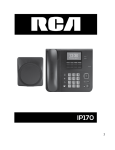
Navigation Keys
Voicemail
Redial
Headset (RJ9)
Registration:
Volume Up
Volume Down
Speakerphone
Mute
Missed Call Log
Line Key
Navigation Key, OK
Soft Key (4)
Key Lock/Unlock
Direct Dial Access Key (12)
Desktop LED Indicators
Status LED “OFF”
Normal
Status LED “Steady On”
Missed Call
Status LED “Flashing”
Ringing
“ON”
Voice Mail Alert
“ON”
Speakerphone On
Base Station:
1. Press and hold the
button until the LED flashes blue.
Deskphone:
2. Press the
key and select the base station you want to pair
with the deskphone.
3. If the deskphone requests a PIN, enter 7227 and press OK to
confirm.
Making a call
• Pre-/Direct Dialing: enter the phone number and press
or Send and lift handset.
• Speakerphone: enter the phone number and press
or vice versa.
• Headset (RJ9): enter phone number and press
or Send,
then press
.
Accepting a call
• With Handset: pick up the handset.
• With RJ9 Headset: press
.
• With Handsfree: press
.
Base LED Indicators
Steady
Base is connected to network or router
Off
Base not yet up or no network connection
Alternating Amber and Blue
DECT registration mode
Flashing Blue
Software upgrade in progress
Putting a call on hold
1. Press Hold soft key,
2. While a call is on hold, press Unhold soft key to un-hold.
Note: with 2 active calls, select call with Line Keys or “Switch” soft
key.
3-party conference
1. Once in line with 1st caller, press 2nd Call soft key to activate 2nd
call.
2. Choose intercom/external.
3. Select a line to place the call.
4. Dial 2nd party number and press
or dial.
Call Transfer
Attended transfer
1. Once in line with 1st caller, press 2nd Call soft key to activate 2nd
call.
2. Choose intercom/external.
3. Select a line to place the call.
4. Dial 2nd party number and press
or Send;
5. When the 2nd call is answered, select Tran soft key to transfer.
Blind transfer
1. Once in line with 1st caller, press Tran soft key.
2. Dial the destination telephone number and press Tran soft key
to transfer.
Call Forward
• Press Menu soft key -> 1. Service -> 2. Call Forward, to setup.