1
Register your product and get support at
www.philips.com/welcome
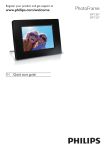
PhotoFrame
SPF2527
EN
Quick start guide
Register your product and get support at
www.philips.com/welcome
PhotoFrame
Quick Start Guide
English
Know these buttons
Control Buttons
Functions
- Press to turn on the PhotoFrame
- Press and hold to turn off the PhotoFrame
- Press to switch mode: slideshow/clock/calendar
- Press to go back step by step
- Press and hold to access the home screen
MENU
- Press to enter/exit a menu
OK (Joystick)
- Press to play, pause, or resume slideshow
- Press to confirm a selection
- Move up/down/right/left to select the upper/lower/right/left option
Know these keypad icons
Input in English
Input in supported European languages
Input in Simplified Chinese
Input in Russian
/ ABC
aA
Switch to select symbols, punctuations, alphabet or numbers
Switch between upper and lower case
Enter a blank space
Enter a line break
Startup
1
2
Connect the power cord to the DC socket
of the PhotoFrame and then to a power
supply socket.
» A few seconds later, the PhotoFrame
turns on automatically.
Move the joystick up/down to select a
language, and then press OK.
3
Move the joystick up/down/right/left to set
time and date, and then press OK.
4
To start PhotoFrame, select
[Start PhotoFrame] and then press OK.
5
To start slideshow, select [Play] and then
press OK.
•
•
•
To pause slideshow, press OK.
To resume slideshow, press OK again.
To turn off the PhotoFrame, press and
hold .
Transfer/Play media via a storage device
Media type supported:
•
•
•
Photo (JPEG)
Video clip
Background music
•
•
•
•
•
Secure Digital (SD)
Secure Digital High Capacity (SDHC)
Multimedia Card (MMC)
Memory Stick (MS)
Memory Stick Pro (MS Pro)
1
Insert a storage device into the PhotoFrame.
Storage device supported:
Note
• For details on the supported media
formats, see the digital User Manual in the
supplied CD-ROM.
2
3
» An option menu is displayed.
Select an option, and then press OK.
Follow the on screen instructions to:
• Play media on the storage device
• Browse media on the storage device
• Copy media on the storage device to
PhotoFrame
View a created message
View a pop-up message:
If you have a pop-up message, the
PhotoFrame prompts that you have a gift.
Then, press OK to view the message.
View a message via the home screen:
1
In the home screen, select [Message] and
then press OK
2
3
Select [View Message], and then press OK.
Move the joystick right/left to select a
message, and then press OK to view the
message.
Create a message
Tip
•
If there is no message created before, at power up
select [Personalize Frame] to add a message to
your photo or to view a message.
1
In the home screen, select [Message] and
then press OK.
2
Select [Add a message to your photo], and
then press OK.
3
Move the joystick right or left to select a
message template, and then press OK.
• Add music to the message.
• Edit the text of the message or change
photo of the message.
• Set the real time and date if applicable.
Select [Done].
4
5
6
•
•
» The screen prompts you to schedule the
message.
Schedule the message.
• [Message Name]: Enter the name
• [Repeat]: Select a repeat frequency
• [Set Date]: Set the date or day
• [Set Time]: Set the time
After you schedule the message, select
[Done] and then press OK.
To view the available messages, select
[View Message].
To go back to the home screen, press and
hold .
© 2010 Koninklijke Philips Electronics N.V.
All rights reserved.
Specifications are subject to change without notice.
Trademarks are the property of Koninklijke Philips
Electronics N.V. or their respective owners.
V1.0
Printed in China