1
DVP 1120
DVD Video Player
Quick Start Guide
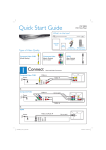
What’s in the box?
–
User
Manual
S
E U
SPLAY
E U
LE
SE UP
NEXT
PREV
PLAY/PAUSE
U E
STOP
SUBTITLE
ZOOM
DVD Video Player
Connect
1
Composite
Video Cables
AUDIO
REPEAT
REPEAT A-B
Remote Control
and 2 AAA batteries
Basic Audio/Video Connections
Composite Video CVBS
(Good Quality)
Video and Audio x
TV
VIDEO IN
(CVBS)
Power
OR
Component Video
(Better Quality)
Video x
Cable not supplied
TV
COMPONENT
VIDEO IN
VIDEO IN
(CVBS)
V (Pr/Cr)
U (Pb/Cb)
Y
Power
Audio x
OR
RF Modulator
RF Modulator (not supplied)
TV
Video and Audio x
RF coaxial cable
not supplied
Power
2
A
Set up
3
A
Finding the viewing channel
A Press 2 (STANDBY-ON) on this unit to turn it on.
Enjoy
Start disc playback
A Playback may start automatically when a disc has
been loaded in the disc tray.
–
Note If a disc menu appears on the TV, use
STW X keys to navigate in the DVD menu.
B Press PLAY/PAUSE u
to start playback.
C To stop playback, press
B Turn on the TV. Use the TVs remote control to
STOP Ç.
select the correct viewing channel.
Note To search for the correct viewing channel,
press the Channel Down button on the TVs remote
control repeatedly (or AV, SELECT, ° button) until
you see the Video In channel. If you are using a RF
modulator, set the TV to channel 3 or 4.
See the accompanying user manual on ‘Getting started’
for more information.
Troubleshooting
B
Select the display language on
the screen
A Press SETUP.
Language
Video
OSD language
English
Subtitle
Français (Canada)
Audio
Español mexic.
DVD menu
Audio
Rating
Misc
B Move to { Language } in the menu and press X.
C Use ST keys to select { OSD Language } in the
menu and press X.
D Select a language and press OK to confirm.
Note The language set here is only for the menus
that are shown on the TV while operating this unit, not
for the DVD disc menu.
There are various setup options available on this unit.
Refer to the user manual for more information.
Need help?
User Manual
See the user manual that came with your Philips DVD Player
Online
For more troubleshooting
tips, see the user manual.
No power
• Check if the AC power cord is properly connected.
• Press the STANDBY-ON on the top panel of this
unit to turn on the power.
No picture
• Check connection to TV and ensure the plugs are
firmly in place.
No sound or distorted sound
• Check audio connections and make sure that the
connected audio device is turned on.
Remote control does not work
• Check the batteries are loaded correctly or replace
the batteries with new ones.
• Reduce the distance between the remote control
and this unit.
• Point the remote control directly toward the IR
sensor.
2008 C Philips Consumer Lifestyle
A Division of Philips Electronics North America Corp
P.O. Box 671539
Marietta, GA 30006-0026
Register your product and get support at www.philips.com/welcome
Printed in China
Hotline
0816/37_eng1
Call 1-888-PHILIPS (1-888-744-5477) for our operators.